
How to Log into GoDaddy Pro: A Step-by-Step Guide
Opens a Google-translated copy of this article in a new tab.
TL;DR – Quick Takeaways
- GoDaddy Pro login uses your existing GoDaddy account – no separate credentials needed, just navigate to the Pro dashboard after signing in
- Access the Pro environment – after authentication, ensure you’re in the Pro dashboard (not the standard GoDaddy portal)
- Multiple sign-in methods available – use GoDaddy ID, SSO, or linked social logins depending on your setup
- Client collaboration is central – Pro lets you invite clients with controlled, password-free access to projects
- Common issues are fixable – forgotten passwords, MFA hiccups, and redirect loops have straightforward solutions
Logging into GoDaddy Pro should be straightforward, but if you’ve ever found yourself stuck in a redirect loop or wondering why you’re landing on the wrong dashboard, you’re not alone. The platform—a powerful hub for designers, developers, and agencies managing client projects—sits within the broader GoDaddy ecosystem, which can sometimes create confusion about which credentials to use and where exactly to click. In this guide, we’ll walk through the exact steps to log in to GoDaddy Pro, troubleshoot common snags, and navigate the dashboard like a pro once you’re inside.
Why does a smooth login experience matter? Beyond the obvious frustration of wasted time, secure and efficient access to your GoDaddy Pro account directly impacts your ability to deliver portfolios, manage client expectations, and keep projects on track. Whether you’re onboarding a new client or pushing a critical update, knowing the ins and outs of the login process—plus how to recover when things go sideways—means you’ll spend less time troubleshooting and more time building.
What GoDaddy Pro Is and Who Should Use It
GoDaddy Pro is a centralized client and project management platform tailored for web professionals. If you’re juggling multiple client sites, handling domain transfers, or coordinating design approvals, Pro brings together the tools you need in one dashboard. Think of it as your command center: you can monitor site performance, collaborate with clients, and manage billing—all without asking clients to remember yet another password.
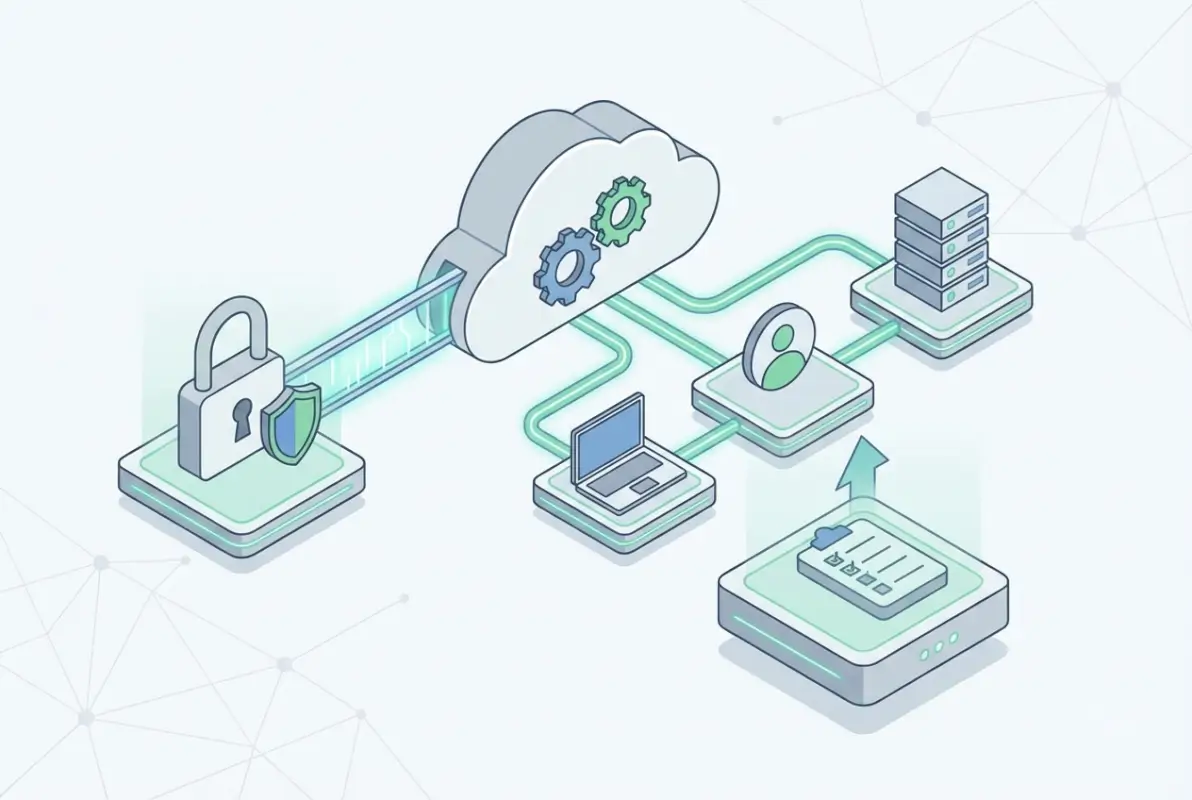
At its core, GoDaddy Pro integrates with the broader GoDaddy product suite (domains, hosting, WordPress management) and extends functionality for professionals who need more control and visibility. The platform is free to join, which makes it accessible for freelancers and small agencies, while still offering enterprise-grade features like client permissions, task management, and reporting dashboards.
Core Features Relevant to Login and Access
When you log in to GoDaddy Pro, you’ll land on a dashboard that shows an overview of all your client projects. Key features include:
- Multi-site management: View and manage domains, hosting accounts, and WordPress installations across all your clients from a single screen.
- Client collaboration tools: Invite clients to view project status, approve designs, or access specific resources—without giving them full account access.
- Task and ticketing systems: Track work requests, deadlines, and communications in a structured way.
- Integrations: Pro ties into ManageWP (formerly Orion) for WordPress-specific workflows, plus other GoDaddy services.
Understanding these features before you log in helps you orient yourself once inside. You’re not just logging into “another GoDaddy page”—you’re entering a workspace optimized for professional client delivery.
Quick-Start Prerequisites
Before you can log in to GoDaddy Pro, you need a GoDaddy account. Pro is an extension of your existing GoDaddy login, not a separate service requiring new credentials. If you already manage domains or hosting through GoDaddy, you’re most of the way there. Here’s what to verify:
- Active GoDaddy account: If you don’t have one, sign up on GoDaddy’s homepage.
- Pro eligibility: Signing up for Pro is free, but you’ll want at least one client project or domain to make the most of it.
- Login method: Decide whether you’ll use a GoDaddy username/password, single sign-on (SSO), or a linked social account (more on that in the next section).
Prerequisites and Access Options
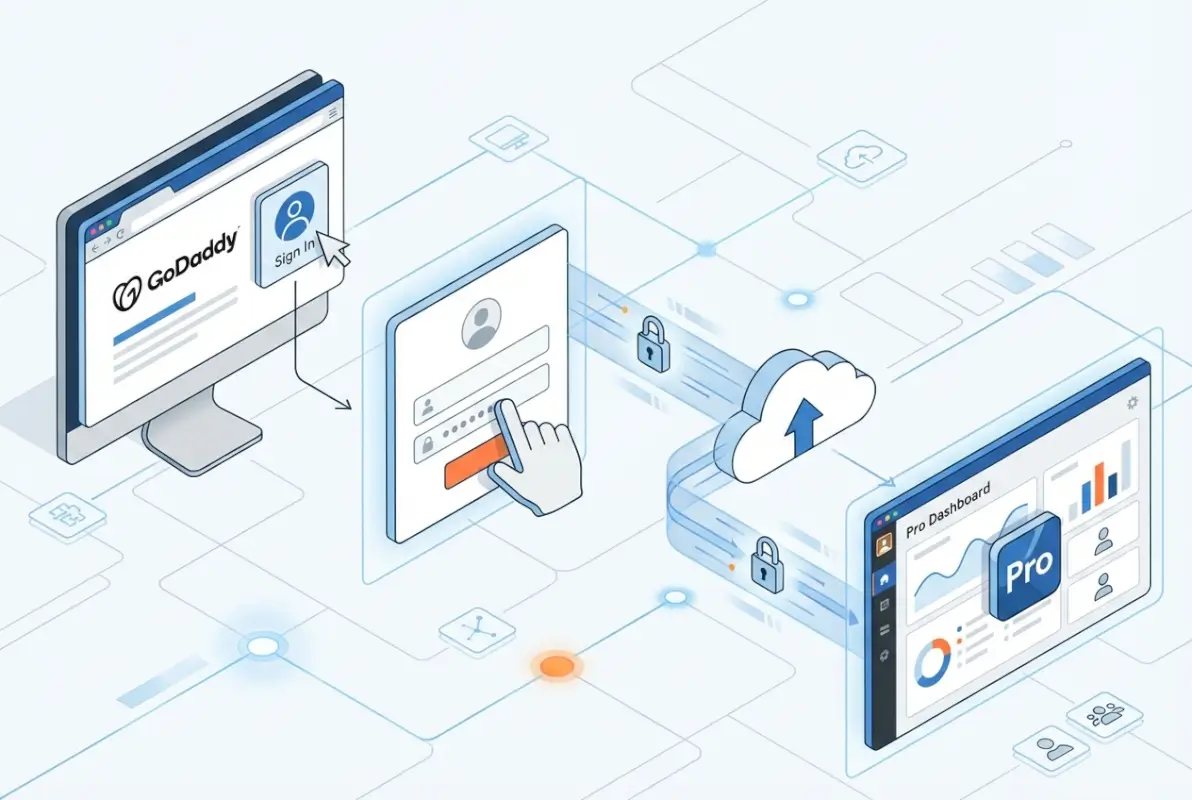
One of the most common points of confusion is whether GoDaddy Pro requires a separate login. The short answer: it doesn’t. GoDaddy Pro leverages your existing GoDaddy account credentials. However, how you access Pro—and which dashboard you land on after authentication—depends on your entry point and account configuration.
Required Accounts: GoDaddy Login vs. GoDaddy Pro Account
Your GoDaddy account is the foundational credential. Once you sign in with your GoDaddy username (usually an email address) and password, you can access any GoDaddy service tied to that account, including Pro. There’s no “GoDaddy Pro password” distinct from your main account password.
That said, you do need to explicitly activate or enroll in GoDaddy Pro. This is typically a one-click process from your GoDaddy account dashboard, and it’s free. Once enrolled, your Pro workspace becomes available under the same login. If you’re managing client sites or domains through Pro, those assets will link to your GoDaddy account, so keep your credentials secure and up to date.
Sign-In Methods: SSO, Social Login, and Password Requirements
GoDaddy supports several authentication paths:
- Username and password: The traditional method—enter your GoDaddy email and password at the login screen.
- Single sign-on (SSO): If your organization uses an identity provider (like Okta or Azure AD), GoDaddy may support SSO integration for enterprise accounts.
- Social login: GoDaddy has historically offered options to link Google or Facebook accounts for faster sign-in. Check the login page for current supported providers.
Regardless of method, best practice is to enable multi-factor authentication (MFA). This adds a second verification step (like a code sent to your phone) and dramatically reduces the risk of unauthorized access. GoDaddy’s account settings let you configure MFA in just a few clicks.
Step-by-Step: Logging In to GoDaddy Pro
Now for the practical walkthrough. Follow these steps to get from the GoDaddy homepage to your Pro dashboard without detours or dead ends.
Step 1 — Navigate to the GoDaddy Login Portal
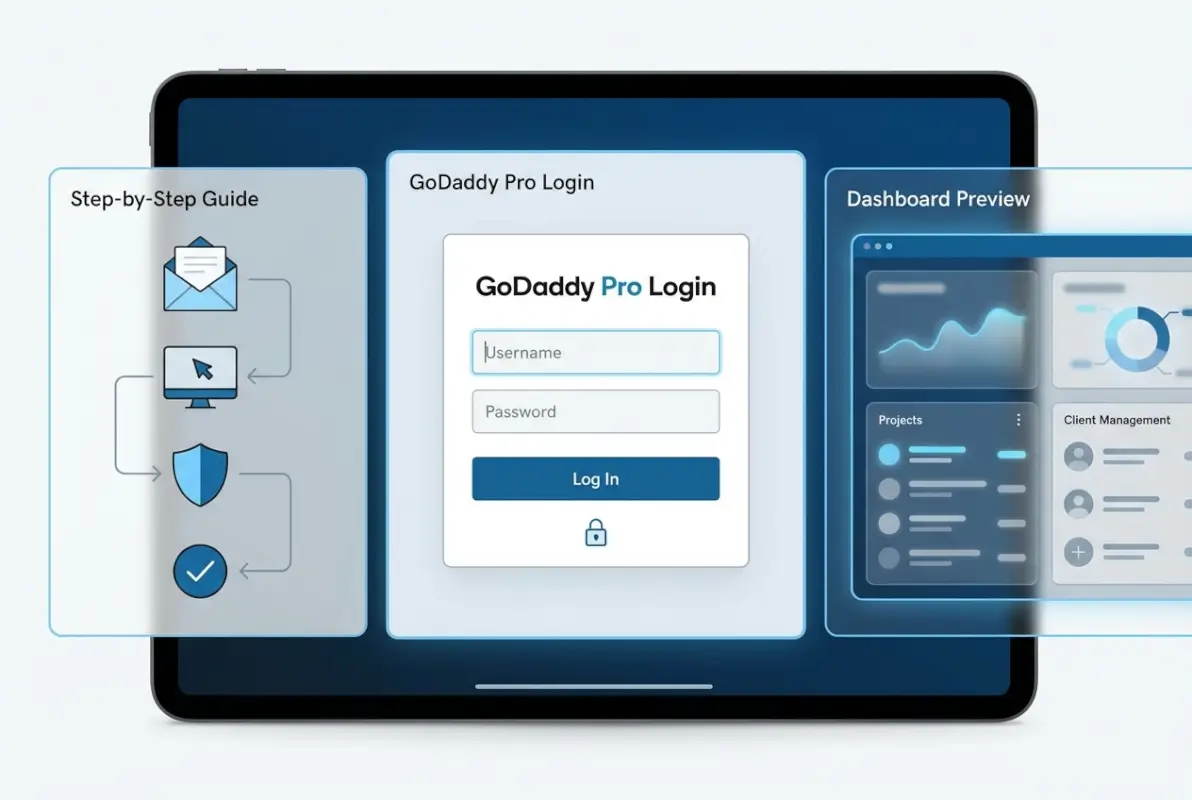
Start at GoDaddy.com. In the top-right corner, you’ll see a “Sign In” link. Click it. This takes you to the unified GoDaddy login page, which serves as the gateway for all GoDaddy products—domains, hosting, email, and Pro.
If you’ve bookmarked a direct link to your GoDaddy Pro dashboard (something like pro.godaddy.com), you may land directly on a Pro-specific login screen. Either way, you’ll enter the same credentials.
Step 2 — Authenticate Using Your Chosen Method
Enter your GoDaddy username (email) and password. If you’ve enabled MFA, you’ll be prompted to enter a verification code from your authenticator app or SMS. If you’re using SSO or social login, click the corresponding button and follow the provider’s authentication flow.
Double-check that you’re on a legitimate GoDaddy URL (look for the padlock icon and godaddy.com in the address bar). Phishing attempts often mimic login pages, so a moment of vigilance here can save a lot of headache later.
Step 3 — Access the GoDaddy Pro Dashboard Once Signed In
After successful authentication, you’ll typically land on your main GoDaddy account dashboard. To reach Pro, look for a “GoDaddy Pro” menu item or link—often found under a “My Products” or “Pro” section in the navigation. Clicking it will take you to your Pro workspace.
If this is your first time accessing Pro, you may see a welcome screen or quick-start wizard. Follow the prompts to complete your Pro profile and connect any existing client sites or domains.
Step 4 — Verify You’re in the Pro Environment
How do you know you’re in the Pro dashboard and not just the standard GoDaddy portal? Look for these visual cues:
- Dashboard layout: Pro dashboards feature project tiles, client lists, and collaboration tools that aren’t present in the standard GoDaddy account view.
- URL check: Your browser’s address bar should show a Pro-specific subdomain or path (e.g.,
pro.godaddy.com). - Navigation menu: Pro environments include menu items like “Clients,” “Projects,” and “Collaborations.”
If you’re still seeing the generic GoDaddy My Products page, navigate back to the Pro link or check your account to ensure Pro has been activated.
Common Login Scenarios and How to Troubleshoot
Even with clear steps, login issues happen. Here’s how to diagnose and fix the most frequent problems.

Forgotten Password or Locked Account
If you can’t remember your password, click the “Forgot Password?” link on the login page. GoDaddy will send a password-reset email to your registered address. Follow the link in that email to create a new password. Make sure to check your spam folder if the email doesn’t arrive within a few minutes.
Locked accounts (due to too many failed login attempts) usually unlock automatically after a short wait, but you can also contact GoDaddy support to expedite the process. Keep your account recovery information—like a secondary email or phone number—up to date to streamline this.
MFA or Authenticator Issues
If your authenticator app isn’t generating valid codes, check the time settings on your device. Time-based one-time passwords (TOTP) rely on synchronized clocks, and even a few minutes of drift can cause codes to fail. Most authenticator apps have a “sync time” option in settings.
Lost access to your authenticator device entirely? Use backup codes (if you saved them during MFA setup) or contact GoDaddy support with proof of identity to disable MFA temporarily so you can reconfigure it.
Browser Compatibility or “Unusual Browser” Warnings
GoDaddy’s login system may flag certain browsers or privacy extensions as “unusual,” especially if you’re using a VPN, ad blocker, or outdated browser version. Try these steps:
- Update your browser: Modern versions of Chrome, Firefox, or Edge work best.
- Disable extensions temporarily: Privacy tools can interfere with cookies or scripts GoDaddy uses for login.
- Clear cache and cookies: Stale session data can cause redirect loops or authentication failures.
If you continue to see warnings, try logging in from an incognito or private browsing window to rule out extension conflicts.
Redirects Between GoDaddy Pro and Other GoDaddy Portals
Sometimes you’ll click a Pro link and end up back at the main GoDaddy dashboard, or vice versa. This usually happens because of session state mismatches or bookmarks pointing to the wrong subdomain. To fix:
- Log out completely from all GoDaddy services, clear your browser cache, and log in fresh.
- Use the official Pro navigation link from your GoDaddy account dashboard rather than a saved URL.
- Check for browser redirects caused by ad blockers or privacy settings that interfere with GoDaddy’s routing logic.
Navigating the GoDaddy Pro Dashboard After Login
Once you’re inside, the GoDaddy Pro dashboard is your central workspace for managing client projects. Here’s what you’ll see and how to use it effectively.

Overview of the UI: Projects, Clients, and Collaborations
The Pro dashboard typically opens to a project overview screen. You’ll see tiles or cards representing each client or site you’re managing. Each tile shows key metrics: uptime status, pending tasks, recent activity, and quick-action buttons for common operations (like accessing WordPress admin or managing DNS).
The main navigation menu includes sections like:
- Clients: A directory of all clients you’ve added, with contact info and associated projects.
- Projects: A list of active and archived client sites, organized by status or deadline.
- Collaborations: Tools for inviting team members or clients to specific projects, setting permissions, and tracking communications.
Spend a few minutes exploring each section when you first log in. The interface is designed to be intuitive, but knowing where to find task lists, billing info, and client permissions will save you time down the road.
How to Add or Invite Clients, Grant Access, and Manage Permissions
Adding a client in GoDaddy Pro is straightforward. From the Clients section, click “Add Client” and enter their name and email. You can then link existing GoDaddy products (domains, hosting) or create new projects from scratch.
When you invite a client to collaborate, Pro generates a secure link they can use to access project details—no password required on their end. You control what they can see and do through granular permissions:
- View-only access: Clients can see project status and deliverables but can’t make changes.
- Approve-only access: Clients can approve or reject design mockups, content, or milestones.
- Full access: Rarely needed, but you can grant clients admin-level control if a project requires it.
Pro’s client collaboration features are a standout. Instead of juggling email chains and shared spreadsheets, you centralize communications and approvals in one place. This reduces miscommunication and keeps projects moving.
Quick Actions for Day-to-Day Workflows
The Pro dashboard includes shortcuts for frequent tasks:
- Create a new project: Click the “+” icon to spin up a new client site or add a domain.
- Access WordPress admin: One-click login to any WordPress site you manage through Pro (powered by ManageWP integration).
- Run reports: Generate uptime, performance, or billing reports to share with clients or keep for your records.
- Manage tasks: Assign to-dos to yourself or team members, set due dates, and track completion.
| Dashboard Section | Primary Use | Best For |
|---|---|---|
| Projects | Monitor site health and status | Daily check-ins, uptime alerts |
| Clients | Manage contact info and permissions | Onboarding new clients |
| Collaborations | Invite users, set access levels | Team projects, client reviews |
| Reports | Generate performance summaries | Client billing, quarterly reviews |
Managing Clients, Access, and Security
Client management is where GoDaddy Pro really shines. By centralizing permissions and communications, you reduce the risk of accidental changes or security lapses while keeping clients in the loop.
Inviting Clients with Controlled Access and Password-Free Interactions
When you send a client invitation from Pro, the client receives an email with a secure link. They click the link and land directly in a read-only or approval-ready view of their project—no need to create a GoDaddy account or remember another password. This is a huge win for user experience, especially with less tech-savvy clients.
You can revoke or modify access at any time from the Collaborations panel. If a project wraps up or a client relationship ends, simply remove their access with a click.
Rights and Permissions: “Domains Only” and Other Fine-Grained Controls
GoDaddy Pro lets you grant permissions at a granular level. For example, you might give a client “Domains Only” access, allowing them to view DNS records and domain settings but not touch hosting or WordPress configurations. Other permission levels include:
- View project status: See milestones, deadlines, and deliverables without editing rights.
- Approve deliverables: Mark items as approved or request revisions.
- Manage billing: Access invoices and payment history (useful for corporate clients with dedicated finance teams).
Setting the right permissions up front prevents scope creep and accidental errors. I’ve seen projects derailed by clients who accidentally changed a DNS record or WordPress setting they didn’t understand—Pro’s permission model prevents that.
Best Practices for Secure Logins and MFA Management in a Professional Setup
Security should be non-negotiable when you’re managing client assets. Here’s how to keep your Pro account locked down:
- Enable MFA on your account: Use an authenticator app (like Microsoft Authenticator or Google Authenticator) rather than SMS for stronger security.
- Use unique, complex passwords: A password manager can generate and store strong credentials.
- Audit permissions regularly: Review who has access to each project quarterly. Remove former team members or clients whose projects have ended.
- Monitor login activity: GoDaddy’s account settings include a log of recent sign-ins. Check it periodically for unfamiliar IP addresses or devices.
Tips for a Smooth Cross-Platform Experience
GoDaddy Pro isn’t just a desktop tool. You’ll likely access it from mobile devices, tablets, and different browsers depending on where you’re working. Here’s how to ensure a consistent experience across platforms.
Using GoDaddy Pro on Mobile vs. Desktop
While GoDaddy Pro doesn’t have a standalone mobile app at the time of writing, the web interface is mobile-responsive. You can log in from your phone or tablet’s browser and access most features. The mobile layout condenses navigation into a hamburger menu and stacks project cards vertically for easier scrolling.
Mobile is great for quick status checks, approving deliverables, or responding to client messages. For complex tasks—like setting up new projects, configuring DNS, or generating detailed reports—desktop is still the better choice due to screen real estate and keyboard shortcuts.
Integrations and Related Tools: WordPress, ManageWP, and the Broader Ecosystem
GoDaddy Pro integrates tightly with ManageWP (formerly Orion), which provides WordPress-specific management features like bulk updates, backups, and security scans. If you manage WordPress sites for clients, you’ll find that Pro and ManageWP work together seamlessly.
Logging into ManageWP typically uses the same GoDaddy credentials, but you may need to link your accounts the first time. Once linked, you can jump between Pro and ManageWP dashboards without re-authenticating, which speeds up workflows significantly.
Other GoDaddy products—like email hosting, SSL certificates, and domain registration—are accessible through the same unified login. Knowing how to navigate between these tools without losing your session or getting redirected to the wrong portal is key to efficient multi-tasking.
Security Best Practices for GoDaddy Pro Logins
Your GoDaddy Pro account is a gateway to valuable client data and live websites. Protecting it goes beyond a strong password; you need a layered security approach.
Password Hygiene and MFA Recommendations
Use a unique password for your GoDaddy account—never recycle passwords from other services. A password manager (like LastPass or Bitwarden) can generate and store complex credentials securely.
Multi-factor authentication (MFA) should be mandatory. Time-based one-time passwords (TOTP) via an authenticator app are more secure than SMS codes, which can be intercepted. Enable MFA in your GoDaddy account settings and keep backup codes in a secure location (like a password manager or encrypted note).
Recognizing Phishing and Login-Scamming Attempts
Phishing attacks targeting GoDaddy users are common. Scammers send emails that look like official GoDaddy notifications, complete with fake login forms designed to steal your credentials. How to spot them:
- Check the sender’s email domain: Legitimate GoDaddy emails come from
@godaddy.comaddresses, not lookalikes like@godaddy-support.net. - Hover over links before clicking: Verify the URL matches
godaddy.comor a known subdomain. - Look for HTTPS and the padlock icon: Phishing sites often lack proper SSL certificates.
- Never enter credentials from an email link: Instead, navigate to GoDaddy.com manually and log in from there.
If you receive a suspicious email, forward it to GoDaddy’s security team or report it through their official support channels.
Routine Account-Recovery and Audit Steps
Set up account recovery options—like a secondary email or phone number—before you need them. Test the password-reset flow at least once a year to ensure your recovery information is current.
Audit your account quarterly:
- Review login history: Look for unfamiliar IP addresses or devices.
- Check active sessions: GoDaddy lets you see and revoke active sessions from the account settings.
- Update permissions: Remove access for former team members or clients whose projects have ended.
- Verify linked services: If you use SSO or social login, make sure those accounts are also secure and up to date.
Troubleshooting: When Login Fails and What to Do Next
Even with all the right credentials and security measures, login issues still crop up. Here’s a diagnostic flow to identify and fix the problem quickly.
Step-by-Step Diagnostic Flow
Start by asking these questions:
- Are you using the correct username? Double-check that you’re entering the email associated with your GoDaddy account.
- Is your password correct? Try resetting it if you’re unsure.
- Is MFA working? Verify that your authenticator app is synced and generating valid codes.
- Is your browser supported? Update to the latest version or try a different browser.
- Are you on the right login page? Verify the URL is
godaddy.comand not a phishing site.
If all credentials and settings are correct but you still can’t log in, the issue may be on GoDaddy’s end (server downtime, maintenance) or with your network (firewall, VPN). Check GoDaddy’s status page for service disruptions.
How to Contact Support and What Information to Gather
When you contact GoDaddy support, have this information ready:
- Your account username (email)
- The approximate date and time of the login attempt
- Any error messages or codes displayed
- Browser and operating system details
- Whether you’ve successfully logged in before (new account vs. existing user)
GoDaddy offers support via phone, chat, and email. For urgent login issues—especially if you’re locked out during a critical project—phone or chat support tends to be fastest.
What to Do If Pro Access Seems Blocked or Inconsistent
If you can log in to standard GoDaddy services but can’t reach the Pro dashboard, check these possibilities:
- Pro not activated: Ensure you’ve enrolled in GoDaddy Pro from your account settings.
- Permissions issue: If you’re accessing Pro through a team or agency account, verify that your user role includes Pro access.
- Redirect loop: Clear your browser cache and cookies, then try logging in again from an incognito window.
How to Log Out and Re-Authenticate Safely
Logging out properly is just as important as logging in securely, especially on shared or public devices.
Proper Sign-Out Process
From any GoDaddy or Pro page, click your account name or profile icon in the top-right corner. Select “Sign Out” from the dropdown menu. This ends your session and clears authentication tokens from the browser.
Never just close the browser tab and assume you’re logged out. Active sessions can persist for hours or even days, leaving your account vulnerable on shared computers.
Clearing Sessions and Re-Authenticating Across Devices
If you’ve logged in from multiple devices—desktop, laptop, phone—you can view and manage active sessions from your GoDaddy account settings. Revoke any sessions you don’t recognize or that belong to devices you no longer use.
When you log back in, you may be prompted to verify your identity again (especially if you’re using a new device or IP address). This is normal and indicates that GoDaddy’s security systems are working as intended.
Re-Linking or Re-Authenticating Services After Sign-Out
If you use integrations like ManageWP or SSO, signing out from GoDaddy may also sign you out of those services. When you log back in, you might need to re-authenticate linked accounts. Keep your SSO credentials or social login details handy to streamline this process.
Frequently Asked Questions
How do I sign in to GoDaddy Pro if I already have a standard GoDaddy account?
You use the same login credentials for both. After signing in to your GoDaddy account at GoDaddy.com, navigate to the GoDaddy Pro section from your account dashboard. If you haven’t enrolled in Pro yet, you’ll see a prompt to activate it (it’s free). Once activated, Pro features appear under the same login session.
What should I do if I forget my GoDaddy Pro password?
Click “Forgot Password?” on the GoDaddy login page and follow the email instructions to reset it. Because Pro uses your main GoDaddy account password, resetting it will restore access to all GoDaddy services. If multi-factor authentication is enabled, you’ll need access to your authenticator app or backup codes to complete the reset.
Can I use Google or Facebook to log in to GoDaddy Pro?
GoDaddy supports linked social logins for some accounts. During the sign-in process, look for options to authenticate with Google, Facebook, or other providers. If available, you can link these accounts to your GoDaddy profile for faster login. Check the sign-in page or GoDaddy’s help documentation for the latest supported methods.
How do I invite a client to my GoDaddy Pro workspace?
From your Pro dashboard, go to the Clients section and click “Add Client.” Enter their name and email, then choose which projects to share and what permissions to grant. The client receives a secure email link to access their project view without needing to create a separate GoDaddy account or remember a password.
What should I do if I get redirected to a non-Pro GoDaddy page after login?
This usually means you’re landing on the general GoDaddy account dashboard instead of the Pro workspace. Look for a “GoDaddy Pro” link or menu item and click it to navigate to Pro. If redirects persist, clear your browser cache, disable extensions temporarily, and try logging in from an incognito window.
Is there a mobile app or mobile-optimized experience for GoDaddy Pro?
At present, GoDaddy Pro is accessible via any mobile browser with a responsive design that adapts to smaller screens. While there isn’t a dedicated mobile app, you can bookmark the Pro dashboard URL on your phone’s home screen for quick access. Most core features work well on mobile, though complex tasks are easier on desktop.
Where can I learn about new GoDaddy Pro features?
GoDaddy publishes updates and tutorials on their Help Center, official blog, and resource hubs like GoDaddy Garage. You can also subscribe to email newsletters from your account settings to receive announcements about Pro enhancements, new integrations, and best-practice guides.
Do I need a paid GoDaddy account to use GoDaddy Pro?
GoDaddy Pro itself is free to join and use. However, you do need a GoDaddy account to enroll, and you’ll likely want at least one active product (domain, hosting, or WordPress site) to make the most of Pro’s client and project management features. Pro doesn’t charge a subscription fee, but the products you manage through it may have their own costs.
Can I manage multiple client accounts from a single GoDaddy Pro login?
Yes, that’s exactly what GoDaddy Pro is designed for. You can add as many clients and projects as you need under one Pro account. Each client can have unique permissions and access levels, and you control everything from a single dashboard. This makes Pro ideal for agencies and freelancers juggling multiple client relationships.
What happens if I change my GoDaddy account password—do I need to update anything in Pro?
No separate update is required. Because GoDaddy Pro uses your main GoDaddy account credentials, changing your password in one place (via account settings) automatically updates access for Pro. The next time you log in to Pro, use the new password. If you’ve enabled MFA, that remains active and unchanged unless you explicitly modify it.
Conclusion
Logging into GoDaddy Pro doesn’t have to be a guessing game. By understanding the relationship between your GoDaddy account and the Pro environment, preparing your credentials in advance, and following the step-by-step authentication flow, you’ll land in the right dashboard every time. From there, the platform’s client collaboration tools, project management features, and integrations with WordPress and ManageWP help you deliver work faster and more securely.
Remember to enable multi-factor authentication, audit your account permissions regularly, and keep your recovery information current. These small steps prevent big headaches down the road, especially when you’re managing critical client assets. If login issues do arise—forgotten passwords, MFA glitches, or redirect loops—the troubleshooting flows outlined here will get you back on track quickly.
Whether you’re a solo freelancer or part of a growing agency, GoDaddy Pro’s centralized workspace can save you hours each week. Take a few minutes today to verify your login, explore the dashboard, and set up client permissions the right way. Your future self (and your clients) will thank you.
Was this article helpful?