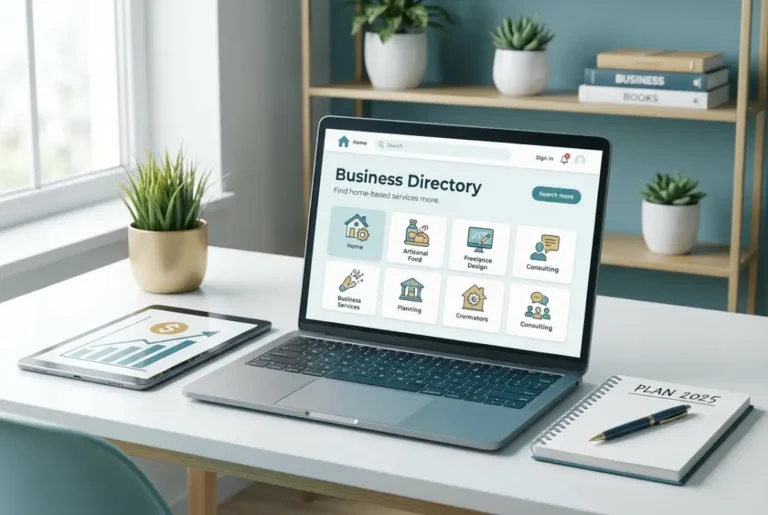
5 Easy Steps to Make a Directory Available Online

Generating summary...
You’ve got a great idea for a directory website—maybe it’s a local business listings hub, a resource library, or a member directory. But there’s a problem: that brilliant idea is still locked in a spreadsheet or stuck in your head, and it’s not doing anyone any good sitting there. Making a directory available online might sound daunting (especially if you’re not a developer), but it doesn’t have to be. In fact, with the right approach, you can launch a functional, searchable directory in less time than you’d think.
Here’s what most guides won’t tell you upfront: the hardest part isn’t the technical setup—it’s making the early decisions that determine whether your directory becomes a go-to resource or just another forgotten corner of the web. I remember launching my first directory years ago and spending weeks tweaking the design, only to realize I’d built it on a hosting plan that couldn’t handle traffic spikes. That taught me that planning your foundation first saves you from costly do-overs later.
This guide walks you through 5 concrete steps to get your directory online, from choosing hosting to launching with basic SEO in place. We’ll skip the fluff and focus on what actually works, whether you’re a complete beginner or you’ve dabbled in website publishing before.
TL;DR – Quick Takeaways
- Step 1: Plan and choose hosting – Define your directory’s scope, pick a hosting approach that scales with your needs, and secure a memorable domain.
- Step 2: Set up hosting and DNS – Provision your server environment, point your domain via DNS records, and enable HTTPS for security.
- Step 3: Build or install directory software – Choose between WordPress plugins, dedicated directory platforms, or custom builds based on your technical comfort.
- Step 4: Upload content and configure pages – Seed initial listings, create intuitive navigation, and optimize for performance and accessibility.
- Step 5: Launch and optimize – Test thoroughly, set up analytics, and commit to ongoing content updates and security maintenance.
Step 1 — Plan Your Directory and Choose the Right Hosting
Before you write a single line of code or install a plugin, you need clarity on what your directory will actually do. This isn’t about perfectionism, it’s about avoiding the trap of building something that doesn’t fit your users’ needs or your own capacity to maintain it.

Define the directory’s scope and data model
Start by mapping out what a “listing” means in your directory. Will each entry include just a title, description, and contact info? Or do you need custom fields for ratings, opening hours, location coordinates, social media links, and image galleries? The more complex your data model, the more robust your storage and search capabilities need to be.
Here’s a practical exercise: write down 5-10 sample listings by hand (or in a spreadsheet). Notice what fields keep showing up—those are your core data points. For a local business directory, that might be business name, category, address, phone, website, hours, and a brief description. For a resource library, it might be title, author, topic tags, publication date, and a download link.
Also decide early whether you’ll store data in flat files (like JSON or CSV) or a database (MySQL, PostgreSQL). Flat files work fine for small, static directories (say, under 100 listings with infrequent updates), but databases are better for anything that needs search, filtering, user-submitted content, or frequent updates.
Select a hosting approach (shared hosting, VPS, or cloud)
Your hosting choice is one of those foundational decisions that’s easier to get right the first time than to migrate later. Here’s the honest breakdown:
| Hosting Type | Best For | Pros | Cons |
|---|---|---|---|
| Shared Hosting | Small directories (<500 listings), tight budgets | Affordable, easy setup, managed updates | Limited resources, slower under load |
| VPS (Virtual Private Server) | Growing directories, custom configuration needs | Dedicated resources, scalable, full control | Requires technical know-how, more expensive |
| Cloud Hosting | Large-scale directories, traffic spikes, global reach | Auto-scaling, high uptime, geographic distribution | Can get pricey, steeper learning curve |
For most directory projects, shared hosting is a fine starting point if you’re using WordPress with a directory plugin and don’t expect thousands of simultaneous visitors right away. If you’re building something custom or anticipate rapid growth, a VPS gives you room to grow without migrating later.
Don’t forget the boring-but-critical stuff: uptime guarantees (aim for 99.9% or better), automated backups (daily is ideal), and basic security features like firewall rules and DDoS protection. You don’t want to wake up one morning to find your directory offline because your host’s server went down and there’s no backup.
Domains and branding
Your domain name is part of your brand identity and your SEO foundation. Go for something short, memorable, and descriptive—ideally, it should hint at what the directory does. If you’re building a directory of vegan restaurants in Austin, something like “AustinVeganEats.com” is infinitely better than “MyDirectory123.com”.
Think ahead about URL structure too. Will you have category pages like /restaurants/italian or location pages like /austin/downtown? Planning this early makes it easier to set up clean, SEO-friendly URLs later.
Security and compliance basics
Even a simple directory needs basic security hygiene. At minimum, you’ll want:
- SSL/TLS certificate for HTTPS (often free via Let’s Encrypt)
- Strong passwords and two-factor authentication for admin accounts
- Basic input validation if you allow user-submitted listings (to prevent spam and malicious code)
- Privacy policy if you collect any user data, especially email addresses
If your directory serves EU visitors, you’ll also need to think about GDPR compliance (cookie consent, data access requests, etc.). It’s not as scary as it sounds, most hosting providers and CMS platforms have plugins or guides to help you stay compliant.
Step 2 — Set Up Your Hosting Environment and DNS
Once you’ve picked your hosting and registered a domain, it’s time to wire everything together so the world can actually reach your directory. This step feels a bit technical, but most hosting providers have simplified it to the point where you’re mostly just clicking through setup wizards.

Provision and configure hosting
If you chose shared hosting, your provider likely gives you a control panel (cPanel, Plesk, or similar) where you can create your website with a few clicks. For WordPress-based directories, many hosts offer one-click WordPress installs that handle the database setup and file uploads for you.
For VPS or cloud hosting, you’ll provision a server instance and install a web server stack—commonly LAMP (Linux, Apache, MySQL, PHP) or LEMP (Linux, Nginx, MySQL, PHP). Linode’s documentation has step-by-step guides for this if you’re going the VPS route. Once your stack is running, create a directory on the server (e.g., /var/www/yourdirectory) where your site files will live.
Acquire and configure a domain
With your hosting ready, it’s time to point your domain at it. This involves updating your domain’s DNS records—specifically, the A record (for IPv4) or AAAA record (for IPv6) to point to your server’s IP address. If your hosting and domain registrar are the same company, this is often automated. If not, you’ll log into your domain registrar, find the DNS management panel, and add or update the A record.
For example, if your server IP is 203.0.113.42, you’d create an A record for @ (the root domain) pointing to that IP, and often another for www as a CNAME alias to the root.
nslookup or DNS Checker to verify propagation.DNS propagation and verification
Once you’ve updated DNS records, patience is key. While you wait for propagation, you can usually still access your site via the server’s direct IP address to continue setup work. Just don’t announce your directory publicly until DNS is fully propagated—otherwise, some visitors won’t be able to reach it yet.
To verify everything is working, open a terminal (or command prompt) and run nslookup yourdomain.com. If it returns your server’s IP, you’re good to go. If it still shows the old IP or no result, wait a bit longer and check again.
Prepare for public access
Before you let the world in, lock down the basics. Configure your server’s firewall to allow only necessary ports (typically 80 for HTTP, 443 for HTTPS, and 22 for SSH if you’re managing a VPS). Enable HTTPS by installing an SSL certificate—Let’s Encrypt provides free certificates, and most hosting panels have built-in wizards to automate this.
Also run a quick security audit: disable directory browsing, remove default “test” pages, and ensure your CMS or directory software is updated to the latest version. These small steps prevent common exploits and keep your directory safe from day one.
Step 3 — Build or Install Your Directory Software
Now comes the fun part—actually building the directory itself. You have three main paths here: no-code/low-code platforms, WordPress with directory plugins, or custom development. Each has trade-offs, and the right choice depends on your technical skills, budget, and how unique your directory needs to be.

Choose your directory platform (no-code, CMS, or custom)
If you’re not a developer and want something up fast, WordPress with a directory plugin is the sweet spot. Plugins like Business Directory Plugin, GeoDirectory, or Listify give you listing management, search filters, maps, and submission forms out of the box. You’ll spend most of your time configuring settings and designing templates rather than coding.
For those who want even less technical work, no-code builders (like Brilliant Directories or Knack) offer hosted solutions where you design your directory through a visual interface. The downside? You’re locked into their ecosystem and usually pay monthly fees that add up over time.
If you have development skills (or budget to hire someone), a custom-built directory gives you total control. You can build exactly the features you need using frameworks like Django, Rails, or Laravel. This route makes sense if your directory has complex requirements—say, multi-level categories, advanced filtering, or integrations with third-party APIs—that off-the-shelf solutions can’t handle well.
| Approach | Time to Launch | Customization | Ongoing Cost |
|---|---|---|---|
| No-Code Platform | Days | Limited by platform | Monthly subscription |
| WordPress + Plugin | 1-2 weeks | Moderate (themes, plugins) | Hosting + plugin licenses |
| Custom Build | Weeks to months | Unlimited | Developer time + hosting |
For most people reading this guide, WordPress is the pragmatic choice. It’s flexible enough to grow with your directory but doesn’t require you to reinvent the wheel.
Structure your directory
Regardless of your platform, you need to plan your core page types. At minimum, a directory should have:
- Homepage: overview, featured listings, search bar
- Category pages: listings grouped by type (e.g., “Restaurants,” “Plumbers,” “Tech Resources”)
- Location pages: listings grouped by geography (if location-based)
- Listing detail pages: individual entry with full information, images, contact details, map
- Search/filter interface: let users narrow down by keyword, category, location, rating, etc.
Think about how users will navigate. Will they browse by category first, then location? Or search by keyword and refine with filters? Your navigation menu and internal linking should match these user journeys. I’ve seen directories fail simply because users couldn’t figure out how to find what they needed—don’t let that be you.
Implement essential features
A directory without search is just a glorified list. Prioritize these must-have features:
- Search and filters: keyword search, category/tag filters, location radius search (if applicable)
- Submission forms: let users (or businesses) submit new listings; include moderation to prevent spam
- Moderation workflow: review and approve listings before they go live
- Basic analytics: track page views, popular searches, and listing engagement
If you’re using WordPress, plugins handle most of this. For custom builds, you’ll integrate search libraries (like Elasticsearch or Algolia) and build admin interfaces for moderation.
Data integrity and backups
From day one, set up automated backups. Whether you’re on WordPress (plugins like UpdraftPlus make this easy) or a custom stack (cronjobs to back up database and files), you need a recovery plan. Mistakes happen—someone might accidentally delete listings, a plugin update could break your site, or a server could fail. Daily backups (stored offsite) mean you can roll back with minimal data loss.
Also validate user-submitted data. If your directory accepts listings via a form, sanitize inputs to prevent XSS attacks and SQL injection. Most modern frameworks and CMS platforms have built-in protections, but double-check your settings.
Step 4 — Upload Content and Configure Core Pages
At this stage, your directory platform is installed and configured, but it’s still an empty shell. Now you’ll populate it with initial content, set up navigation, and polish the user experience so it’s ready for launch.
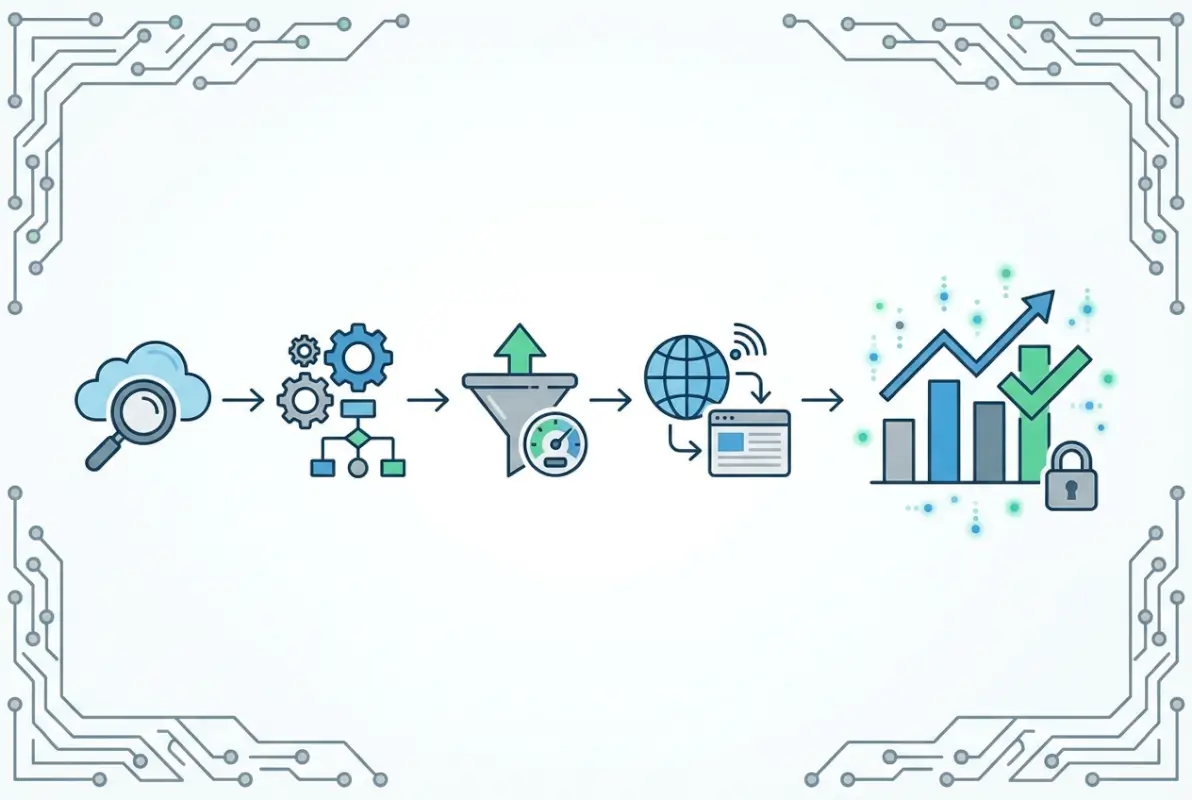
Prepare content templates
Before you add listings, finalize your templates. Each listing should have a consistent layout—this makes your directory look professional and helps users quickly scan information. Typical listing templates include:
- Title/name
- Category badge or icon
- Short description (1-2 sentences)
- Full description (a few paragraphs)
- Contact details (phone, email, website)
- Address and embedded map (if location-based)
- Images or logo
- User ratings/reviews (if applicable)
- Social media links
Design these templates for scannability: use headings, bullet points, and whitespace. A wall of text on a listing page will drive users away, even if the information is useful.
Upload or seed initial data
A directory with zero listings feels abandoned. Even if you’re launching soft and plan to grow through user submissions, seed it with 20-50 quality listings to demonstrate value. For a local business directory, this might mean manually adding well-known businesses. For a resource library, it could be curated articles or tools.
If you have listings in a spreadsheet, most directory platforms support CSV import. Clean your data first—remove duplicates, standardize formatting (especially phone numbers and addresses), and ensure every listing has a category assigned.
Create navigation and sitemap
Your main navigation should make it obvious how to explore the directory. Common menu structures include “Browse by Category,” “Browse by Location,” “Submit a Listing,” and “About.” Keep it simple—three to five top-level menu items is usually enough.
Also generate an XML sitemap to help search engines discover all your pages. WordPress plugins (like Yoast SEO or RankMath) do this automatically. For custom builds, use a sitemap generation library or script. Submit your sitemap to Google Search Console and Bing Webmaster Tools to speed up indexing.
Don’t forget internal linking. Link from your homepage to top categories, from category pages to popular listings, and from listings back to relevant category or location pages. This not only helps users navigate, it distributes SEO link equity throughout your site and helps you rank better for targeted business directory keywords.
Accessibility and performance basics
Before you launch, run a quick accessibility check. Ensure images have alt text, form fields have labels, and color contrast meets WCAG guidelines (tools like WAVE can scan your site for issues). Accessible directories reach more users and often rank better in search, it’s a win-win.
On the performance side, optimize images (compress them and use modern formats like WebP), minify CSS and JavaScript, and enable caching. Slow-loading directories frustrate users and hurt SEO. Aim for a page load time under 3 seconds on mobile. Tools like Google PageSpeed Insights will give you a performance score and specific recommendations.
Step 5 — Launch, Monitor, and Optimize
You’re almost there. Your directory is built, content is in place, and DNS is pointing correctly. But don’t hit “publish” just yet—a successful launch requires deliberate testing, a readiness checklist, and a plan for ongoing maintenance.

Test end-to-end
Before going live, walk through every major user flow. Can visitors search for a listing, filter by category, and view the detail page? If you have a submission form, does it work and trigger the moderation workflow? Test on multiple browsers (Chrome, Firefox, Safari, Edge) and on both desktop and mobile.
Also verify that your domain resolves correctly—visit your site in an incognito/private window to see what a first-time visitor sees. Check that HTTPS is working (no browser warnings) and that all internal links go to the right pages. It’s embarrassing to launch and then discover half your links 404.
Launch readiness checks
Run through this pre-launch checklist:
- SEO basics: Every page has a unique title tag and meta description, headings use proper hierarchy (H2, H3), and images have alt text.
- Analytics: Google Analytics (or your preferred tool) is installed and tracking page views, search queries, and conversions.
- Backups enabled: Automated daily backups are configured and tested (restore one backup to make sure it works).
- Security headers: HTTPS is enforced (HTTP redirects to HTTPS), and basic security headers (like X-Content-Type-Options) are in place.
- Contact/support page: Users have a way to report issues or ask questions.
- Privacy policy and terms: Legal pages are published and linked in the footer.
If everything checks out, it’s time to flip the switch. Announce your directory on social media, email your network, and (if relevant) submit it to business listing directories to build initial backlinks.
Ongoing maintenance
Launching is just the beginning. A directory is only valuable if it stays current and accurate. Set up a regular maintenance schedule:
- Weekly: Review new user submissions, moderate spam, and check analytics for issues (sudden drop in traffic, broken links).
- Monthly: Update core software and plugins, review user feedback, and audit a sample of listings for accuracy.
- Quarterly: Refresh outdated listings, add new categories if needed, and run a full SEO audit to identify new keyword opportunities.
Also keep an eye on security patches. If you’re on WordPress, enable automatic updates for minor versions and check for plugin updates weekly. For custom builds, subscribe to security mailing lists for your framework and dependencies.
Optional: growth and optimization strategies
Once your directory is stable, focus on growth. Some tactics that work well:
- Content marketing: Publish blog posts or guides related to your directory’s niche (e.g., “Top 10 Italian Restaurants in Austin” for a restaurant directory). This drives organic traffic and positions your directory as an authority.
- Directory-specific SEO: Optimize category and location pages with unique, descriptive copy. Don’t just auto-generate thin pages—write a paragraph or two explaining what makes each category or location special.
- User-generated content: Encourage reviews, ratings, or user-submitted photos. This keeps content fresh and increases engagement.
- Email outreach: Invite businesses or contributors to claim and enhance their listings. Many will add richer content (photos, detailed descriptions) if you prompt them.
Remember, sustainable growth comes from consistently delivering value. If users find your directory helpful, they’ll return and recommend it to others.
Directory-Specific Best Practices (Cross-cutting Considerations)
Beyond the five main steps, there are some cross-cutting best practices that apply throughout your directory’s lifecycle. Let’s cover the big ones.
SEO and discoverability for directory pages
Directories are uniquely positioned to rank well for “near me” and category-based searches—think “plumbers in Denver” or “free design resources”—but only if you structure your pages correctly. Each category and location page should have:
- A unique, descriptive H1 heading (e.g., “Plumbers in Denver”)
- A short introductory paragraph with the target keyword naturally included
- Listings displayed below, often with pagination or infinite scroll
- Optional: FAQ section or local tips to add more content
Avoid thin content. A category page that’s just a bare list of links won’t rank well. Add a few sentences of context, and consider schema markup (like ItemList) to help search engines understand the page structure.
Data quality and moderation
Your directory’s reputation hinges on listing accuracy. Establish clear submission guidelines (required fields, acceptable images, prohibited content) and enforce them through moderation. If you allow user submissions, review each one before it goes live—spam listings or outdated information erode trust fast.
Also build a process for handling user reports. If someone flags a listing as closed or incorrect, you need a way to investigate and update or remove it. This might be a simple “Report a Problem” link on each listing that sends you an email, or a more sophisticated ticketing system if you have high volume.
User experience considerations
A directory’s UX is all about helping users find what they need as quickly as possible. That means:
- Fast search: Results should appear in under a second. If you’re using a database backend, index your search fields properly.
- Intuitive navigation: Users shouldn’t have to guess where to click. Use familiar patterns (breadcrumbs, clear category labels, filters on the left or top).
- Mobile-friendly design: Touch targets should be large enough to tap, text should be readable without zooming, and forms should be easy to fill on a phone.
Test your directory with real users if possible. Watch where they get stuck and iterate based on feedback. Small UX improvements—like adding autocomplete to search or sticky filters—can dramatically increase engagement and make your directory stand out from competitors who focus on user-friendly features.
Security and privacy
User trust is fragile. Protect any personal data you collect (email addresses, business contact info) with encryption (HTTPS), strong access controls (don’t give every admin full database access), and regular security audits.
Implement input validation on all forms to prevent injection attacks. Use CAPTCHA or honeypot fields on submission forms to block bots. And keep your software up to date—most security breaches exploit known vulnerabilities in outdated plugins or frameworks.
If you collect user accounts or allow logins, enforce strong passwords and offer two-factor authentication. Even a simple directory can be a target if it’s popular.
Optional Enhancements (Longer-Term Improvements)
Once your directory is live and growing, you might want to add advanced features or revenue streams. Here are some ideas that work well for established directories.
Integrations and monetization
Many directories generate revenue through:
- Premium listings: Businesses pay to have enhanced placement, more images, or a featured badge.
- Sponsored placements: Paid listings appear at the top of search results or category pages.
- Affiliate partnerships: Earn commissions by linking to products or services related to your listings.
- API access: License your directory data to third-party apps or services.
Be transparent about monetization. Users are fine with ads or premium features as long as you’re upfront about it and don’t compromise the core free experience.
Data analytics and reporting
As your directory matures, dive deeper into analytics. Track:
- Which categories or locations get the most traffic
- What search terms users enter (are they finding results?)
- How users navigate from homepage to listing detail
- Conversion paths if you have forms or calls-to-action
Use these insights to prioritize content. If “vegan restaurants” gets tons of searches but you only have a few listings, that’s a content gap to fill. If a category page has high bounce rate, maybe the layout or copy needs improvement.
Accessibility, localization, and internationalization
If your directory serves a global audience, consider translating it into multiple languages. WordPress plugins like WPML or Polylang make this easier. For custom builds, frameworks often have built-in i18n (internationalization) support.
Also revisit accessibility as you add features. New forms, filters, or interactive elements should all be keyboard-navigable and screen-reader-friendly. Running periodic accessibility audits (manual or automated) ensures you don’t regress.
Frequently Asked Questions
How do I publish a directory website quickly?
The fastest route is using WordPress with a directory plugin (like Business Directory Plugin) on shared hosting. Most providers offer one-click WordPress installs, you can configure the plugin and add initial listings in a few hours, and launch within a day or two if you have content ready. No-code platforms like Brilliant Directories are even faster but lock you into their ecosystem.
What’s the simplest way to host a directory site?
Shared hosting with cPanel or Plesk is the simplest for beginners. You get automated backups, SSL certificates, and often one-click CMS installs. For small to medium directories (under 1,000 listings), shared hosting is cost-effective and requires minimal technical knowledge. As you grow, you can migrate to a VPS or cloud hosting for better performance.
How long does DNS take to propagate after pointing a domain?
DNS propagation typically completes within a few hours but can take up to 48 hours in rare cases. Most users will see the new DNS records within 24 hours. You can speed this up by lowering your domain’s TTL (time-to-live) value before making changes, and verify propagation using tools like DNS Checker to see global resolution status.
Do I need an SSL certificate for my directory site?
Yes, absolutely. HTTPS is essential for user trust, SEO rankings, and data security. Even if your directory doesn’t collect sensitive payment info, browsers flag non-HTTPS sites as “Not Secure,” which scares visitors away. Most hosting providers offer free Let’s Encrypt SSL certificates with one-click installation, so there’s no reason not to enable HTTPS from day one.
Should I use a CMS with directory plugins or a custom build?
Use a CMS with directory plugins if you want to launch quickly, minimize costs, and don’t have specialized requirements. WordPress with directory plugins covers 90% of use cases and is easy to maintain. Choose a custom build only if you need highly specific functionality (complex data models, unique integrations, or performance at massive scale) and have development resources to support it long-term.
How can I monetize a directory without harming user trust?
Be transparent and keep the core experience free. Offer premium listings or featured placements as optional upgrades, clearly labeled as “Sponsored” or “Featured.” Avoid intrusive ads that disrupt navigation. Focus on providing value first—users will tolerate monetization if your directory genuinely helps them. Ensure free listings remain accurate and accessible, premium features should enhance visibility, not hide free content.
What are essential SEO steps for directory pages (category/location pages)?
Write unique, descriptive copy for each category and location page (at least 100-150 words), include the target keyword naturally in the H1 and intro paragraph, use schema markup like ItemList to help search engines understand page structure, and create an XML sitemap to ensure all pages get indexed. Internal linking between related categories and location pages also boosts SEO and user navigation.
Can I import existing business data into my directory?
Yes, most directory platforms support CSV import. Clean your data first—remove duplicates, standardize formatting (phone numbers, addresses), and map columns to the correct fields (name, category, location, etc.). WordPress directory plugins often have import wizards, and custom builds can use scripting to bulk-insert data into the database. Always back up before importing in case something goes wrong.
How do I handle duplicate or outdated listings?
Set up a moderation workflow to catch duplicates during submission, and periodically audit existing listings. Tools like fuzzy matching algorithms can flag potential duplicates based on name and address similarity. For outdated listings, add a “Report a Problem” feature so users can flag closures or incorrect info, and establish a review cadence (quarterly or biannually) to verify high-traffic listings are still accurate.
What makes a directory site rank well in search engines?
Unique, valuable content on category and location pages, fast page load times, mobile-friendly design, regular updates to keep content fresh, and backlinks from reputable sites. Directories that publish helpful guides or blog posts related to their niche tend to outrank those with only listing pages. Structured data (schema markup) and a clean URL structure also help search engines understand and rank your pages effectively.
Conclusion
Making a directory available online doesn’t have to be overwhelming. By breaking it down into these five steps—planning and choosing hosting, setting up DNS, building or installing directory software, uploading content, and launching with ongoing optimization—you create a clear roadmap from idea to live site. The key is to start simple, focus on delivering value to users, and iterate based on real feedback.
Don’t wait for perfection. Launch with a solid foundation (good hosting, clean design, accurate initial listings) and improve as you go. The directories that succeed are the ones that consistently update content, listen to users, and adapt to changing needs. Whether you’re building a local business directory, a niche resource library, or a member directory, these steps give you a proven framework to get online and start serving your audience.
Now it’s your turn. Take what you’ve learned here, adapt it to your specific directory idea, and start building. The web needs more well-curated, user-friendly directories—yours could be the next one that makes a real difference.
Was this article helpful?