5 Essential Free Laptop Plugins & Tools for Remote Work in 2025
Opens a Google-translated copy of this article in a new tab.
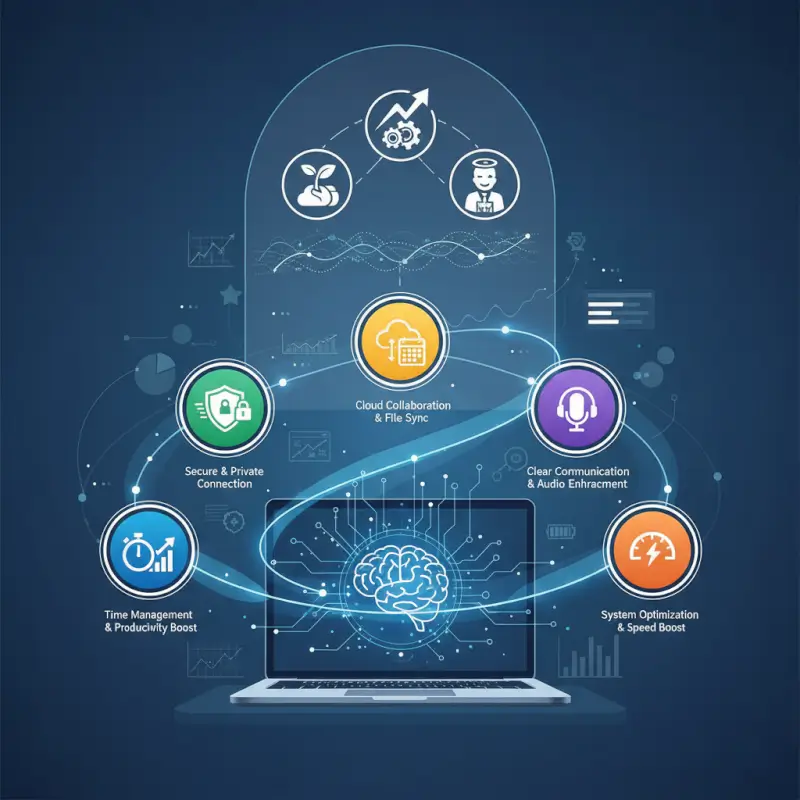
Remote work isn’t going anywhere, but the tools we use to make it effective are evolving faster than most people realize. While countless articles recommend the same tired list of productivity apps, here’s what they’re missing: the future of remote work isn’t about accumulating more software—it’s about building an integrated ecosystem of lightweight, free tools that actually communicate with each other. Think of it less like a toolbox and more like a nervous system for your laptop.
After working remotely for five years and testing over 70 different plugins and extensions, I’ve discovered something counterintuitive: the most productive remote workers often use fewer tools than their struggling counterparts. The difference? They’ve cracked the code on tool integration and workflow design. According to HP’s definitive guide to essential remote work tools for 2025, successful remote setups prioritize seamless communication, security-first architecture, and AI-assisted productivity—not feature bloat.
TL;DR – Quick Takeaways
- Integration beats features: Tools that connect with your existing workflow outperform standalone powerhouses
- Security is foundational: Free doesn’t mean unsafe—prioritize tools with two-factor authentication and encryption
- AI assistance is now standard: 2025 tools leverage AI for meeting summaries, task prioritization, and focus management
- Async-first wins: The best remote tools support both real-time and asynchronous communication seamlessly
- Hardware matters equally: Your laptop’s specs determine which tools you can actually run effectively
Essential Remote-Work Tools for 2025: What to Install on a “Free Laptop Plugin” Setup
The landscape of remote work tools has matured significantly since the pandemic-era scramble. We’re no longer in survival mode, we’re in optimization mode. The tools that dominated 2020-2022 have either evolved or been replaced by more sophisticated alternatives that understand hybrid work patterns, not just full-remote scenarios.
What’s changed fundamentally is the expectation of intelligence baked into these tools. Modern remote work plugins don’t just facilitate communication or collaboration—they actively reduce friction through automation, predictive features, and contextual awareness. This shift means your 2025 toolkit should prioritize tools that learn from your patterns rather than simply documenting them.
Core Communication and Collaboration Suites
Unified communications platforms have become non-negotiable for distributed teams. The fragmentation between chat, video, and file sharing that plagued early remote work has largely dissolved. Slack remains the benchmark for text-based team communication, with its free tier supporting up to 90 days of searchable message history (up from the previous 10,000-message limit). The desktop application integrates with over 2,400 third-party apps, creating what amounts to a command center for your entire work ecosystem.
For video-centric teams, Google Meet’s free tier now offers unlimited one-on-one meetings with no time restrictions and group calls up to 60 minutes. What makes Meet particularly valuable in 2025 is its AI-powered noise cancellation and automatic meeting transcription—features that were premium-only just two years ago. I’ve watched these transcriptions evolve from barely usable to genuinely helpful; they now capture action items and decisions with surprising accuracy.
Microsoft Teams presents a compelling alternative, especially if you’re already in the Microsoft ecosystem. The free version includes 60-minute group meetings, unlimited chat, and 5GB of cloud storage per user. Teams’ real advantage lies in its tight integration with Office 365 tools, making document collaboration feel native rather than bolted-on.
Cloud-based file sharing has evolved beyond simple storage. Google Drive’s free 15GB tier (shared across Gmail and Photos) supports real-time collaborative editing that genuinely works—multiple cursors, instant updates, and conflict-free merging. The comment and suggestion system has become sophisticated enough to replace most standalone review tools.
Notion has emerged as a dark horse in this category, offering unlimited pages and blocks for individuals with surprisingly robust collaboration features. Its ability to function as wiki, project tracker, and document editor simultaneously makes it exceptionally efficient for small teams who want to consolidate tools rather than juggle multiple platforms.
Secure Access and Productivity Backups
Remote desktop access has transformed from a niche IT tool to a mainstream requirement. Chrome Remote Desktop offers completely free, unlimited access to your computers from any device. The setup takes under five minutes, and the performance has improved dramatically—I regularly access my home workstation from a lightweight laptop with minimal lag, even when running resource-intensive applications.
According to TechRadar’s guide to the best remote desktop software of 2025, security-conscious users should prioritize tools with end-to-end encryption and multi-factor authentication. TeamViewer’s free tier serves personal use cases well, though its commercial detection has become more aggressive. For teams needing enterprise-grade security, AnyDesk provides a generous free option with strong encryption standards.
Local-first backup strategies remain criminally underutilized among remote workers. Syncthing offers peer-to-peer file synchronization without cloud intermediaries, meaning your files sync directly between your devices with no storage limits or privacy concerns. This approach proved invaluable when I lost internet access for three days but could still access all my files across devices on my local network.
Browser-based backup extensions like SingleFile save complete webpages with all assets for offline access. This sounds mundane until you’re on a plane reviewing research or preparing for a meeting without connectivity. These small resilience tools separate consistently productive remote workers from those constantly derailed by connectivity issues.
Performance, Security, and Privacy for Remote Work on a 2025 Laptop
Your tools are only as effective as the hardware running them. The gap between minimum and optimal laptop specifications for remote work has widened considerably as tools have become more sophisticated. What worked adequately in 2020 now creates frustrating bottlenecks that drain productivity and morale.
The computational demands of modern remote work have shifted dramatically. Video conferencing with AI features like background blur and noise cancellation, multiple browser tabs running web apps, and local AI assistants all compete for system resources. According to Forbes’ curated list of top work-from-home laptops and productivity considerations for 2025, the baseline for comfortable remote work has moved to 16GB RAM and solid-state storage as non-negotiables.
Performance Essentials and Hardware Fit
Processor selection matters more than most people realize. Modern remote work plugins increasingly leverage local AI processing for features like transcription, translation, and smart replies. Intel’s 12th generation or Apple’s M1 chips represent the minimum for smooth multitasking with contemporary tools. Anything older struggles noticeably when running video calls alongside document collaboration and productivity apps.
RAM determines how many tools you can run simultaneously without performance degradation. The sweet spot for 2025 remote work sits at 16GB, allowing comfortable operation of video conferencing, multiple browser tabs, communication apps, and background services. I upgraded from 8GB to 16GB last year and the difference in daily friction was remarkable—tasks that previously required closing apps to free memory now just work.
Storage type trumps storage size for remote work responsiveness. A 256GB SSD outperforms a 1TB HDD for application launch times, file access speed, and overall system responsiveness. Cloud storage has made large local drives less critical for most workers. The exception: video editors, designers, or developers working with large local files still need 512GB minimum.
Battery life directly impacts where and how you can work. Laptops offering 8+ hours of real-world usage (not manufacturer claims) provide genuine location flexibility. This matters more than ever as hybrid work means bouncing between home office, coffee shops, coworking spaces, and client sites. Power anxiety subtly constrains your options; adequate battery eliminates this mental tax.
Thermal management deserves attention for sustained productivity. Laptops that run hot under load become uncomfortable for extended use and throttle performance to manage heat. Look for reviews mentioning thermal performance under sustained load, not just burst benchmarks. A laptop that maintains comfortable palm rest temperatures during 2-hour video calls beats one with impressive specs that becomes too hot to touch.
Security Best Practices
Remote work security has transitioned from IT department concern to personal responsibility. Every remote worker now operates as their own perimeter security, and free tools provide surprisingly robust protection when properly configured.
Two-factor authentication should be enabled on every work-related account without exception. Authenticator apps like Authy or Google Authenticator offer free, secure second-factor protection superior to SMS-based codes. The slight inconvenience of entering a six-digit code pales compared to the chaos of a compromised account. I learned this the hard way when a colleague’s Slack account was hijacked, resulting in a phishing attack on our entire team.
Password managers eliminate the weakest link in most security chains—password reuse. Bitwarden offers a genuinely capable free tier with unlimited passwords, cross-device sync, and strong encryption. The browser extension autofills credentials and generates strong passwords, removing the temptation to reuse passwords across services. Once you’ve experienced a password manager’s convenience, manual password entry feels archaic.
Full disk encryption should be enabled on any laptop containing work data. Both Windows (BitLocker) and macOS (FileVault) include this feature, protecting your data if your laptop is lost or stolen. The performance impact is negligible on modern hardware with hardware-accelerated encryption.
Privacy policies warrant careful review, particularly for free tools. Some free applications monetize through data collection or behavioral analysis. Understanding what data tools collect and how they use it enables informed decisions about which platforms handle sensitive information. Browser extensions like Privacy Badger automatically block trackers, while uBlock Origin eliminates ads and associated tracking scripts.
The 5 Essential Tools Updated for 2025 (with Quick-Start Playbooks)
The core toolkit for remote work has crystallized around five categories that address fundamental challenges: knowledge management, intelligent meeting assistance, visual collaboration, secure access, and async-first project management. These aren’t trendy—they’re foundational to productive remote work in 2025.
Tool 1: Cloud Collaboration Platform (Notion / Google Workspace)
Knowledge management separates functional remote teams from dysfunctional ones. When information lives in someone’s head or scattered across dozens of chat threads, remote work becomes an archaeological dig. Notion has matured into a genuinely capable free option for individuals and small teams, offering unlimited pages, blocks, and basic collaboration features.
Quick-start setup: Create three top-level pages—”Team Wiki” for institutional knowledge, “Active Projects” for current work, and “Personal Workspace” for individual organization. The wiki should document processes, decisions, and reference information. Active Projects uses database views (kanban, table, timeline) to track work in progress. Personal Workspace holds your private notes and task lists.
Key integrations transform Notion from useful to essential. Connect it to Slack for automatic page sharing in channels. Link it to Google Calendar so meeting notes populate automatically with attendee info and timing. Use the web clipper extension to save research directly into relevant project pages. These connections mean information flows into Notion without manual copying, the friction that typically kills knowledge management systems.
Google Workspace (Drive, Docs, Sheets, Slides) remains unbeatable for real-time collaborative editing. The free tier’s 15GB storage and unlimited sharing make it accessible to everyone. For directory websites or businesses managing extensive contact databases, platforms like TurnKey Directories can integrate with Google Workspace to synchronize business listings with your knowledge base.
| Platform | Best For | Free Tier Limits | Key Strength |
|---|---|---|---|
| Notion | Wiki + project tracking | Unlimited pages, 5MB file uploads | Flexible databases |
| Google Workspace | Document collaboration | 15GB storage (shared) | Real-time editing |
| Obsidian | Personal knowledge | Unlimited (local storage) | Markdown-based, offline |
| Coda | Doc-app hybrid | Unlimited docs, 1000 rows | Automation features |
Tool 2: AI-Augmented Meeting and Notes Tools
Meetings consume disproportionate time in remote work, yet most organizations capture minimal value from them. AI-powered meeting tools have evolved from novelty to necessity, automatically generating summaries, action items, and searchable transcripts.
Otter.ai’s free tier provides 600 minutes per month of AI-powered transcription with basic meeting summaries. The real magic happens with its live transcription during meetings—participants can search what was just said, add comments to specific moments, and export key points. This fundamentally changes meeting dynamics; people actually review and reference previous meetings rather than relying on spotty memory.
For privacy-conscious teams, locally-run transcription through tools like Whisper (OpenAI’s open-source model) processes audio entirely on your device. This requires some technical setup but eliminates privacy concerns about sending meeting audio to cloud services. The transcription quality rivals commercial services, demonstrating how far local AI has progressed.
Smart note-taking strategies enhance these tools. Designate a clear note-taker role that rotates, use consistent templates for different meeting types (1-on-1s, planning, retrospectives), and link notes to relevant project documentation immediately after meetings. The combination of AI transcription plus human curation captures both detail and meaning.
Tool 3: Visual Collaboration and Whiteboarding
Remote work’s biggest casualty was spontaneous visual collaboration—the whiteboard brainstorm, the quick diagram sketched during discussion, the collaborative mind mapping. Digital whiteboard tools attempt to recreate this, with varying success.
Miro offers a free tier with three editable boards and unlimited team members, providing an infinite canvas for brainstorming, planning, and visual organization. The real-time cursor tracking and sticky note features replicate the spontaneity of physical whiteboards surprisingly well. Templates for common activities (retrospectives, user journey mapping, brainstorming) accelerate adoption.
Excalidraw presents a lightweight alternative focused purely on diagramming. The free, open-source tool runs entirely in your browser with no account required. Its hand-drawn aesthetic makes diagrams feel approachable rather than formal, encouraging iteration and collaboration. I use it for quick architectural diagrams that would take far longer in traditional diagramming tools.
FigJam (by Figma) targets design teams but works well for any visual collaboration. The free tier allows three files and unlimited collaborators. What distinguishes FigJam is its polish—cursor tracking feels smooth, interactions are intuitive, and the integration with Figma proper enables seamless transitions from ideation to design.
Tool 4: Remote Desktop and Access Tool
Accessing your primary workstation from any device transforms productivity possibilities. Rather than maintaining identical setups across multiple devices, remote desktop access lets you use a lightweight laptop or tablet to control your full-power desktop.
Chrome Remote Desktop requires only a Chrome browser and Google account. Setup involves installing a small extension on both devices and enabling remote access. The performance surprised me—I regularly edit documents, browse complex spreadsheets, and even watch video on a remote connection with imperceptible lag on decent internet connections.
Security considerations demand attention with remote access tools. Enable PIN-based access rather than relying solely on Google account security. Use remote access only over trusted networks or through a VPN. Consider scheduled access windows rather than 24/7 availability to reduce exposure. These precautions balance convenience with appropriate security boundaries.
Use cases extend beyond simple file access. I use remote desktop to run resource-intensive tasks on my desktop while traveling with a lightweight laptop, access specialized software installed only on one machine, and maintain consistent development environments regardless of physical device. This flexibility eliminates the “I need to be at my desk for this” constraint that plagues many remote workers.
Tool 5: Task and Project Management with Async-First Workflows
Asynchronous work patterns define successful remote teams. Rather than expecting immediate responses and real-time coordination, async-first tools support clear communication of priorities, progress, and blockers without requiring simultaneous presence.
Todoist’s free tier provides task management for up to 5 active projects with 5 collaborators per project. The clean interface, natural language parsing (“next Monday at 2pm”), and cross-platform availability make it frictionless to capture and organize tasks. Recurring tasks, priority levels, and simple labels enable sophisticated organization within free tier constraints.
Trello offers unlimited boards and cards with up to 10 boards per workspace. The kanban-style visual organization suits many workflows naturally. Power-ups (integrations) allow connection to Google Drive, Slack, and other tools, though the free tier limits you to one power-up per board. For teams managing business directories or marketplace platforms, understanding how to organize active directory for business environment helps structure project boards more effectively.
Async-first workflows require explicit communication patterns. Document task status visibly, communicate progress and blockers proactively without being asked, and default to written updates in project tools rather than synchronous check-ins. This shift feels unnatural initially but dramatically improves both productivity and work-life balance by eliminating the tyranny of immediate availability.
Cross-functional team rhythms matter for async success. Establish regular update cadences (weekly planning, daily standups via written updates, monthly reviews) that create predictable communication patterns. These rhythms provide coordination without mandating synchronous attendance, accommodating different time zones and work preferences.
Trends and Data-Driving Insights for Remote Work in 2025
Understanding current remote work patterns helps contextualize tool selection beyond personal preference. The data reveals both where remote work is heading and which capabilities matter most for distributed teams.
Current Statistics and Industry Trends
Remote work has stabilized rather than continued its pandemic-era explosive growth. Research from multiple sources indicates that 12-16% of U.S. workers are now fully remote, with hybrid arrangements (some days remote, some in-office) covering an additional 25-30% of knowledge workers. This stabilization means tools optimized purely for full-remote scenarios miss a large segment of the market.
Productivity patterns have defied early skeptics. According to LaptopMag’s 25 essential tech and accessories for remote workers in 2025, remote workers report equal or higher productivity compared to office work, with the primary drivers being reduced commute time, fewer interruptions, and better control over their work environment. The productivity advantage comes with caveats—it requires appropriate tools, dedicated workspace, and clear boundaries between work and personal time.
AI adoption has accelerated dramatically in remote work contexts. Tools integrating AI for transcription, summarization, and task automation have moved from novelty to expected features. The competitive advantage these tools provided early adopters is becoming baseline functionality. This shift means remote workers should evaluate AI capabilities when selecting new tools, not as optional features but as core requirements.
Meeting fatigue remains the persistent dark side of remote work. Video calls require more cognitive effort than in-person meetings due to constant self-monitoring, reduced nonverbal cues, and technical friction. Successful remote teams have responded by reducing meeting frequency, making meetings shorter and more focused, and replacing many meetings with async updates. The data suggests the solution isn’t better video technology but less reliance on synchronous communication.
Policy and Workplace Flexibility
Employer policies around remote work have settled into distinct camps. Some organizations mandate full-time office return, others embrace permanent remote flexibility, and many land somewhere in the hybrid middle. This fragmentation means remote work tools must accommodate multiple scenarios rather than assuming everyone works the same way.
Security and compliance requirements have tightened considerably for remote work. Organizations now expect remote workers to maintain security postures comparable to in-office environments—encrypted devices, secure networks, two-factor authentication, and data handling policies. Free tools meeting these requirements remain accessible, but remote workers must actively configure security features rather than relying on defaults.
The flexibility premium has emerged as a key recruitment and retention factor. Workers consistently rank schedule flexibility and location independence highly when evaluating opportunities, often prioritizing it above salary increases. This preference shapes which tools succeed—those enabling genuine flexibility rather than replicating office constraints remotely.
Practical Install Plans, Checklists, and Optimization for 2025
Theory and recommendations mean nothing without practical implementation. These checklists and optimization strategies translate tool selection into functional remote work environments.

Quick-Install Checklist for a New 2025 Remote-Work Laptop
Setting up a new remote work laptop should follow a deliberate sequence rather than ad-hoc app installation. Start with security foundations before adding productivity tools, ensuring protection is configured before sensitive data touches the device.
Day One – Security Baseline (30 minutes):
- Enable full disk encryption (BitLocker for Windows, FileVault for macOS)
- Install password manager (Bitwarden or 1Password) and migrate passwords
- Enable two-factor authentication on all work accounts
- Install and configure VPN for public network protection
- Set up automatic system updates and restart schedule
Day One – Core Productivity (45 minutes):
- Install primary browser (Chrome, Firefox, or Brave) and sign in to sync settings
- Add communication tools (Slack, Teams, or Discord) and configure notifications
- Set up video conferencing (Google Meet, Zoom) and test audio/video
- Install cloud storage clients (Google Drive, Dropbox) and configure selective sync
- Configure email client or web access with appropriate filters and folders
Week One – Workflow Integration (2 hours):
- Set up knowledge management system (Notion, Obsidian) with initial structure
- Configure task management (Todoist, Trello) and migrate active tasks
- Install and configure remote desktop access for other devices
- Add browser extensions (password manager, ad blocker, privacy protection)
- Create backup strategy and configure initial backup
- Set up focus tools (Forest, Focus@Will) and establish initial schedules
This staged approach prevents overwhelm while ensuring critical security and communication capabilities are available immediately. The week-one tasks can be completed incrementally as you encounter needs rather than front-loading everything on day one.
Ongoing Optimization and Metrics
Initial setup is just the beginning. Effective remote work environments require continuous refinement based on actual usage patterns and emerging needs. Quarterly reviews provide sufficient frequency for meaningful optimization without constant disruption.
Track these key performance indicators to evaluate your toolkit effectiveness:
- Tool utilization: Which applications do you actually open daily versus those installed but unused?
- Context switches: How many times per day do you switch between tools to complete a single task?
- Search time: How long does it take to find information or previous conversations?
- Meeting load: What percentage of your time is spent in synchronous meetings versus focused work?
- Notification interruptions: How many notifications do you receive daily, and what percentage require immediate action?
RescueTime’s free tier provides automatic tracking of time spent in different applications and websites. This objective data often reveals surprising patterns—tools you think you use constantly might show minimal actual usage, while others dominate time without conscious awareness. I discovered I was spending 8 hours per week in email, prompting a complete overhaul of my email management strategy.
Iterative improvement loops create compounding benefits over time. Each quarter, identify your biggest productivity friction point and experiment with a different approach. Try a new tool, change a workflow, or eliminate an unnecessary process. Give experiments at least 30 days before evaluating—initial discomfort with new approaches often masks eventual efficiency gains.
A/B testing applies to tool combinations, not just marketing campaigns. When evaluating alternatives, run them in parallel for a trial period rather than switching cold turkey. Use one task management system for personal tasks and another for work projects, compare meeting tools across similar meetings, or test different note-taking approaches for different meeting types. This parallel evaluation reveals strengths and weaknesses more clearly than sequential testing.
Frequently Asked Questions
What are the must-have tools for remote work in 2025?
Essential tools include unified communication platforms (Slack or Teams), video conferencing with AI features (Google Meet or Zoom), cloud collaboration systems (Notion or Google Workspace), secure remote desktop access (Chrome Remote Desktop), and async-first task management (Todoist or Trello). TurnKey Directories offers integrated solutions for businesses managing directories alongside remote operations.
How can I securely access my work computer while traveling?
Use Chrome Remote Desktop or TeamViewer for encrypted remote access. Enable PIN-based authentication, use remote access only through VPN connections on untrusted networks, and configure access logging. Test connections before traveling and document access procedures for troubleshooting connectivity issues.
Which tools improve virtual meetings and reduce time waste?
AI-powered transcription services like Otter.ai automatically generate meeting summaries and action items, eliminating manual note-taking. Establish clear agendas using Notion or Google Docs templates, limit meetings to 25 or 50 minutes instead of 30 or 60, and replace status meetings with async written updates in project management tools.
How do I choose between free vs paid tools for remote work?
Start with free tiers to validate fit for your workflow before paying. Upgrade when you consistently hit free tier limits or need specific premium features. Many teams operate effectively on entirely free tools by combining multiple platforms strategically rather than paying for all-in-one solutions with unused features.
What hardware upgrades matter most for remote productivity in 2025?
Prioritize RAM (minimum 16GB) and SSD storage over processor speed for most remote work. Add a second monitor for multitasking efficiency, upgrade to a quality webcam and microphone for better meeting presence, and invest in ergonomic peripherals (keyboard, mouse, chair) for sustained comfort during long work sessions.
How can AI tools help with focus and task management without compromising privacy?
Use locally-run AI models like OpenAI’s Whisper for transcription that processes audio on your device without cloud uploads. Tools like Reclaim.ai analyze calendar patterns to suggest optimal focus time without accessing meeting content. Always review privacy policies and prefer tools offering on-device processing for sensitive workflows.
What are best practices for onboarding teammates to new remote-work tools?
Create visual quick-start guides with screenshots for common tasks, host optional live training sessions recorded for later reference, assign a tool champion for questions, establish clear use cases explaining when to use which tools, and gather feedback after 30 days to address friction points before they become habitual workarounds.
Can free laptop plugins really replace paid software for remote work?
Free tools cover 80-90% of remote work needs for most users through strategic combinations. Limitations typically involve storage caps, advanced features, or user limits rather than core functionality. Many successful remote teams operate primarily on free tools, upgrading selectively only when they consistently hit specific constraints affecting productivity.
Building Your Remote Work Foundation
The remote work toolkit you build today shapes your productivity and satisfaction for years to come. The tools outlined here represent proven foundations rather than passing trends—communication, collaboration, security, access, and project management remain core challenges regardless of how specific technologies evolve.
What separates effective remote work setups from frustrating ones isn’t budget or technical sophistication. It’s intentionality. The remote workers thriving in hybrid environments have made deliberate choices about which tools solve which problems, how those tools integrate, and when to use synchronous versus asynchronous communication. They’ve built systems that work for their specific contexts rather than copying someone else’s setup wholesale.
Your Implementation Plan
Start with the quick-install checklist this week. Set up security foundations first, then add one tool from each category. Give yourself 30 days to develop habits around these tools before evaluating effectiveness. Track the metrics that matter—time to find information, meeting load, and context switching frequency—and adjust quarterly based on real usage data.
Remote work isn’t about replicating the office virtually. It’s about building something better—a work environment optimized for focus, flexibility, and genuine work-life integration. The tools are available and accessible. The only question is whether you’ll approach this intentionally or let your toolkit evolve by accident.
Was this article helpful?