How Plugins Work: Understanding Software Plugins and Basics for Beginners
Opens a Google-translated copy of this article in a new tab.
Have you ever wondered how your favorite website manages to offer so many features without becoming overly complex? Or why your browser can do things its creators never imagined? The answer lies in plugins – those magical add-ons that extend functionality without requiring a complete software overhaul. But how exactly do these digital enhancements work behind the scenes?
For beginners, the world of plugins can seem intimidating. Terms like “APIs,” “hooks,” and “extensions” get thrown around casually, leaving newcomers feeling lost in technical jargon. The truth is, understanding what plugins are in software doesn’t require a computer science degree – just a clear explanation of the fundamentals.
In this comprehensive guide, we’ll demystify how plugins work by breaking down their architecture, explaining their relationship with host applications, and exploring the lifecycle from installation to execution. Whether you’re a curious website owner, an aspiring developer, or simply someone who wants to understand the technology they use daily, this beginner-friendly explanation will illuminate the inner workings of software plugins.
- Plugins are software add-ons that extend functionality without modifying the core application
- They work through predefined connection points (APIs) that allow them to interact with the main software
- Common plugin types include functional, SEO, security, and e-commerce plugins
- The plugin lifecycle includes installation, activation, execution, deactivation, and uninstallation
- Security is critical – only install plugins from reputable sources and keep them updated
- Plugins can impact performance, so only use what you need and manage them properly
What Are Plugins in Software?
At its core, a plugin is a piece of software that adds specific features or functionality to an existing application without altering its core code. Think of your favorite application as a smartphone – it comes with basic features out of the box, but you can download apps (plugins) to expand what it can do without changing how the phone itself works.
The beauty of plugins lies in their modularity. Rather than cramming every possible feature into the base software (which would make it bloated and difficult to maintain), developers can create a streamlined core application and allow users to add only the extras they need. This architectural approach offers several compelling advantages:
- Customization: Users can tailor the software to their specific needs
- Efficiency: The core application remains lean and performs better
- Flexibility: Features can be added or removed without disrupting the main system
- Innovation: Third-party developers can create solutions the original developers never imagined
Plugins exist across virtually all software ecosystems. Web browsers like Chrome have extensions that block ads or check grammar. Content management systems like WordPress rely heavily on plugins – the WordPress Plugin Directory hosts over 60,000 options that transform basic websites into sophisticated e-commerce platforms, membership sites, or online portfolios.
The concept isn’t limited to consumer applications either. Professional software like Photoshop supports plugins that add new filters or tools, and development environments allow plugins that streamline coding workflows or add support for additional programming languages. According to W3C Web Architecture standards, this modular approach represents a fundamental principle of extensible software design.
Understanding Software Plugins: The Core Components
| Component | Function | User Benefit |
| Core Application | Provides base functionality | Fast, reliable foundation |
| Plugin API | Defines connection points | Safe, standardized integration |
| Plugin Manager | Controls activation/deactivation | Easy management interface |
| Individual Plugins | Add specific features | Customized functionality |
Types of Plugins
While plugins come in countless varieties, most fall into several major categories based on their purpose:
Functional Plugins: These add specific features or capabilities to an application. Examples include contact forms, social media sharing buttons, or media galleries. They enhance what users can do with the software and represent the most common type of plugin installation.
SEO Plugins: Search engine optimization plugins help website owners improve their visibility in search results. They typically offer tools for keyword analysis, content optimization, and technical SEO improvements. The popularity of wordpress plugin key features benefits often revolves around their SEO capabilities, as they can dramatically impact site visibility.
Security Plugins: These focus on protecting applications from vulnerabilities and attacks. They might offer features like malware scanning, firewall protection, login attempt limiting, or security hardening. In today’s threat landscape, security plugins have become essential components of any online presence.
E-commerce Plugins: For businesses selling online, e-commerce plugins add shopping cart functionality, payment processing, inventory management, and other sales-related features. The stripe plugin accept payments wordpress site integration is particularly popular for businesses looking to quickly implement secure payment options.
Performance Optimization Plugins: These focus on improving speed and efficiency by implementing caching, compression, lazy loading, and other techniques to reduce load times and resource usage. I remember when I first installed a caching plugin on my blog – the speed improvement was immediately noticeable, dropping load times from 4 seconds to under 1 second.
Integration Plugins: These connect your application with external services or platforms. Examples include CRM integrations, email marketing connections, or social media management tools.
Understanding these categories helps users identify which plugins might best serve their needs, whether they’re building a personal blog, running an online store, or developing software for clients. For example, fitness centers might leverage both membership plugins and trainer directory find best fitness professionals plugins to create comprehensive online presences.
How Do Plugins Work: The Technical Foundation
To understand how plugins work, we need to peek behind the curtain at the architectural relationship between plugins and their host applications. The key concept here is that well-designed software includes predetermined connection points – sometimes called “hooks,” “extension points,” or “interfaces” – that allow additional code to interact with the main program.
Think of these connection points as standardized electrical outlets in your home. You can plug in different appliances (plugins) because the outlets (hooks) follow consistent specifications. The appliances don’t need to know how electricity is generated – they just need to know how to connect to the outlet.
Plugin Architecture
Most plugin systems follow similar architectural principles that ensure stability and compatibility:
- Host Application: The main software that provides core functionality and the framework for plugins to connect
- Plugin API (Application Programming Interface): The set of rules, protocols, and tools that define how plugins can interact with the host application
- Plugin Manager: A component that handles plugin discovery, loading, activation, and deactivation
- Plugins: Individual modules that implement the API to add functionality
When a host application launches, the plugin manager typically scans a designated directory for compatible plugins. It then loads basic information about each plugin (like its name, version, and capabilities) without necessarily executing all the plugin code immediately. This information gets displayed in the plugin management interface, where users can activate or deactivate plugins as needed.
According to the OWASP Plugin Security Guide, this architecture provides flexibility but also creates potential security vulnerabilities if not properly implemented.
The Plugin Lifecycle: From Installation to Execution
Understanding the plugin lifecycle helps clarify how these components interact over time:
Installation: The process of adding a plugin to the system. This typically involves downloading files to a specific directory where the host application can find them. Modern applications often provide automated installation through a plugin marketplace or repository. During installation, the system verifies compatibility and extracts necessary files.
Activation: When a user activates a plugin, it registers its features with the host application and may perform setup tasks like creating database tables or setting default configurations. This is different from installation – a plugin can be installed but inactive, sitting dormant until you’re ready to use it.
Execution: This occurs when the plugin’s code actually runs. Some plugins run continuously in the background, while others only execute when specific events occur or when particular features are used.
For example, an image optimization plugin might only run when a new image is uploaded, while a security plugin might continuously monitor for suspicious activity. The execution model depends heavily on the host application’s architecture and the plugin’s purpose.
Deactivation: When a user disables a plugin, it stops executing its code but typically leaves its data intact. This allows users to temporarily disable functionality without losing configurations or content. Think of it as putting the plugin to sleep rather than deleting it entirely.
Uninstallation: The complete removal of a plugin, which should ideally clean up all data, settings, and files associated with it (though not all plugins handle this properly). Responsible plugins include cleanup routines that remove database entries, uploaded files, and configuration settings.
These lifecycle stages are particularly important for developers creating plugins essential tools for js developers to understand, as proper implementation ensures both functionality and security.
How Plugins Work: The Execution Process
Detection Phase
System scans plugin directory and identifies available modules
Registration Phase
Plugin registers its hooks and callbacks with the core system
Execution Phase
Plugin code runs when triggered by specific events or actions
Installing and Managing Plugins
Now that we understand what plugins are and how they work architecturally, let’s explore the practical aspects of adding them to your applications and managing them effectively.
Step-by-Step Installation Guide
While installation methods vary across platforms, most follow a similar pattern:
- Find a Plugin: Browse an official plugin repository, marketplace, or developer website to find a plugin that meets your needs. I remember spending hours comparing different gallery plugins for my first photography website – reading reviews became an essential part of my decision process, saving me from several poor choices.
- Verify Compatibility: Check that the plugin works with your version of the host application and any other plugins you’re using. Version conflicts are one of the most common causes of plugin failures.
- Download or Access: Either download the plugin files or access them through an integrated marketplace. Many modern platforms offer one-click installation directly from their admin panels.
- Install:
- For integrated marketplaces (like WordPress), you can usually install with a single click
- For manual installations, you’ll typically download a file and upload it to a specific directory
- Some applications require you to restart after installation
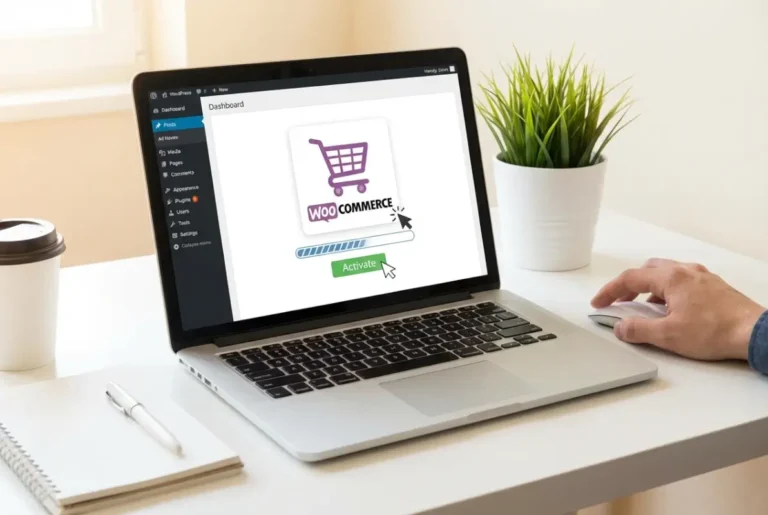
- Activate: Most plugin systems require an activation step after installation. This is when the plugin actually integrates with your system.
- Configure: Set up the plugin according to your needs through its settings interface. Don’t skip this step – default settings rarely optimize for your specific use case.
I once spent an entire afternoon trying to install a complex e-commerce plugin, only to discover I’d been uploading the files to the wrong directory! Double-checking the installation instructions could have saved me hours of frustration.
Best Practices for Managing Plugins
Plugin management is crucial for maintaining a healthy, secure, and efficient system. Here’s how to do it right:
- Use Only What You Need: Every active plugin consumes resources and potentially introduces security risks. Resist the temptation to install plugins for features you rarely use. A lean plugin configuration always outperforms a bloated one.
- Regular Maintenance: Schedule time monthly to review your plugins. Deactivate and uninstall ones you no longer use. I maintain a spreadsheet tracking when I last used each plugin’s features – if it’s been over three months, it’s probably time to remove it.
- Track Performance Impact: Monitor how plugins affect your application’s performance. Tools like speed tests can help identify problematic plugins. Some plugins claim to optimize performance but actually slow things down.
- Maintain Backups: Always back up your system before installing or updating plugins. This provides a safety net if something goes wrong. Cloud backup solutions make this process nearly automatic.
- Update Strategically: While keeping plugins updated is important for security, update one at a time so you can identify the source of any problems that arise. Batch updates can create troubleshooting nightmares.
- Read Documentation: Most plugin issues arise from misconfiguration, not bugs. Spending ten minutes with the documentation can prevent hours of frustration.
Troubleshooting Common Issues
Even the best plugins sometimes cause problems. Here’s how to address common issues:
Resolving Plugin Conflicts: When plugins don’t play nicely together, the typical approach is to deactivate all plugins, then reactivate them one by one to identify which combination causes the conflict. This process can be tedious but is often the most reliable troubleshooting method. Document your findings – you’ll thank yourself later when similar issues arise.
Fixing Installation Errors: Common installation problems include insufficient permissions, incompatible versions, or corrupted files. Check error logs for specific messages that can guide your troubleshooting. Sometimes, a manual installation can bypass issues with automatic installers. Most hosting providers offer file manager tools that simplify manual uploads.
Optimizing Plugin Performance: If your application slows down after installing plugins, try these approaches:
- Disable resource-intensive features you don’t need
- Implement caching if available
- Contact the plugin developer for optimization advice
- Consider alternatives that offer similar functionality with better performance
- Use performance monitoring tools to identify specific bottlenecks
When working with clients in the design field, I’ve found that implementing proper plugin management strategies is crucial. Many have benefited from resources like design resources find top talent to identify developers who can help optimize their plugin configurations.
For WordPress users specifically, platforms like TurnKey Directories offer pre-configured solutions with optimized plugin selections, eliminating much of the trial-and-error process.
Plugin Development Basics
For those interested in creating their own plugins, understanding the fundamentals of plugin development provides valuable insight – even if you never write a line of code yourself.
Introduction to Plugin Development
Developing plugins requires a slightly different mindset than traditional software development. Rather than building a standalone application, you’re creating something that must integrate seamlessly with an existing system. This means:
- Following established conventions and standards
- Working within the constraints of the host application’s API
- Considering how your plugin will interact with other plugins
- Minimizing resource usage and performance impact
- Implementing proper error handling for edge cases
- Documenting your code for future maintainability
Good plugin developers think of themselves as guests in someone else’s house – they follow the rules, clean up after themselves, and try not to break anything. The best plugins are invisible when working correctly but easily debugged when something goes wrong.
Choosing a Programming Language
The programming language you’ll use for plugin development is typically determined by the host application. For example:
- WordPress plugins are primarily written in PHP
- Chrome extensions use JavaScript, HTML, and CSS
- Visual Studio Code extensions are developed with TypeScript or JavaScript
- Photoshop plugins might use C++ or JavaScript depending on the API
- Eclipse IDE plugins use Java
Before diving into development, you’ll need to become familiar with both the language and the specific APIs provided by the host application. Most platforms provide detailed documentation for plugin developers, and the Mozilla Developer Network offers excellent resources for understanding browser extension development.
Essential Tools and Resources
Successful plugin development requires the right tools:
- Development Environment: A code editor or IDE that supports your target language. Visual Studio Code, PhpStorm, and Sublime Text are popular choices.
- Version Control: Systems like Git to track changes and collaborate with others. Learning Git is non-negotiable for serious development work.
- Documentation: Official guides for the plugin API you’re using. Bookmark these – you’ll reference them constantly.
- Testing Tools: Frameworks to verify your plugin works correctly. Unit tests prevent embarrassing bugs in production.
- Community Resources: Forums, Stack Overflow, and developer communities for help. Don’t underestimate the value of community support.
- Debugging Tools: Browser developer tools, error log analyzers, and profilers to identify issues quickly.
Building Your First Plugin
The process of creating a plugin typically follows these steps:
Planning the Plugin: Define what your plugin will do, who will use it, and how it will integrate with the host application. Create a simple specification that outlines the features and functionality. Sketch out the user interface and data flow before writing any code.
Writing the Code: Start with the basic structure required by the host application. This often includes metadata about your plugin (name, version, author) and the core functionality. Most platforms offer boilerplate code or starter templates that provide a foundation.
I remember writing my first WordPress plugin – it was just a simple tool to display custom quotes on a website. I spent more time reading documentation than actually coding, but that investment paid off as I created more complex plugins later. That initial learning curve made subsequent projects exponentially easier.
Testing and Debugging: Thoroughly test your plugin in various scenarios. Consider edge cases and interactions with other plugins. Use debugging tools provided by the platform to identify and fix issues. Test on multiple browsers, devices, and configurations to ensure broad compatibility.
Many developers start by creating a plugin that solves a specific problem they’ve encountered. This personal connection makes the development process more engaging and ensures the plugin addresses a real need.
Security Considerations
Security is perhaps the most critical aspect of plugin usage and development. Plugins often have deep access to your system, making them potential vectors for security breaches if not properly designed or vetted.
Common Security Risks
Understanding the risks helps you make better decisions about which plugins to install and how to manage them:
- Vulnerable Code: Poorly written plugins may contain security flaws like SQL injection vulnerabilities or cross-site scripting (XSS) weaknesses that attackers can exploit to gain unauthorized access.
- Excessive Permissions: Some plugins request more access than they truly need, creating unnecessary security exposure. Always question why a simple contact form plugin needs administrative database access.
- Abandoned Plugins: Plugins that are no longer maintained may develop security vulnerabilities as new threats emerge. If a plugin hasn’t been updated in over a year, consider it a red flag.
- Malicious Plugins: Intentionally harmful plugins designed to steal data or compromise systems. These sometimes masquerade as legitimate tools in third-party repositories.
- Dependency Vulnerabilities: Plugins often rely on external libraries that may have their own security issues. A secure plugin can become vulnerable when its dependencies are compromised.
Never install plugins from untrusted sources or third-party websites promising “premium plugins for free.” These are frequently infected with malware. Stick to official repositories and verified developers.
Best Practices for Secure Plugin Use
Follow these guidelines to minimize security risks:
- Vet Your Sources: Only download plugins from official repositories or trusted developers. The convenience of a free plugin from a random website isn’t worth the security risk.
- Check Reviews and Ratings: See what others say about the plugin’s security and reliability. Look for patterns in negative reviews – multiple reports of security issues should disqualify a plugin immediately.
- Verify Developer Reputation: Research the plugin creator to ensure they have a positive track record. Established developers with multiple successful plugins are generally safer bets than anonymous one-plugin developers.
- Review Update Frequency: Regularly updated plugins are more likely to address security vulnerabilities promptly. A plugin last updated three years ago is a security liability waiting to happen.
- Limit Plugin Usage: Install only essential plugins to reduce your attack surface. Every additional plugin is another potential entry point for attackers.
- Implement the Principle of Least Privilege: When configuring plugins, provide only the minimum permissions necessary. If a plugin works with limited access, don’t give it administrative privileges.
- Use Security Scanning Tools: Implement security plugins that scan for vulnerabilities in your other plugins. Yes, this means using a plugin to secure your plugins – it’s worth it.
Understanding Plugin Vulnerabilities
Plugins can become vulnerable in several ways:
Outdated Dependencies: Many plugins rely on libraries or frameworks that may develop security issues over time. Even if the plugin code itself is secure, vulnerable dependencies create exploitable weaknesses.
Input Validation Failures: Plugins that don’t properly check user input can be exploited through carefully crafted malicious data. This is particularly common in form-handling and search plugins.
Authentication Weaknesses: Poorly implemented access controls within plugins can allow unauthorized actions. Some plugins inadvertently create new login endpoints that bypass normal security measures.
Update Problems: Sometimes updates themselves introduce new vulnerabilities or compatibility issues. This is why testing updates in a staging environment before deploying to production is crucial.
Keeping Plugins Updated
Maintaining updated plugins is your first line of defense against security threats:
Importance of Regular Updates: Updates often contain security patches for newly discovered vulnerabilities. Delaying updates leaves your system exposed to known threats that attackers actively exploit. Security researchers estimate that 60% of website breaches involve outdated plugins.
How to Automate Updates: Many platforms offer automatic update options, though you should consider whether your specific environment would benefit from testing updates before applying them. For low-traffic personal sites, automatic updates provide excellent security. For business-critical applications, manual updates with staging environment testing offer more control.
Monitoring Plugin Activity: Watch for unusual behavior that might indicate a compromise. Activity logs can help identify suspicious patterns like unauthorized file modifications, unusual database queries, or unexpected outbound connections.
Remember that security is an ongoing process, not a one-time setup. Regularly reviewing your plugin inventory and security practices helps maintain a secure environment. Schedule quarterly security audits to identify and address potential vulnerabilities before attackers find them.
Frequently Asked Questions
What are plugins in software?
Plugins are modular software components that add specific functionality to an existing application without modifying its core code. They work through predefined connection points called APIs, allowing users to customize their software experience by installing only the features they need.
How do plugins work?
Plugins work by connecting to a host application through standardized interfaces called hooks or APIs. When activated, they register their functions with the main software and execute code when specific events occur. The plugin manager controls when and how plugin code runs.
What are the different types of plugins?
Common plugin types include functional plugins (adding features), SEO plugins (optimizing search visibility), security plugins (protecting against threats), e-commerce plugins (enabling online sales), performance plugins (improving speed), and integration plugins (connecting external services). Each serves a specific purpose in extending application capabilities.
Can plugins slow down my website or application?
Yes, plugins can significantly impact performance. Each active plugin consumes memory and processing power. Poorly coded plugins, those that load unnecessary resources, or plugins that run continuously have the greatest impact. Use only essential plugins and regularly test performance after installations.
Are all plugins safe to use?
No, not all plugins are safe. Security risks include vulnerable code, excessive permissions, abandoned plugins without updates, and intentionally malicious plugins. Only download from reputable sources, check reviews, verify developer reputation, and confirm regular updates to ensure safety.
How do I install a plugin?
Installation typically involves finding a plugin in an official repository, verifying compatibility with your software version, downloading or accessing plugin files, installing through automated systems or manual upload, activating the plugin, and configuring its settings. Most modern platforms offer streamlined installation through integrated marketplaces.
What should I do if plugins conflict with each other?
To resolve plugin conflicts, deactivate all plugins and reactivate them one at a time to identify which combination causes issues. Check compatibility documentation, update all plugins to their latest versions, contact plugin developers for support, or find alternative plugins that don’t conflict.
How often should I update my plugins?
Update plugins as soon as security patches are released, typically within 24-48 hours. For feature updates, test in a staging environment first if possible. Enable notifications for available updates and review them weekly to maintain both security and functionality.
Can I create my own plugin?
Yes, you can create custom plugins by learning the programming language your platform uses, understanding its plugin API, following development standards, and implementing proper security practices. Start with simple projects solving specific problems you’ve encountered, then expand your skills with increasingly complex developments.
What programming languages are used for plugin development?
Plugin development languages depend on the host application: WordPress uses PHP, browser extensions use JavaScript/HTML/CSS, Visual Studio Code uses TypeScript/JavaScript, Photoshop uses C++ or JavaScript, and Eclipse uses Java. Each platform has specific API documentation guiding development.
Conclusion
Plugins represent one of the most powerful concepts in modern software – the ability to extend and customize applications without modifying their core code. This architectural flexibility has revolutionized how we use software, allowing for personalized experiences tailored to specific needs while maintaining stable, secure core applications.
As we’ve explored throughout this guide, understanding how plugins work involves appreciating their architecture, lifecycle, management practices, and security implications. Whether you’re simply using plugins or considering developing your own, this knowledge helps you make better decisions and avoid common pitfalls that plague inexperienced users.
Remember that the plugin ecosystem is a balancing act: more plugins means more functionality but also greater complexity, potential security risks, and possible performance impacts. The most successful plugin users are those who thoughtfully curate their collection, keeping only what truly adds value and regularly auditing their installations for security and performance.
The key to plugin mastery isn’t installing every interesting tool you find – it’s developing the judgment to identify which plugins solve real problems, the discipline to maintain them properly, and the wisdom to remove what no longer serves your needs. Start conservatively, measure impact, and expand strategically.
Ready to Master Plugin Management?
Start by auditing your current plugins – remove what you don’t need, update what you keep, and carefully research any new additions. If you’re feeling ambitious, consider creating a simple plugin to solve a specific problem you’ve encountered.
The journey from plugin user to plugin creator can be incredibly rewarding, and it starts with the fundamentals we’ve covered here. What will you build?
What plugin challenges are you facing in your projects? Understanding the basics of how plugins work empowers you to troubleshoot issues, make informed decisions, and even contribute to the plugin ecosystem yourself. Share your experiences and continue learning – the plugin community thrives on shared knowledge and collaborative problem-solving.
Was this article helpful?