How to Import CSV into Business Directory: A Step-by-Step Guide

Generating summary...
If you’ve ever stared at a spreadsheet packed with hundreds of business listings and wondered how to get them all into your directory without manually typing each one, you’re not alone. Importing CSV files into a business directory should be straightforward—after all, CSV has been the workhorse of data interchange for decades—but in practice, it’s where many directory projects stumble. One misaligned column, a stray comma, or an encoding issue can turn what should be a five-minute task into an afternoon of troubleshooting. The good news? With the right preparation and a systematic approach, you can import CSV into business directory platforms cleanly, efficiently, and without losing your sanity.
In this guide, we’ll walk through every step of the CSV import process, from planning your data schema and preparing a standards-compliant file to mapping fields, handling duplicates, and validating your results. Whether you’re working with a WordPress-based directory plugin, a SaaS business directory solution, or a custom-built system, these principles apply universally. We’ll also explore why CSV remains the de facto format for data exchange, how to leverage official templates, and what to do when things go wrong.
TL;DR – Quick Takeaways
- CSV endures for good reason – RFC 4180 formalized the format, making it simple, human-readable, and universally supported across platforms
- Preparation is everything – Clean, validated CSV files aligned to your directory schema prevent 90% of import headaches
- Use official templates – Most BD platforms provide import templates; download fresh copies before each major import to avoid version mismatches
- Test small first – Always run a 5-10 record test import before committing thousands of listings
- Map carefully, deduplicate ruthlessly – Proper field mapping and duplicate detection save hours of manual cleanup later
- Validate everything – Post-import spot checks, log reviews, and frontend testing ensure your directory works as expected
Why CSV Remains the Gold Standard for Business Directory Imports
Before we dive into the mechanics, it’s worth understanding why CSV continues to dominate data interchange despite being older than most social media platforms. The RFC 4180 specification formalized common CSV practices back in 2005, defining rules for delimiters, header rows, and the text/csv MIME type. This standardization—combined with CSV’s human readability and near-universal software support—means you can open a CSV file in everything from Excel to a basic text editor, inspect the data visually, and troubleshoot issues without specialized tools.

For business directories specifically, CSV offers the perfect balance of simplicity and structure. A typical business listing includes 10-30 fields (name, address, phone, category, website, hours, etc.), and CSV handles this tabular data elegantly. Compare this to XML or JSON, which require more complex parsing and aren’t as easily edited in spreadsheet applications. Government agencies, open data portals, and enterprise systems all rely heavily on CSV for exactly these reasons—it just works, and it works everywhere.
Get Ready: Planning Your CSV Import
The single biggest mistake I see people make is jumping straight to the import button without any planning. You wouldn’t start building a house without blueprints, and you shouldn’t start a CSV import without understanding your target data model. Proper planning prevents the dreaded scenario where you import 2,000 listings only to discover that half your category assignments are wrong or that phone numbers ended up in the email field.
Define Your Target Directory Data Model
Start by documenting every field your business directory supports. Most directories have core fields—business name, address components (street, city, state/province, postal code, country), phone, email, website URL, and description. Then there are the structural elements like categories, tags, and custom fields (hours of operation, social media links, price range, certifications, etc.). Your CSV must align with this schema.
I remember working with a local chamber of commerce directory where we assumed “category” was a simple text field. Turns out the platform used a hierarchical taxonomy with parent and child categories, and our flat category names created chaos. We had to re-import everything after mapping categories to their proper taxonomy IDs. Document these nuances early.
Prepare a Clean, Schema-Conformant CSV
RFC 4180 establishes best practices that maximize compatibility: use comma delimiters (not semicolons or tabs unless your platform specifically requires them), ensure every row has the same number of fields, include a header row with descriptive column names, and properly escape special characters. When a field contains a comma, quotation mark, or line break, wrap the entire field in double quotes and escape any internal quotes by doubling them.
Encoding matters more than most people realize. Always save your CSV as UTF-8 with BOM (or plain UTF-8 if your platform specifies) to ensure special characters—accented letters, currency symbols, em dashes—display correctly. Excel on Windows defaults to a legacy encoding that can mangle international characters, so explicitly choose UTF-8 when saving.
Validation Basics
Before you upload anything, validate your CSV against these criteria:
- Required fields populated: Every row should have values for mandatory fields (typically business name and at least one contact method)
- Consistent formatting: Phone numbers should follow a standard format (e.g., all using parentheses and hyphens, or all using dots). Same for URLs (include http:// or https://)
- Standardized categories: If your directory uses a controlled vocabulary for categories, ensure every category name in your CSV matches exactly (including capitalization)
- No trailing spaces or special characters: Leading/trailing whitespace and hidden characters cause mismatches during import
Acquire Official Templates When Available
Most professional business directory platforms provide import templates—pre-formatted CSV files with the correct column headers and sometimes sample data. Using these templates eliminates guesswork about field names and expected formats. Download a fresh copy before each major import, templates can change with product updates and using an outdated version can cause silent failures where data imports but ends up in the wrong fields.
Choose Your Import Approach
Not all import paths are created equal. Your choice depends on your directory platform, the volume of data you’re handling, how often you’ll run imports, and what level of customization you need. Let’s break down the main approaches so you can pick the right tool for your specific situation.

Native Importers vs. Third-Party Plugins
Many business directory platforms include built-in CSV import functionality. These native importers typically offer template-driven workflows, automatic field mapping (the system guesses which CSV column corresponds to which directory field based on header names), and real-time validation with error reporting. If your platform has a native importer, start there—it’s designed specifically for your directory’s data structure and will handle platform-specific quirks automatically.
Third-party plugins and extensions expand capabilities beyond basic imports. For WordPress-based directories, plugins like those supporting bulk import and export operations add features such as scheduled imports, category taxonomy imports, image/media imports, and advanced duplicate detection. These tools are worth the investment if you’re managing thousands of listings or need recurring imports from external data sources.
| Import Method | Best For | Limitations |
|---|---|---|
| Built-in BD importer | One-time imports, standard fields | May lack advanced mapping, scheduling |
| Third-party plugin | Complex mappings, custom fields, automation | Additional cost, learning curve |
| Spreadsheet-driven bulk editor | Frequent updates, mass edits | Requires editor plugin/access |
| API/programmatic import | Enterprise integration, real-time sync | Development effort, technical expertise |
When to Use a Spreadsheet-Based Workflow
If you’re managing a large directory that needs frequent updates—think a statewide business association or a vertical market directory with thousands of members—consider spreadsheet-driven bulk editing tools. These systems let you view your entire directory as a giant spreadsheet, make mass changes, and sync updates back to the directory. It’s particularly useful for ongoing maintenance: updating categories across 500 listings, correcting address formats en masse, or adding new custom fields to existing records.
Data Sources and Reliability
Where your CSV data originates matters enormously. Official templates from your BD platform are gold standard—they’re already formatted correctly and you’re just filling in values. Authoritative data feeds from government registries, industry associations, or verified business databases come pre-validated and structured. On the other hand, if you’re working with purchased lists, crowdsourced data, or scraped information, expect to invest significant time in scrubbing duplicates, validating addresses, and normalizing categories before import.
The Step-by-Step Import Process
Now we get to the heart of the matter: the actual import workflow. This blueprint is platform-agnostic but detailed enough that you can adapt it to virtually any business directory system. I’ve walked through this process dozens of times with directories ranging from 50 listings to 50,000, and following these steps systematically has saved countless hours of cleanup work.

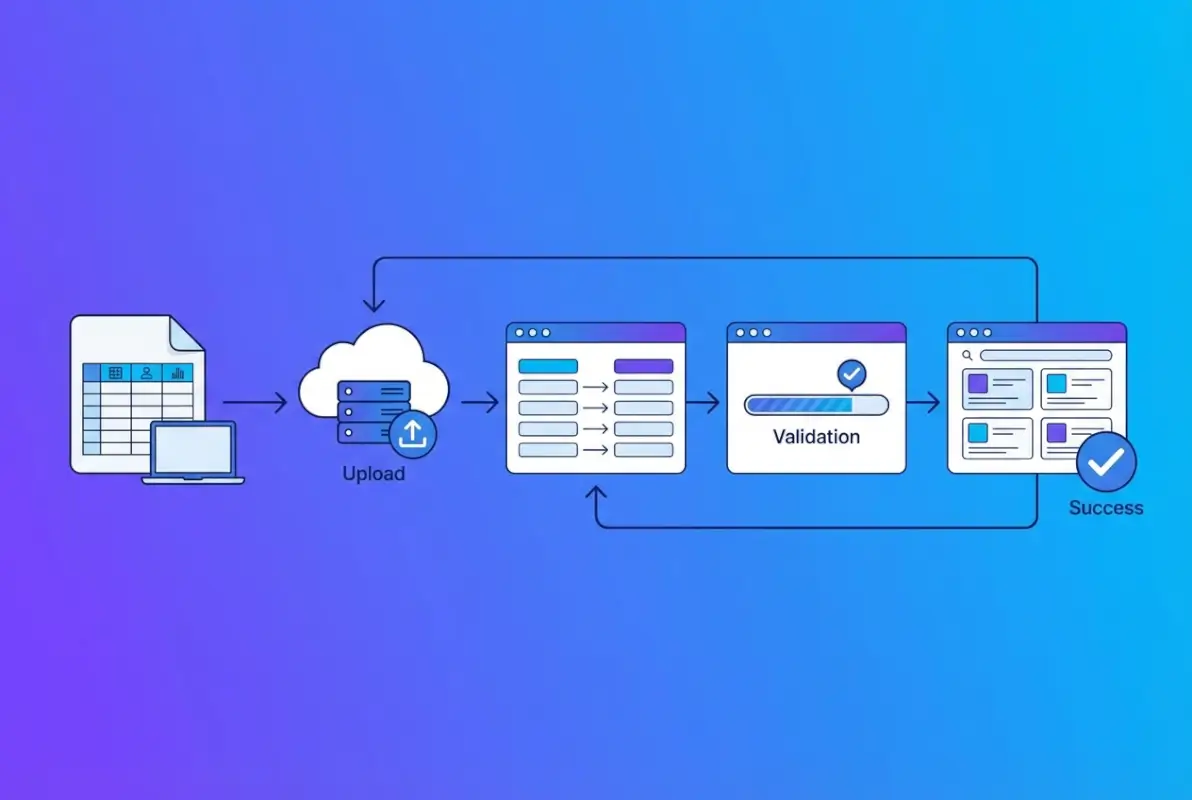
Step 1: Export or Create the CSV Template
If your platform provides a template, download it and use it as your starting point. If not, create a new CSV with header row containing your field names. Use descriptive, unambiguous headers: “business_name”, “street_address”, “city”, “state_province”, “postal_code”, “phone_number”, “email”, “website_url”, “category_primary”, “category_secondary”, “description”, etc. Avoid special characters, spaces (use underscores instead), and reserved words in column names.
Step 2: Populate Fields with Clean, Standardized Data
Enter or paste your business data into the template. This is where data hygiene becomes critical:
- Addresses: Separate into distinct fields (street, city, state, ZIP) rather than cramming everything into one field
- Phone numbers: Choose one format and stick to it—preferably E.164 international format or a consistent local format
- URLs: Include the protocol (https://) and verify they’re valid
- Categories: Use exact matches from your directory’s taxonomy, including proper capitalization
- Descriptions: Watch for character limits; strip any HTML unless your platform explicitly supports HTML in descriptions
Step 3: Validate CSV Integrity
Before uploading, perform these sanity checks:
- Row count matches expected number of businesses (plus one header row)
- Every row has the same number of columns
- No completely empty rows (they’ll create blank listings)
- Special characters display correctly (open in text editor to check encoding)
- Required fields are populated in every row
Online CSV validators can catch syntax errors, but nothing beats manually reviewing the first 10-20 rows in a text editor to spot issues that look fine in Excel but break during import.
Step 4: Upload the CSV to Your BD Tool
Navigate to your directory’s import interface and upload your CSV file. Most platforms show a preview at this stage, displaying the first few rows and confirming the file was parsed successfully. If you see garbled characters or misaligned columns at this stage, stop—fix the encoding or delimiter issues before proceeding.
Step 5: Map CSV Columns to BD Fields
This is the crucial step where you tell the system which CSV column corresponds to which directory field. Good importers offer auto-mapping based on header names, but always verify the mappings manually. I once imported 1,200 listings where the auto-mapper swapped “city” and “state” because of abbreviated header names—fixing that mess took two days.
Pay special attention to:
- Required field mappings: Ensure all mandatory fields have a source column mapped
- Category/taxonomy mappings: Some systems require taxonomy IDs rather than category names
- Custom field mappings: Verify custom fields map to the correct field keys (not display labels)
- Unmapped columns: Decide whether to skip them or map them to custom fields
Step 6: Run a Small Test Import
Never, ever run your first import with the full dataset. Create a test CSV with 5-10 representative listings (including edge cases—long names, special characters, multiple categories, etc.) and import those first. Check the imported listings in your directory’s backend and frontend to verify:
- All fields populated correctly
- Categories assigned properly
- Listings display as expected on the frontend
- Search and filtering work correctly
If anything’s wrong, delete the test listings, adjust your CSV or mappings, and test again. Repeat until perfect.
Step 7: Perform the Full Import
Once your test succeeds, run the full import with your complete CSV. Depending on your platform and dataset size, this might take anywhere from a few seconds to several minutes. Avoid navigating away from the page or closing your browser during the import—some systems will abort the process if the connection is interrupted.
For very large imports (10,000+ records), check if your platform supports batched imports, where you upload the file once and the system processes it in chunks in the background. This prevents timeouts and server overload.
Step 8: Review Import Logs and Fix Errors
After the import completes, examine the import log or report. Quality importers provide detailed feedback: how many records processed successfully, how many failed, and specific error messages for failed records. Common errors include missing required fields, invalid category names, duplicate detection triggers, or character encoding problems.
Export the error rows (if your platform supports it), fix the issues, and re-import just those records. Don’t re-import your entire CSV unless you’ve configured the system to skip duplicates or update existing records—otherwise you’ll create duplicates of everything that imported successfully the first time.
Handling Duplicates and Updates
Duplicate detection is one of the trickiest aspects of CSV imports. Most systems offer several strategies:
- Import all as new: Every row creates a new listing (use only for initial imports on empty directories)
- Skip duplicates: If a matching record exists, skip the CSV row and leave the existing record unchanged
- Update existing: If a matching record exists, update its fields with values from the CSV
- Create if not exists, update if exists: The “upsert” strategy that intelligently handles both scenarios
The key question is: what defines a duplicate? Common matching criteria include:
- Unique listing ID or SKU (most reliable but requires you to track IDs)
- Business name (simple but fails if names aren’t 100% consistent)
- Combination of name + address (more robust)
- Email or website URL (works well if they’re unique and required)
For ongoing maintenance where you’re regularly updating listings from an external source, I strongly recommend using a unique ID field. Assign each business a permanent ID in your source system, include it in your CSV, and configure your directory to match on that ID. This makes future updates clean and unambiguous.
Special Cases and Advanced Options
Beyond basic text data, many directories support importing media and complex structured data. Here’s how to handle the advanced scenarios:
Importing images: Most CSV importers don’t embed images directly (CSVs are text files). Instead, you include URLs pointing to image files hosted elsewhere, or you bulk-upload images to your server and reference them by filename. Some platforms support ZIP archives where you upload a CSV alongside an images folder, and the importer matches filenames to business IDs.
Multi-value fields: For fields that accept multiple values (multiple categories, multiple phone numbers, tags), check your platform’s delimiter convention. Common approaches include pipe-separated values (Category1|Category2|Category3), semicolon-separated, or multiple columns (category_1, category_2, category_3).
Nested data: Hierarchical category structures or related child records (like multiple branch locations for one business) typically require either special formatting in your CSV or separate imports. Consult your platform’s documentation for the exact syntax.
Scheduled and automated imports: For directories that sync with external data sources, consider automation. Some plugins support scheduled imports where you configure the system to fetch a CSV from a URL at regular intervals, import or update listings automatically, and email you a summary. This works well for directories that aggregate data from partner systems or API feeds that export to CSV.
Validation, Testing, and Quality Assurance
Import success isn’t just about getting data into the system—it’s about ensuring that data is accurate, searchable, and provides value to your users. Quality assurance after import is just as important as preparation before import, yet it’s the step most people skip in their rush to declare victory and move on.

Post-Import Validation Checklist
After your import completes, systematically verify these elements:
- Sample listing inspection: Open 10-15 random listings in your directory’s backend and confirm every field populated correctly—name, all address components, contact details, categories, description, custom fields
- Frontend display: View the same sample listings on the public-facing site to ensure formatting is correct, images appear (if applicable), and all information displays as intended
- Search functionality: Search for businesses by name, category, and location to confirm they appear in results
- Filtering and sorting: Test any category filters, location filters, or sorting options to verify they work correctly
- Category assignments: Review the category structure and spot-check that businesses are properly categorized
- Geographic/map display: If your directory includes maps, verify that addresses geocoded correctly and pins appear in the right locations
Troubleshooting Common Import Errors
Even with careful preparation, imports sometimes fail. Here are the most frequent culprits and their solutions:
Delimiter mismatches: If your import produces garbled data with everything crammed into one column, your file’s delimiter doesn’t match what the importer expects. Excel often saves CSVs with semicolons in some locales, verify your platform wants commas (standard) and re-save your CSV with explicit comma delimiters if necessary.
Character encoding issues: Garbled special characters (é instead of é, ’ instead of apostrophes) indicate an encoding mismatch. Re-save your CSV as UTF-8 without BOM (or with BOM if your platform requires it). The Library of Congress CSV format description notes that encoding ambiguity is one of CSV’s persistent challenges.
Line ending problems: If your import skips rows or treats multiple rows as one, line ending characters might be wrong. CSV files use CRLF (Windows), LF (Unix/Mac), or CR (legacy Mac) line endings. Convert to the line ending your platform expects using a tool like dos2unix or your text editor’s line-ending conversion feature.
Missing required fields: Imports that partially succeed with many errors often have rows missing required data. Check your import log for “missing required field” errors, filter your source data for blank required fields, and fix before re-importing those rows.
Invalid category values: If categories don’t assign correctly, you’ve probably got spelling variations, case mismatches, or categories that don’t exist in your directory. Export your directory’s category list, do a careful comparison with your CSV category values, and standardize them exactly.
Performance Considerations
Large imports can strain your server, especially on shared hosting or resource-constrained environments. If you’re importing 5,000+ listings and your import times out or fails partway through, try these approaches:
- Split into batches: Break your CSV into smaller files (500-1,000 records each) and import them sequentially
- Increase server timeouts: Temporarily raise PHP max execution time and memory limits (if you have access to server configuration)
- Schedule during low-traffic periods: Run large imports during off-peak hours when server load is lowest
- Use CLI import tools: If your platform offers command-line import scripts, they bypass web server timeouts entirely
Data Quality, Governance, and Security
A successful import is only the beginning. Maintaining directory quality over time requires ongoing governance, regular audits, and security best practices to protect both your business data and your users’ privacy.
Data Quality Controls
Directories are living systems—businesses close, relocate, change names, update phone numbers, and shift categories. Establish a data quality program that includes:
- Regular audits: Quarterly spot-checks of random listings to catch outdated information
- User-reported corrections: Provide a “suggest an edit” feature so business owners and users can flag errors
- Automated validation: Periodically check for broken website URLs, disconnected phone numbers (if you have access to phone validation APIs), and invalid email addresses
- Deduplication sweeps: Run periodic duplicate detection to catch listings that slipped through or variants created over time
- Taxonomy maintenance: Review and consolidate categories when you notice redundant or poorly-populated categories
When you receive updated data from source systems, don’t just blindly re-import, review changes first. Export your current directory, compare to the new data feed, identify what changed, and make informed decisions about which changes to accept.
Security and Privacy
Business directories often contain contact information, and that comes with privacy responsibilities. Before importing:
- Limit public exposure: Only publish fields that businesses have consented to share publicly—email addresses and cell phone numbers are often better hidden behind contact forms
- Comply with privacy regulations: GDPR, CCPA, and other privacy laws may require consent before publishing certain data or offering opt-out mechanisms
- Secure your import files: CSV files often contain sensitive data; store them securely, use encrypted connections for transfers, and delete import files after processing
- Backup before large imports: Always take a complete database backup immediately before running major imports—if something goes wrong, you can roll back cleanly
- Maintain audit logs: Keep records of when imports ran, who initiated them, what data changed, and what errors occurred for accountability and troubleshooting
The Microsoft Security blog regularly covers data handling best practices applicable to business information systems.
Advanced Topics and Best Practices
Once you’ve mastered basic CSV imports, these advanced techniques can transform your directory from a static listing database into a dynamic, continuously-updated information resource.
Automation and Scheduling
Manual imports work fine for initial directory setup or occasional updates, but if you’re syncing with external data sources or managing a directory that requires weekly updates, automation becomes essential. Look for these capabilities:
- Scheduled imports: Configure the system to automatically fetch a CSV from a URL, FTP site, or cloud storage at regular intervals
- Webhooks and triggers: Some platforms can trigger imports when external systems push updates via webhooks
- Differential updates: Instead of re-importing everything, configure incremental imports that only process changed or new records
- Notification and monitoring: Set up alerts for import failures, validation errors, or significant data changes
When implementing automation, start with a manual import workflow first. Once you’re confident everything works correctly and you understand the data patterns, then automate. I learned this the hard way when an automated import with a bad category mapping ran for three months before anyone noticed.
Enrichment and Integration
Raw CSV data is just the starting point. Consider enriching your listings with additional data from external sources:
- Geocoding: Convert addresses to latitude/longitude coordinates for map display and proximity search using services like Google Geocoding API or OpenStreetMap Nominatim
- Business hours: If your source data lacks hours of operation, consider using services that provide structured hours data
- Social media profiles: Append Facebook, LinkedIn, or Twitter profiles to listings for richer business information
- Reviews and ratings: Some directories integrate review data from external platforms
- Images: Automatically fetch business logos or photos from websites or external databases
Enrichment typically happens post-import through separate processes or plugins rather than within the CSV itself, but planning for it during import ensures you have the necessary identifiers (business name, address, website) to match external data accurately.
Internationalization and Localization
For directories serving multiple countries or regions, address internationalization early:
- Address schema flexibility: Different countries structure addresses differently—Japan uses postal code before prefecture, UK uses postcodes differently than US ZIP codes, European addresses often lack state/province fields
- Phone number formats: Store phone numbers in E.164 international format (+country code followed by national number) and format them for display based on locale
- Multilingual content: If your directory supports multiple languages, plan how to handle translated business names, descriptions, and category names (often requires separate fields or related tables rather than putting everything in one CSV)
- Character sets: UTF-8 encoding handles virtually all writing systems, but verify your platform’s database configuration supports full UTF-8 (utf8mb4 in MySQL) to avoid truncation
Real-World Mapping Examples
To make this concrete, here’s how you might structure a CSV for a typical local business directory:
| CSV Column Header | BD Field | Example Value |
|---|---|---|
| business_name | Listing Title | Acme Hardware & Garden Supply |
| street_address | Address Line 1 | 123 Main Street |
| city | City | Springfield |
| state | State/Province | IL |
| zip | Postal Code | 62701 |
| phone | Phone Number | (217) 555-0123 |
| info@acmehardware.example | ||
| website | Website URL | https://acmehardware.example |
| primary_category | Category (taxonomy term) | Hardware Store |
| description | Listing Description | Full-service hardware store… |
| hours | Business Hours (custom field) | Mon-Sat 8am-7pm, Sun 10am-5pm |
Documentation from platforms like CM Business Directory often includes detailed mapping examples specific to their field structures.
Post-Import Operations and Ongoing Maintenance
The import button isn’t the finish line—it’s the starting gate. What you do after import determines whether your directory becomes a trusted resource or a stale database that loses credibility over time.
Verification and Monitoring
Establish a post-import verification routine:
- Immediate verification: Within 24 hours of import, spot-check 20-30 listings across different categories and locations
- User acceptance testing: Have someone unfamiliar with the import try searching for businesses, applying filters, and accessing listing details—fresh eyes catch issues you’ll miss
- Analytics monitoring: Watch for anomalies in search patterns, error rates, or user feedback after the import goes live
- Scheduled audits: Monthly or quarterly, sample 50-100 listings and verify accuracy against source data
Export and Re-Import Cycles
Maintain bidirectional CSV workflows. Just as you can import CSV data into your directory, you should be able to export the current state to CSV for:
- Backup and disaster recovery: Regular CSV exports provide a human-readable backup that’s platform-independent
- Bulk editing: Export to CSV, make mass changes in Excel, re-import with update strategy
- Migration: If you ever switch directory platforms, CSV exports make migration tractable
- Analysis and reporting: Export data for analysis in BI tools, spreadsheets, or databases
When re-importing updates, always use your unique ID field to match records. This ensures updates modify the correct listings rather than creating duplicates or mixing up similar-named businesses.
Continual Improvement
Your directory’s data model and categories will evolve based on user behavior and feedback. Track these signals:
- Search queries with no results: Indicate missing categories or gaps in coverage
- Listings with high views but low engagement: May have incomplete or poor-quality data
- User-submitted corrections: Highlight systematic data quality issues
- Category distribution: Categories with 2-3 listings might be too granular, those with 2,000 might need sub-categories
Use these insights to refine your CSV import templates and data preparation processes for future imports. If you’re working toward getting your directory on the first page of Google, data quality and comprehensive coverage directly impact search rankings.
Platform-Specific Quick-Starts
While this guide provides universal principles, platform-specific details matter. Here’s a quick orientation for common business directory platforms:
WordPress Business Directory Plugin: Most WordPress BD plugins include CSV import under Tools or Add-ons menu. Look for official import extensions that handle field mapping, category assignment, and featured image imports. Remember that getting businesses listed efficiently often depends on using the right WordPress plugin combinations.
Brilliant Directories: Offers instant business data imports from commercial databases as well as CSV upload. Their template includes specific column headers for their custom fields and membership tiers. Review their instant business data documentation before structuring your CSV.
Custom-Built Directories: If you’ve built a custom directory application, implement a robust CSV import API that supports configurable field mappings, duplicate detection strategies, validation rules, and detailed error reporting. Consider building both interactive (web-based) and CLI import tools for flexibility.
Quick-Reference: Import Checklist and Cheat Sheet
Bookmark this section for quick reference when preparing your next CSV import:
Pre-Import Validation Checklist
- ☐ CSV saved as UTF-8 encoding
- ☐ Header row present with descriptive column names
- ☐ All rows have identical column count
- ☐ Required fields populated in every row
- ☐ No trailing spaces in critical fields (name, category, email)
- ☐ Phone numbers follow consistent format
- ☐ URLs include protocol (http:// or https://)
- ☐ Category values match directory taxonomy exactly
- ☐ Special characters (commas, quotes) properly escaped
- ☐ File opened in text editor to verify encoding and structure
- ☐ Database backup completed before import
- ☐ Test import successful with sample data
Essential Field Mapping Reference
Core fields every business directory CSV should include:
- business_name → Listing title/name (required)
- street_address → Address line 1 (required for location-based directories)
- city → City/locality
- state_province → State, province, or region
- postal_code → ZIP/postal code
- country → Country (especially for international directories)
- phone → Primary phone number
- email → Contact email
- website → Website URL
- primary_category → Main category/classification
- description → Business description
- listing_id → Unique identifier (for updates/deduplication)
Industry Context: Why CSV Endures in Business Data
It’s worth understanding why, despite more sophisticated data formats, CSV remains dominant for business directory imports. The RFC 4180 specification formalized CSV in 2005, but the format’s origins trace back to the earliest days of computing when systems needed a simple way to exchange tabular data.
CSV’s persistence isn’t just historical inertia—it’s driven by genuine advantages. Government open data portals worldwide overwhelmingly use CSV as their primary format. UK Government statistics, US federal datasets, and European Union data repositories all default to CSV because it’s universally accessible. You don’t need specialized software licenses or technical expertise to view and edit CSV files, a spreadsheet application or even a text editor suffices.
For business directories specifically, CSV hits the perfect balance. Listings are inherently tabular (each business is a row, each attribute is a column), CSV handles this structure naturally, and the format’s simplicity means fewer things can go wrong during import compared to complex XML schemas or deeply nested JSON structures.
The Library of Congress format description for CSV notes that despite some ambiguities (like line ending characters and delimiter variations), CSV’s transparency and longevity make it a reliable choice for data preservation and interchange—qualities that matter greatly for business directory operators who need their data accessible now and in the future.
Frequently Asked Questions
What is the best way to import a CSV file into a business directory?
The best approach is to use your directory platform’s native importer or official import plugin, starting with their provided CSV template. Validate your data against the template, run a small test import first (5-10 records), verify results on both backend and frontend, then import your full dataset. Always maintain a database backup before importing.
Can I map CSV columns to custom fields in my directory?
Yes, most business directory platforms support mapping CSV columns to custom fields during the import process. The field mapping interface typically shows your CSV column headers on the left and available directory fields (including custom fields) on the right. Verify that custom field keys (not just display labels) match what the importer expects, and test with sample data to confirm mappings work correctly.
How do I handle duplicates when importing listings?
Configure your importer’s duplicate detection strategy based on a unique identifier (listing ID is most reliable), business name plus address, or another combination that reliably identifies the same business. Choose whether to skip duplicates, update existing records, or create new ones. For ongoing imports, maintaining a unique ID field in both your source CSV and directory is the most robust approach to prevent duplicates.
What should I do if the import fails halfway?
First, check the import log or error report to identify which records failed and why. Export error rows if possible, fix the issues (common culprits: missing required fields, invalid categories, encoding problems), and re-import only the failed records. If the entire import crashed, verify your file doesn’t exceed server limits, consider splitting into smaller batches, and ensure you have adequate PHP memory and execution time configured.
Do I need to use a template or can I create my own CSV structure?
While you can create your own CSV structure, using your platform’s official template dramatically reduces errors and saves time on field mapping. Templates include the correct column headers, proper formatting examples, and sometimes validation rules. If templates aren’t available, create a structured CSV with clear header names matching your directory’s field names, then carefully map each column during import and test thoroughly.
How can I import images or media with listings?
Most CSV importers handle images via URLs (hosting images elsewhere and including the URL in your CSV) or filename references (bulk uploading images to a designated folder and matching filenames to business IDs in your CSV). Some platforms support ZIP imports containing both a CSV and an images folder. Check your specific platform’s documentation, as image import capabilities vary widely between directory systems.
How often should I run CSV imports for ongoing updates?
Import frequency depends on how dynamic your source data is. For relatively static directories, quarterly imports suffice. If you’re syncing with frequently-updated external sources, weekly or even daily imports make sense. Consider automating recurring imports if you’re updating monthly or more often, and always configure duplicate detection to update existing records rather than create duplicates. Monitor data change rates and user feedback to optimize your update schedule.
Are there security concerns when importing CSV data into a directory?
Yes, several security considerations apply. Only import data from trusted sources, as malicious CSV files can contain code injection attempts. Store import files securely with restricted access, use encrypted connections for file transfers, and delete files after processing. Be mindful of privacy regulations when importing contact information—ensure you have consent to publish email addresses and phone numbers publicly, and provide opt-out mechanisms where required by law.
Where can I find reliable templates or documentation for specific BD platforms?
Start with your platform’s official documentation—most reputable business directory systems provide import templates and detailed guides in their knowledge base or support section. For WordPress BD plugins, check the WordPress plugin repository and the developer’s help documentation. Government and institutional platforms often publish templates alongside their directory tools. Always download fresh templates before major imports, as field structures can change with platform updates.
Can I schedule automatic CSV imports from external sources?
Many business directory platforms support scheduled imports through plugins, extensions, or built-in automation features. You typically configure the system to fetch a CSV from a specific URL or FTP location at defined intervals, then automatically process the import using saved field mappings and duplicate detection rules. This is ideal for directories that aggregate data from partner systems or regularly-updated databases, though it requires careful initial setup and ongoing monitoring.
What’s the difference between importing listings and updating existing ones?
Importing creates new listings from CSV rows, while updating modifies existing directory records based on matching criteria. Most platforms offer distinct import modes: “create only” (import all as new), “update only” (modify existing, skip unmatched rows), and “upsert” (create if new, update if exists). The key is configuring match criteria—typically a unique ID, business name, or name-address combination—so the system can identify which existing records correspond to which CSV rows.
Take Action: Your Next Import Starts Now
You now have a complete blueprint for importing CSV data into any business directory platform—from initial planning and CSV preparation through field mapping, validation, and long-term maintenance. The difference between a frustrating import experience and a smooth one comes down to systematic preparation, careful attention to data quality, and thorough testing before committing to full-scale imports.
Start with these concrete next steps: download your platform’s official CSV template (if available), document your directory’s required and custom fields, prepare a test CSV with 10 sample listings, and run a complete test import cycle from start to finish. Once you’ve successfully tested the workflow, you’ll have confidence to tackle imports of any size.
Remember that CSV imports aren’t one-time events—they’re the foundation of an ongoing data management strategy. Whether you’re building a new directory from scratch, migrating from another platform, or maintaining an established directory with regular updates, mastering the CSV import process gives you control over your data and the ability to scale efficiently. Combined with smart SEO strategies for getting business listings ranked and visibility optimization, you’ll have a directory that’s both comprehensive and discoverable.
The tools and techniques in this guide work whether you’re managing 50 listings or 50,000. Your business directory is only as good as the data it contains—make that data clean, complete, and current through disciplined CSV import practices, and you’ll build a resource that users trust and return to repeatedly.
Was this article helpful?