How to Install SEO Plugins in WordPress: 6 Essential Extensions
Generating summary...
Let me share something that took me years to figure out: most WordPress site owners install the wrong SEO plugins, in the wrong order, and wonder why their organic traffic never takes off. Here’s the uncomfortable truth – having the right plugins matters less than knowing how to configure them properly. I’ve watched countless sites with premium SEO plugins languish on page three of Google while simpler setups with proper implementation dominate the SERPs. The difference? Strategic plugin selection and methodical configuration, not just throwing every popular extension at your dashboard and hoping for the best.
WordPress powers a staggering portion of the web’s content management systems, and the plugin ecosystem reflects this dominance. Millions of sites depend on SEO extensions for everything from metadata control to structured data implementation. Industry analyses consistently show Yoast, Rank Math, and All in One SEO leading active installations, but what most guides won’t tell you is that plugin overlap creates more problems than it solves. This guide cuts through the noise to show you exactly which six essential extensions you need, how to install them without conflicts, and the configuration steps that actually move the needle on organic visibility.
TL;DR – Quick Takeaways
- Six core plugins cover all SEO bases – Yoast/Rank Math/AIOSEO for on-page, Google Site Kit for analytics, SEOPress for efficiency, and a schema plugin for rich results
- Don’t install multiple all-in-one SEO plugins – Choose ONE primary plugin (Yoast, Rank Math, or AIOSEO) to avoid metadata conflicts
- Configuration matters more than installation – Default settings rarely align with your content strategy; customize title templates, sitemaps, and schema
- Connect Google Site Kit immediately – Real-time Search Console and Analytics data within WordPress drives better optimization decisions
- Regular audits prevent plugin bloat – Quarterly reviews catch duplicate functionality, outdated extensions, and security vulnerabilities
Choose the Right SEO Plugins (6 Essential Extensions)
The WordPress plugin directory contains thousands of SEO-related extensions, most of which duplicate functionality or add unnecessary overhead to your site. After managing SEO for dozens of WordPress installations, I’ve settled on a strategic six-plugin approach that covers metadata, analytics, performance monitoring, and structured data without creating conflicts or slowing down page loads.
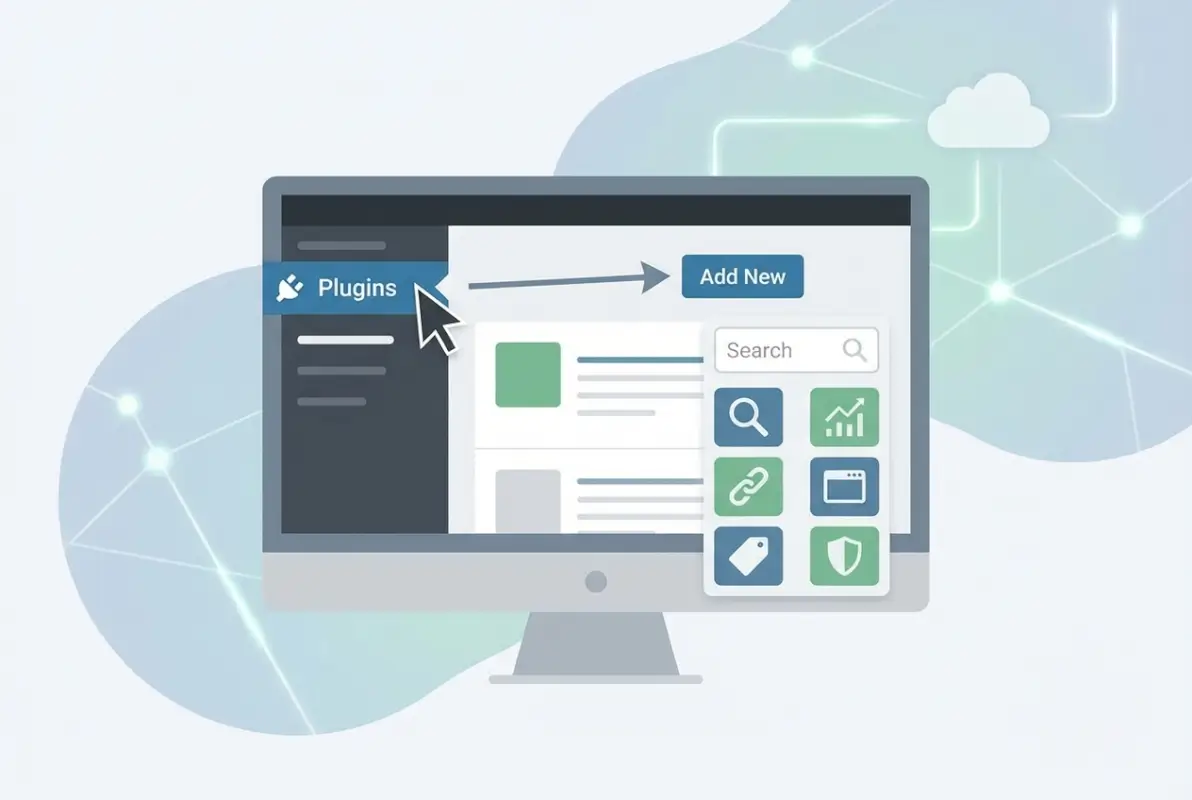
Your first decision determines everything else: which all-in-one SEO plugin becomes your foundation. This choice isn’t about which plugin is “best” in abstract terms – it’s about which interface matches your workflow and which feature set aligns with your content strategy. Let’s break down the core six extensions and why each earns its place in your WordPress installation.
Yoast SEO (Free + Premium)
Yoast remains the most recognized name in WordPress SEO for good reason. The plugin offers comprehensive on-page analysis, readability scoring that actually improves content quality, and robust schema support that extends beyond basic article markup. Installation through the WordPress Plugins page takes seconds, and the activation wizard guides you through essential settings without overwhelming new users.
What sets Yoast apart is the granular control over title templates and meta descriptions across post types, taxonomies, and archives. The free version handles most sites perfectly well; the premium tier adds redirect management, internal linking suggestions, and advanced schema types like HowTo and FAQ blocks. For sites publishing content regularly, Yoast’s content analysis sidebar becomes second nature, flagging keyword density issues and structural problems before you hit publish.
Rank Math
Rank Math arrived later than Yoast but quickly gained traction by offering premium-level features in its free tier. The plugin excels at migration – if you’re switching from Yoast or AIOSEO, Rank Math’s import tool transfers settings, metadata, and redirect configurations without manual rebuilding. The interface feels more modern than Yoast, with a cleaner dashboard and better integration with the WordPress block editor.
Where Rank Math particularly shines is rich snippet configuration. The plugin makes it remarkably easy to add review schema, event markup, and product structured data directly within the post editor. The setup wizard walks you through Google Search Console connection, sitemap configuration, and robots.txt optimization in minutes. For users who want advanced features without paying for premium tiers, Rank Math delivers exceptional value.
All in One SEO (AIOSEO)
AIOSEO represents the third pillar of WordPress SEO plugins, offering a balance between Yoast’s comprehensiveness and Rank Math’s modern interface. The plugin has evolved significantly from its earlier iterations, now including smart XML sitemaps, social media integration, and local SEO features that rival standalone local business plugins. If you’re looking to set up a business directory website, AIOSEO’s local schema support becomes particularly valuable.
Installation and setup mirror Yoast’s straightforward approach, but AIOSEO’s strength lies in its TruSEO score – an on-page analysis system that evaluates content against dozens of factors beyond simple keyword density. The plugin’s headline analyzer helps craft titles that balance SEO requirements with click-through optimization, addressing the reality that ranking means nothing if users don’t click your result.
Google Site Kit (For Analytics and Indexing)
While Yoast and its competitors handle on-page optimization, Google Site Kit connects your WordPress dashboard directly to Search Console, Analytics, PageSpeed Insights, and AdSense. This centralization matters more than most realize – having indexing data, search queries, and traffic metrics in one place accelerates the optimization cycle dramatically.
Site Kit’s real-time indexing status alerts you when pages drop from Google’s index or when manual actions affect your site. The plugin surfaces actual search queries driving traffic, eliminating the guesswork around whether your keyword targeting aligns with user search behavior. For anyone serious about data-driven SEO, Site Kit transforms WordPress from a publishing platform into an SEO command center.
SEOPress
SEOPress flew under the radar for years while Yoast and Rank Math dominated mindshare, but the plugin has carved out a loyal user base by focusing on performance and resource efficiency. Unlike bloated all-in-one plugins that load dozens of scripts on every page, SEOPress maintains a lighter footprint while still delivering XML sitemaps, comprehensive schema options, and content analysis tools.
The plugin’s development trajectory through recent years shows consistent feature additions without sacrificing speed. SEOPress handles everything from breadcrumb schema to video object markup, and the white-label option appeals to agencies managing multiple client sites. If you’re building a profitable home-based business directory, SEOPress provides the SEO foundation without the performance penalty of heavier alternatives.
Schema & Structured Data Helper Plugins
While major SEO plugins include basic schema support, dedicated structured data plugins provide granular control over rich snippets that can dramatically improve SERP click-through rates. Plugins like Schema & Structured Data for WP & AMP or Schema Pro let you add markup types that all-in-one solutions often overlook – things like software application schema, course structured data, or detailed product reviews.
The real value emerges when you need multiple schema types on a single page or when you’re implementing complex nested structures. A recipe post might need Recipe schema, aggregate rating markup, and FAQ schema for common cooking questions – easier to manage with a dedicated tool than through your primary SEO plugin’s interface. These specialized plugins complement rather than replace your all-in-one SEO solution.
Install Plugins in WordPress (Step-by-Step)
Installation seems straightforward until something goes wrong – and with SEO plugins, mistakes during setup can create persistent issues with duplicate tags, malformed sitemaps, or conflicting redirects. I learned this the hard way when a hasty plugin installation on a client site resulted in dual meta descriptions that took weeks to clear from Google’s cache.
Before you click that Install button, three pre-installation checks prevent 90% of common problems. First, back up your site completely – not just the database, but files too, since some plugins modify .htaccess or create custom folders. Second, verify PHP version compatibility; older plugins may not support PHP 8.0+, while cutting-edge plugins might require versions your host hasn’t updated to yet. Third, confirm your WordPress version meets the plugin’s requirements, checking the official WordPress.org plugin page for compatibility notes.
Installing from the WordPress Repository
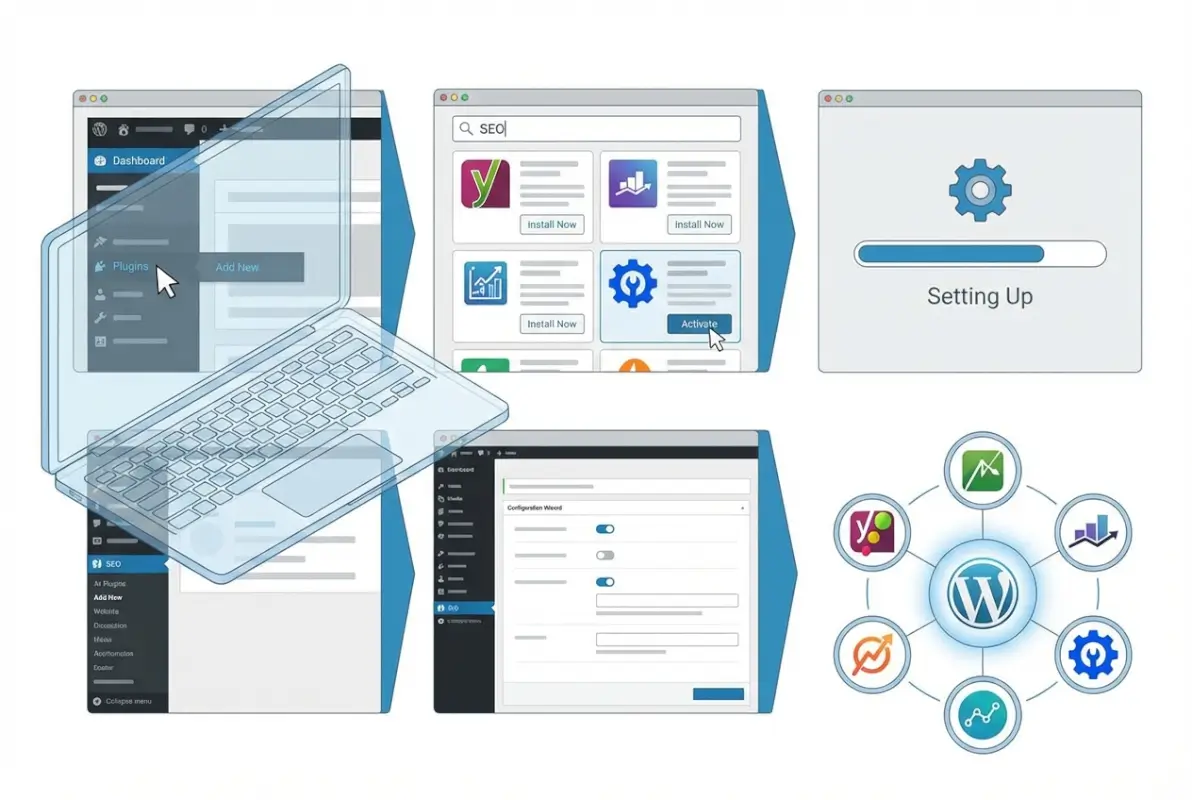
The standard installation path works for most SEO plugins. Navigate to Plugins > Add New in your WordPress dashboard, search for your chosen plugin (let’s say “Rank Math”), verify you’re selecting the official version by checking the author and active installation count, then click Install Now. The button changes to Activate once installation completes – click it to enable the plugin.
Most major SEO plugins launch a setup wizard immediately after activation. Don’t skip this step. The wizard connects Google Search Console, configures basic sitemap settings, and establishes your site’s schema type (organization vs. personal blog). These foundational settings affect everything the plugin does, so invest ten minutes in thoughtful configuration rather than blindly clicking “Next” to dismiss the wizard.
| Installation Method | Best For | Complexity |
|---|---|---|
| WordPress Repository | Free plugins, automatic updates | Low |
| Manual .zip Upload | Premium plugins, private plugins | Medium |
| FTP/SFTP Upload | Troubleshooting, large files | High |
Installing via .zip (Manual Install)
Premium plugins and purchased extensions come as .zip files that require manual upload. In your WordPress dashboard, go to Plugins > Add New > Upload Plugin. Click Choose File, select your .zip package, then click Install Now. WordPress extracts the archive to your /wp-content/plugins/ directory and presents the Activate button once extraction completes.
After activation, premium plugins typically require license key entry before full functionality unlocks. Navigate to the plugin’s settings page (usually under a new menu item in your admin sidebar), locate the License or Activation section, paste your key, and click Validate or Activate. This step connects your installation to the developer’s update servers, ensuring you receive security patches and feature updates. For detailed guidance on this process, check out how to install a purchased WordPress plugin properly.
Migrating from Existing SEO Plugins
Switching SEO plugins without data loss requires the built-in import tools that Rank Math, AIOSEO, and Yoast all provide. If you’re moving from Yoast to Rank Math, for example, Rank Math’s setup wizard includes a dedicated “Import from Yoast” option that transfers meta titles, descriptions, social markup, and even redirect rules in many cases.
Here’s the critical sequence: First, install and activate the new plugin but don’t deactivate the old one yet. Run the import process while both plugins are active so the new plugin can read the old one’s database tables. After import completes, audit a sample of posts to verify metadata transferred correctly. Only then should you deactivate (and eventually delete) the old plugin. This staged approach prevents metadata loss if the import process encounters issues with custom post types or unusual configurations.
Configure Core Settings (Baseline Setup)
Installation gets the plugins on your site; configuration makes them actually useful. Default settings rarely align with your specific content strategy, site structure, or target audience. I’ve seen sites rank poorly for months simply because no one bothered to customize title templates beyond the generic “%post_title% – %site_name%” pattern that every competitor uses identically.
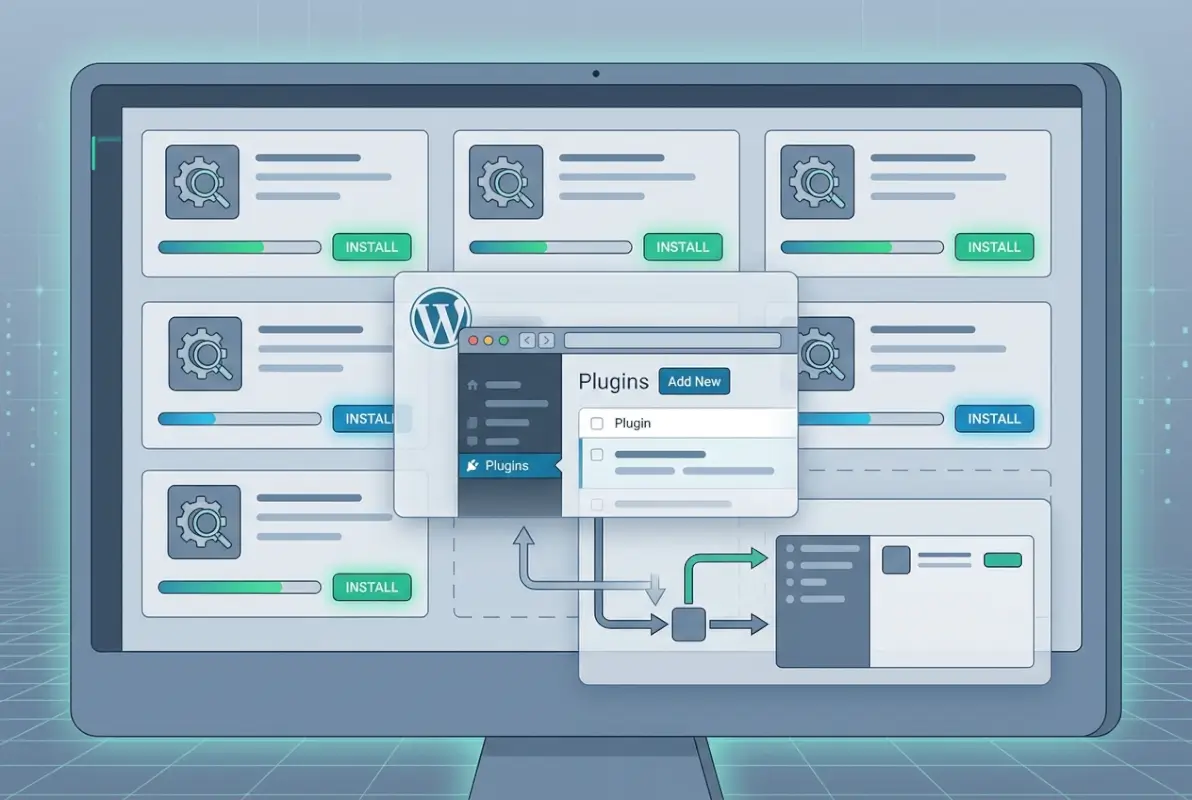
Proper baseline configuration touches four critical areas: metadata architecture, XML sitemap customization, structured data implementation, and analytics integration. Each area builds on the others – your sitemap excludes pages that shouldn’t be indexed, your schema markup enhances the pages that should rank, and your analytics verify that configuration decisions actually improve visibility.
Metadata, Titles, and Meta Descriptions
Title templates determine how your content appears in search results, and small variations can significantly impact click-through rates. Instead of the default “%post_title% – %site_name%”, consider patterns that include category context for posts (“%post_title% – %category% Guide | %site_name%”) or location for local businesses (“%business_name% in %location% – %service%”).
Meta descriptions deserve individual attention for cornerstone content and category pages, but templates work well for scale. Set up templates that include target keywords naturally while maintaining readability. For product categories in a directory, something like “Find %category% businesses in %location%. Compare reviews, hours, and services for %category% providers.” gives searchers context while incorporating local search modifiers.
Focus keywords – the terms you tell your SEO plugin to optimize for – should reflect actual search intent, not just high-volume keywords. If you’re targeting “business directory software,” variations like “business listing platform” and “company directory system” should appear naturally in your content, headings, and metadata without forced repetition that harms readability.
XML Sitemaps and Indexing
Every SEO plugin generates XML sitemaps automatically, but default configurations often include pages that waste crawl budget. Tag archives, author pages on single-author blogs, and attachment URLs rarely deserve indexing. Customize your sitemap to exclude these low-value pages while ensuring important content appears prominently.
Sitemap priority and change frequency settings matter less than they used to – Google largely ignores these signals now. What matters more is logical sitemap organization: separate sitemaps for posts, pages, and custom post types help search engines understand your site structure. If you’re running a business directory, custom post types for company listings should have their own sitemap separate from editorial content.
Don’t forget to verify your robots.txt file after sitemap configuration. Navigate to yourdomain.com/robots.txt to ensure your sitemap URL is listed and that you’re not accidentally blocking important directories. SEO plugins often add sitemap references to robots.txt automatically, but confirming this detail prevents indexing delays.
Schema and Structured Data
Structured data transforms plain search results into rich snippets – the enhanced listings with star ratings, cooking times, FAQ accordions, and other elements that increase click-through rates. Your SEO plugin likely includes schema types for articles, local businesses, and basic organization markup, but you’ll need to configure these templates to match your content.
For blog content, Article or BlogPosting schema should be your default, with additional markup for FAQs, HowTos, or review snippets where relevant. Business directories benefit enormously from LocalBusiness schema on company listing pages – include business name, address, phone, hours, and aggregate ratings to maximize the information Google can display directly in search results.
Testing your structured data implementation is non-negotiable. Use Google’s Rich Results Test (search.google.com/test/rich-results) on a sample of your pages to verify that schema validates without errors. Common issues include missing required properties (like author for Article schema) or nested schema types that conflict with each other. When you’re learning to showcase your business directory on your homepage, proper LocalBusiness schema becomes essential for appearing in local map packs.
Analytics and Search Performance
Google Site Kit bridges the gap between your WordPress dashboard and Google’s suite of webmaster tools. The initial connection requires authorizing Site Kit to access Search Console and Analytics on your behalf – a simple OAuth flow that takes under a minute. Once connected, your WordPress dashboard displays impressions, clicks, and average position for your top-performing content without leaving the admin area.
Configure Site Kit to show data for the past 90 days by default rather than the standard 28-day window. This longer timeframe smooths out weekly fluctuations and makes traffic trends more apparent. Set up custom events for key actions – newsletter signups, contact form submissions, or directory listing claims – so you can correlate SEO improvements with actual business outcomes rather than just traffic volume.
Integrate with Content Workflow and Accessibility
SEO plugins work best when they become part of your content creation process rather than an afterthought before publishing. The most effective WordPress sites I’ve managed treat SEO optimization as a writing aid, not a post-production checklist. This integration starts with understanding how modern WordPress blocks interact with SEO plugins and extends through accessibility considerations that benefit both users and search engines.

The block editor (Gutenberg) fundamentally changed WordPress content creation, and SEO plugins adapted by providing specialized blocks for structured data. Rather than manually coding FAQ schema or HowTo markup, you now drag a block into your editor, fill in the fields, and valid structured data appears automatically in your page source.
Gutenberg-Friendly Blocks and Content Guidance
Yoast includes dedicated blocks for FAQs and HowTos that make structured content creation straightforward. The FAQ block lets you add questions and answers in a clean accordion interface while simultaneously generating FAQ schema that Google can use for rich snippets. Similarly, the HowTo block creates step-by-step instructions with optional images and time estimates, formatted both for readers and search engine structured data parsers.
These blocks do more than just add schema – they encourage better content structure. Breaking complex processes into discrete steps or anticipating common questions improves readability for all users, not just search engines. The accessibility benefits here overlap significantly with SEO: clear content hierarchy helps screen readers navigate your page just as effectively as it helps Googlebot understand your content structure.
Header hierarchy matters enormously for both accessibility and SEO, yet it’s one of the most commonly misunderstood aspects of content structure. Each page should have exactly one H1 (usually your post title, added automatically by WordPress), followed by H2s for major sections and H3s for subsections within those H2s. Skipping from H2 to H4 or using headers based on visual preference rather than content hierarchy confuses assistive technologies and dilutes the topical signals search engines extract from your headings.
Internal Linking and Navigation
Strategic internal linking creates topic clusters that signal expertise to search engines while helping users discover related content. The hub-and-spoke model works particularly well: create comprehensive pillar pages on broad topics, then link from those pages to specific subtopic posts that link back to the pillar. This bidirectional linking reinforces topical relevance and distributes page authority throughout your site.
SEO plugins with premium tiers often include internal linking suggestions based on keyword analysis. Rank Math, for example, analyzes your content library and suggests relevant posts to link when you’re writing new content on similar topics. These suggestions accelerate the internal linking process, though manual review ensures contextual relevance rather than just keyword matching.
Navigation structure affects crawlability dramatically. Sites with shallow navigation (important pages reachable in 2-3 clicks from the homepage) generally perform better than deep hierarchies requiring 5+ clicks to reach valuable content. For business directories, this means ensuring individual business listings are no more than three levels deep: homepage → category page → listing. When considering how to register a company in your business directory, keep the submission process and resulting listing pages accessible through minimal navigation layers.
Accessibility Considerations
Alt text for images serves dual purposes: describing visual content for screen reader users and providing textual context for search engines. Effective alt text describes the image concisely while incorporating relevant keywords naturally – “WordPress SEO plugin configuration dashboard showing title template settings” beats “screenshot” or keyword-stuffed “SEO plugin WordPress best SEO plugin install configuration.”
Color contrast ratios, link underlines, and keyboard navigation might seem tangential to SEO, but accessibility and search optimization overlap more than many realize. Sites with strong accessibility tend to have better engagement metrics – lower bounce rates, longer session durations, more pages per visit – which indirectly influences rankings through user experience signals. Clear link text (avoid “click here”), properly labeled form fields, and logical focus order benefit all users while creating clearer structure for search engine interpretation.
Performance, Security, and Maintenance
The unsexy part of SEO plugin management – ongoing maintenance, security updates, and performance monitoring – determines whether your SEO foundation remains solid or gradually degrades into a liability. I’ve seen excellent initial setups become ranking anchors within months because no one monitored plugin conflicts, outdated extensions created security vulnerabilities, or bloated configurations slowed page loads enough to trigger Core Web Vitals issues.

Performance and security aren’t optional considerations for SEO plugins – they’re foundational requirements. A plugin that improves your meta descriptions but adds 800ms to page load time creates a net negative impact on rankings, particularly for mobile searches where speed plays an outsized role in user experience quality.
Performance Impact and Caching Considerations
Not all SEO plugins affect performance equally. Lightweight options like SEOPress typically add 50-100KB to page weight and execute in under 50ms, while feature-heavy configurations of bloated plugins can add 500KB+ and introduce noticeable delays. Monitor your actual performance impact using Query Monitor (a free WordPress plugin) to identify which extensions create the heaviest resource loads.
Caching plugins and SEO extensions occasionally conflict, particularly around XML sitemap generation and dynamic content. If you’re using page caching (and you should be), configure your cache plugin to exclude sitemap URLs from caching – you want these to reflect real-time content changes rather than serving stale cached versions. Some cache plugins also interfere with SEO plugin redirects, creating situations where 301 redirects get cached incorrectly and become difficult to update.
| Plugin Type | Typical Page Weight | Execution Time |
|---|---|---|
| Lightweight SEO (SEOPress) | 50-100KB | ~50ms |
| Standard All-in-One (Yoast, AIOSEO) | 200-350KB | ~120ms |
| Feature-Heavy Config (Premium + Add-ons) | 500KB+ | ~250ms |
Disable features you don’t actively use. If you’re not implementing breadcrumbs on your site, turn off breadcrumb schema generation. If you don’t use Open Graph tags because you never share content on social media, disable that module. These granular optimizations reduce database queries and script loads, particularly beneficial for shared hosting environments with limited resources.
Security Best Practices for Plugins
WordPress plugin vulnerabilities represent one of the most common website security risks, with SEO plugins being no exception. Popular plugins like Yoast and Rank Math receive security scrutiny from researchers, and vulnerabilities get patched quickly – but only if you actually update your installations. Enabling automatic updates for plugins ensures critical security patches deploy immediately rather than waiting for your next manual update session.
The principle of least privilege applies to plugin management: remove extensions you’ve stopped using rather than simply deactivating them. Inactive plugins still present security risks because their code remains on your server where vulnerabilities could be exploited. After switching from Yoast to Rank Math, for example, delete Yoast completely rather than leaving it inactive “just in case” you want to switch back.
Regular Audits and Updates
Schedule quarterly SEO plugin audits to review configuration drift, identify new features worth enabling, and verify that sitemap and schema implementations remain error-free. Settings that made sense six months ago might not align with your current content strategy or site structure. These audits also catch duplicate functionality – maybe you installed a schema plugin that now overlaps with new features added to your all-in-one SEO plugin, creating redundant markup that could confuse search engines.
Check for plugin conflicts by monitoring your site’s behavior after major WordPress core updates or plugin version changes. Conflicts often manifest subtly: slightly longer load times, intermittent issues with specific features, or error messages visible only in browser console logs. Use staging environments to test major updates before deploying to production, particularly when updating core SEO functionality that affects every page on your site.
Monitoring and Ongoing Optimization (Data-Informed Improvements)
Installation and configuration establish your SEO foundation, but continuous improvement driven by actual performance data separates sites that maintain rankings from those that gradually slide down SERPs. Every time I work with a site stuck in mediocre rankings, the root cause is usually the same: they optimized once and never iterated based on what the data revealed about their actual search performance.
Traffic and Ranking Monitoring
Google Site Kit provides baseline monitoring, but dedicated rank tracking tools offer more granular insights into keyword movements and SERP feature appearances. Track your target keywords weekly to identify ranking volatility – sudden drops often indicate technical issues (broken schema, duplicate content, indexing problems) rather than algorithm updates affecting everyone equally.
Focus on impressions and click-through rate as much as rankings. A first-position ranking that generates 200 impressions monthly matters less than a fifth-position ranking generating 5,000 impressions. Similarly, if your average CTR for a keyword falls below 10% despite a top-five ranking, your title and meta description probably need optimization to better match search intent.
Search Console’s Performance report reveals which queries trigger your pages and what positions you rank for them. Filter by page to see all queries driving traffic to a specific URL, or filter by query to identify multiple URLs competing for the same keyword (potential cannibalization). Use this data to refine title templates, add missing keywords to content, or consolidate similar pages that split ranking signals.
Content Iteration Based on SERP Insights
Top-performing content requires ongoing refreshment to maintain rankings as competitors update their pages and search intent evolves. Audit your highest-traffic posts quarterly: add recent statistics, remove outdated references, expand sections that competitors cover more thoroughly, and update publication dates to signal freshness. Many SEO plugins include tools to identify underperforming content – Rank Math shows estimated traffic potential alongside actual traffic, highlighting pages where ranking improvements could yield significant gains.
Analyze SERP features for your target keywords to identify optimization opportunities. If featured snippets appear for your keywords but you’re not capturing them, restructure content to better match the snippet format (concise definitions, numbered lists, or comparison tables). If People Also Ask boxes consistently appear, create dedicated FAQ sections covering those questions with schema markup to capture those expansions.
Alternative and Supplementary SEO Plugins to Know
While the core six plugins cover most SEO needs, specialized scenarios sometimes require additional tools. Understanding when these supplementary plugins add value versus when they duplicate functionality helps you avoid plugin bloat while still accessing advanced capabilities when genuinely needed.
Specialized Schema Plugins for Complex Markup
Sites requiring detailed schema beyond what all-in-one plugins provide – job posting structured data, detailed product specifications with offer schema, or complex event markup with multiple dates and locations – benefit from dedicated schema plugins. These tools often provide visual schema builders that map directly to schema.org specifications, making it easier to implement complex nested structures without hand-coding JSON-LD.
The trade-off is added complexity and potential conflicts with your primary SEO plugin’s schema output. If you go this route, disable schema generation in your all-in-one plugin for the specific types you’re handling with the specialized tool to prevent duplicate structured data in your page source.
Local SEO Extensions
Business with physical locations often need more granular local SEO controls than general plugins provide. Local SEO plugins add features like location-specific schema, automated NAP (Name, Address, Phone) consistency checks, and Google Business Profile integration. However, if you’re already using Yoast Premium or AIOSEO Pro, check whether their local SEO modules meet your needs before adding another plugin.
Frequently Asked Questions
What is the best WordPress SEO plugin to start with?
For most users, Rank Math offers the best balance of features and usability at no cost. It includes comprehensive schema support, sitemap generation, and Search Console integration that competitive plugins reserve for premium tiers. However, if you prioritize simplicity over feature breadth, Yoast’s guided approach and extensive documentation make it easier for complete beginners to achieve solid baseline optimization.
How many SEO plugins should I use on a WordPress site?
Use one all-in-one SEO plugin (Yoast, Rank Math, or AIOSEO), Google Site Kit for analytics, and optionally a specialized schema plugin if you need advanced structured data. Never run multiple all-in-one plugins simultaneously as they create conflicting meta tags and waste server resources. The ideal setup focuses on depth of configuration rather than breadth of plugin installations.
How do I install an SEO plugin on WordPress?
Navigate to Plugins > Add New in your WordPress dashboard, search for the plugin name, click Install Now, then Activate. After activation, most SEO plugins launch a setup wizard guiding you through essential configuration steps including Search Console connection, sitemap settings, and basic schema options. Complete this wizard rather than skipping it to ensure proper baseline configuration.
Do SEO plugins affect site speed?
Yes, all plugins add some performance overhead, but the impact varies dramatically. Lightweight plugins like SEOPress add minimal load time (50-100ms), while heavily-featured configurations can add 250ms or more. The performance cost is usually justified by the SEO benefits, but monitor page load times with tools like GTmetrix and disable unnecessary plugin features to minimize the impact.
Should I use Yoast, Rank Math, or All in One SEO?
Choose based on your priorities: Yoast for extensive documentation and proven reliability, Rank Math for maximum free features including advanced schema support, or AIOSEO for balanced functionality with strong WooCommerce integration. The differences in ranking outcomes are minimal with proper configuration; interface preference and specific feature requirements should guide your decision more than abstract “best” judgments.
How can I verify that my SEO plugin is correctly configured?
Use Google’s Rich Results Test to verify schema markup validates correctly, check Search Console for sitemap indexing status, and view page source to confirm meta titles and descriptions appear without duplication. Monitor Search Console’s Coverage report for indexing errors, and verify that your target pages appear in your XML sitemap while low-value pages (tags, archives) are excluded.
What role does Google Site Kit play with WordPress SEO plugins?
Site Kit doesn’t optimize your pages – it connects WordPress to Search Console, Analytics, and PageSpeed Insights so you can monitor SEO performance without leaving your dashboard. It complements rather than replaces SEO plugins: your all-in-one plugin optimizes content and structure while Site Kit shows you how those optimizations affect actual search traffic, rankings, and user engagement.
Can I switch SEO plugins without losing rankings?
Yes, if you migrate properly using import tools to transfer metadata, redirects, and settings from your old plugin to the new one. Run both plugins simultaneously during import, verify metadata transferred correctly on sample posts, then deactivate the old plugin. Rankings depend on your actual page content and backlinks more than which specific plugin manages your meta tags.
How often should I update my SEO plugin configuration?
Review configuration quarterly to ensure settings align with your current content strategy and site structure. Update immediately when launching new content types requiring different schema or when major algorithm updates suggest tactical shifts. However, avoid constant tinkering – make deliberate changes based on performance data rather than chasing every minor optimization suggestion.
Do I need a premium SEO plugin or is the free version sufficient?
Free versions of major SEO plugins handle essential optimization for most sites. Consider premium if you need specific advanced features: redirect management for site migrations, advanced schema types beyond basic articles and local business, or internal linking suggestions at scale. Evaluate whether premium features address actual limitations you’re experiencing rather than upgrading based on fear of missing out.
Conclusion
The difference between sites that dominate organic search and those perpetually stuck on page two often comes down to systematic plugin selection and disciplined ongoing optimization rather than any secret technique or expensive premium tool. Your six-plugin foundation – one all-in-one SEO solution, Google Site Kit, a performance-conscious option like SEOPress, and specialized schema support where needed – provides all the infrastructure required for competitive SEO performance.
What matters more than which specific plugins you choose is how thoroughly you configure them. Custom title templates that match search intent, XML sitemaps excluding low-value pages, schema markup aligned with your content types, and analytics integration that surfaces optimization opportunities – these configuration details determine whether your SEO plugins become ranking assets or just dashboard clutter.
Remember that SEO plugins amplify good content strategy but can’t rescue poor content or broken site architecture. Pair your plugin setup with fundamental best practices – descriptive headers following logical hierarchy, clean URLs that signal content topics, accessible content that serves all users, and strategic internal linking that establishes topical authority – and you build a foundation for sustainable organic growth rather than temporary ranking spikes.
The WordPress SEO landscape will continue evolving, new plugins will emerge, and Google will refine how it interprets structured data and evaluates page experience. Your adaptability matters more than perfect initial setup: monitor your actual search performance, iterate based on what the data reveals about user behavior and ranking factors, and stay committed to providing genuinely valuable content that deserves to rank. That combination – solid technical foundation through well-configured plugins plus ongoing content improvement driven by performance insights – creates organic visibility that compounds over time rather than requiring constant crisis management.
Was this article helpful?