8 Steps to Find the Online Directory Folders of a Website

Picture this: you’re examining a website’s public folders, and suddenly you realize dozens of backup files, config scripts, and database dumps are sitting there for anyone to discover. It happens more often than you’d think, and understanding how to locate and assess online directory folders isn’t just an academic exercise—it’s a critical skill for anyone responsible for website security, SEO architecture, or digital governance. Whether you’re a site administrator hardening your own infrastructure or a security professional conducting authorized audits, knowing how directories expose themselves (and why that matters) can prevent data leaks, improve site organization, and protect sensitive assets before malicious actors find them first.

The truth is, most websites inadvertently reveal far more about their internal structure than intended. A missing index file here, a misconfigured server setting there, and suddenly your entire folder hierarchy becomes a public roadmap. This isn’t theoretical—directory listing exposure appears regularly in OWASP security guidance and real-world breach reports. Understanding how to systematically discover and evaluate these directories gives you the power to lock down vulnerabilities or optimize your content architecture before problems escalate.
TL;DR – Quick Takeaways
- Directory listings expose file structures when servers lack proper index files or configurations, revealing assets and potential security risks
- Public indicators like robots.txt and sitemaps provide legal, ethical starting points for understanding site architecture
- The 8-step framework walks you through scope definition, public file inspection, manual exploration, and remediation documentation
- Always obtain authorization before probing directories you don’t own—unauthorized testing crosses legal and ethical boundaries
- Prevention is straightforward: ensure index files exist, disable directory listings at server level, and audit regularly
Understanding Directory Structures and Listings
Before diving into discovery methods, let’s establish what we’re actually looking for. A website directory structure is essentially how a domain organizes its content, assets, and functionality into folders and files. Think of it as the filing cabinet behind the polished front-end you see when visiting a site—every image, stylesheet, JavaScript file, blog post, and product page lives somewhere in this hierarchy.

Most sites follow predictable patterns: you’ll commonly find root-level folders like /images/ for media assets, /css/ and /js/ for stylesheets and scripts, /downloads/ for user-accessible files, and content folders such as /blog/ or /products/ for organized page collections. Sometimes (and this is where things get interesting from a security perspective) you’ll also encounter remnants like /backup/, /old/, /archive/, or /temp/ directories that developers forgot to remove or protect.
What is a website directory structure?
At the most basic level, websites organize content and assets within a domain using a hierarchical folder system, much like the file explorer on your computer. The root directory sits at the top (represented by the domain itself, like example.com/), and beneath it branch various subdirectories containing specific asset types or content categories.
Common organizational patterns include separating static assets (images, CSS, JavaScript) into dedicated folders for caching efficiency, grouping content by type or topic (/blog/, /resources/, /support/), and maintaining administrative or functional directories (/wp-admin/ for WordPress sites, /cgi-bin/ for server-side scripts). Well-structured sites make these choices deliberately to improve performance, simplify maintenance, and enhance crawler navigation. Poorly structured sites accumulate folders organically without governance, leading to sprawl, duplication, and—critically—forgotten directories containing sensitive materials.
What is a directory listing and when does it appear?
A directory listing is what happens when you navigate to a folder URL (like example.com/images/) and instead of seeing a designed page or an error, you’re presented with a raw index of files and subdirectories living in that folder. It looks almost like browsing a file manager—each file becomes a clickable link, folder sizes might display, and timestamps often show when files were last modified.
This exposure typically occurs when two conditions align: first, the server is configured to allow directory indexing (many servers like Apache and Nginx have this capability, though it’s usually disabled by default in secure configurations), and second, no index file (index.html, index.php, default.htm, etc.) exists in that directory to serve as the default response. Without an index file to present, the server says “well, I’ve got nothing specific to show, so here’s everything in this folder instead.”
Why directory exposure matters for security and SEO
From a security standpoint, directory listings can leak far more than just file names. Backup archives (database-backup-2023.sql.gz), configuration files (.env, config.php), source code repositories (.git directories), and even credential files might sit in accessible folders because someone assumed “nobody will look there.” Security researchers and penetration testers routinely check for directory listing as part of reconnaissance—it’s low-hanging fruit that occasionally yields jackpot-level disclosures.
OWASP Web Security Testing Guide explicitly addresses this risk in its configuration and deployment testing sections, noting that unreferenced or backup files discovered through directory listings frequently contain sensitive information such as database credentials, API keys, internal IP addresses, or business logic that shouldn’t be public. When attackers find these artifacts, they gain valuable intelligence for crafting more sophisticated attacks.
On the SEO and architecture side, exposed directories can confuse search engine crawlers, create duplicate content issues (if the same file appears both through directory listings and proper URLs), and reveal orphaned or outdated content that dilutes your site’s topical authority. Understanding your actual directory structure helps you optimize internal linking, consolidate resources, and ensure crawlers focus on high-value pages rather than wandering through maintenance folders.
Prerequisites and Ethical Considerations
Let’s address the elephant in the room right away: just because you can discover a website’s directory structure doesn’t mean you should—at least not without explicit permission. The techniques we’ll discuss can absolutely be used for legitimate security auditing and defensive purposes on systems you own or are authorized to test, but crossing into unauthorized territory quickly moves from “research” into “computer intrusion” territory, which carries serious legal consequences under laws like the Computer Fraud and Abuse Act (CFAA) in the U.S. and similar statutes worldwide.
Legal and ethical guardrails
Before attempting any directory discovery or enumeration, verify you have proper authorization—this means written permission from the site owner, a bug bounty program scope that explicitly includes the target domain, or (obviously) it’s your own website. Even if directories are publicly accessible, automated scanning, aggressive enumeration, or attempting to access files that appear restricted can constitute unauthorized access depending on jurisdiction and circumstances.
Professional security testers operate under strict rules of engagement that define scope, techniques, and reporting procedures. If you discover directory exposure on someone else’s site during normal browsing, the responsible approach is coordinated disclosure: privately notify the site owner or security contact (often listed in security.txt files), give them reasonable time to remediate, and avoid publicly disclosing details until they’ve had a chance to fix the issue. Think of it this way—finding an unlocked door doesn’t give you permission to rummage through the house, even if your intentions are to point out the security gap.
Common terms and concepts you’ll encounter
As you work through directory discovery, you’ll bump into several recurring concepts. Index files (index.html, index.php, default.aspx) serve as the default document returned when you access a directory path without specifying a filename—their presence typically prevents directory listings from displaying. robots.txt is a plain-text file at the domain root that instructs search engine crawlers which paths to crawl or avoid, often revealing site structure in the process. Sitemaps (usually sitemap.xml) provide crawlers with an organized map of intended public URLs, offering another structural clue.
Directory index behavior refers to how web servers respond when you request a directory path—they might return an index file, generate a directory listing, throw a 403 Forbidden error, or redirect elsewhere depending on configuration. Understanding these responses helps you interpret what you’re seeing and whether a directory is intentionally exposed or accidentally leaking information.
Core Methods to Find Directory Folders (Practical, non-destructive)
Now we get into the practical side: how do you actually discover and assess directory structures without crossing ethical or legal lines? The key is focusing on passive reconnaissance and publicly intended indicators before considering any active probing (and only on systems you’re authorized to test). Let’s walk through the safest, most effective approaches.

Public indicators you can safely review
The best starting point is always information the site actively publishes for public consumption. Most sites include a robots.txt file at their root domain (example.com/robots.txt) that tells search engines which areas to crawl and which to avoid—reading this file is not only legal and ethical, it’s actively encouraged by the site owner since they published it for this exact purpose. What you’ll often find are Disallow directives pointing to administrative areas (/admin/, /wp-admin/), private directories (/members/, /internal/), or development remnants (/staging/, /test/).
Similarly, sitemap.xml files (often linked from robots.txt or available at example.com/sitemap.xml) lay out the site’s intended public structure in XML format, listing URLs organized by content type, update frequency, and priority. While sitemaps show you what the site wants crawlers to find rather than hidden directories, they reveal organizational patterns—if you see /blog/, /resources/, and /downloads/ in the sitemap, you can infer the site uses top-level categorical directories.
| File | Purpose | What It Reveals |
|---|---|---|
| robots.txt | Crawler instructions | Directories to avoid, admin paths, sensitive areas |
| sitemap.xml | Content map for crawlers | Public URL structure, content organization |
| security.txt | Security contact info | Responsible disclosure process, scope |
Directory listing behavior and indicators
When directory listings are enabled and no index file exists, you’ll typically see a page titled “Index of /directory-name/” followed by a table or list showing file names, modification dates, sizes, and sometimes descriptions. The appearance varies by web server (Apache has a classic look, Nginx has a different default style, IIS yet another), but the core concept remains consistent—you’re viewing raw filesystem contents formatted as HTML.
Key indicators that you’re looking at a directory listing include: the “Parent Directory” link at the top (allowing navigation up one level), consistent formatting across file entries, absence of site navigation or branding (though some admins customize listing pages), and file extensions visible directly in the URL structure. If you click through and see downloadable files or can browse into subdirectories, you’ve confirmed active directory indexing.
Not every directory request that lacks an index file will produce a listing—many servers are correctly configured to return 403 Forbidden or 404 Not Found errors instead, which is the secure behavior. When you encounter these responses while exploring logical folder paths, it suggests the directory either doesn’t exist or (more likely) the server is preventing directory traversal even though the folder is present.
Directory discovery techniques (high-level, ethical)
Beyond passive file reading, manual exploration of predictable folder paths can reveal structure on your own sites or during authorized testing. Common directories worth checking include /images/, /img/, /assets/, /static/, /uploads/, /downloads/, /files/, /media/, /docs/, /resources/, /css/, /js/, /scripts/, /include/, /lib/, and /content/. These are standard naming conventions used across millions of sites, so their presence is more pattern than security flaw.
For content-specific directories, try appending category names relevant to the site’s purpose: /blog/, /news/, /articles/, /products/, /services/, /support/, /help/, /faq/, /about/, /team/, /contact/. If the site uses a known CMS, research its default directory structure—WordPress uses /wp-content/, /wp-includes/, and /wp-admin/; Drupal uses /sites/, /modules/, and /themes/; Joomla uses /administrator/, /components/, and /modules/.
I remember auditing a client’s e-commerce site years ago and finding that their /temp/ directory not only existed but had directory listing enabled, exposing customer export files with personal information (this was before GDPR made such things even more serious). A quick manual check of obvious folder names—temp, backup, old, archive—revealed the issue within minutes. Sometimes the most straightforward approaches uncover the biggest problems.
Tools and techniques (high-level)
For authorized security testing on your own infrastructure, specialized tools can automate directory and file discovery—though using these on third-party sites without permission is where you cross into problematic territory. Concepts include sending HTTP requests to common path patterns and analyzing response codes (200 OK indicates presence, 404 Not Found indicates absence, 403 Forbidden indicates presence but protected).
Web application security scanners like OWASP ZAP, Burp Suite, or Nikto include directory enumeration modules that test thousands of common paths against a target, flagging accessible directories and files. For defensive purposes on your own sites, running these tools periodically helps you discover forgotten folders or misconfigurations before attackers do. The ethical line is crystal clear: your infrastructure or explicitly authorized targets only.
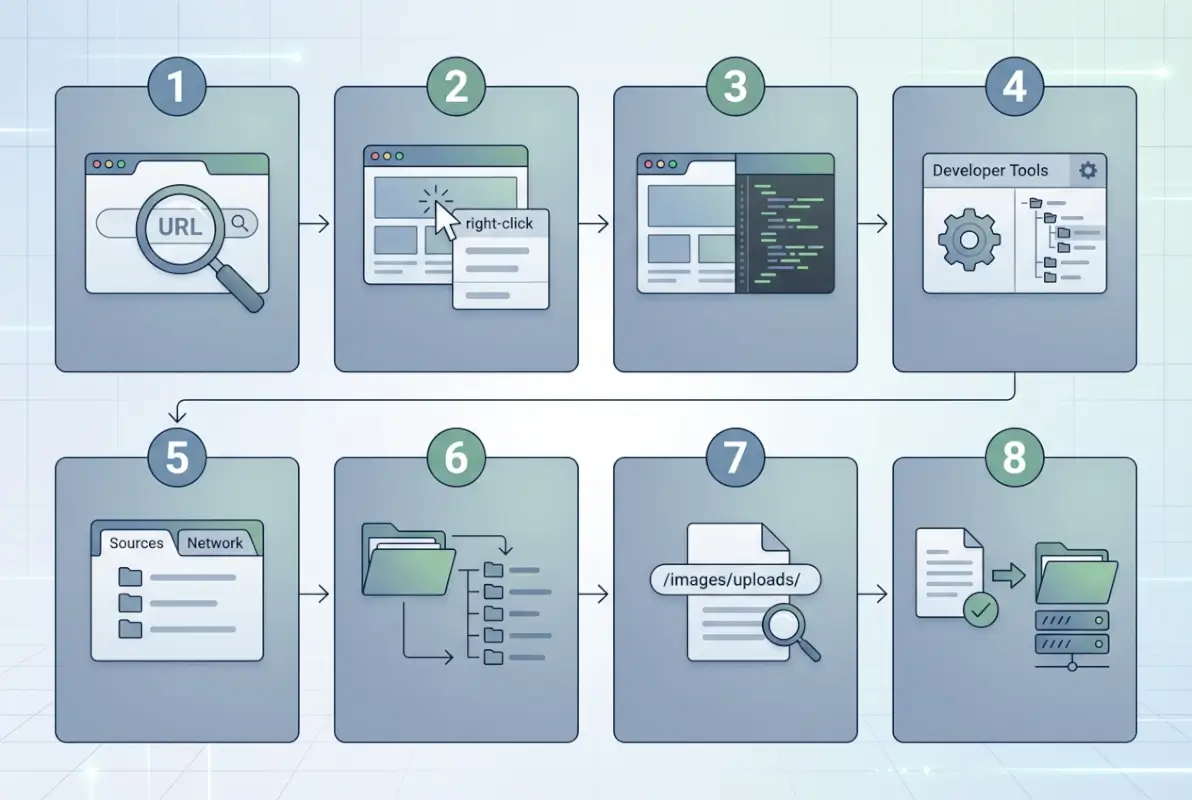
Browser developer tools offer a lightweight alternative for manual inspection—network tabs show all requested resources (images, scripts, stylesheets), revealing directory paths the site actively uses. If you notice the site loads CSS from /assets/css/ and images from /assets/images/, you can reasonably infer /assets/ as a parent directory worth examining (on your own site or with permission).
How Top Content (Recent Best Practices) Treat the Topic
Looking at authoritative guidance from security organizations, government advisories, and educational resources reveals consistent themes around directory listing exposure and discovery. The recurring message is clear: directory listings represent an information disclosure vulnerability that should be prevented through proper server configuration, yet they remain surprisingly common in real-world deployments.
Recurring themes found in high-ranking guidance
Security-focused resources consistently emphasize several key points. First, they explain the mechanism—how directory listing occurs when index files are missing and server settings permit automatic index generation. Second, they detail why it matters from both security and compliance perspectives, often referencing real-world incidents where exposed directories led to data breaches or regulatory penalties.
Third, they provide concrete remediation steps for administrators: ensure index files exist in all directories, disable directory listing at the web server configuration level (Options -Indexes in Apache .htaccess files, autoindex off in Nginx configurations), implement proper access controls, and conduct regular audits to catch accidental exposures. Fourth, they contextualize the risk within broader security frameworks—directory listing often appears alongside other configuration vulnerabilities in CISA advisories and security assessment checklists.
Educational resources tend to take a more architectural approach, explaining how directory structures influence site organization, SEO performance, and content management efficiency. They discuss best practices for URL structure, the relationship between filesystem organization and permalink patterns, and how sitemaps and robots.txt guide crawler behavior while potentially revealing structure.
What you should adopt from best-in-class guides
The most effective guides share several characteristics worth emulating: they lead with clear definitions and context before diving into technical details, they balance security concerns with practical usability (sometimes directory listings serve legitimate internal purposes), they provide step-by-step checklists for administrators to follow, and they reference authoritative sources like OWASP, NIST, or government security agencies to back up their recommendations.
They also emphasize the principle of least privilege—only expose what must be public, protect everything else by default—and encourage defense in depth, meaning multiple layers of protection rather than relying on a single control. For site owners, this translates to combining server-level protections (disabling directory listing) with filesystem-level controls (proper permissions) and monitoring (logging access attempts to sensitive paths).
A Practical 8-Step Framework to Find and Assess Directory Folders
Theory and context matter, but let’s get practical. Here’s a systematic framework you can apply whether you’re hardening your own site, conducting authorized security testing, or simply trying to understand how directory exposure works. Each step builds on the previous one, moving from passive reconnaissance to active assessment (always within authorized scope).

Step 1 — Define scope and objectives
Start by clearly articulating what you’re trying to accomplish and what boundaries you’ll operate within. If you’re auditing your own site, document which domains and subdomains are in scope—does this include staging environments, development servers, or just production? If you’re conducting authorized testing for a client, ensure written permission specifies exactly which systems you can probe and which techniques are approved.
Define your objectives specifically: Are you looking for sensitive file exposure? Trying to map site architecture for SEO optimization? Assessing security posture for compliance? Different goals lead to different approaches and different risk tolerances. A security audit might justify more aggressive enumeration (within authorization), while an architecture review focuses on sitemaps and public URL patterns.
Document your rules of engagement: what tools will you use, what hours are acceptable for scanning (avoid peak traffic times if performance impact is a concern), who needs to be notified if you find critical issues, and what your reporting deliverables will look like. This upfront clarity prevents scope creep and ensures everyone understands expectations.
Step 2 — Inspect robots.txt and sitemap.xml
Begin with the most passive, risk-free reconnaissance: simply read the robots.txt file (domain.com/robots.txt) in your browser. Look for Disallow directives that point to administrative areas, member-only sections, or directories the site owner explicitly doesn’t want crawled—these often indicate sensitive or valuable paths worth protecting (and on your own site, worth auditing for proper access controls).
Note any sitemap references in robots.txt, then fetch and review the sitemap file(s). Modern sites often use sitemap indexes that point to multiple category-specific sitemaps (one for blog posts, one for products, one for images, etc.). Parse through these to understand the site’s public URL hierarchy—you’re not looking for hidden directories here, but rather building a mental model of intended structure that will help you spot anomalies later.
Pay attention to patterns: does the site use dated URL structures (/2023/01/post-name/), category-based paths (/blog/category/post/), or flat structures (/post-name/)? These choices reflect underlying directory organization or URL rewriting strategies. Also note any unusual entries—if robots.txt disallows /backup/ or /old/, those directories probably exist and contain something worth hiding.
Step 3 — Scan for index files and server behavior
Now test how the server responds to directory requests. Pick a directory you know exists from sitemap review or page analysis (like /images/ or /blog/), and try accessing it directly without specifying a filename. Does the server return an index file (you see a designed page), generate a directory listing (you see file/folder list), throw an error (403 Forbidden or 404 Not Found), or redirect you elsewhere?
Document the server’s default behavior across different directory types. Some sites might protect administrative directories with authentication but leave asset directories open for convenience. Understanding these patterns helps you identify which areas might accidentally expose listings and which are properly secured. Look for inconsistencies—if /images/ returns 403 but /uploads/ shows a directory listing, that’s a configuration gap worth addressing.
Test both top-level directories (/assets/) and nested paths (/assets/images/products/). Server configurations can be applied at different directory levels, so a protected parent directory doesn’t guarantee protected children (or vice versa). This step reveals implementation details that inform both remediation priorities and deeper assessment strategies.
Step 4 — Review publicly exposed directories
For directories that do show listings or are otherwise accessible, methodically explore their contents (again, only on systems you own or are authorized to test). Create a structured inventory: directory path, contents type (images, scripts, documents), sensitivity level (public assets vs. potentially sensitive data), and exposure risk (intentionally public vs. accidentally visible).
As you browse, note file naming conventions—timestamps in filenames often indicate backups, version numbers suggest old copies might exist elsewhere, and cryptic or system-generated names (IMG_20230515_143022.jpg) hint at direct uploads without organization. Look for README files, .git directories, .env files, database dumps (.sql, .db), compressed archives (.zip, .tar.gz), or configuration files—these frequently contain sensitive information and should never be publicly accessible.
Don’t just document what you find—assess context. A /downloads/ directory full of PDFs meant for users is functioning as intended; that same directory containing database-backup.sql.gz is a critical exposure requiring immediate remediation. Categorize findings by severity to guide prioritization in your final report.
Step 5 — Correlate with site architecture and assets
Cross-reference your directory discoveries with the site’s intended architecture from sitemaps and public pages. Do the directories you found match the organizational structure the site presents? Discrepancies often reveal technical debt—orphaned directories from old site versions, incomplete migrations, or accumulated cruft from years of development without governance.
Map file types to their logical purposes. JavaScript files belong in /js/ or /scripts/, CSS in /css/ or /styles/, images in /images/ or /media/, user uploads in /uploads/ or /user-content/. When you find files in unexpected locations (CSS files in root, images scattered across multiple directories), it suggests organic growth without planning—a breeding ground for forgotten files and security gaps.
Identify candidate directories that should exist based on site functionality but haven’t appeared yet. If the site has a blog but you haven’t found a /blog/ directory, the content might live in a database with URLs generated dynamically. If it’s an e-commerce site, you’d expect /products/ or /catalog/—finding these helps complete your architecture map, while not finding them prompts questions about how content is actually served.
Step 6 — Check for sensitive file exposure
This is where directory listing exposure turns from “interesting finding” into “critical vulnerability.” Systematically review discovered directories for sensitive file types. Look for backup files (often ending in .bak, .old, .backup, .tmp, or containing dates like backup-2023-05-15.sql), configuration files (.env, config.php, settings.py, web.config, application.yml), version control directories (.git/, .svn/, .hg/), and compressed archives that might contain source code or data exports.
Test for common sensitive filenames: phpinfo.php (exposes server configuration), test.php (might reveal development code), .htaccess (shows access control rules), database connection files (db.php, connection.php, config/database.yml), and credential files (credentials.txt, passwords.txt—yes, people actually do this). Even if these files aren’t directly browsable in directory listings, knowing directories exist helps you construct URLs to test.
Document not just what sensitive files you find, but their accessibility—can you download them directly, do they require authentication, or are they protected but still discoverable? The OWASP guidance on unreferenced files specifically calls out the risk of backup and configuration files containing database credentials, API keys, and other secrets that enable deeper attacks.
Step 7 — Review site security controls
Step back from individual findings and assess the site’s overall security posture around directory protection. Are directory listings disabled at the server level? Do .htaccess or web.config files implement appropriate restrictions? Are there web application firewalls or access control lists filtering requests to sensitive paths?
Check for defense-in-depth implementation: even if directory listing is disabled, are file permissions set correctly at the OS level? Are there monitoring and alerting rules that would catch unusual access attempts? Is there a documented process for securely deploying updates without leaving backup files on production servers?
Reference established security frameworks for benchmarking. OWASP Application Security Verification Standard (ASVS) includes requirements around file and directory access controls; comparing findings against these standards helps justify remediation efforts and provides a roadmap for improvement. Government guidance from CISA on secure-by-design principles emphasizes default-deny configurations and minimal exposure—evaluate whether the site aligns with these principles or operates on default-allow assumptions.
Step 8 — Document remediation and governance
Transform your findings into actionable recommendations prioritized by risk and effort. Critical exposures (database dumps, credential files in public directories) demand immediate remediation—hours, not days. High-priority issues (directory listing enabled on sensitive paths, backup files accessible) should be addressed within a week. Medium findings (inconsistent configurations, orphaned directories) can queue for the next maintenance window, while low-priority observations (aesthetic organization improvements) can feed long-term architecture planning.
For each finding, provide specific remediation steps rather than vague advice. Instead of “improve security,” recommend “add Options -Indexes to .htaccess in the /uploads/ directory and verify directory listing is disabled by testing direct directory access.” Include verification steps so implementers can confirm fixes worked.
Go beyond one-time fixes and recommend governance processes to prevent recurrence. Suggest regular security scans (quarterly at minimum), deployment checklists that include “verify no backup files remain on server” and “confirm directory listing disabled,” and architecture review gates for new features that might create directories. Establish ownership—who’s responsible for monitoring, who approves directory structure changes, who receives security scan reports?
I’ve seen organizations fix exposed directories after an audit, only to recreate the same exposures six months later during a rushed deployment because there was no process preventing it. Your remediation recommendations should address both immediate vulnerabilities and systemic causes.
Architectural and Security Best Practices (For Site Administrators)
Now let’s shift perspective from discovery to prevention. If you’re responsible for maintaining a website, how do you ensure directories don’t accidentally expose sensitive information? The good news is that securing directory access is straightforward—the challenge is remembering to apply protections consistently across all environments and deployment scenarios.
How to prevent directory listing exposure
The most robust approach combines multiple layers of protection. First, ensure every directory that might be accessed directly contains an index file—even if it’s just an empty index.html or a simple index.php that displays “Access Denied.” This serves as a failsafe; even if server configurations change, the presence of an index file prevents automatic directory listing generation.
Second, disable directory indexing at the server configuration level. For Apache servers, add Options -Indexes to your httpd.conf file or directory-specific .htaccess files. For Nginx, ensure autoindex off; is set in your server or location blocks. For IIS, disable directory browsing through the IIS Manager or web.config files. Applying these controls at the server level creates a default-deny posture—new directories are protected automatically rather than requiring individual attention.
Third, implement proper file and directory permissions at the operating system level. Web-accessible directories should be owned by the web server user with restrictive permissions (typically 755 for directories, 644 for files). Sensitive files like configuration should have even tighter permissions (600 or 400) and ideally live outside the web root entirely, accessed by application code but never directly serveable via HTTP.
Fourth, use .htaccess or web.config rules to explicitly deny access to sensitive file types regardless of directory. For example, blocking all .bak, .sql, .env, and .git files prevents access even if they end up in public directories by mistake. This defense-in-depth approach catches human errors before they become exposures.
| Server | Configuration | Location |
|---|---|---|
| Apache | Options -Indexes | httpd.conf or .htaccess |
| Nginx | autoindex off; | nginx.conf or server block |
| IIS | Directory Browsing disabled | IIS Manager or web.config |
Using sitemaps and robots.txt effectively
While sitemaps and robots.txt aren’t security controls, they play important roles in managing how your site structure is perceived and crawled. A well-maintained sitemap guides search engines to your valuable content efficiently, reducing wasted crawl budget on low-value pages or asset directories. Include only content you want indexed—pages, posts, products—not individual images, JavaScript files, or administrative interfaces.
Use robots.txt strategically to prevent crawlers from accessing administrative areas, development paths, or resource-heavy directories that don’t benefit from indexing. Remember that robots.txt is advisory (well-behaved crawlers respect it, malicious actors ignore it) and actually advertises the existence of paths you disallow—so don’t rely on it for security, only for crawler guidance.
Some organizations make the mistake of adding sensitive directories to robots.txt thinking it “hides” them; in reality, it creates a roadmap for attackers (“oh, there’s a /backup/ directory, let me try accessing that directly”). The proper approach is securing sensitive directories with access controls and only using robots.txt for crawler efficiency optimization.
Security-testing perspectives
Incorporate directory exposure checks into your regular security testing cadence. Whether you’re running automated vulnerability scans, conducting manual penetration tests, or performing architectural reviews, directory listing should appear on your checklist. Many web application security scanners include directory enumeration and listing detection by default—configure them to run periodically and route findings to your remediation workflow.
Treat directory listing exposure as a potential information disclosure vulnerability in your risk register. While it may not directly enable exploitation (unlike SQL injection or remote code execution), it provides reconnaissance intelligence that makes other attacks easier—leaked file names reveal technology stacks, backup files contain credentials, and directory structure informs social engineering attempts.
When conducting security testing (whether internal audits or third-party assessments), ensure test scopes explicitly include directory and file enumeration within authorized boundaries. Penetration test reports should categorize directory listing findings with clear severity ratings and remediation priorities, helping stakeholders understand the actual risk rather than dismissing it as “just a listing.”
Practical Case Studies and Illustrative Scenarios
Theory is useful, but concrete examples help solidify understanding. Let’s walk through two representative scenarios that illustrate both clean implementations and problematic exposures—patterns you might encounter whether auditing your own sites or studying directory security in general.
Example 1 — Public blog site with clean structure
Imagine a blog site running WordPress with a well-organized directory structure. Reviewing robots.txt reveals disallowed paths for /wp-admin/, /wp-includes/, and various plugin directories—standard WordPress practice to keep administrative and system directories out of search indices. The sitemap.xml clearly maps the content hierarchy: recent posts, category archives, static pages, and image attachments all organized logically.
Testing directory access shows proper protection: attempting to browse to /wp-content/uploads/ (where media files live) returns 403 Forbidden rather than showing a directory listing, though individual images are accessible via their full URLs. The /wp-admin/ directory redirects to a login page, and /wp-includes/ blocks directory access entirely. Asset directories like /wp-content/themes/theme-name/css/ contain index.php files that prevent listing while allowing the site to load stylesheets normally.
This represents good hygiene: directories serve their functional purpose, sensitive areas require authentication, and directory listing is disabled throughout. The site structure is discoverable through intended channels (sitemaps, navigation, public pages) without accidentally leaking filesystem organization or internal files.
Example 2 — E-commerce site with hidden folders
Consider an e-commerce platform that underwent several migrations and platform changes over the years. Reviewing robots.txt shows disallowed paths for the current admin area, but exploring common directory names reveals forgotten remnants: /old_site/ contains files from a previous platform version, /backup/ holds compressed database dumps from a migration, and /staging/ exposes a testing environment that was never properly removed.
Worse, these directories have listing enabled—browsing to /backup/ shows database-backup-march-2023.sql.gz, customer-export-q1-2023.csv, and config-old.php, all downloadable without authentication. The /staging/ directory reveals the company’s internal development structure, including unpatched software versions and test accounts.
Remediation requires multiple steps: immediately remove or restrict access to sensitive directories, disable directory listing server-wide, audit for other forgotten paths, implement deployment checklists that prevent backup files from persisting on production, and establish governance around environment management (staging should live on separate infrastructure, not in public web roots).
This scenario illustrates how directory exposure often results from process failures rather than intentional misconfiguration—nobody meant to expose backups, but rushed deployments and lack of cleanup procedures allowed technical debt to accumulate into security vulnerabilities.
Frequently Asked Questions
What is a website directory folder?
A website directory folder is a organizational container within a domain’s file structure that groups related files and resources—such as images in /images/, stylesheets in /css/, or blog posts in /blog/. These directories work just like folders on your computer, creating hierarchical organization for website content and making it easier for developers to manage assets and for servers to locate requested files efficiently.
How can I find a directory listing on a website?
You can discover directory listings by attempting to access common folder paths directly in your browser (like domain.com/images/ or domain.com/uploads/). If the server has directory listing enabled and no index file exists in that folder, you’ll see a page displaying file names, sizes, and modification dates. Start with publicly documented directories from robots.txt or sitemaps, and only test directories on sites you own or have explicit permission to audit.
Are directory listings dangerous for security?
Yes, directory listings can pose significant security risks when they expose sensitive files like database backups, configuration files containing credentials, or proprietary source code. While not directly exploitable like code injection vulnerabilities, they provide reconnaissance intelligence that attackers use to plan more sophisticated attacks. Security frameworks like OWASP classify unnecessary directory listing exposure as an information disclosure vulnerability that should be remediated to reduce attack surface.
How do I prevent directories from being listed?
Prevent directory listings by disabling the feature at your web server level (Options -Indexes for Apache, autoindex off for Nginx) and ensuring every web-accessible directory contains an index file (index.html, index.php, or default.htm). Combine these approaches with proper file permissions and access controls for defense in depth. Regular security scans help verify protections remain in place across deployments and configuration changes.
What is the difference between a sitemap and a directory structure?
A sitemap is an intentional, curated map of public URLs you want search engines to index, typically formatted as XML and living at domain.com/sitemap.xml. Directory structure refers to the actual filesystem organization on your server—how files and folders are physically arranged—which may or may not match your public URL structure if you’re using URL rewriting. Sitemaps show intended public paths; directory structure reveals underlying technical organization, which can include sensitive areas never meant for public access.
What tools help discover a site’s directory layout safely?
For authorized security testing on your own infrastructure, tools like OWASP ZAP, Burp Suite, and Nikto provide directory enumeration capabilities that systematically test common paths. For passive reconnaissance within ethical boundaries, simply reviewing robots.txt, sitemaps, and using browser developer tools to inspect loaded resources reveals directory patterns without active probing. Always ensure you have explicit permission before using enumeration tools on any site you don’t own.
Is it legal to audit directory exposure on someone else’s site?
No, conducting directory enumeration or security testing on websites you don’t own without explicit written permission is illegal in most jurisdictions and violates computer fraud statutes like the U.S. Computer Fraud and Abuse Act. Even if directories are publicly accessible, aggressive scanning or attempting to access restricted areas constitutes unauthorized access. Legitimate security research requires authorization through bug bounty programs, pentesting agreements, or other formal permission structures.
What should I do if I find sensitive files in a public directory?
If you discover exposed sensitive files during normal browsing of someone else’s site, practice responsible disclosure: privately notify the site owner or security contact (often listed at domain.com/.well-known/security.txt or domain.com/security.txt), provide specific details about the exposure without publicly posting it, and give them reasonable time to remediate before any public discussion. If you find exposures on your own site, immediately restrict access, remove sensitive files, and investigate how they became accessible to prevent recurrence.
How does directory listing relate to OWASP Top 10 and CVEs?
Directory listing exposure falls under the OWASP category of Security Misconfiguration (historically #5 in the Top 10) and relates to information disclosure vulnerabilities. While directory listing itself typically doesn’t receive specific CVE identifiers (it’s a configuration issue rather than a software flaw), the sensitive files it exposes might enable attacks targeting actual CVEs—for example, discovering an outdated software version through exposed changelog files helps attackers select relevant exploits from CVE databases.
Take Control of Your Directory Security Today
Understanding how to discover and assess website directory structures isn’t just an academic exercise—it’s a practical skill that directly impacts your security posture, SEO performance, and information architecture. Whether you’ve worked through the 8-step framework on your own sites, used these concepts to inform security testing, or simply gained appreciation for how directory exposure happens, you now have tools to address a vulnerability that far too many organizations overlook until it becomes a breach headline.
The path forward is straightforward: audit your current directory configurations, disable unnecessary listing, remove forgotten files and folders, establish governance processes that prevent exposure from recurring, and incorporate directory security into your regular testing cycles. These aren’t revolutionary changes—they’re fundamental hygiene that takes minimal effort but provides outsized protection against reconnaissance and information disclosure.
Remember that authorization and ethics aren’t optional considerations; they’re foundational to responsible security practice. Use these techniques on systems you own or have explicit permission to test, practice coordinated disclosure when you discover issues elsewhere, and contribute to a security culture that values responsible research over exploitation.
- Run through the 8-step framework on a site you control this week
- Review your server configurations to verify directory listing is disabled
- Audit your deployment processes to ensure backup files don’t persist on production
- Schedule quarterly directory security reviews on your maintenance calendar
- Share this knowledge with your development team to build security awareness
Directory exposure sits at the intersection of security, architecture, and operational discipline. By treating it with appropriate seriousness—neither dismissing it as inconsequential nor panicking over every file name revealed—you position your organization to maintain secure, well-organized digital infrastructure that protects sensitive information while serving users effectively. The directories are there whether you actively manage them or not; the question is whether you’ll discover and secure them before someone else discovers and exploits them.