How to Find a Listing ID: 5 Simple Steps for Any Platform

Generating summary...
Ever needed to reference a specific property listing, track down an e-commerce order, or contact support about an item—only to realize you have no idea how to find the unique identifier that platforms actually use? You’re not alone. Listing IDs are the digital fingerprints that make precise tracking possible across real estate portals, marketplaces, and directory sites, yet most platforms bury them in unexpected places or label them inconsistently.
Here’s something most guides won’t tell you: platforms deliberately hide listing IDs from casual users because they’re designed for backend operations—API calls, data feeds, support tickets, and cross-platform syncing. This creates unnecessary friction when you actually need one. Whether you’re a real estate agent hunting for an MLS number, an e-commerce seller managing inventory across channels, or a developer integrating property feeds, knowing exactly where to find these identifiers saves hours of frustration.
- Listing IDs are unique identifiers used for support, API calls, and cross-platform tracking
- Check URLs first — most platforms embed IDs directly in the web address
- Platform-specific locations vary — real estate portals, MLS systems, and marketplaces each have different ID placement
- Use page source inspection when IDs aren’t visible on the surface (CTRL+U)
- Verify ID formats to catch transcription errors before using them in support tickets or API requests
Understanding Listing IDs and Their Uses
A listing ID is a unique alphanumeric code assigned to a specific property, product, or service listing on a platform. Unlike titles or descriptions that can change, listing IDs remain constant throughout the listing’s lifecycle. They serve as permanent reference points in databases, API responses, and support systems.
Think of them as the VIN number for your car—while two identical vehicles might look the same, the VIN distinguishes one from the other. Similarly, two identical products sold by different sellers each get their own listing ID. This distinction becomes critical when you’re tracking specific instances, not just product types.
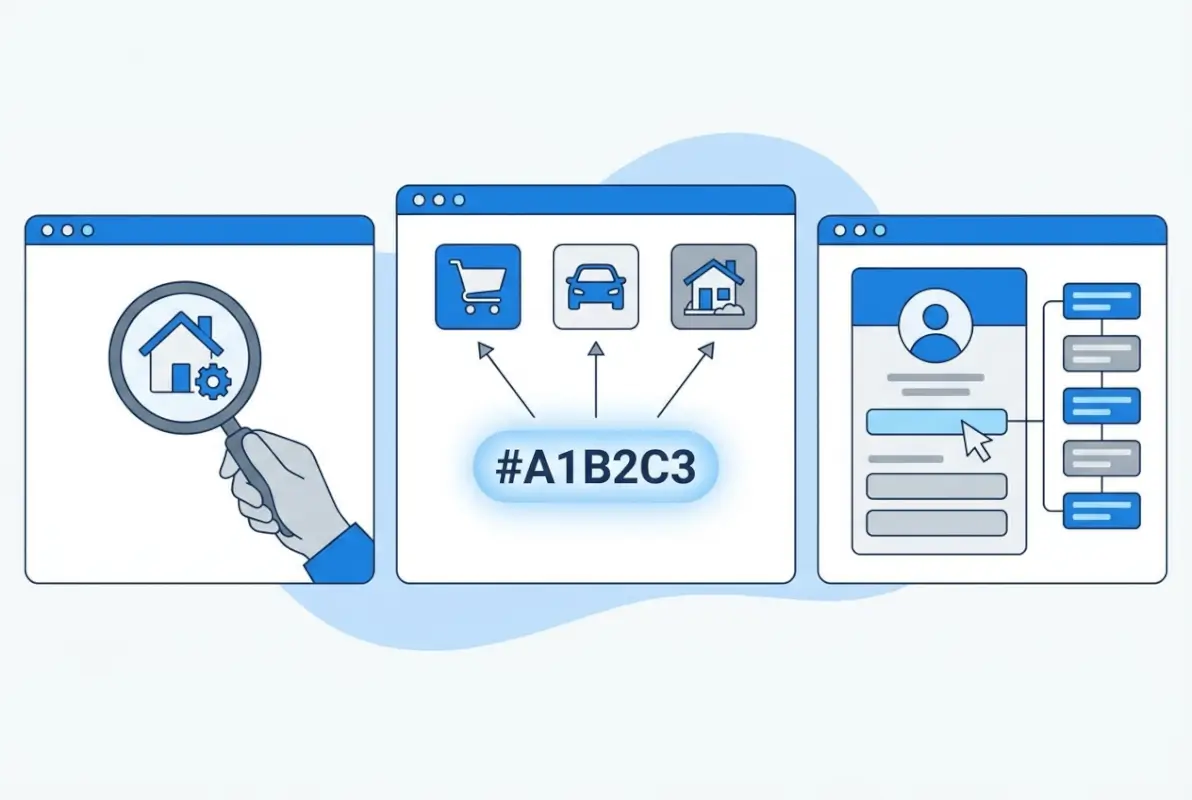
According to the National Association of Realtors, understanding listing identification systems has become essential as the real estate industry digitizes. These identifiers power everything from automated valuation models to buyer-agent matching algorithms.
Common Use Cases for Listing IDs
Here’s where listing IDs actually matter in day-to-day operations:
- Support inquiries: Customer service teams require exact IDs to pull up the right listing instantly
- API requests: Developers use IDs to fetch specific listing data from property feeds or marketplace APIs
- Data feeds: IDX/MLS systems sync listings across platforms using IDs as primary keys
- Cross-platform reference: Track the same property across multiple portals using consistent identifiers
- Performance analytics: Measure which specific listings drive traffic, leads, or conversions
How Different Platforms Reference Listings
Platform-specific terminology creates confusion. What one site calls a “Property ID” another labels “MLS Number” or “Listing Reference.” Understanding these differences prevents wasted time searching in the wrong places.
Real Estate Portals vs. IDX/API Contexts
Real estate listings exist in two parallel universes: consumer-facing portals and MLS/IDX backend systems. Each uses different identifiers for different purposes.
Consumer portals like Zillow, Realtor.com, or Realestate.com.au assign their own internal listing IDs for database management. These IDs appear in URLs and internal tracking but may not match MLS numbers. According to Realestate.com.au’s official documentation, their Property ID differs from the agent’s listing reference and appears in specific locations depending on whether you’re using desktop or mobile.

MLS/IDX systems use standardized MLS numbers that persist across multiple portals. When an agent lists a property in their local MLS, that number follows the listing to syndicated sites. This is the number you’d cite when talking to an agent or searching professional databases.
MLS IDs vs. Property IDs vs. Listing URLs
Here’s where it gets messy—three different identifiers often coexist for the same property:
| Identifier Type | What It Identifies | Example | Where You’ll Find It |
|---|---|---|---|
| MLS Number | Property in MLS database | MLS# 12345678 | Listing details, agent listings |
| Portal Property ID | Listing on specific portal | 134829475 | URL, page source, admin panel |
| URL Slug | Human-readable page address | /property/123-main-st | Web address bar |
When contacting support about a listing issue on Zillow, you’d use their internal Property ID. When discussing the same property with the listing agent, you’d reference the MLS number. This dual-ID system exists across most aggregator platforms.
Find Your Listing ID on Real Estate Portals (Step-by-Step by Platform)
Let’s get specific. Here are the exact steps to locate listing IDs on major real estate platforms, with platform-specific quirks and mobile considerations.
Realestate.com.au (Desktop and Mobile Paths)
Desktop method: Open the property listing, scroll to the listing details section (usually near the top), and look for “Property ID” or “Listing ID” displayed alongside the address and price. On some listings, you’ll need to click “More details” to reveal additional fields.

Mobile app method: According to the official Realestate.com.au help center, the Property ID location differs in the mobile app. Open the listing, scroll down past the photos to the “Property details” section, and look for the ID in smaller text below the main features. It’s often labeled as “ID” rather than “Property ID.”
Agent/Admin view: If you’re the listing agent, log into your account and navigate to your active listings dashboard. The Property ID appears in a dedicated column in the listings grid view, making bulk reference much easier than viewing individual listing pages.
Zillow and Realtor.com Property IDs
On Zillow, the fastest method is checking the URL. Open any property listing and look at the web address: https://www.zillow.com/homedetails/123-Main-St/12345678_zpid/. The number before “_zpid” is Zillow’s unique property identifier.
Realtor.com uses a similar pattern: https://www.realtor.com/realestateandhomes-detail/123-Main-St_City_ST_12345/M1234567890. The number after the final slash is the listing ID. Both platforms also display these IDs in the page source under meta tags labeled “property:mls:id” or similar fields.
Finding MLS Numbers in IDX/Feed Environments
For real estate professionals working with IDX websites (those that pull MLS data directly), the MLS number typically appears prominently on listing detail pages, often labeled as “MLS#” or “MLS ID.” According to IDX Broker documentation, most IDX solutions include MLS numbers in standardized locations across all listing templates.
If you’re a site owner using an IDX plugin like TurnKey Directories (turnkeydirectories.com), listing IDs are usually stored in custom fields that you can display anywhere in your templates. Check your plugin’s shortcode documentation to output IDs alongside other listing details.
Listing IDs in MLS/IDX-Driven Environments
Professional real estate systems handle listing IDs differently than consumer portals. Understanding these backend conventions helps whether you’re an agent, developer, or power user accessing MLS data.
MLS Numbers and How They Map to Listing IDs
Every MLS (Multiple Listing Service) assigns a unique number when an agent creates a listing. This MLS number is the canonical identifier that persists across all systems that receive that listing data. When the listing syndicates to Zillow, Realtor.com, or local brokerage sites, each platform creates its own internal ID but preserves the MLS number in the listing metadata.

In API responses from MLS data providers, you’ll typically see both: a listingId field (the provider’s internal ID) and an mlsId field (the original MLS number). According to RESO (Real Estate Standards Organization), the mlsId field is standardized across compliant data feeds, making it the most reliable identifier for cross-platform tracking.
How IDX/Feed Providers Expose Listing IDs
IDX providers like IDX Broker, Showcase IDX, and similar services pull MLS data and make it available on agent websites. They expose listing IDs in several ways:
- Template variables: Shortcodes or template tags like
[idx_mlsid]that output the MLS number - URL parameters: Many IDX systems use URLs like
/listing/12345678where the number is the MLS ID - Data feeds: JSON or XML feeds that include both mlsId and listingId fields for programmatic access
- Admin interfaces: Backend dashboards where agents can view and copy IDs for all their listings
For developers building custom integrations, the listing ID is almost always available in the initial API response when fetching listing details. It’s typically the primary key used to request updates or additional data about that specific listing.
When You Can’t Find an ID (Troubleshooting)
Sometimes listing IDs simply aren’t visible through normal browsing. Here’s how to uncover them when platforms make it difficult.
Common UI Traps and Where IDs Hide
Modern web design prioritizes clean interfaces, which often means hiding technical details like listing IDs. Check these locations when the obvious spots come up empty:

- Collapsed “More Details” sections: Click any expandable sections labeled “Property Details,” “Additional Information,” or “Listing Data”
- Page source/HTML: Right-click the page, select “View Page Source” (CTRL+U), and search for “listing_id”, “mlsId”, “propertyId”, or “itemId”
- Mobile vs. desktop layouts: Some platforms show IDs only on desktop or only in mobile apps—try both
- Print view or PDF exports: Listing PDFs often include IDs that aren’t visible on screen
- Email notifications: If you’ve saved or shared the listing, confirmation emails usually include the ID
I remember spending twenty minutes looking for an MLS number on a Redfin listing once, only to realize it was hidden in a collapsible “Public Facts” section I’d scrolled past three times. Now I check every expandable section first.
Archived or Removed Listings
When a listing sells or expires, most platforms remove it from active search results. Recovering the ID requires different tactics:
- Browser history: If you’ve visited the listing before, search your browser history for the property address—the URL will contain the ID
- Saved searches or favorites: Many portals preserve listing IDs in your saved items even after removal
- Email archives: Search your inbox for the property address; listing alert emails typically include IDs
- Wayback Machine: For publicly listed properties, the Internet Archive may have captured the listing page with the ID visible
- Contact support: Provide the property address and approximate listing date; support teams can look up archived IDs
Regional App Layout Differences
International platforms like Realestate.com.au adapt their interfaces by region, which affects where IDs appear. Australian users see Property IDs in different locations than New Zealand or Asian markets using the same platform. Always check regional help documentation rather than assuming US-based instructions will apply.
Frequently Asked Questions
What is a listing ID and why is it different from an MLS ID?
A listing ID is a unique identifier assigned by a specific platform (like Zillow’s internal ID), while an MLS ID is the universal number assigned by the Multiple Listing Service that persists across all platforms receiving that listing data. One property can have multiple listing IDs but only one MLS ID.
How do I find a listing ID on Realestate.com.au?
On desktop, scroll to the listing details section near the top of the page and look for “Property ID.” On mobile, open the listing and scroll past photos to the “Property details” section where it appears as “ID.” Agents can see all IDs in their dashboard’s listings grid view.
Can a listing ID change if a property is re-listed or updated?
Platform-specific listing IDs may change if a listing is completely removed and re-created, but MLS numbers remain constant for the same listing period. Price changes or description updates don’t affect IDs. Only full deletion and re-listing typically generates a new ID.
Where is the listing ID located in a property page URL?
On Zillow, it appears before “_zpid” in the URL. On Realtor.com, it’s the number after the final slash. Most real estate portals embed the ID somewhere in the URL path or as a query parameter, making it accessible even when not displayed on the page.
How do listing IDs help with customer support or API integrations?
Support teams use listing IDs to instantly pull up the exact listing in their system without ambiguity. Developers use IDs as primary keys in API requests to fetch specific listing data, update records, or track changes. They’re the most reliable reference point for any technical operation.
What should I do if a listing ID doesn’t appear anywhere on the page?
View the page source (CTRL+U) and search for “listing_id”, “mlsId”, or “propertyId” in the HTML. Check collapsed detail sections or switch between mobile and desktop views. If still unavailable, contact platform support with the property address—they can look it up in their backend system.
Can I search for a property using just its listing ID?
Yes, most platforms allow direct ID searches. On real estate portals, enter the MLS number or property ID in the search bar. On IDX sites, append the ID to the base listing URL pattern. API users can query by ID directly using the platform’s search endpoint.
How do I verify that a listing ID is correct before using it?
Enter the ID in the platform’s search function to confirm it returns the expected listing. Check that it matches the ID format for that platform (length and character types). Cross-reference with confirmation emails or saved listings to ensure accuracy before using it in support tickets or API calls.
Start Finding Listing IDs in Seconds, Not Hours
You now have a complete roadmap to locating listing IDs across any platform—from consumer real estate portals to professional MLS systems. The five-step approach boils down to this: check the URL first, scan visible listing details second, inspect page source third, search your email archives fourth, and contact support as a last resort. One of these methods will always work.
Bookmark this guide and you’ll never spend more than 60 seconds finding any listing ID again
The single biggest mistake people make is assuming all platforms work the same way. They don’t. Zillow embeds IDs in URLs, Realestate.com.au hides them in collapsible sections, and MLS systems display them prominently by design. Knowing which method to use for which platform eliminates the guesswork.
Here’s what to do right now: open a listing you care about on your preferred platform and practice finding its ID using the methods above. Screenshot it, save the URL, or write it down. The next time you need to reference that property to an agent, support team, or developer, you’ll have the exact identifier they need—no fumbling through search results or vague descriptions.
Whether you’re tracking competitive properties, managing a portfolio, or building integrations with platforms like TurnKey Directories, mastering listing ID discovery is a foundational skill that pays dividends in speed and precision. Start using these techniques today and you’ll wonder how you ever managed without them.
Was this article helpful?