How to Install a WordPress Directory Plugin: 5 Simple Steps
TL;DR – Quick Takeaways
- Choose strategically – Match your directory plugin to your specific needs (business listings, events, services) before installation
- Backup first – Always create a complete WordPress backup to prevent data loss from plugin conflicts
- Three installation methods – Automatic (easiest), ZIP upload (common), or FTP (advanced users only)
- Configure systematically – Set up listing types, map integrations, and payment gateways in a logical order
- Test thoroughly – Create test listings, verify search functionality, and check mobile responsiveness before going live
Installing a WordPress directory plugin isn’t just about clicking a few buttons and hoping for the best. I remember launching my first local business directory back when plugin options were limited, and I spent three frustrating days trying to figure out why listings wouldn’t display correctly on mobile devices. The problem? I’d skipped the planning phase entirely and just grabbed the first plugin that looked decent.

Here’s what most tutorials won’t tell you upfront: the actual installation takes about five minutes, but choosing the right plugin and configuring it properly determines whether your directory becomes a thriving community resource or a digital ghost town. A well-structured directory doesn’t just organize information—it creates discovery opportunities that boost local SEO, generates revenue through paid listings, and positions your site as an authoritative resource in your niche.
Whether you’re building a chamber of commerce directory, a freelancer marketplace, or a comprehensive service provider database, this guide walks through five strategic steps that go beyond basic installation. You’ll learn how to evaluate plugins based on your actual needs (not marketing hype), secure your WordPress environment before making changes, install with confidence, configure core features that matter, and test everything systematically before launch.
Step 1: Plan and Choose the Right Directory Plugin
The plugin selection phase determines 80% of your directory’s success, yet most people spend more time choosing a theme than researching their directory foundation. Before you even open your WordPress dashboard, you need clarity on what type of directory you’re building and which features are non-negotiable versus nice-to-have.
Assess Your Directory Needs
Start by defining your listing types with specificity. Are you showcasing local restaurants with menus and reservation systems? Professional services that need portfolios and credentials? Event listings with calendar integrations? Each listing type demands different data fields—a business directory needs hours of operation and multiple locations, while a freelancer directory requires skill tags and project galleries.
The feature matrix matters more than you think. Map integration might seem optional until you realize 73% of users filter directory searches by proximity. Search filters become critical when your directory grows beyond 50 listings. Review systems build trust but require moderation workflows. User-submitted content scales your directory but demands spam protection mechanisms.
Monetization strategy needs upfront planning because switching payment systems after launch disrupts existing subscribers. Will you charge per listing, offer tiered membership plans, or sell featured placement? Some plugins bundle payment processing while others require separate e-commerce integrations, adding complexity and transaction fees.
How to Pick a Plugin
Compatibility checks prevent installation nightmares. Verify the plugin’s minimum WordPress version matches your installation (found in Dashboard > Updates). Check PHP version requirements against your hosting environment—most modern plugins need PHP 7.4 or higher, but legacy hosting sometimes runs outdated versions. Theme conflicts happen more than developers admit, especially with page builders like Elementor or Divi.
The numbers tell a story if you know how to read them. An active installation count above 10,000 suggests stability and community testing. Recent updates (within 60 days) indicate active development and security maintenance. Reviews below 4.0 stars warrant investigation—scan one-star reviews for recurring complaints about support responsiveness or breaking updates. According to Learn WordPress guidance, plugins without updates for six months pose security risks.
| Evaluation Factor | Green Flag | Red Flag |
|---|---|---|
| Active Installations | 10,000+ | Under 1,000 |
| Last Update | Within 2 months | 6+ months ago |
| Support Response | Active forum replies | Unanswered threads |
| Documentation | Comprehensive guides | Minimal or outdated |
Security posture deserves scrutiny. Check if the developer addresses reported vulnerabilities promptly. Look for mentions in the WordPress security bulletin or CVE databases. Premium plugins with dedicated support teams typically patch security issues faster than free alternatives with volunteer maintainers.
Quick Introduction to Example Plugins
Directorist has gained traction for its AI-powered search features and flexible field customization. The free version handles basic business directories adequately, while premium extensions add advanced mapping, payment processing, and review management. It integrates natively with Gutenberg blocks, making front-end design more intuitive for non-developers.
Listar focuses specifically on classified ads and listings with strong visual presentation. The documentation at PassionUI shows relatively straightforward setup processes, though some users report steeper learning curves for custom field creation. It’s particularly strong for directories requiring image-heavy listings like real estate or product showcases.
WP-BusinessDirectory caters to traditional local business directories with emphasis on SEO and schema markup. The interface feels more utilitarian than modern competitors, but the plugin excels at generating search-engine-friendly listing pages with proper structured data—a critical factor if organic discovery matters to your strategy.
Step 2: Prepare WordPress and Your Hosting Environment
Preparation separates smooth installations from weekend-ruining disasters. I’ve watched clients lose hours of work because they skipped the backup step, only to discover their theme conflicted with the new plugin in ways that corrupted their database. Taking twenty minutes to prepare your environment prevents days of recovery work.
Back Up Before You Install
WordPress backup plugins like UpdraftPlus or BackupBuddy create complete site snapshots in minutes. Store backups both on your server and an external location (Dropbox, Google Drive, or dedicated backup services). Test your backup restoration process on a staging site before you need it in an emergency—many people discover their backups are corrupted only when trying to restore them.
Why backups matter specifically for directory plugins: these plugins often create custom post types, taxonomies, and database tables. If something breaks during installation, simply deactivating the plugin may not fully reverse database changes. A clean backup lets you roll back to your pre-installation state completely.
Check Minimum Requirements
Your hosting control panel (cPanel, Plesk, or hosting dashboard) displays your current PHP version under Server Information or similar sections. Most quality hosting providers allow PHP version switching through the control panel. Directory plugins with mapping features or search functionality typically need PHP 7.4 minimum, with 8.0+ recommended for performance.
Memory limits matter more for directories than simple blogs because listing queries, map rendering, and search filtering consume more resources. Check your current PHP memory limit (visible in WordPress under Tools > Site Health > Info > Server). Directory plugins generally need 256MB minimum; if you’re below that, you’ll need to contact your host or add define('WP_MEMORY_LIMIT', '256M'); to your wp-config.php file.
Update Fundamentals
Update WordPress core first through Dashboard > Updates. Outdated WordPress versions create security vulnerabilities and compatibility issues with modern plugins. Next, update your active theme—theme conflicts cause more directory plugin problems than any other factor because themes often override default post type templates.
Update existing plugins one at a time rather than bulk updating, testing your site after each update. This approach helps you identify which specific plugin causes problems if something breaks. Pay special attention to page builders, SEO plugins, and caching plugins since these frequently interact with directory functionality.
Security Considerations
Download plugins exclusively from WordPress.org or verified vendor sites. Avoid “nulled” or pirated premium plugins—these often contain malware or backdoors that compromise your entire site. Even legitimate-looking third-party sites sometimes distribute compromised versions. When considering essential WordPress extensions, verify SSL certificates and developer reputations.
Review plugin permissions before activation. Some plugins request file system access, database permissions, or external API connections. While many directory plugins legitimately need these permissions for map integration or payment processing, understanding what you’re granting prevents security surprises. According to OWASP security guidelines, limiting plugin permissions reduces attack surface area significantly.
Step 3: Install the Directory Plugin
The installation process itself takes just minutes once you’ve completed preparation steps, but understanding your three installation options prevents confusion when following plugin-specific documentation. Each method suits different scenarios and skill levels.
Installation Options
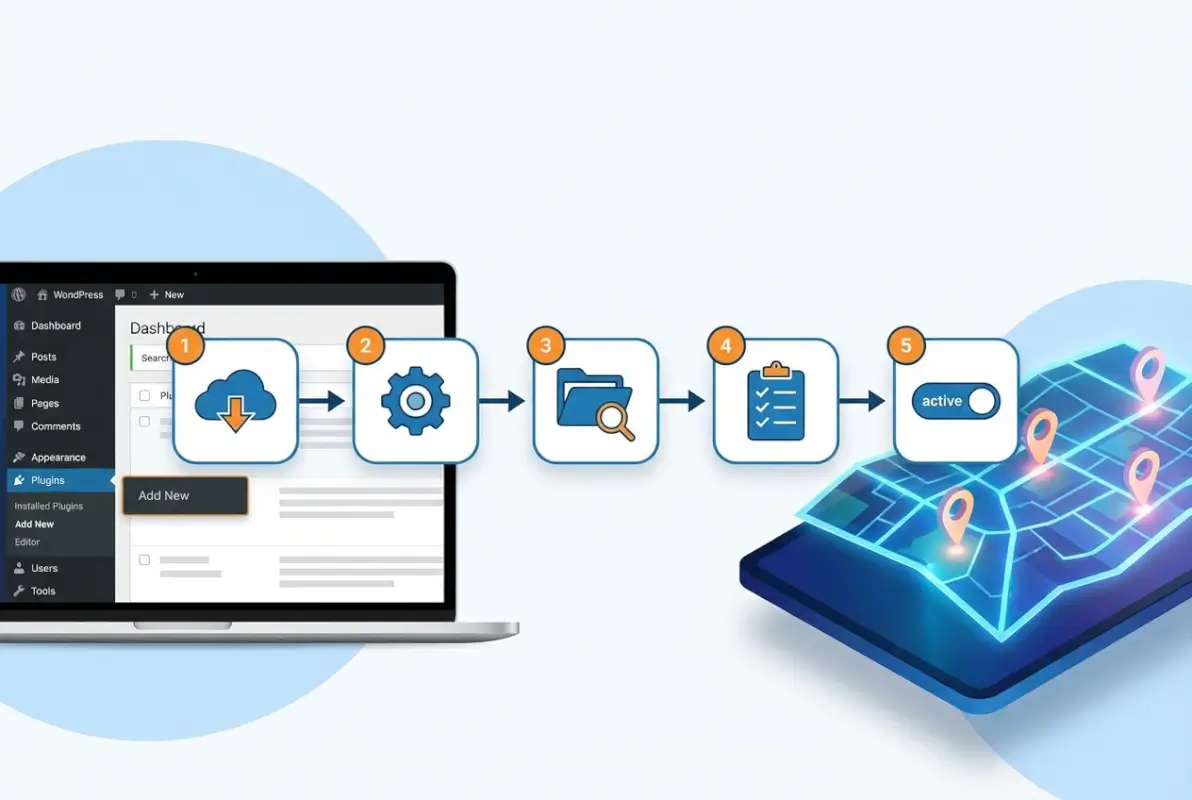
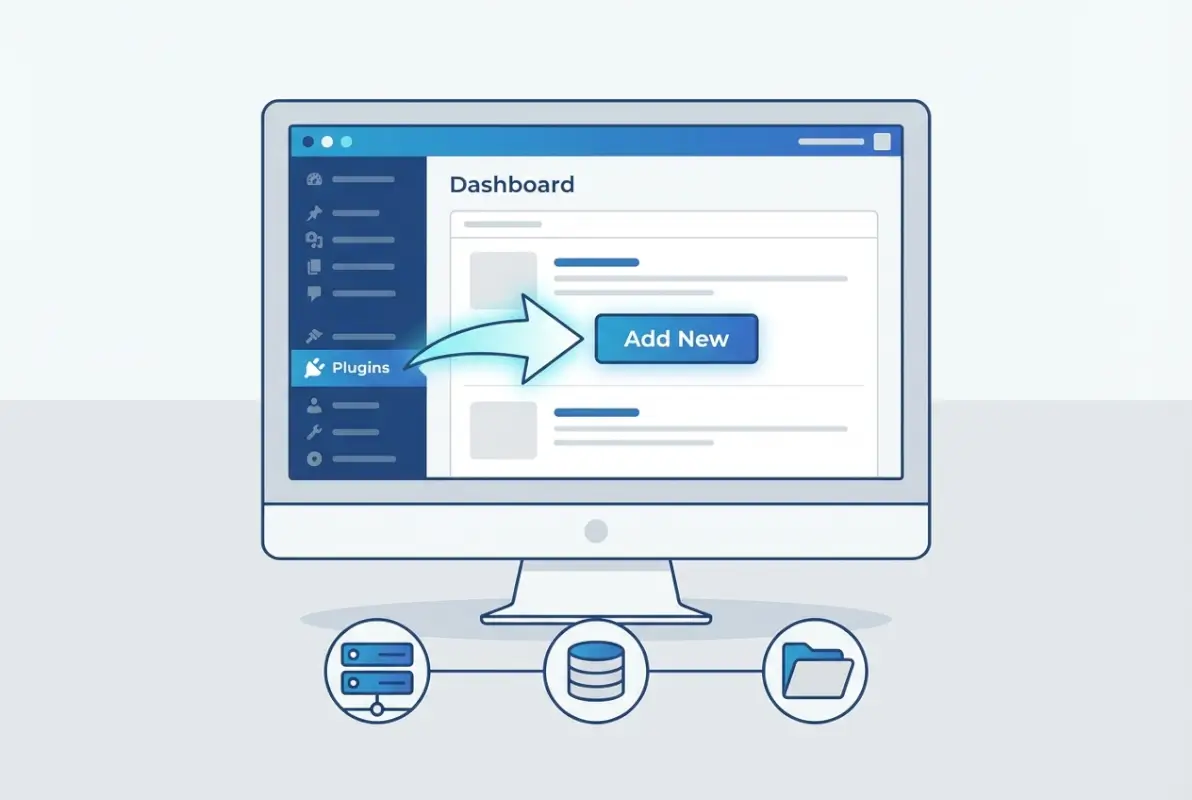
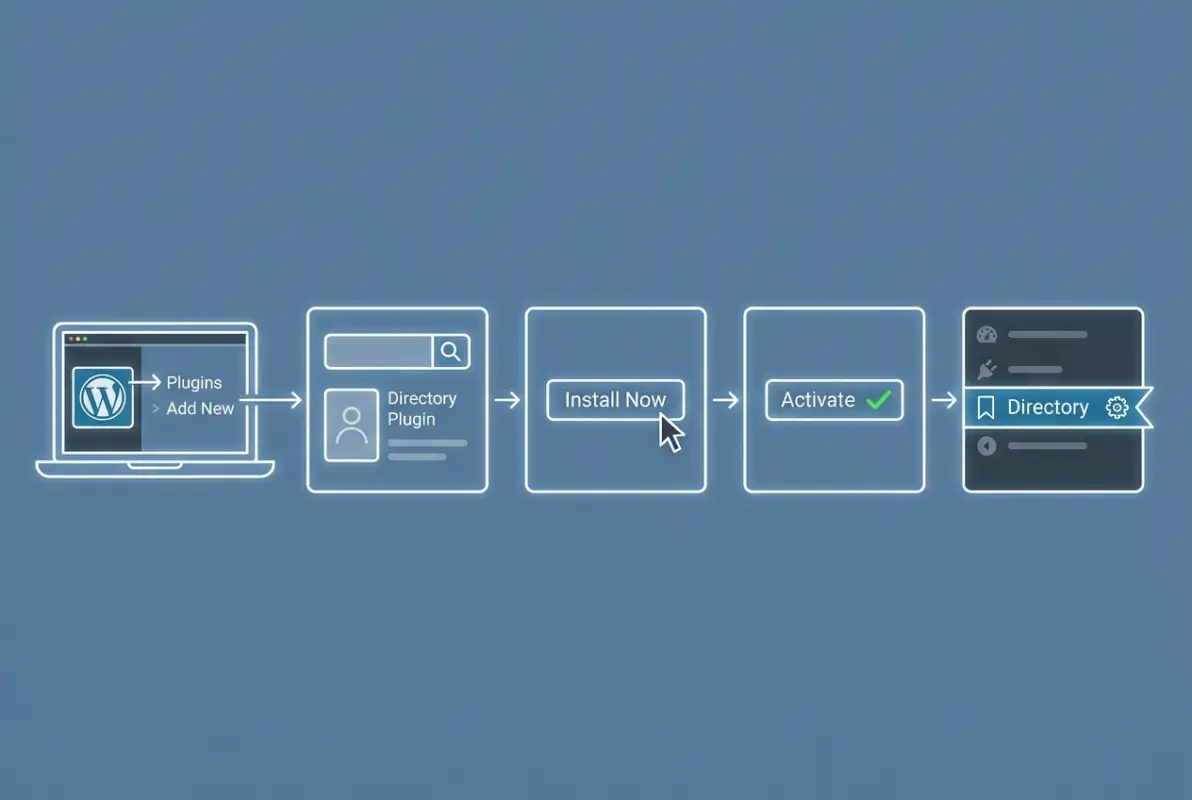
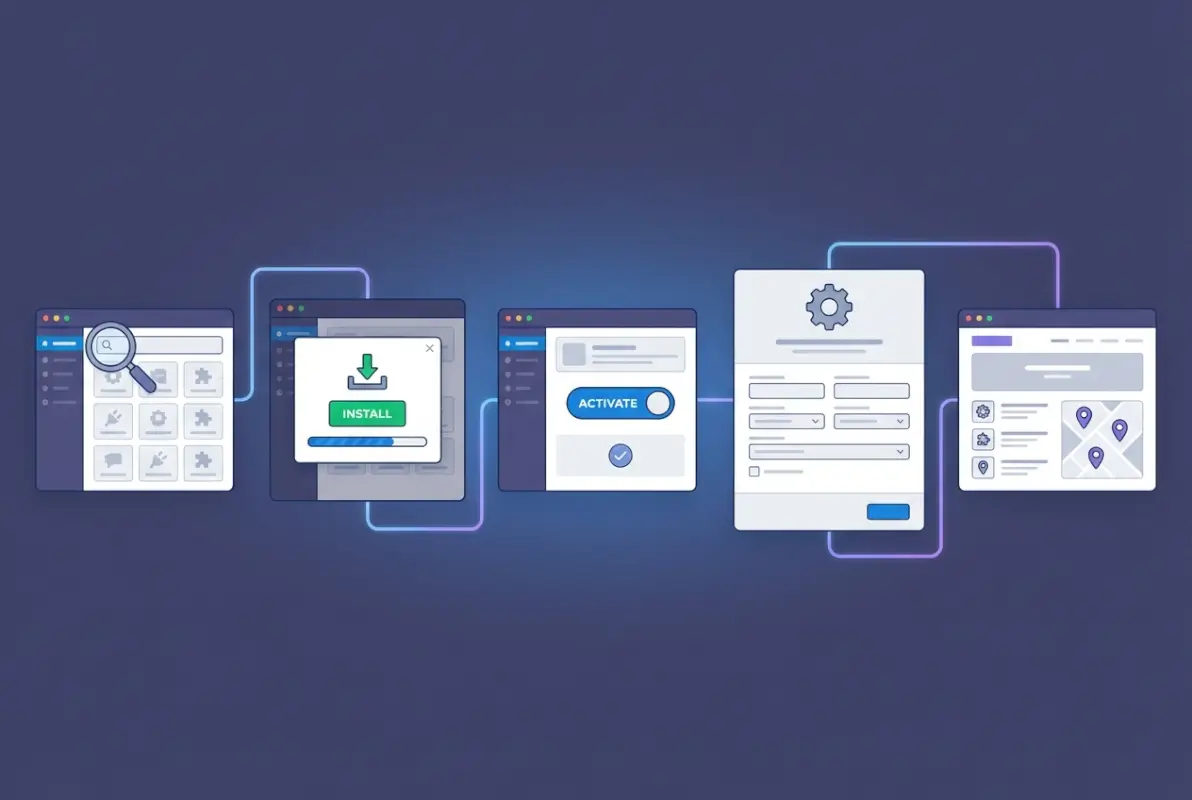
Automatic installation through the WordPress dashboard is the recommended method for beginners. Navigate to Plugins > Add New, then search for your chosen directory plugin by name. When you find the correct plugin (double-check the developer name to avoid imposters), click “Install Now.” WordPress downloads the plugin files, places them in the correct directory, and prepares them for activation—all without you touching any files directly.
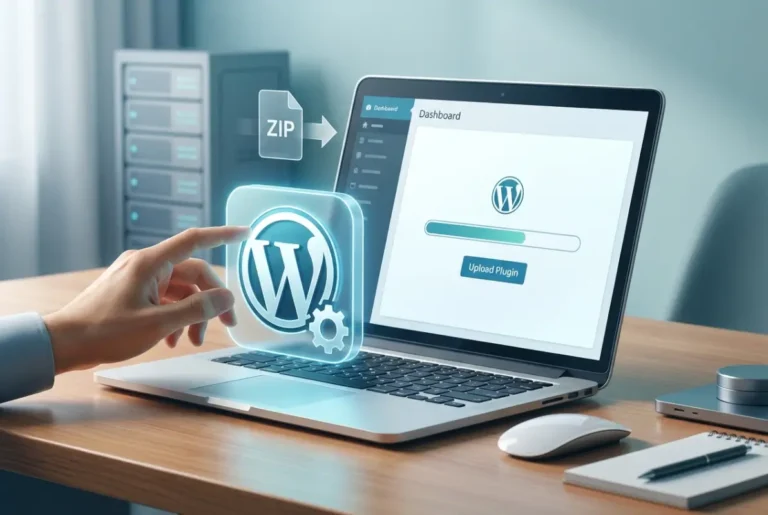
ZIP file upload works when you’ve purchased a premium plugin or need a specific version. The developer provides a .zip file containing the plugin. In WordPress, go to Plugins > Add New > Upload Plugin, select your ZIP file, and click “Install Now.” This method is identical to automatic installation except you’re providing the plugin files rather than WordPress downloading them from the repository.
Manual FTP installation suits advanced users who need granular control or troubleshooting access. Using an FTP client like FileZilla, connect to your server and navigate to /wp-content/plugins/. Upload the extracted plugin folder (not the ZIP file) directly into this directory. Return to WordPress dashboard and the plugin appears under Plugins > Installed Plugins, ready for activation. This method helps when dashboard access fails or you’re debugging corrupted installations.
Verify Installation
After installation completes, the plugin appears in your Plugins list with an “Activate” button. Don’t activate immediately—first check for any notices or warnings WordPress displays. Some plugins flag compatibility issues or missing dependencies at this stage. If you see error messages, research them before proceeding.
Upon activation, most directory plugins add new menu items to your WordPress admin sidebar. Look for entries like “Directory,” “Listings,” or the plugin’s specific name. These menu items provide access to settings, listing management, and configuration tools. If you don’t see a new menu item after activation, check the plugin’s documentation—some plugins integrate into existing menus like Settings or Tools.
Common Pitfalls and Fixes
White screen of death after activation indicates a fatal PHP error, usually from memory limits or code conflicts. Deactivate the plugin via FTP by renaming its folder in /wp-content/plugins/ (add “-disabled” to the folder name). This stops plugin execution without requiring dashboard access. Then investigate the error logs in your hosting control panel to identify the specific problem.
License activation requirements catch people off-guard with premium plugins. Many advanced features remain locked until you enter your purchase license key in the plugin settings. Keep license keys secure and document them in a password manager—you’ll need them for updates and support access. Some plugins verify licenses against developer servers, requiring active internet connectivity from your WordPress installation.
Missing dependencies create confusing situations where plugins activate but features don’t work. Some directory plugins require specific PHP extensions (like GD Library for image processing or cURL for external API connections). Check the plugin documentation’s system requirements section and verify your hosting environment includes all necessary extensions.
Step 4: Configure Directory Plugin Core Settings
Configuration transforms a blank plugin into a functional directory, this phase requires strategic thinking about user experience and business logic. Rushing through settings leads to awkward workflows that frustrate both administrators and visitors—I’ve seen directories fail simply because the listing submission form asked for too much information upfront.

Core Settings to Configure First
Start by creating your listing types and custom fields before anything else. Most directory plugins separate “listing types” (business, event, service provider) from “fields” (name, address, phone, hours). Define listing types first, then build field groups for each type. Businesses need physical addresses and operating hours; freelancers need portfolios and skill tags; events need date ranges and ticket links. This hierarchical approach prevents field bloat.
Field configuration requires balancing data collection with user friction. Essential fields should be required (name, category, description), but making too many fields mandatory discourages submissions. Consider which fields enable your core search and filter functionality—if location-based search matters, address fields become critical. If price comparison drives value, pricing fields need prominence.
Categories and tags create your directory’s organizational structure. Plan hierarchical categories (e.g., Restaurants > Italian > Pizza) rather than flat lists. Users filter more effectively with hierarchical options. Tags work better for cross-category attributes like “family-friendly,” “wheelchair-accessible,” or “open-late.” Most directory plugins support both taxonomies but handle them differently in search interfaces.
| Configuration Area | Priority Level | Impact on Launch |
|---|---|---|
| Listing Types & Fields | Critical | Blocks functionality |
| Category Structure | Critical | Affects navigation |
| Map Integration | High | Major feature |
| Payment Gateway | Medium | Revenue-dependent |
| Review System | Medium | Trust-building |
User submission workflows determine whether your directory scales through community contributions or requires constant administrative overhead. Configure approval workflows—will new listings publish immediately or require manual review? Immediate publishing accelerates growth but risks spam; manual approval maintains quality but creates bottlenecks. Many directories use a hybrid approach: verified users get auto-approval while new contributors enter moderation queues.
Map, Search, and UI Basics
Map integration typically requires API keys from providers like Google Maps, Mapbox, or OpenStreetMap. Google Maps offers 28,000 free map loads monthly before charging, usually sufficient for small directories. Navigate to Google Cloud Console, create a project, enable Maps JavaScript API, and generate an API key. Restrict your API key to your domain to prevent unauthorized usage that generates unexpected charges.
Enter your API key in the plugin’s map settings, then configure default map parameters: starting zoom level, map center coordinates, and marker clustering behavior. Test map functionality with a few sample listings to ensure geocoding converts addresses to coordinates correctly. Inaccurate pins frustrate users—if geocoding fails frequently, consider plugins with manual pin placement options.
Front-end search configuration affects user experience dramatically. Enable filters that match your content: location radius for local directories, price ranges for service providers, date ranges for events. Avoid filter overload—showing twelve filter options overwhelms users. Start with three to five high-value filters, adding more only after analyzing user search patterns.
Monetization and Access Control
Pricing plans need clear value differentiation. Free listings might include basic information with limited fields; paid tiers add features like photo galleries, social media links, featured placement, or priority support. Structure plans to encourage upgrades without making free listings look unprofessional—your directory’s perceived quality affects whether premium buyers convert.
Payment gateway integration varies by plugin. Some include built-in processors; others integrate with WooCommerce or Easy Digital Downloads for e-commerce functionality. Popular gateways like Stripe and PayPal charge 2.9% + $0.30 per transaction but offer seamless user experiences. Check whether your plugin supports recurring payments if you’re offering subscription-based listing memberships, this feature addition can impact your revenue model significantly when thinking about how factors to consider when joining business directories apply to your own platform.
Security and Performance Basics
Caching plugins improve directory performance but can cause issues with dynamic content like search results or user dashboards. Configure caching to exclude directory pages that display personalized content. Popular caching plugins like WP Rocket or W3 Total Cache let you specify pages or query strings to bypass cache.
Lazy loading defers image loading until users scroll near them, dramatically improving initial page load times for listing pages with dozens of thumbnails. Most modern WordPress themes include lazy loading by default, but verify it works with your directory plugin’s image output. Test with browser developer tools to confirm images load progressively.
Security hardening for user-submitted content prevents XSS attacks and spam injections. Enable CAPTCHA on submission forms—reCAPTCHA v3 runs invisibly for most users while blocking bots effectively. Sanitize user inputs by configuring the plugin to strip HTML from text fields where formatting isn’t needed. Regular security audits using plugins like Wordfence catch vulnerabilities before exploitation.
Step 5: Test, Optimize, and Launch
Testing reveals problems users would encounter in production, giving you chances to fix issues before they damage your directory’s reputation. Systematic testing beats random clicking—work through user journeys methodically to catch edge cases.

End-to-End Testing
Create sample listings representing each listing type and category combination. Vary the data—some listings with all fields completed, others with minimum required fields—to ensure templates handle different data densities gracefully. Include edge cases like extremely long business names, addresses with unusual formats, or special characters in descriptions.
Test the complete user submission workflow from a logged-out state. Can visitors find the submission page easily? Is the form intuitive or does field ordering confuse people? Time yourself completing a submission—if it takes more than three minutes, you’re losing submissions. After submitting, verify notification emails send correctly to both submitters and administrators.
Search and filter testing requires methodical scenarios. Search for partial keywords, misspellings, and category names. Apply multiple filters simultaneously to ensure they work as AND conditions (results meet all criteria) rather than OR conditions. Test location-based search at various radius settings. Check that “no results” pages provide helpful guidance rather than dead ends.
Responsive design testing checks how listings display across device sizes. Pay special attention to map interactions on mobile—touch gestures should work smoothly without accidental zooms or pans. Gallery images need appropriate sizing for mobile bandwidth. Test forms on smartphones to ensure field inputs trigger correct keyboards (numeric keyboards for phone fields, email keyboards for email fields).
Data Hygiene and Moderation
Approval workflows need documented procedures. Will you approve listings within 24 hours? What criteria determine rejection? Creating a simple checklist for moderators (complete contact info, appropriate category, legitimate business) maintains consistency. Some directories publish automatically but monitor for complaints, combining speed with quality control.
Spam prevention goes beyond CAPTCHA. Monitor new listings for patterns: multiple submissions from the same IP, identical descriptions across listings, or suspicious external links. Configure your plugin to flag listings containing certain keywords or link patterns for manual review. Consider requiring email verification before listings go live—this simple step eliminates most automated spam.
User role permissions prevent unauthorized access to sensitive directory functions. WordPress roles (Administrator, Editor, Author, Contributor) might need customization for directory contexts. Perhaps “Directory Editors” can approve listings but not access payment settings. Plugins like User Role Editor let you create custom roles with precisely scoped permissions, similar to strategies used when understanding how major directories maintain their listings.
Launch and Post-Launch Checks
SEO-friendly listing pages need proper URL structures (avoid parameter-heavy URLs), descriptive title tags, and meta descriptions. Most directory plugins generate these automatically, but verify the output matches SEO best practices. Listing URLs should be readable: “yoursite.com/listings/joes-pizza” beats “yoursite.com/?p=12345&listing=true”.
Schema markup helps search engines understand your listings as LocalBusiness or Organization entities, potentially earning rich snippets in search results. Quality directory plugins output schema automatically, but validate the markup using Google’s Rich Results Test. Look for proper structured data including business names, addresses, phone numbers, and reviews.
XML sitemap integration ensures search engines discover new listings quickly. If you’re using Yoast SEO or similar plugins, verify directory listing pages appear in your sitemap. Some directory plugins create dedicated listing sitemaps that you’ll need to submit separately to Google Search Console for maximum crawl efficiency.
Ongoing Maintenance
Regular updates keep your directory secure and compatible with evolving WordPress core. Set a monthly calendar reminder to check for plugin updates. Read update changelogs before applying them—major version updates sometimes introduce breaking changes requiring configuration adjustments or theme modifications.
Plugin compatibility checks matter when updating other WordPress components. Before updating your theme or another major plugin, search for known conflicts with your directory plugin. Developer support forums and community groups often discuss compatibility issues before official announcements.
Support channels provide assistance when issues arise. Premium plugins typically offer email support or ticket systems; free plugins rely on WordPress.org forums. Document your configuration and customizations in a simple text file—this information helps support staff troubleshoot problems efficiently. Many directory plugin developers also maintain documentation sites with troubleshooting guides, much like resources that explain installation processes for other complex plugins.
Directory Plugin Comparison Considerations
Beyond basic installation, understanding how different plugins stack up helps you make informed decisions if you’re still evaluating options or considering switches after testing.
Feature Parity and Pricing Models
Free versions handle basic directories adequately—standard fields, simple search, category organization. Premium features unlock at various price points: mapping might cost $49 annually, payment processing $79, review systems $59. Calculate total cost of ownership including all necessary extensions rather than just the base price. A $199 all-inclusive plugin may cost less than a free plugin requiring $400 in extensions.
Lifetime licenses versus annual subscriptions affect long-term costs. Lifetime licenses (one-time payment for perpetual updates) seem attractive but might exclude major version upgrades. Annual subscriptions ($99-299 typically) include updates and support but create recurring expenses. Factor in the number of sites you’ll run—multi-site licenses offer better value for agencies or directory businesses.
Custom Fields and Extensibility
Advanced directories need custom fields beyond standard options. Some plugins offer unlimited custom fields with varied types (text, checkbox, file upload, date picker); others limit field counts in free versions. Check whether custom fields integrate with search filters—having custom fields users can’t search by reduces their value significantly.
Developer hooks and filters matter if you plan custom functionality. Well-coded plugins expose numerous action and filter hooks letting developers modify behavior without editing core plugin files. This extensibility future-proofs your directory as needs evolve. Poor plugins require direct file edits that break during updates.
Localization and Multi-Language Support
Multi-language directories serve diverse communities but require careful plugin selection. WPML and Polylang compatibility isn’t universal—verify your directory plugin works with your chosen translation plugin. Some directory plugins include built-in translation interfaces; others rely on external translation plugins.
Translating listing content versus interface elements requires different approaches. Interface translation (buttons, labels, messages) uses .po/.mo files or plugin translation panels. Listing content translation needs duplication with language assignments or dynamic field-level translation. Test the full translation workflow before committing to a solution, especially if you’re in multilingual markets like those covered in guides about regional business directories.
Frequently Asked Questions
Do I need a premium version to get key directory features?
Most directory plugins offer free versions with core functionality including basic listings, categories, and simple search. Premium versions unlock advanced features like map integration, payment processing, review systems, and custom field types. Evaluate your specific needs—simple directories work fine with free versions, while monetized or feature-rich directories justify premium costs.
Can users submit listings, and how are they moderated?
Quality directory plugins support front-end user submissions through dedicated forms. Configure moderation workflows in plugin settings—options typically include automatic approval, manual review queues, or hybrid systems where verified users get instant approval. Implement spam prevention through CAPTCHA, email verification, and keyword filtering to maintain listing quality.
How do I display listings on the front end?
Directory plugins provide shortcodes, Gutenberg blocks, or widgets for displaying listings. Insert shortcodes into pages or posts using syntax like [directory_listings category=”restaurants”]. Gutenberg blocks offer visual interfaces for configuring display options. Many plugins include pre-built page templates you can customize through theme files or page builders.
How secure are directory plugins with user-submitted content?
Security depends on proper configuration and regular updates. Enable input sanitization to strip malicious code from submissions, implement CAPTCHA on forms, require email verification for new users, and keep WordPress core and plugins updated. Use security plugins like Wordfence to monitor suspicious activity and configure user role permissions to limit access to sensitive functions.
What payment gateways work with directory plugins?
Payment gateway support varies by plugin. Popular options include Stripe, PayPal, Square, and Authorize.net. Some plugins include built-in payment processing while others integrate with WooCommerce or Easy Digital Downloads. Verify recurring payment support if offering subscription-based listings. Check transaction fees and payout schedules when selecting gateways—rates typically range from 2.9% + $0.30 per transaction.
How do I optimize directory pages for search engines?
Implement clean URL structures avoiding parameters, ensure proper heading hierarchy (H1 for listing names), write unique meta descriptions, and enable schema markup for LocalBusiness or Organization entities. Generate XML sitemaps including listing pages, optimize page load speed through caching and image compression, and create descriptive category and tag pages with unique content rather than just listing grids.
What hosting requirements exist for large directories?
Directories with hundreds of listings need adequate resources beyond basic shared hosting. Minimum requirements include PHP 7.4+, 256MB PHP memory limit, and SSD storage for database performance. Consider VPS or managed WordPress hosting when exceeding 500 listings. Enable object caching (Redis or Memcached) and CDN services for media files. Monitor database query performance and optimize indexes as listing counts grow.
Can I import existing listings from spreadsheets or other sources?
Most professional directory plugins support CSV imports for bulk listing addition. Prepare spreadsheets with columns matching plugin fields (name, address, category, description). Some plugins include import mapping interfaces letting you match CSV columns to directory fields. Test imports with small batches first to verify formatting, then proceed with full datasets. Premium plugins may offer migration services from competing platforms.
How do review and rating systems work in directory plugins?
Built-in review systems let visitors rate and comment on listings. Configure whether reviews require moderation, user accounts, or previous interactions. Enable helpful/unhelpful voting on reviews to surface quality feedback. Implement spam filters and profanity blocking for review content. Quality review systems output schema markup so star ratings appear in search results, significantly improving click-through rates from Google.
What happens if I switch directory plugins later?
Switching plugins risks data loss since different plugins use incompatible database structures. Some premium plugins offer migration tools from specific competitors. Export your listings to CSV before switching as backup. Expect to manually reconfigure settings, recreate custom fields, and reassign categories. URL structures may change requiring 301 redirects to preserve SEO value. Consider switching costs before committing to initial plugin selection.
Taking Your Directory Live with Confidence
Installing a WordPress directory plugin successfully comes down to strategic planning more than technical complexity. The actual clicks and installations take minutes, but understanding your directory’s purpose, choosing aligned features, and configuring workflows thoughtfully determines whether your directory becomes a valuable resource or an abandoned project.
Remember that directories live and grow—your launch represents a starting point, not a finished product. Monitor user behavior through analytics to understand which categories attract attention, which search filters users actually apply, and where people abandon listing submissions. This data guides iterative improvements that align your directory with actual user needs rather than assumptions.
Start small and expand strategically. Launch with one well-defined category or geographic area, perfect the user experience and administrative workflows, then gradually add coverage. This focused approach builds momentum while keeping quality high, attracting both listing contributors and directory users who appreciate comprehensive, well-maintained resources in specific niches.
Your directory installation journey doesn’t end at launch—it evolves through ongoing optimization, community building, and strategic feature additions guided by user feedback. The five steps outlined here establish a solid foundation; your continued attention to user needs and technical maintenance determines long-term success.