How to List Your Business on Facebook Directory: Complete 2025 Guide

Most business owners don’t realize that Facebook’s local discovery features reach over 3 billion monthly active users—yet they’re leaving money on the table by having incomplete or poorly optimized business listings. While everyone talks about Facebook ads and organic reach, there’s a quieter opportunity hiding in plain sight: Facebook’s integrated directory and maps system that helps nearby customers find businesses exactly when they’re ready to buy.

Here’s what almost nobody tells you: Facebook doesn’t technically call it a “directory” anymore. The platform has evolved into a sophisticated local discovery ecosystem where your business information, map location, check-ins, reviews, and Page details work together to surface your company to potential customers. Getting this right isn’t just about filling out a form—it’s about understanding how Facebook’s search algorithm, Instagram integration, and mobile-first design prioritize certain signals over others.
I’ve spent years helping local businesses optimize their facebook business listing presence, and the ones that succeed share a common trait: they treat their Facebook location data with the same care they give Google Business Profile. The difference between a business that gets discovered versus one that stays invisible often comes down to three things most people overlook (and we’ll cover all of them in detail).
TL;DR – Quick Takeaways
- Facebook “directory” now means local discovery – Your business appears through Facebook Search, Maps, check-ins, and location tagging across Meta apps
- Accurate address + map pin = visibility – The single most important factor is precise location data that lets Facebook show you in “nearby” searches
- Page completeness drives rankings – Category, hours, photos, and verification status directly impact whether you appear in search results
- Cross-platform consistency matters – Your Facebook listing should match Instagram, Google, and other directories exactly (NAP consistency)
- Mobile-first optimization is non-negotiable – Most users discover businesses through mobile apps, so your listing must work flawlessly on phones
- Regular maintenance beats one-time setup – Monthly audits of hours, address, and contact info keep you visible as Facebook’s algorithm evolves
Understanding Facebook’s Local Discovery Ecosystem in 2025
If you’re searching for instructions on “Facebook Directory,” you’re actually looking for something that’s evolved significantly. Facebook retired the traditional browsable directory concept years ago in favor of an integrated local discovery system. Today, your facebook business listings appear through multiple surfaces: Facebook Search, Facebook Maps (built into the mobile app), location check-ins, tagged posts, Instagram location pages, and even Marketplace proximity filters.
Think of it less like the old Yellow Pages and more like how Google surfaces local businesses—through search intent, location proximity, and relevance signals. When someone searches “coffee shop near me” or taps on a location tag in a friend’s post, Facebook’s algorithm decides which businesses to show based on factors including address accuracy, Page completeness, engagement levels, and map pin precision.

The distinction between Facebook Pages and Facebook Maps presence confuses many business owners. Your Facebook Page is the foundation—it contains all your business information. But your map location (the pin that appears when users search nearby) is a separate element that must be configured correctly. You could have a complete Page but still be invisible in location-based searches if your address isn’t properly geocoded or your map pin sits in the wrong spot.
According to recent social media statistics, Facebook maintains dominance in local business discovery with users spending significant time in location-based features. For local businesses especially, this means optimizing for Facebook’s discovery surfaces isn’t optional—it’s where a huge chunk of your potential customers start their buying journey.
Why Map Pin Accuracy Matters More Than You Think
Here’s something that caught me off guard when helping a client optimize their restaurant listing: their Facebook Page was perfect, but customers kept complaining they couldn’t find the location. Turned out the map pin was 200 meters off—positioned in a parking lot rather than at the actual storefront. Facebook was showing them in search results, but with the wrong location, which destroyed trust and sent customers to competitors instead.
Facebook uses latitude and longitude coordinates to place your business on maps and determine proximity for “nearby” searches. If these coordinates don’t precisely match your physical location, you’ll either not appear in location searches or appear in the wrong area. This is especially critical for businesses in shopping centers, office buildings, or anywhere street addresses might be ambiguous.
How Check-ins and Location Tagging Amplify Visibility
One underrated aspect of facebook directory listing optimization is enabling and encouraging customer check-ins. Every time a customer checks into your location or tags it in a post, two things happen: their network sees your business (organic reach), and Facebook’s algorithm receives a signal that your location is active and legitimate (ranking boost).
Businesses with frequent check-ins tend to rank higher in local searches because Facebook interprets this as social proof. A restaurant with 50 check-ins this month will almost always outrank one with zero check-ins, all else being equal. This is why encouraging customers to “check in for a discount” or “tag us in your photos” isn’t just social media fluff—it’s a legitimate SEO strategy for Facebook’s ecosystem.
Prerequisites and Foundation Setup for Your Facebook Business Listing
Before you can optimize anything, you need the right foundation in place. Many businesses rush through Page creation and then wonder why they’re invisible—the setup phase determines 80% of your eventual discoverability. Let’s walk through the prerequisites that most guides gloss over but that make the difference between a listing that works and one that doesn’t.

First, you need a Facebook Page specifically created as a business or local business Page (not a personal profile converted to public figure). This distinction matters because only proper business Pages get access to location features, map integration, and business-specific tools like appointment booking and services listings. If you’re working with an old Page that was created years ago, verify it’s set up with the correct Page type by checking Settings > Page Info.
Step-by-Step: Creating Your Business Page the Right Way
The Page creation process takes 10 minutes but requires careful attention to detail:
- Log into your personal Facebook account (you’ll be the admin, but the Page is separate)
- Click the Pages icon in the left sidebar or navigate to facebook.com/pages/create
- Select “Get Started” under the business or local business option
- Enter your exact business name—use the legal name or DBA that matches your other directories
- Choose the most specific category available (we’ll discuss why this matters shortly)
- Add your complete address including apartment/suite numbers if applicable
- Add primary contact information—phone and website
- Upload a square logo (at least 170 x 170 pixels) as your profile picture
- Upload a cover photo (820 x 312 pixels minimum) that showcases your business
- Complete all About sections before publishing
The category selection deserves special attention. Facebook uses this as a primary filter for search results, so being specific helps you appear in the right searches. Don’t just select “Restaurant” when “Italian Restaurant” or “Pizza Place” would be more accurate. You can add up to three categories—use all three slots with relevant options that describe different aspects of your business.
Securing Proper Admin Access and Page Control
This is where businesses often create future headaches, make sure you set up admin access properly from day one. Add multiple admins (trusted employees or business partners) so you don’t lose access if someone leaves the company or forgets their password. Go to Settings > Page Roles and add at least one backup admin with a verified Facebook account.
According to Facebook’s official guidance on Page basics, maintaining proper admin access prevents the common scenario where businesses lose control of their Pages and have to start over. I’ve seen this happen too many times—an employee creates the Page, leaves the company, and suddenly the business can’t access their own listing.
Configuring Your Address and Map Location Precisely
After basic Page creation, you need to configure your address with surgical precision. This step determines whether you appear in local searches, so it’s worth spending extra time to get right. Navigate to your Page, click “Edit Page Info,” and locate the address section.
Here’s the process for accurate address setup:
- Enter your complete street address exactly as it appears in official records
- Include all relevant details—suite numbers, building names, floor numbers
- Verify the auto-complete suggestion matches your actual location
- Check the map preview to ensure the pin appears in the correct spot
- If the pin is wrong, try reformatting your address or adding more specific details
- Save changes and wait 24-48 hours for Facebook to process and geocode your location
For businesses in complex locations (shopping malls, office towers, shared buildings), you might need to get creative with how you enter the address. Facebook’s geocoding sometimes struggles with ambiguous addresses. If you’re in Suite 203 but Facebook keeps pinning you to the building’s main entrance, try entering the address as “Building Name, 123 Main St, Suite 203” or contact Facebook support to manually adjust the pin.
Optimizing Your Facebook Business Listing for Maximum Visibility
With your foundation in place, optimization is where you separate yourself from 90% of competitors who stop after basic setup. Facebook’s search algorithm evaluates dozens of signals when deciding which businesses to show—Page completeness being one of the highest-weighted factors. An incomplete profile might get 10 impressions per month while a fully optimized one gets 500+ simply because Facebook trusts complete profiles more.
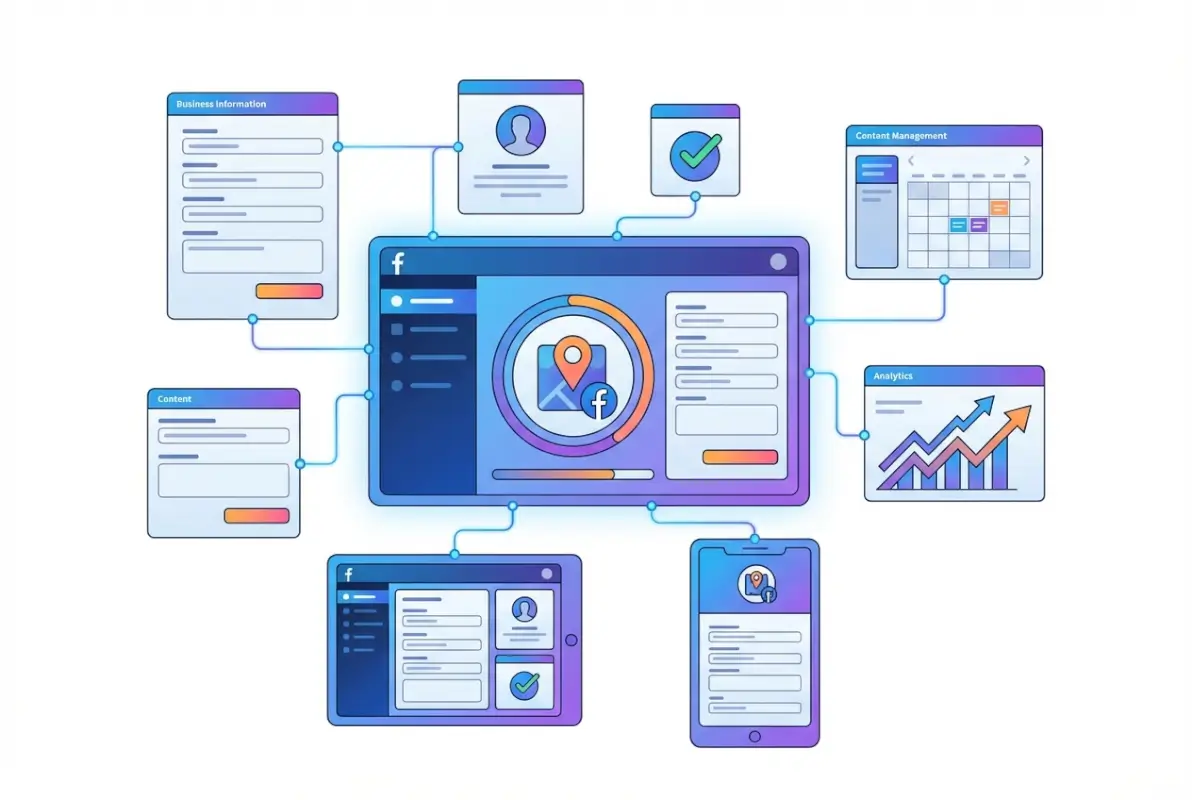
The goal is to fill every available field with accurate, keyword-rich information that helps both Facebook’s algorithm and human users understand exactly what you offer and where you’re located. This isn’t about keyword stuffing—it’s about providing comprehensive information that answers the questions potential customers are asking.
Complete Profile Information Checklist
Navigate to your Page’s About section and systematically complete these fields:
- Business hours: Add specific hours for each day, including special hours for holidays (update these seasonally)
- Phone number: Use a local number if possible—mobile numbers work but local landlines build more trust
- Website URL: Link to your main website or, if you don’t have one, to your Instagram or other online presence
- Email address: Use a professional email (not Gmail if avoidable)
- Price range: Select the $ to $$$$ indicator that matches your typical transaction
- Additional categories: Use all three available category slots with relevant options
- Description: Write a 2-3 sentence summary that naturally includes keywords customers would search for
- Story: Use the longer story field to provide more context about your business history, values, or unique offerings
- Products/Services: Add individual items with photos and prices if applicable
- Payment methods accepted: List credit cards, cash, mobile payments, etc.
Each completed field is a small ranking signal to Facebook’s algorithm. Pages with 90%+ profile completion consistently outperform those at 50% completion in local search results. Think of it as building credibility—would you trust a business listing with half the information missing?
| Profile Element | Impact on Visibility | Time to Complete |
|---|---|---|
| Address + Map Pin | Critical—determines local search appearance | 5-10 minutes |
| Category Selection | High—filters search results | 2 minutes |
| Business Hours | High—affects “open now” searches | 3 minutes |
| Photos (10+ high-quality) | Medium-High—increases engagement | 15-30 minutes |
| Reviews (5+ recent) | High—social proof signal | Ongoing |
| Verification Badge | Medium—adds credibility | 2-5 business days |
Photo and Visual Content Strategy
Facebook’s algorithm weighs visual content heavily in local search rankings. Businesses with 10+ high-quality photos appear more frequently in search results than those with just a profile picture and cover photo. The reason? Photos signal activity, legitimacy, and give users confidence they’re choosing a real, active business.
Your photo strategy should include:
- Exterior photos: Clear shots of your storefront or building entrance from multiple angles
- Interior photos: Well-lit images showing your space, products, or work environment
- Product/service photos: High-resolution images of what you sell or provide
- Team photos: Images of staff members (builds trust and humanizes your business)
- Action shots: Customers using your products or services (with permission)
- Detail shots: Close-ups that showcase quality or craftsmanship
Organize these into albums with descriptive names like “Our Menu,” “Our Team,” or “Customer Projects.” Album organization makes it easier for users to browse and signals to Facebook that you’re maintaining an active, professional presence.
Keyword Integration Without Stuffing
Your facebook business listing should naturally include terms that customers search for, but in a way that reads naturally and provides value. Facebook’s algorithm is sophisticated enough to detect keyword stuffing and may actually penalize over-optimized content.
Smart keyword placement includes:
- Business description: Naturally mention your primary service/product and location (“Family-owned Italian restaurant serving authentic Naples-style pizza in downtown Portland”)
- Story section: Weave in secondary keywords while telling your brand narrative
- Services list: Use specific service names that customers would search for
- Photo captions: Describe images with relevant terms
- Post content: Regular posts that mention location-specific terms and service keywords
Remember that you’re optimizing for both Facebook’s internal search and for Facebook Pages that appear in Google search results. According to documentation on structured web data, complete and keyword-rich business information helps search engines better understand and categorize your listing across platforms.
Cross-Platform Consistency and Instagram Integration
Here’s something that surprises many business owners: your Facebook listing and Instagram location page are connected but not automatically synced. You can have perfect information on Facebook but incorrect details on Instagram, or vice versa. This inconsistency confuses customers and dilutes your local search performance across Meta’s ecosystem.

NAP consistency (Name, Address, Phone) across all platforms is a fundamental principle of local SEO, and it applies just as much to facebook business listings as it does to Google Business Profile or Yelp. When your business information matches exactly across Facebook, Instagram, your website, and other directories, search algorithms interpret this as a trust signal—multiple sources confirming the same facts.
Syncing Facebook and Instagram Business Profiles
If you have an Instagram Business account, you can connect it to your Facebook Page to share some information automatically. Navigate to your Facebook Page settings, find “Instagram” in the left sidebar, and click “Connect Account.” This connection allows you to:
- Cross-post content to both platforms from one interface
- Manage Instagram messages through Facebook Messenger
- Access unified insights across both platforms
- Run ads simultaneously on Facebook and Instagram
However (and this is crucial), connecting accounts doesn’t automatically sync your address or contact information. You must manually verify that your Instagram location page matches your Facebook address exactly. Search for your business on Instagram, tap the location tag, and verify the address, phone, and hours match your Facebook listing.
Maintaining Consistency Across All Directories
Your Facebook listing should match these other platforms exactly:
- Google Business Profile: Same business name, address format, phone number, hours
- Apple Maps: Often overlooked but increasingly important for iOS users
- Yelp: Especially critical for restaurants, services, and local retail
- Your website: Contact page and footer information should match directory listings
- Industry-specific directories: Healthcare, legal, hospitality directories relevant to your field
I learned this lesson the hard way when helping a client who couldn’t figure out why their Google rankings were stagnant despite great reviews. Turned out they had different phone numbers listed on Facebook, Google, and their website—all from various business line changes over the years. Once we standardized everything to one number, their local pack rankings improved within two weeks.
Create a simple spreadsheet tracking your business information across all platforms. Update this master document whenever anything changes (new phone number, different hours, address update), then systematically update every platform from this single source of truth. This prevents the drift that happens when someone updates Facebook but forgets about Instagram, or changes the website but leaves old info on Yelp.
Best Practices for Ongoing Maintenance and Performance Monitoring
Setting up your facebook directory listing perfectly means nothing if you don’t maintain it. Facebook’s algorithm favors active, regularly updated Pages, and outdated information damages customer trust faster than any negative review. Think of your listing as a living entity that requires monthly attention rather than a one-time setup project.

I recommend creating a recurring calendar reminder for the first Monday of each month: “Facebook Page Audit.” This 15-minute task catches issues before they cost you customers.
Monthly Maintenance Checklist
Your monthly audit should include:
- Verify address and map pin accuracy—open the mobile app and confirm the pin sits exactly on your location
- Update business hours—especially important around holidays or seasonal schedule changes
- Check phone number and website—ensure all contact methods still work
- Review and respond to all messages—messages older than 48 hours hurt your responsiveness rating
- Respond to new reviews—thank positive reviewers, address negative feedback professionally
- Add new photos—upload at least 2-3 fresh images showing recent work, seasonal offerings, or events
- Verify Instagram sync—check that Instagram location info still matches
- Test booking/contact features—if you use appointment booking or other tools, verify they work
- Review insights data—look for changes in reach, engagement, or actions taken
According to Facebook’s official help documentation on Page addresses, changes to your location information can take 24-48 hours to be fully reflected across all surfaces. Make updates in advance of seasonal changes (like holiday hours) rather than waiting until the last minute.
Interpreting Performance Metrics
Facebook Page Insights provides data that tells you whether your listing optimization is working. Focus on these key metrics:
- Page views: How many people are viewing your Page (should trend upward month-over-month)
- Page reach: How many unique users saw any content from your Page
- Actions on Page: Clicks on phone number, website, directions, or other action buttons
- Source of views: Where people are finding you (search, recommendations, other)
- Check-ins: Number of location check-ins (strong signal of activity)
- Engagement rate: Likes, comments, shares on your content
If you see declining performance, it usually indicates one of three issues: information has become outdated, competitors have improved their listings, or Facebook’s algorithm has changed. The solution is usually the same—review completeness, update content, and ensure accuracy across all fields.
Troubleshooting Common Facebook Listing Issues
Even with perfect setup, you might encounter these common problems:
Problem: Map pin appears in wrong location
Solution: Edit your address to be more specific (add suite/building numbers), wait 48 hours, then verify. If still wrong, report the issue through Page Settings > Report a Problem.
Problem: Business not appearing in local searches
Solution: Verify your address is complete, category is appropriate, and Page visibility is set to “Published.” Check that you haven’t accidentally hidden your address.
Problem: Can’t add location or enable check-ins
Solution: This usually means your Page wasn’t created as a “Local Business” type. Check Page Settings > Templates and Tabs, and ensure location features are enabled.
Problem: Reviews or ratings not showing
Solution: Reviews must be enabled in Page Settings. Navigate to Settings > Templates and Tabs, ensure the Reviews tab is visible.
Problem: Instagram location doesn’t match Facebook
Solution: Claim your Instagram location page separately (if it exists), or create it by having users tag your location. Instagram locations aren’t automatically created from Facebook Pages.
I remember helping a retail shop owner who was frustrated because customers kept saying they couldn’t find the store using Facebook’s directions. The issue turned out to be that Facebook’s geocoding placed them at the building’s rear entrance (employee entrance) rather than the customer entrance facing the street. We fixed it by adding more specific address details and confirming the pin adjustment with Facebook support—within a week customers stopped getting lost.
Leveraging Additional Facebook Features for Enhanced Visibility
Beyond basic listing information, Facebook offers several advanced features that can significantly boost your local visibility when used strategically. Most business owners never activate these tools, which means you can gain an edge simply by turning them on and using them consistently.
Facebook Shops and Service Listings
If you sell physical products, Facebook Shops lets customers browse and purchase directly through your Page. This integration increases the time users spend on your listing (a positive ranking signal) and provides additional conversion opportunities. Setting up a Shop adds another discovery vector—your products can appear in Marketplace searches and shopping features.
For service-based businesses, the Services section lets you list specific offerings with descriptions and pricing. This serves double duty: it helps customers understand exactly what you provide, and it gives Facebook’s algorithm more content to match against search queries. A plumber who lists “emergency drain cleaning,” “water heater installation,” and “pipe repair” as separate services will appear in more specific searches than one who just says “plumbing services.”
Events and Offers for Algorithmic Boost
Creating Facebook Events for in-store happenings, workshops, or special sales triggers additional visibility in local event discovery features. When users browse events in their area, your business can appear alongside entertainment and community events, exposing you to potential customers who might not have found you through direct business searches.
Similarly, Facebook Offers (special deals visible only to Facebook users) generate engagement and create urgency. When you post an offer, Facebook notifies nearby users and highlights it in your listing. The engagement these generate (people saving or sharing offers) sends strong signals that boost your overall search visibility.
Appointment Booking Integration
For businesses that work on appointments (salons, medical practices, consultants), enabling appointment booking reduces friction in the customer journey. When users can book directly from your Facebook listing without visiting your website or calling, conversion rates typically increase 25-40% based on industry averages.
Appointment systems integrate with services like Calendly or native Facebook appointment features. The booking button appears prominently on your Page and in search results, making it a high-visibility call-to-action that drives actual business results.
| Feature | Best For | Visibility Impact |
|---|---|---|
| Facebook Shop | Retail, e-commerce | High—Marketplace integration |
| Services Listing | Service providers | Medium—Keyword targeting |
| Appointment Booking | Salons, healthcare, consultants | High—CTA prominence |
| Events | Venues, classes, pop-ups | Medium-High—Event discovery |
| Offers/Deals | All business types | Medium—Engagement boost |
Verification and Credibility Signals
Facebook’s verification badge (gray checkmark for local businesses, blue for public figures/brands) adds instant credibility to your listing. While not every business qualifies, pursuing verification is worthwhile because verified Pages receive a modest ranking boost in search results and users trust them more when deciding where to spend money.
To request verification, navigate to Settings > Page Verification and follow the prompts. Facebook will either verify via phone call to your business number or ask for documentation (business license, articles of incorporation, utility bill showing business address). The process typically takes 2-5 business days.
Requirements for verification include:
- Your business name must match official documentation exactly
- You must have a physical location or be a recognized brand
- Phone verification requires a publicly listed business number
- The Page must be complete with all basic information filled out
- Pages that violate Facebook’s policies won’t be verified
If verification is denied, don’t worry too much—unverified Pages with excellent optimization often outrank verified Pages with poor optimization. Verification is one signal among many; it’s not make-or-break for visibility.
Frequently Asked Questions About Facebook Business Listings
How do I list my business on Facebook Maps in 2025?
Create a Facebook Business Page with your complete address, ensure the location is set to visible, and verify the map pin appears correctly on your business location. Facebook doesn’t have a separate “Maps” app but integrates map features into the main Facebook app and search results. Your listing appears automatically once your Page is published with accurate location data.
What information is required to show my business on Facebook directory listings?
At minimum, you need a Facebook Business Page with your business name, category, complete street address, phone number, and business hours. For maximum visibility, also add a website URL, detailed description, high-quality photos, and enable location features. More complete profiles rank significantly higher in Facebook’s local search results.
Why isn’t my address showing correctly on my Facebook Page?
Address display issues usually stem from incorrect address formatting, missing suite/apartment numbers, or Facebook’s geocoding system misinterpreting your location. Edit your address in Page Settings to be more specific, ensure you’ve selected the correct suggestion from Facebook’s auto-complete, and verify the map pin placement. Changes can take 24-48 hours to fully propagate.
How do I update the location pin on Facebook Maps for my business?
Edit your Page’s address through Settings > Page Info > Address. Enter your complete address with all relevant details, and Facebook will attempt to place the pin automatically. If the automatic pin is still incorrect after 48 hours, you may need to contact Facebook support to manually adjust the coordinates, especially for businesses in complex locations like office buildings or shopping centers.
Can I edit my facebook business listing from the Facebook app versus desktop?
Yes, you can edit most Page information from both the mobile app and desktop version, though desktop provides access to more advanced settings. For basic updates like hours, photos, or posts, mobile works fine. For complex changes like location adjustments, verification, or advanced settings, desktop typically offers a more complete interface with fewer limitations.
Is the Local Business category still available for Facebook Pages?
Yes, “Local Business” remains a primary Page category option, along with more specific subcategories like Restaurant, Retail Shop, Service Business, and others. Choosing the most specific category relevant to your business helps Facebook show your listing to the right audiences. You can select up to three categories to describe different aspects of your business offerings.
How can I fix issues with check-ins or the “Add location” feature on my Page?
If check-ins aren’t working, verify that your Page type is set to a location-based category (like Local Business), your address is visible and complete, and location features are enabled in Settings > Templates and Tabs. Sometimes check-in issues occur if your Page was created as a non-location type and later converted—in these cases, you may need to create a new Page with the correct type from the start.
How long does it take for my facebook directory listing to appear in searches?
Your Page becomes searchable immediately upon creation and publishing, but full optimization (appearing prominently in relevant searches) can take 2-4 weeks as Facebook’s algorithm evaluates completeness, engagement, and legitimacy. Regular posting, customer engagement, and profile completeness accelerate this process. Location-based searches typically index faster than general searches.
Do facebook business listings cost money to create and maintain?
No, creating and maintaining a Facebook Business Page is completely free, including location features, map integration, and basic visibility in search results. Facebook offers paid advertising to increase reach beyond organic visibility, but this is optional. All core listing features—address, hours, contact information, photos, and posts—are free to use indefinitely.
Should my Facebook listing match my Google Business Profile exactly?
Yes, maintaining identical NAP (Name, Address, Phone) information across Facebook, Google, and all online directories is critical for local SEO. Inconsistent information confuses search algorithms and customers, potentially damaging your visibility on all platforms. Keep a master document with your official business information and update all platforms simultaneously whenever anything changes.
Taking Action on Your Facebook Business Presence
The difference between businesses that succeed with facebook business listings and those that struggle comes down to treating your Page as a strategic asset rather than a checkbox to tick off. Facebook’s local discovery ecosystem rewards completeness, consistency, and ongoing engagement—all factors completely within your control.
Start with the foundation: accurate location data and complete profile information. These two elements alone will put you ahead of 60% of competitors who have partial or outdated listings. Then layer on the optimization strategies—regular photos, customer engagement, cross-platform consistency, and monthly maintenance. The compound effect of these small, consistent efforts drives exponential improvements in visibility over time.
The businesses I’ve seen succeed most dramatically are those that integrate their Facebook presence into their overall local marketing strategy rather than treating it as an isolated platform. Your Facebook listing should complement your Google Business Profile, your website, your Instagram presence, and your other marketing channels to create a cohesive online ecosystem that captures customers wherever they happen to search.
Your Next Steps
Set aside 30 minutes today to audit your current Facebook listing against this guide. Create a simple checklist of what’s complete and what’s missing, then systematically address each gap over the next two weeks. Focus first on address accuracy and profile completeness—these deliver the biggest visibility improvements fastest.
For business owners looking to extend their online presence beyond Facebook, consider building a comprehensive directory strategy that includes Google Business Profile, industry-specific directories, and your own web presence. Platforms like TurnKey Directories can help you create a professional directory presence that works alongside your social media efforts to maximize local visibility.