How to Load a Plugin on a Minecraft Server: A Step-by-Step Guide

Loading a plugin on your Minecraft server shouldn’t feel like decoding ancient runes, yet many server admins treat it as some sort of dark art. Here’s the truth: the actual process of dropping a .jar file into your plugins folder takes about 30 seconds. What separates a smooth plugin deployment from a server-crashing nightmare isn’t the installation itself—it’s the homework you do beforehand. After managing servers for years and witnessing everything from silent plugin failures to catastrophic rollbacks, I’ve learned that successful plugin loading on Minecraft servers comes down to methodical preparation, understanding your server’s ecosystem, and knowing exactly what to do when (not if) something goes sideways.

TL;DR – Quick Takeaways
- Server software matters – Vanilla Minecraft servers don’t support plugins; you need Spigot, Paper, or Bukkit-based platforms
- Version matching is critical – Plugin API versions must align with your server build or you’ll face instant failures
- Backups before everything – One incompatible plugin can corrupt world data; always backup before loading new plugins
- Dependencies often hide in the shadows – Many plugins require library files that aren’t immediately obvious
- Log files are your roadmap – Console output tells you exactly what went wrong during plugin loading
Prerequisites for Loading Plugins
Before you even think about downloading a plugin, you need to verify your server environment can actually run it. This isn’t about having the latest hardware (though that helps), it’s about architectural compatibility that determines whether a plugin will load at all.
Choose the Right Server Software (Spigot, Paper, or Bukkit)
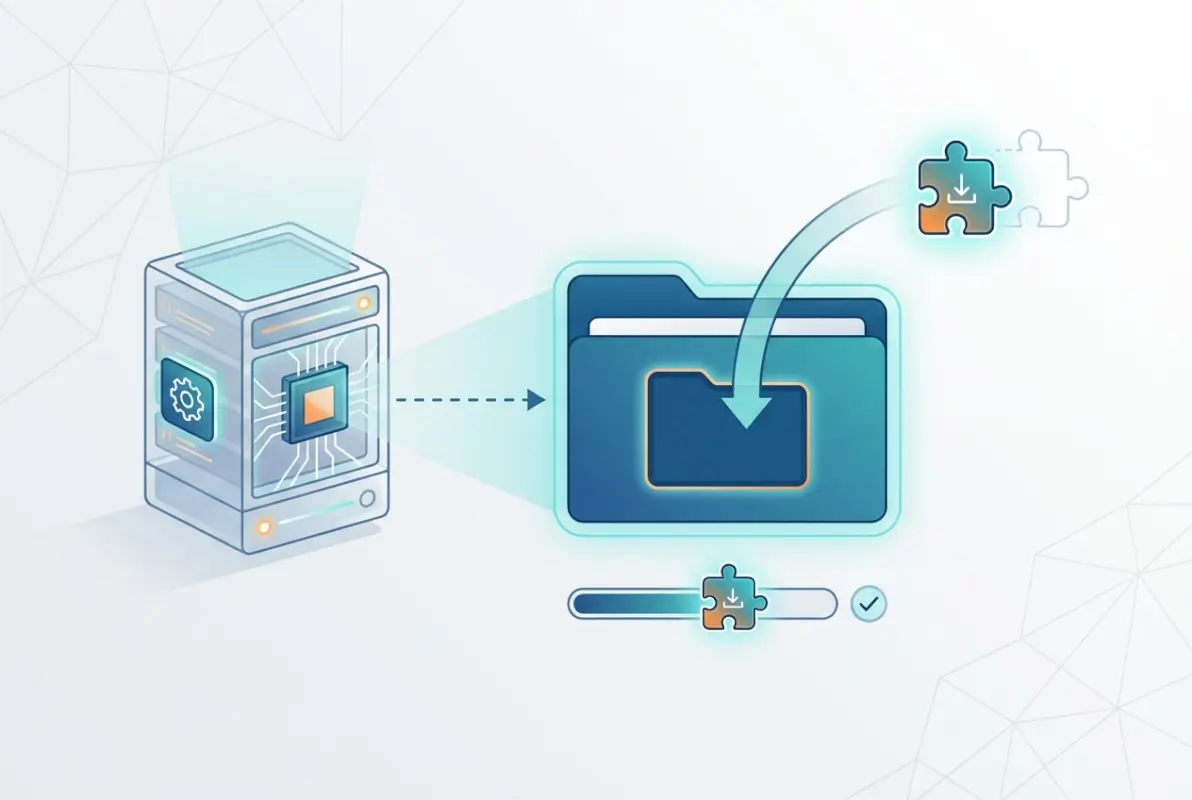
Vanilla Minecraft servers—the ones you download directly from Mojang—don’t support plugins, period. You need a modified server that implements the Bukkit API, which provides the hooks plugins use to interact with your server. Spigot emerged as the performance-oriented fork of Bukkit, while Paper took Spigot and optimized it further with aggressive performance patches.
Paper has become the de facto standard for serious server administrators because it offers the best performance while maintaining near-complete compatibility with Spigot and Bukkit plugins. If you’re running a high-population server or just want the smoothest experience, Paper should be your first choice. Spigot works perfectly fine for smaller communities, and some edge-case plugins still require it specifically.
Ensure Your Minecraft Server Version Matches Plugin API Version
This is where most plugin loading failures happen. Plugins compile against specific API versions, and the Minecraft plugin ecosystem doesn’t maintain backward compatibility the way you might expect. A plugin built for 1.19.4 might not load on 1.20.1, and vice versa.
Check the plugin’s documentation or download page for supported versions. When you see “Supports 1.18-1.20,” that typically means the plugin has been tested across that range, but always verify with your specific build. The plugin description on hosting platform knowledge bases usually lists exact compatibility.
Backup Strategy Before Loading New Plugins
I learned this lesson the hard way when a world protection plugin corrupted chunk data across three regions. Your backup strategy needs to cover at minimum your world folders and your existing plugins directory with their configurations.
Create a snapshot before any plugin changes. If you’re using a hosting panel, use their one-click backup feature. If you’re on a VPS or dedicated server, a simple tar or zip of your server directory to a separate location works. Keep at least your last three backups—you’d be surprised how long it takes to notice subtle plugin conflicts.
| Backup Element | Priority | Frequency |
|---|---|---|
| World data files | Critical | Before every plugin change |
| Plugins folder | High | Before adding/updating plugins |
| Server configuration files | Medium | Weekly or before major changes |
| Player data | High | Daily automated backup |
Server Hardware Considerations (RAM, CPU, Disk I/O) and Network Basics
Plugins consume resources, and every additional plugin increases your server’s memory footprint and CPU usage. A baseline Spigot server might run comfortably on 2GB RAM with 5-10 players, but add world protection, economy systems, custom mobs, and anti-cheat plugins and you’re suddenly looking at 4-6GB minimum.
Disk I/O matters more than people realize. Plugins that write frequently to databases or log files can bottleneck on mechanical hard drives. If you’re running more than 15-20 plugins, an SSD becomes essential rather than optional. Network latency affects player experience but rarely impacts plugin loading itself, unless you’re pulling plugin data from external APIs during runtime.
Common Plugin Types and Use Cases
Understanding plugin categories helps you plan your server’s functionality without creating conflict-prone overlaps. Each type serves distinct purposes, though some plugins blur these boundaries.
Admin Tools, Economy, Gameplay Enhancements, World Protection, and Management Utilities
Admin tools like EssentialsX provide the command backbone most servers need—teleportation, home settings, kits, and moderation commands. These are typically your first install because other plugins often depend on them.
Economy plugins create currency systems, shops, and transaction mechanics. Vault acts as the economy API bridge that allows different economy plugins to work together, which is why you’ll see it listed as a dependency for shop and permission plugins.
Gameplay enhancements range from custom enchantments to mob modifications to skill systems. These are where servers differentiate themselves, but they’re also the highest risk for conflicts because they often modify core game mechanics.
World protection plugins like WorldGuard or GriefPrevention prevent unauthorized building and destruction. They’re non-negotiable for public servers, and they need to load early in your plugin sequence because other plugins may reference their region systems.
Management utilities handle tasks like auto-restarts, performance monitoring, and scheduled backups. These run quietly in the background but are crucial for server health.
Community Standards and Compatibility with Existing Plugins
The Minecraft plugin community has developed informal standards around certain plugins. Nearly every established server runs some combination of EssentialsX, Vault, WorldEdit, and PermissionsEx (or LuckPerms). This standardization actually helps compatibility—developers test against these common plugins.
Before adding a new plugin, check if it duplicates functionality you already have. Running two permission systems or two economy plugins creates conflicts that manifest as random errors hours after installation. Similar to how business directories maintain relevance through careful organization, your plugin list needs thoughtful curation to avoid redundancy.
Sourcing Plugins Safely
Where you download plugins determines your server’s security posture. The plugin ecosystem unfortunately includes abandoned projects, malicious code disguised as utilities, and outdated software that introduces vulnerabilities.
Official Repositories (SpigotMC, Paper, etc.)
SpigotMC Resources (spigotmc.org/resources) is the largest repository, hosting both free and premium plugins. Their moderation catches obvious malware, but they don’t audit code for subtle vulnerabilities. Bukkit’s dev.bukkit.org shut down active development but still hosts legacy plugins. Paper’s forums occasionally feature Paper-optimized plugins, though most developers still publish to Spigot for wider reach.
GitHub repositories from known developers offer transparency—you can audit the source code before running it on your server. This is particularly valuable for security-sensitive plugins like authentication systems or database managers.
Checking Plugin Signatures, Reviews, and Update Cadence
Review history tells you more than star ratings. Look for consistent updates—plugins abandoned for 12+ months likely have unpatched security issues or won’t load on current server versions. Check if the developer responds to bug reports in the discussion threads.
Download count combined with rating provides a rough quality signal. A plugin with 100,000 downloads and a 4.5 rating is safer than one with 500 downloads and 5 stars (might be developer friends boosting it). Read negative reviews specifically—they often reveal deal-breaking bugs or compatibility issues.
Some developers digitally sign their plugin files. While not universal in the Minecraft ecosystem, verified signatures from established developers provide assurance that the file hasn’t been tampered with since release, much like how verified business directory listings help users trust the information presented.
Prepare Your Server for Plugin Loading
Environmental preparation prevents 90% of plugin loading issues. This phase is about creating the conditions for successful deployment rather than the deployment itself.
Update Server to a Compatible Build and Verify Java Version
Your server’s Paper or Spigot build number matters. Even within the same Minecraft version (say 1.20.1), different builds fix bugs and change API behaviors. Update to the latest stable build for your Minecraft version before adding plugins—you want the most mature API implementation.
Java version compatibility has become more complex. Older servers ran Java 8, but modern Minecraft versions require Java 17 or higher. Some plugins still compile against Java 8 and will crash on Java 17+ due to removed APIs. Check your server’s Java version with java -version at the command line. Your server startup logs also display this information.
If you need to switch Java versions, test thoroughly. Plugin behavior can change subtly between Java releases even when they technically work.
Create a Dedicated Plugins Folder if Missing; Understand Plugin JAR Placement
Paper and Spigot create a “plugins” folder in your server root directory on first startup. If it’s missing, create it manually—plugins won’t load from anywhere else. The folder structure should look like:
- server-root/plugins/ (JAR files go here)
- server-root/plugins/PluginName/ (configuration folders created automatically)
Each plugin gets its own subfolder for configs, data files, and logs once it runs for the first time. Never manually create these subfolders before loading the plugin—let the plugin generate its own file structure to avoid permission issues.
Disable or Pause Automatic Restarts During Plugin Testing
If you’re using a hosting control panel or a restart script, disable it temporarily. You want full control over restart timing during testing because you might need to remove a problematic plugin immediately, and an automatic restart could load it again before you’ve cleaned it out.
Test windows should be during low-population periods. Player count affects how quickly plugin issues surface—some conflicts only appear under load.
Security and Permissions
Plugins run with the same permissions as your server process, which means a compromised plugin has access to everything—world files, player data, server configurations, and potentially your host system.
Run Plugins with Least-Privilege Access; Manage Operator/Console Rights
Your server process shouldn’t run as root or administrator. Create a dedicated user account with minimal system permissions. On Linux systems, this is standard practice—the minecraft user should only have access to the server directory and necessary ports.
Within the server, limit operator privileges. Not every admin needs full operator status, which grants access to all commands including potentially destructive ones. Use a permission plugin like LuckPerms to create granular permission groups, similar to how listing companies in business directories requires proper categorization and access controls.
Use a Staging Environment or Test Server for Plugin Evaluation
Professional server administrators never test new plugins on production servers. Set up a local test server or a separate staging instance that mirrors your production environment. Copy your world data and existing plugin configuration to the test server, add the new plugin there, and run it through scenarios before deploying to production.
This approach sounds excessive until you’ve had a plugin corrupt player inventories or crash loops that require emergency rollbacks. Testing takes 30 minutes; recovering from a production disaster takes hours.
Dependency Management
Dependencies are the hidden complexity in plugin loading. A single plugin might require three or four library plugins, and those libraries might have their own version requirements.
Identify and Install Required Dependencies (Libraries the Plugin Relies On)
Plugin documentation usually lists dependencies in a requirements section. Common dependencies include:
- Vault (economy/permissions API)
- ProtocolLib (packet manipulation)
- PlaceholderAPI (text placeholder system)
- WorldEdit (world editing API many plugins use)
Install dependencies before the plugins that need them. If you load a shop plugin that requires Vault, but Vault isn’t present, the shop plugin will fail to enable with a “missing dependency” error.
Resolve Version Gaps and API Changes Between Plugin and Server
Sometimes you’re stuck between plugin versions—the version that works with your server build lacks features you need, while the feature-complete version requires a newer server build. This is where you make architectural decisions: upgrade your server (and test all existing plugins), or find an alternative plugin that works with your current setup.
API changes between Minecraft versions occasionally break plugins permanently. Major version jumps (1.12 to 1.16, for example) introduced API changes that required plugin rewrites. Check if the plugin developer has addressed these changes or if active forks exist.
Installing Plugins: Step-by-Step
With preparation complete, the actual installation process is straightforward. Precision matters more than speed here.
Step 1 — Acquire the Plugin
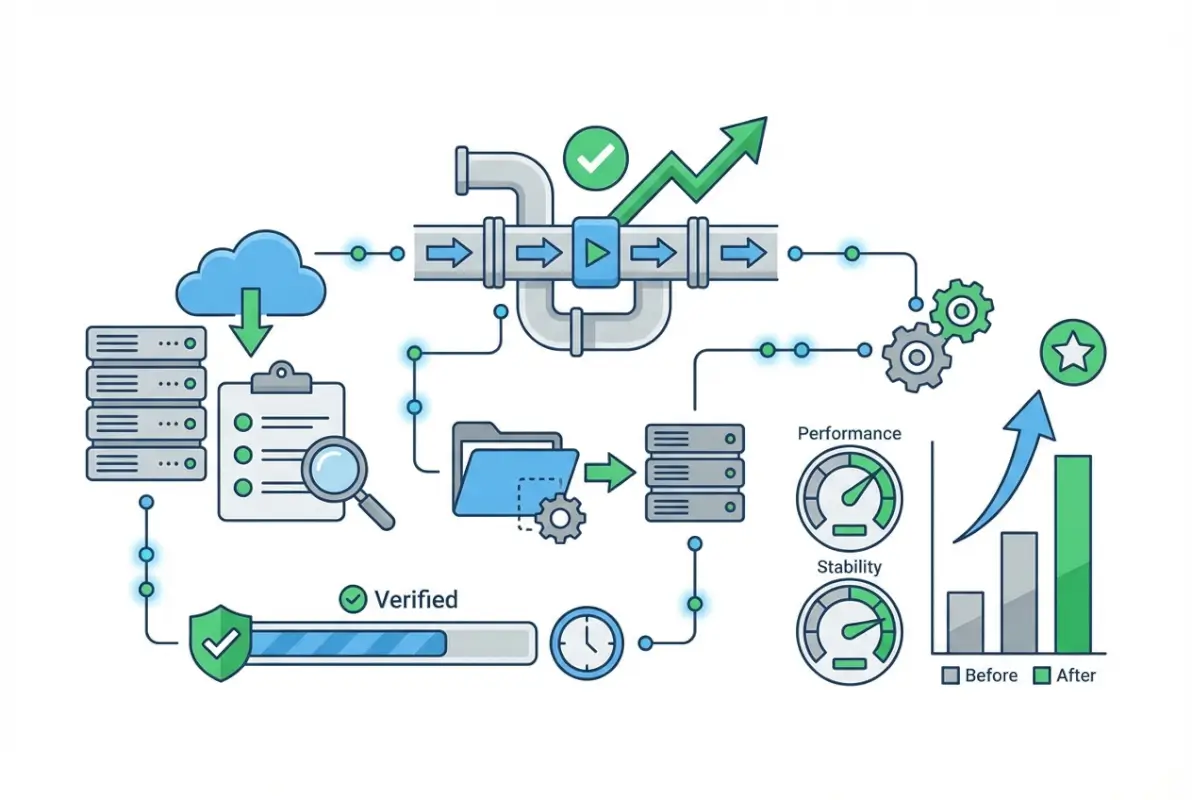
Download the plugin JAR file from a trusted source. The file should have a .jar extension and a name like PluginName-1.2.3.jar. Before downloading, verify the plugin version matches your server version. If you’re on Paper 1.20.1, look for explicit 1.20.1 support in the plugin description.
Scan the downloaded JAR with antivirus software. While plugins are Java archives and not traditional executables, malicious code can still be packaged inside. Most security best practices from organizations like OWASP apply to plugin management.
Step 2 — Install the Plugin
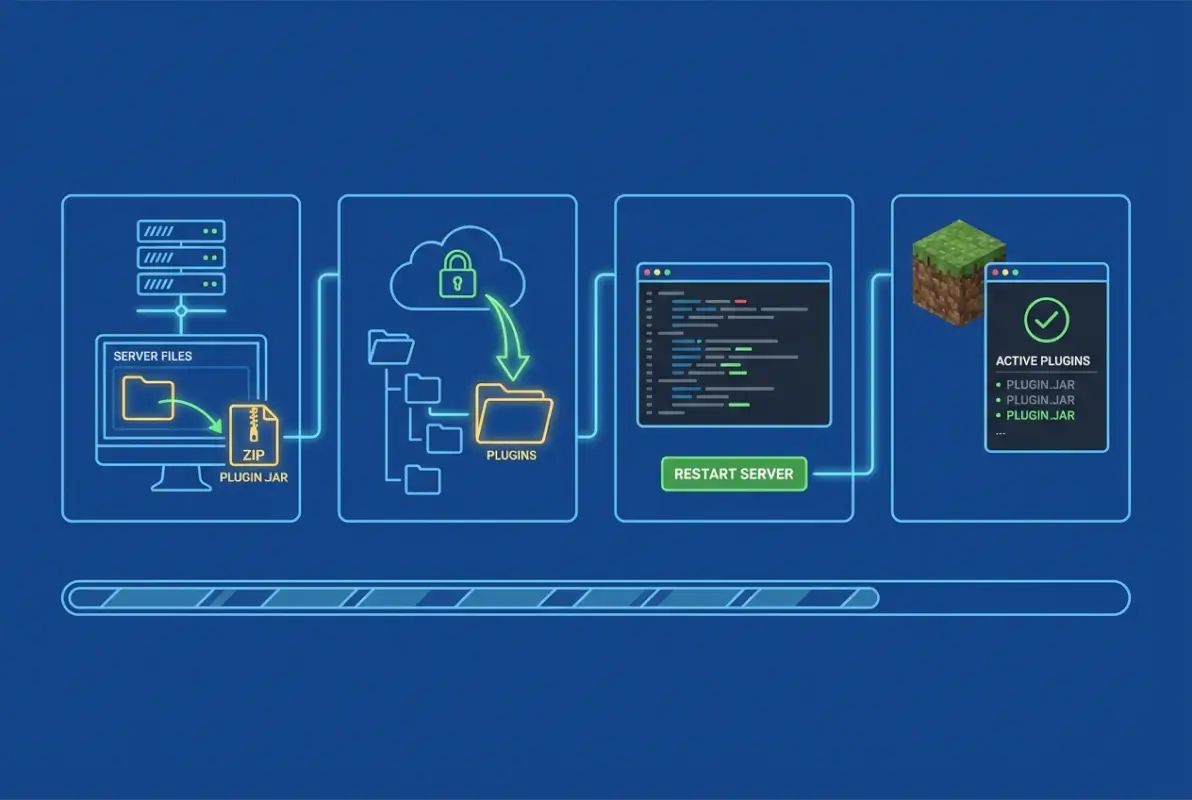
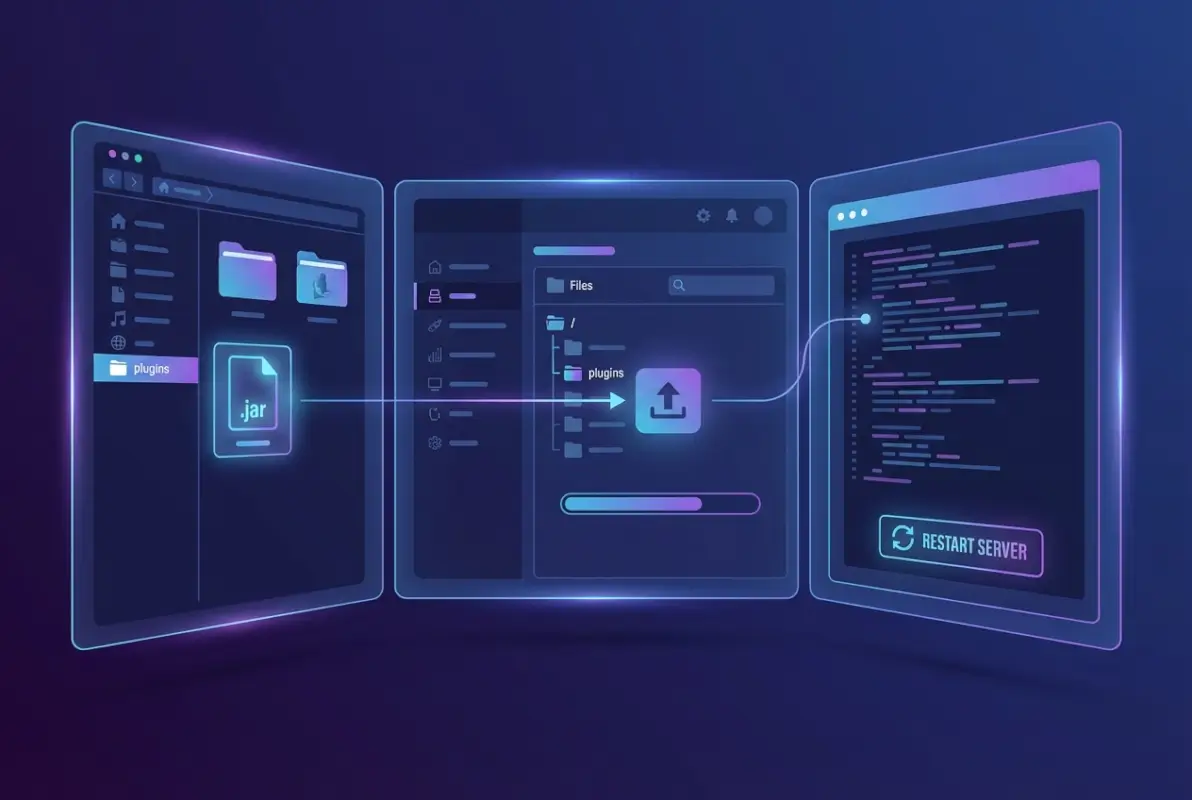
Copy (not move) the plugin JAR into your server’s plugins folder. Keeping the original download lets you quickly reinstall if something goes wrong. Make sure only one version of each plugin exists in the folder—multiple versions will cause conflicts.
File permissions matter on Linux servers. The JAR file should be readable by the user running the server process. If you uploaded via FTP, verify permissions are set correctly (typically 644 for files, 755 for directories).
Step 3 — Install Dependencies (If Any)
Cross-reference the plugin’s documentation for dependency requirements. Download and place dependency JARs in the plugins folder alongside the main plugin. Order doesn’t matter for placement—server startup determines load order automatically based on plugin dependencies declared in plugin.yml files.
Step 4 — Reload or Restart the Server
Restart your server completely rather than using the /reload command. While /reload works for some simple plugins, it doesn’t properly initialize many plugins and can cause memory leaks that manifest as crashes hours later. The peace of mind from a clean restart outweighs the 30-60 seconds of downtime.
During startup, monitor the console output closely. You should see lines indicating each plugin loading:
- [Server] Loading libraries, please wait…
- [Server] [PluginName] Loading PluginName v1.2.3
- [Server] [PluginName] Enabling PluginName v1.2.3
The sequence is load, then enable. If a plugin loads but doesn’t enable, there’s usually a configuration error or missing dependency.
Step 5 — Verify Plugin Loading
Once the server finishes starting, type /plugins in the console or in-game (if you have operator privileges). This command lists all loaded plugins with color coding—green means enabled and working, red means loaded but failed to enable.
Check the console logs for any warning or error messages from your new plugin. Common success indicators include “Successfully loaded” or “Plugin enabled.” Error messages usually appear in red text and point to specific issues.
Test basic functionality in-game. If you installed a teleportation plugin, try a simple teleport command. If it’s a world protection plugin, attempt to place a block in a protected region. Don’t assume a plugin works just because it shows as enabled.
Step 6 — Configure Plugin Settings
After confirming the plugin loads, stop your server and configure it properly. Most plugins create a configuration folder at plugins/PluginName/ containing YAML files like config.yml, messages.yml, or data files.
Edit configuration files carefully. YAML is whitespace-sensitive—mixing tabs and spaces breaks parsing. Use a proper text editor (Notepad++, Sublime, VS Code) rather than Windows Notepad, which can introduce formatting issues. Each plugin has different configuration needs, so read the documentation for guidance on essential settings.
After configuration changes, restart the server again and verify the changes took effect. Some plugins support hot-reloading configs with commands like /pluginname reload, but this varies by plugin.
Troubleshooting Common Issues
Even with perfect preparation, plugin loading occasionally fails. Systematic troubleshooting resolves issues faster than guessing, and understanding common failure patterns helps you diagnose problems correctly.

Common Startup Errors
The “Unsupported API version” error means the plugin was compiled for a different Bukkit/Spigot API version than your server provides. Solution: Find a version of the plugin matching your server build, or update your server to match the plugin requirements.
“Could not load ‘plugins/PluginName.jar'” with InvalidPluginException usually indicates a corrupted download or a JAR file that isn’t actually a valid plugin. Re-download from the official source. If it persists, the plugin might be incompatible with your server software (some plugins work on Spigot but not Paper, or vice versa).
ClassNotFoundException errors point to missing dependencies. The error message usually names the missing class, which helps identify what’s missing. Search for the class name online to find which library plugin provides it, similar to how you’d research the best business directory services for specific use cases.
Runtime Problems After Loading
Performance degradation after adding a plugin suggests that plugin is resource-intensive. Monitor with /timings on Paper servers or install a profiling plugin to identify which plugin consumes the most CPU cycles. You might need to configure the plugin to reduce its footprint or find an optimized alternative.
Memory spikes leading to crashes often result from memory leaks in poorly coded plugins. The leak might not manifest immediately—servers can run for hours before accumulated leaked objects cause an out-of-memory crash. Java garbage collection logs can confirm this, but practically speaking, if crashes started after adding a specific plugin, remove it and monitor stability.
Lag spikes that correlate with plugin actions (like a shop plugin lagging every time someone opens a GUI) usually mean the plugin is doing blocking I/O on the main thread. This is a code quality issue. Look for updated versions or alternatives with better async handling.
Conflicting Plugins (Same Event Hooks or Event Priorities)
When two plugins modify the same game mechanics, conflicts emerge. Two world protection plugins might both try to handle block placement, causing either to fail or behave unpredictably. The solution is to choose one plugin for each major function category.
Event priority conflicts are subtler. Plugins listen to game events (player movement, block placement, entity spawning) at different priority levels. If one plugin cancels an event at HIGHEST priority, another plugin listening at NORMAL never sees it. Check plugin documentation for compatibility notes with similar plugins.
Diagnosing with Logs and Tools
Server logs live in the logs/ folder as latest.log and timestamped archives. Errors include stack traces showing exactly where code failed. Learn to read stack traces—the top line usually states the error type and message, while subsequent lines show the call chain.
Enable debug mode in problematic plugins (if they support it) to get verbose logging. This floods your console with information but reveals exactly what the plugin is doing when it fails. Paper’s timings system (/timings on, run for a few minutes, then /timings paste) generates a web report showing resource usage by plugin.
Rollback and Remediation
When a plugin causes serious problems, remove it immediately. Stop your server, delete the plugin JAR from the plugins folder, and delete its configuration folder (optional—keep configs if you plan to reinstall later). Restart and verify stability returns.
If the plugin modified world data, restore from your pre-installation backup. Some plugins create database tables or modify chunk data in ways that persist after removal. A clean restore ensures no corruption remains, though you’ll lose any legitimate changes made since the backup.
Test plugins in isolation when troubleshooting. Create a minimal server with only the problematic plugin and its dependencies. If it works there but fails on your main server, you have a plugin conflict. Add back your other plugins one by one to identify the conflicting pair.
Performance Optimization
Raw plugin count matters less than what those plugins actually do. Ten lightweight utility plugins impact performance less than three poorly optimized plugins that constantly query databases or tick every entity in the world.
Limit Number of Plugins; Prioritize Essential Features
Every plugin adds startup time, memory overhead, and processing cycles. Audit your plugin list quarterly and remove anything that isn’t actively used. That cosmetic plugin from eight months ago that nobody uses anymore is still consuming resources.
Combine functionality where possible. Instead of separate plugins for teleportation, homes, warps, and kits, use EssentialsX which provides all of these. Multi-function plugins are generally better optimized than running four single-function alternatives.
Regular Updates and Test Cycles for Compatibility
Plugin updates fix bugs, patch security holes, and add features, but they can also break compatibility. Establish a monthly update cycle: check for plugin updates, read changelogs for breaking changes, test updates on your staging server, then deploy to production.
Don’t update all plugins simultaneously. Stagger updates so if something breaks, you know which plugin caused it. Update critical security-sensitive plugins immediately (authentication, permissions, anti-cheat), but feature additions can wait for your regular update cycle.
Security and Moderation
Security considerations for plugins extend beyond malware scanning. Plugin vulnerabilities can expose your server to griefing, data theft, or complete takeover.
Vet Plugins for Malicious Behavior; Keep Backups and Access Controls
Before installing any plugin, research its developer. Established developers with multiple popular plugins and active GitHub profiles are lower risk. Brand new accounts with only one plugin should be approached cautiously. Review permissions the plugin requests—a simple chat formatting plugin shouldn’t need file system access.
Some hosting providers offer automated backups, but don’t rely solely on those. Maintain your own backup schedule with offsite copies. A compromised server could delete or encrypt backups stored locally. Cloud storage or a separate server provides recovery options even in worst-case scenarios, much like how robust business directories offer multiple layers of data verification.
Maintenance Routine
Schedule monthly reviews of your plugin list. Check each plugin’s development status—is it still updated? Are there better alternatives now? Have any plugins been abandoned, leaving security vulnerabilities unpatched?
Document every change. When you add, remove, or update a plugin, note it in a change log with the date and reason. Six months later when trying to diagnose an issue, you’ll thank yourself for maintaining records.
Disaster Recovery
Your disaster recovery plan should cover plugin-related failures. Keep backups of working plugin versions—if an update breaks your server, you can quickly roll back to the previous version while you troubleshoot. Store these alongside world backups.
Practice recovery procedures. Deliberately break something on your test server and time how long recovery takes. Knowing you can restore from backup in 10 minutes prevents panic during real emergencies.
Platform-Specific Notes
While Spigot, Paper, and Bukkit plugins are largely interchangeable, subtle differences exist that affect plugin loading and performance.
Performance and Compatibility Considerations
Paper implements aggressive optimizations that occasionally break plugins designed around Spigot quirks. Their patch system modifies entity behavior, chunk loading, and redstone mechanics for performance. A plugin that works perfectly on Spigot might behave differently on Paper.
Spigot maintains broader compatibility at the cost of performance. If you have a plugin that absolutely requires Spigot-specific behavior, you’re stuck with Spigot—but most modern plugins are Paper-compatible.
Bukkit itself is legacy. While Spigot and Paper maintain Bukkit API compatibility, running pure Bukkit in the current environment leaves performance gains on the table. Transition to Spigot at minimum, or preferably Paper.
How Plugin Loading Differs Across Platforms
Load order and timing are handled identically across these platforms—they all follow the Bukkit plugin loading specification. However, Paper’s early event system and additional API endpoints mean some Paper-specific plugins won’t load on Spigot at all (they’ll throw NoClassDefFound errors for Paper-only classes).
Configuration differences are minimal. A plugin configured for Spigot generally works unchanged on Paper. The reverse isn’t always true—Paper-specific features in configs might cause warnings on Spigot, though most plugins gracefully degrade.
Java Version Considerations
Minecraft 1.17+ requires Java 16 as minimum, with 1.18+ requiring Java 17. Plugins compiled with newer Java versions won’t run on older Java runtimes. If you’re stuck on Java 8 for some reason (old host, legacy plugins), you can’t run modern server versions.
Java upgrades affect plugin behavior through removed deprecated APIs and changed security policies. Reflection-heavy plugins (ones that manipulate internal server code) break most often during Java version jumps. Plugin developers usually update for major Java transitions, but abandoned plugins stay broken.
Real-World Workflows and Checklists
Checklists prevent oversight during the multiple-step process of loading plugins safely.
Pre-Implementation Checklist
- Server and plugin versions verified compatible
- Full server backup created and tested
- Dependencies identified and downloaded
- Test plan written (which features to test, expected behaviors)
- Low-population time window scheduled for testing
- Automatic restarts disabled temporarily
Implementation Checklist
- Plugin JAR file scanned for malware
- JAR placed in plugins folder with correct permissions
- Dependencies installed before main plugin
- Server restarted (not reloaded) fully
- Console logs reviewed for errors during startup
- /plugins command confirms plugin enabled
- In-game functionality tested against test plan
- Configuration edited and server restarted
- Final functionality test passed
Post-Implementation Monitoring
- Server performance metrics baselined (TPS, memory usage, CPU load)
- Error logs monitored for 24 hours post-installation
- Player feedback collected about any new features
- Change documented in server changelog with rollback notes
- New backup created with working plugin configuration
FAQ: General Plugin Loading
What does it mean to load a plugin on a Minecraft server?
Loading a plugin means installing and enabling a server-side modification (a .jar file) that extends your Minecraft server’s functionality without requiring players to install client-side mods. The server software reads the plugin file, initializes its code, and makes its features available to players connected to the server.
Can I run plugins on a vanilla server, or do I need Spigot/Paper?
Vanilla Minecraft servers from Mojang don’t support plugins at all. You must use a modified server that implements the Bukkit API—Spigot, Paper, or other Bukkit-based platforms. These provide the framework plugins need to interact with the server, so switching from vanilla to Spigot or Paper is required before you can load any plugins.
FAQ: Compatibility and Versions
How do I know which plugin version is compatible with my server version?
Check the plugin’s download page for a supported versions list, typically labeled “Tested Minecraft Versions” or similar. The plugin developer should specify exact version compatibility like “1.19.4 – 1.20.2.” If unsure, check the plugin’s discussion threads or reviews for reports of compatibility with your specific server build.
What should I do if a plugin says “Unsupported API version”?
This error means the plugin was compiled for a different Bukkit API version than your server provides. First, check if a different version of the plugin supports your server version. If none exists, either update your server to match the plugin’s requirements or find an alternative plugin compatible with your current server build.
FAQ: Installation and Validation
Is it safe to reload plugins without restarting the server?
While the /reload command works for simple plugins, it frequently causes memory leaks and incomplete initialization for complex plugins. Many developers explicitly recommend against using reload. Full server restarts ensure clean plugin initialization and prevent subtle issues that manifest as crashes hours later. The minute of downtime is worth the stability.
How can I verify a plugin loaded correctly in-game?
Use the /plugins command (requires operator permissions) to list all enabled plugins—enabled plugins appear in green, failed ones in red. Test the plugin’s primary feature directly: if it adds commands, try them; if it modifies gameplay, test those mechanics. Check console logs for errors specific to that plugin immediately after startup.
FAQ: Performance and Security
How many plugins is too many for a server?
Quality matters more than quantity. A server can run 15-25 well-optimized plugins smoothly, while even 5-10 poorly coded plugins might cause lag. Monitor your server’s TPS (ticks per second) and memory usage as you add plugins. If TPS drops below 19.5 or memory usage exceeds 85%, you’ve likely hit your limit and should optimize or remove plugins.
How do I secure my server when adding plugins?
Only download plugins from trusted repositories like SpigotMC or known developer GitHub accounts. Scan JARs for malware before installation. Review what permissions the plugin needs—excessive file system or network access is suspicious. Run your server with a dedicated user account with minimal system privileges. Maintain current backups so you can quickly rollback if a plugin proves malicious or problematic.
FAQ: Troubleshooting
Where do I find helpful logs for plugin loading errors?
Server logs are stored in your server directory’s logs/ folder. The latest.log file contains the most recent session, including startup messages and errors. Plugin-specific errors appear when the plugin loads during startup. Most errors include stack traces showing which class or method failed, helping identify whether it’s a configuration issue, missing dependency, or code bug.
What steps should I take if a plugin causes crashes after update?
Immediately stop your server, remove the updated plugin JAR, and replace it with the previous version you backed up. Restart and verify stability returns. Check the plugin’s changelog and discussion threads for known issues with the new version. Report the crash to the developer with your server version and full error logs. Wait for a fixed version or consider alternative plugins if the developer is unresponsive.
Conclusion
Loading plugins on a Minecraft server transforms from a mysterious process into a routine administrative task once you understand the underlying principles. The mechanics are simple—drop a JAR in a folder and restart—but the craftsmanship comes from preparation, testing, and systematic troubleshooting when issues inevitably arise.
Start with a solid foundation: compatible server software, version-matched plugins, comprehensive backups, and a test environment. Build from there methodically, adding one plugin at a time, verifying functionality before moving to the next. When problems occur (and they will), use logs as your diagnostic tool and maintain rollback options for quick recovery.
Your plugin ecosystem should evolve as your server grows. Regularly audit what you’re running, remove unused plugins, update security-critical components, and document changes so future you doesn’t have to reverse-engineer past decisions. The investment in proper plugin management pays dividends in server stability and administrative peace of mind.