5 Simple Steps to Upload a Plugin to the WordPress Directory
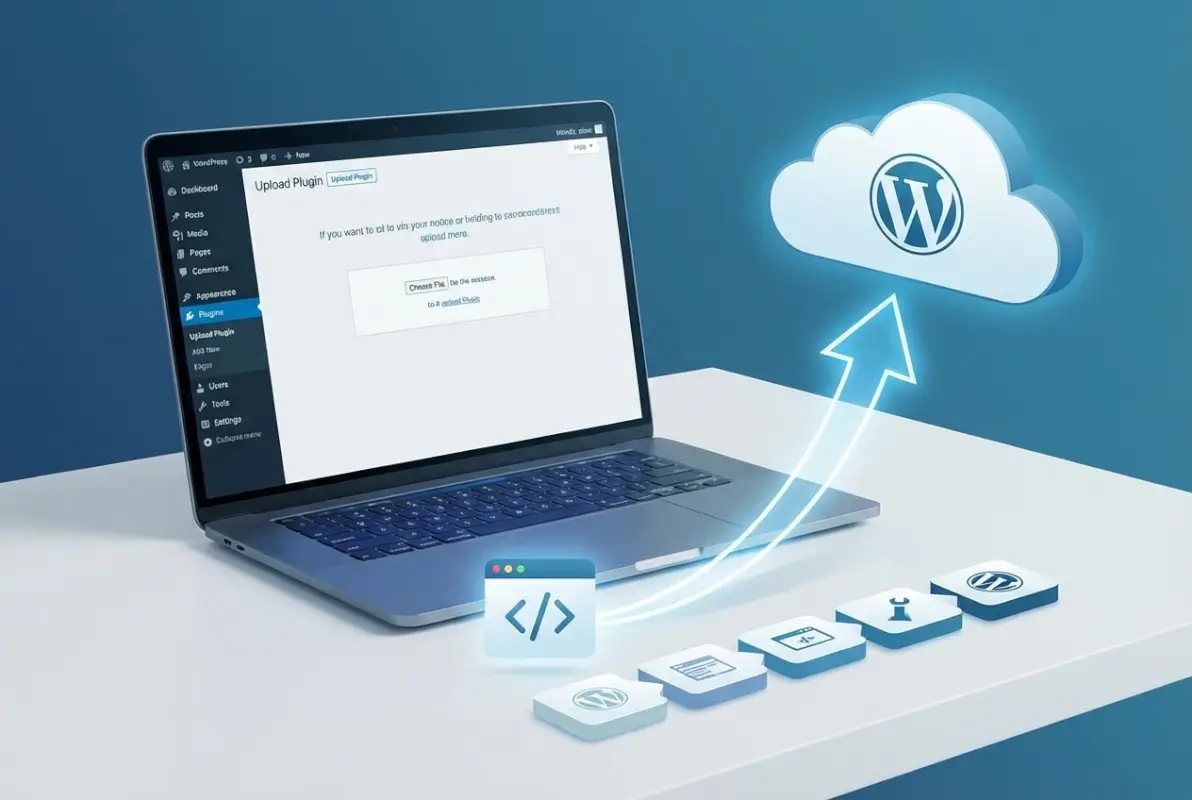
Publishing a plugin to the WordPress.org directory isn’t just about uploading a ZIP file and hoping for the best. It’s about understanding a structured review process that filters out thousands of submissions each year. What most developers don’t realize is that the review team isn’t looking for perfect code—they’re looking for plugins that respect user autonomy, follow security conventions, and won’t break when WordPress updates. The real secret? Treat your submission like you’re applying for a job, because in a way, you are—you’re asking to represent your work alongside 60,000+ other plugins in the official WordPress Plugin Directory. If you’ve built something genuinely useful and you’re willing to maintain it, the directory can become a powerful distribution channel that requires zero marketing budget.
TL;DR – Quick Takeaways
- Planning beats improvisation – Define your plugin’s scope, compatibility requirements, and documentation before you write a single line of code.
- The readme.txt file is your resume – Reviewers read this first; missing sections or unclear install instructions will delay approval.
- Security and coding standards aren’t optional – Input validation, output escaping, and following WordPress coding conventions are table stakes, not bonus points.
- The review process is a conversation – Expect feedback, respond professionally, and fix issues quickly to avoid weeks-long delays.
- Approval is the beginning, not the end – Ongoing maintenance, security patches, and compatibility updates determine whether users trust and recommend your plugin.
Step 1 — Plan and Prepare Your Plugin for Directory Submission
Most plugin rejections happen before a reviewer even runs the code. The WordPress.org Plugin Review Team sees hundreds of submissions weekly, and they’ve developed a sixth sense for plugins that haven’t been thought through. Your plugin needs a clear, defensible purpose that doesn’t duplicate core WordPress functionality or rely on services you don’t control. If your plugin requires a specific hosting environment, paid API keys, or third-party dependencies that could vanish overnight, you need to document that upfront—not in a support forum after users complain.
Compatibility matters more than you think. Your plugin should work with the current WordPress version and at least one prior major release (WordPress maintains a public roadmap that shows release cycles). Test against PHP 7.4 and above, since shared hosting providers often lag behind the latest PHP releases. If your plugin requires specific server extensions (like imagick or GD for image processing), state that clearly in your readme and handle graceful degradation when they’re missing. I’ve seen plugins rejected simply because they threw fatal errors on standard hosting configurations, which the developer never tested.
The name and branding review is stricter than most developers expect. You cannot use “WordPress” in your plugin name unless you’re creating a connector to an external service (and even then, it’s typically hyphenated, like “MyService-WordPress”). Avoid trademarked terms, geographic claims (like “Best SEO Plugin”), or names that imply official endorsement. The review team maintains a detailed guidelines document that explicitly prohibits misleading names, and they will ask you to rename your plugin if it crosses those lines. Choose something descriptive, unique, and searchable—something users might actually type into the directory search bar.
Step 2 — Build to Directory Standards (Code, Readme, and Assets)
WordPress coding standards exist for a reason: they make code readable across thousands of contributors and reduce the surface area for security vulnerabilities. The review team uses automated tools to check for common violations—missing input sanitization, unescaped output, direct database queries without $wpdb, and hardcoded file paths. You don’t need to be a security expert, but you do need to understand the basics of data validation (checking that user input matches expected formats), sanitization (removing potentially harmful content), and escaping (ensuring output doesn’t execute as code). The WordPress Security Handbook covers these concepts in detail, and ignoring them is the fastest path to rejection.
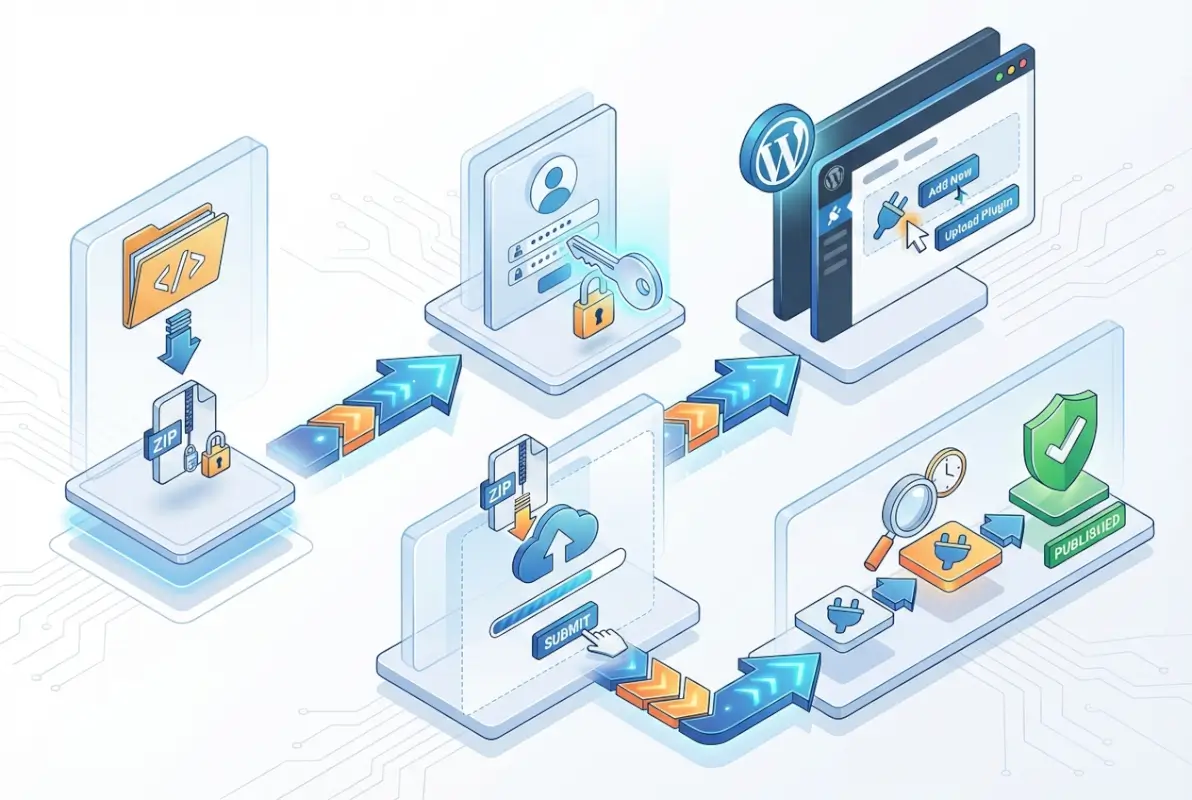
If you’re building directory functionality (like a business listing platform or member directory), consider starting with a proven solution like TurnKey Directories, which already handles common security patterns, templating, and directory-specific features out of the box. For custom functionality, follow the plugin boilerplate structure: separate your admin hooks from frontend display logic, use namespaces or class prefixes to avoid function name collisions, and keep external API calls out of the admin dashboard unless absolutely necessary (admin pages load on every admin action, so slow API calls create a terrible user experience).
The readme.txt file is not just documentation—it’s a structured data file that powers your plugin’s directory listing. It must include specific headers (Plugin Name, Contributors, Tags, Requires at least, Tested up to, Stable tag, License), a description section, an installation section, a frequently asked questions section, a changelog, and upgrade notices if applicable. The format is strict: use Markdown-style syntax with specific heading levels, and validate it with the official readme validator before submission. Missing sections or incorrect formatting will trigger an automatic review comment asking you to fix it, which adds days to your approval timeline.
Assets (plugin icons, banners, and screenshots) aren’t required for submission, but they dramatically affect whether users install your plugin after finding it. The directory expects specific dimensions: icons at 256×256 and 128×128 pixels, banners at 1544×500 and 772×250 pixels, and screenshots that demonstrate actual functionality (not marketing fluff). If your plugin creates a directory of local services, show the public-facing directory view, the submission form, and the admin management screen—not a logo slideshow. Upload these to the /assets/ folder in your SVN repository (yes, WordPress.org still uses Subversion, not Git), following the naming conventions documented in the Plugin Handbook.
Step 3 — Submission, Review, and Compliance Process
How to submit and what reviewers look for
Navigate to the Add Your Plugin page on WordPress.org and log in with your WordPress.org account. You’ll upload a ZIP archive of your plugin and provide a permalink-friendly plugin slug, a concise description, and any additional context the review team might need. The submission form also requires you to confirm that your plugin complies with the Detailed Plugin Guidelines and that you’ve read the Plugin Directory policies.
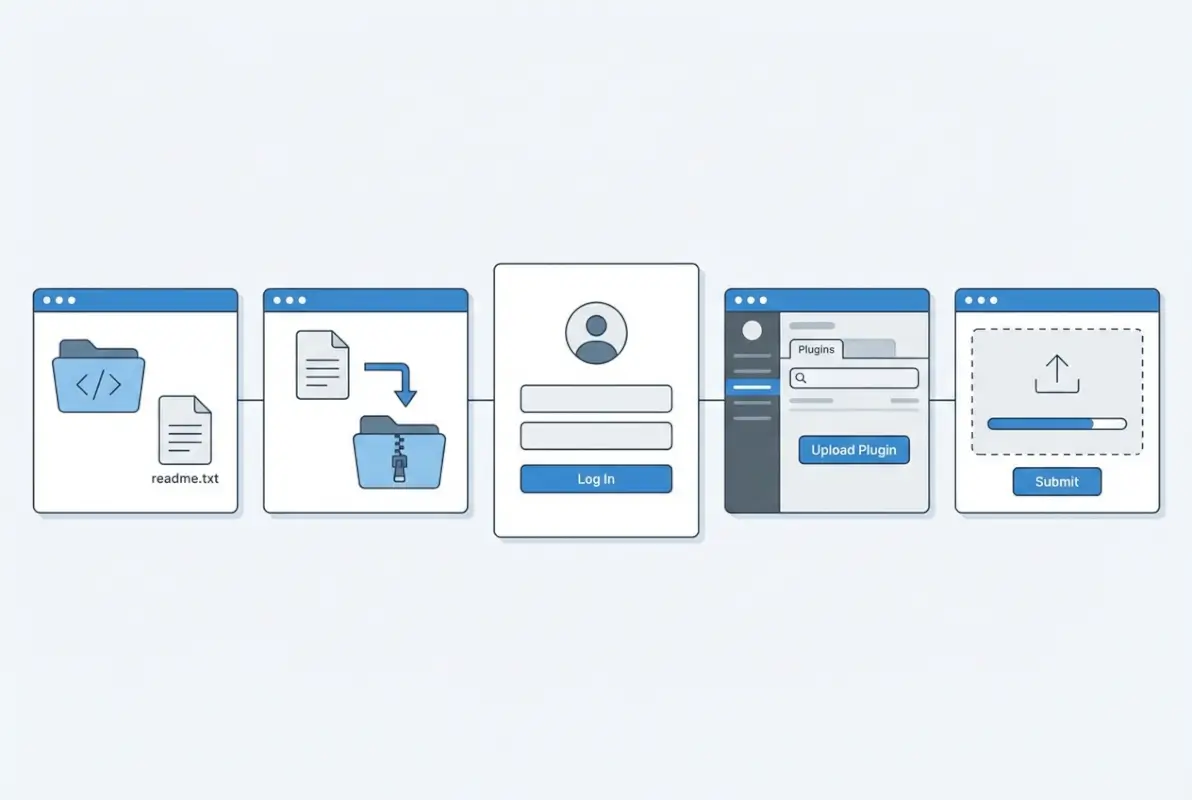
Reviewers assess your plugin for security vulnerabilities, compliance with WordPress coding standards, and adherence to branding and licensing requirements. They verify that your readme.txt is complete, that all third-party libraries are properly attributed, and that your plugin doesn’t include obfuscated code or phone-home functionality without disclosure. Typical review turnaround is between a few days and two weeks, though complex plugins or peak submission periods may extend this timeframe.
Once submitted, you’ll receive an automated confirmation email and then a follow-up from a human reviewer. If approved, you’ll get SVN repository credentials and instructions for committing your plugin files and assets. If the reviewer identifies issues, they’ll send a detailed explanation of what needs correction before resubmission.
Common reasons for rejection and how to fix
The most frequent blockers are incomplete or non-compliant readme.txt files, missing security escaping on output, and undisclosed external service calls. Reviewers also reject plugins that bundle the entire jQuery library instead of using WordPress’s enqueued version, that use generic function names without prefixes, or that fail to sanitize and validate user input. Each of these issues is fixable: update your readme to include required sections like “Installation” and “Changelog,” wrap all echoed variables in esc_html(), esc_url(), or esc_attr(), and prefix all global functions and classes with a unique namespace.
Privacy and data-handling transparency is another common stumbling block. If your plugin collects user data, sends information to an external API, or sets cookies, you must disclose this in both the readme and, if applicable, a dedicated privacy policy section. Reviewers will flag plugins that phone home for licensing checks or analytics without clear user consent or documentation.
| Common Rejection Reason | How to Fix |
|---|---|
| Incomplete readme.txt | Add all required sections: Description, Installation, FAQ, Changelog, and Stable Tag. |
| Unescaped output | Wrap all echoed data in esc_html(), esc_url(), or esc_attr(). |
| Generic function names | Prefix all functions and classes with a unique plugin slug or namespace. |
| Undisclosed external calls | Document all third-party API usage in the readme and obtain user consent where required. |
| Bundled libraries without attribution | Include license files and credit all third-party code in comments and readme. |
If you receive a rejection notice, respond promptly with fixes and a brief summary of changes. The review team appreciates clear communication and will often expedite re-review when you’ve addressed all feedback. Avoid resubmitting the same code without corrections; repeated non-compliance can delay approval further.
Step 4 — Post-Submission: Maintenance, Updates, and Communications
Maintaining plugin integrity after approval
Once your plugin is live in the Directory, ongoing maintenance becomes your primary responsibility. Monitor the WordPress.org support forums for your plugin, respond to user questions within a few business days, and track compatibility with new WordPress core releases. The Directory’s automated systems flag plugins that haven’t been tested with recent WordPress versions, which can hurt discoverability and user trust.

Subscribe to security mailing lists and vulnerability databases relevant to any third-party libraries you’ve bundled. When a dependency is patched, update your plugin promptly and push a new release to SVN. The WordPress Plugin Review Team and security researchers actively scan the Directory for known vulnerabilities; proactive patching demonstrates good stewardship and keeps your plugin in good standing.
Use WordPress.org’s built-in plugin health dashboard to review install counts, version distribution, and user ratings. If a significant number of users remain on an older version, investigate compatibility issues or upgrade blockers. Clear communication about breaking changes and migration paths helps retain your user base and reduces negative reviews.
Communicating changes and handling deprecations
Every update you commit to SVN should include a detailed entry in your readme.txt changelog, using semantic versioning (MAJOR.MINOR.PATCH) to signal the scope of changes. Breaking changes warrant a major version bump and prominent upgrade notices in both the readme and, if necessary, an admin dashboard alert. WordPress supports in-plugin update notices via the in_plugin_update_message-{$file} action hook, which you can use to warn users before they click “Update.”
When deprecating a feature or API, provide at least one minor-version cycle of backward compatibility and clear documentation of the migration path. Announce deprecations in your changelog, support forum sticky posts, and any official plugin website or documentation. Users appreciate transparency and time to adapt; abrupt removals lead to frustrated site owners and bad reviews.
Maintain a public roadmap or GitHub issues board where users can see planned features and known bugs. This transparency builds community trust and reduces duplicate support requests. When you close a support thread, summarize the resolution so future users searching the forums can self-serve.
Step 5 — Security, Compliance, and Best Practices for a Healthy Directory Presence
Security considerations for plugin authors
Security is non-negotiable in the WordPress ecosystem. Always validate and sanitize user input using WordPress functions like sanitize_text_field(), wp_kses(), and absint(), and escape output with esc_html(), esc_url(), and esc_attr(). Protect administrative actions with nonce verification (wp_verify_nonce()) and capability checks (current_user_can()) to prevent cross-site request forgery (CSRF) and unauthorized access.

Avoid using eval(), base64_decode() on user-controlled data, or any form of code obfuscation—reviewers will reject plugins with suspicious patterns. Minimize the use of file_get_contents() or curl for remote requests; instead, rely on WordPress’s built-in wp_remote_get() and wp_remote_post(), which handle SSL verification and timeout defaults. If your plugin interacts with a database, use $wpdb->prepare() for all queries to prevent SQL injection.
Stay informed about common WordPress vulnerabilities—cross-site scripting (XSS), SQL injection, and insecure file uploads are the top three attack vectors. The WordPress Security APIs documentation provides up-to-date guidance on data validation, sanitization, and escaping patterns. Regularly audit your code with static analysis tools and consider third-party security reviews for high-traffic plugins.
Compliance and ethics (privacy, licensing, and service models)
If your plugin collects, stores, or transmits personally identifiable information (PII), you must include a privacy disclosure in your readme.txt and, where applicable, integrate with WordPress’s built-in privacy tools (e.g., personal data exporters and erasers). Clearly state what data is collected, why, how long it’s retained, and whether it’s shared with third parties. Failure to disclose data practices violates Directory guidelines and can trigger user complaints or legal scrutiny under regulations like GDPR.
Respect licensing requirements for all third-party code you bundle. WordPress.org requires plugins to be GPL-compatible, meaning proprietary or restrictively licensed libraries are prohibited. Include license headers in all files, credit original authors in comments, and bundle full license texts for dependencies. If you offer premium add-ons or SaaS integrations, the free version in the Directory must provide meaningful standalone functionality—”freemium” models are allowed, but bait-and-switch tactics are not.
| Compliance Area | Required Action |
|---|---|
| Privacy & Data Collection | Disclose all PII collection in readme; integrate with WP privacy tools if storing user data. |
| Licensing | Ensure GPL compatibility; bundle license files and credit all third-party code. |
| Service Models | Free version must offer real value; clearly distinguish free vs. paid features in documentation. |
| Trademarks | Avoid using “WordPress” or “WP” in your plugin slug; follow branding guidelines. |
Finally, respect WordPress trademark policies: don’t use “WordPress” or the WordPress logo in your plugin name or assets in a way that implies official endorsement. Use descriptive, unique names that help users identify your plugin’s purpose without infringing on WordPress Foundation trademarks. Adherence to these ethical and legal standards protects both your reputation and the broader WordPress community.
Frequently Asked Questions
How long does WordPress.org review typically take after submission?
The review process typically takes 5-14 business days, though it can vary based on submission volume and complexity. Simple, well-documented plugins that follow guidelines are reviewed faster. You’ll receive an email when your plugin is approved or if changes are required before approval.
Can I submit a plugin that offers paid features or upsells in the Directory?
Yes, you can submit freemium plugins with paid features or upsells, but the free version must provide meaningful functionality on its own. Clearly disclose premium features in your readme, avoid excessive upsell nags, and ensure the free version isn’t just a demo or trial of paid functionality.
Do I need to use a readme.txt file, and what must it contain?
Yes, a readme.txt file is mandatory and must include plugin name, description, tags, tested WordPress versions, installation instructions, changelog, and frequently asked questions. Follow the official readme.txt standard format to ensure your plugin displays correctly in the Directory with proper metadata and documentation sections.
What happens if my plugin is rejected? Can I resubmit after fixes?
If rejected, you’ll receive specific feedback on what needs fixing, such as security issues, guideline violations, or documentation gaps. Address all concerns thoroughly, reply to the review email with details of your fixes, and the review team will re-evaluate. Most rejections are resolved with proper corrections.
Are there specific requirements for plugin assets like icon sizes and banners?
Yes, plugin icons must be 256×256 and 128×128 pixels, while banners should be 772×250 pixels for standard and 1544×500 for high-resolution displays. All assets should be PNG or JPG format, optimized for web, and placed in an assets folder in your SVN repository, not in the plugin ZIP.
Do I need to enable Two-Factor Authentication to submit a plugin?
Yes, WordPress.org requires two-factor authentication on your account before you can submit or update plugins in the Directory. This security measure protects both your account and the plugin ecosystem from unauthorized access. Enable 2FA in your WordPress.org profile settings before starting the submission process.
How should I handle security vulnerabilities reported after submission?
Respond immediately to any security reports by confirming receipt, investigating the issue, and releasing a patched version within 24-48 hours for critical vulnerabilities. Communicate transparently in your changelog, coordinate with the WordPress security team if needed, and never downplay or ignore security concerns from users or researchers.
How often should I update a plugin once it’s in the Directory?
Update your plugin at minimum when new WordPress versions are released to confirm compatibility, when security issues are discovered, or when critical bugs are reported. Regular updates every few months with improvements or new features demonstrate active maintenance, which builds user trust and improves Directory rankings.
Your Path to WordPress Plugin Success Starts Now
Publishing your plugin to the WordPress Directory is more than a technical milestone—it’s your gateway to reaching millions of WordPress users worldwide. By following these five steps—planning with Directory standards in mind, building clean and secure code, navigating the submission process with confidence, maintaining your plugin responsibly, and prioritizing security and compliance—you set yourself up for long-term success in the WordPress ecosystem.
The Directory isn’t just a hosting platform; it’s a trust signal. Users rely on Directory-hosted plugins because they’ve been vetted, they’re regularly updated, and they meet WordPress.org’s quality standards. When you commit to this level of stewardship, you’re not only building a plugin—you’re building a reputation and a user base that values quality and reliability.
Don’t let the review process intimidate you. The WordPress Plugin Review Team exists to help you succeed, not to gatekeep. Every piece of feedback is an opportunity to strengthen your plugin and your skills as a WordPress developer. Address rejections constructively, document thoroughly, and communicate clearly—these practices will serve you well beyond your first submission.
Ready to Share Your Plugin with the World?
Take the first step today: outline your plugin’s scope, review the WordPress.org guidelines, and prepare your documentation. The sooner you start, the sooner you’ll join thousands of developers contributing to the world’s most popular content management system.
The WordPress community is waiting for your contribution—make it count.
Remember, approval is just the beginning. The real work—and the real rewards—come from maintaining your plugin, listening to user feedback, and continually improving what you’ve built. Whether your plugin serves a niche audience or gains widespread adoption, your commitment to quality, security, and user experience will determine your success in the Directory.
Start your submission process today, stay engaged with the WordPress community, and keep learning from every release. Your plugin has the potential to solve real problems for real people—now it’s time to make that happen.