How to Load Chrome Plugins: A Beginner’s Guide

Generating summary...
Picture this: you’re about to add your first Chrome extension, maybe a password manager or ad blocker, and you freeze. Is this safe? Will it slow down my browser? Could it steal my data? If you’ve felt that hesitation, you’re not alone—and honestly, that caution is smart. The Chrome extension ecosystem is massive, powerful, and yes, sometimes risky. But here’s the thing most guides won’t tell you upfront: loading Chrome extensions isn’t just about clicking “Add to Chrome.” It’s about understanding what you’re really installing, why developers load extensions differently than regular users, and how to protect yourself in an ecosystem where security threats quietly lurk alongside genuinely useful tools.
The term “Chrome plugin” itself is a bit of a misnomer these days. Chrome officially uses extensions (not plugins) distributed through the Chrome Web Store, and the architecture has evolved dramatically with Manifest V3. Whether you’re installing a time-tracking tool, testing a custom extension you built, or trying to understand why your colleague keeps raving about developer mode, this guide will walk you through everything—with zero fluff and a healthy dose of skepticism about what the marketing pages won’t tell you.
TL;DR – Quick Takeaways
- Chrome uses extensions, not traditional plugins – distributed via Chrome Web Store or loaded unpacked for development
- Security is your top priority – review permissions carefully; malicious extensions have compromised millions of users
- Two loading methods exist – Web Store installs (auto-updating, vetted) vs. unpacked extensions (developer mode, manual)
- Manifest V3 is the current standard – legacy MV2 extensions are being phased out with stricter security requirements
- The ecosystem is huge but risky – ~138k extensions available, but research shows security incidents affect significant user populations
- Regular audits matter – remove unused extensions, check permissions quarterly, and stay updated on security reports
Understanding Chrome Extensions and “Plugins” Terminology
Let’s clear up some confusion right away. When people say “Chrome plugins,” they’re usually talking about extensions—and the distinction actually matters. Traditional browser plugins (like Java, Flash, or Silverlight) were executable programs that ran outside the browser’s security sandbox. Chrome phased those out years ago because they were security nightmares. Modern Chrome extensions are web-based add-ons built with HTML, CSS, and JavaScript that extend browser functionality while (theoretically) staying within Chrome’s security model.
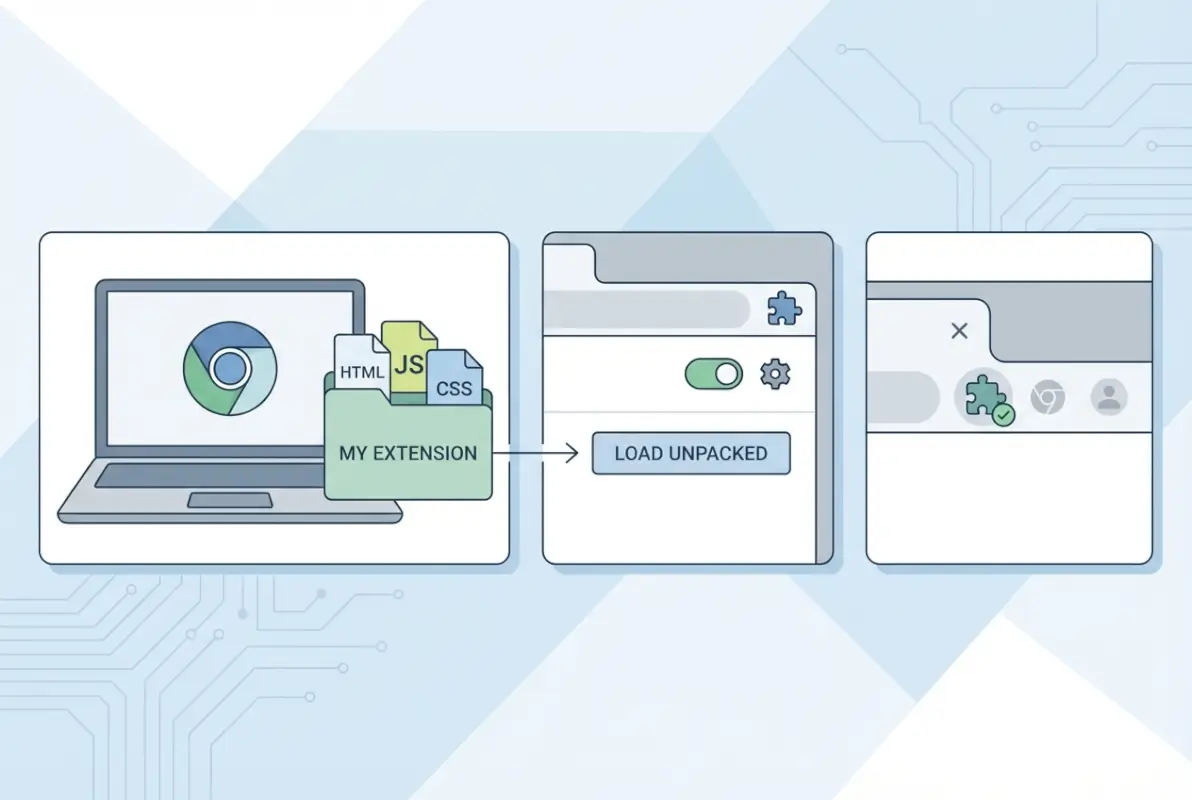
Extensions live in a controlled environment, request specific permissions, and integrate with Chrome through well-defined APIs. This architecture makes them safer than old-school plugins, but don’t let that lull you into complacency—extensions can still access your browsing history, read data on websites, modify page content, and in some cases, communicate with external servers. The Chrome Web Store hosts the official marketplace where Google vets (to varying degrees) extensions before they’re published.
What is an Extension vs. a Traditional Browser Plugin
Extensions are lightweight software modules that add features to Chrome: blocking ads, managing passwords, taking screenshots, automating tasks, or changing how web pages display. Unlike plugins that required separate installation and updates, extensions install with a single click and update automatically through Chrome. They integrate directly into the browser interface—adding toolbar icons, modifying context menus, or running background processes.
Traditional plugins were binary executables that could do almost anything on your system, which is precisely why they became attack vectors. Extensions operate within Chrome’s permission system, where they must declare what they want to access before installation. That’s the theory anyway—in practice, users often grant permissions without reading them, which is where things get dicey.
How Chrome Extensions are Distributed (Chrome Web Store) and the Role of Manifest V3
The Chrome Web Store is the official distribution channel, hosting approximately 138,000 extensions as of recent counts. Developers submit their extensions, Google runs automated and (occasionally) manual reviews, and approved extensions get published. Users browse, search, read reviews, and install with a click. The store handles updates automatically, pushing new versions when developers release them.
Manifest V3 (MV3) is Chrome’s latest extension architecture, rolled out to improve security, privacy, and performance. It replaced the older Manifest V2 (MV2) with stricter rules: blocking remotely hosted code, limiting background page persistence, and replacing the powerful (but dangerous) webRequest API with the more restricted declarativeNetRequest API. For beginners, what matters is this: MV3 extensions are generally safer and more privacy-respecting, but some power-user extensions (like advanced ad blockers) had to redesign their approaches. Google has been phasing out MV2 support, so choosing MV3-compliant extensions ensures longevity.
Why Developers and Hobbyists Load/Unpack Extensions for Testing or Personal Use
Not all extensions start in the Chrome Web Store. Developers building new extensions need to test them locally before publishing. Chrome supports “developer mode,” which allows loading unpacked extensions—essentially, a folder containing the extension’s source code files. This lets developers iterate quickly, test changes, and debug without going through the Web Store submission process each time.
Hobbyists and power users sometimes load unpacked extensions for custom tools they’ve built, modifications of existing extensions, or beta versions shared by developers. It’s also how security researchers analyze extensions for vulnerabilities. However, loading unpacked extensions bypasses Google’s vetting process entirely, so you’re trusting the source completely (more on that risk later).
Prerequisites and Safety Considerations
Here’s where most beginner guides fail you: they assume all extensions are equally safe, or they throw vague warnings without explaining the actual risks. The truth is messier. Research has shown that millions of Chrome users have installed malicious or compromised extensions. A study highlighted by Forbes found that roughly 280 million installs involved dangerous extensions over a studied period. That’s not some theoretical threat—it’s a documented, ongoing problem affecting real users.
Before you install anything, you need to understand what you’re actually authorizing and what could go wrong.
Why Security Matters When Loading Extensions
Extensions run with the permissions you grant them. An extension requesting access to “read and change all your data on the websites you visit” can literally see everything you type, every page you load, and modify content before you see it. Malicious extensions have been used to:
- Inject ads or cryptocurrency miners into web pages
- Steal login credentials and session cookies
- Redirect searches to earn affiliate commissions
- Harvest browsing data for resale to data brokers
- Hijack social media accounts to spread spam or malware
Even legitimate extensions can become compromised. Developers sell popular extensions to shady buyers who inject malware in updates. Supply-chain attacks target extension dependencies. Phishing campaigns impersonate popular extensions with nearly identical names and icons (I’ve seen “AdBlock” vs. “AdBl0ck” tricks fool experienced users).
Quick Safety Checks Before Loading Anything From Outside the Chrome Web Store
If you’re considering an extension from outside the official store (GitHub, developer websites, file sharing), apply extreme caution:
- Verify the source: Is this directly from a known, reputable developer? Can you confirm their identity through multiple channels?
- Inspect the code: Unpacked extensions are just folders of JavaScript. If you can’t read code, find someone who can.
- Check for obfuscation: Legitimate extensions usually have readable code. Heavy obfuscation is a red flag.
- Research the developer: Google their name, check their GitHub history, look for community reputation.
- Assess the risk/reward: Is this extension worth potentially compromising your browser security?
Understanding Extension Permissions and What They Mean for Privacy
When you install an extension, Chrome shows a permissions prompt. Most users click through without reading—don’t be most users. Common permissions include:
- “Read and change all your data on the websites you visit”: Full access to page content, forms, passwords typed (if not in password fields). This is the nuclear option of permissions.
- “Read your browsing history”: Exactly what it sounds like. Every URL you’ve visited is accessible.
- “Communicate with cooperating websites”: The extension can send data to external servers, potentially uploading your browsing data.
- “Access your tabs and browsing activity”: Can see what tabs are open and switch between them programmatically.
Ask yourself: does a simple to-do list extension really need access to all websites? Does a screenshot tool need your browsing history? If permissions seem excessive for the stated functionality, walk away. Similar to how pricing transparency matters for services, permission transparency should guide your extension choices.
How to Load Extensions in Chrome (Step-by-Step)
Now for the practical stuff: actually loading extensions in Chrome. There are two primary methods, and understanding both gives you flexibility and security awareness.
Loading from the Chrome Web Store (Search/Install)
This is the straightforward path most users take:
- Open Chrome and navigate to the Chrome Web Store
- Use the search bar to find the extension you want (be specific with names to avoid impersonators)
- Click on the extension listing to view details, reviews, and permissions
- Read the “This extension can:” section carefully—this lists all permissions
- Check the review count and rating (but be skeptical; fake reviews exist)
- Look at the developer information and user count as signals (not guarantees) of legitimacy
- Click “Add to Chrome” button in the upper right
- A popup will confirm the permissions—review them one more time
- Click “Add Extension” to confirm installation
- The extension icon typically appears in your browser toolbar (puzzle piece icon shows all extensions)
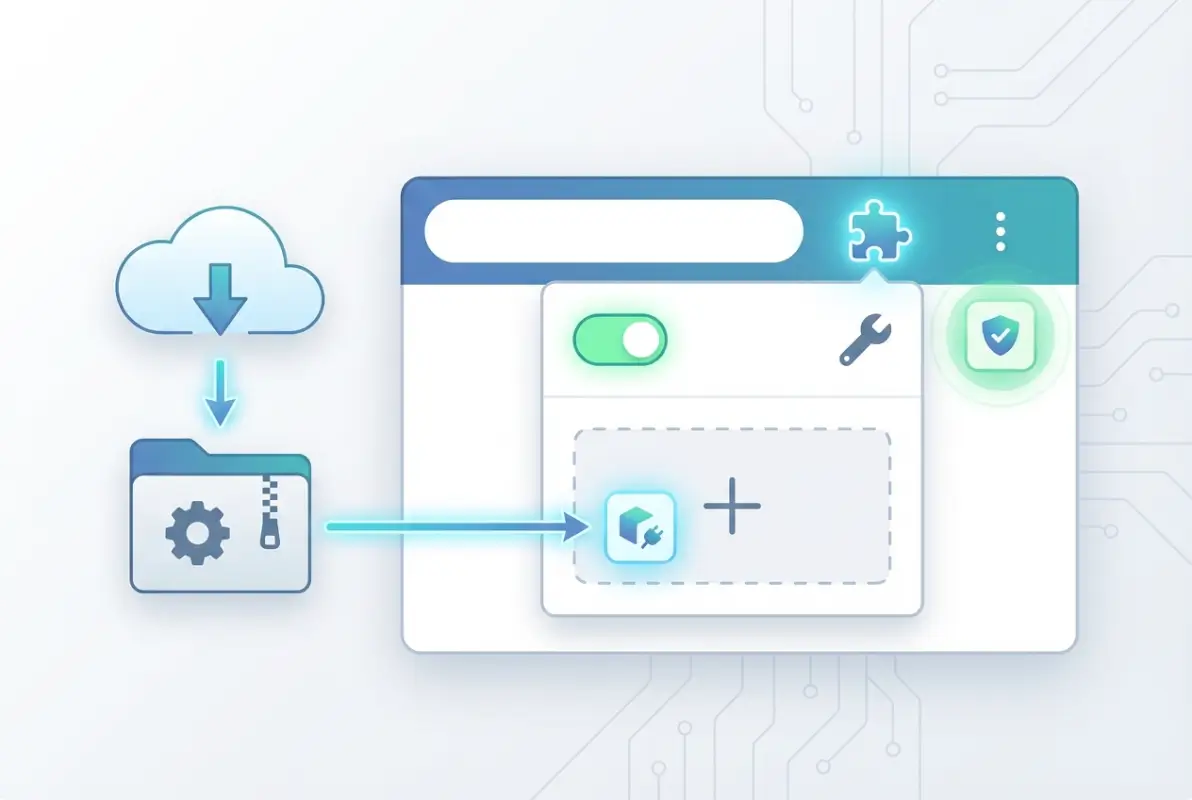
Chrome will automatically keep the extension updated. You can manage all extensions by going to chrome://extensions/ in your address bar.
Loading an Unpacked Extension for Development or Personal Use
For developers or advanced users testing custom extensions:
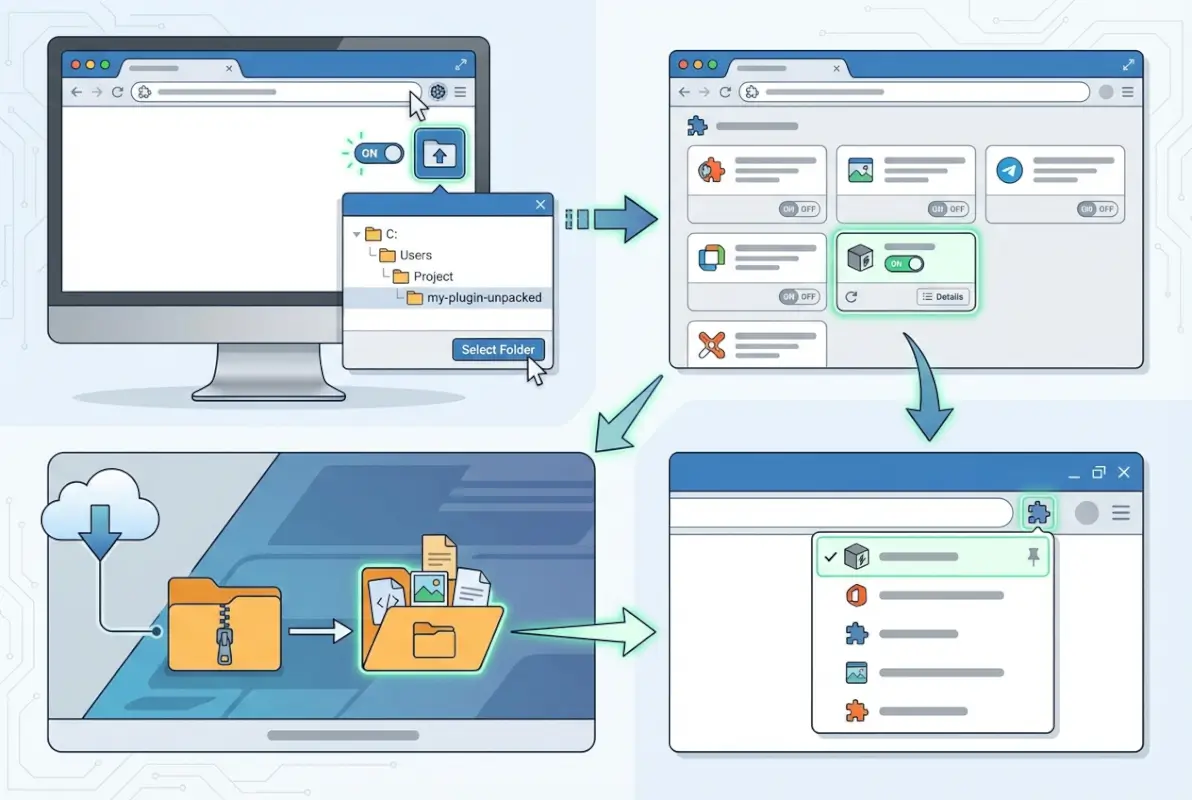
- Download or create the extension folder containing manifest.json and other files
- Open Chrome and navigate to
chrome://extensions/ - Toggle the “Developer mode” switch in the upper right corner (this reveals additional options)
- Click “Load unpacked” button that appears in the upper left
- Browse to the folder containing your extension files (must include manifest.json)
- Select the folder and click “Select Folder” or “Open”
- Chrome loads the extension and displays it in your extensions list
- Any errors in the extension code will display here—useful for debugging
Packing and Updating Extensions You Develop
Once you’ve built and tested an unpacked extension, you can package it into a .crx file (Chrome extension file) for distribution:
- In
chrome://extensions/with Developer mode enabled, click “Pack extension” - Browse to your extension’s root directory
- Chrome generates a .crx file and a .pem private key file (keep the .pem secure; it’s needed for updates)
- The .crx file can be shared, but users will see security warnings when installing outside the Web Store
For updating unpacked extensions you’re developing, just edit the files in the folder and click the refresh icon. For published Web Store extensions, you upload new versions through the Chrome Developer Dashboard, and updates push automatically to users within hours.
Cross-OS Notes: Windows, macOS, and Linux Considerations
Extension loading works identically across Windows, macOS, and Linux—Chrome’s cross-platform nature is one of its strengths. The chrome://extensions/ interface looks the same, keyboard shortcuts are similar, and extensions themselves are platform-agnostic (built with web technologies).
However, file path conventions differ: Windows uses backslashes (C:\Users\...), macOS and Linux use forward slashes (/Users/... or /home/...). When loading unpacked extensions, just navigate using your OS’s standard file browser. Some extensions that interact with the operating system (like download managers or clipboard tools) may request additional OS-level permissions; review those carefully, just as you would browser permissions, much like how loading plugins on a Minecraft server requires verifying compatibility across server configurations.
A Beginner’s Practical Tutorial: From Zero to Loaded
Let’s walk through a realistic scenario: you want to install a reputable password manager extension. This tutorial covers evaluation through installation and management.
Identifying a Trustworthy Extension (Source Evaluation Checklist)
Before installing anything, vet the extension:
- Check user count: Popular doesn’t equal safe, but 1,000,000+ users suggests broader scrutiny
- Read recent reviews: Look for patterns in 1-2 star reviews (complaints about ads injected, sudden permission changes, broken functionality)
- Verify developer identity: Does the extension come from a known company (e.g., 1Password, Bitwarden, Dashlane)?
- Check update frequency: Regular updates suggest active maintenance and security patching
- Search for security audits: Reputable security tools often undergo third-party audits; search “[extension name] security audit”
- Compare permissions to functionality: Does a password manager really need access to all websites? (Yes, actually—to autofill. But an extension for changing font sizes shouldn’t.)
- Look for red flags: Poor grammar in descriptions, vague functionality claims, requests for payment via unusual methods
I remember installing what looked like a legitimate grammar checker once. It had 50,000 users and decent reviews. Two weeks later, security researchers exposed it as adware. Lesson learned: even moderate vetting isn’t perfect, but it dramatically improves your odds.
Installing a Reputable Extension from the Web Store
Using our password manager example (let’s say Bitwarden, a well-regarded open-source option):
- Go to Chrome Web Store and search “Bitwarden”
- Verify the developer is “Bitwarden Inc.” (listed under the extension name)
- Note the user count (millions) and rating (4.7+ stars typically)
- Click the listing and review the “This extension can:” section: “Read and change all your data on the websites you visit” (expected for password autofill), “Communicate with cooperating websites” (to sync your vault)
- Scroll through recent reviews—look for substantive comments, not just “great!”
- Click “Add to Chrome”
- Review the permissions popup one more time
- Click “Add Extension”
- The Bitwarden icon appears in your toolbar—click it to set up your account
The entire process takes two minutes, but that careful review distinguishes secure users from victims.
Managing, Enabling/Disabling, and Removing Extensions
Once installed, manage extensions through chrome://extensions/:
- Disable temporarily: Toggle the blue switch to gray—extension stops running but stays installed (useful for troubleshooting conflicts)
- Remove permanently: Click “Remove” button—deletes the extension entirely (can reinstall later from Web Store)
- Pin/unpin from toolbar: Click the puzzle piece icon in toolbar, then pin icon next to extension names to show/hide individual icons
- Check details: Click “Details” to view permissions, storage usage, enable in incognito, and manage site access (allow on all sites, or only when you click the icon)
- View activity: Some extensions show activity logs in their details—helpful for understanding what they’re doing
Troubleshooting Common Install/Load Issues
Things don’t always go smoothly. Common issues and fixes:
- Extension won’t install: Check if you’re on a managed device (school/work Chromebooks often block extensions). Try signing out and back into Chrome. Ensure Chrome is up to date.
- Unpacked extension shows errors: Read the error message carefully (usually references the problematic file/line). Check manifest.json for syntax errors. Ensure all referenced files exist.
- Extension installed but doesn’t appear: Check the puzzle piece icon—it might be hidden. Some extensions don’t have toolbar icons and only add context menu items.
- Extension conflicts with another: Disable extensions one by one to identify the culprit. Common conflicts: multiple ad blockers, competing privacy tools, overlapping automation scripts.
- MV3 compatibility warning: The extension uses deprecated Manifest V2. It might stop working soon; look for an MV3 alternative or contact the developer.
If an extension causes browser crashes or severe slowdowns, immediately remove it and report it to the Chrome Web Store (click the three dots on the extension’s store listing and select “Report abuse”). This is similar to how you’d manage problematic entries in a business directory or phone book—quality control benefits everyone.
Best Practices for Using Chrome Extensions Safely
Installing safely is step one; ongoing security requires active habits. Here’s how experienced users minimize risk while maximizing utility.

Minimize Permissions and Only Grant What’s Necessary
The principle of least privilege applies to browser extensions. When reviewing permissions:
- Question every permission request—if unclear, search “[extension name] why does it need [permission]”
- Prefer extensions with narrower permissions (a screenshot tool should only need activeTab, not all sites)
- Use Chrome’s site access controls: “On click,” “On specific sites,” or “On all sites”
- Revoke permissions you no longer need (some extensions let you disable features to reduce permissions)
I’ve seen users grant clipboard access to every extension that asks, then wonder why sensitive data leaked. Your browser is your digital gateway; treat extension permissions like you would physical keys to your house.
Regularly Audit Installed Extensions and Remove Unused Ones
Set a calendar reminder (quarterly is reasonable) to review installed extensions:
- Go to
chrome://extensions/and list all installed extensions - Ask for each: “Have I used this in the last month? Do I remember why I installed it?”
- Remove anything unused, unfamiliar, or redundant
- Check update dates—if an extension hasn’t updated in 2+ years and uses MV2, consider alternatives
- Google each remaining extension name + “security” to check for recent vulnerabilities or incidents
| Extension Type | Audit Frequency | Risk Level |
|---|---|---|
| Ad blockers, privacy tools | Monthly | High (broad permissions) |
| Password managers | Quarterly | Critical (credential access) |
| Productivity (to-do, notes) | Quarterly | Medium (varies by permissions) |
| Single-site tools (YouTube, Reddit) | Semi-annually | Low (limited scope) |
| Developer/testing tools | After each project | Variable (trusted sources) |
Every extension you remove is one less potential attack vector. Simple math that improves security and often browser performance.
Stay Updated with MV3 Changes and Extension Security Updates
Chrome is phasing out Manifest V2 extensions. Google has announced timelines (with some delays) for removing MV2 support entirely. What this means for you:
- Extensions showing “This extension may soon no longer be supported” need to migrate to MV3 or you’ll need replacements
- MV3 extensions generally have better privacy protections (no remote code execution, stricter content scripts)
- Some power-user extensions (like uBlock Origin) created MV3 versions with reduced functionality—research your options
Subscribe to security newsletters or follow Chrome’s official blog to stay informed about ecosystem changes, just like how staying current on listing strategies helps directories remain competitive.
Recognize and Handle Supply-Chain and Phishing Risks
Supply-chain attacks are particularly insidious. A legitimate extension gets sold to a new owner who injects malware in an update. All existing users automatically receive the compromised version. Mitigation strategies:
- Monitor extension ownership changes (look for announcements in update notes or developer websites)
- Be suspicious of sudden permission increase requests after updates
- Check if trusted developers announce ownership transfers on social media or forums
- For critical extensions, periodically verify they’re still maintained by the original developers
Phishing extensions impersonate popular tools with similar names. “AdBlock Plus” vs. “Ad Block Plus” vs. “AdBlock+” (notice the spacing and punctuation). Always verify the developer name matches the official tool’s company.
Common Pitfalls and How to Avoid Them
Even careful users make mistakes. Here are the ones I’ve seen repeatedly (and made myself).
Installing Extensions Outside the Official Store vs. Store Policy Violations
Chrome makes installing non-Web-Store extensions deliberately difficult. On Windows, you can’t install .crx files by double-clicking anymore; Chrome blocks them. You have to drag the file to chrome://extensions/ with Developer mode enabled, and even then, Chrome shows persistent warnings.
This friction is intentional security design. If you absolutely must install from outside the store:
- Only do it for extensions from trusted developers with verified identities
- Inspect the source code if possible (or have a security-minded friend do it)
- Accept that you won’t get automatic updates—you’ll need to manually download new versions
- Understand that if the extension is compromised, you have zero recourse
Some extensions violate Web Store policies (for valid reasons—like using unapproved APIs for advanced functionality). These often get removed from the store and must be sideloaded. Weigh the functionality against the security and maintenance burden.
Outdated Extensions and MV2 Deprecation Impact
You’ll start seeing warnings on older extensions: “This extension may soon no longer be supported.” That’s Chrome’s way of saying the extension uses Manifest V2, which is being phased out. What to do:
- Check if the developer has released an MV3 version (look in the update notes or extension website)
- If yes, update (usually automatic, but you can force-check in
chrome://extensions/by enabling Developer mode and clicking “Update”) - If no update exists, search for MV3 alternatives with similar functionality
- If it’s niche functionality without alternatives, brace for the extension to stop working when Google enforces MV2 removal
Outdated extensions also pose security risks. Vulnerabilities discovered after abandonment won’t get patched, making them exploitable.
Conflicts Between Multiple Extensions and Performance Considerations
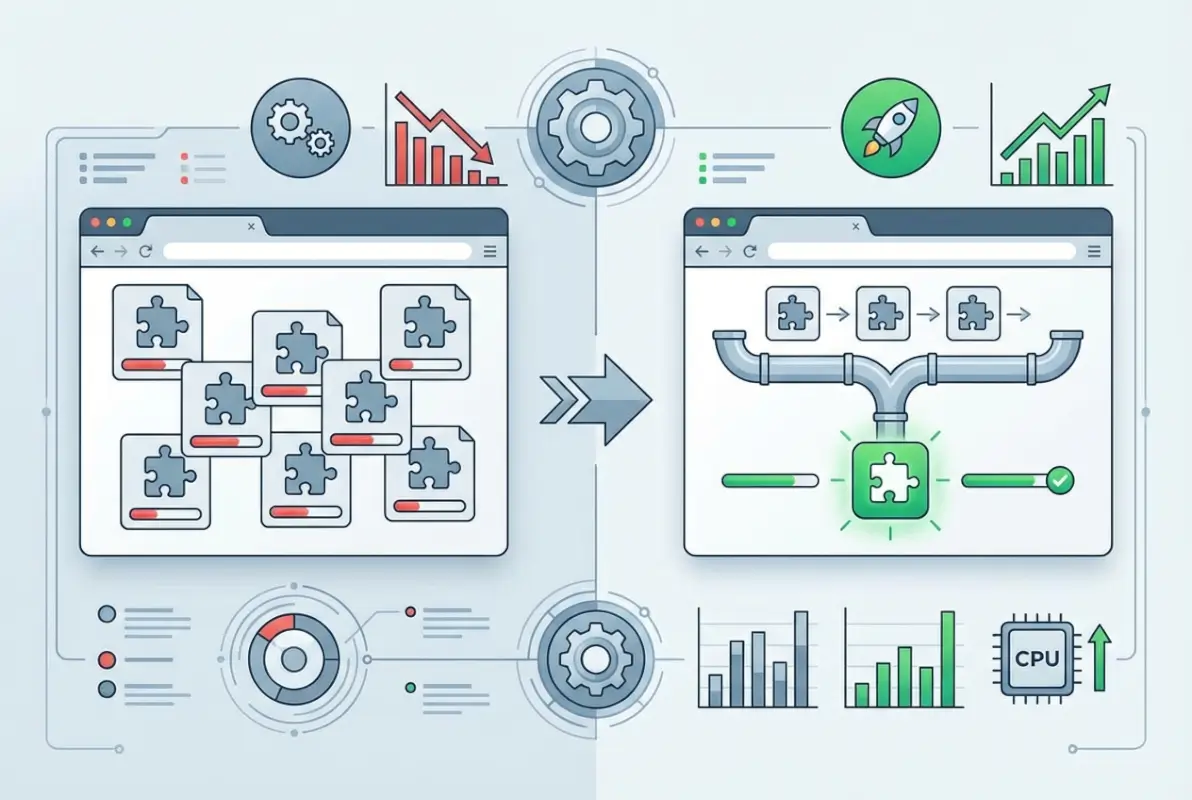
Each extension consumes memory and CPU. Five extensions might be fine; thirty extensions will slow your browser noticeably. Conflicts arise when multiple extensions try to modify the same page elements or intercept the same network requests.
Classic conflicts I’ve encountered:
- Multiple ad blockers fighting over which filters to apply (ironically making pages slower)
- Competing privacy extensions (one blocks trackers, another whitelists them for functionality—endless loop)
- Automation tools that trigger each other’s rules (I once had two tab managers both trying to “organize” my tabs differently)
Troubleshooting conflicts: disable half your extensions, check if the problem persists, then narrow down from there (binary search for extension conflicts). Use Chrome’s Task Manager (Shift+Esc) to see which extensions consume the most resources.
How to Recover if an Extension Behaves Maliciously or Causes Browser Instability
If you suspect an extension is malicious or causing crashes:
- Immediate removal: Go to
chrome://extensions/and click Remove (don’t bother disabling; just delete) - Clear browsing data: Settings → Privacy and security → Clear browsing data → check Cookies and Cached images (at minimum)
- Check for persistence: Some malicious extensions modify Chrome settings; review Settings → On startup, Search engine, and Extensions for unexpected changes
- Change passwords: If the extension had broad permissions, change passwords for sensitive accounts (banking, email) using a different browser
- Monitor accounts: Watch for unusual activity in financial accounts or email sent from your address
- Report the extension: Visit its Web Store listing and report abuse; Google may remove it to protect others
- Nuclear option: If instability persists, create a new Chrome profile (Settings → Add person) and migrate selectively; or reset Chrome to defaults
I had to do this once with a “productivity” extension that started injecting ads into search results two months after installation. The developer had sold it, and the new owner pushed a malicious update. Full cleanup took an hour, but better than identity theft.
Trends and Data (Ecosystem Overview)
Understanding the bigger picture helps contextualize risk and opportunity in the Chrome extension ecosystem.
Size of the Chrome Extension Ecosystem
As of recent analysis, the Chrome Web Store hosts approximately 138,000 extensions and themes. That’s a massive marketplace—but quantity doesn’t equal quality. Distribution is extremely skewed: a small percentage of extensions account for the vast majority of installs, while thousands have fewer than 1,000 users.
Manifest V3 adoption has been gradual. Google set deadlines, then extended them due to developer pushback and technical challenges. Many popular extensions migrated successfully, but some niche tools remain MV2-only, facing eventual obsolescence. For users, the practical implication: check for MV3 compatibility when choosing between similar extensions to ensure longevity.
User-Scale and Adoption Patterns
Chrome dominates the browser market with billions of users worldwide (estimates range from 2.5 to 3.5+ billion depending on measurement methodology and device types). However, extension adoption is surprisingly conservative: many users install zero extensions, while power users might have 15-30.
Typical distribution based on research and industry reporting:
- ~30-40% of Chrome users have zero extensions installed
- ~40-50% have 1-5 extensions (usually ad blocker, password manager, maybe a productivity tool)
- ~10-15% have 6-15 extensions (power users, professionals)
- ~5% have 15+ extensions (developers, heavy customizers, or those who forgot what half of them do)
Popular extensions like AdBlock, Honey, and Grammarly each have tens of millions of users. Long-tail extensions serving niche needs might have hundreds to low thousands. This disparity means malicious extensions often target breadth (general tools with broad appeal) to maximize compromised users.
Security Posture and Industry Findings
The security picture is mixed. Google has improved vetting processes, introduced stricter MV3 policies, and removed thousands of malicious extensions when discovered. Yet, research continues to uncover problems:
- Academic studies identify extensions that over-request permissions or exhibit suspicious behavior
- Security firms periodically expose large-scale campaigns (e.g., fake VPN extensions, cryptocurrency stealers)
- Supply-chain compromises (legitimate extensions sold and weaponized) remain difficult to prevent
The Forbes-cited research noting 280 million installs of dangerous extensions underscores the scale of exposure. While that figure represents cumulative installs over a period (not 280 million simultaneous active users), it highlights that extension security isn’t a theoretical concern—it’s a documented, recurring problem affecting massive user populations.
Recent trends show increased targeting of specific user groups: developers (via fake dev tools), cryptocurrency users (wallet stealers), and enterprise users (data exfiltration for corporate espionage). Defenses are improving, but attackers evolve tactics.
Implications for Beginners: Picking Safe, Useful Extensions in a Crowded Marketplace
Given these realities, here’s your strategic approach as a beginner:
- Start minimal: Install only extensions you truly need. Each addition increases attack surface.
- Favor established tools: Popular extensions with millions of users and years of history have more scrutiny (though not immunity).
- Check developer reputation: Extensions from known companies (Google, Microsoft, Bitwarden, 1Password) or respected open-source projects (EFF’s Privacy Badger) are safer bets.
- Read security reviews: Search “[extension name] security review” before installing—security researchers often analyze popular tools.
- Enable MV3 filtering: Prefer extensions that have migrated to Manifest V3 for future-proofing and improved security.
Think of the Chrome Web Store like a massive outdoor market. Some vendors are reputable institutions with decades of history; others are fly-by-night operations selling knockoffs. Your job is to distinguish between them before handing over access to your digital life.
Developer’s Corner (Optional for Curious Readers)
If you’re interested in building your own extensions—or just want to understand how they work under the hood—this section provides a starting point.
How Developers Publish Extensions to the Chrome Web Store
Publishing an extension involves several steps:
- Create a developer account: One-time $5 registration fee to the Chrome Web Store Developer Program
- Build your extension: Develop manifest.json, background scripts, content scripts, popup HTML, icons, etc.
- Test thoroughly: Load unpacked locally, test across Chrome versions, validate Manifest V3 compliance
- Prepare store assets: Screenshots, promotional images, detailed description, privacy policy (required if handling user data)
- Upload to Developer Dashboard: Zip your extension directory, upload, fill out metadata
- Submit for review: Google’s automated systems scan for malware, policy violations; may include manual review
- Await approval: Can take hours to days depending on complexity and queue
- Publish: Once approved, your extension goes live and users can install it
Updates follow a similar process: upload new version, automated review, publish. Google can remove extensions at any time if they violate policies or pose security risks.
MV3 Requirements and Testing Tips for Beginners Who Want to Build Extensions
Manifest V3 is the required standard for new extensions. Key differences from MV2 that beginners need to know:
- Service workers replace background pages: Extensions now use event-driven service workers instead of persistent background pages (saves resources but requires rethinking architecture)
- No remotely hosted code: All code must be included in the extension package (improves security, prevents dynamic code injection)
- DeclarativeNetRequest instead of webRequest: Network filtering uses declarative rules instead of imperative JavaScript (limits flexibility but improves privacy)
- Promise-based APIs: Modern async/await patterns instead of callbacks (cleaner code)
Testing tips:
- Use Chrome Canary (cutting-edge version) for testing bleeding-edge API changes
- Enable detailed logging in the service worker to debug event handling
- Test permission prompts from a user perspective—ensure they’re not unnecessarily scary
- Validate against official MV3 migration guides for compliance
Resources for Learning Extension Development
The Chrome Developers Extensions documentation is your primary resource. It’s comprehensive, well-organized, and includes sample extensions you can dissect. Recommended learning path:
- Start with the Getting Started tutorial (builds a simple “Hello Extensions” sample)
- Explore the samples repository on GitHub (dozens of working examples)
- Read the Architecture Overview to understand components (manifest, service workers, content scripts, UI elements)
- Build a simple extension solving a problem you personally have (best motivation and testing ground)
- Study popular open-source extensions on GitHub for real-world patterns
Community resources include Stack Overflow (active extension development tag), Reddit’s r/chrome and r/webdev, and Discord servers focused on Chrome development. The official Chrome Extensions Google Group is also monitored by Chrome engineers.
Frequently Asked Questions
How do I install Chrome extensions from the Chrome Web Store?
Open Chrome and navigate to the Chrome Web Store. Search for your desired extension, click the listing to review details and permissions, then click “Add to Chrome.” Review the permissions popup carefully and click “Add Extension” to confirm. The extension will install and typically appear in your browser toolbar. You can manage installed extensions at chrome://extensions/.
What is the difference between loading an unpacked extension and installing from the Web Store?
Unpacked extensions are loaded locally from a folder for development and testing purposes, requiring Developer Mode enabled. They don’t auto-update and display persistent warnings. Web Store installations are pre-vetted by Google, cryptographically signed, automatically update, and integrate seamlessly without warnings. Unpacked loading is intended for developers building extensions, while Web Store installs are for end users.
Is it safe to load extensions from outside the Chrome Web Store?
Generally, no. Extensions outside the Web Store bypass Google’s review process and pose significantly higher security risks. Only load non-store extensions from developers you personally know and trust, or from highly reputable open-source projects where you can verify the source code. Review permissions carefully and understand you won’t receive automatic security updates. The safest practice is to stick exclusively to Web Store extensions.
What is Manifest V3 and why does it matter to beginners?
Manifest V3 is Chrome’s current extension architecture that improves security, privacy, and performance compared to the older Manifest V2. MV3 restricts remotely hosted code, limits background processing, and changes how extensions interact with web requests. For beginners, MV3 means safer extensions with better privacy protections. Choose MV3-compliant extensions when possible to ensure they’ll continue working as Google phases out MV2 support.
How many extensions exist on the Chrome Web Store, and how many users do they have?
The Chrome Web Store hosts approximately 138,000 extensions and themes. User distribution is heavily skewed: popular extensions like ad blockers have tens of millions of users each, while most extensions have fewer than 10,000 installs. A small percentage of extensions account for the vast majority of total installs. Chrome itself has 2.5-3.5 billion users globally, but many don’t install any extensions.
What are common security concerns with Chrome extensions?
Extensions request permissions that can access browsing data, read and modify website content, intercept network requests, and communicate with external servers. Security concerns include malicious extensions stealing credentials, injecting ads or malware, harvesting browsing history for resale, and supply-chain attacks where legitimate extensions are sold and weaponized. Research shows hundreds of millions of users have installed dangerous extensions. Always review permissions and keep extensions updated.
Where can I learn more about building or testing extensions?
The official Chrome Developers Extensions documentation at developer.chrome.com provides comprehensive guides, tutorials, and API references. Start with the Getting Started guides that walk through building simple extensions. The Chrome Extensions samples repository on GitHub offers dozens of working examples. Community resources include Stack Overflow, Reddit developer communities, and the Chrome Extensions Google Group monitored by Chrome engineers.
Can Chrome extensions slow down my browser performance?
Yes, extensions consume memory and CPU resources. Each extension’s impact varies based on its functionality and code quality. Extensions that process every web page (ad blockers, privacy tools) have higher overhead than those activated on-click. Having 20+ extensions can noticeably slow Chrome’s startup and page loading. Use Chrome’s Task Manager (Shift+Esc) to identify resource-heavy extensions and consider removing unused ones to improve performance.
How often should I review my installed extensions?
Review installed extensions at least quarterly. Check for extensions you no longer use and remove them. Verify that remaining extensions have been updated recently (active maintenance suggests ongoing security patches). Search for each extension’s name plus “security” or “vulnerability” to catch any newly discovered issues. For high-permission extensions like password managers or privacy tools, monthly reviews are prudent. Remove anything you don’t recognize or can’t recall installing.
What should I do if I accidentally installed a malicious extension?
Immediately remove the extension from chrome://extensions/. Clear your browsing data (cookies, cache) through Settings → Privacy and security. Change passwords for sensitive accounts using a different browser or device. Check Chrome Settings for unexpected changes (startup pages, search engine, homepage). Monitor financial accounts and email for unusual activity. Report the extension through its Web Store listing to help protect other users. If problems persist, create a fresh Chrome profile or reset Chrome to factory defaults.
Are extensions from well-known companies always safe?
Mostly, but not guaranteed. Extensions from reputable companies like Google, Microsoft, or established security firms undergo internal reviews and have reputations to protect, making them generally safer. However, even large companies occasionally ship buggy or over-permissioned extensions. Additionally, legitimate extensions sometimes get acquired by less scrupulous companies who inject malware in updates. Always review permissions regardless of developer reputation, and monitor for ownership changes or sudden permission increases.
Loading Chrome extensions safely comes down to informed decision-making and consistent habits. Start by understanding that “Chrome plugins” are actually extensions distributed through the Chrome Web Store or loaded unpacked for development. Always prioritize security: review permissions critically, stick to the Web Store when possible, and maintain a minimal extension footprint. Regular audits (quarterly at minimum) help catch abandoned extensions, security issues, or tools you simply don’t use anymore.
The Chrome extension ecosystem offers tremendous functionality—password managers, ad blockers, productivity boosters, developer tools—but it also harbors real risks. Research shows millions of users have installed dangerous extensions, often unknowingly. Your defense is skepticism tempered with practical knowledge. When evaluating extensions, check user counts, read substantive reviews (not just star ratings), verify developer identities, and question excessive permissions. Manifest V3 compliance signals a modern, security-conscious extension that will remain supported as Chrome evolves.
For developers and curious learners, building extensions is more accessible than ever with comprehensive official documentation and abundant examples. Starting with simple projects—a custom new tab page, a basic page modifier—teaches the architecture hands-on. The transition to Manifest V3 means learning modern patterns (service workers, promise-based APIs, declarative rules) that align with broader web development trends.
The extension landscape will continue evolving—new security measures, policy updates, emerging threats, innovative tools. Staying aligned with official Chrome documentation and security best practices ensures you adapt alongside the ecosystem. Whether you’re installing your first password manager or building a custom automation tool, the principles remain constant: minimize attack surface, verify sources, understand permissions, and maintain active oversight.
Don’t let fear paralyze you into avoiding extensions entirely, they genuinely enhance productivity and browsing when chosen wisely. Just approach them with the same caution you’d apply to any software with privileged access to your digital life. Now go forth, install that extension you’ve been considering, and actually read those permission prompts this time.
Was this article helpful?