
5 Simple Steps to View All Files in an Online Directory
Opens a Google-translated copy of this article in a new tab.
Ever wondered why some websites feel like open filing cabinets, letting you peek into folders you probably shouldn’t see? That “Index of /” page isn’t some glitch in the matrix—it’s a web server’s way of saying “here’s everything I’ve got” when no one told it to keep quiet. As someone who’s spent years managing web infrastructure, I can tell you this seemingly minor configuration detail sits at the crossroads of convenience and catastrophe.
Understanding how directory listings work isn’t just technical housekeeping. Whether you’re a site administrator trying to lock down your server, a developer debugging why certain assets won’t load, or an auditor checking for security gaps, knowing these five simple steps can save you from embarrassment (or worse). The difference between a properly configured server and one that’s inadvertently exposing your backup files, configuration scripts, or customer data often comes down to a missing index file or a single line in your server config.
TL;DR – Quick Takeaways
- Directory listings appear when web servers lack index files and are configured to show folder contents publicly
- Five key steps let you identify, navigate, and assess directory listings on any web server
- Security implications are significant—exposed directories can leak sensitive files, backups, and configuration data
- Simple fixes exist through index files, .htaccess directives, or server configuration changes
- Regular auditing prevents accidental exposure and keeps your web properties secure
Understanding Directory Listing and Its Implications
Before we dive into the how-to steps, let’s establish what we’re actually dealing with here. A directory listing is essentially your web server’s version of opening a folder on your desktop and seeing all the files inside—except this folder is on the internet, and potentially everyone can see it.

What is a directory index or “Index of /”?
When you visit most websites, your browser requests a specific page. If you don’t specify which page you want (like going to example.com instead of example.com/about.html), the web server looks for a default file to serve. This default is typically index.html, index.php, or similar variations. It’s the digital equivalent of a receptionist greeting you at the front desk.
But what happens when that receptionist isn’t there? If no default index file exists and the server is configured to allow it, you’ll see an automatically generated page titled something like “Index of /” followed by a list of every file and folder in that directory. Apache and Nginx (the two most popular web servers) handle this differently by default, but both can generate these listings if configured to do so.
According to Wikipedia’s documentation on web server directory indexes, this functionality dates back to the earliest days of the web when file sharing was a primary use case. While that made sense in 1995, today it’s usually an oversight rather than an intentional feature.
Why directory listings appear and when to expect them
Directory listings don’t just randomly appear, they happen under specific conditions. The most common scenario is a missing index file combined with server settings that permit directory browsing. I remember launching a client site once where we’d carefully crafted the homepage but forgot to upload it to the production server. Visitors were greeted with a raw file listing showing our entire site structure, including a folder helpfully named “old-backup-do-not-use.” Not our finest moment.
Typical scenarios where you’ll encounter directory listings include:
- Newly created directories where the developer hasn’t added an index file yet
- Asset folders (images, downloads, media) intentionally left without index files
- Legacy servers with outdated configurations that predate modern security practices
- Shared hosting environments with default settings favoring accessibility over security
- Development or staging servers that haven’t been hardened for production use
Most modern hosting providers and content management systems prevent this by default, but it’s surprisingly easy to accidentally enable if you’re working with raw server configurations or migrating from older systems.
Risks of publicly viewable directory contents
Here’s where things get serious. An exposed directory listing isn’t just aesthetically unpleasant, it’s a security vulnerability. When attackers probe websites looking for weak points, directory listings are like finding an unlocked window on an otherwise secure house.
The folks at Jetpack have documented how directory indexing creates attack surfaces by exposing your site’s file structure, making it easier for malicious actors to identify outdated software versions, find unpatched vulnerabilities, or locate files containing credentials. Even seemingly harmless information like your exact folder structure can help attackers craft more targeted exploits.
Step-by-Step Methods to View Directory Contents (5 Simple Steps)
Now that we understand what directory listings are and why they matter, let’s walk through the actual process of viewing them. Whether you’re auditing your own site or investigating a potential security issue, these five steps will show you exactly how to identify and access directory contents online.
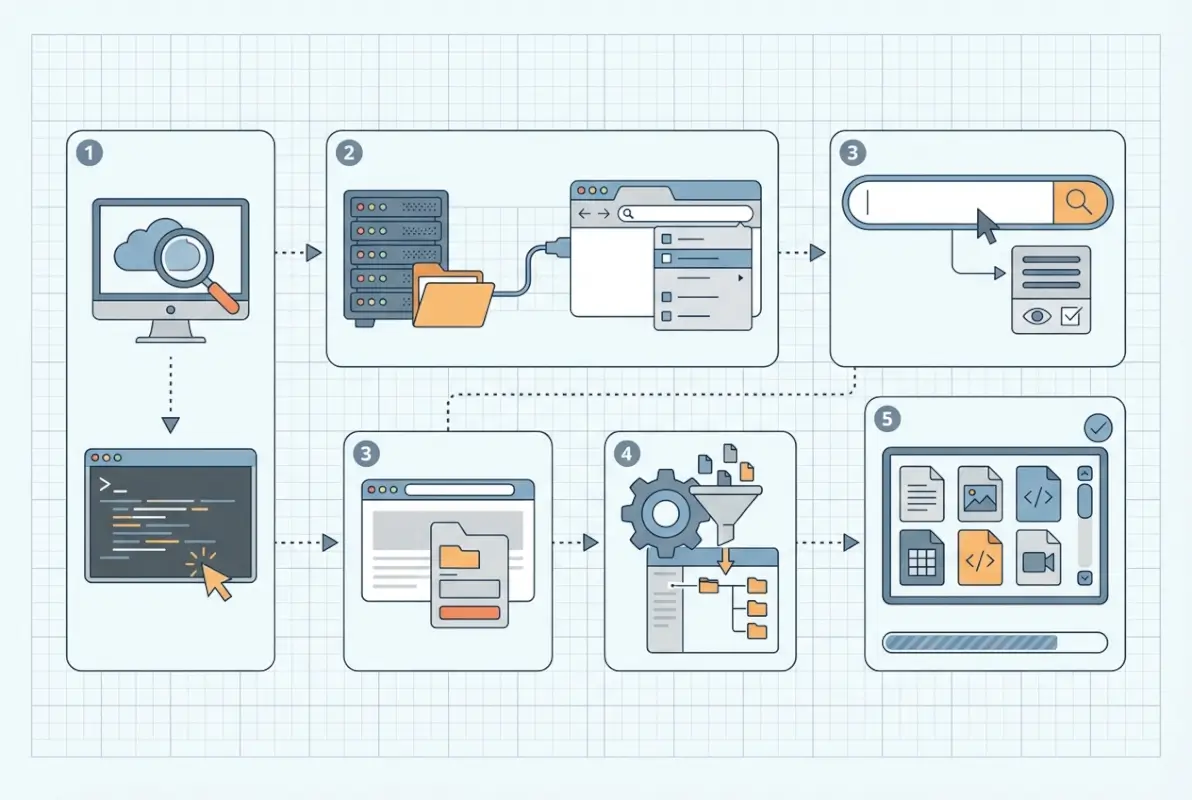
Step 1 — Navigate to the directory URL in a browser
The simplest method is often the most effective. Open your web browser and type the URL of the directory you want to check. If you’re examining your own site, you might try navigating to common directories like /uploads/, /images/, /assets/, or /wp-content/. For instance, typing https://example.com/images/ will either show you an index file, a listing of all images, or a 403 Forbidden error if directory browsing is disabled.
Pay attention to trailing slashes here—they matter. A URL ending with a filename (like /images/photo.jpg) requests that specific file, while a URL ending with a slash (like /images/) requests the directory itself. Most browsers will add the trailing slash automatically if you omit it, but understanding this distinction helps when troubleshooting unexpected behavior.
Step 2 — Use common browser behaviors and shortcuts
Once you’ve navigated to a potential directory, look for telltale signs of a listing. The page title typically says “Index of” followed by the directory path. The content will be a plain, unstyled table or list showing filenames, modification dates, file sizes, and sometimes file descriptions. There won’t be any custom branding, navigation menus, or stylish layouts unless someone has created a custom directory index template (which is rare).
Browser behaviors you can leverage include:
- Using the browser’s back button to navigate up directory levels
- Editing the URL directly to test different subdirectories
- Right-clicking on file links to copy direct URLs for later reference
- Using browser developer tools (F12) to inspect the raw HTML if you suspect the listing is being hidden or modified by JavaScript
Step 3 — Identify whether listing is server-configured or restricted
Not every directory will show you its contents, and understanding why requires a bit of detective work. When you navigate to a directory, you’ll encounter one of three scenarios: a successful directory listing, a redirect to an index file, or an error message (typically 403 Forbidden or 404 Not Found).
A 403 Forbidden response specifically indicates the server knows the directory exists but refuses to show you its contents. This is actually the desired behavior for most production websites. A 404 Not Found suggests either the directory doesn’t exist or the server is configured to hide even the existence of restricted paths. If you’re comparing several directories on the same site and some list contents while others don’t, that’s a sign of inconsistent configuration that needs attention.
Step 4 — Check for index files or redirects
Understanding the DirectoryIndex directive is crucial here. This server configuration setting tells the web server which files to look for when someone requests a directory. The typical priority order is index.html, then index.htm, then index.php, though administrators can customize this list.
To test whether an index file exists, try accessing it directly. If https://example.com/downloads/ shows a directory listing, try https://example.com/downloads/index.html. If that returns a 404, no index file exists (which explains why you’re seeing the listing). If it loads successfully, something else is going on—perhaps the index file isn’t being recognized due to a misconfiguration.
Resources like Web Hosting Hub’s guide on changing directory index settings explain how different hosting environments handle these configurations, which can vary significantly between shared hosting, VPS, and dedicated server setups.
Step 5 — Use administrative tools to audit or reproduce listing
If you have server access or administrative credentials, hosting control panels provide a more comprehensive view of your directory structure. cPanel, Plesk, and similar interfaces include file managers that let you browse directories, check permissions, verify whether index files exist, and see exactly what your server is serving to visitors.
These administrative tools often reveal issues that aren’t obvious from the front-end. For example, you might have an index.html file that’s properly named but has incorrect permissions preventing the web server from reading it. Or you might discover that your .htaccess file contains conflicting directives that override your intended directory settings. According to documentation from hosting providers, these control panels also show file modification dates and ownership, which can help identify when and how unwanted listings appeared.
| Method | Complexity | Best For | Access Required |
|---|---|---|---|
| Browser Navigation | Low | Quick checks, public auditing | None |
| Control Panel | Medium | Comprehensive auditing, fixing issues | Admin credentials |
| Server Configuration | High | Permanent solutions, security hardening | SSH/root access |
Practical How-To: Viewing Directory Contents on Your Own Site vs. Auditing Others
The ethical and practical considerations change dramatically depending on whether you’re examining your own infrastructure or investigating someone else’s. Let’s separate these scenarios and address the specific techniques and responsibilities for each.

For site administrators — secure your directories
If you manage a website, preventing unwanted directory listings should be part of your security checklist. The good news is that fixing exposed directories is straightforward once you understand your options. The most common approaches include adding index files, modifying server directives, and setting appropriate file permissions.
Creating a simple index.html file in each directory is the most foolproof method. Even a blank file works (though a proper “access denied” message or redirect is more professional). For directories that legitimately need to share files publicly, consider creating an actual index page that lists files with context, descriptions, and proper branding rather than relying on the server’s auto-generated listing.
The .htaccess approach (for Apache servers) involves adding Options -Indexes to your configuration file. This single line tells Apache to refuse directory listing requests. For Nginx, you’d modify your server block configuration with autoindex off;. Both methods are effective, though they require different levels of server access. According to Bluehost’s security guidance, combining multiple approaches (index files plus server directives) provides defense in depth.
For auditors or learners — how to responsibly view and document listings
If you’re examining directory listings as part of security research or professional auditing, responsibility and ethics come first. Just because a directory is publicly accessible doesn’t mean poking around is consequence-free. Professional auditors follow strict protocols: obtain written permission before testing, document findings thoroughly without exploiting vulnerabilities, and report issues through proper channels.
When documenting directory listings, take screenshots showing the URL, visible files, and timestamps. Note whether sensitive files are exposed (configurations, backups, credentials) and assess the potential impact. Create a prioritized list of findings rather than just dumping raw data on the site owner. Remember that the goal is improvement, not embarrassment.
For learning purposes, stick to your own infrastructure or explicitly authorized test environments. Sites like those offering guides on starting directory websites can provide legitimate practice grounds for understanding web server behavior without crossing ethical lines.
Using hosting panels and file managers
Modern hosting control panels have evolved into powerful administrative tools that make directory management accessible even for non-technical users. cPanel’s File Manager, for instance, provides a Windows Explorer-like interface where you can navigate folders, create files, set permissions, and verify configurations without touching command-line tools.
These interfaces typically show both what visitors can see (the public_html or www folder) and what’s hidden in parent directories. You can quickly identify directories missing index files by looking for folders that contain content files but no index.html or similar default page. Most file managers also include permission indicators—look for world-readable (755 or similar) permissions on directories you intended to keep private.
CloudPanel and similar modern alternatives often include one-click security hardening features that automatically add index files or modify server configurations to prevent directory listing across your entire site. While convenient, I’d recommend understanding what these automated tools actually do rather than blindly clicking buttons—you need to know how to fix things manually when automation fails.
Security Best Practices to Manage Directory Listings
Security isn’t a one-time checkbox, it’s an ongoing process. Even if you’ve properly configured your directories today, server updates, migrations, or configuration changes can inadvertently reintroduce vulnerabilities. Let’s explore the practices that keep directory listings locked down long-term.

Disable directory browsing when not needed
The principle here is simple: if you don’t need directory browsing functionality, turn it off globally. Most sites have zero legitimate use cases for auto-generated file listings, so disabling the feature entirely eliminates the risk. For Apache servers, adding Options -Indexes to your main httpd.conf or apache2.conf file (not just .htaccess) prevents directory listing site-wide.
Nginx users should ensure autoindex off; is set in the http block of nginx.conf, applying the restriction to all virtual hosts unless explicitly overridden. This approach follows the security principle of “deny by default, permit by exception”—you’re saying no directory should list contents unless you specifically configure it otherwise.
For the rare cases where you do need to share files via directory listing (perhaps an internal tool or legitimate file repository), create a specific subdomain or isolated directory with listing enabled only for that location. This contains the potential exposure rather than leaving your entire site vulnerable.
Implementing robust indexing controls
Beyond simple on/off switches, modern web servers offer granular control over directory indexing behavior. You can specify which file types to hide, customize the appearance of listings if they must be public, and even require authentication before displaying directory contents.
Apache’s IndexIgnore directive lets you hide specific files or patterns from listings. For example, IndexIgnore *.bak *.old .htaccess would prevent backup files and configuration files from appearing even if directory browsing is enabled. This provides defense in depth—if someone accidentally enables listings, your most sensitive files remain hidden.
| Configuration Method | Scope | Persistence | Risk if Misconfigured |
|---|---|---|---|
| Index files | Per directory | High (files rarely deleted accidentally) | Low |
| .htaccess directives | Directory + subdirectories | Medium (can be overridden) | Medium |
| Server config | Global or virtual host | High (requires admin access to change) | Low |
For sites requiring authentication, consider protecting entire directories with HTTP Basic Auth or implementing application-level authentication that checks credentials before allowing any directory access. This is particularly important for staging sites or development environments that mirror production data but shouldn’t be publicly accessible.
Ongoing auditing and monitoring
Set a recurring calendar reminder to audit your directory configurations quarterly. Technology changes, team members come and go, and what was secure six months ago might have been accidentally undone during a recent update. Automated tools can help, but nothing beats manually spot-checking critical directories to verify they’re properly protected.
Server logs provide valuable insight into whether anyone is probing for directory listings. Look for requests ending in “/” that return 200 OK status codes (potentially exposed listings) versus 403 Forbidden (properly protected). A sudden spike in these requests might indicate someone is actively reconnaissance your site structure. Resources like directory listing guides for startups often include monitoring best practices tailored to resource-constrained teams.
Troubleshooting Common Scenarios
Even with best practices in place, you’ll occasionally encounter puzzling situations where directory listings behave unexpectedly. Let’s tackle the most common troubleshooting scenarios I’ve encountered over the years managing dozens of web properties.

No index file but want to hide listing
Sometimes you have a directory that genuinely doesn’t need an index page but also shouldn’t display a file listing. Common examples include API endpoints, webhook receivers, or utility directories that only handle programmatic requests. In these cases, creating a blank index.html works but feels inelegant.
A better approach is creating a minimal HTML page that explains the directory’s purpose without exposing its contents. Something like:
<!DOCTYPE html>
<html>
<head><title>API Directory</title></head>
<body><p>This directory is for programmatic access only.</p></body></html>
This provides context to anyone who stumbles upon the URL while preventing file enumeration. For completely automated directories, consider a redirect to your main site or a 403 error page that’s styled to match your brand rather than the server’s generic error.
Listing displays only for certain directories
Inconsistent behavior across your site—where some directories list contents while others properly show index files or error pages—usually indicates configuration inheritance issues. With Apache’s .htaccess system, settings in a parent directory can be overridden by .htaccess files in subdirectories. You might have disabled indexes globally but have a rogue .htaccess file somewhere enabling them again.
To diagnose this, work your way up the directory tree checking each level for .htaccess files. Use your hosting control panel’s file manager or SSH to view hidden files (those starting with a dot), since many FTP clients hide them by default. Look for any Options +Indexes directives that would re-enable listing. Also check for permission issues—a directory with overly permissive settings (777) combined with certain server configurations might behave differently than properly secured directories (755).
Directory listing persists after changes
You’ve added an index file, updated your .htaccess, even restarted the web server—but that pesky directory listing still appears when you visit the URL. Before assuming your changes didn’t work, consider browser caching and CDN caching as culprits. Your browser might be showing you a cached version of the directory listing from before your fix.
First step: force a hard refresh (Ctrl+Shift+R on Windows, Cmd+Shift+R on Mac) to bypass browser cache. If that doesn’t work, try a private/incognito window or a completely different browser. If the listing persists across different browsers and devices, the issue is server-side. Check whether your changes actually took effect—open your .htaccess file again to verify the Options -Indexes line is still there and hasn’t been removed by an automated process or restoration from backup.
For sites behind CDNs like Cloudflare, you may need to purge the cache manually through the CDN control panel. Even after fixing the underlying issue, the CDN might serve cached directory listings until you explicitly tell it to fetch fresh content from your origin server. This is particularly common with aggressive caching rules that cache even 404 and error responses.
Related Concepts and Tools
Understanding directory listings in isolation only tells part of the story. Let’s explore how this functionality fits into the broader web architecture landscape and what alternatives exist for legitimate file-sharing needs.
Directory indexing in broader web-server context
Directory indexing emerged from the early web’s file-sharing roots when HTTP servers were essentially fancy FTP replacements. The original CERN httpd server included directory listing as a core feature because sharing research documents was the web’s primary purpose. As the web evolved into an application platform, this feature became increasingly vestigial—useful in narrow cases but a liability in most production environments.
Modern web architecture has largely moved away from exposing raw file structures. Content management systems, single-page applications, and API-driven interfaces abstract the underlying file system entirely. When you browse a WordPress site, you’re not navigating folders—you’re requesting database-driven pages that happen to be served via a web server. This architectural shift has made directory listings even more of an edge case, typically only appearing when something has gone wrong or when deliberately configured for specific use cases. For those building new web properties, guides like starting a directory website from scratch demonstrate modern approaches that avoid raw file exposure entirely.
Alternatives to bare listings
If you genuinely need to provide access to a collection of files, auto-generated server listings are the least professional option. Purpose-built file-sharing solutions offer better user experience, more security controls, and clearer audit trails. Consider options like:
- Custom directory pages built with PHP, Python, or Node.js that programmatically list files while adding authentication, usage tracking, and branded UI
- Cloud storage integrations using services like Amazon S3, Google Drive, or Dropbox with public sharing configured to your specifications
- Document management systems that provide versioning, access controls, and proper metadata rather than just raw file names
- WordPress media libraries or similar CMS tools that serve files through a managed interface rather than direct file system access
Each alternative provides more control and better security than relying on your web server’s built-in directory listing. They also tend to play better with modern expectations around mobile responsiveness, search functionality, and user experience. A raw directory listing might have been acceptable in the 90s, but today’s users expect more polished interfaces even for simple file access.
Real-World Quick References and Examples
Theory is valuable, but seeing how directory listings appear in actual scenarios helps cement the concepts. Let’s walk through a few anonymized examples that illustrate common patterns.
Example scenarios and patterns
Scenario 1: The forgotten uploads folder
A small business website had directory listing enabled on their /uploads/ folder, which contained customer-submitted forms including scanned documents with personally identifiable information. The listing showed files with names like “john-smith-tax-form-2023.pdf” that anyone could download. The fix involved adding an index.html file with a simple “Access denied” message and implementing proper access controls requiring authentication for file downloads.
Scenario 2: The misconfigured asset directory
A developer deployed a React application but left the /static/ directory exposed, revealing the site’s entire compiled JavaScript including source maps. While not immediately exploitable, this exposed the application’s structure and made reverse-engineering much easier. The solution involved both disabling directory listing and removing source maps from production builds—a two-layer security improvement.
Scenario 3: The legacy backup exposure
During a server migration, an IT team created a /old-site-backup/ directory containing the entire previous version of their website, including database dumps with cleartext passwords. The directory was publicly listable for three weeks before discovery. This incident highlights why comprehensive post-migration audits are critical, not just spot checks of main directories.
These real-world examples (details changed to protect privacy) demonstrate that directory listing vulnerabilities rarely exist in isolation—they’re usually accompanied by other security gaps. If you’re exploring how to build directory-based sites properly, resources like free business directory platforms often include built-in protections against these common pitfalls.
Frequently Asked Questions
What is a directory index and why does it show up in my browser?
A directory index is an auto-generated list of files that appears when you visit a web directory that lacks a default index file (like index.html). It shows up because your web server is configured to display folder contents when no specific page is requested, a behavior inherited from early web servers designed for file sharing.
How can I stop others from listing my website’s directories?
Add an index.html file to each directory, include “Options -Indexes” in your .htaccess file for Apache servers, or set “autoindex off” in your Nginx configuration. For site-wide protection, implement these changes at the server configuration level rather than relying solely on per-directory fixes to ensure comprehensive coverage.
What should I do if I see a directory listing on my site?
Immediately verify whether sensitive files are exposed, then add an index file to the affected directory and disable directory browsing in your server configuration. Check your entire site for similar issues, document what was exposed for security review purposes, and consider whether any exposed data requires additional incident response measures.
Is it safe to use directory listings for debugging or maintenance?
Only on development or staging environments with restricted access, never on public-facing production sites. If you must use directory listings temporarily for debugging, protect the directory with HTTP authentication and remember to disable the listing immediately after completing your work to prevent accidental long-term exposure.
How do hosting panels show or hide directories?
Hosting control panels like cPanel provide file managers that display your complete directory structure regardless of public visibility settings. They show what exists on the server while separate configurations control what visitors can see. These panels typically include permission indicators and quick actions to add index files or modify directory protection settings.
What is the difference between an index page and a directory listing?
An index page is a specific HTML file (like index.html) designed to serve as the default content when someone visits a directory. A directory listing is an automatically generated view showing all files in a folder when no index page exists. The former is intentional content, the latter is fallback behavior.
Can directory listings expose hidden or system files?
It depends on server configuration, but properly configured servers should not expose files beginning with dots (.htaccess, .env, .git) through directory listings. However, misconfigured servers might display everything, which is why disabling directory browsing entirely is safer than relying on partial restrictions to protect sensitive files.
How often should I audit my site for unwanted directory listings?
Perform comprehensive audits quarterly and spot-check critical directories monthly. Additionally, audit immediately after any server migration, major update, configuration change, or security incident. Automated monitoring tools can alert you to new publicly accessible directories between manual reviews for proactive protection.
Do modern CMS platforms prevent directory listings automatically?
Most modern content management systems include .htaccess files or server configurations that disable directory browsing by default in their installation packages. However, custom theme directories, plugin folders, or manually created directories might not inherit these protections, so verification remains important even on managed platforms.
What legal risks exist if my directory listings expose customer data?
Exposed customer data through directory listings may violate privacy regulations like GDPR, CCPA, or HIPAA depending on your jurisdiction and industry. Beyond regulatory fines, you face potential civil liability, mandatory breach notifications, and reputational damage. Legal consequences underscore why directory listing prevention is not optional for sites handling any sensitive information.
Taking Control of Your Directory Security
We’ve covered a lot of ground—from understanding what directory listings are and why they appear, to the five concrete steps for viewing them, to comprehensive security practices that prevent unwanted exposure. The key takeaway is that directory listings sit at the intersection of functionality and vulnerability, useful in narrow circumstances but risky when left unchecked.
If you take away nothing else from this guide, remember these critical actions: audit your existing sites for exposed directories right now, implement defense-in-depth protections combining index files and server directives, and establish ongoing monitoring to catch issues before they become incidents. The techniques we’ve discussed aren’t theoretical exercises, they’re practical steps that close real security gaps affecting real websites every day.
- Run through your own website directories following the five steps outlined above
- Document any exposed listings you discover and assess their sensitivity
- Implement protections using the methods appropriate for your hosting environment
- Set a calendar reminder for quarterly security audits including directory verification
- Share this knowledge with your team to prevent future configuration mistakes
Whether you’re managing a personal blog, a corporate website, or a complex web application, directory security deserves attention. The few minutes you invest in proper configuration can prevent the hours (or weeks) of cleanup following a security incident. And if you’re building directory-based functionality into your site intentionally, explore resources like modern directory website approaches that provide user-friendly file access without the security pitfalls of raw server listings.
The web has evolved tremendously since directory listings were common practice, but legacy features persist in our infrastructure. Understanding them, knowing when they’re appropriate, and protecting against their misuse keeps your web properties secure and your users’ data protected. Now go audit those directories—you might be surprised what you find.
Was this article helpful?