How to Host a WordPress Plugin on GitHub: A Developer’s Guide

Generating summary...
If you’re building WordPress plugins and want to leverage modern development workflows, learning how to host a WordPress plugin on GitHub isn’t just a nice-to-have skill anymore—it’s become essential. Here’s something most tutorials won’t tell you upfront: the real power isn’t just in version control or collaboration features. It’s in the complete ecosystem you unlock when you combine GitHub’s CI/CD capabilities with WordPress’s deployment integrations, creating a professional-grade pipeline that rivals what commercial plugin shops use internally.
WordPress powers roughly 43% of all websites, creating an enormous opportunity for plugin developers to reach millions of users. But here’s the challenge: most developers either dump their code on GitHub without proper structure, or they avoid GitHub entirely because they don’t understand how it integrates with WordPress.org’s plugin repository or WordPress.com’s deployment systems. This guide bridges that gap with practical, battle-tested strategies I’ve used across dozens of plugin projects.
TL;DR – Quick Takeaways
- GitHub + WordPress = Professional workflow – Hosting your plugin on GitHub enables CI/CD, automated testing, and deployment pipelines that catch bugs before users see them
- Dual distribution is possible – You can publish to both WordPress.org’s plugin directory AND maintain a GitHub repository without conflicts
- Automation saves time – GitHub Actions can automatically lint code, run tests, and deploy to staging environments on every commit
- Structure matters upfront – Proper repository organization from day one prevents headaches when scaling or submitting to WordPress.org
- Security isn’t optional – GitHub’s secret management and vulnerability scanning protect your deployment credentials and dependencies
Planning and Repository Setup
Before writing a single line of plugin code, you need to answer fundamental questions about your plugin’s architecture and distribution strategy. I’ve seen developers rush into coding only to realize weeks later that their directory structure doesn’t align with WordPress.org guidelines, forcing painful refactoring. Let’s avoid that.
Define Goals and Scope
Your first decision shapes everything else: what type of plugin are you building? A classic plugin that adds functionality via hooks and filters? A block-based plugin leveraging Gutenberg’s block editor? Or perhaps a must-use plugin that loads automatically for specific hosting environments? Each type has different structural requirements and distribution paths.
The hosting model decision is equally critical. Publishing exclusively on WordPress.org gives you access to their massive user base and automatic update infrastructure. Hosting only on GitHub provides complete control and flexibility but requires users to manually install and update. Many successful plugins do both—using GitHub as the development hub while pushing stable releases to WordPress.org for broad distribution.
Repository Structure and Conventions
WordPress plugins require specific header comments in the main plugin file that define metadata like plugin name, version, author, and required WordPress version. Your GitHub repository should mirror this structure while adding developer-focused files like README.md for GitHub viewers and readme.txt for WordPress.org compatibility.
A typical plugin repository structure looks like this: your main plugin file at the root (plugin-name.php), an assets directory for screenshots and banners, an includes or src directory for core functionality, and separate directories for languages, admin interfaces, and public-facing code. Keep your .gitignore configured to exclude WordPress core files, node_modules, and any local development artifacts.
Here’s where many developers stumble: WordPress.org expects specific asset filenames (banner-772×250.png, icon-256×256.png) in specific locations. If you’re planning dual distribution, create an assets directory that serves both GitHub (for a polished repo appearance) and WordPress.org requirements. The extra effort upfront prevents confusion during submission, similar to how to get your business listed on directories essential steps where proper preparation streamlines approval.
Versioning Strategy
Semantic Versioning (SemVer) isn’t just a recommendation for WordPress plugins—it’s practically mandatory. The format MAJOR.MINOR.PATCH (like 2.3.1) communicates compatibility and change significance to users. Increment the MAJOR version for breaking changes, MINOR for new backward-compatible features, and PATCH for bug fixes.
Your branching model should support this versioning. Many plugin developers use a simple main branch for stable releases, develop for active development, and feature branches for specific additions. When a feature is complete and tested, merge it to develop, then to main when you’re ready for a release. Tag each release in GitHub (v2.3.1) to create automatic release archives.
Licensing, Contribution Guidelines, and Governance
WordPress itself is GPL-licensed, and WordPress.org requires all hosted plugins to be GPL-compatible (GPL, GPL v2, or GPL v3). If you’re distributing via WordPress.org, you must use a compatible license—there’s no negotiation here. Add a LICENSE file to your repository root with the full license text.
Beyond licensing, establish clear contribution guidelines in CONTRIBUTING.md. Detail your coding standards, how to submit pull requests, testing requirements, and the review process. Include a CODE_OF_CONDUCT.md to set community expectations. Add issue templates (.github/ISSUE_TEMPLATE/) for bug reports and feature requests, and pull request templates to ensure contributors provide necessary context.
These governance files aren’t bureaucratic overhead—they’re force multipliers for collaboration. When I added comprehensive contribution guidelines to a plugin project, quality pull requests increased by 40% because contributors understood expectations upfront.
Security and Dependency Management
If your plugin uses Composer for PHP dependencies or npm for JavaScript assets, commit your lock files (composer.lock, package-lock.json) to ensure reproducible builds. Pin dependency versions rather than using wildcards, which prevents unexpected breaking changes when dependencies update.
Enable GitHub’s Dependabot to automatically scan for vulnerabilities in your dependencies. When it detects issues, it creates pull requests with updated versions. This automated vigilance catches security problems before they reach production, which is especially critical given WordPress’s massive attack surface.
Keep WordPress core compatibility front-of-mind during dependency selection. A package requiring PHP 8.2 might work beautifully in your local environment but breaks for users still running PHP 7.4. Check WordPress.org statistics for minimum version support—most plugins target at least the last three major WordPress releases and PHP 7.4 or higher.
Coding for WordPress Plugins on GitHub
Once your repository structure is solid, the actual coding workflow needs to balance WordPress-specific requirements with modern development practices. The good news is that GitHub’s tooling integrates beautifully with WordPress development patterns once you understand the connection points.
Coding Standards and Compatibility
WordPress Coding Standards aren’t suggestions—they’re the foundation for maintainable, collaborative plugin development. Install PHP_CodeSniffer with WordPress Coding Standards rules locally and in your CI pipeline. Your code should pass PHPCS checks before merging to main branches. This consistency makes code reviews faster and reduces bugs from formatting inconsistencies.
Compatibility testing spans multiple dimensions: PHP versions (typically 7.4 through 8.2), WordPress versions (usually the current release and two prior major versions), and increasingly, PHP extensions and server configurations. Document your minimum requirements clearly in both readme files and in plugin headers using the “Requires at least” and “Requires PHP” fields.
Internationalization (i18n) deserves early attention, not an afterthought. Wrap all user-facing strings in translation functions (__(), _e(), esc_html__()) and define a text domain. Even if you’re only supporting English initially, proper i18n structure allows community translations later without code refactoring.
Core Plugin Lifecycle on GitHub
Your local development workflow should mirror production as closely as possible. Many developers use Local by Flywheel, Docker-based WordPress environments, or WP-CLI to quickly spin up test sites. The key is maintaining consistency—everyone on your team should develop against the same WordPress and PHP versions.
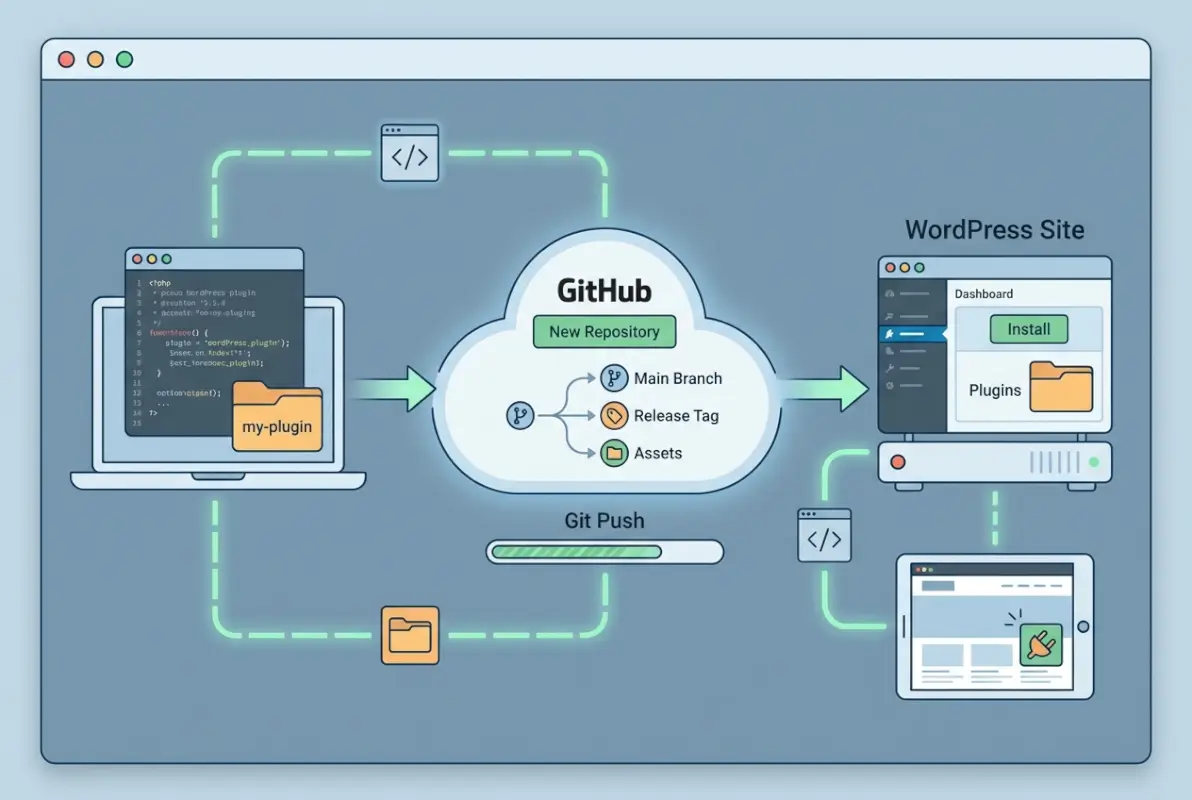
Here’s a workflow that’s served me well: develop locally, commit changes to a feature branch, push to GitHub, open a pull request, run automated tests via GitHub Actions, conduct code review, merge to develop, and periodically release from develop to main. Each step has a clear purpose and automated checks catch issues early when they’re cheap to fix.
Testing isn’t negotiable for professional plugins. PHPUnit powers most WordPress plugin test suites, using WordPress’s own testing framework. Write unit tests for individual functions and integration tests that interact with WordPress database and APIs. WP-CLI can bootstrap test environments and run your test suite with a single command.
Automation Hooks and CI Basics
GitHub Actions transforms your repository from a simple code storage location into an intelligent build and test system. Create workflows (.github/workflows/) that automatically run on push, pull request, or schedule. A basic workflow might lint your code, run PHPCS checks, execute PHPUnit tests, and verify WordPress compatibility.
Start simple with a workflow that runs on every pull request. Configure it to install dependencies, set up a WordPress test environment, and run your test suite. If tests fail, the PR can’t merge—this enforcement prevents regressions from slipping through during busy periods when manual review might miss issues.
Advanced workflows can build production-ready plugin ZIP files, generate translation POT files, update version numbers across multiple files, and even deploy to staging environments. The WordPress deployment action in GitHub’s marketplace provides pre-built workflows for common tasks, saving you from writing deployment logic from scratch.
Documentation and User-Facing Docs
Your README.md serves GitHub visitors—developers who might contribute or users installing manually. Include installation instructions (both manual and via Composer if applicable), configuration details, usage examples with code snippets, and contribution guidelines. Add badges showing build status, license, and WordPress compatibility at the top for quick reference.
The readme.txt file follows WordPress.org’s specific format and becomes your plugin’s page content in their directory. It requires particular section headers (Description, Installation, FAQ, Changelog) and supports limited markdown-like formatting. Many developers maintain both files and use build tools to sync common content between them.
Inline code documentation using PHPDoc standards benefits both contributors and automated documentation generators. Document function parameters, return types, since versions, and usage examples. Tools like phpDocumentor can parse these comments and generate browseable API documentation automatically, much like get directory first page google seo strategies relies on clear documentation to improve visibility.
GitHub Delivery and Deployment for WordPress Plugins
Deployment represents the critical bridge between your repository and live WordPress environments. GitHub’s deployment features, combined with WordPress-specific tools, create pipelines that rival professional software deployment systems while remaining accessible to individual developers.
Deployments to WordPress.org and WordPress.com
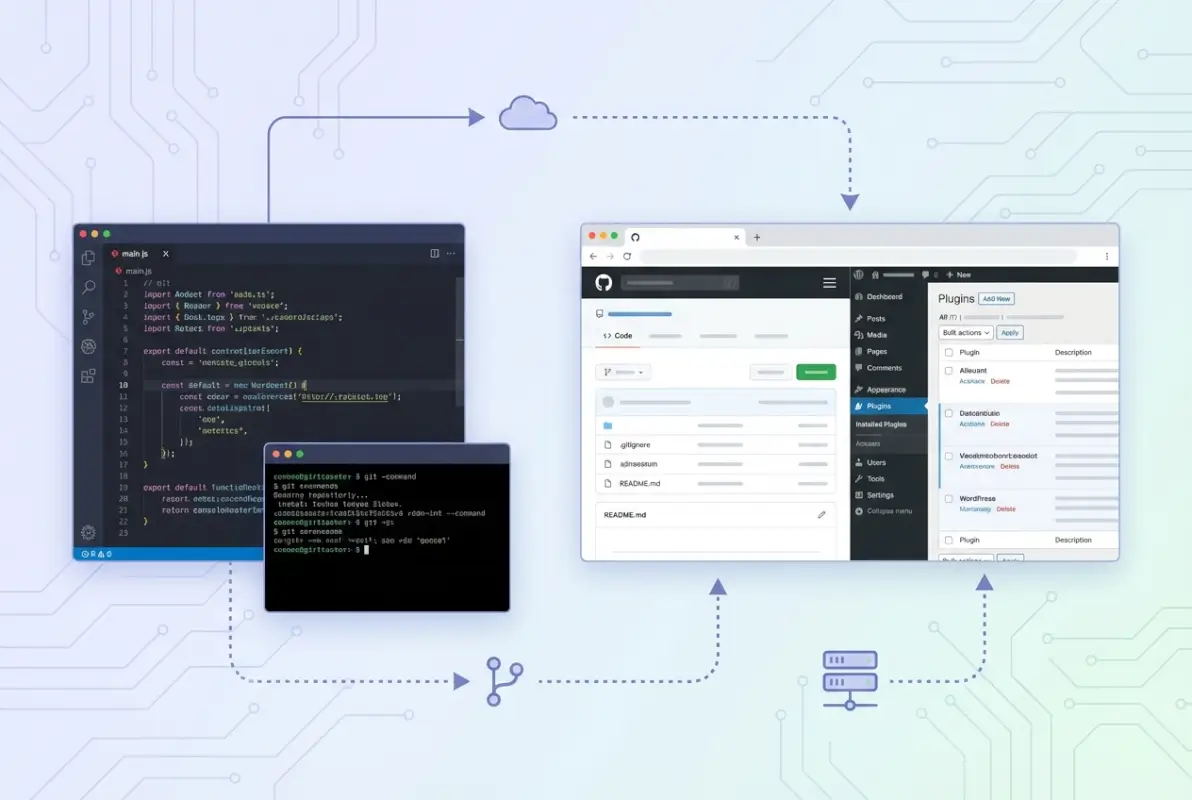
GitHub Deployments is a framework that tracks when code moves from your repository to external environments. For WordPress.com sites, native integration allows you to connect your GitHub repository and automatically deploy changes when you push to specific branches. Configure this through your WordPress.com site’s dashboard under Hosting Configuration.
The workflow typically involves designating a production branch (usually main) and optionally a staging branch. When you push to staging, WordPress.com pulls the changes and deploys to your staging environment automatically. Production deployments can be automatic or require manual approval through WordPress.com’s interface, depending on your risk tolerance.
WordPress.org plugin distribution works differently since you’re not deploying to a site you control—you’re releasing to their plugin repository for global distribution. Many developers use GitHub Actions to automatically build release packages and push to WordPress.org’s SVN repository when they tag a new release. This hybrid approach lets you develop in Git while interfacing with WordPress.org’s SVN-based system.
| Deployment Target | Automation Level | Best For | Rollback Ease |
|---|---|---|---|
| WordPress.com (GitHub integration) | Fully automatic on push | WordPress.com-hosted sites | High (one-click) |
| Self-hosted via FTP/SFTP | Actions-based with credentials | Traditional hosting | Medium (manual revert) |
| WordPress.org SVN | Semi-automatic on release tags | Public distribution | High (version control) |
| WP-CLI remote commands | Fully customizable | Advanced deployments | High (scriptable) |
Publishing Plugin Releases
Release tagging in GitHub creates permanent snapshots of your code at specific versions. When you’re ready to release version 2.1.0, create a Git tag (git tag v2.1.0) and push it to GitHub. Use GitHub’s release interface to add release notes describing new features, bug fixes, and upgrade considerations.
Your changelog should live in multiple places: the CHANGELOG.md file in your repository, the readme.txt file’s Changelog section for WordPress.org, and GitHub release notes. Some developers maintain a single source of truth and use build scripts to propagate changelog entries to all locations, reducing manual duplication and errors.
Staging versus production deployment considerations become critical when your plugin affects live sites. Always test releases on staging environments that mirror production as closely as possible. Database structure, PHP version, WordPress version, active plugins, and theme should match production. A release that works in your local development environment might fail in production due to environment differences you never tested.
Automation Recipes and Workflows
A practical example workflow for automatic staging deployment might trigger on every push to the develop branch, run tests to verify nothing broke, build a production version of the plugin (compiling assets, removing development files), and use SFTP or SSH actions to deploy files to your staging server. The entire process completes in minutes without manual intervention.
For production deployments with QA gates, implement a workflow that requires manual approval. When you push to main or create a release tag, GitHub Actions can run all tests, build the production package, and pause for human approval before deploying. This workflow-dispatch trigger gives you the automation benefits while maintaining control over production changes.
Here’s a workflow pattern I’ve used successfully: feature branches automatically deploy to ephemeral testing environments, develop branch deploys to a shared staging site, and main branch deploys to production only after passing all tests and receiving manual approval. Each environment tier has appropriate monitoring and can be rolled back independently.
Security and Access Control in Deployment
GitHub Secrets stores sensitive credentials (SSH keys, API tokens, FTP passwords) encrypted and exposes them only during workflow execution. Never hardcode credentials in workflow files or commit them to repositories. Create secrets through your repository’s Settings > Secrets menu, and reference them in workflows using ${{ secrets.SECRET_NAME }} syntax.
Access auditing becomes critical for team projects. Review who has repository access and what permissions they hold regularly. GitHub’s security log tracks access and actions, providing an audit trail if credentials are compromised. Rotate deployment credentials periodically—quarterly rotation is a reasonable baseline for most plugins.
SSH keys used for deployment should be dedicated to that purpose, not reused from personal accounts. Generate a unique SSH key pair for GitHub Actions, add the public key to your server’s authorized_keys, and store the private key in GitHub Secrets. If compromised, you can revoke that specific key without affecting other access.
Distribution and Ecosystem Considerations
Distribution strategy determines who can discover and install your plugin. WordPress.org’s plugin directory offers unmatched exposure but comes with guidelines and review processes. Alternative distribution paths provide flexibility but require more marketing effort.
WordPress.org Repository Submission Process
Submitting to WordPress.org begins with their plugin submission form where you provide your plugin ZIP file. Their team reviews submissions for security issues, GPL compliance, and guideline adherence. Expect review times ranging from a few days to several weeks depending on complexity and submission volume.
Common rejection reasons include security vulnerabilities (SQL injection, XSS, CSRF), improper data sanitization, phone-home functionality without clear user disclosure, and obfuscated code. Study the Plugin Handbook thoroughly before submission—fixing rejection issues and resubmitting delays your launch significantly.
Once approved, you receive SVN repository access for your plugin. The repository structure includes trunk (active development), tags (stable releases), and assets (screenshots, banners, icons). When you commit a new version to trunk and create a corresponding tag, WordPress.org’s infrastructure automatically makes it available to users worldwide within minutes, just as with get listing featured zillow tips real estate agents, visibility depends on proper submission processes.
Your readme.txt content becomes your plugin’s page on WordPress.org, making it both technical documentation and marketing material. Write compelling descriptions that explain benefits clearly, include screenshots showing key features, and maintain an accurate FAQ section addressing common user questions. These elements significantly impact installation rates.
Beyond WordPress.org: Other Hosting and Distribution Paths
GitHub Releases provides direct distribution outside WordPress.org’s ecosystem. Users visit your repository’s Releases page, download the latest ZIP file, and manually install via WordPress’s plugin upload interface. This approach works well for niche plugins with technical audiences who prefer cutting-edge versions over WordPress.org’s vetted releases.
Composer-based distribution through Packagist allows developers to include your plugin as a dependency in their projects. This integration pattern suits plugins that provide functionality for other developers rather than end users. Combine Composer distribution with traditional installation methods to serve both audiences.
For JavaScript-heavy plugins using modern build toolchains, npm distribution of your JavaScript components separately from the PHP plugin can make sense. Other developers can incorporate your JavaScript libraries into their projects while non-technical users still install the complete plugin via traditional channels.
Community and Governance Dynamics
Managing community contributions requires clear processes and responsive maintainers. When someone opens an issue, acknowledge it within 48 hours even if you can’t fix it immediately. Triage issues using labels (bug, enhancement, question, wontfix) so contributors understand status at a glance.
Pull request management balances accepting help with maintaining code quality. Review PRs promptly—contributions that sit ignored for weeks discourage future participation. Provide constructive feedback when requesting changes, and remember that contributors are donating their time to improve your plugin.
Staying aligned with WordPress core development prevents your plugin from breaking when core updates. Subscribe to WordPress development blogs, follow the Make WordPress Core blog, and test your plugin against WordPress beta releases before major core updates. Being proactive prevents emergency fixes when millions of sites auto-update to the latest WordPress version.
Quality Assurance, Security, and Maintenance
Long-term plugin success depends more on consistent quality and security practices than flashy features. Users forgive missing features far more readily than data loss or security breaches. Building robust QA and security processes protects your reputation and your users.

Testing Strategies
Unit tests validate individual functions in isolation—does your date formatting function correctly parse various input formats? Integration tests verify that your code interacts correctly with WordPress APIs—does your custom post type register properly and appear in the admin menu? Both testing levels serve distinct purposes and catch different bug categories.
Real-site QA involves installing your plugin on actual WordPress installations with varied configurations. Test with popular page builders (Elementor, Divi), caching plugins (WP Rocket, W3 Total Cache), and security plugins (Wordfence, Sucuri) since these are frequently active when users install your plugin. Incompatibilities with popular plugins generate support requests and negative reviews.
Cross-version testing spans WordPress versions and PHP versions. GitHub Actions can run your test suite against a matrix of combinations—WordPress 6.0 through current with PHP 7.4, 8.0, 8.1, and 8.2. This matrix testing catches compatibility issues before users encounter them, similar to how how to get your business listing on the first page of google seo tips requires testing across different platforms and scenarios.
Performance testing often gets neglected until users complain about slow sites. Profile your plugin’s impact on page load times, database queries, and memory usage. WordPress’s Query Monitor plugin reveals slow queries and hooks. Aim for minimal performance footprint—your plugin should add milliseconds, not seconds, to page load times.
Security Best Practices
Input validation, escaping, and sanitization form the holy trinity of WordPress security. Validate all input to ensure it matches expected formats and reject malformed data. Sanitize data before storing it in the database to remove malicious content. Escape output when displaying user-controlled data to prevent XSS attacks.
Nonces (number used once) prevent CSRF attacks by verifying that form submissions originate from your WordPress site. Add nonces to all forms and AJAX requests using wp_nonce_field() and verify them with wp_verify_nonce(). This simple addition prevents attackers from tricking authenticated users into unwanted actions.
Capability checks ensure users have permission for actions they’re attempting. Don’t assume that accessing an admin page means the user should be able to delete data—explicitly check capabilities using current_user_can() before destructive operations. WordPress’s granular capability system lets you implement least-privilege access control.
Dependency scanning catches vulnerabilities in third-party libraries before they’re exploited. Enable GitHub’s Dependabot security updates and review its automated pull requests promptly. When a critical vulnerability is patched in a dependency, you need to update and release a new plugin version quickly to protect users.
Maintainer Workflows
Release management follows a rhythm once established: feature development, testing, changelog preparation, version number updates, tagging, release notes, and deployment. Document this process in your repository so that any contributor could execute a release following your checklist.
Security advisory handling requires rapid response. When someone reports a vulnerability (responsibly via private channels, hopefully), acknowledge receipt immediately, verify the issue, develop a fix, and release a patched version as quickly as possible. Consider a security.txt file in your repo directing researchers to your vulnerability disclosure process.
User support channels vary by distribution method. WordPress.org provides forum integration for support threads. GitHub Issues serve technical discussions and bug reports. Some plugin authors add dedicated support email addresses or third-party platforms. Whatever channels you offer, set clear response time expectations and stick to them.
Case Studies and Practical Examples
Abstract principles make more sense when you see them applied to concrete scenarios. Let’s walk through three common plugin patterns and how GitHub hosting enhances each one’s development and deployment workflow.
Case Study A: Small Plugin with GitHub-Based Staging Deployment
Consider a simple plugin that adds custom meta boxes to posts—maybe 500 lines of PHP total. The developer creates a GitHub repository with standard WordPress plugin structure, adds PHPCS checks via GitHub Actions, and configures automatic deployment to a staging WordPress site on every push to the develop branch.
The workflow uses a marketplace action that connects via SFTP, uploads changed files, and sends a Slack notification on completion. When the developer is satisfied with staging testing, they merge develop to main and manually deploy to production via the WordPress admin interface. This hybrid approach provides automation benefits for rapid iteration while maintaining manual control over production.
The entire setup took about two hours initially but now saves 15 minutes per deployment by eliminating manual FTP uploads. Over a project’s lifetime, that automation pays for itself dozens of times over while reducing deployment errors from forgotten files or wrong directory uploads.
Case Study B: Block-Based Plugin Released to WordPress.org with CI/CD
A block plugin for Gutenberg requires a more complex build process since it compiles React components and SCSS styles. The repository includes package.json with build scripts, source files in a src directory, and compiled assets in a build directory committed for WordPress.org compatibility (which doesn’t build during installation).
The GitHub Actions workflow runs npm install and npm run build on every commit, ensuring the compiled assets stay synchronized with source changes. When the maintainer tags a new release, a workflow automatically builds production assets, creates a clean ZIP file excluding development files, converts readme.md to readme.txt format, and commits the release to WordPress.org’s SVN repository.
This automation eliminates the error-prone manual process of building assets, creating ZIPs, and SVN commits. Users installing from WordPress.org get optimized, production-ready code while contributors work with clean, modern source code in the GitHub repository. The two systems coexist beautifully through thoughtful automation.
Case Study C: Plugin Using GitHub Deployments for Staging and Production
An agency maintains a commercial plugin for client sites, using GitHub as the source of truth and deploying to multiple WordPress.com environments. They configure separate staging and production deployment environments in GitHub, each connected to corresponding WordPress.com sites.
Developers work in feature branches that deploy to ephemeral staging sites for isolated testing. When features are complete, they merge to develop, which automatically deploys to a shared staging environment where stakeholders review changes. After approval, they merge to main, triggering production deployment to all client sites simultaneously through WordPress.com’s multi-site management.
The visibility GitHub Deployments provides—showing deployment history, status, and environment details—gives the team confidence and traceability. When an issue emerges, they can quickly identify which deployment introduced it and roll back specific sites while investigating, much like how to get your listing back on ebay steps for sellers requires careful tracking and rollback capabilities.
Best Practices Checklist and Quick Start
Having covered the conceptual landscape, let’s consolidate the essential practices into actionable checklists. Use these as reference when setting up new plugin repositories or auditing existing ones.
Pre-Publish Checklist
Before releasing your plugin publicly, verify these essentials:
- Code quality: Passes PHPCS checks with WordPress Coding Standards, no obvious code smells or duplicated logic
- Testing: Automated test suite runs successfully, manual testing completed on at least three different WordPress installations
- Documentation: README.md explains installation and usage, inline code comments document complex logic, changelog reflects all changes
- Licensing: LICENSE file present, compatible license declared in plugin header, third-party dependencies properly attributed
- Security: All inputs validated and sanitized, outputs escaped, nonces protect forms, capability checks guard sensitive operations
- Compatibility: Tested against minimum required WordPress and PHP versions, no deprecated function usage
- Release preparation: Version numbers updated in all locations, release tag created, release notes written
Quick-Start Template
A minimal GitHub repository for a WordPress plugin should include:
- plugin-name.php (main plugin file with required headers)
- README.md (GitHub-focused documentation)
- readme.txt (WordPress.org format, even if not submitting initially)
- LICENSE (GPL v2 or compatible)
- CONTRIBUTING.md (contribution guidelines)
- .gitignore (exclude node_modules, vendor, .env, etc.)
- .github/workflows/ci.yml (basic CI workflow for tests and linting)
- tests/ directory (PHPUnit test scaffold)
- includes/ or src/ (core functionality organized logically)
This structure scales from solo projects to team collaborations and aligns with WordPress.org expectations. As your plugin grows, you’ll add directories for admin interfaces, public assets, language files, and documentation, but starting with this foundation prevents structural problems later.
Toolchains and Recommended Tools
The WordPress plugin development ecosystem includes numerous helpful tools:
- PHP_CodeSniffer with WordPress Coding Standards for automated code style checking
- PHPUnit integrated with WordPress’s testing framework for automated testing
- WP-CLI for command-line WordPress management and testing automation
- Query Monitor for performance profiling and debugging during development
- GitHub Actions marketplace actions specifically for WordPress deployment and testing
- Local by Flywheel or Docker-based WordPress for consistent local development environments
- PHPStan or Psalm for static analysis catching bugs before runtime
- Composer for PHP dependency management and autoloading
You don’t need all these tools immediately, but they represent proven solutions to common plugin development challenges. Start with version control, automated testing, and coding standards, then add additional tools as specific needs arise.
Troubleshooting and Common Pitfalls
Even with careful planning, you’ll encounter issues. Here are solutions to problems that consistently trip up developers hosting WordPress plugins on GitHub.
Common Deployment Issues
Permission errors plague automated deployments, typically manifesting as “Permission denied” when GitHub Actions tries to upload files via SFTP or SSH. The solution involves verifying that your deployment user has write permissions to the WordPress plugins directory and that file ownership is consistent across your WordPress installation.
Path mismatches occur when your deployment script uploads files to the wrong directory. WordPress plugins must reside in wp-content/plugins/your-plugin-name/ with the main plugin file directly inside that directory. Uploading to wp-content/plugins/repository-name/subdirectory/plugin.php breaks activation because WordPress can’t find the plugin headers.
Environment mismatches between development, staging, and production cause mysterious bugs that appear only after deployment. Database table prefixes might differ, wp-config.php constants might have different values, or PHP configurations might vary. Document environment-specific configurations and use environment variables to handle differences rather than hardcoding values.
Compatibility and Version Drift
WordPress core updates sometimes deprecate functions or change behavior in ways that break plugins. Subscribe to WordPress Core development updates and test against beta releases during WordPress’s development cycle. This proactive testing lets you fix compatibility issues before the stable release rather than scrambling when users report breakage.
PHP version drift hits when hosting providers update PHP versions and your plugin uses deprecated features or encounters changed behavior. Test regularly against the PHP versions your minimum requirements claim to support. If you claim PHP 7.4 support, actually test on PHP 7.4, not just your local PHP 8.2 environment.
Plugin conflict debugging requires systematic isolation. Disable all other plugins and switch to a default WordPress theme to verify the issue stems from your plugin specifically. Then re-enable plugins one-by-one to identify conflicts. Document known incompatibilities and either fix them or clearly communicate limitations to users.
Security Incidents and Remediation
When someone reports a security vulnerability, speed matters more than perfect communication. Acknowledge the report immediately (within hours), verify the vulnerability, develop a fix, and release a patched version ideally within 48 hours for critical issues. Slower responses leave users exposed and damage your reputation.
Your security response playbook should outline: who receives vulnerability reports, how to verify reported issues, how to develop fixes safely without disclosing the vulnerability publicly before patches are available, how to notify users about the security release, and how to coordinate with WordPress.org’s security team if necessary.
After patching, analyze how the vulnerability was introduced and what processes failed to catch it. Update your security checklist, add test cases that would have caught the vulnerability, and consider whether additional security tools or code review processes would prevent similar issues.
Compliance, Licensing, and Community Considerations
Legal and community factors influence plugin success as much as technical excellence. Clear policies prevent conflicts and encourage healthy collaboration.
Licensing Basics for Plugins and Third-Party Dependencies
WordPress’s GPL license has viral characteristics—plugins distributed through WordPress.org must be GPL-compatible, and even plugins distributed independently should carefully consider licensing to avoid legal complexity. GPL v2 or GPL v3 are safe choices that align with WordPress’s licensing and community expectations.
Third-party dependencies introduce licensing complexity. If you include external libraries, verify their licenses are compatible with your plugin’s license. Common compatible licenses include MIT, BSD, Apache 2.0, and other permissive licenses. Copyleft licenses require careful evaluation to ensure compliance.
Some plugin developers attempt dual licensing or proprietary add-ons to paid plugins. These models work legally but may generate community friction since WordPress strongly emphasizes open source values. If pursuing commercial plugins, study successful commercial plugin businesses like WooCommerce that navigate these tensions gracefully.
Attribution, Trademark, and Open-Source Governance
Properly attribute third-party code you incorporate, both for legal compliance and community goodwill. Credit contributors in your readme, maintain an AUTHORS or CONTRIBUTORS file listing major contributors, and ensure license files from dependencies remain intact.
Trademark considerations arise if your plugin name could confuse users into thinking it’s officially associated with WordPress or other trademarks. WordPress Foundation’s trademark policy prohibits using “WordPress” in plugin domain names and restricts certain other uses. Review these policies before settling on plugin names and branding.
Open-source governance models range from benevolent dictator (single maintainer makes all decisions) to democratic (community votes on major changes) to corporate (company employees maintain the plugin). Document your governance model clearly so contributors understand how decisions are made and who has authority to merge changes.
Community Contribution Policies and Code of Conduct
A code of conduct establishes behavioral expectations for community participants. The Contributor Covenant is a widely adopted template covering harassment, enforcement, and reporting mechanisms. Including a code of conduct signals that you’re building an inclusive community and provides recourse when problems arise.
Contribution policies detail how community members can help. Explain how to report bugs, submit feature requests, contribute code via pull requests, improve documentation, and help with translations. Lower barriers to contribution by providing clear instructions—not everyone knows how to fork a repository or create a pull request.
Recognition motivates continued contribution. Acknowledge contributors in release notes, maintain a contributors list in your readme, and highlight significant contributions on your project website or social media. People contribute to open source partly for recognition and portfolio building, so provide that recognition generously.
Frequently Asked Questions
Do I need to publish my WordPress plugin to WordPress.org if I host the code on GitHub?
No, hosting on GitHub doesn’t require WordPress.org submission. You can distribute exclusively via GitHub Releases for manual installation. However, WordPress.org provides automatic updates and visibility to millions of users, so many developers publish to both platforms—using GitHub for development and WordPress.org for distribution.
How do GitHub Deployments work with WordPress.com vs. self-hosted WordPress?
WordPress.com offers native GitHub integration where you connect your repository in site settings and deployments happen automatically on push. Self-hosted WordPress requires GitHub Actions workflows that use SFTP, SSH, or WP-CLI to transfer files, giving you more control but requiring more configuration. The principles are similar but implementation differs significantly.
What should be included in a plugin’s readme to satisfy WP.org guidelines?
WordPress.org requires readme.txt with specific sections: plugin name and description, tags, requires/tested up to WordPress versions, stable tag, license, installation instructions, FAQ, screenshots, and changelog. The format uses a pseudo-markdown syntax. Missing or improperly formatted readme.txt files delay approval or cause rejection during review.
How can I automate testing for WordPress plugins in a GitHub Actions workflow?
Create a workflow that installs WordPress and your plugin, sets up a test database, runs PHPUnit tests using WordPress’s testing framework, and executes code quality checks with PHPCS. The WordPress core team provides official Docker images and testing tools specifically designed for plugin CI/CD workflows.
What are the best practices for versioning a WordPress plugin released via GitHub?
Use Semantic Versioning (MAJOR.MINOR.PATCH format) and keep version numbers synchronized across your main plugin file header, readme.txt stable tag, and Git tags. Increment major version for breaking changes, minor for new features, and patch for bug fixes. Tag releases in Git using the format v2.1.0 to create release archives automatically.
How do I securely store credentials and deployment keys for WordPress deployments from GitHub?
Use GitHub Secrets to store sensitive credentials encrypted. Never commit credentials to your repository. Create dedicated SSH keys or API tokens specifically for deployment rather than reusing personal credentials. Reference secrets in workflows using ${{ secrets.SECRET_NAME }} syntax, and rotate credentials quarterly or after team member departures.
What are common security vulnerabilities in WordPress plugins and how can CI detect them?
Common vulnerabilities include SQL injection, cross-site scripting (XSS), cross-site request forgery (CSRF), and insecure direct object references. CI can detect these through static analysis tools like PHPStan with security rules, automated scanning tools like PHP_CodeSniffer with security standards, and dependency vulnerability scanning via Dependabot or similar services.
How do I prepare a plugin release notes page and changelog for users?
Write release notes in plain language explaining what changed, why it matters to users, and any actions required (like database updates). Organize by categories: Added (new features), Changed (modifications to existing features), Deprecated, Removed, Fixed (bug fixes), and Security (vulnerability patches). Maintain this format consistently in CHANGELOG.md, readme.txt, and GitHub releases.
Can I deploy to a staging site automatically and push to production manually?
Yes, this is an excellent workflow pattern. Configure automatic deployment to staging on every push to your develop branch for rapid iteration. Then use manual workflow dispatch or protected main branch deployment that requires approval before production deployment occurs. This gives you automation benefits with production safety gates.
Where can I find authoritative guidance on deploying WordPress plugins with GitHub?
The official WordPress Developer documentation at developer.wordpress.com covers GitHub Deployments extensively. Additionally, WordPress.org’s Plugin Handbook provides comprehensive guidance on plugin development standards and distribution requirements. GitHub’s marketplace includes WordPress-specific deployment actions with documentation.
Putting It All Together
Hosting a WordPress plugin on GitHub transforms plugin development from isolated local work into collaborative, automated, professional software engineering. The workflow—planning repository structure, establishing CI/CD pipelines, implementing deployment automation, and maintaining quality through testing and security practices—may feel complex initially but becomes second nature remarkably quickly.
What struck me most when I first connected all these pieces was how much time automation saves once it’s configured. Those two hours setting up GitHub Actions pay dividends every single week through faster testing, elimination of manual deployment errors, and confidence that broken code won’t reach users. The initial investment seems daunting, but the long-term benefits compound.
The WordPress ecosystem thrives on community collaboration and open source principles. Hosting your plugin on GitHub aligns perfectly with these values while providing modern tooling that professional developers expect. Whether you’re building a simple utility plugin for personal use or a complex commercial plugin serving thousands of users, these patterns scale appropriately.
Remember that perfect is the enemy of good. You don’t need elaborate CI/CD pipelines, comprehensive test coverage, and multi-environment deployments from day one. Start with basic version control and good repository structure. Add automated testing when you encounter your first regression bug. Implement deployment automation when manual deployments become tedious. Each improvement addresses a real pain point you’ve experienced.
The WordPress plugin ecosystem will continue evolving—block-based development, full-site editing, and performance initiatives are reshaping what plugins need to do and how they integrate. GitHub’s flexibility means your development workflow can adapt to these changes without major disruption. The fundamentals of version control, testing, and deployment remain constant even as the WordPress platform evolves.
Take what you’ve learned here and apply it to your next plugin project. You’ll make mistakes and encounter unexpected issues—everyone does. The difference between successful plugin developers and those who give up is persistence and willingness to improve processes iteratively. Your first GitHub Actions workflow might be a mess. Your tenth will be elegant and reliable. That’s the learning process working as intended.
Was this article helpful?