How to Install a Directory in WordPress: A Step-by-Step Guide
Building a directory website on WordPress sounds complicated at first—but once you understand the architecture, it’s surprisingly straightforward. Most site owners assume they need custom code or expensive developers to launch a business directory, service listing hub, or marketplace. The truth? A well-chosen plugin, clear configuration steps, and attention to frontend workflows can get you from zero to a fully functional directory in an afternoon. The real challenge isn’t the installation; it’s understanding which features matter for your audience and how to structure listings, maps, and monetization without creating friction for users or search engines.

In this guide, we’ll walk through every step of installing and configuring a directory in WordPress—from evaluating plugins to enabling frontend submissions, integrating maps, setting up payment gateways, and optimizing for performance and SEO. Whether you’re building a local business directory, a niche service aggregator, or a multi-directory marketplace, you’ll learn the exact workflow, configuration choices, and best practices to launch a professional, scalable directory site.
TL;DR – Quick Takeaways
- Plugin choice matters most – Pick a directory plugin that supports frontend submissions, custom fields, maps, and monetization from day one
- Follow a structured setup – Install, activate, configure core settings, create your first directory, add custom fields, enable frontend forms, and test before launch
- Maps and payments are non-negotiable – Users expect map-based search and site owners need flexible monetization (subscriptions, featured listings, payment gateways)
- Optimize for performance and SEO – Directory sites scale quickly; invest in caching, lazy loading, clean URLs, and schema markup early
- Test on staging first – Avoid conflicts by testing plugin compatibility, theme integration, and frontend workflows on a staging site before pushing live
Understanding WordPress Directories
A WordPress directory site is essentially a structured collection of listings—businesses, services, events, or resources—organized by categories, locations, and custom attributes. Unlike a blog or portfolio, a directory prioritizes search and discovery: users filter by location, category, or feature, then click through to individual listing pages with contact details, hours, maps, and reviews. Directory sites thrive on user-generated content (frontend submissions) and monetization models like featured placements, subscriptions, or per-listing fees.

What is a WordPress directory site?
A directory site is a database-driven website where each “listing” is a custom post type with fields like name, address, phone, hours, social links, and categories. Visitors search or browse listings, view them on a map, and submit contact forms or reviews. Directory sites power local business guides (think Yelp clones), professional service marketplaces (lawyers, contractors), event calendars, job boards, and even real estate portals. The core WordPress engine handles posts and pages; directory plugins add the custom post types, frontend forms, search filters, and map integrations that transform a blog into a listing platform.
Directory plugins vs. custom development
You could hire a developer to build a custom directory from scratch—custom post types, meta boxes, ACF integrations, frontend form logic, payment hooks, map APIs—but that’s overkill for most use cases. Directory plugins bundle all this functionality into a point-and-click interface: you define fields, design templates, configure search forms, and enable frontend submissions without touching code. Custom development makes sense for truly unique workflows (complex relationships between listings, custom map layers, integration with legacy systems), but for 95% of directory sites, a mature plugin like aDirectory, DS Directory, GeoDirectory, or Directories Pro will save you weeks of development and thousands of dollars.
Key features to look for
Before you install any plugin, confirm it supports frontend submissions (users can add listings without admin access), flexible custom fields (hours, social links, price ranges, custom taxonomies), map integration (Google Maps or OpenStreetMap), advanced search and filters (by category, location, price, rating), monetization (pricing plans, featured listings, payment gateways), and multi-directory support (run separate directories—restaurants, hotels, services—on one site). These features aren’t nice-to-haves, they’re table stakes for a professional directory.
Choosing the Right Directory Plugin
The plugin you choose sets the foundation for your entire directory. Some plugins excel at simplicity and Gutenberg integration; others offer advanced multi-directory support and custom field relationships. Let’s break down the most popular options and how to evaluate them.
Overview of popular plugins
aDirectory (WP Business Directory Plugin): Built for Gutenberg, aDirectory prioritizes ease of use with block-based layouts, frontend submission forms, custom fields, and map integration. It’s ideal for single-directory sites (local businesses, services) where you want a clean, modern interface without a steep learning curve. The free version covers basic directory features; premium unlocks payment gateways, advanced search, and custom styling.
DS Directory: A lightweight option with solid frontend submission support, custom fields, and basic map integration. DS Directory shines for niche directories (therapists, tutors, photographers) where you don’t need multi-directory logic or complex monetization. It’s less feature-rich than aDirectory or GeoDirectory, but the simplicity can be an advantage if you’re new to directory sites.
WP Directory Kit: Offers multi-directory support out of the box, making it a strong choice for marketplace-style sites (multiple listing types with distinct fields and layouts). It includes custom field builders, frontend forms, search filters, and map integration. The learning curve is steeper than aDirectory, but the flexibility pays off for complex projects.
Directories Pro: Part of the Sabai ecosystem, Directories Pro is a modular platform where you purchase separate add-ons for reviews, claims, social logins, bookings, and more. It’s powerful and extensible, but the pricing model (base plugin + individual add-ons) can get expensive. Best for agencies or site owners planning to scale aggressively.
GeoDirectory: Focused on location-based directories, GeoDirectory integrates tightly with maps (Google Maps, OpenStreetMap) and offers advanced location filters, geolocation search, and multi-location support. It’s the go-to for city guides, tourism directories, or any site where geography is the primary organizing principle. Premium add-ons include events, coupons, and multi-ratings.
Listdom: A relatively new player with a modern UI, Listdom supports frontend submissions, custom fields, map clustering, and monetization. It’s comparable to aDirectory in ease of use but offers more design flexibility. The plugin is still maturing, so check update frequency and support responsiveness before committing.
Evaluation criteria
When comparing plugins, prioritize these criteria:
- Frontend submission and member accounts: Users must be able to register, submit listings, edit their own listings, and track submissions from a dashboard. Check whether the plugin includes user roles (basic member, featured member, admin) and review workflows (auto-publish, moderation queue).
- Custom fields and flexible directory structures: You’ll need fields beyond title and description—hours, price range, social links, checkboxes for amenities, file uploads for menus or brochures. Confirm the plugin supports custom field types (text, select, checkbox, file, date) and conditional logic (show field X only if category is Y).
- Maps integration: Google Maps is the default, but you’ll need a billing-enabled API key (free tier covers most small directories). OpenStreetMap is a free alternative but lacks some advanced features (Street View, traffic data). Verify the plugin supports your preferred map provider and offers clustering (grouping nearby pins for performance).
- Payment gateways and monetization options: Stripe and PayPal are the standard gateways. Check whether the plugin supports one-time payments, subscriptions, pricing tiers (basic, featured, premium), and partial refunds. Some plugins integrate with WooCommerce for payment logic, others handle it natively.
- Multidirectory support and scalability: If you plan to run multiple directories (restaurants + hotels + activities) on one site, confirm the plugin supports separate directories with distinct fields, categories, and layouts. Single-directory plugins (like DS Directory) can’t easily scale to multi-directory use cases.
| Plugin | Best For | Multi-Directory | Map Provider | Ease of Use |
|---|---|---|---|---|
| aDirectory | Single directory, Gutenberg users | No | Google Maps | High |
| WP Directory Kit | Multi-directory, complex fields | Yes | Google Maps, OSM | Medium |
| GeoDirectory | Location-centric directories | Yes (via add-ons) | Google Maps, OSM | Medium |
| Directories Pro | Advanced features, agencies | Yes | Google Maps, OSM | Low (modular) |
| DS Directory | Simple, niche directories | No | Google Maps | High |
How to test plugins before installing
Always test on a staging site before installing a directory plugin on your live site. Most hosts (SiteGround, WP Engine, Kinsta) offer one-click staging environments. Clone your live site to staging, install the plugin, configure a sample directory with a few test listings, and verify theme compatibility, page builder integration (if you use Elementor or Beaver Builder), and map rendering. Check the plugin’s update history on WordPress.org—if the last update was more than six months ago, proceed with caution.
Recommendation note
For most users, I recommend starting with aDirectory if you’re building a single directory with Gutenberg, or WP Directory Kit if you need multi-directory support and don’t mind a moderate learning curve. GeoDirectory is the best choice if location-based search and map clustering are critical. Avoid DS Directory for anything beyond a small niche directory—it lacks the scalability and monetization features you’ll eventually need.
Prerequisites and Setup Outline
Before you install a directory plugin, confirm your WordPress site meets basic prerequisites and understand the hosting considerations that will affect performance as your directory grows.
WordPress basics you’ll rely on
Directory plugins leverage core WordPress features: custom post types (for listings), taxonomies (categories and tags), custom fields (meta data like phone numbers and hours), and permalinks (clean URLs like /listings/coffee-shop-name). Confirm your permalinks are set to “Post name” (Settings > Permalinks) for SEO-friendly listing URLs. If you’re using a page builder (Elementor, Beaver Builder), verify the plugin supports it—some directory plugins offer native page builder modules, others require shortcodes or blocks.
Hosting considerations for directory sites
Directory sites are database-intensive: every listing is a post with multiple custom fields, map coordinates, and relationships to categories and locations. As you scale past 500 listings, you’ll notice performance degradation on shared hosting. I recommend managed WordPress hosting (WP Engine, Kinsta, Flywheel) or VPS hosting with server-level caching (Redis, Memcached) and a CDN (Cloudflare, BunnyCDN). Budget at least $25-50/month for hosting if you expect to reach 1,000+ listings and moderate traffic.
Required assets
Before you start, gather these assets:
- Directory plugin license (if using premium features)
- Google Maps API key (or OpenStreetMap credentials if using OSM)
- Payment gateway accounts (Stripe, PayPal) if you plan to monetize listings
- Logo and branding assets for your directory
- Sample listings (10-20) to populate your directory before launch
Step-by-Step: Installing and Activating Your Directory Plugin
Once you’ve chosen your plugin and confirmed prerequisites, the installation process is straightforward. We’ll use aDirectory as the example, but the workflow applies to most directory plugins.
Step 1 — Install the plugin
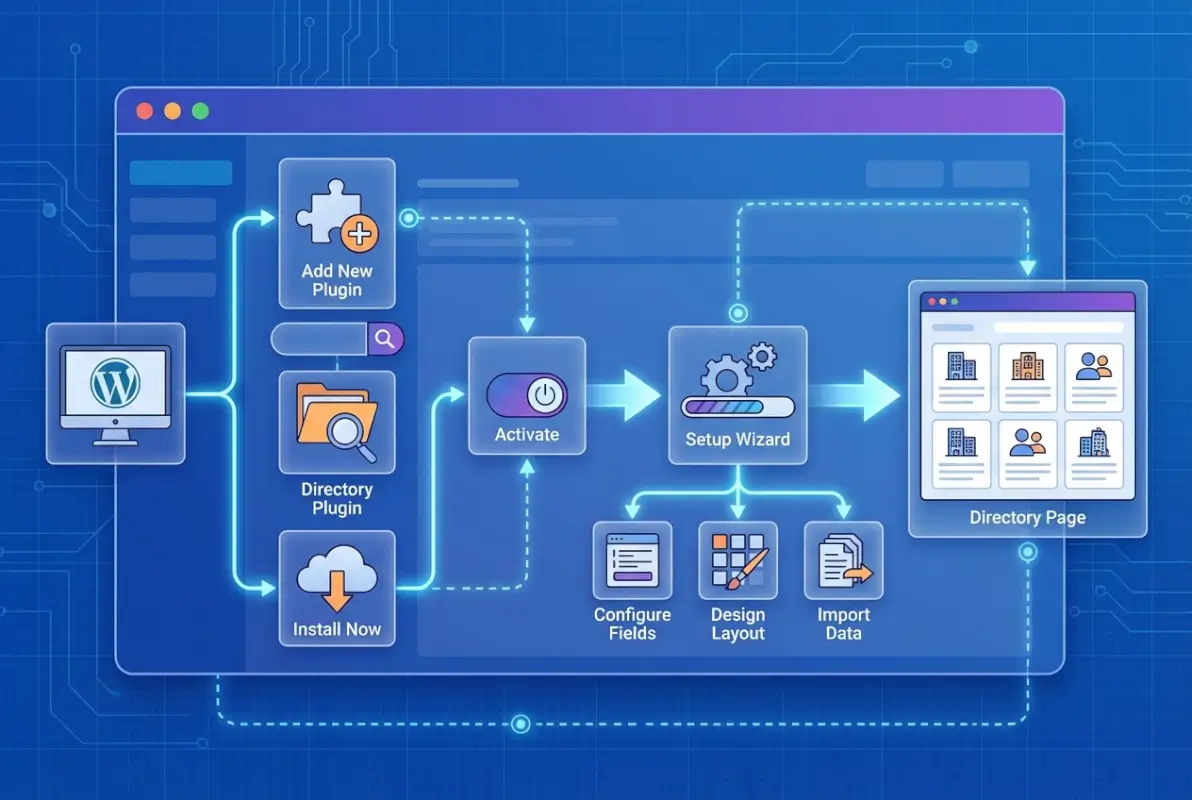
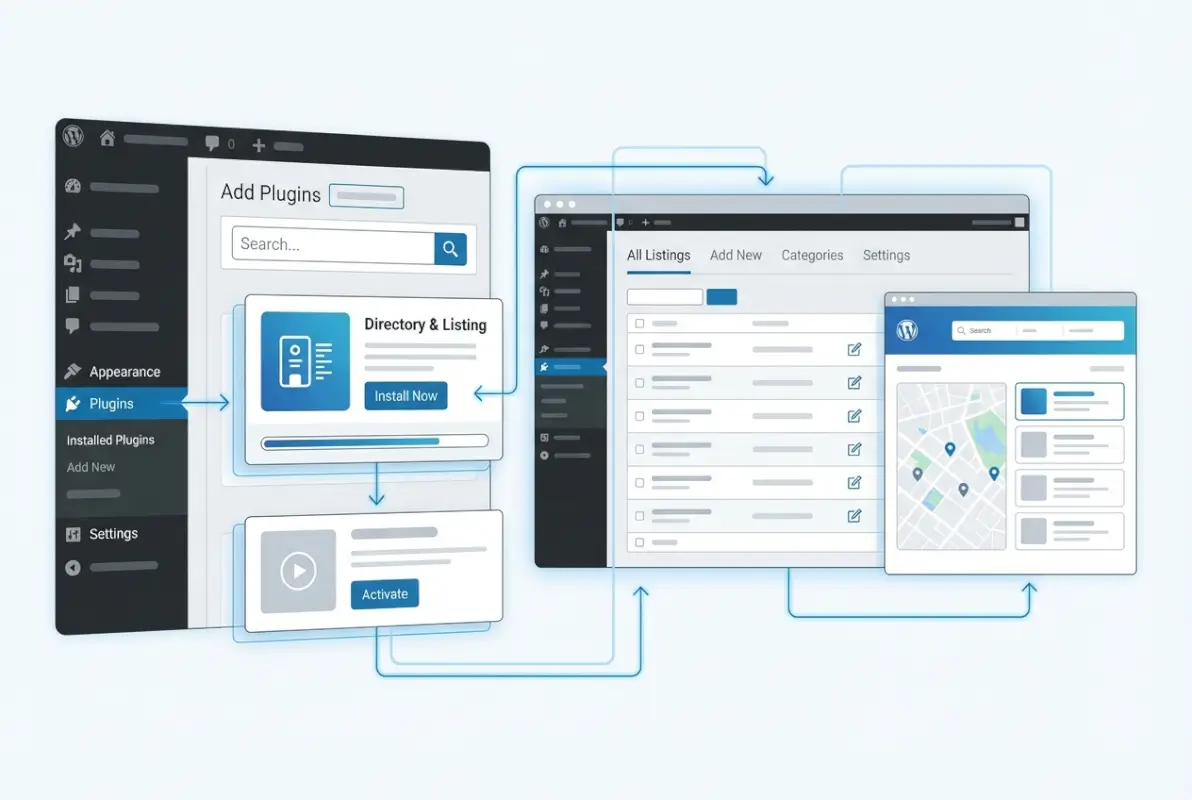
In your WordPress admin, navigate to Plugins > Add New. In the search box, type the name of your directory plugin (e.g., “aDirectory” or “WP Directory Kit”). Click Install Now next to the correct plugin, then click Activate once installation completes. The plugin will add a new menu item in your WordPress sidebar (usually labeled “Directories” or “Listings”).
Step 2 — Activate and run initial setup wizard
Many directory plugins include a setup wizard that walks you through core configuration: choosing your map provider, setting listing slugs, enabling frontend submissions, and creating your first directory. Follow the wizard prompts carefully—you can change most settings later, but initial choices (like permalink structure) are harder to modify once you have live listings. If the plugin doesn’t offer a wizard, you’ll configure settings manually in the next step.
Step 3 — Configure core settings
Open the plugin’s settings page (usually under the main plugin menu). Key settings to configure:
- Listing slugs: Set the base URL for listings (e.g., /listings/ or /places/). Use a plural noun that matches your directory’s purpose.
- Privacy settings: Decide whether listings require admin approval before publishing (recommended for user-generated directories) or auto-publish (for curated directories where you add listings manually).
- User roles: Enable frontend submissions and define user roles (subscriber, contributor, author). Contributors can submit listings but not edit others’; authors can edit their own.
- Maps integration: Enter your Google Maps API key or configure OpenStreetMap. Test by entering an address in the settings page—if a map preview renders, your API key is active.
Step 4 — Create your first Directory
If your plugin supports multi-directory mode (like WP Directory Kit or GeoDirectory), create your first directory: give it a name (e.g., “Restaurants”), define singular and plural labels, and assign initial categories (Italian, Mexican, Thai, etc.). If you’re building a single directory, you may skip this step—the plugin creates a default directory automatically.
Step 5 — Add custom fields and forms
Navigate to the custom fields builder (usually under Directory > Fields or Settings > Fields). Add fields for:
- Name, tagline/description, full description (rich text)
- Address (street, city, state, ZIP, country)
- Phone number, email, website
- Business hours (opening and closing times for each day)
- Social media links (Facebook, Instagram, Twitter)
- Categories and tags
- Price range ($ to $$$$) or numeric price field
- Amenities (checkboxes for parking, Wi-Fi, outdoor seating, etc.)
- Images (gallery field for multiple photos)
Organize fields into logical groups (Contact Info, Hours, Social) to improve the frontend submission form layout. Mark required fields (name, address, category) to prevent incomplete listings.
Step 6 — Design listing templates or page layouts
Most directory plugins offer pre-built templates for listing archives (grid, list, map view) and single listing pages. Choose a template that fits your design and customize colors, fonts, and spacing. If you’re using Gutenberg, you’ll design layouts with blocks; if you’re using Elementor, the plugin should provide Elementor widgets for listing grids, search forms, and maps. Test each template on desktop and mobile to confirm fields display correctly and maps load fast.
Step 7 — Frontend submission and user roles
Enable frontend submission in the plugin settings, then create a page (e.g., “Add Listing” or “Submit Your Business”) and insert the submission form shortcode or block. Publish the page and test the submission workflow: register a new user account, fill out the form, submit, and verify the listing appears in the admin moderation queue (if approval is required) or publishes immediately (if auto-publish is enabled). Configure email notifications so admins receive alerts when new listings are submitted.
Step 8 — Enable search, filters, and maps
Create a search page with filters for category, location, price range, and amenities. Most plugins provide a search form block or shortcode—insert it on your main directory page or a dedicated search page. Configure map settings: enable clustering (grouping nearby pins), set default zoom level and center point, and customize map marker icons. Test search and filters: enter a city name, select a category, and confirm the map updates with matching listings.
Many users expect to index their listings on Google quickly, so prioritize clean URLs and schema markup from the start.
Step 9 — Monetization and access control
If you’re monetizing your directory, configure pricing plans under the plugin’s payments or monetization settings. Create tiers: free (basic listing, no featured placement), standard ($X/month for featured badge and priority in search results), and premium ($Y/month for top placement, social media boost, and analytics). Connect your Stripe or PayPal account, set billing intervals (monthly, annual, one-time), and test a sample payment in test mode before going live. Some plugins integrate with WooCommerce for payment logic; others handle subscriptions natively.
Step 10 — Publish and test
Create a sample directory page (e.g., “Browse Restaurants” or “Find Services”), add the listing grid block or shortcode, and publish. Open the page in a private browser window (to simulate a logged-out visitor), test search filters, click through to a single listing, verify the map loads, and test the contact form. If you enabled frontend submissions, register a test user and submit a listing—confirm the workflow from submission to approval to publication.
Step 11 — SEO basics for directory pages
Directory sites rely on organic search traffic, so invest in SEO from day one. Install an SEO plugin (Yoast, Rank Math, All in One SEO) and configure:
- Schema markup: Most directory plugins include LocalBusiness or Organization schema for listings. Verify schema with Google’s Rich Results Test.
- Clean URLs: Confirm listings use /listings/business-name/ format (no ?p=123 or date-based slugs).
- Meta titles and descriptions: Set templates for listing pages: “[Business Name] – [Category] in [City] | [Your Directory]”.
- XML sitemaps: Ensure your SEO plugin includes listings in the XML sitemap and submits it to Google Search Console.
Learning how to index directory listings using SEO best practices will dramatically improve your organic traffic over time.
Customization and Advanced Features
Once your directory is live, you’ll want to customize design, add advanced features, and optimize workflows. Here’s how to take your directory to the next level.

Styling and theming your directory
Most directory plugins include basic styling options (colors, fonts, button styles), but for deeper customization, use a page builder (Elementor, Beaver Builder) or custom CSS. If your plugin offers Gutenberg blocks, style them with block settings or the WordPress Customizer. For consistent branding, create reusable templates for listing grids, single listing layouts, and search pages—save them as template parts or Elementor templates so you can apply updates site-wide without editing every page individually.
Advanced listing fields and relationships
Some directory use cases require relationships between listings: a restaurant might “belong to” a neighborhood listing, or a service provider might offer multiple services (each a separate listing). Advanced plugins (Directories Pro, WP Directory Kit) support relational fields where you can link listings to other listings, categories, or custom taxonomies. This is useful for hierarchical directories (e.g., cities > neighborhoods > businesses) or directories where one listing (a hotel) can reference multiple other listings (nearby restaurants, attractions).
Import/export listings
If you have existing listings in a spreadsheet or another platform, use CSV import to bulk-add listings. Most directory plugins include an import tool under Settings > Import or Tools > Import. Prepare your CSV with columns matching your custom fields (name, address, phone, category, etc.), map columns to fields during import, and test with a small batch (10-20 listings) before importing thousands. After import, review listings for data hygiene issues: missing addresses, incorrect categories, duplicate entries.
Multilingual and RTL support
For international directories or multilingual sites, integrate a translation plugin like WPML or Polylang. Most directory plugins support translation of listing fields, category names, and frontend forms—configure language switchers so users can browse the directory in their preferred language. For right-to-left languages (Arabic, Hebrew), confirm your theme and directory plugin support RTL layouts and test thoroughly on staging before launch.
Performance optimization
Directory sites slow down as listing counts grow. Optimize early:
- Caching: Enable full-page caching (WP Rocket, W3 Total Cache) and object caching (Redis, Memcached). Exclude frontend submission pages and user dashboards from cache to avoid stale data.
- Lazy loading: Lazy load listing images and maps—only load them when they scroll into view.
- Image optimization: Compress images (Smush, ShortPixel) and serve in WebP format. Enforce max upload sizes (1 MB per image) to prevent users from uploading 5 MB photos.
- Database cleanups: Run database optimization plugins (WP-Optimize) monthly to clean post revisions, spam comments, and transients.
Maps, Payments, and Integrations
Maps and payments are the most complex integrations in a directory site. Here’s how to configure them correctly and avoid common pitfalls.
Maps options and keys
Google Maps is the default choice—it offers geocoding (converting addresses to coordinates), Street View, traffic data, and a familiar UI. To use Google Maps, create a project in the Google Cloud Console, enable the Maps JavaScript API and Geocoding API, restrict the API key to your domain (to prevent abuse), and add a billing account (free tier covers $200/month in usage, which is ~28,000 map loads). If you want to avoid Google Maps costs or prefer open-source tools, use OpenStreetMap with a plugin like Leaflet—it’s free, privacy-friendly, and performs well, but lacks Street View and advanced features.
Payment gateways and monetization setup
Connect Stripe for credit card payments (lowest friction for users) and PayPal for users who prefer PayPal accounts. Most directory plugins handle subscription billing natively: set up pricing plans, define billing intervals, and configure automatic renewals. Test subscriptions in Stripe test mode before going live—verify that renewals charge correctly, cancellations stop billing, and failed payments trigger email notifications. If your plugin integrates with WooCommerce, you’ll manage payments through WooCommerce > Settings > Payments instead of the directory plugin’s settings.
Email and form integrations
Configure SMTP (via a plugin like WP Mail SMTP or FluentSMTP) to ensure transactional emails (submission confirmations, approval notifications, payment receipts) aren’t flagged as spam. Integrate contact forms on listing pages so visitors can inquire about services without exposing the business owner’s email publicly. Use a form plugin (WPForms, Gravity Forms) or the directory plugin’s native contact form builder, and enable spam protection (Google reCAPTCHA or Cloudflare Turnstile).
SEO and structured data
Directory plugins should output schema markup (LocalBusiness, Organization, Product) for every listing. Verify schema with Google’s Rich Results Test—paste a listing URL and confirm that structured data appears. If schema is missing, check the plugin settings (some require manual schema activation) or install an SEO plugin that adds schema. Schema improves click-through rates in search results by enabling rich snippets (star ratings, business hours, price range).
Understanding various methods to index directory listings can give you an edge in competitive markets.
Security, Backups, and Maintenance
Directory sites handle user-generated content, payment data, and personal information—security and regular maintenance are non-negotiable.
Regular backups and update hygiene
Schedule daily backups (UpdraftPlus, BackupBuddy, or your host’s backup service) and store them off-site (Dropbox, Google Drive, Amazon S3). Test restores quarterly to confirm backups are complete. Update WordPress core, your theme, and all plugins within a week of release—test updates on staging first if you have complex integrations or custom code. Enable auto-updates for minor releases (security patches) but manually review major updates.
User permissions and content moderation
Restrict user roles: subscribers can submit listings but not edit posts or access admin pages; contributors can submit and edit their own listings; authors can publish listings without admin approval (use this role cautiously). Enable moderation queues for new listings—review each submission before it goes live to prevent spam, low-quality content, or inappropriate listings. Install a spam filter plugin (Akismet, CleanTalk) to automatically flag suspicious submissions.
Uptime and monitoring
Use an uptime monitoring service (UptimeRobot, Pingdom, StatusCake) to alert you if your site goes down. Directory sites are revenue-generating assets—downtime means lost submissions, lost payments, and frustrated users. Monitor server response times and set alerts if page load times exceed 2 seconds.
Troubleshooting Common Scenarios
Even well-configured directories hit snags. Here’s how to diagnose and fix the most common issues.
Listings not showing or maps not loading
If listings don’t appear on your directory page, check:
- Permalink settings: flush permalinks (Settings > Permalinks > Save Changes) to rebuild rewrite rules.
- Template conflicts: switch to a default WordPress theme (Twenty Twenty-Four) to rule out theme conflicts.
- Shortcode or block syntax: verify you’re using the correct shortcode or block and that it’s configured with the right directory ID or category.
If maps don’t load, confirm your API key is active, billing is enabled, and the key is restricted to your domain. Open the browser console (F12) and look for JavaScript errors—common errors include “API key invalid” or “Billing not enabled.”
Frontend submission failing
If the frontend submission form returns an error or doesn’t save listings:
- Check user permissions: confirm the logged-in user has the correct role (contributor or author).
- Review form field validation: ensure required fields are filled and data types match (e.g., email field contains a valid email).
- Test with a default theme: rule out theme conflicts by switching to Twenty Twenty-Four.
- Disable other plugins: deactivate all plugins except the directory plugin, then reactivate one at a time to identify conflicts.
Payment gateway issues
If payments fail or don’t process:
- Verify Stripe/PayPal API keys are correct (live keys, not test keys) and mode is set to “live” in plugin settings.
- Check webhook configuration: Stripe and PayPal require webhooks to notify your site of payment events—confirm the webhook URL is correct and active in your payment gateway dashboard.
- Test with a small amount: process a $1 test payment to confirm the full workflow (checkout, payment, listing activation) works end-to-end.
Conflicts with themes or other plugins
Directory plugins sometimes conflict with caching plugins, security plugins, or page builders. If you see broken layouts, missing fields, or JavaScript errors:
- Exclude frontend submission pages and user dashboards from caching.
- Disable lazy loading for maps and listing grids (some lazy load plugins break map rendering).
- Update your page builder to the latest version—outdated Elementor or Beaver Builder versions often conflict with newer directory plugins.
For advanced troubleshooting, consult the plugin’s official documentation or support forums on WordPress.org.
Case Studies and Real-World Use
Seeing how others use directory plugins can spark ideas for your own project. Here are three common use cases.
Small business directory
A chamber of commerce wants to list all local businesses (restaurants, shops, services) in one searchable directory. They use aDirectory with frontend submissions enabled, so business owners can claim and update their own listings. The directory includes categories (retail, food, services), location-based search (filter by neighborhood), and featured listings (businesses pay $50/month for priority placement). The site generates $2,000/month in featured listing fees and drives significant foot traffic to local businesses.
Niche service directory
A photographer builds a directory of wedding vendors (photographers, florists, venues, DJs) using WP Directory Kit. Each vendor type is a separate directory with custom fields: photographers have portfolio galleries and pricing packages; venues have capacity and availability calendars. The site monetizes through tiered subscriptions ($25/month for basic listing, $75/month for featured placement and lead notifications). Because the niche is tightly focused, the directory ranks well for long-tail queries like “wedding photographer in [city]” and attracts high-intent traffic.
Multi-directory marketplace
An entrepreneur launches a city guide with three directories: restaurants, hotels, and attractions. Using GeoDirectory, they configure separate custom fields and search filters for each directory type (restaurants have price range and cuisine; hotels have star rating and amenities; attractions have hours and ticket prices). The site integrates with WooCommerce to sell sponsored listings and banner ads. Within 12 months, the directory grows to 800 listings and generates $5,000/month in recurring revenue.
If you’re building a travel or hospitality directory, understanding how to increase views on Airbnb listings through optimization can inform your own listing optimization strategies.
Best Practices and Checklists
Use these checklists to ensure your directory launches smoothly and stays healthy over time.
Pre-launch directory checklist
- Plugin installed, activated, and core settings configured
- Custom fields created and organized into logical groups
- Frontend submission form tested with a sample user account
- Maps integration verified (API key active, map loads correctly)
- Payment gateways connected and tested in test mode
- SEO plugin installed, schema markup verified, XML sitemap submitted to Google
- At least 20 sample listings published to populate the directory
- Mobile responsiveness tested on iPhone and Android
- SMTP configured for transactional emails
- Uptime monitoring enabled
Ongoing maintenance checklist
- Update WordPress core, theme, and plugins monthly
- Review moderation queue weekly (if manual approval is enabled)
- Check analytics monthly: track submissions, page views, conversions
- Optimize database quarterly: remove spam, clean transients, review post revisions
- Test frontend submission and payment workflows quarterly
- Review backups quarterly: confirm backups are complete and test restores
- Monitor site speed monthly: run Lighthouse or GTmetrix reports
Accessibility and usability checklist
- Forms include proper labels, ARIA attributes, and keyboard navigation support
- Color contrast meets WCAG 2.1 AA standards (4.5:1 for normal text)
- Maps include alt text and keyboard-accessible controls
- Listing pages include skip-to-content links for screen reader users
- Frontend submission form fields include inline help text and error messages
Local directories especially benefit from increasing Google Business Profile visibility through local SEO, so prioritize NAP consistency and location-based schema.
Compliance and Accessibility
Directory sites collect personal information (names, addresses, emails) and must comply with data privacy laws and accessibility standards.
Data privacy considerations
If your directory targets EU or UK visitors, comply with GDPR: include a privacy policy explaining what data you collect and why, obtain consent before collecting emails (checkbox on submission form), allow users to request data deletion, and anonymize IP addresses in analytics. For US visitors, comply with CCPA if you have California users: provide a “Do Not Sell My Personal Information” link in the footer and honor opt-out requests within 45 days. Consult a lawyer if you’re unsure about compliance—fines for non-compliance are steep.
Accessibility-friendly listings and forms
Ensure your directory is usable by people with disabilities: use semantic HTML (proper heading hierarchy, alt text for images, labels for form fields), test with screen readers (NVDA, JAWS), ensure color contrast meets WCAG standards, and provide keyboard navigation for all interactive elements (maps, filters, submission forms). Accessibility improves SEO and broadens your audience—it’s not optional.
Growth, Marketing, and Analytics
A directory site is only as valuable as the traffic and submissions it generates. Here’s how to grow your directory over time.
Tracking conversions and submissions
Install Google Analytics (GA4) and configure goals for key actions: listing submissions, contact form submissions, payment completions. Use event tracking to monitor which categories get the most views, which listings get the most clicks, and where users drop off in the submission funnel. Review analytics monthly and adjust your content strategy based on what’s working.
Content strategy for directory listings
Don’t rely solely on user-generated listings—publish editorial content to attract organic traffic: “Best Coffee Shops in [City]”, “Top 10 [Service Type] in [Region]”, “How to Choose a [Service]”. Link these guides to relevant listings to drive internal traffic and improve time-on-site. Use category pages as landing pages for long-tail keywords: optimize the category description, add a few paragraphs of helpful text, and ensure the page ranks well in search results.
Local SEO considerations for directory pages
For location-based directories, optimize for local search: include city and neighborhood names in page titles and meta descriptions, create location-specific landing pages (e.g., “Restaurants in Downtown [City]”), and build backlinks from local news sites, blogs, and chambers of commerce. Encourage business owners to claim their listings and keep information (hours, phone, address) up to date—accurate NAP data improves local rankings.
Frequently Asked Questions
What is the easiest way to create a directory on WordPress?
The easiest method is to install a user-friendly directory plugin like aDirectory or DS Directory, follow the setup wizard, configure custom fields, and use Gutenberg blocks or shortcodes to display listings on your pages. Most plugins include templates and one-click configuration for maps, search forms, and frontend submissions—no coding required.
Do I need coding skills to set up a WordPress directory?
No, modern directory plugins offer point-and-click interfaces for configuration, custom fields, and frontend forms. You’ll need basic WordPress familiarity (installing plugins, creating pages, setting permalinks), but no PHP, CSS, or JavaScript knowledge is required unless you want deep customizations beyond the plugin’s native options.
Can I run multiple directories on one WordPress site?
Yes, plugins like WP Directory Kit, GeoDirectory, and Directories Pro support multi-directory mode. You can create separate directories (e.g., restaurants, hotels, events) with distinct custom fields, categories, and layouts on a single WordPress installation. Single-directory plugins like aDirectory and DS Directory are limited to one directory per site.
Which maps provider is best for WordPress directories?
Google Maps is the most feature-rich option (Street View, traffic data, familiar UI), but it requires a billing-enabled API key and can incur costs above the free tier. OpenStreetMap is a free, privacy-friendly alternative that works well for most directories but lacks advanced features. Choose Google Maps for maximum functionality or OpenStreetMap to avoid API costs.
How do I monetize a WordPress directory?
Common monetization models include charging for featured listings (priority placement in search results), subscription plans (monthly or annual fees for enhanced listings), one-time listing fees, banner ads, and affiliate commissions. Most directory plugins support Stripe and PayPal for payment processing and offer built-in pricing plans and subscription billing.
Can visitors submit listings from the frontend?
Yes, most directory plugins include frontend submission forms. Users register an account, fill out the form with listing details, and submit for review or auto-publish (depending on your moderation settings). You can restrict submissions to logged-in users, require payment before publishing, or allow free submissions with optional upgrades to featured listings.
How do I import existing listings into a WordPress directory?
Use the plugin’s CSV import tool (usually under Settings > Import or Tools > Import). Prepare a CSV file with columns matching your custom fields (name, address, phone, category, etc.), map columns to fields during import, and test with a small batch before importing large datasets. After import, review listings for data quality issues like missing addresses or duplicate entries.
How do I ensure my directory is fast and search-friendly?
Enable full-page caching, use a CDN, optimize images, lazy load maps and listing images, clean your database monthly, and use managed WordPress hosting or VPS hosting with Redis or Memcached. For SEO, configure schema markup, use clean URLs, submit an XML sitemap to Google, and optimize meta titles and descriptions for listing pages.
Are there accessibility considerations for directory listings?
Yes, ensure forms include proper labels and ARIA attributes, use semantic HTML with correct heading hierarchy, provide alt text for images, maintain color contrast at WCAG 2.1 AA standards (4.5:1 for normal text), and test keyboard navigation for all interactive elements. Accessibility improves usability for all users and is often required by law.
Where can I find reliable documentation for my directory plugin?
Check the plugin’s official documentation on the developer’s website, the plugin page on WordPress.org (many include FAQs and installation guides), and the plugin’s support forums on WordPress.org. Premium plugins typically offer dedicated support portals, video tutorials, and knowledge bases. For community help, search the WordPress.org support forums or relevant Facebook groups.
Ready to Launch Your Directory?
You now have a complete roadmap from plugin selection to live directory site. The key is to start with a clear use case (local business directory, niche service marketplace, multi-directory city guide), choose a plugin that supports your must-have features (frontend submissions, maps, monetization), and follow the step-by-step configuration workflow we outlined. Don’t aim for perfection on day one—launch with 20-30 high-quality listings, gather user feedback, and iterate based on what your audience needs.
Test everything on staging before going live, prioritize performance and SEO from the start, and invest in regular maintenance (backups, updates, moderation). A well-executed directory site becomes a valuable asset that generates recurring revenue, attracts organic traffic, and builds community around your niche. Pick your plugin today, spin up a staging site, and follow this guide step by step—your directory can be live in less than a week.