How to Install a WordPress Plugin Using FTP: 5 Simple Steps
Generating summary...
Ever stared at your WordPress dashboard wondering how to rescue a broken site when the plugin uploader just won’t cooperate? I’ve been there—locked out of my own admin panel at 2 AM because a plugin update went sideways and the dashboard became completely unresponsive. That’s when FTP saved my digital bacon. While most WordPress users never think twice about installing plugins through the convenient dashboard interface, knowing how to manually upload a plugin via FTP is like having a spare key hidden under the doormat. It’s your emergency access when everything else fails, and honestly, it’s simpler than you might think.
Installing a WordPress plugin using FTP might sound intimidating if you’ve never ventured beyond the comfortable confines of your admin dashboard, but it’s actually a straightforward process that gives you direct control over your site’s file structure. Whether you’re dealing with a corrupted dashboard, host restrictions that block uploads, or you simply prefer the hands-on approach, learning to install WordPress plugins via FTP is an essential skill in your WordPress toolkit. This method also comes in handy when working with premium plugins from third-party developers or when you need to troubleshoot installation issues that the automated system can’t resolve.
TL;DR – Quick Takeaways
- FTP installation is your emergency backup plan – When dashboard uploads fail or you’re locked out, FTP provides direct server access to install plugins manually
- Five simple steps – Download plugin, connect via FTP, upload to wp-content/plugins, activate in dashboard, and verify functionality
- Security matters – Always use SFTP when possible, backup before installation, and only download plugins from trusted sources
- File structure is critical – The plugin folder must be placed directly in wp-content/plugins with the correct naming convention
- Permission settings matter – Folders should typically be 755 and files 644 to avoid access errors
Prerequisites and Safety Preparations
Before you dive into manually uploading plugins via FTP, let’s talk about the safety net you absolutely need in place. Think of this like checking your parachute before jumping out of a plane—you probably won’t need it, but you’ll be really glad it’s there if something goes wrong. The WordPress ecosystem handles millions of plugin installations daily, and while most go smoothly, having proper preparations in place distinguishes experienced administrators from those who learn painful lessons the hard way.
Backups and recovery points
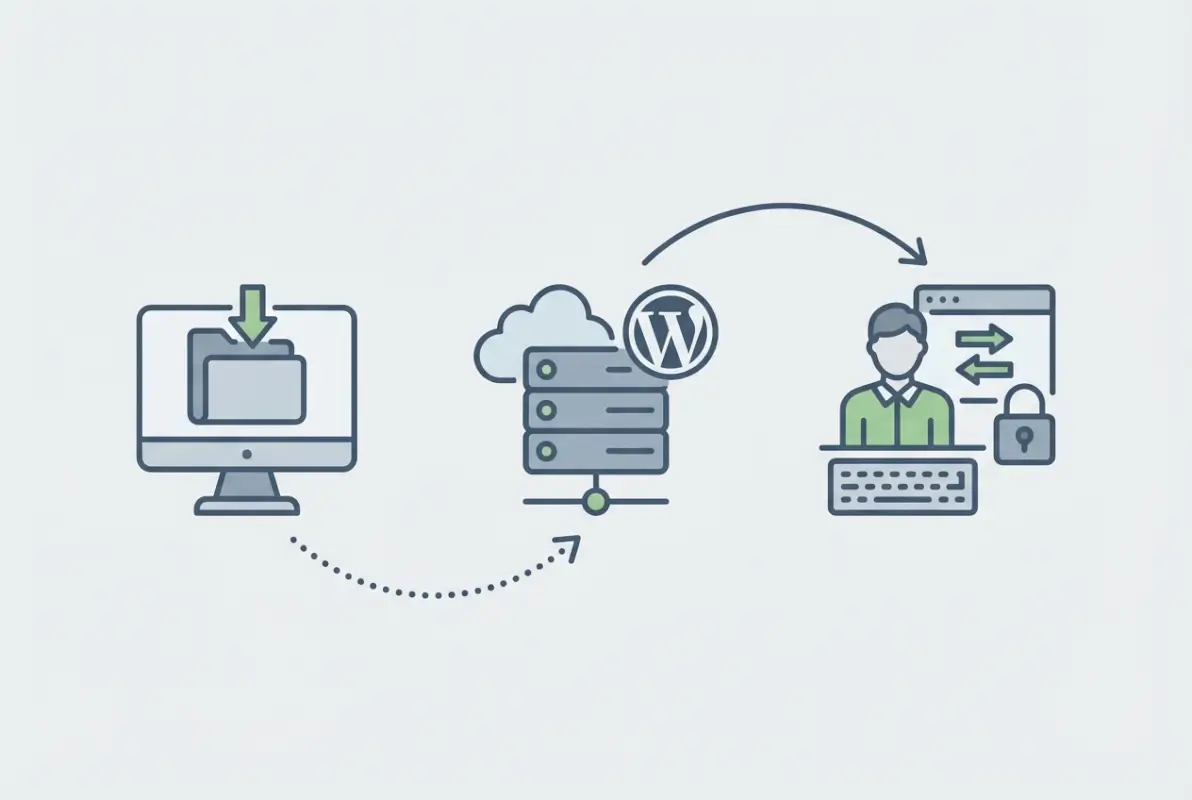
Here’s something I learned after a spectacularly bad plugin installation wiped out three days of client work: backups aren’t optional, they’re mandatory. Before you touch anything via FTP, create a complete backup of your WordPress installation—database and files. Your hosting provider might offer automated backups, but don’t rely solely on those. Use a dedicated backup plugin or manually export your database through phpMyAdmin and download your entire wp-content folder. Store these backups somewhere safe (not on the same server). The five minutes you spend backing up can save you hours or even days of recovery work when something goes sideways.
Access basics and required tools
You’ll need three things to connect via FTP: an FTP client, your server credentials, and about ten minutes of uninterrupted time. FileZilla remains the go-to free FTP client for most users because it’s reliable, cross-platform, and doesn’t hide essential features behind paywalls. Your hosting provider should have sent you FTP credentials when you signed up—typically including a hostname (often your domain or an IP address), username, password, and port number (usually 21 for FTP or 22 for SFTP).
If you can’t find your FTP credentials, check your hosting control panel—most providers display them in an “FTP Accounts” or “File Manager” section. Modern hosts increasingly default to SFTP (SSH File Transfer Protocol) rather than plain FTP because it encrypts your connection. Always choose SFTP when it’s available, unless you enjoy the thought of your login credentials floating across the internet in plain text for anyone with a packet sniffer to see.
Plugin ZIP/source considerations
Not all plugin downloads are created equal, which is why knowing what is business directory listing essential facts helps when evaluating plugins from various sources. Download your plugin ZIP file from a trusted source—preferably the official WordPress.org repository, the plugin developer’s website, or a reputable marketplace like CodeCanyon. Avoid sketchy “nulled” plugin sites that promise premium plugins for free; they’re often packed with malware, backdoors, or deliberately broken code.
Once downloaded, verify the ZIP file isn’t corrupted by checking its file size against what the source site indicates. A 5MB plugin that downloads as 500KB is probably broken. Extract the ZIP locally first to inspect the folder structure—you should see a single folder named after the plugin containing PHP files, a readme.txt, and possibly assets folders for CSS, JavaScript, and images. If you see multiple folders or loose PHP files at the top level, something’s wrong with the package.
Step 1 – Prepare the Plugin for FTP Upload
Getting your plugin ready for upload is where many people stumble, usually because they skip this verification step and end up uploading the wrong files or incorrect folder structures. I’ve watched colleagues upload the ZIP file itself instead of the extracted folder, then spend twenty minutes confused about why WordPress doesn’t recognize the plugin. Let’s make sure you don’t join that club.
Download and verify the plugin package
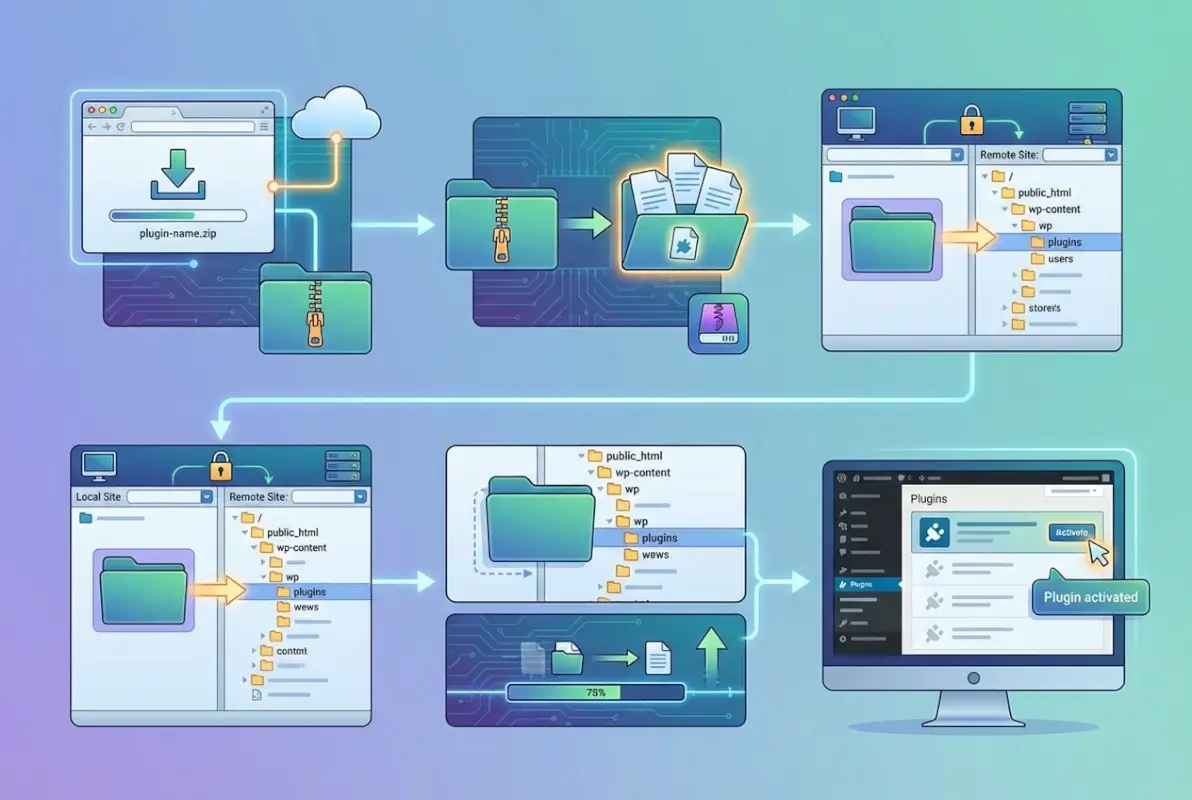
After downloading your plugin ZIP file, extract it on your local computer using your preferred decompression tool (Windows has built-in ZIP support, Mac users can double-click, and Linux users probably already know their preferred method). Inside the extracted contents, you should see exactly one folder—this folder’s name is crucial because it becomes your plugin’s unique identifier in WordPress. For example, if you’re installing a contact form plugin, you might see a folder named “contact-form-7” containing all the plugin files.
Open that folder and verify it contains at minimum a main PHP file (often named the same as the folder or something like “plugin-name.php”) and a readme.txt file. The presence of these files confirms you have a legitimate plugin structure. The main PHP file contains header comments that WordPress reads to identify the plugin, including its name, version, author, and compatibility information. If these files are missing, you’ve either got a corrupted download or possibly a malicious package disguised as a plugin.
Optional: inspect plugin to check compatibility
This step isn’t strictly necessary, but it can save you headaches down the line. Open the readme.txt file in any text editor and look for the “Requires at least” and “Tested up to” fields. These tell you which WordPress versions the plugin officially supports. If you’re running WordPress 6.4 and the plugin says it was last tested on WordPress 5.2, proceed with caution—it might work fine, but you’re venturing into unsupported territory.
Also scan through the changelog section in the readme file to see recent updates and bug fixes. Active development is a good sign; a plugin that hasn’t been updated in three years might have security vulnerabilities or compatibility issues with modern WordPress. However, some plugins are simply feature-complete and don’t need frequent updates, so use your judgment here.
Step 2 – Connect to Your WordPress Server via FTP
Now we’re getting into the actual technical work. Connecting to your server via FTP is like opening a direct tunnel to your website’s file system—it’s powerful, it’s immediate, and yes, it’s slightly nerve-wracking the first time you do it. But once you’ve done it successfully once or twice, it becomes second nature.
Establish a secure FTP session
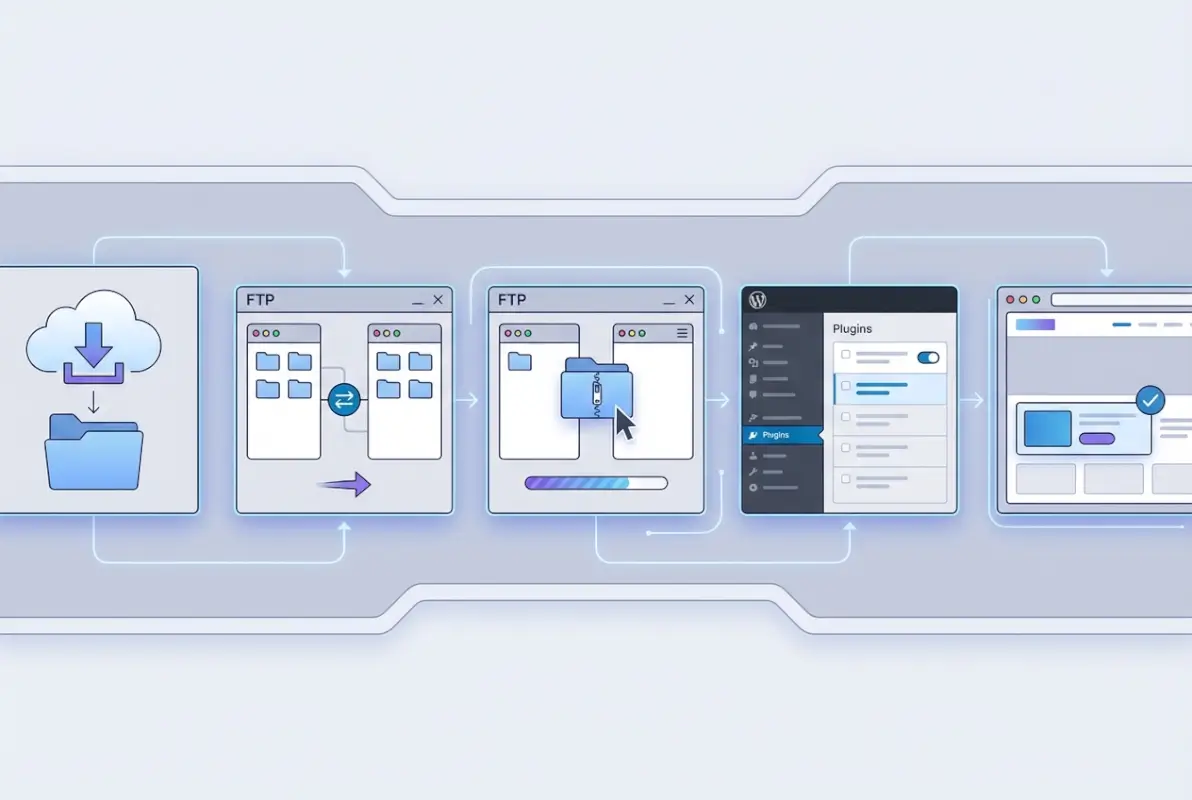
Open your FTP client (FileZilla, Cyberduck, WinSCP, or whatever you’re using) and enter your connection details. In the host field, enter your server’s hostname—this might look like “ftp.yourdomain.com” or it might be an IP address like “123.45.67.89”. Enter your username and password in their respective fields. For the port, use 22 if you’re connecting via SFTP or 21 for standard FTP. If your host supports SFTP, always choose that option—it’s fundamentally more secure because it encrypts your entire session.
Click connect and watch the magic happen. The first time you connect via SFTP, your client might show a security warning about an unknown host key—this is normal for your first connection. Verify the fingerprint matches what your hosting provider documents (if they provide it), then accept and save it for future connections. Once connected, you’ll typically see your local computer’s files on the left side of the window and your server’s files on the right side.
Locate the correct directory
Your FTP client drops you into your account’s root directory, which might be called “public_html”, “www”, “httpdocs”, or sometimes just your username. This is where your WordPress installation lives. Look for familiar WordPress files like wp-config.php, wp-login.php, and folders like wp-content, wp-admin, and wp-includes. If you see these, you’re in the right place. If you don’t see them, you might need to navigate into a subdirectory—some hosts place sites in folders like “public_html/yoursite” or “www/domain.com”.
Once you’ve confirmed you’re in the WordPress root directory, double-click the “wp-content” folder to open it. Inside wp-content, you’ll see several subdirectories including “plugins”, “themes”, and “uploads”. Double-click into the “plugins” folder—this is your destination, where all WordPress plugins live. You should see folders here with names like “akismet”, “hello-dolly” (WordPress default plugins), and any other plugins currently installed on your site, similar to understanding business directory key elements when organizing different components.
Prepare the destination path
Before uploading your new plugin, check if a folder with the same name already exists in the plugins directory. This happens when you’re reinstalling a plugin manually or updating it via FTP. If you see a matching folder name, you need to make a decision: either rename the existing folder (add “-old” or “-backup” to its name) or delete it entirely. Renaming is safer because you can always revert if the new version causes problems.
To rename or delete the existing folder, right-click it in your FTP client and choose the appropriate option. If you’re replacing an active plugin, be aware that your site might briefly show errors or missing functionality until you complete the upload and reactivation. Consider putting your site in maintenance mode first if you’re dealing with a critical plugin on a live production site.
Step 3 – Upload the Plugin via FTP
This is where the rubber meets the road—actually transferring your plugin files from your local computer to your web server. The upload process itself is straightforward, but there are a few nuances that can trip you up if you’re not paying attention. Take your time here, because rushing leads to incomplete uploads and mysterious activation failures.
Upload the plugin folder
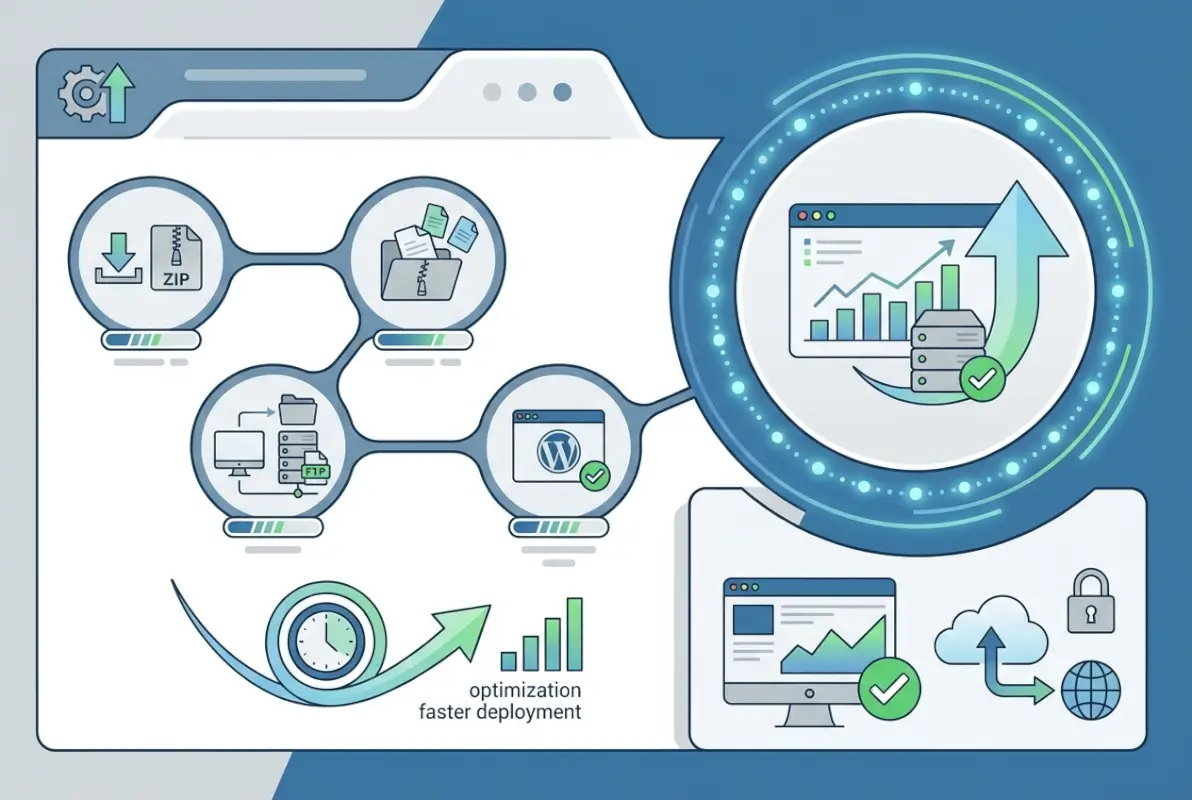
In your FTP client, make sure the right pane is displaying the contents of your wp-content/plugins directory. In the left pane (showing your local computer), navigate to where you extracted the plugin folder earlier. You should see the plugin’s folder—let’s say it’s called “awesome-plugin”—containing all the plugin files. Here’s the crucial part: you’re uploading the entire folder, not the individual files inside it.
Drag the entire “awesome-plugin” folder from the left pane to the right pane. Alternatively, you can right-click the folder and choose “Upload” from the context menu. Your FTP client will start transferring all the files and subdirectories within that plugin folder to your server. Depending on the plugin’s size and your connection speed, this might take anywhere from a few seconds to several minutes. Watch the transfer queue at the bottom of your FTP client to monitor progress and ensure all files transfer successfully without errors.
Once the upload completes, verify the folder structure by double-clicking into the newly uploaded plugin folder on the server side. You should see the same files and structure as your local copy—the main PHP file, readme.txt, and any subdirectories like /assets, /includes, or /languages. If you see only some files or the folder appears empty, the upload might have failed partway through. Delete the incomplete folder and try uploading again, possibly with a fresh FTP connection.
| Upload Method | Best For | Speed | Difficulty |
|---|---|---|---|
| WordPress Dashboard | Normal installations | Fast | Easy |
| FTP Upload | Dashboard issues, large files | Medium | Moderate |
| cPanel File Manager | No FTP client available | Medium | Easy-Moderate |
| SSH/WP-CLI | Advanced users, automation | Fast | Advanced |
Verify file permissions post-upload
File permissions control who can read, write, and execute files on your server—they’re essentially the security system governing access to your website files. After uploading your plugin, right-click the plugin folder in your FTP client and check its permissions (often called “File permissions” or “CHMOD” in the menu). The plugin folder should typically be set to 755, which means the owner can read, write, and execute, while others can read and execute but not write.
Drill down into the plugin folder and check a few files randomly. Most files should be set to 644 (owner can read and write, others can only read). These are the standard WordPress file permissions that balance security with functionality. If your permissions are drastically different—like 777, which gives everyone full access—you might want to adjust them for security reasons. However, some hosting environments require different permissions, so if the plugin works fine with whatever permissions were set during upload, you can probably leave them alone.
Incorrect permissions typically manifest as either “permission denied” errors (permissions too restrictive) or security warnings from your host (permissions too permissive). Most FTP clients let you change permissions by right-clicking a file or folder and entering numeric permission codes or checking boxes for read/write/execute for owner/group/public. If you’re unsure what permissions to use, consult your hosting provider’s documentation or support—they’ll know what works best with their server configuration.
Troubleshooting common FTP upload issues
When uploads fail, the culprit is usually one of three things: insufficient disk space, transfer mode mismatches, or connection timeouts. Check your hosting account’s disk usage through your control panel—if you’re at or near your storage limit, you’ll need to free up space or upgrade your plan. Connection timeouts happen when uploading large plugins over slow connections; most FTP clients let you adjust timeout settings or automatically resume interrupted transfers.
Another common issue is the ASCII vs Binary transfer mode. Modern FTP clients usually default to “Auto” mode, which works fine for WordPress plugins. But if you’re experiencing corruption where files upload but don’t work properly, try explicitly setting binary transfer mode for all files. This ensures files transfer byte-for-byte exactly as they exist on your local machine without any character encoding translation that ASCII mode performs.
Step 4 – Activate and Configure the Plugin in WordPress
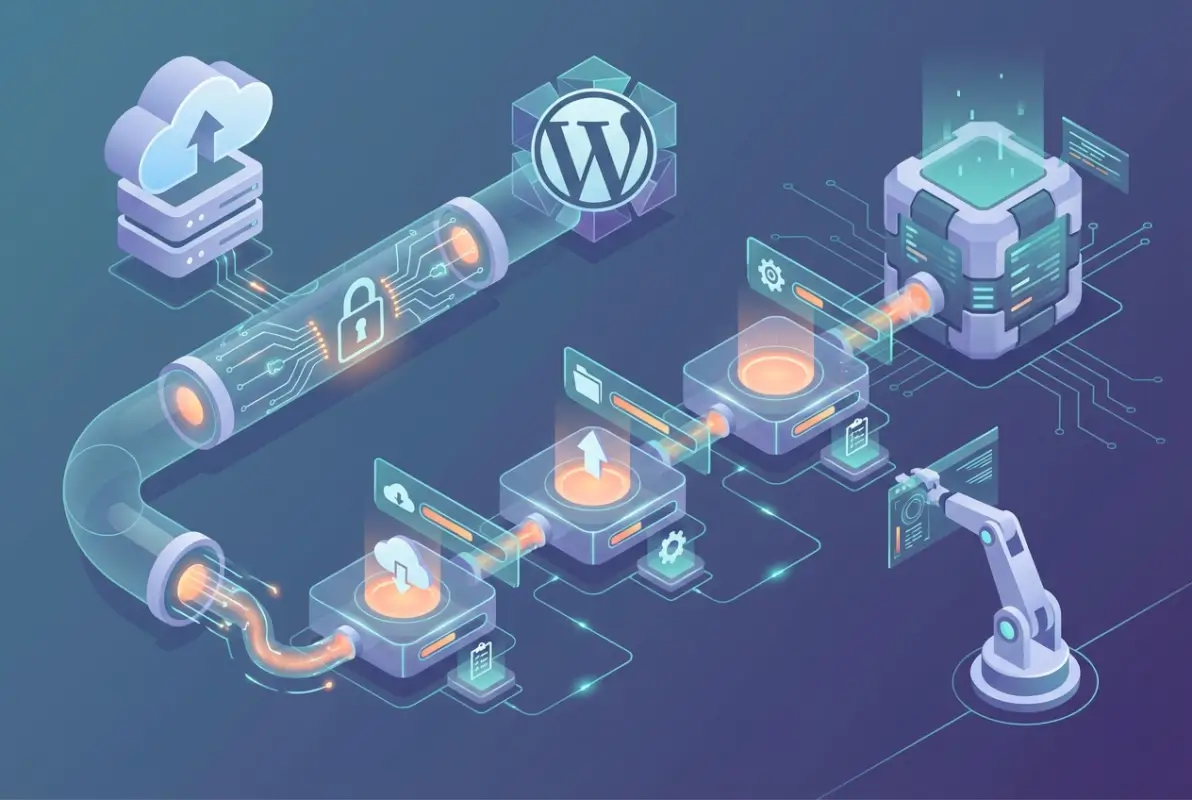
You’ve got your plugin files on the server, which is great, but they’re not doing anything yet. WordPress doesn’t automatically activate newly uploaded plugins—you need to explicitly tell it to start using them. This activation step is where WordPress registers the plugin’s hooks, initializes its settings, and integrates its functionality into your site, much like understanding how to install WordPress plugin cpanel guide follows a similar activation pattern.
Manual activation via admin dashboard
Log into your WordPress admin dashboard and navigate to Plugins > Installed Plugins. If everything went correctly with your FTP upload, you should see your newly added plugin in the list, probably at the top or bottom since it’s new. The plugin will be listed as “Inactive” with an “Activate” link beneath it. Before clicking activate, take a second to read any description or notes the plugin displays—some plugins have specific requirements or installation steps that need to happen before activation.
Click the “Activate” link. WordPress will attempt to load the plugin, run any installation routines it includes, and integrate it into your site. If activation succeeds, you’ll see a confirmation message and the plugin will now show as “Active” with a “Deactivate” link instead. The plugin might also display a welcome message, configuration prompt, or redirect you to its settings page to complete setup. If activation fails, WordPress will show an error message—don’t panic, we’ll cover common activation problems in the next section.
Address potential activation blockers
Plugin activation fails for several reasons, and the error message usually gives you a clue. “Plugin could not be activated because it triggered a fatal error” means there’s a PHP compatibility issue—either your PHP version is too old for the plugin’s requirements, or the plugin has a coding error. Check the plugin’s documentation for minimum PHP version requirements and verify your server meets them (you can see your PHP version in WordPress under Tools > Site Health).
Missing PHP extensions are another common activation blocker. Some plugins require specific PHP modules like cURL, mbstring, or imagick. If you see errors mentioning missing functions or classes, contact your hosting support to ask about enabling the required PHP extensions. Most modern hosts can enable standard extensions quickly through your control panel or with a support ticket.
Conflicts with other plugins occasionally prevent activation too. If you suspect this, try temporarily deactivating your other plugins, then activate the new one. If it works, reactivate your other plugins one by one to identify which one conflicts. You’ll then need to decide whether to keep both plugins (sometimes updating one or both resolves conflicts) or choose between them based on which functionality matters more to you.
Initial configuration
Once activated, most plugins add a new menu item to your WordPress admin sidebar or place their settings under an existing menu like Settings, Tools, or their own top-level menu. The plugin’s documentation should tell you where to find its configuration options. Navigate to the settings page and work through the initial setup wizard if the plugin provides one—these wizards typically guide you through essential configuration options and help you avoid common setup mistakes.
At minimum, review the plugin’s main settings before using it on your live site. Some plugins work fine with default settings, while others require configuration to function properly. For example, a caching plugin needs to know which files to cache and which to exclude, while a contact form plugin needs at least one email address to send submissions to. Don’t skip this configuration step even if you’re in a hurry—taking five minutes now prevents hours of troubleshooting later when things don’t work as expected.
Step 5 – Verify Functionality and Security
You’re almost done, but don’t close your browser tabs just yet. The final step—verification—is where you confirm everything actually works and your site hasn’t developed any new quirks or security vulnerabilities. I’ve seen too many people skip this step only to discover days later that their contact form stopped working or their checkout process is broken because a newly installed plugin conflicts with existing functionality.
Test plugin behavior on the site
Start by testing the plugin’s primary function. If you installed a contact form plugin, fill out and submit a test form. If it’s a caching plugin, visit your site in an incognito window to see the cached version. If it’s adding functionality to your admin area, navigate through those new features and verify they work as documented. Don’t just assume it works—actively test it with realistic scenarios your users might encounter.
Next, browse your site’s public pages as a visitor would. Look for any visual glitches, broken layouts, or functionality that’s stopped working. Check your site on both desktop and mobile devices if possible, since some plugin conflicts only manifest on specific screen sizes. Pay special attention to critical functions like navigation menus, checkout processes, or user registration—if any of these are broken, your newly installed plugin might be the culprit.
Open your browser’s developer console (usually F12 or right-click > Inspect) and look for JavaScript errors on your pages. Plugin conflicts often manifest as JavaScript errors that break interactive elements. If you see new errors that weren’t there before installing the plugin, you’ve found your problem. You’ll need to either configure the plugin to play nicely with your existing setup, or contact the plugin’s support for guidance.
Security considerations
Plugin security isn’t just about the installation process—it’s an ongoing commitment. Immediately after confirming your plugin works, check if there’s a newer version available. Developers sometimes release versions in quick succession when they discover security issues or critical bugs. Update to the latest version if one’s available, even if you just installed the plugin days or hours ago.
Add the plugin to your regular update routine. WordPress will notify you in your dashboard when plugin updates are available, but don’t ignore these notifications or let them pile up. Security vulnerabilities in popular plugins get discovered regularly, and attackers actively scan for sites running vulnerable versions. A major security research firm recently reported that outdated plugins remain one of the top attack vectors for WordPress sites.
Consider subscribing to security bulletins for any critical plugins you install. Services like WPScan and Wordfence publish regular security reports about WordPress plugin vulnerabilities. If you’re running a business-critical site, knowing about security issues before they’re exploited can be the difference between a minor inconvenience and a major breach. You can also review business directory id what it is why you need one to understand authentication and security identification practices.
Rollback plan
Despite your best efforts, sometimes a plugin just doesn’t work out. Maybe it conflicts with another plugin, perhaps it doesn’t match your needs, or it might be causing performance issues you didn’t anticipate. Having a clear rollback plan means you can quickly undo the installation without stress or data loss. First option: deactivate the plugin through your WordPress dashboard and delete it via the Plugins screen. This is the cleanest method and lets WordPress handle any cleanup tasks the plugin might have registered.
If you can’t access your dashboard because the plugin broke something critical, use FTP to remove it. Connect to your server, navigate to wp-content/plugins, and delete the plugin’s folder entirely. This immediately stops WordPress from loading the plugin, which should restore your site to working order. Then you can investigate what went wrong, whether you want to try the plugin again with different settings, or if you should look for an alternative solution.
If you discover problems days or weeks after installation and aren’t sure if the plugin is the culprit, restore your backup from before the installation. This is why we emphasized backups at the beginning—they’re your ultimate rollback plan. Compare site behavior before and after the plugin installation to confirm whether it’s causing your issues. Sometimes problems seem related to a recent plugin installation but are actually caused by something else entirely, like a WordPress core update or server configuration change.
Alternative Paths and When to Use FTP
Now that you know how to install plugins via FTP, you might be wondering when you should actually use this method versus the simpler dashboard approach. FTP installation isn’t something you’ll need for every plugin—in fact, most of the time the dashboard method works perfectly fine and is significantly faster. Understanding when to reach for the FTP toolbox versus when to stick with the dashboard keeps you efficient without overcomplicating simple tasks.
When to install via the WordPress admin dashboard vs. FTP
The WordPress dashboard plugin installer is your default choice for 95% of plugin installations. It’s faster, it’s more convenient, and it’s less prone to user error because WordPress handles the file structure and permissions automatically. Use the dashboard when you’re installing plugins from the official WordPress.org repository, when your hosting environment allows uploads, and when everything’s working normally with your site.
Switch to FTP installation in these specific scenarios: when your dashboard upload is blocked by server restrictions (like maximum upload size limits smaller than your plugin file), when you’re installing a premium plugin that’s not available through the repository, when you’re troubleshooting a broken dashboard that won’t let you install or update plugins normally, or when you need to modify plugin files before installation (though be cautious with modifications—they’ll be overwritten if you update the plugin later through normal means).
Another valid FTP scenario is bulk installation on multiple sites. If you’re managing dozens of WordPress installations and need to install the same plugin on all of them, downloading it once and uploading via FTP to each site can be faster than going through the dashboard installer repeatedly. This is especially relevant for developers and agencies managing large portfolios of client sites, similar to managing multiple hotfrog business directory listings efficiently.
Quick-reference decision checklist
Before starting an FTP installation, run through this mental checklist: Do I have my FTP credentials handy? Yes, good. Have I backed up my site within the last 24 hours? If not, do that first. Do I know exactly which plugin I’m installing and have I downloaded it from a trusted source? Verify that. Is my plugin file unzipped and does it have the correct folder structure? Check it. Do I have 10-15 uninterrupted minutes to complete the process without rushing? If you’re trying to squeeze this in during a busy workday, it might be better to wait until you can give it proper attention.
This checklist might seem excessive for experienced users, but it dramatically reduces the chance of common mistakes that lead to non-functional installations or site issues. Rushing through FTP installation because “it should be quick” is how you end up uploading wrong files, using incorrect folder names, or skipping the verification step that would have caught problems before they affected your live site.
Common Pitfalls and Best Practices
Even experienced WordPress administrators occasionally make mistakes with FTP plugin installations. The difference between beginners and experts isn’t that experts never mess up—it’s that they’ve made enough mistakes to recognize and avoid the common pitfalls. Let me share some of the issues I’ve encountered over years of WordPress management so you can skip the learning-by-breaking-things phase.
Incorrect plugin folder structure
The single most common FTP installation mistake is uploading files with the wrong structure. WordPress expects plugins to live in wp-content/plugins/plugin-name/ where “plugin-name” is a folder containing the plugin’s PHP files. The mistake people make is extracting a plugin ZIP that contains a parent folder, then uploading that parent folder which itself contains the actual plugin folder. You end up with wp-content/plugins/parent-folder/actual-plugin-folder/ which WordPress can’t find.
To avoid this, always verify you’re uploading the correct folder. Open the folder before uploading and confirm you see PHP files, not another folder. If you see another folder inside, that inner folder is probably what you should be uploading, not the outer wrapper. Some plugin developers package their plugins with this extra wrapper folder, while others don’t—there’s no universal standard, so you need to check each time.
The symptom of wrong folder structure is that WordPress simply doesn’t see the plugin—it won’t appear in your Plugins list at all. If you’ve uploaded something via FTP but it’s not showing up in WordPress, folder structure is the first thing to check. Connect via FTP, look at what you actually uploaded, and compare it to how other working plugins are structured in the same directory.
File permission and server restrictions
Permission issues manifest in two ways: too restrictive (causing “permission denied” errors) or too permissive (creating security vulnerabilities). The WordPress-recommended permissions are 755 for directories and 644 for files, which work on most hosting environments. However, some shared hosting servers require 775 for directories or 664 for files due to their specific user/group configurations.
If you encounter permission errors after FTP upload, don’t just blindly change everything to 777 (full access for everyone). That’s a security risk that some attackers actively scan for. Instead, contact your hosting support and ask them what file permissions they recommend for WordPress installations on their servers. They deal with this question regularly and can give you the exact numbers that work with their setup. Once you know the right permissions, you can set them during upload or batch-change them afterward using your FTP client’s recursive permission-change feature.
Some managed WordPress hosts restrict FTP access entirely or lock down certain directories. If you can’t upload to wp-content/plugins even with correct credentials, your host might have disabled FTP for security reasons. In these cases, you’ll need to use their alternative method—often a file manager in their control panel or a staging environment where you can upload files through their interface instead of traditional FTP.
ZIP extraction vs. direct folder upload
There are actually two ways to handle the ZIP file: extract locally and upload the folder via FTP (the method we’ve covered), or upload the ZIP file to your server and extract it there. Both work, but they have different use cases and potential problems. Extracting locally gives you a chance to inspect files before they hit your server, which is better for security. It also avoids potential server-side extraction issues if your hosting environment has restrictions on ZIP handling.
Uploading the ZIP and extracting on the server is faster for very large plugins because you’re transferring one file instead of hundreds. Some hosts provide built-in extraction tools in their file managers that handle large archives better than FTP clients handle many small files. However, this method requires additional server-side steps and you won’t spot problematic files before extraction.
For most users doing occasional manual installations, extracting locally and uploading the folder is the safer, more straightforward approach. Reserve the upload-then-extract method for situations where you’re dealing with massive plugins (thousands of files) that would take unreasonably long to transfer individually via FTP, or when your FTP client struggles with large transfer queues.
Quick Reference Checklist
Let’s distill everything we’ve covered into a practical checklist you can reference when you need to install a plugin via FTP. Bookmark this section or print it out—having a step-by-step guide handy prevents mistakes when you’re working under pressure or haven’t done an FTP installation in a while.
5-Step FTP Plugin Installation Checklist
- Prepare and verify: Download plugin ZIP from trusted source, extract locally, verify folder structure contains PHP files, check compatibility notes in readme.txt, create complete site backup
- Connect via FTP: Open FTP client (prefer SFTP), enter credentials (host, username, password, port 22), connect to server, navigate to WordPress root, then wp-content/plugins directory
- Upload files: Drag entire plugin folder (not individual files) into plugins directory, monitor transfer completion, verify all files uploaded successfully, check folder permissions (755 recommended)
- Activate plugin: Log into WordPress dashboard, go to Plugins > Installed Plugins, locate newly uploaded plugin, click Activate, address any error messages, configure initial settings
- Test and secure: Verify plugin functionality on front-end and back-end, check for conflicts with existing plugins, review security settings, plan regular updates, document rollback procedure if needed
Keep this checklist accessible in your WordPress documentation or bookmarked in your browser. The few seconds it takes to review the checklist before starting saves much more time than you’ll lose if you skip a step and have to troubleshoot later. It’s especially valuable if you only perform FTP installations occasionally—when you don’t do something regularly, having documented procedures prevents rusty knowledge from leading to mistakes.
Frequently Asked Questions
Do I need FTP to install a WordPress plugin?
No, FTP is not required for most plugin installations. WordPress’s built-in dashboard installer handles standard installations perfectly and is the recommended method for most users. FTP installation is a backup technique for specific scenarios like dashboard upload failures, large file size restrictions, or when troubleshooting broken admin access. The dashboard method is faster and less technical for routine plugin additions.
Is installing plugins via FTP secure?
Installing via FTP can be secure if you follow proper practices. Always use SFTP (SSH File Transfer Protocol) or FTPS (FTP over TLS) instead of plain FTP to encrypt your connection. Download plugins only from trusted sources like WordPress.org or reputable developers. Keep your FTP credentials confidential and never share them. The upload method itself doesn’t create security vulnerabilities—the risk comes from uploading malicious plugins or using insecure connections.
What if the plugin won’t activate after FTP upload?
Activation failures typically stem from incorrect folder structure, PHP version incompatibility, missing required PHP extensions, or file permission issues. First verify the plugin folder is directly inside wp-content/plugins with the correct name. Check your PHP version meets the plugin’s minimum requirements via Tools > Site Health. Contact your host if the error mentions missing PHP modules. Review file permissions—folders should be 755 and files 644 in most environments.
Can FTP plugin installation cause conflicts with other plugins or themes?
Yes, the installation method doesn’t prevent plugin conflicts—those arise from plugins trying to modify the same WordPress functions or resources. After FTP installation and activation, test your site thoroughly for broken functionality, layout issues, or JavaScript errors. If conflicts occur, try temporarily deactivating other plugins to identify the source. Update all plugins to their latest versions as compatibility improvements often resolve conflicts between updated plugin versions.
How do I recover if the FTP-installed plugin breaks my site?
If you can access your dashboard, simply deactivate and delete the problematic plugin through Plugins > Installed Plugins. If the plugin broke dashboard access completely, reconnect via FTP, navigate to wp-content/plugins, and rename the plugin’s folder (add “-disabled” to its name). This immediately deactivates it without requiring dashboard access. If problems persist, restore from your pre-installation backup. Always maintain current backups for exactly these situations.
What are the correct file permissions for WordPress plugins?
Standard WordPress file permissions are 755 for directories and 644 for files, which work on most hosting environments. These permissions allow the owner to read, write, and execute while restricting others to read-only access. Some shared hosting configurations require 775 for directories or 664 for files. Never use 777 permissions as they create serious security vulnerabilities. If unsure, consult your hosting provider for their recommended WordPress file permissions.
Should I extract the plugin ZIP before or after uploading via FTP?
Extracting locally before upload is the recommended approach for most users. This lets you inspect the plugin files for correct structure and potential issues before they reach your server. Upload the extracted folder directly to wp-content/plugins via FTP. Uploading the ZIP and extracting on the server works but requires additional steps and server-side extraction capabilities. Local extraction provides better control and visibility into what you’re installing.
Can I update plugins via FTP after installing them this way?
Yes, but it’s not recommended for routine updates. After FTP installation, plugins appear in your dashboard like normally-installed plugins and can receive automatic updates if you enable them. For manual updates, the dashboard updater is simpler than FTP. Only use FTP for updates if your dashboard update function is broken. To update via FTP, download the new version, extract it locally, then upload it to wp-content/plugins, replacing the existing plugin folder.
How do I know if a plugin is trustworthy before FTP installation?
Verify the plugin source first—WordPress.org repository plugins undergo basic security screening. For premium plugins, purchase from established marketplaces like CodeCanyon or directly from reputable developers with track records. Check reviews, update frequency, and active installation numbers. Avoid “nulled” or “cracked” premium plugins—they often contain malware. Scan downloaded files with antivirus software before uploading. When in doubt, research the developer and look for any security advisory mentions.
What’s the difference between FTP and SFTP for WordPress plugin installation?
SFTP (SSH File Transfer Protocol) encrypts your entire connection including login credentials and file transfers, while standard FTP sends everything in plain text. SFTP is significantly more secure and should be your first choice when available. It uses port 22 instead of FTP’s port 21. Most modern hosts support SFTP—check your hosting credentials for SFTP or SSH access details. From a plugin installation perspective, the process is identical except for the initial connection protocol selection.
Bringing It All Together: Your FTP Installation Confidence
You now have a complete roadmap for manually installing WordPress plugins via FTP—a skill that transforms from intimidating to straightforward once you’ve done it a few times successfully. While the WordPress dashboard remains the go-to installation method for most situations, knowing how to work directly with your server files gives you an emergency backup plan when things go wrong. And in WordPress management, having backup plans isn’t paranoia, it’s professionalism.
The five-step process we’ve covered—prepare your plugin, connect via FTP, upload the files, activate in WordPress, and verify functionality—becomes second nature with practice. Each step has its purpose: preparation prevents uploading corrupted files, secure connection protects your credentials, careful upload ensures correct file structure, proper activation integrates the plugin with WordPress, and thorough verification catches problems before your users do.
Remember that FTP installation isn’t about replacing the dashboard method—it’s about expanding your WordPress skillset so you’re never stuck when a single installation method fails. The best WordPress administrators are those who can adapt to different scenarios and know multiple approaches to solving common problems. Whether you’re managing a personal blog or a portfolio of client sites, this knowledge becomes more valuable over time as you encounter edge cases where standard methods don’t work.
One final piece of advice: document your FTP installation experiences. Keep notes about which hosting providers require special permission settings, which plugins gave you trouble, and how you resolved issues. This personal knowledge base becomes invaluable when you’re troubleshooting similar problems months or years later. Your future self will thank you for taking those extra few minutes to write down what you learned.
Now you have everything you need to confidently install WordPress plugins via FTP when the situation calls for it. Don’t let this knowledge gather dust—find a test environment and practice the process before you need it in an emergency. Like any technical skill, FTP installation becomes easier and faster each time you do it, until eventually it’s just another tool in your WordPress management arsenal that you can deploy without hesitation whenever needed.
Was this article helpful?