How to Hide a WordPress Plugin from Menu: A Step-by-Step Guide
In the world of WordPress development and client management, keeping the admin dashboard clean and focused is crucial for maintaining a professional user experience. While WordPress plugins provide incredible functionality, their menu items can quickly clutter the admin area, overwhelming clients and making essential tools harder to find. The ability to hide WordPress plugins from the admin menu isn’t just about aesthetics—it’s about creating streamlined, client-ready interfaces that reduce confusion and maintain professional boundaries.

TL;DR – Quick Takeaways
- Hiding vs. Security – Menu hiding improves UX but doesn’t prevent direct URL access
- Plugin Solutions – Admin Menu Editor and Hide Admin Menu offer user-friendly approaches
- Role-Based Control – Best practice involves combining visibility with proper user capabilities
- Testing Required – Always verify functionality across different user roles after implementation
- Maintenance Matters – Keep menu-hiding plugins updated for WordPress compatibility
Understanding the Problem: What “Hide from Menu” Means in WordPress
When we talk about hiding a WordPress plugin from the admin menu, we’re specifically addressing the visual presentation of menu items in the left-hand navigation panel. This is fundamentally different from restricting actual access to plugin functionality. Many developers and site administrators confuse visibility control with security enforcement, which can lead to significant oversights.
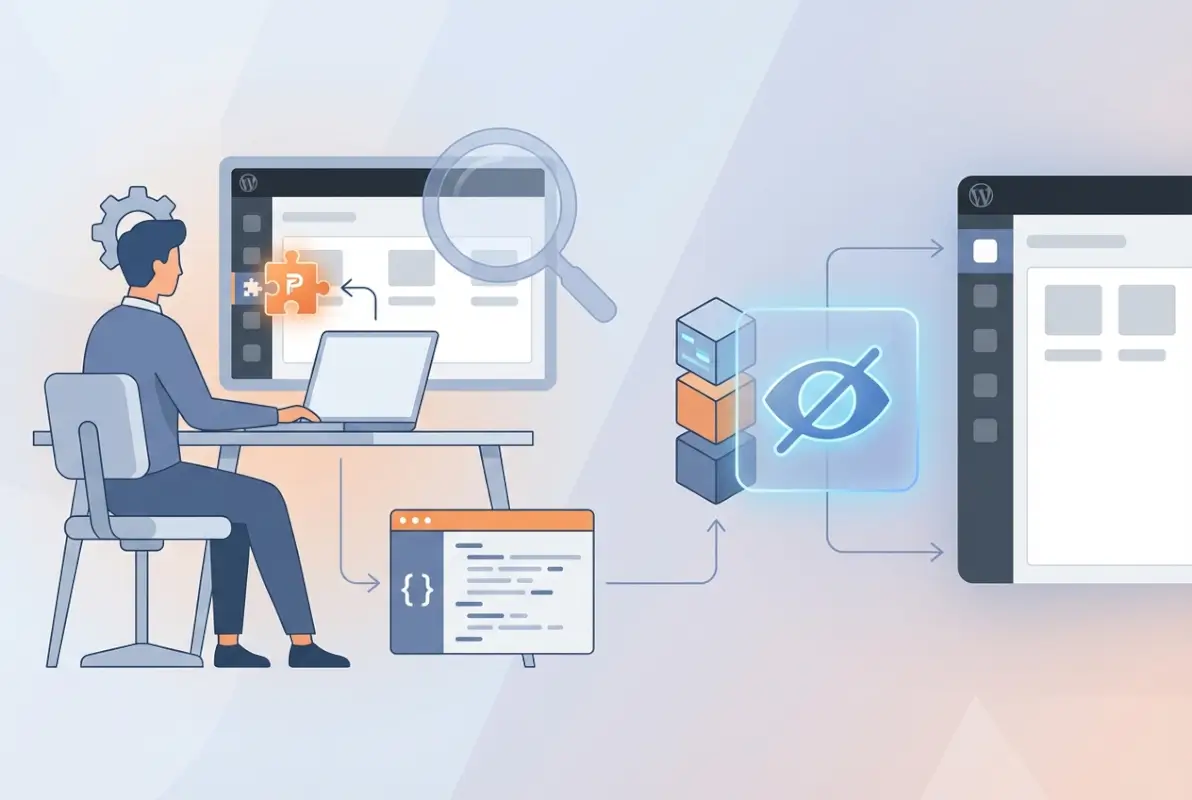
Hiding a menu item removes it from the admin navigation but doesn’t necessarily prevent users from accessing the plugin’s pages through direct URLs. For example, if you hide WooCommerce’s menu but a user knows the URL /wp-admin/admin.php?page=wc-settings, they might still access the settings page if their user role has the appropriate capabilities.
Modern WordPress admin layouts are increasingly plugin-driven, with many plugins adding multiple menu items, submenus, and dashboard widgets. This proliferation can transform a clean admin area into a confusing maze, particularly problematic when handing sites over to clients who need simple, focused interfaces.
Plugin-Based Solutions for Menu Management
Using Admin Menu Editor
Admin Menu Editor stands as the most comprehensive solution for WordPress menu management, offering granular control over every aspect of your admin navigation. This plugin allows you to show or hide menu items, adjust visibility by user role, reorganize menu structures, and even rename menu items to better suit your client’s needs.
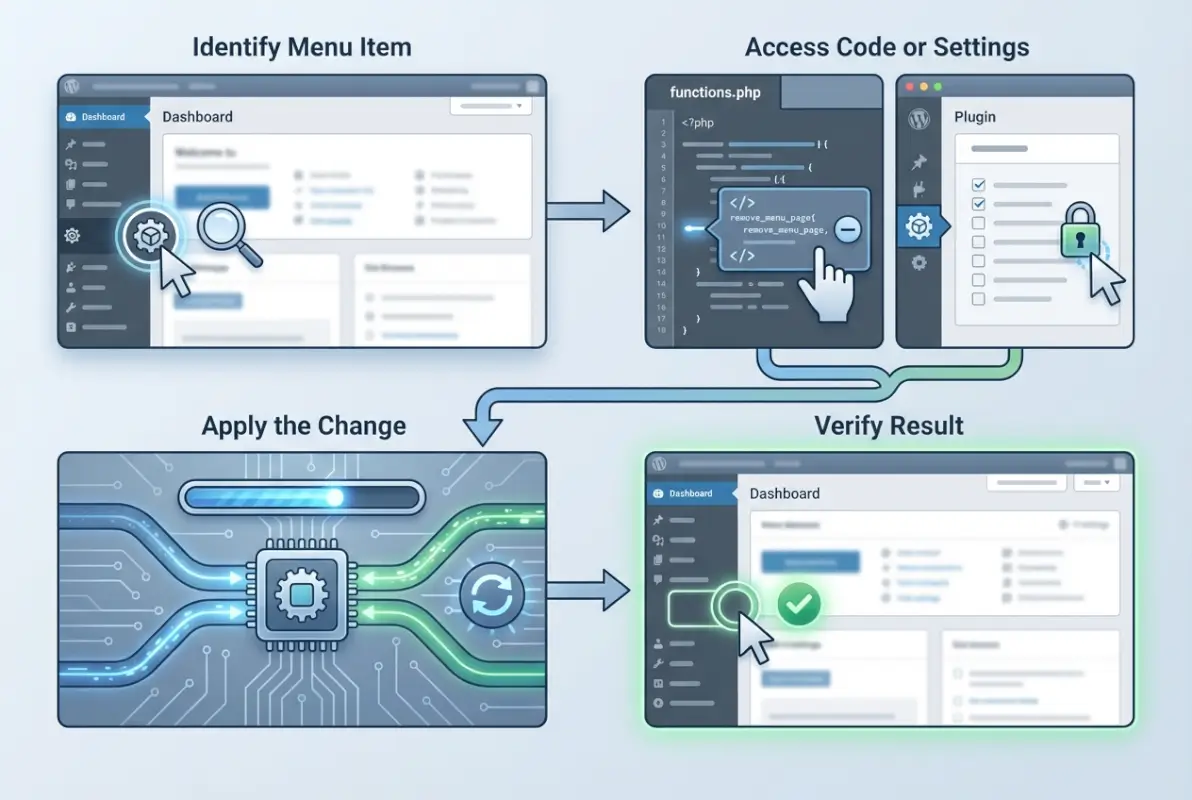
The typical workflow involves installing the plugin from the WordPress repository, navigating to Settings → Menu Editor, and using the intuitive interface to modify your menu structure. The free version provides basic hide/show functionality, while the Pro version adds per-role visibility controls, custom menu icons, and advanced organizational features.
What sets Admin Menu Editor apart is its ability to handle complex menu hierarchies. Some plugins create nested menu structures or register menus in non-standard ways, but this tool can typically manage these edge cases effectively. However, be aware that certain plugins might regenerate their menus dynamically, potentially overriding your settings.
Using Hide Admin Menu and Similar Plugins
Hide Admin Menu takes a more straightforward approach, focusing specifically on hiding menu items for non-administrator users. This plugin excels in scenarios where you need quick, simple solutions without extensive customization requirements.
The installation and setup process is streamlined: activate the plugin, locate the menu items you want to hide in the plugin’s interface, and apply changes for specific roles. The plugin typically works well for standard WordPress menus and popular plugin menus, though some specialized plugins might require additional configuration.
One important caveat with Hide Admin Menu and similar tools is their scope limitations. These plugins primarily target the standard left-hand navigation menu and may not affect admin bar items, dashboard widgets, or menu items that appear in other contexts. Always test thoroughly across different admin pages to ensure complete hiding.
Other Admin-Focused Plugin Options
The WordPress ecosystem offers several specialized tools for admin menu management. Easy Admin Menu Manager provides drag-and-drop menu reorganization alongside hiding functionality, while plugins like Hide Admin Icons focus on specific visual elements rather than entire menu structures.
Each plugin in this category has different strengths and limitations. Some excel at handling multisite networks, others provide better role-based controls, and some focus on specific aspects like admin bar customization. When selecting a plugin, consider your specific needs, site architecture, and long-term maintenance requirements.
| Plugin | Best For | Key Feature | Learning Curve |
|---|---|---|---|
| Admin Menu Editor | Complex customization | Full menu control | Medium |
| Hide Admin Menu | Quick solutions | Simple hiding | Low |
| Easy Admin Menu Manager | Reorganization | Drag-and-drop | Low |
Code-Based and Security-Conscious Approaches
Role and Capability-Based Menu Control
WordPress’s built-in capability system provides the foundation for truly secure menu management. Rather than simply hiding menu items, you can modify the required capabilities for accessing specific plugin pages, ensuring that only users with appropriate permissions can view and interact with those features.
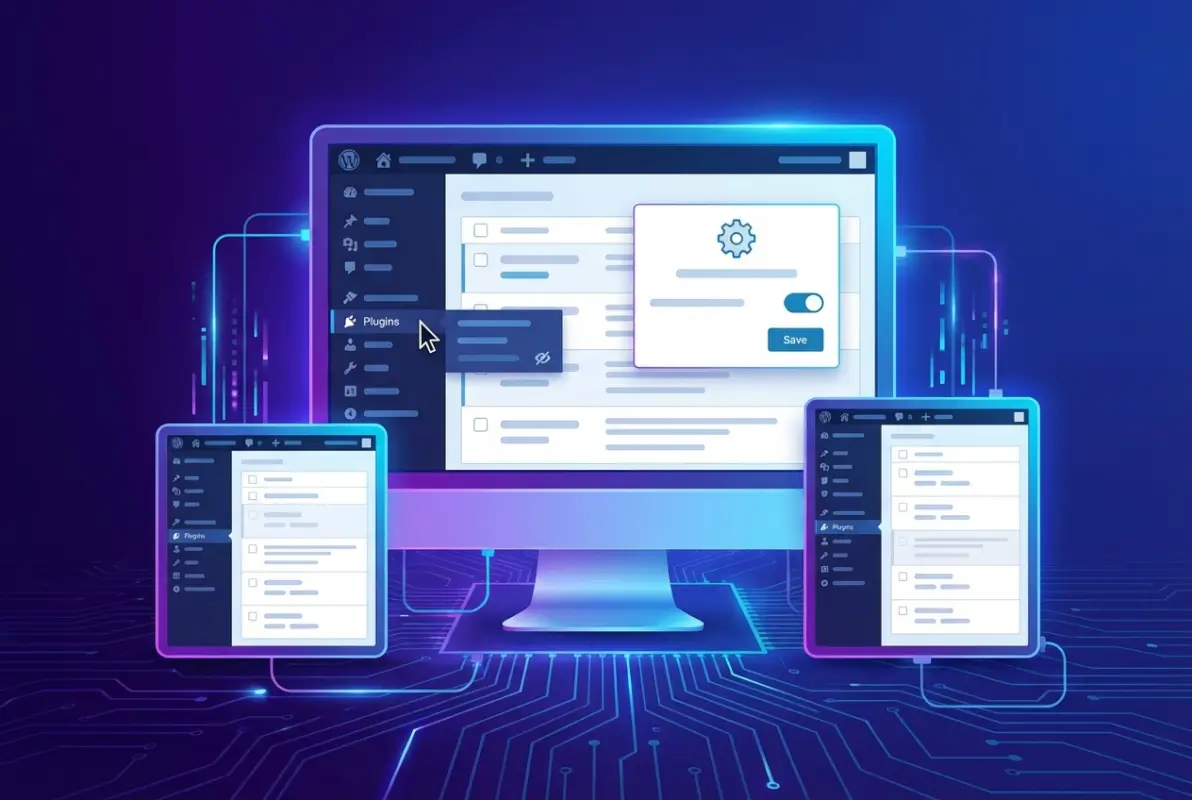
Admin Menu Editor’s Pro version excels in this area, allowing you to adjust capability requirements through its interface. For custom implementations, you can use WordPress hooks like admin_menu and admin_init to modify menu registration based on user capabilities. This approach aligns perfectly with WordPress’s security model and provides genuine access control.
The concept involves understanding WordPress’s capability hierarchy—from basic capabilities like read to advanced ones like manage_options. By setting appropriate capability requirements for menu items, you create both visual hiding and functional restriction in a single implementation.
Quick Developer Approaches for Menu Customization
For developers comfortable with code-based solutions, WordPress offers several hooks and filters for menu customization. The admin_menu action allows you to remove menu items during the admin initialization process, while admin_bar_menu can modify the top admin bar.
A simple approach involves adding code to your theme’s functions.php file or a custom plugin that removes specific menu items based on user roles or capabilities. This method provides precise control and doesn’t require additional plugins, but it does require ongoing maintenance as WordPress and plugins update.
When implementing code-based solutions, consider creating a small custom plugin rather than adding code to your theme. This approach ensures your customizations persist through theme changes and provides better organization for complex modifications.
Security Considerations for Compromised Admin Access
Understanding menu hiding limitations becomes crucial when dealing with security concerns. If admin access is compromised, hidden menu items provide no protection against malicious activities. In such scenarios, actual plugin deactivation or capability removal becomes necessary.
WordPress provides several methods for disabling plugins without admin panel access, including FTP-based plugin folder renaming, database manipulation, and wp-config.php modifications. These techniques are essential knowledge for security incident response, though they’re beyond the scope of typical menu hiding implementations.
Step-by-Step Implementation Guide
Preparation and Approach Selection
Before implementing any menu hiding solution, assess your specific requirements and site architecture. Client sites often benefit from plugin-based solutions that provide easy maintenance and modification capabilities, while development environments might favor code-based approaches that offer more precise control.
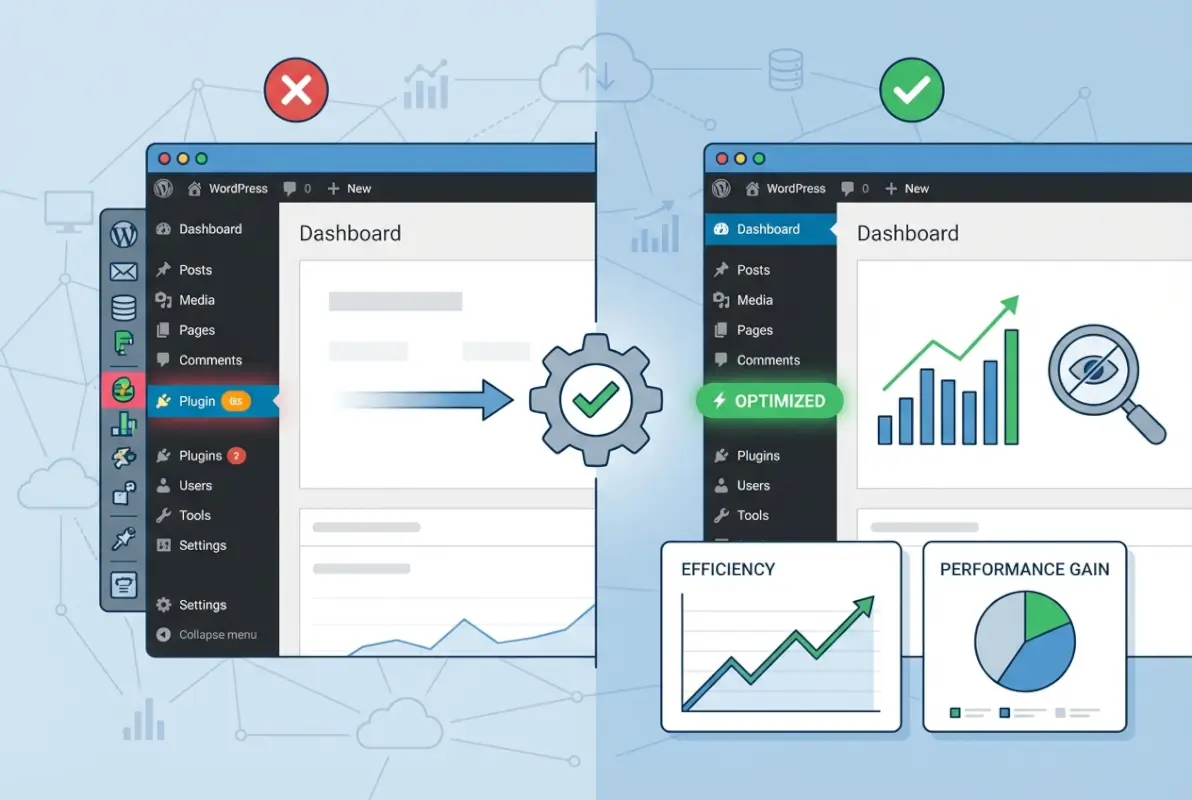
Consider factors like multisite compatibility, the number of plugins requiring menu modification, client technical sophistication, and long-term maintenance requirements. Also, verify that your chosen solution is compatible with your current WordPress version and the plugins you’re targeting for menu hiding.
Document your current menu structure before making changes. This documentation becomes invaluable if you need to troubleshoot issues or revert changes. Screenshots of the admin menu in different user roles can provide quick visual references for comparison after implementation.
Implementing Admin Menu Editor (Detailed Walkthrough)
Start by installing Admin Menu Editor from the WordPress plugin repository. After activation, navigate to Settings → Menu Editor to access the main configuration interface. The plugin displays your current menu structure in a tree-like format, making it easy to visualize relationships between menu items and submenus.
To hide a specific plugin’s menu, locate it in the list and click the hide/show toggle. The interface provides immediate visual feedback, showing hidden items with different styling. For more advanced control, click on individual menu items to access detailed settings including capability requirements, visibility rules, and custom styling options.
Test your changes immediately by viewing the admin area in different user roles. Admin Menu Editor provides a role-switching feature for quick testing, but consider using a separate browser session logged in as a different user type for thorough verification.
Save your configuration and create a backup of your settings. The plugin’s export functionality allows you to save your entire menu configuration as a file, providing easy restoration capability and the ability to replicate configurations across multiple sites.
Using Hide Admin Menu for Simple Implementations
Hide Admin Menu offers a more streamlined approach for straightforward hiding requirements. After installation and activation, the plugin typically adds its configuration options to the WordPress admin area, often under Settings or as its own menu item.
The interface usually presents a checklist of available menu items with simple hide/show toggles for different user roles. Select the items you want to hide, choose the target user roles (often everything except Administrator), and save your settings.
Verify the implementation by logging in with different user accounts or using role-switching plugins to test various permission levels. Pay particular attention to ensuring that hidden functionality remains accessible to users who need it while being properly concealed from those who don’t.
Best Practices and Implementation Considerations
Balancing Usability and Security Requirements
Effective menu hiding strikes a balance between clean user interfaces and functional accessibility. Remember that you’re optimizing for user experience rather than implementing security controls. Users who need access to hidden functionality should have alternative methods to reach those features, whether through direct URLs, dashboard widgets, or other navigation paths.

Consider creating documentation for clients that explains how to access hidden features when necessary. This approach maintains the clean interface while providing education about the site’s full capabilities. Some agencies create custom dashboard widgets that provide quick access to commonly used features that might be hidden from the main menu.
When working with clients, involve them in the decision-making process about which items to hide. What seems obvious to hide from a developer’s perspective might be essential from the client’s daily workflow standpoint. Regular check-ins after implementation can help identify pain points and necessary adjustments.
WordPress Compatibility and Maintenance
WordPress’s rapid development cycle means that menu hiding solutions need regular updates to maintain compatibility. Both WordPress core updates and plugin updates can affect menu structures, potentially breaking or bypassing your hiding configurations.
Establish a maintenance schedule that includes checking menu hiding functionality after major WordPress updates, plugin updates, and the addition of new plugins to your site. Many menu hiding plugins provide update notifications and compatibility warnings, but proactive checking prevents user experience issues.
Consider the long-term implications of your menu hiding approach. Plugin-based solutions require ongoing plugin maintenance, while code-based solutions need review and updates as WordPress APIs evolve. Factor these considerations into your decision-making process and client contracts.
Client-Ready Implementation and White-Labeling
Professional WordPress implementations often require white-labeling and custom branding that extends beyond simple menu hiding. Consider how your menu modifications integrate with broader admin area customizations, including custom dashboard widgets, login page modifications, and admin color schemes.
Some menu hiding plugins offer additional white-labeling features like custom menu icons, renamed menu items, and integrated branding elements. These features can enhance the professional appearance of your client’s admin area while maintaining functional clarity.
Document your menu hiding implementations thoroughly, including the reasoning behind specific hiding decisions, alternative access methods for hidden features, and maintenance requirements. This documentation becomes crucial for ongoing support and when transferring site management responsibilities.
Common Pitfalls and Troubleshooting Strategies
Resolving Visibility and Access Issues
When hidden menu items still appear or behave unexpectedly, systematic troubleshooting becomes essential. Start by checking for plugin conflicts—temporarily deactivate other plugins to isolate the issue. Many menu hiding problems stem from conflicts between different admin customization plugins or themes that include their own menu modifications.
Cache-related issues can also cause menu hiding problems, particularly with caching plugins that store admin area content. Clear all caches, including object caches, page caches, and browser caches, then test your menu hiding functionality again. Some hosting providers implement server-level caching that might affect admin area functionality.
Role-based visibility misconfigurations are another common source of problems. WordPress’s role and capability system can be complex, and menu hiding plugins sometimes struggle with custom roles or modified capabilities. Review your user role settings and ensure that your menu hiding configuration aligns with your site’s capability structure.
WordPress Multisite Considerations
Multisite networks add complexity to menu hiding implementations, as some plugins and configurations can affect the entire network while others work on individual sites. Admin Menu Editor offers network-wide activation options, but you’ll need to carefully consider which customizations should apply globally versus site-specifically.
Network-wide menu hiding can be powerful for maintaining consistency across multiple sites, but it can also create problems if different sites have different plugin requirements or user workflows. Consider implementing menu hiding at the site level initially, then expanding to network-wide application after testing thoroughly.
When implementing solutions like how to get your business listed on directories essential steps, multisite considerations become even more critical as directory functionality often requires specific admin access patterns across different sites in the network.
Alternative Approaches and Related Techniques
Admin Menu vs. Admin Bar vs. Plugins Page Management
WordPress offers multiple admin interface areas that might require customization beyond the main left-hand menu. The admin bar (the black bar at the top of admin pages and the front-end when logged in) contains its own menu items and shortcuts that might need hiding or modification for client sites.
The Plugins page presents another customization opportunity, as clients might be confused or concerned by the extensive list of installed plugins. Some hiding solutions can remove plugins from the installed plugins list without deactivating them, though this approach requires careful documentation for maintenance purposes.
Dashboard widgets represent yet another area for customization, as many plugins add dashboard content that might overwhelm clients or provide unnecessary complexity. Comprehensive admin area customization often involves coordinating modifications across all these areas for a cohesive user experience.
White-Labeling and Role-Based UX Design
Advanced WordPress implementations often require comprehensive white-labeling that goes far beyond menu hiding. This might include custom login pages, branded admin color schemes, modified footer text, and custom dashboard layouts that present a completely branded experience.
Role-based UX design considers how different user types interact with the WordPress admin area. Content creators might need streamlined interfaces focused on post creation and media management, while site managers might require access to more technical features but with simplified navigation and clear workflows.
These broader customization considerations integrate with menu hiding to create professional, client-ready WordPress installations. When you’re working on projects similar to get directory first page google seo strategies, the admin interface customization becomes crucial for client adoption and long-term success.
Frequently Asked Questions
Can I hide a WordPress plugin from the admin menu without breaking its functionality?
Yes, hiding menu items is purely cosmetic and doesn’t affect plugin functionality. The plugin continues running normally, and hidden pages often remain accessible via direct URLs. Always test thoroughly after implementation to ensure expected behavior.
Will hiding menu items affect other user roles automatically?
This depends on your chosen solution. Some plugins hide items for all non-administrator roles by default, while others like Admin Menu Editor allow per-role configuration. Check your plugin’s settings to control role-specific visibility.
What’s the difference between hiding menu items and changing user capabilities?
Hiding affects visual presentation in the admin menu, while capability changes control actual access permissions. Hiding is cosmetic; capability modification provides security enforcement. Use both together for comprehensive access control.
Can I easily revert menu hiding if I need to show items again?
Most menu hiding plugins provide simple toggle switches or reset options. Admin Menu Editor includes backup and restore functionality, while simpler plugins usually offer straightforward undo capabilities through their settings interfaces.
Do menu hiding methods work with WordPress Multisite networks?
Yes, but implementation varies by plugin. Admin Menu Editor offers network-wide configuration options, while other solutions might require individual site setup. Always check plugin documentation for multisite-specific instructions and limitations.
Are there official WordPress guidelines for admin menu customization?
WordPress doesn’t provide specific guidelines for menu hiding, but the Codex includes information about admin area customization hooks and best practices. Popular plugins like Admin Menu Editor follow WordPress coding standards and UI conventions.
Will menu hiding affect SEO or site performance?
Menu hiding has no impact on front-end SEO or site performance since it only affects the admin interface. However, ensure that hidden functionality needed for SEO management remains accessible to users who need it.
Can I hide individual submenu items without hiding parent menus?
Yes, most comprehensive menu hiding solutions allow granular control over individual submenu items. This provides precise customization while maintaining logical menu organization for complex plugins with multiple admin pages.
What happens to hidden menu items during plugin updates?
Plugin updates typically don’t affect menu hiding configurations, though major plugin restructures might require adjustment of hiding settings. Some menu hiding plugins provide warnings about potential conflicts during updates.
Is it possible to hide menu items temporarily or on a schedule?
Standard menu hiding plugins don’t typically offer scheduling features, but custom code solutions can implement time-based or conditional hiding using WordPress hooks and user meta data for temporary interface modifications.
Take Control of Your WordPress Admin Experience
Hiding WordPress plugins from the admin menu transforms cluttered, overwhelming interfaces into clean, professional environments that clients can navigate confidently. Whether you choose the comprehensive control of Admin Menu Editor, the simplicity of Hide Admin Menu, or custom code solutions, the key lies in balancing functionality with usability while maintaining proper security practices.
Remember that menu hiding is just one component of a comprehensive admin area customization strategy. Combine it with appropriate user role management, capability enforcement, and ongoing maintenance to create WordPress installations that truly serve your clients’ needs. The techniques covered in this guide provide the foundation for professional WordPress development that prioritizes user experience without sacrificing functionality.
For additional insights into managing WordPress installations professionally, explore resources on how to get your business listing on the first page of google seo tips and get listing featured zillow tips real estate agents to understand how proper admin interface management supports broader digital marketing strategies.
Start implementing these menu hiding techniques today, and transform your WordPress admin areas into client-ready interfaces that enhance productivity and reduce confusion. Your clients will appreciate the streamlined experience, and you’ll benefit from reduced support requests and improved project handoffs.