How to Add Google Directory Service to Your G Suite Business: Complete Setup Guide

Generating summary...
Managing user accounts across multiple platforms can quickly turn into an administrative nightmare. I remember consulting with a mid-sized marketing firm where their IT team spent nearly 15 hours every week just updating user information across different systems—time that could have been spent on strategic projects instead. The solution? Properly implementing Google Directory Service within their Google Workspace environment.
Google Directory Service (now part of Google Workspace) serves as your organization’s central identity hub, managing users, groups, devices, and organizational units from a single interface. Whether you’re migrating from on-premises Active Directory or building your identity infrastructure from scratch, understanding how to leverage the Admin SDK Directory API and Google Cloud Directory Sync (GCDS) can transform your user management from chaotic to streamlined.
This guide walks you through both primary integration pathways—the Directory API for programmatic access and GCDS for automated LDAP synchronization—so you can choose the right approach for your organization’s specific needs.
TL;DR – Quick Takeaways
- Two main pathways: Admin SDK Directory API for programmatic control or GCDS for automated LDAP/AD synchronization
- Setup time: Directory API implementation takes 2-4 hours; GCDS configuration requires 4-6 hours including testing
- Key requirement: Super admin access and domain verification in Google Workspace are mandatory prerequisites
- Security first: Domain-wide delegation and proper scope limitation are critical for maintaining security posture
- Automation benefits: Organizations typically reduce user provisioning time by 70-85% after proper implementation
Understanding Google Directory Service and Its Role in Google Workspace
Google Directory Service functions as the authoritative source for organizational identity within Google Workspace (formerly G Suite Business). Unlike simple contact lists, this service manages complex relationships between users, groups, devices, and organizational units while providing authentication mechanisms across your entire Google ecosystem.
The service operates through two primary interfaces: the Admin SDK Directory API for programmatic access and the Admin Console for manual management. According to Google’s Admin SDK Directory API documentation, the API provides REST endpoints for managing users, groups, devices, and organizational data with granular control over permissions and attributes.
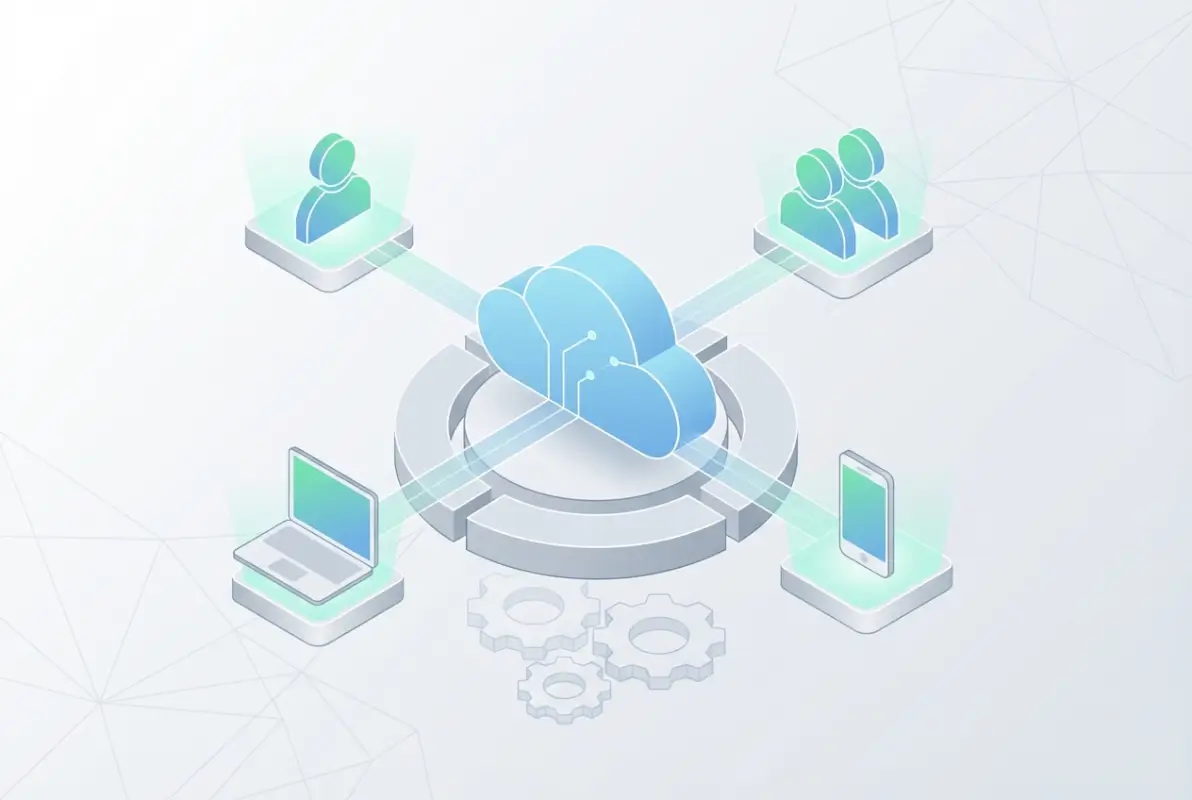
What makes Google Directory particularly powerful is its deep integration with every Google Workspace application. When you update a user’s department in the directory, that change propagates automatically to Gmail signatures, Drive sharing permissions, Calendar resources, and Meet access controls. This synchronization eliminates the data silos that plague organizations using fragmented identity systems.
The directory manages several critical components:
- User accounts with custom attributes and profile information
- Group memberships for access control and distribution lists
- Organizational units for hierarchical policy application
- Device inventory for Chrome OS and mobile endpoint management
- Domain aliases and user aliases for email routing
- Resource calendars for conference rooms and shared equipment
Directory API vs. Cloud Directory Sync: Choosing Your Path
The choice between using the Directory API directly or implementing GCDS depends on your existing infrastructure and operational requirements. The Admin SDK Directory API provides real-time programmatic access—perfect for custom integrations, automation scripts, or building your own provisioning workflows. You write code that calls REST endpoints to create users, modify groups, or query organizational data.
Google Cloud Directory Sync (GCDS), on the other hand, is a dedicated application designed specifically for synchronizing on-premises LDAP or Active Directory with Google Workspace. It runs scheduled jobs that compare your local directory with Google’s cloud directory and applies changes automatically. GCDS is ideal when you want to maintain Active Directory as your primary identity source while keeping Google Workspace synchronized.
The key differences break down like this:
| Aspect | Directory API | GCDS |
|---|---|---|
| Best for | Custom integrations, real-time updates | AD/LDAP synchronization |
| Technical skill | Requires development expertise | Configuration-based, minimal coding |
| Update timing | Immediate/event-driven | Scheduled intervals (typically hourly) |
| Maintenance | Code maintenance required | Configuration updates as needed |
| Scope | Full CRUD operations on all objects | Primarily user/group provisioning |
Many organizations actually use both approaches in tandem—GCDS for bulk user synchronization from Active Directory, and the Directory API for specialized automation like custom onboarding workflows or integration with third-party HR systems.
Prerequisites and Planning for Directory Integration
Successful directory integration starts long before you touch any configuration screens. The planning phase determines whether your implementation becomes a smooth transition or a troubleshooting marathon. From my experience working with dozens of organizations, those that invest time in proper planning complete their deployments in half the time with significantly fewer issues.
First, verify you have the necessary administrative access. You’ll need super administrator privileges in Google Workspace—not just any admin account, but specifically a super admin. This level of access is required to enable APIs, create service accounts with domain-wide delegation, and configure directory synchronization settings. If you’re not sure about your admin level, check the Admin Console under Account > Admin Roles.
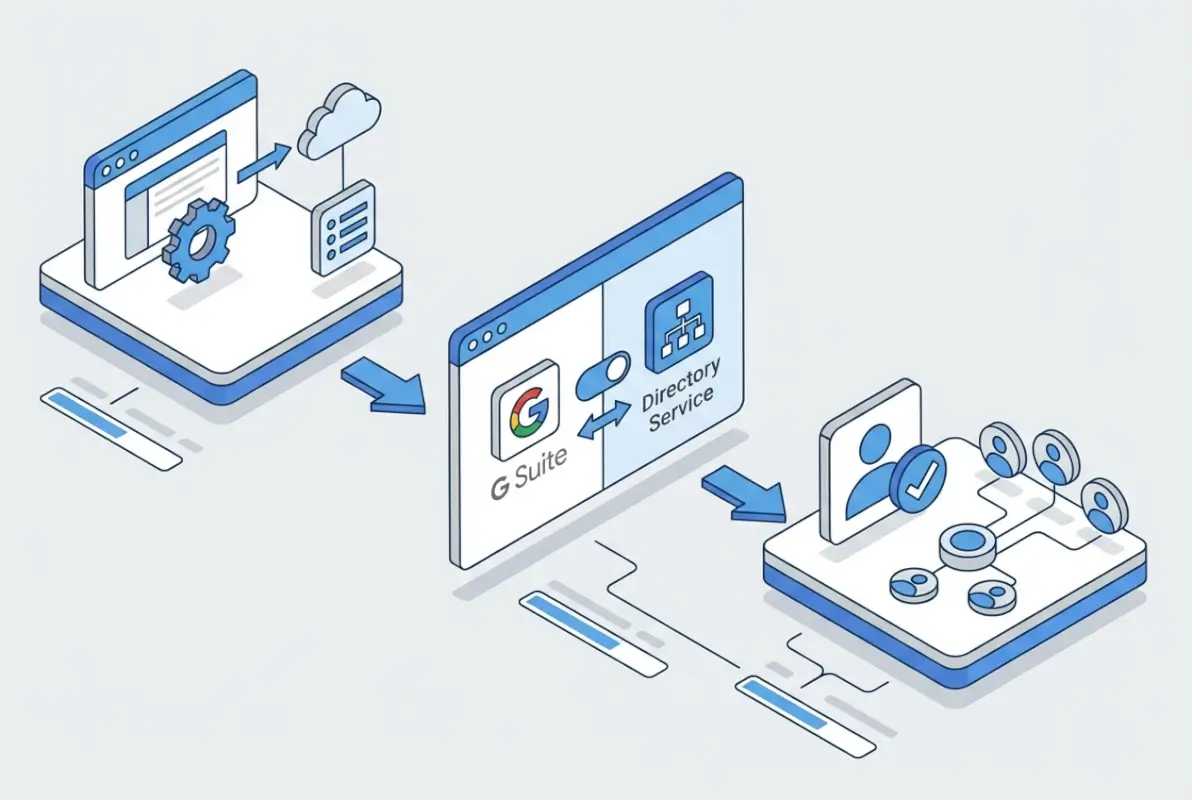
Domain verification is non-negotiable. Google must confirm that you control the domain before allowing directory operations. If you set up Google Workspace recently, this step is likely complete, but if you’re adding new domains or working with an older account, verify each domain through DNS records or HTML file upload as described in the Admin Console.
Technical Prerequisites Checklist
Before beginning implementation, ensure you have:
- Super administrator access to your Google Workspace account
- All relevant domains verified in Google Workspace
- Google Cloud Console project created (for Directory API implementations)
- Service account with domain-wide delegation configured (for API access)
- Clear inventory of users, groups, and organizational structure
- For GCDS: Windows or Linux server with connectivity to both AD/LDAP and internet
- For GCDS: LDAP bind credentials with read access to your directory
- Documentation of required OAuth scopes based on your use case
Data Mapping and Attribute Planning
One of the most overlooked aspects of directory integration is attribute mapping—deciding which fields sync from your source system to Google Workspace and how they correspond. Google Directory uses specific field names (givenName, familyName, orgUnitPath, etc.) that may not match your source system’s schema.
Create a mapping document that specifies:
- Which source attribute maps to each Google Directory field
- Transformation rules (e.g., converting department codes to full names)
- Default values for required Google fields that don’t exist in your source
- Custom schema extensions if you need to store organization-specific attributes
- Handling of special characters, diacritics, and internationalization
I worked with a multinational corporation that skipped this planning step and ended up with 3,000 users synchronized with incorrect organizational units because they hadn’t mapped their complex AD OU structure to Google’s flatter organizational model. Three months later, they were still manually correcting permissions. Don’t make that mistake—invest the planning time upfront.
Security and Governance Considerations
Directory data represents the keys to your digital kingdom. Every user account, every group membership, and every device registration determines who can access what within your organization. Treating directory integration as purely a technical exercise ignores the significant security implications.
Implement the principle of least privilege from day one. When configuring service accounts for Directory API access, grant only the specific OAuth scopes required for your use case. For example, if you only need to read user data, don’t request write permissions. If you’re only managing groups, don’t request device management scopes.
The common OAuth scopes for directory operations include:
https://www.googleapis.com/auth/admin.directory.user– Full user managementhttps://www.googleapis.com/auth/admin.directory.user.readonly– Read-only user accesshttps://www.googleapis.com/auth/admin.directory.group– Group managementhttps://www.googleapis.com/auth/admin.directory.orgunit– Organizational unit managementhttps://www.googleapis.com/auth/admin.directory.device.chromeos– Chrome OS device management
According to Google’s Directory API users and groups reference, proper scope limitation significantly reduces the attack surface if service account credentials are ever compromised.
Enable audit logging for all directory operations. Google Workspace provides comprehensive audit logs that track every change to user accounts, group memberships, and organizational settings. Configure alerts for suspicious activities like mass user deletions, unexpected privilege escalations, or API access from unusual locations.
Implementing Directory API with Admin SDK
The Admin SDK Directory API provides programmatic control over your Google Workspace directory, enabling custom integrations and automation that go beyond what the Admin Console or GCDS can offer. This approach works best when you need real-time provisioning triggered by events in external systems, or when building custom applications that need directory access.
The implementation process involves several distinct phases: enabling the API in Google Cloud Console, creating and authorizing a service account, implementing authentication, and finally making API calls to manage directory resources.

Enabling the Admin SDK and Creating Service Accounts
Start by creating a project in Google Cloud Console (console.cloud.google.com). Navigate to “APIs & Services” and enable the “Admin SDK API.” This activation allows your project to make requests against the Directory API endpoints.
Next, create a service account—a special type of account designed for application-to-application authentication. In Cloud Console, go to “IAM & Admin” > “Service Accounts” and create a new service account. Download the JSON key file, which contains the credentials your application will use to authenticate.
The critical step is enabling domain-wide delegation for this service account. In the Admin Console (admin.google.com), navigate to Security > API Controls > Domain-wide Delegation. Add your service account’s client ID and specify the OAuth scopes it should be authorized to use. This delegation tells Google Workspace to trust API calls from your service account as if they came from an administrator.
Making Your First Directory API Call
Once authentication is configured, you can make API calls to manage directory resources. Here’s what a basic workflow looks like (conceptually, not showing full code since implementation varies by language):
First, your application loads the service account credentials and requests an access token from Google’s OAuth servers. Using the JSON key file, you authenticate as the service account and specify which user you’re acting on behalf of (this impersonation is what domain-wide delegation enables).
Then you make HTTP requests to Directory API endpoints. To list all users in your domain, you’d send a GET request to https://www.googleapis.com/admin/directory/v1/users?domain=yourdomain.com. To create a new user, you’d POST a JSON payload to the users endpoint with the user’s details. To update group membership, you’d use the members endpoint under the groups resource.
The API uses standard REST conventions—GET for reading, POST for creating, PUT/PATCH for updating, and DELETE for removing resources. All responses return JSON, and the API handles pagination automatically for large result sets (you’ll get a nextPageToken in responses when more results exist).
| Common Task | API Endpoint | HTTP Method |
|---|---|---|
| List all users | /admin/directory/v1/users | GET |
| Create new user | /admin/directory/v1/users | POST |
| Get user details | /admin/directory/v1/users/{userKey} | GET |
| Update user | /admin/directory/v1/users/{userKey} | PUT/PATCH |
| Delete user | /admin/directory/v1/users/{userKey} | DELETE |
| List groups | /admin/directory/v1/groups | GET |
| Add group member | /admin/directory/v1/groups/{groupKey}/members | POST |
Handling Rate Limits and Optimization
Google imposes rate limits on Directory API calls to protect system stability. The standard quota allows 1,500 queries per 100 seconds per user, though this can vary based on your Workspace edition. When you exceed these limits, the API returns a 429 error with a Retry-After header.
Implement exponential backoff in your code—when you receive a rate limit error, wait a short period before retrying, and if you’re rate-limited again, wait progressively longer. Most Google client libraries handle this automatically, but if you’re building custom implementations, you’ll need to code this behavior.
For bulk operations, use batch requests when possible. The Directory API supports batching multiple operations into a single HTTP request, dramatically reducing overhead. Instead of making 1,000 individual API calls to update 1,000 users, you can batch those into perhaps 10 requests with 100 operations each.
Pagination is another critical optimization. When retrieving large result sets, always use the maxResults parameter to limit page size (the API defaults to 100 results per page, with a maximum of 500). Fetch only the fields you need using the fields parameter to reduce response payload size and improve performance.
Directory Sync with Google Cloud Directory Sync (GCDS)
For organizations with existing Active Directory or LDAP infrastructure, Google Cloud Directory Sync provides a robust, configuration-driven approach to keeping Google Workspace synchronized with your on-premises directory. GCDS acts as a bridge, periodically reading data from your local directory and updating Google Workspace to match.
Unlike the Directory API approach which requires coding, GCDS uses a graphical configuration tool to set up synchronization rules, attribute mappings, and scheduling. It’s particularly well-suited for organizations that want to maintain Active Directory as their authoritative source while extending identity to Google’s cloud services.
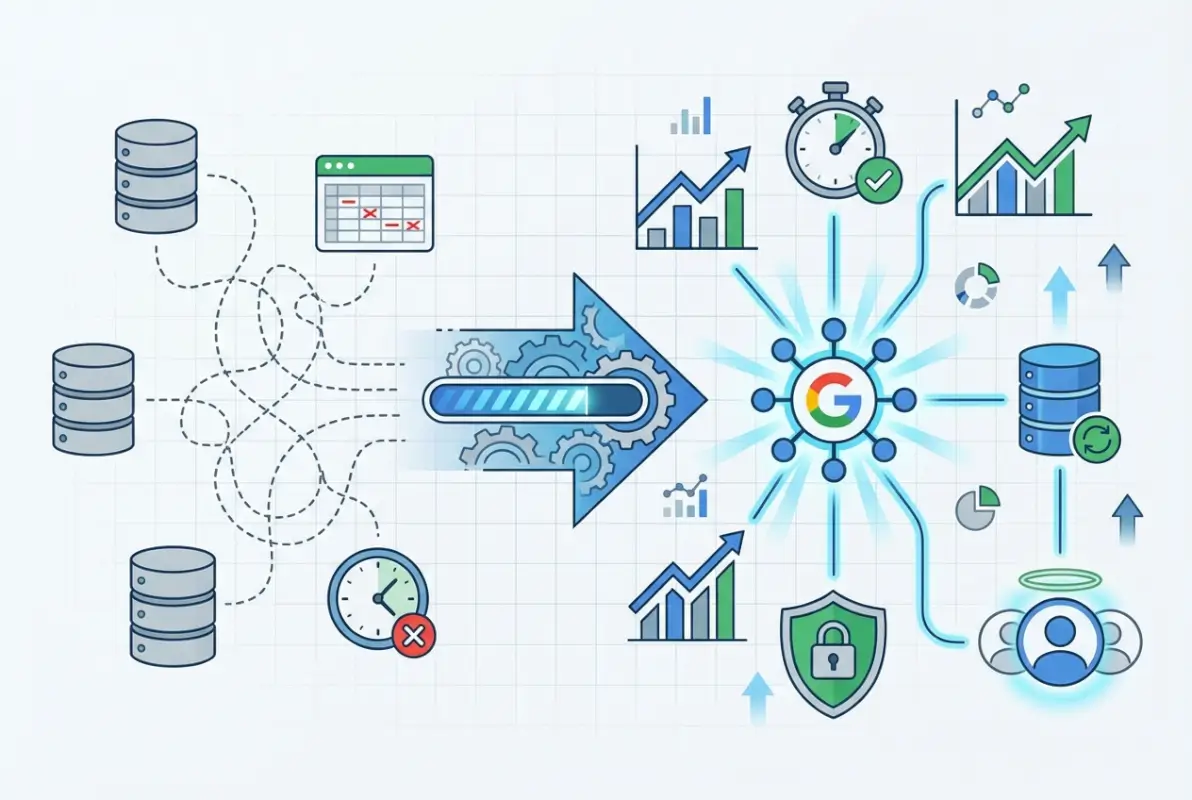
According to Google’s Workspace deployment documentation, GCDS supports one-way synchronization from LDAP/AD to Google, ensuring that your local directory remains the single source of truth while Google Workspace stays current.
GCDS Installation and Initial Configuration
Download GCDS from Google’s official site and install it on a Windows or Linux server that has network connectivity to both your Active Directory/LDAP server and the internet. The server doesn’t need to be a domain controller, but it does need credentials to read from your directory.
During initial setup, the Configuration Manager wizard guides you through several critical decisions:
- Google domain configuration—connecting GCDS to your Google Workspace instance
- LDAP connection settings—server address, bind DN, and authentication credentials
- Search base and rules—defining which OUs or containers to synchronize
- User and group mapping—specifying how AD/LDAP attributes map to Google fields
- Notification preferences—email alerts for sync errors or issues
The connection setup requires careful attention to LDAP query syntax. You’ll define search bases (the starting point in your directory tree), search scope (just that level or include subtrees), and filter rules (LDAP queries that determine which objects to include). Getting these queries right is crucial—overly broad queries sync too much data, while overly narrow queries miss important users or groups.
Attribute Mapping and Transformation Rules
The heart of GCDS configuration is attribute mapping—telling the tool how fields in your source directory correspond to Google Workspace directory fields. GCDS provides default mappings for common scenarios, but most organizations need customization.
Common mapping scenarios include:
- Using the AD mail attribute for Google’s primaryEmail field
- Mapping AD givenName and sn to Google’s name.givenName and name.familyName
- Transforming AD title or department attributes to Google’s organizations structure
- Creating email aliases from AD proxyAddresses or mail alternate attributes
- Mapping AD telephoneNumber to Google’s phones field
Beyond simple field mapping, GCDS supports transformation rules using regex patterns and substitution. For instance, if your AD stores phone numbers as “+1-555-123-4567” but you want them in Google as “+15551234567”, you can apply a transformation rule to strip hyphens during sync.
For organizational units, you’ll typically map AD OU structure to Google’s flatter org unit model. Google Workspace supports nested org units, but many organizations find that a simpler structure works better for policy application. GCDS lets you specify rules like “all users in CN=Sales,OU=Users,DC=company,DC=com go into the /Sales organizational unit in Google.”
Scheduling and Monitoring Synchronization
Once configured, GCDS can run on a schedule (typically hourly or every few hours, depending on how quickly you need changes to propagate). You can schedule sync jobs using Windows Task Scheduler or cron on Linux, calling GCDS with command-line parameters that specify the configuration file and sync options.
Each sync generates detailed logs showing:
- Users and groups added, modified, or deleted in Google Workspace
- Errors or warnings encountered during synchronization
- Objects skipped due to filter rules or validation failures
- Performance metrics (time to complete, number of API calls made)
I once helped a healthcare organization troubleshoot mysterious group membership issues—turned out their GCDS was running every 15 minutes, and their sync job took 18 minutes to complete. They had overlapping sync jobs fighting each other. We adjusted to hourly syncs with monitoring to ensure each completed before the next started, and the issues disappeared.
Set up email notifications in GCDS to alert you when sync errors occur. Don’t wait for users to report access problems—proactive monitoring catches issues like expired LDAP bind credentials, network connectivity problems, or attribute validation failures before they impact operations.
Security, Compliance, and Access Management Best Practices
Implementing directory services isn’t just about technical configuration—it’s about establishing governance frameworks that protect your organization’s most critical asset: identity data. The access granted through directory services determines who can read sensitive emails, access confidential documents, and control organizational resources.
Start with the principle of least privilege for all service accounts and synchronization tools. When configuring Directory API access, grant only the specific scopes required for each use case. A reporting tool that reads user data doesn’t need write permissions. A provisioning system that creates users doesn’t need device management access. This granular permission model limits the damage potential if credentials are compromised.

Domain-Wide Delegation Security
Domain-wide delegation is powerful but carries significant risk if misused. When you authorize a service account with domain-wide delegation, that account can impersonate any user in your organization within the granted scopes. This capability is necessary for administrative tools but represents a major security consideration.
Implement these security measures for service accounts:
- Rotate service account keys quarterly (at minimum)
- Store keys securely using secret management tools like Google Secret Manager, HashiCorp Vault, or AWS Secrets Manager
- Never commit service account keys to version control systems
- Implement IP restrictions where possible to limit where API calls can originate
- Enable detailed audit logging for all service account activities
- Use separate service accounts for dev, staging, and production environments
- Document which service accounts exist, their purpose, and who maintains them
Many organizations looking to streamline directory management find that solutions like those offered by business directory website complete guide can complement their identity strategy with organized, accessible user information.
Audit Logging and Compliance Monitoring
Google Workspace provides comprehensive audit logs for directory operations through the Admin Console. These logs record every user creation, deletion, modification, group membership change, and organizational unit adjustment. For organizations subject to compliance requirements like SOX, HIPAA, or GDPR, these audit trails provide essential evidence of proper access controls.
Configure the audit log to capture:
- Admin activity logs—showing all administrative actions taken in the console or via API
- User log events—tracking user account changes including creation, suspension, deletion
- Group settings logs—monitoring group creation, membership changes, and permission modifications
- Login audit logs—recording authentication events for security analysis
Export these logs regularly to a security information and event management (SIEM) system or log aggregation platform for long-term retention and analysis. Google Workspace’s default retention may not meet your organization’s compliance requirements, so external archiving becomes necessary.
Set up automated alerts for suspicious directory activities such as bulk user deletions, unexpected privilege escalations, or directory API access from unusual geographic locations. These early warning signs often indicate compromised credentials or insider threats.
Troubleshooting Common Directory Integration Issues
Even well-planned directory integrations encounter issues. Understanding common failure modes and their solutions speeds recovery and minimizes user impact. From authentication problems to synchronization conflicts, most issues fall into predictable categories.
Authentication and Permission Errors
The most common issue with Directory API implementations is authentication failure. If you’re seeing “insufficient permissions” or “unauthorized” errors, check these items in order:
- Verify the service account has domain-wide delegation enabled in Admin Console
- Confirm the OAuth scopes in domain-wide delegation match those requested by your application
- Check that the service account key hasn’t been deleted or rotated without updating your application
- Ensure you’re impersonating a user with appropriate permissions (typically a super admin for testing)
- Verify the Admin SDK API is enabled in your Google Cloud project
For GCDS authentication problems, the usual suspects are expired LDAP bind credentials, network firewall rules blocking LDAP or HTTPS traffic, or incorrect search base configuration. The GCDS logs show detailed error messages that usually point to the specific problem—check these logs first before deeper troubleshooting.
Synchronization Conflicts and Data Issues
Data synchronization problems typically manifest as users not appearing in Google Workspace, incorrect group memberships, or attributes not updating as expected. When diagnosing sync issues:
- Run GCDS in simulation mode to see what would sync without actually making changes
- Check the GCDS logs for specific error messages about individual users or groups
- Verify your LDAP search filters are returning the expected objects (test queries directly against AD/LDAP)
- Confirm attribute mappings are pulling data from populated source fields
- Look for character encoding issues with names containing diacritics or special characters
- Check for duplicate email addresses which cause sync failures
I remember troubleshooting a case where 200 users weren’t syncing, while thousands of others worked fine. After reviewing logs, we discovered those 200 users all had periods in their usernames—something the Google email format didn’t accept. A simple attribute transformation rule to replace periods with underscores solved it. The moral: detailed log review always reveals the pattern.
| Symptom | Likely Cause | Solution |
|---|---|---|
| Users not syncing | LDAP filter too restrictive | Review and broaden search filter |
| Duplicate email errors | Multiple AD users map to same email | Add exclusion rules or fix source data |
| Group membership wrong | Nested group handling issue | Configure GCDS group expansion settings |
| API quota errors | Too many requests too quickly | Implement backoff, batch requests |
| Changes not appearing | Sync not running or failing | Check scheduled task and logs |
Performance and Scalability Issues
As your directory grows, performance can degrade if you haven’t optimized your implementation. API rate limits become more constraining, sync jobs take longer to complete, and the risk of timeouts increases.
For Directory API performance problems, implement pagination correctly and use field masks to request only the attributes you need. If you’re syncing thousands of users, batch your operations and spread the load over time rather than trying to process everything in a single burst.
GCDS performance tuning involves adjusting the number of concurrent threads (more threads can speed up large syncs but increase load on AD/LDAP servers), optimizing LDAP queries to be as specific as possible, and potentially splitting very large sync jobs into multiple smaller jobs that target different OUs.
Monitor the time each sync takes to complete and set alerts if duration suddenly increases—this often indicates underlying issues like network problems or directory server performance degradation before they become critical failures.
Frequently Asked Questions
What is Google Directory Service and how does it work?
Google Directory Service is the centralized identity management system within Google Workspace that stores and manages user accounts, groups, organizational units, and device information. It provides authentication and authorization services across all Google Workspace applications, functioning through either the Admin Console interface or programmatically via the Admin SDK Directory API. The service ensures consistent identity data across Gmail, Drive, Calendar, Meet, and all other Workspace tools.
How do I set up a service account for Google Workspace domain-wide delegation?
Create a service account in Google Cloud Console under your Workspace-connected project, generate and download a JSON key file, then enable domain-wide delegation in the Google Admin Console under Security > API Controls > Domain-wide Delegation. Add your service account’s client ID and specify the OAuth scopes it requires. This allows the service account to impersonate users for API operations without requiring individual user authentication for each action.
What is the difference between Directory API and Google Cloud Directory Sync?
The Directory API provides real-time programmatic access to Google Workspace directory data through REST endpoints, requiring development expertise to implement custom integrations. GCDS is a configuration-driven tool specifically designed to synchronize on-premises LDAP or Active Directory with Google Workspace on scheduled intervals, requiring minimal coding. Directory API suits custom automation and event-driven updates, while GCDS works best for organizations maintaining Active Directory as their authoritative source.
Can I synchronize users from Active Directory to Google Workspace automatically?
Yes, using Google Cloud Directory Sync (GCDS), you can establish automated one-way synchronization from Active Directory to Google Workspace. GCDS runs on scheduled intervals, reading user and group data from AD and updating Google Workspace to match. This keeps your Google directory current while maintaining AD as the authoritative source. The sync can include users, groups, organizational units, and various attributes based on your mapping configuration.
How do I troubleshoot Directory API permission errors?
First, verify the service account has domain-wide delegation enabled in the Admin Console with the correct OAuth scopes specified. Ensure the Admin SDK API is enabled in your Cloud project and that your application is correctly implementing the OAuth flow with proper impersonation. Check that the service account key is current and hasn’t been rotated without updating your application. Review audit logs to confirm API requests are being received and identify specific permission failures.
What are the security best practices for directory integration?
Implement least privilege by granting only necessary OAuth scopes to service accounts, rotate service account keys quarterly, store credentials securely using secret management tools, enable comprehensive audit logging for all directory operations, set up alerts for suspicious activities like bulk deletions or unexpected privilege changes, use separate service accounts for different environments, and regularly review access permissions to ensure they remain appropriate as organizational needs change.
Where can I find authoritative documentation for the Directory API?
Google provides comprehensive documentation at developers.google.com/workspace/admin/directory, including endpoint references, authentication guides, code samples in multiple languages, and quota information. The documentation covers all aspects of the Admin SDK Directory API including users, groups, organizational units, devices, and custom schemas. For GCDS specifically, consult Google’s official deployment guides and the GCDS Configuration Manager help files included with the application.
How often should GCDS synchronization run?
Most organizations run GCDS hourly or every few hours, balancing the need for current data against system load and API quota consumption. Critical environments requiring near-real-time provisioning might sync every 15-30 minutes, while less time-sensitive deployments can run daily. Ensure your sync interval allows sufficient time for each job to complete before the next begins. Monitor sync duration and adjust frequency if jobs start overlapping or timing out.
What are common causes of GCDS synchronization failures?
Common issues include expired LDAP bind credentials, overly restrictive search filters that exclude intended users, incorrect attribute mappings pulling from unpopulated fields, duplicate email addresses in source data, character encoding problems with special characters, network connectivity issues between the GCDS server and AD/LDAP or Google’s APIs, and insufficient permissions on the Google Workspace super admin account used for synchronization. Check detailed logs for specific error messages.
Can I use Directory API and GCDS together?
Yes, many organizations use both in complementary ways—GCDS for bulk user synchronization from Active Directory, and Directory API for specialized automation like custom onboarding workflows, integration with HR systems, or real-time provisioning triggered by specific events. This hybrid approach leverages GCDS’s simplicity for standard directory sync while using the API’s flexibility for unique organizational requirements. Just ensure you coordinate to avoid conflicts between the two systems.
Taking Control of Your Identity Infrastructure
Implementing Google Directory Service—whether through the Admin SDK Directory API or Google Cloud Directory Sync—represents a significant step toward mature identity management. The investment you make in proper planning, secure configuration, and ongoing maintenance pays dividends through reduced administrative overhead, improved security posture, and seamless user experiences across your Google Workspace environment.
The path forward depends on your organization’s specific needs. If you’re maintaining Active Directory as your authoritative source and need straightforward synchronization, GCDS provides the most direct route. If you require custom integrations, event-driven provisioning, or advanced automation, the Directory API offers the flexibility you need. Many organizations ultimately leverage both approaches, each serving distinct use cases within the broader identity strategy.
Next Steps: Start by thoroughly documenting your current identity infrastructure and user provisioning workflows. Identify pain points in your existing processes, then choose the integration approach that best addresses those challenges. Begin with a pilot implementation in a test environment, refine your configuration based on lessons learned, and gradually expand to production with proper monitoring and rollback plans in place.
Remember that directory integration isn’t a one-time project—it’s an ongoing operational capability that requires attention as your organization evolves. Regular audits, security reviews, and optimization ensure your identity infrastructure continues delivering value while adapting to changing business needs.
What challenges are you facing with Google Workspace directory management? Share your experiences and questions in the comments to help others navigate their own implementation journeys.
Was this article helpful?