How to Hide WordPress Plugins: 6 Methods for Website Owners

WordPress security doesn’t have to be a constant battle against invisible threats. While most site owners focus on the obvious security measures—updating plugins and using strong passwords—there’s a lesser-discussed layer of protection that can significantly reduce your attack surface: strategically hiding your WordPress plugins from prying eyes. This approach, often called security through obscurity, isn’t about replacing core security practices but rather adding an extra barrier that makes automated attacks and reconnaissance much harder.

TL;DR – Quick Takeaways
- Plugin hiding is supplementary – Never replace core security practices like updates and backups
- Six practical methods exist – From simple directory renaming to advanced WAF implementations
- Start small, test thoroughly – Begin with low-risk methods before attempting advanced techniques
- Focus on high-impact wins – Asset masking and access controls provide the best security ROI
- Avoid common pitfalls – Breaking functionality or SEO signals defeats the purpose
Understanding the Concept: What “Hiding Plugins” Actually Means
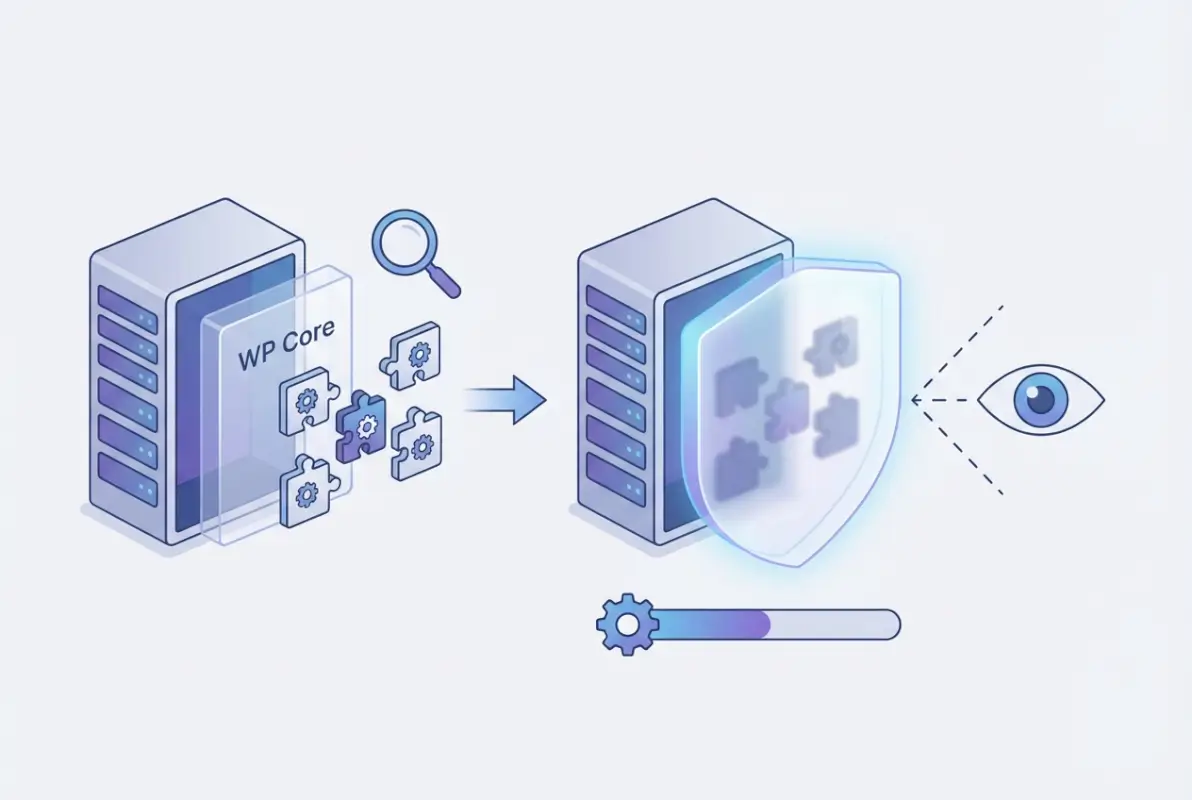
Before diving into specific techniques, it’s crucial to understand what we’re really talking about when we discuss “hiding” WordPress plugins. This isn’t about making plugins invisible or removing their functionality—it’s about obscuring the digital fingerprints they leave behind.
Distinguishing Hiding from Hardening
Plugin hiding involves masking identifiable signals like directory names, file paths, version numbers, and distinctive CSS classes that reveal which plugins you’re using. Think of it like changing the nameplate on your house—the building is still there and fully functional, but casual observers can’t easily identify specific details about it.
Traditional security hardening, on the other hand, focuses on strengthening the actual defenses: updating software, configuring proper permissions, and implementing access controls. These two approaches work best when combined, not when one replaces the other.
Why Security by Obscurity Has Limits
Here’s where many site owners get tripped up: obscurity alone is never sufficient protection. A determined attacker with the right tools can still discover hidden plugins through various reconnaissance techniques. However, this doesn’t make obscurity worthless—it simply means you need realistic expectations.
The real value lies in deflecting automated attacks and opportunistic scanning. Many attack tools rely on quickly identifying common plugin signatures to launch targeted exploits. When those signatures aren’t immediately visible, these tools often move on to easier targets.
When Hiding May Help (and When It Doesn’t)
Plugin hiding proves most effective in scenarios involving automated reconnaissance, competitive research prevention, and reducing your site’s apparent complexity to potential attackers. It’s particularly valuable for sites running popular plugins with known vulnerabilities that can’t be immediately updated.
However, hiding provides minimal protection against skilled manual attackers, zero-day exploits, or vulnerabilities in your hidden plugins themselves. It also won’t help if your fundamental security practices are weak.
Method 1 — Rename or Obfuscate Plugin Directories and Assets
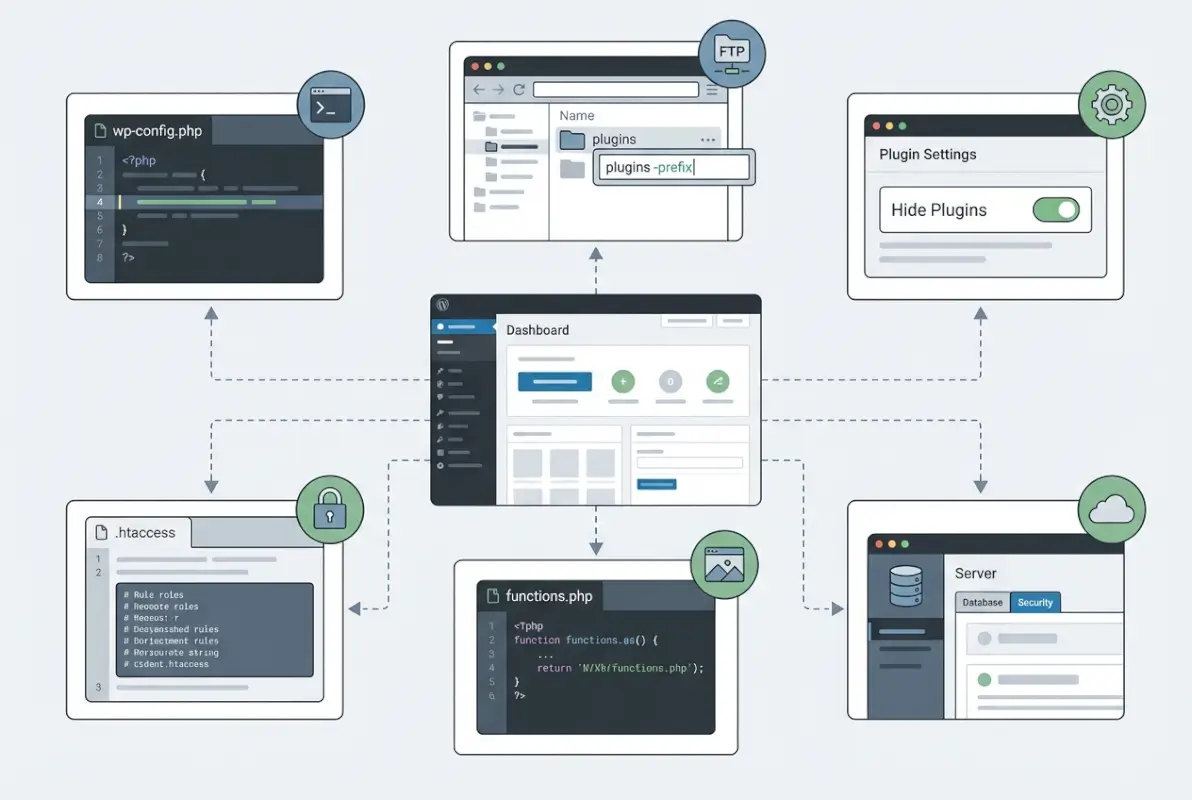
The most straightforward approach to hiding plugins involves changing the obvious identifiers that broadcast their presence to anyone inspecting your site’s source code or making educated guesses about file paths.
What to Rename and How
Start with plugin folder names in your /wp-content/plugins/ directory. Instead of /wp-content/plugins/contact-form-7/, you might rename it to something generic like /wp-content/plugins/cf-handler/ or even random like /wp-content/plugins/x7k9m/.
You can also obscure individual asset files. CSS files with names like social-media-widget-styles.css become smw-core.css or layout-helper.css. The key is maintaining some logical organization for your own maintenance while removing obvious plugin identification.
For sites using advanced SEO strategies, consider how renamed assets might affect your optimization efforts. Most SEO tools won’t be impacted by internal file renaming, but always test thoroughly.
Tools and Best Practices
Several WordPress plugins automate the renaming process, but manual approaches often provide better control. When renaming manually, always work on a staging environment first and maintain detailed documentation of your changes.
Use server-level rewrites through .htaccess rules to create aliases for renamed directories. This allows you to change public-facing paths without breaking internal WordPress references. For example:
RewriteRule ^wp-content/plugins/contact-form-7/(.*) /wp-content/plugins/cf-handler/$1 [L]Pros and Cons
The primary advantage of directory renaming is immediate obscurity with relatively simple implementation. Automated scanners looking for common plugin paths will come up empty, and casual inspection of your site won’t reveal obvious plugin usage.
However, this method can significantly complicate maintenance and updates. Plugin updates might fail or restore original directory names. You’ll also need to update any hardcoded references to plugin assets in your theme or custom code.
Cautions
Test thoroughly with caching plugins, CDNs, and security tools. Some caching systems store asset paths and may serve broken links after renaming. Similarly, security plugins that whitelist specific plugin directories may start blocking renamed assets.
Maintain comprehensive backups and rollback procedures. It’s surprisingly easy to break a site during the renaming process, especially with complex plugins that have interdependencies.
Method 2 — Asset URL Masking and Rewriting (CSS/JS/Image Paths)
While renaming directories hides plugins from basic inspection, asset URL masking takes concealment a step further by obscuring the public-facing URLs of plugin resources without necessarily changing the underlying file structure.
Masking Static Assets
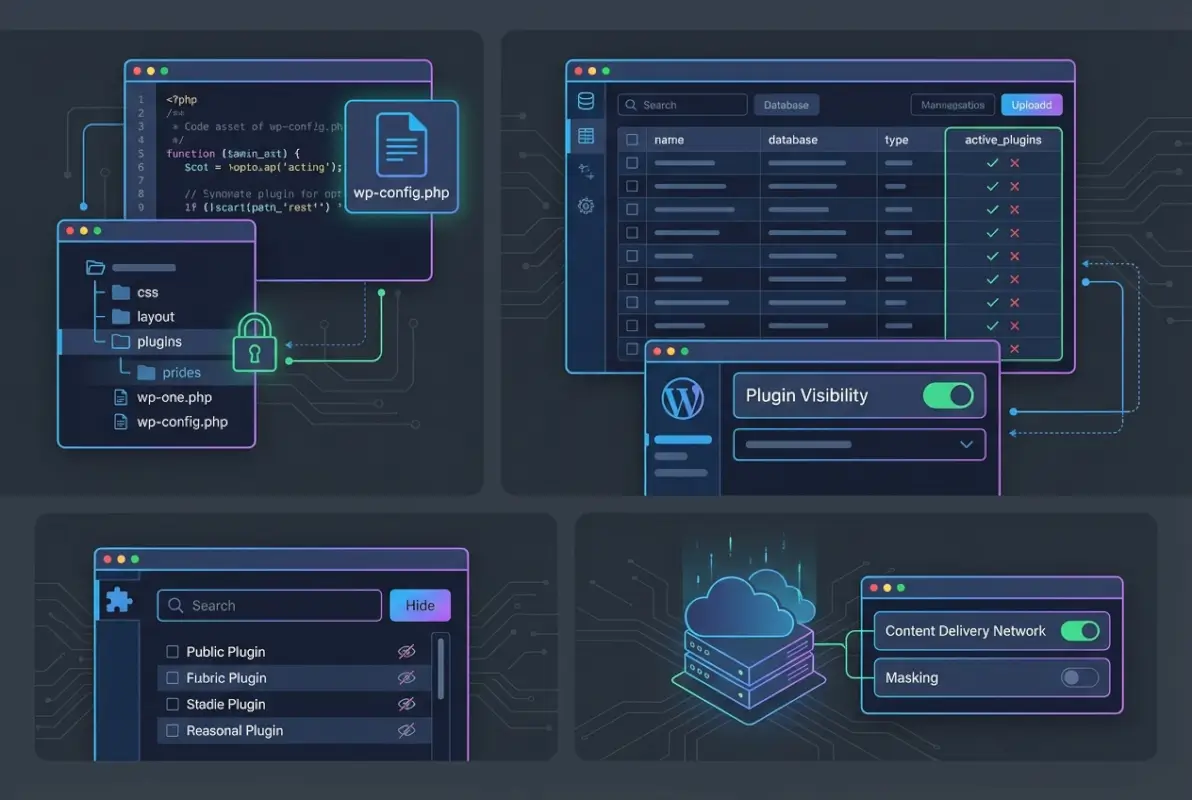
Asset masking involves creating proxy URLs or rewrite rules that serve plugin assets from disguised paths. Instead of loading /wp-content/plugins/awesome-slider/css/slider.css, browsers might request /assets/layout/slideshow.css which internally points to the actual plugin file.
This approach works particularly well for CSS and JavaScript files, which are easily identified in page source. Image assets can also be masked, though the SEO impact requires careful consideration if those images contribute to your search visibility.
Caching and Performance Considerations
Asset masking can impact site performance if not implemented thoughtfully. Each rewrite operation adds processing overhead, and improperly configured caching can multiply this effect.
Configure your caching system to handle masked URLs properly. Some caching plugins need explicit rules to cache assets served through rewrite rules. CDNs may also require additional configuration to properly handle and cache masked assets.
For sites focused on search engine optimization, monitor Core Web Vitals after implementing asset masking. Any performance degradation could negatively impact your search rankings.
Pros and Cons
Asset masking provides excellent concealment of plugin usage while maintaining full functionality. It’s harder for attackers to reverse-engineer than simple directory renaming, and it doesn’t interfere with plugin updates since the underlying file structure remains unchanged.
The downside is increased complexity and potential performance impact. Debugging becomes more difficult when asset URLs don’t match actual file paths. You’ll also need more sophisticated monitoring to ensure all masked assets load properly across different devices and browsers.
Method 3 — Hide or Mask WordPress Version and Common Identifiers
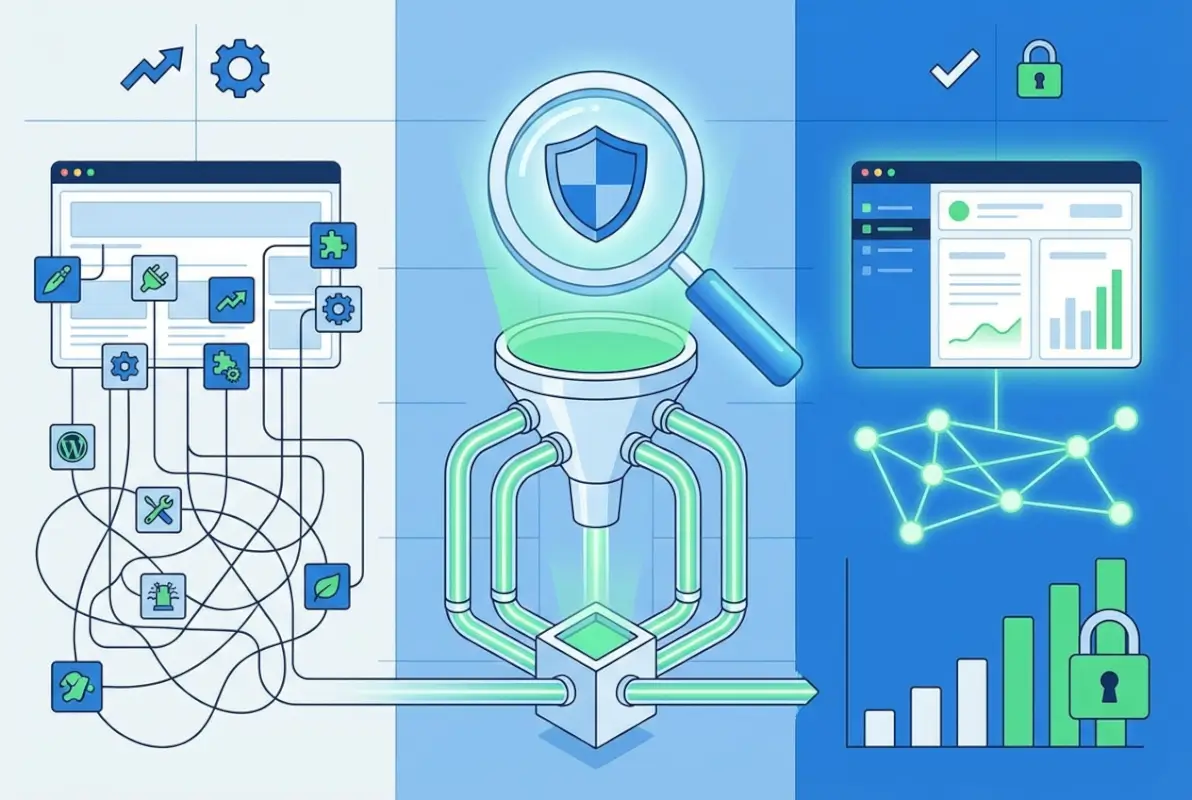
Beyond individual plugins, WordPress itself broadcasts identifying information that helps attackers understand your site’s underlying structure and potential vulnerabilities. Masking these broader identifiers creates additional layers of obscurity.
Why This Matters
WordPress version information appears in multiple locations: meta tags, RSS feeds, CSS and JavaScript file URLs with version parameters, and various header responses. This information helps attackers correlate known vulnerabilities with your specific installation.
Plugin version numbers often appear alongside WordPress version info, creating a detailed fingerprint of your site’s software stack. Even without knowing specific plugin names, attackers can sometimes identify vulnerable versions through these leaked version numbers.
Techniques
Remove WordPress version meta tags from your site’s head section by adding this to your theme’s functions.php:
remove_action('wp_head', 'wp_generator');Strip version parameters from CSS and JavaScript files to prevent version detection:
function remove_version_scripts_styles($src) {
    if (strpos($src, 'ver=')) {
        $src = remove_query_arg('ver', $src);
    }
    return $src;
}
add_filter('style_loader_src', 'remove_version_scripts_styles', 9999);
add_filter('script_loader_src', 'remove_version_scripts_styles', 9999);| Identifier Type | Default Behavior | Hidden Alternative |
|---|---|---|
| WordPress Version | Visible in meta tags and URLs | Removed from head, stripped from URLs |
| Plugin Paths | /wp-content/plugins/plugin-name/ | /assets/ or custom path structure |
| Admin Login | /wp-admin/ and /wp-login.php | Custom login URLs |
Pros and Cons
Hiding WordPress identifiers reduces automated targeting significantly. Many attack tools scan for specific WordPress versions with known vulnerabilities, so removing this information forces attackers to use more sophisticated reconnaissance methods.
However, this approach doesn’t eliminate all fingerprinting possibilities. Experienced attackers can still identify WordPress through various other signals like URL structures, cookie names, and HTML patterns. The protection is primarily against automated, less sophisticated attacks.
Related Guidance
Security experts consistently emphasize that version hiding should complement, not replace, regular updates. Even if your WordPress version isn’t publicly visible, running outdated software with known vulnerabilities remains extremely risky.
Consider implementing additional measures like custom error pages that don’t reveal server information and modifying server headers to remove WordPress-specific signatures.
Method 4: Implement Environment Segmentation and Access Controls
While the previous methods focus on hiding information, environment segmentation takes a more proactive approach by controlling who can access potentially sensitive areas of your site in the first place.

Principle of Least Privilege
The most effective way to hide plugin details is to prevent unauthorized users from accessing areas where that information might be visible. This means implementing strict access controls on admin areas, plugin directories, and any endpoints that might leak plugin information.
Start by restricting admin access to specific IP addresses or VPN ranges. This immediately eliminates the vast majority of unauthorized reconnaissance attempts. Multi-factor authentication adds another layer, ensuring that even compromised passwords can’t provide admin access.
For sites with multiple business listings or complex user management needs, consider role-based access controls that limit plugin visibility based on user responsibilities.
Server-Level Controls
Implement web application firewall rules that block common plugin discovery attempts. Rules should catch requests for common plugin paths, readme.txt files, and known vulnerability scanning patterns.
Rate limiting prevents automated scanning tools from rapidly probing your site for plugin information. Even if individual requests aren’t blocked, limiting the speed of reconnaissance makes it impractical for attackers to quickly catalog your plugins.
Geographic restrictions can also be effective if your site serves a specific region. Blocking requests from countries where you don’t expect legitimate traffic reduces the attack surface considerably.
Pros and Cons
Access controls provide genuine security benefits beyond just hiding plugins. They actually prevent unauthorized access rather than simply obscuring information. This approach also scales well and doesn’t require ongoing maintenance like directory renaming might.
The primary drawback is potential impact on legitimate users. Overly restrictive controls can block real visitors or make site management cumbersome for authorized users. Geographic blocking might also hurt SEO if search engines can’t properly crawl your site.
There’s also the risk of locking yourself out. Always maintain alternative access methods when implementing strict controls, especially IP-based restrictions that could block you during network changes.
Method 5: Use a Security-Focused Plugin to Mask or Limit Signals
Rather than manually implementing hiding techniques, specialized security plugins can automate many obscurity measures while maintaining compatibility with your existing setup.
Examples and Capabilities
Security plugins designed for hiding typically offer comprehensive feature sets that address multiple attack vectors simultaneously. They might rename login URLs, hide WordPress version information, block plugin directory access, and mask asset URLs all through a single interface.
Popular options include plugins that create virtual directory structures, making it appear that your plugins are located in completely different paths. Some even create false signals, showing decoy plugins to confuse attackers while hiding your real plugin stack.
More advanced security plugins integrate with WAF services and can dynamically adjust hiding strategies based on detected threat patterns. This adaptive approach provides better protection than static hiding methods.
Implementation Tips
When selecting a security plugin for hiding purposes, prioritize options with strong compatibility track records. Some hiding plugins conflict with popular themes, caching systems, or SEO tools, potentially causing more problems than they solve.
Test thoroughly in a staging environment, paying special attention to admin functionality, front-end display, and any custom integrations your site uses. Some plugins work perfectly for basic WordPress sites but break advanced features or third-party integrations.
Document all plugin settings and maintain rollback procedures. Security plugins often make extensive changes that can be difficult to reverse if you need to disable the plugin quickly.
Pros and Cons
Security plugins offer convenience and comprehensive coverage without requiring deep technical knowledge. They’re regularly updated to address new hiding techniques and attack vectors, providing better long-term protection than manually implemented solutions.
However, they add another layer of complexity and potential failure points to your site. Some security plugins are resource-intensive and can slow site performance. There’s also the risk of conflicts with other plugins or themes.
Perhaps most importantly, security plugins become a single point of failure for your hiding strategies. If the plugin develops a vulnerability or stops receiving updates, all your hiding measures could be compromised simultaneously.
Method 6: Deploy a Reverse-Proxy or Web Application Firewall (WAF) with Obfuscation Rules
For sites requiring enterprise-level hiding capabilities, implementing a WAF or reverse proxy provides the most comprehensive and flexible approach to plugin concealment.
How It Works
A WAF sits between visitors and your WordPress site, intercepting all requests and responses. This position allows it to modify requests for plugin resources, rewrite URLs, strip identifying headers, and even inject false information to mislead attackers.
Unlike plugin-based solutions, WAF-level hiding operates outside your WordPress installation, making it much harder for attackers to discover or bypass. The WAF can maintain completely different URL structures publicly while internally routing requests to the correct plugin files.
Advanced WAF configurations can implement dynamic hiding rules that change based on detected threat levels or visitor behavior patterns. This makes it extremely difficult for attackers to build reliable reconnaissance tools.
Practical Steps
Start with a reputable WAF service that offers custom rule configuration. Popular options include Cloudflare, AWS WAF, and specialized WordPress security services. Avoid solutions that only offer basic DDoS protection without URL rewriting capabilities.
Configure URL rewriting rules that map common plugin paths to neutral alternatives. For example, route /wp-content/plugins/ requests to /assets/modules/ while maintaining proper internal routing to the actual plugin files.
Implement request filtering that blocks common plugin discovery attempts. This includes requests for readme.txt files, license.txt files, and direct access to plugin PHP files that shouldn’t be publicly accessible.
Pros and Cons
WAF-based hiding provides the strongest protection with excellent scalability and performance. It operates independently of your WordPress installation, so plugin updates and theme changes won’t break your hiding measures. The centralized control also makes it easier to adjust strategies as new threats emerge.
The main disadvantages are cost and complexity. Quality WAF services require ongoing subscriptions, and proper configuration demands technical expertise. Misconfigured WAF rules can break site functionality in subtle ways that are difficult to diagnose.
There’s also the dependency factor—you’re now reliant on an external service for core site functionality. WAF outages or configuration errors can make your site inaccessible even if your hosting is working perfectly.
What to Do First: A Practical, Minimal Approach
With six different methods available, knowing where to start can be overwhelming. The key is implementing changes incrementally, testing thoroughly, and focusing on the highest-impact, lowest-risk improvements first.
Quick Wins for Immediate Improvement
Begin with the fundamentals that provide security benefits beyond just hiding plugins. Update all plugins and WordPress core to the latest versions. Enable multi-factor authentication for all admin accounts. Remove any plugins you’re not actively using.
Next, implement the simple hiding measures that require minimal technical risk. Remove WordPress version information from your site’s head section and strip version parameters from CSS and JavaScript URLs. These changes are easily reversible and rarely cause compatibility issues.
Block direct access to plugin directories through .htaccess rules. This prevents casual browsing of plugin folders while maintaining normal functionality for legitimate requests.
Moderate Approach for a Typical Site
Once basic hiding measures are in place and tested, consider implementing asset URL masking for your most security-sensitive plugins. Focus on plugins that handle user data, payment processing, or admin functions rather than trying to hide every plugin at once.
Implement IP-based access controls for admin areas if your user base allows it. This dramatically reduces unauthorized access attempts and provides genuine security benefits beyond obscurity.
Consider a security plugin that can automate several hiding techniques simultaneously. This provides broader coverage with less manual maintenance, though you’ll need to test compatibility carefully.
Advanced Approach for Experienced Admins
For sites requiring maximum concealment, combine multiple methods strategically. Use WAF-level obfuscation for public-facing plugin assets, implement comprehensive access controls for admin areas, and maintain asset masking for sensitive components.
Deploy monitoring tools that can detect reconnaissance attempts and automatically adjust hiding strategies. This adaptive approach provides better protection against evolving attack techniques.
Consider implementing plugin directory randomization that changes periodically, making it harder for attackers to build reliable targeting tools even if they discover your hiding methods.
For businesses managing multiple online listings or complex integrations, document all hiding implementations thoroughly to ensure team members can maintain and troubleshoot the systems effectively.
Common Pitfalls and How to Avoid Them
Even well-intentioned hiding implementations can create serious problems if you’re not careful about common mistakes that can damage functionality, SEO, or long-term maintainability.
Breaking Site Functionality
The most frequent hiding-related disaster is breaking core site functions through overly aggressive obfuscation. Plugin updates may fail if directory names have been changed, AJAX requests might stop working if URLs are incorrectly masked, and admin functions can become inaccessible if access controls are too restrictive.
Always test hiding implementations in a staging environment that mirrors your production setup. Pay special attention to e-commerce functions, contact forms, and any features that rely on AJAX or real-time data updates.
Maintain detailed rollback procedures for every hiding technique you implement. When something breaks at 2 AM, you need to be able to quickly reverse changes without lengthy troubleshooting.
Breaking SEO Signals or Analytics
Some hiding techniques can inadvertently interfere with search engine crawling or analytics tracking. Asset masking might prevent search engines from properly evaluating your site’s loading speed, while overly restrictive access controls could block legitimate crawlers.
Monitor your search console data after implementing hiding measures. Look for increases in crawl errors or changes in indexing patterns that might indicate search engines are having trouble accessing important resources.
Ensure analytics scripts aren’t affected by plugin hiding. Some analytics implementations rely on specific plugin hooks or files that could be disrupted by renaming or access controls.
Complicating Maintenance and Upgrades
Plugin hiding can turn routine maintenance into a complex puzzle if you don’t plan for long-term management. Renamed directories might revert during updates, custom access controls could lock out new team members, and asset masking rules might break when plugins change their file structures.
Document every change you make, including the reasoning behind each decision. Future team members (including yourself six months later) need to understand why specific hiding measures were implemented and how to maintain them.
Create maintenance checklists that include verifying hiding measures after plugin updates. This helps catch issues quickly before they become security vulnerabilities.
Over-Reliance on Obscurity
Perhaps the most dangerous pitfall is treating plugin hiding as a complete security solution rather than one component of a comprehensive defense strategy. Hidden plugins with unpatched vulnerabilities are still vulnerable, and obscurity provides no protection against insider threats or social engineering attacks.
Maintain your focus on fundamental security practices even after implementing sophisticated hiding techniques. Regular updates, strong authentication, and proper backup procedures remain more important than the most elaborate obfuscation scheme.
Remember that hiding techniques may become less effective over time as attack tools evolve. What works today might be easily defeated by tomorrow’s reconnaissance scripts.
Frequently Asked Questions
Can hiding WordPress plugins improve my security?
Hiding plugins can reduce automated attacks and reconnaissance, but it’s supplementary to core security practices. Focus on regular updates, strong authentication, and proper backups as your primary defenses while using hiding techniques to add an extra layer of protection against opportunistic attackers.
Will obscuring plugin paths hurt my SEO or indexing?
Generally no, since internal plugin paths don’t affect publicly visible content URLs. However, ensure proper canonicalization and avoid breaking user-facing functionality. Monitor search console data after implementation to catch any unexpected crawling issues quickly.
Is it safe to rename plugin directories on a live site?
It can be risky without proper preparation. Always test in staging first, maintain complete backups, and verify that plugins don’t store directory paths in the database. Some plugins may break or fail to update properly after renaming.
Do search engines detect hidden plugins?
Major search engines index content independently of plugin usage. Hiding plugin identifiers doesn’t guarantee protection from all automated scanning, and regular security updates remain essential regardless of hiding techniques implemented.
Should I use a security plugin or WAF to help with hiding signals?
Security plugins offer convenience for basic hiding, while WAF solutions provide more comprehensive protection. Choose based on your technical expertise and security requirements, ensuring the solution complements rather than replaces fundamental security practices.
Are there legal or policy concerns with obscuring plugins?
Plugin hiding is generally legal, but ensure you don’t violate hosting terms of service or compliance requirements. Maintain accessibility standards and auditing capabilities, and document changes for any required security assessments or reviews.
How often should I update my hiding strategies?
Review hiding measures quarterly or after major plugin updates. Attack techniques evolve constantly, so what worked six months ago may be less effective now. Stay informed about new reconnaissance methods and adjust your strategies accordingly.
Can hiding plugins prevent all automated attacks?
No hiding technique prevents all automated attacks. Sophisticated tools can discover hidden plugins through various methods, and new vulnerabilities may emerge regardless of obscurity. Treat hiding as one layer in a comprehensive security strategy.
What’s the most effective hiding method for beginners?
Start with removing WordPress version information and implementing basic access controls. These provide immediate benefits with minimal risk of breaking functionality. Progress to more advanced techniques only after mastering the fundamentals.
How do I know if my hiding techniques are working?
Monitor your security logs for reconnaissance attempts and use online tools to scan your site as an attacker would. Reduced automated probing and difficulty in identifying plugins through basic inspection indicate effective implementation.
Plugin hiding represents a valuable addition to your WordPress security toolkit, but success depends on realistic expectations and proper implementation. The goal isn’t to achieve perfect invisibility—that’s impossible—but rather to raise the bar high enough that automated attacks move on to easier targets.
Start with the fundamentals: keep everything updated, implement strong authentication, and maintain reliable backups. Then layer on hiding techniques gradually, testing each change thoroughly and documenting your implementations for future maintenance.
Remember that the most sophisticated hiding scheme in the world won’t help if your plugins have unpatched vulnerabilities or your passwords are easily guessable. Security through obscurity works best when it’s part of a comprehensive defense strategy, not a replacement for it.
The effort you put into hiding plugins today will pay dividends in reduced attack attempts and better overall security posture. Just remember to stay focused on substance over style—a boring, well-maintained site with hidden plugins will always be more secure than a flashy site with obvious vulnerabilities.
Whether you’re managing a simple blog or a complex business site with multiple platform integrations, the principles remain the same: hide what you can, secure what you must, and never let obscurity replace vigilance.