How to Install a Plugin in Firefox: A Beginner’s Guide
Installing Firefox add-ons transforms your browser from a simple web viewer into a personalized productivity powerhouse, yet most beginners overlook a critical truth: the easiest installation path isn’t always the safest one. While Chrome users often install extensions with abandon, Firefox’s ecosystem actually offers something remarkable—a curated marketplace where Mozilla actively reviews add-ons before they reach your browser. But here’s what the official tutorials won’t tell you upfront: even “approved” extensions can request invasive permissions, and understanding the difference between legitimate data access and overreach is the real skill every Firefox user needs to master. This guide cuts through the surface-level click-here instructions to show you not just how to install plugins, but how to evaluate them like a security professional would—because in my years of testing browser extensions, I’ve watched well-meaning users compromise their privacy simply by clicking “Add to Firefox” without reading the fine print.

TL;DR – Quick Takeaways
- Only trust addons.mozilla.org (AMO) – Mozilla’s official store reviews extensions before publication, filtering most malicious code
- Permissions reveal intent – An ad blocker shouldn’t need access to your clipboard; learn to spot red flags before installing
- Desktop and Android differ – Mobile Firefox uses a curated extension list with different installation steps than desktop
- Regular audits matter – Disable unused extensions monthly to reduce attack surface and performance drag
- Updates aren’t optional – Outdated add-ons become security vulnerabilities; enable automatic updates for both Firefox and extensions
What Are Firefox Add-Ons and Why Use Them?
Firefox add-ons represent the browser’s modular architecture at work—small software packages that extend functionality without bloating the core application. When someone says “plugin” in casual conversation, they typically mean extensions (the most common type), but the add-ons universe actually includes themes that change visual appearance, dictionaries for spell-checking in multiple languages, language packs for interface localization, and search engine integrations. Extensions specifically modify how web pages display or how the browser behaves, ranging from password managers that encrypt your credentials to privacy tools that block third-party trackers Mozilla itself can’t eliminate without breaking websites.

The practical value becomes obvious when you consider daily browsing friction points. You’re researching a topic and drowning in open tabs? Tab management extensions group related pages and suspend unused ones to free memory. Annoyed by paywalls on news sites? Certain extensions (used ethically) can help access content you’re entitled to read. Concerned about data harvesting? Privacy-focused add-ons give you granular control over cookies, scripts, and fingerprinting attempts that standard browser settings miss. I remember switching from Chrome years ago specifically because Firefox’s extension permissions model felt more transparent—you could actually see what data an add-on wanted before installation, something Chrome buried in dense legal text.
What Counts as an Add-On in Firefox
The terminology matters because not all add-ons modify browsing behavior equally. Extensions run code that interacts with web pages—they can read page content, inject scripts, modify HTTP requests, or change how elements render. Themes are purely cosmetic, altering toolbar colors and background images without touching functionality. Dictionaries and language packs affect spell-check and interface language but don’t access web data. This distinction becomes critical when evaluating permissions later; a dictionary requesting access to “all websites” should raise immediate suspicion, whereas a password manager legitimately needs that access to autofill credentials across domains.
AMO and Trusted Sources
Mozilla’s official add-ons marketplace at addons.mozilla.org undergoes human review for new submissions and updates, screening for malicious code, deceptive practices, and privacy violations. This doesn’t guarantee perfection—reviewers miss sophisticated threats occasionally—but it creates a baseline safety net absent from sideloading random .xpi files found on forums. The AMO listing displays crucial metadata: user count (popularity indicator), last update date (abandoned extensions become security risks), average rating with review content, and the developer’s track record. Compare this to install directory wordpress step by step guide processes where you control the entire software stack—with browser extensions, you’re trusting third-party code to run in your security context.
Getting Started: Safety and Prerequisites
Most security breaches involving browser extensions stem from user complacency rather than sophisticated attacks. The threat model is straightforward: once installed, an extension runs with privileges you’ve granted—potentially reading every character you type, every site you visit, and every form you submit. Recent security advisories have documented malware campaigns where attackers compromised legitimate-looking extensions or created clones of popular tools with slight name variations. One TechRadar report detailed multiple Firefox add-ons riddled with malware that exfiltrated browsing history and form data, approved initially because they appeared functional while hiding malicious payloads activated post-installation.
Your first defense is keeping Firefox itself current. Mozilla patches browser vulnerabilities that extensions could exploit, so running an outdated version negates much of the security screening AMO provides. Check your version by clicking the menu icon (three horizontal lines), selecting “Help,” then “About Firefox”—it should auto-update if you haven’t disabled that feature. Compatibility issues arise when extensions target APIs from older Firefox versions; outdated browsers can’t install modern extensions, while legacy extensions may break in updated browsers (Mozilla deprecated several older extension formats in recent years).
Compatibility Basics
Firefox transitioned to WebExtensions API several years back, phasing out legacy XUL/XPCOM add-ons. If you’re running Firefox 57 or later (you should be), all extensions on AMO use the modern standard. The compatibility check happens automatically—AMO won’t show the “Add to Firefox” button for incompatible extensions. However, version compatibility extends beyond basic installation. Some extensions require Firefox 100+ for specific features, while others work on Firefox ESR (Extended Support Release) used in corporate environments. The extension’s AMO page lists the minimum and maximum compatible versions clearly, though Mozilla rarely enforces maximum versions unless an extension truly breaks.
Trust and Security Considerations
Evaluating trustworthiness before clicking install requires looking beyond star ratings. Check the user count—an extension with 500,000+ users has survived crowd-sourced scrutiny, though popularity doesn’t guarantee safety (malicious developers sometimes inflate numbers with fake installs). Read recent reviews chronologically, not just top-voted ones; sudden negative reviews mentioning changed behavior or new permission requests signal a compromised update. Examine the privacy policy link if provided—legitimate developers explain data handling, while malicious actors often omit policies entirely. Cross-reference the extension name with security news; tools like how to index listing google essential steps businesses can help you discover whether security researchers have flagged concerns.
Permission Awareness
Firefox presents permission requests during installation, but most users click through without reading. Understanding what permissions actually enable helps you spot overreach. “Access your data for all websites” sounds alarming but is necessary for content blockers, password managers, and page modifiers—they literally need to read and alter page content. “Access browser tabs” lets extensions see URLs and titles of open tabs, required for tab management tools but unnecessary for a simple theme. “Access browser activity during navigation” enables monitoring page loads and requests, legitimate for privacy tools blocking trackers but suspicious for a weather widget. The key question: does the extension’s stated purpose logically require the permissions it requests?
| Permission Type | What It Allows | Legitimate Use Cases |
|---|---|---|
| Access data for all websites | Read, modify page content and requests | Ad blockers, password managers, page enhancers |
| Access browser tabs | See URLs and titles of open tabs | Tab managers, session savers |
| Access browsing history | Read sites you’ve visited previously | History cleaners, analytics tools |
| Access clipboard | Read and modify clipboard contents | Copy enhancers, clipboard managers |
| Download files | Save files to your download folder | Video downloaders, save-for-later tools |
How to Find Add-Ons
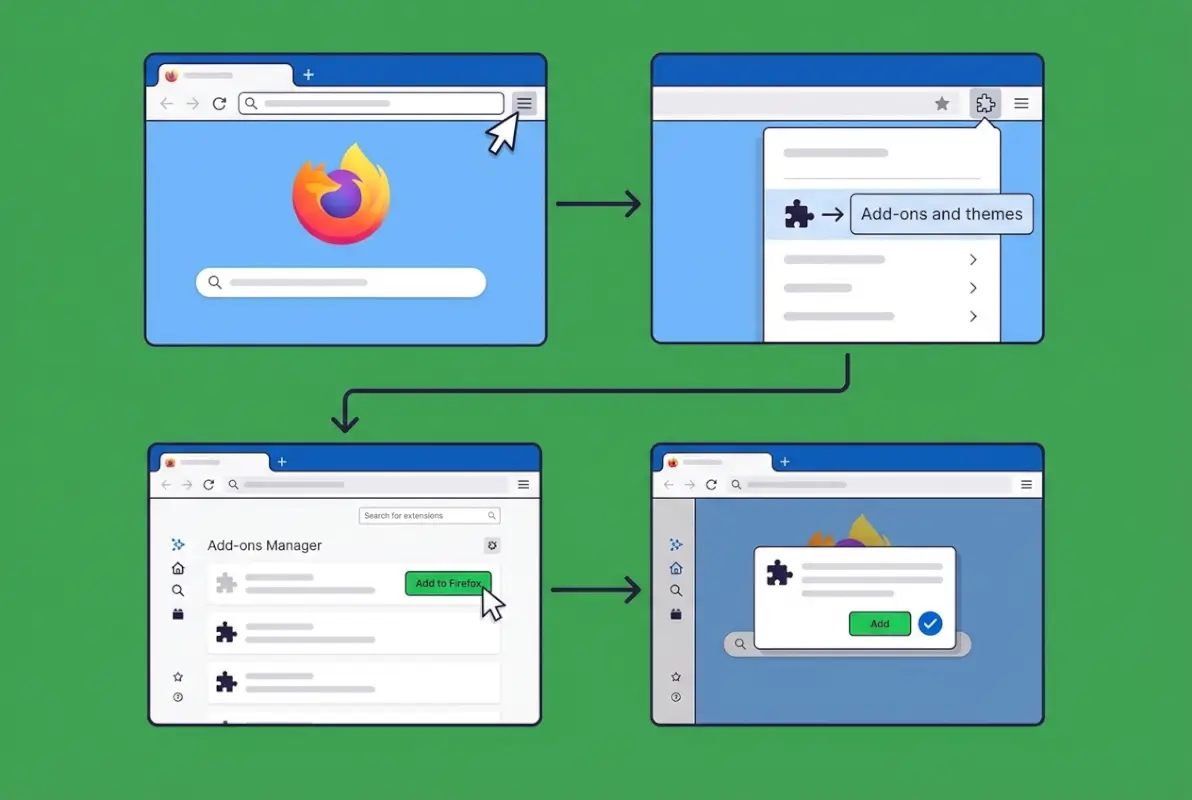
Firefox surfaces add-ons through multiple discovery paths, each with different curation levels. The browser’s built-in recommendations appear when you click the menu icon, select “Add-ons and themes,” then browse the “Recommended” section—these are extensions Mozilla has manually vetted for quality and safety beyond standard review. Alternatively, navigating directly to addons.mozilla.org opens the full catalog with search functionality and category browsing. The distinction matters because AMO’s homepage often promotes trending or newly featured extensions that might not have earned “Recommended” status yet, while the in-browser recommendations represent Mozilla’s highest confidence selections.

I’ve found the most efficient discovery method depends on whether you know what you need. For specific functionality (“I need a grammar checker”), AMO’s search with filters (rating, user count, last updated) quickly surfaces top contenders. For exploratory browsing (“what privacy tools exist?”), category pages organized by purpose—Privacy & Security, Productivity, Appearance, etc.—provide curated collections. The subtle risk in browsing mode is choice paralysis; when forty tab management extensions exist with similar ratings, users often default to installing multiple, creating the very performance problems they sought to solve.
Accessing Recommendations
Firefox’s Recommended Extensions program applies stricter criteria than baseline AMO approval. Mozilla evaluates these extensions for security, performance impact, user experience quality, and adherence to best practices—essentially a second layer of vetting. To access recommendations in-browser, click the menu icon (☰), select “Add-ons and themes” (or press Ctrl+Shift+A / Cmd+Shift+A), then click “Recommendations” in the left sidebar. This curated list updates periodically as Mozilla reviews new submissions and re-evaluates existing extensions. The Recommended badge—a small ribbon icon—also appears on qualifying extensions throughout AMO, providing a trust signal while browsing search results.
Browsing Categories on AMO
AMO organizes extensions into functional categories that align with common use cases, though overlap exists (a tool might appear in both “Productivity” and “Privacy & Security”). The major categories include Alerts & Updates, Appearance, Bookmarks, Download Management, Feeds-News-Blogging, Language Support, Photos-Music-Videos, Privacy & Security, Search Tools, Shopping, Social & Communication, Tabs, Web Development, and Other. Each category page displays extensions sorted by various metrics—Featured (Mozilla’s picks), Most Users, Top Rated, Trending. Trending can surface newer extensions gaining traction, while Top Rated might include legacy tools that haven’t been updated recently but still function. Similar to index directory listing google seo practices, finding the right extension requires balancing popularity with recency and relevance to your specific needs.
Platform Differences
Firefox for Android operates with a more restricted extension ecosystem than desktop. For several versions, Mozilla limited mobile users to a curated collection of about 20 extensions deemed mobile-optimized and performance-safe. More recently, Firefox expanded mobile extension support, but the installation process differs slightly—you access add-ons through the mobile menu (three dots), select “Add-ons,” then browse the available collection. Not all desktop extensions work on mobile; developers must explicitly support Android, and the AMO listing indicates platform compatibility. The practical limitation stems from mobile performance constraints and touch interface considerations; extensions designed for mouse-driven workflows often provide poor mobile experiences even if technically compatible.
How to Install a Firefox Add-On
The actual installation mechanics are deliberately simple—Mozilla designed the process to minimize friction for legitimate users while maintaining security checkpoints. From AMO, you’ll see a blue “Add to Firefox” button on each extension’s page (or “Install Theme” for appearance modifications). Clicking this button triggers a permission dialog displaying exactly what access the extension requests. This is your decision point: the dialog clearly states “Add [Extension Name]” with a list of permissions underneath, plus “Cancel” and “Add” buttons. Reading this dialog carefully takes ten seconds but prevents the majority of regrettable installations—if the permissions seem excessive for the stated functionality, click Cancel and investigate further.

After clicking “Add,” Firefox downloads the extension (typically under 5MB, usually much smaller) and installs it immediately—no browser restart required in most cases. You’ll see a confirmation notification in the top-right corner, and the extension’s icon (if it has one) appears in the toolbar to the right of the address bar. Some extensions show a welcome page or configuration wizard on first launch, while others work silently in the background. The immediate post-install moment is when you should verify the extension actually works as expected—load a test page, trigger the extension’s function, confirm it behaves correctly. I’ve caught fake extensions mimicking popular tools by testing immediately; the imposters often display error messages or fail basic functions the legitimate version handles flawlessly.
Step-by-Step AMO Installation
The detailed walkthrough for beginners: First, navigate to addons.mozilla.org in Firefox (using a different browser won’t trigger installation). Use the search bar or browse categories to find your desired extension. Click the extension name to open its full listing page, where you should spend time reading the description, checking permissions listed in the “Permissions” tab, and scanning recent reviews. When ready, click the blue “Add to Firefox” button. A permission dialog pops up with the heading “Add [Extension Name]?” and a bulleted list of permissions—read each one. If acceptable, click “Add”; if suspicious, click “Cancel” and research further. Within seconds, a confirmation notification appears saying “[Extension Name] has been added to Firefox,” sometimes with additional messages if the extension requires configuration.
Installing from File
Advanced users occasionally need to install unsigned extensions for development or testing, or restore an older version not available on AMO. Firefox requires you to explicitly allow this through the Add-ons Manager. Open the Add-ons Manager (Ctrl+Shift+A / Cmd+Shift+A), click the gear icon, select “Install Add-on From File,” then navigate to the .xpi file. Firefox will warn you about unsigned add-ons and may refuse installation unless you’ve modified about:config settings to permit it—this is intentional friction protecting average users from malicious files. Only proceed if you’ve obtained the .xpi from a trustworthy source and understand the risks, similar to how you’d evaluate software before following an how to index directory listing methods website owners tutorial that involves installing third-party tools.
First-Use Setup
Immediately after installation, optimize the extension’s placement and behavior. If the extension added a toolbar icon, you can right-click it and select “Pin to Overflow Menu” to hide it from the main toolbar while keeping it accessible (overflow menu is the >> icon that appears when toolbar space is constrained). Some extensions work better when allowed in private browsing windows—by default, Firefox restricts this for privacy protection. To enable private window access, open Add-ons Manager, find the extension, click its menu icon (three dots), select “Manage,” scroll to “Run in Private Windows,” and toggle “Allow” only if you trust the extension completely and need its functionality during private browsing. Finally, click “Options” or “Preferences” if available to configure extension behavior—setting up keyboard shortcuts, whitelisting sites, or adjusting sensitivity before regular use prevents frustration later.
Managing and Troubleshooting Add-Ons
Extensions that initially worked perfectly can degrade over time as websites update, Firefox introduces new APIs, or developers abandon maintenance. Effective add-on management means regularly auditing your installed collection, disabling or removing underperforming tools, and investigating conflicts when Firefox starts behaving strangely. The Add-ons Manager serves as your control panel for all extension-related tasks—accessible via Ctrl+Shift+A (Cmd+Shift+A on Mac) or through the menu icon’s “Add-ons and themes” option. This interface displays all installed extensions with toggle switches for instant enable/disable, plus buttons for “Remove,” “Options,” and “More” (additional settings).

The most common management task is disabling problematic extensions to diagnose issues. If Firefox suddenly crashes, loads pages slowly, or displays content incorrectly, the culprit is often an extension conflict or bug. Rather than uninstalling immediately (which loses your configuration), use the toggle switch to disable extensions one at a time, testing browser behavior after each disable. Once you identify the problematic extension, check AMO for updates or recent reviews mentioning similar issues—developers often fix bugs quickly, but you need to know a fix exists. Removal is permanent and deletes the extension’s stored data, so disable first unless you’re certain you want it gone.
Managing Installed Add-Ons
The Add-ons Manager groups extensions, themes, and plugins (legacy Flash-type plugins, rarely relevant now) in separate tabs. The Extensions tab lists everything installed with status indicators—enabled extensions show in full color with a blue toggle switch, disabled ones appear grayed out. Each entry displays the extension name, version number, a brief description, and action buttons. Clicking the extension name expands details showing full description, permissions granted, and when it was last updated. The three-dot menu icon reveals additional actions: “Manage” (detailed settings page), “Report” (flag to Mozilla for policy violations), and on some extensions, “Options” or “Preferences” (extension-specific settings). Themes appear in their own tab where you can switch between installed themes or browse for new ones, while the Plugins tab (mostly deprecated) shows system-level plugins like PDF viewers.
Troubleshooting Add-Ons
When Firefox misbehaves, systematic troubleshooting isolates the cause faster than random uninstalls. Start by launching Firefox in Troubleshoot Mode (formerly Safe Mode)—on Windows/Linux, hold Shift while starting Firefox; on Mac, hold Option. This disables all extensions temporarily without removing them, letting you test whether the issue stems from an extension or Firefox itself. If the problem disappears in Troubleshoot Mode, you’ve confirmed an extension is responsible. Re-enable extensions individually, testing after each one, until the problem returns—that’s your culprit. For more complex conflicts (two extensions interfering with each other), you might need to disable all extensions, then enable them in pairs to identify the incompatible combination.
Performance issues manifest differently than crashes. If Firefox consumes excessive memory or CPU, open the Task Manager (about:processes in the address bar) to see per-extension resource usage. Extensions that continuously spike CPU or bloat memory beyond 100MB warrant investigation—they may have memory leaks or inefficient code. Check AMO reviews for mentions of performance problems, and consider alternatives if the developer hasn’t addressed the issue. Network-related problems (pages loading slowly, certain sites broken) might result from aggressive content blocking extensions; temporarily disable ad blockers or privacy tools to test whether they’re breaking website functionality. It’s worth exploring resources like increase views airbnb listing optimization strategies if you’re managing listings that depend on smooth browser performance for SEO monitoring.
Security Alerts Overview
Mozilla occasionally disables or removes extensions from AMO due to security violations, malware detection, or policy breaches. When this happens to an extension you’ve installed, Firefox automatically disables it and displays a warning notification explaining the removal. Don’t re-enable these extensions—Mozilla’s blocklist exists for serious reasons like data theft, privacy violations, or malicious code injection. Recent security reports have detailed cases where popular extensions were compromised after developers sold them to malicious actors who pushed malicious updates, or where attackers created convincing clones of legitimate tools with nearly identical names. If you receive a security warning about an installed extension, uninstall it immediately, change passwords for any accounts you accessed while it was active, and consider running a malware scan. Mozilla publishes security advisories detailing blocked add-ons and the reasons for removal.
Practical Tips and Best Practices
Sustainable extension management requires discipline most users skip—the initial enthusiasm of discovering powerful tools gives way to bloat as you accumulate dozens of barely-used extensions. I’ve audited browsers with 40+ installed extensions where the user actively used perhaps five. Each dormant extension represents attack surface (code that could be compromised) and minor performance overhead (Firefox loads extensions even when inactive). Adopt a quarterly review habit: open Add-ons Manager, sort by “Last Used” if available, and remove anything you haven’t triggered in three months. The exception? Safety-critical tools like password managers or privacy blockers that work silently—these justify their presence despite infrequent visible interaction.
Vetting Add-Ons
Before clicking “Add to Firefox,” complete a five-minute due diligence routine that filters out most problematic extensions. First, verify the user count exceeds 10,000—smaller numbers don’t automatically mean trouble, but popularity provides crowd-sourced validation. Second, check the last update date fell within the past six months; abandoned extensions accumulate unfixed bugs and security vulnerabilities as Firefox evolves. Third, read negative reviews chronologically (sort by “Newest” not “Most Helpful”) looking for patterns—scattered complaints about minor bugs are normal, but sudden clusters mentioning new permission requests, changed behavior, or data concerns suggest a compromised update. Fourth, click the developer name to inspect their portfolio; multiple maintained extensions indicate commitment, while a single extension from a brand-new developer warrants extra scrutiny. Fifth, search “[extension name] malware” or “[extension name] security” to see if security researchers have raised concerns.
| Vetting Criteria | Green Flag | Red Flag |
|---|---|---|
| User Count | 10,000+ users | Under 1,000 with generic name |
| Last Update | Within 6 months | Over 1 year old |
| Reviews | Consistent feedback, minor complaints | Sudden negative reviews about changed behavior |
| Developer Track Record | Multiple maintained extensions | Single extension, new account |
| Permissions | Logical for stated functionality | Excessive access (clipboard for ad blocker) |
Maintenance Routine
Quarterly audits keep your extension collection lean and secure. Set a calendar reminder for every three months to open Add-ons Manager and review installed extensions. For each one, ask: “Have I used this since the last audit?” If no, disable it rather than removing immediately—you might remember its value during the next quarter. After three consecutive “no” answers, remove the extension entirely. Check for available updates even if auto-update is enabled; occasionally extensions require manual approval for major version jumps that request new permissions. Review recent security news about extensions broadly—major outlets report when popular extensions get compromised, giving you advance warning before Mozilla’s formal blocklist action. This routine takes fifteen minutes quarterly but prevents the slow accumulation of abandoned, vulnerable extensions that characterize neglected browsers.
Update Hygiene
Firefox auto-updates extensions by default, but you should verify this setting hasn’t been disabled. In Add-ons Manager, click the gear icon and ensure “Update Add-ons Automatically” shows a checkmark. Individual extensions can override this—click the extension’s three-dot menu, select “Manage,” scroll to “Allow automatic updates,” and verify it’s enabled. The rare exception: power users who need specific extension versions for compatibility may disable auto-update, but this requires manually monitoring for security patches. When extensions update, Firefox shows a notification with an option to see what changed—click “See what’s new” to review the changelog. Significant permission changes require re-approval; if an update requests new access, evaluate whether the new feature justifies expanded permissions before accepting.
What to Do If an Add-On Behaves Badly or Is Removed
Extensions fail in predictable patterns: they stop working after Firefox updates (API changes break compatibility), they start malfunctioning due to bugs in new versions, or Mozilla removes them for policy violations. Each scenario requires different responses. For extensions that suddenly stop working, first check AMO to see if an update was released—developers usually fix compatibility issues within days of a Firefox release. If no update exists after a week, search for alternatives; abandoned extensions rarely return from the dead. For extensions exhibiting buggy behavior (crashes, incorrect output, UI glitches), check recent reviews to see if others report the same issue, then disable the extension and report the bug to the developer via AMO’s support links.
Recovery Steps
When Mozilla disables an extension for security violations, Firefox displays a notification explaining the action and listing the extension name. Your response: immediate removal, not re-enabling. Open Add-ons Manager, find the disabled extension (it’ll show a warning icon), and click “Remove.” Then change passwords for any sensitive accounts (banking, email, shopping) you accessed while the extension was active—if Mozilla blocked it for malicious behavior, assume the worst-case scenario of data compromise. Check Mozilla’s official announcements about the removal to understand what threat it posed. For less severe removals (policy violations rather than malware), you might find the developer has released a compliant version under a new name, but verify this carefully before reinstalling.
If you accidentally removed an extension you wanted, reinstallation is straightforward but loses your configuration unless the extension syncs settings to an account. Return to AMO, search for the extension, and reinstall it normally—your previous settings are usually gone unless the developer implemented cloud backup. Some extensions store settings in Firefox Sync, which preserves configuration across reinstalls if you’re signed into a Firefox account. To minimize this risk, before removing extensions you might want later, export their settings if the extension provides that feature (usually in its Options/Preferences page under “Export” or “Backup”).
Bonus: Everyday Use Cases and Recommended Add-Ons
Rather than listing specific extensions (which become outdated as tools evolve and developers abandon projects), focus on categories and evaluation criteria for common needs. Privacy-conscious users should explore content blockers that stop third-party trackers—look for extensions with detailed blocking lists, regular updates, and transparent documentation about what they block. Productivity seekers benefit from tab management tools that group related tabs, suspend inactive ones to save memory, or provide session saving for workflow resumption. Accessibility tools range from screen readers to reading mode enhancers that simplify complex layouts—verify these request only the permissions needed for content modification. Translation extensions provide real-time page translation, though they necessarily require access to page content and external translation APIs (raising privacy considerations for sensitive documents).
Example Use Cases
A researcher juggling dozens of sources might combine a tab manager (to group tabs by project), a note-taking extension (to capture quotes without leaving the browser), and a citation generator (to format references automatically). Each extension should integrate smoothly—conflicts arise when multiple extensions try to modify the same page elements, so test combinations before committing to a workflow. A privacy advocate’s setup might include a tracker blocker, cookie manager, and HTTPS enforcer working in concert. The key is synergy; three well-chosen extensions covering distinct functions outperform ten overlapping tools that fight each other. When evaluating combinations, install one at a time, verify it works in isolation, then add the next—this isolates conflicts immediately rather than discovering them weeks later through mysterious browser behavior.
Evaluation Checklist
Before installing any new extension, run through this mental checklist: Does it solve a real problem I currently face, or am I installing it speculatively? Have I searched for comparisons of similar extensions to identify the best-maintained option? Do the requested permissions align with the stated functionality? When was it last updated, and do recent reviews suggest active development? Does the developer maintain other extensions successfully? Can I achieve the same result with Firefox’s built-in features (avoiding extensions entirely when native options exist)? If I install this, which existing extension becomes redundant and should be removed? Answering these honestly prevents extension bloat and security risk accumulation.
Frequently Asked Questions
How do I install a Firefox add-on from AMO?
Navigate to addons.mozilla.org in Firefox, search for or browse to your desired extension, click the “Add to Firefox” button on its listing page, review the permission dialog that appears, and click “Add” to confirm installation. The extension installs immediately without requiring a browser restart.
Are all Firefox add-ons safe to install? How can I tell?
No, not all add-ons are safe despite AMO review. Evaluate safety by checking user count (10,000+ is safer), last update date (within six months), recent reviews for security complaints, developer track record (multiple maintained extensions), and whether permissions match functionality. Avoid extensions with excessive permissions or sudden negative reviews mentioning changed behavior.
What should I do if an add-on isn’t compatible with my Firefox version?
First, update Firefox to the latest version via Menu > Help > About Firefox, as compatibility issues often resolve with updates. If the extension still shows as incompatible, check its AMO page for developer notes about compatibility work or recommended alternatives. Consider contacting the developer through AMO’s support links if the extension is recently updated but claims incompatibility.
How do I remove or disable an add-on?
Open Add-ons Manager by pressing Ctrl+Shift+A (Cmd+Shift+A on Mac) or through Menu > Add-ons and themes. Locate the extension in the list, then toggle the blue switch to disable it temporarily (preserving settings) or click the three-dot menu and select “Remove” for permanent deletion. Removal erases the extension’s stored data and settings.
Can I install add-ons on Firefox for Android?
Yes, but the Android version supports fewer extensions than desktop. Tap the three-dot menu in Firefox for Android, select “Add-ons,” then browse the curated collection of mobile-compatible extensions. Not all desktop extensions work on mobile—developers must explicitly support Android, and the AMO listing indicates platform compatibility.
What permissions do add-ons typically request?
Common permissions include “Access your data for all websites” (reading and modifying page content, necessary for ad blockers and password managers), “Access browser tabs” (seeing open tab URLs and titles, used by tab managers), “Access browsing history” (reading past visits), and “Download files” (saving content to your downloads folder). Evaluate whether each permission logically supports the extension’s stated purpose.
What happens to my settings if I disable or remove an add-on?
Disabling an extension preserves its settings for when you re-enable it—all configuration remains intact. Removing an extension typically deletes its stored data and settings permanently, unless the extension implements cloud backup or stores data in Firefox Sync. Some extensions offer export features in their options page to back up settings before removal.
How do I handle add-ons reported as malware?
Immediately remove any extension Mozilla flags as malicious—don’t attempt to re-enable it. Open Add-ons Manager, find the flagged extension (marked with a warning), click “Remove,” then change passwords for sensitive accounts you accessed while it was active. Check Mozilla’s security advisories for details about what threat the extension posed and whether additional cleanup is recommended.
Why does Firefox disable some extensions automatically?
Firefox automatically disables extensions that Mozilla adds to its blocklist due to security vulnerabilities, malware detection, privacy violations, or policy breaches. These removals protect users from extensions that steal data, inject malicious code, or violate Mozilla’s add-on policies. When this happens, you’ll receive a notification explaining the action—treat it seriously and remove the extension permanently.
Can extensions slow down my browser significantly?
Yes, poorly coded or resource-intensive extensions can degrade browser performance noticeably. Extensions that inject content into every page, monitor network requests continuously, or have memory leaks accumulate overhead. Monitor extension resource usage via about:processes to identify problematic add-ons, and disable or replace extensions consuming excessive CPU or memory (over 100MB consistently suggests inefficiency).
Take Control of Your Firefox Experience
Mastering Firefox add-ons transforms your browser from a passive tool into an active partner in your digital workflow, but only when you approach extensions with informed skepticism rather than blind trust. The strategies in this guide—vetting extensions before installation, maintaining a lean active collection, responding decisively to security warnings—separate secure, efficient browsers from bloated, vulnerable ones. Start by auditing your current extensions today: open Add-ons Manager, review what’s actually installed, remove anything you haven’t used in three months, and update everything remaining. Then approach new installations methodically, reading permissions carefully and questioning whether each new tool solves a genuine problem or just adds complexity.
The Firefox extension ecosystem rewards active curation. While Chrome users often accumulate extensions uncritically, Firefox’s permission model and Mozilla’s transparent security responses give you the information needed to make intelligent choices—but only if you actually read what’s presented. Make that quarterly audit a non-negotiable habit, treat permission dialogs as decision points rather than speed bumps, and remember that fewer, better-chosen extensions outperform a bloated collection every time. Your browser handles your most sensitive data—emails, banking, personal communications—so treat extension installation with the seriousness that access deserves. What extension are you going to evaluate first using these new criteria?