How to Limit Directory Access in WordPress: A Step-by-Step Guide

Every day, hundreds of WordPress sites are compromised because their directory structure is left wide open—like leaving your house door unlocked in a busy neighborhood. Attackers don’t need sophisticated exploits when they can simply browse your uploads folder, map your plugin versions, or peek into core files to find vulnerabilities. The truth is, most site owners focus on complex security measures while overlooking this fundamental exposure point.

Here’s something that doesn’t get talked about enough: directory access control is your first line of defense, not your last. While everyone’s busy installing security plugins and setting up firewalls, the real danger often comes from something as simple as an exposed directory listing that reveals your entire site architecture to potential attackers. Think of it as the difference between having bars on your windows versus leaving your blueprint on the front porch.
TL;DR – Quick Takeaways
- Directory listing exposure – Letting browsers list your directory contents is like publishing your site’s attack roadmap
- Multi-layer approach required – Server permissions, .htaccess rules, and WordPress config work together, not separately
- Critical directories – wp-admin, wp-content, wp-includes, and uploads need specific protections tailored to their function
- File permissions baseline – 755 for directories, 644 for files prevents most unauthorized modifications
- Maintenance matters – One-time hardening isn’t enough; regular audits keep protections effective
Understanding Your WordPress Attack Surface
Before you can protect your directories, you need to understand what attackers are actually looking for. Your WordPress installation consists of several key directories, each serving a different purpose—and each presenting its own security challenges. The wp-admin directory controls your entire dashboard, wp-content houses all your themes, plugins, and uploads, while wp-includes contains core WordPress functionality that should rarely (if ever) be modified.
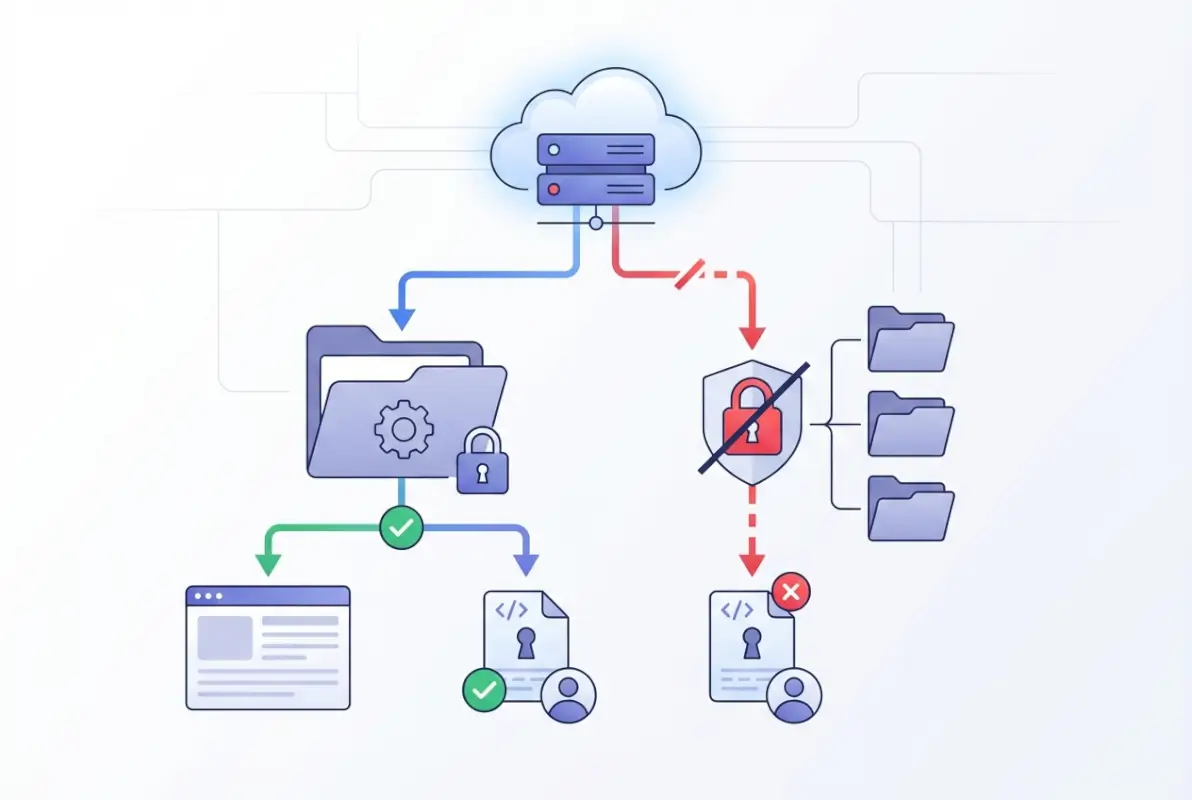
What makes directory access such a critical vulnerability is the reconnaissance value it provides. When an attacker can view directory listings, they’re gathering intelligence: which plugins you’re running (and their version numbers), the structure of your uploads, whether you’re using default configurations, and potential entry points for more sophisticated attacks. It’s the digital equivalent of casing a building before attempting a break-in.
The wp-content directory deserves special attention because it’s where most customizations live. Your themes might contain configuration files, your plugins could have documentation revealing functionality, and your uploads folder might inadvertently expose file naming patterns or sensitive documents that were meant to be protected. I remember auditing a client’s site once where their entire customer database backup was sitting in an uploads subfolder with directory listing enabled—anyone who stumbled upon the URL could download it.
The risk isn’t just theoretical. Attackers routinely use automated scanners that crawl through exposed directories looking for outdated plugins with known vulnerabilities, backup files that developers forgot to remove, or configuration files that might leak database credentials. By restricting directory access, you’re removing the signposts that guide attackers toward your weaknesses.
Server-Side Foundations: File Permissions and Configuration
File permissions are the bedrock of directory security, yet they’re often misconfigured or misunderstood. The permission model might seem cryptic at first—755, 644, 600—but these numbers represent who can read, write, and execute files on your server. Getting them right is crucial, getting them wrong can either lock you out of your own site or leave it wide open to exploitation.

The baseline for WordPress is straightforward: directories should be set to 755 (owner can read/write/execute, group and public can read/execute) and files should be 644 (owner can read/write, group and public can read only). This prevents unauthorized users from modifying your files while still allowing your web server to read and execute them properly. The key exception is your wp-config.php file, which should be 600 or 440 depending on your server setup, as it contains sensitive database credentials.
| Directory/File | Recommended Permission | Why It Matters |
|---|---|---|
| All directories | 755 | Prevents unauthorized writes while allowing server access |
| All files | 644 | Restricts modification to owner only |
| wp-config.php | 600 or 440 | Protects database credentials from exposure |
| .htaccess | 644 | Secures server configuration directives |
Here’s where many administrators trip up: they either apply overly permissive settings (like 777) because “it just works” or they lock things down so tightly that WordPress can’t function properly. The official WordPress hardening documentation emphasizes finding this balance—permissions should be as restrictive as possible while still allowing your site to operate normally.
On shared hosting environments, you might encounter situations where your hosting provider has already set appropriate permissions at the server level. However, you should verify this rather than assume it. Use an FTP client or your hosting control panel’s file manager to check permissions on critical directories. If you’re on a VPS or dedicated server, you have more control but also more responsibility—incorrect permissions at the server configuration level can cascade through your entire WordPress installation.
Beyond basic permissions, server configuration plays a huge role. Your web server (Apache or Nginx typically) has its own access control mechanisms that should complement file permissions. This is where concepts like the PHP business directory setup become relevant—proper server configuration ensures that PHP execution is restricted to appropriate directories and that sensitive files can’t be accessed directly through web requests.
Disabling Directory Listing at the Web Server Level
Directory listing is what happens when you navigate to a directory URL without an index file—the server helpfully displays all the files and subdirectories it contains. This “helpfulness” is exactly what you want to prevent. When directory listing is enabled, attackers (and anyone else) can browse your site’s structure as easily as browsing files on their own computer.
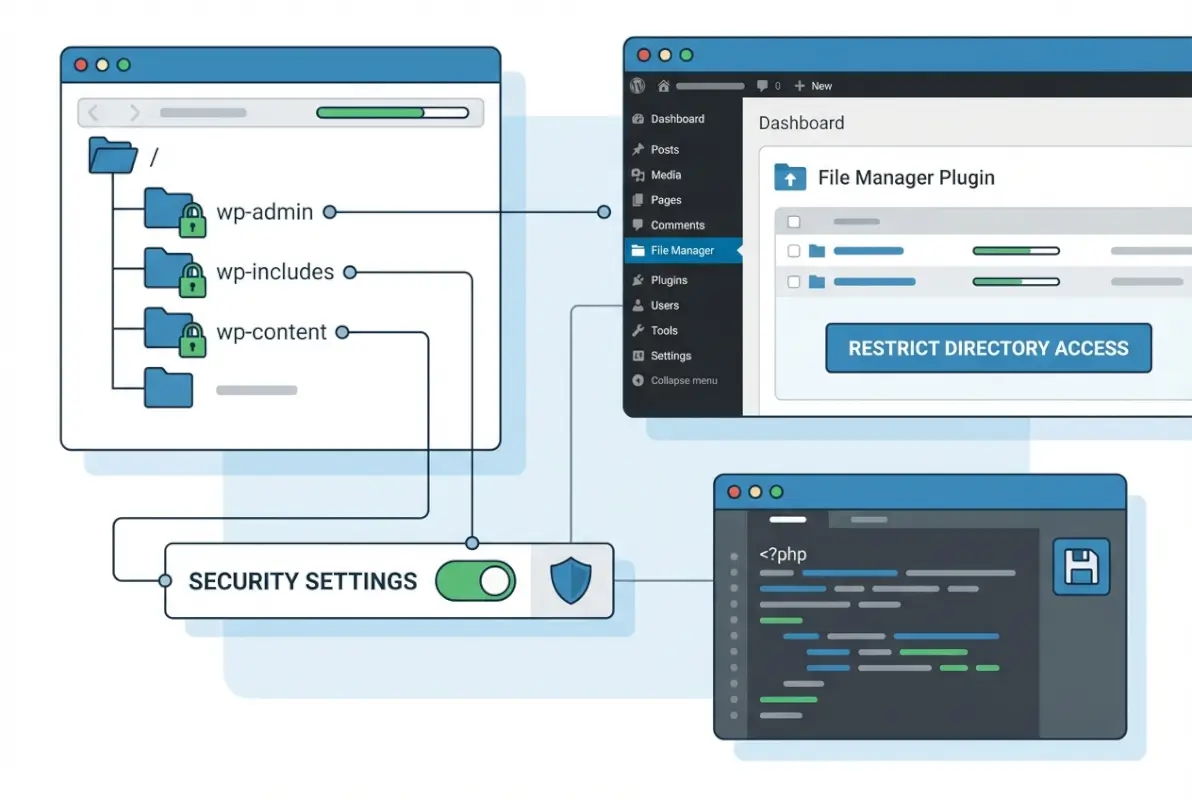
For Apache servers (the most common WordPress hosting environment), disabling directory listing is straightforward. You can either modify your server configuration directly (if you have access) or use an .htaccess file in your WordPress root directory. The directive is simple but powerful: Options -Indexes. This single line tells Apache to refuse directory listing requests, instead returning a 403 Forbidden error when someone tries to access a directory without an index file.
On Nginx servers, the approach is different but equally effective. Nginx doesn’t have directory listing enabled by default in most configurations, but it’s worth verifying. The relevant directive is autoindex off; in your server block configuration. Since Nginx doesn’t support .htaccess files, these changes must be made in your main configuration file—typically /etc/nginx/sites-available/your-site-config—which requires server access.
If you’re working with .htaccess (the most common scenario for shared hosting users), you’ll want to add the Options -Indexes directive at the top of your file, before any other rules. Here’s what a basic security-focused .htaccess might look like:
# Disable directory browsing
Options -Indexes

# Block access to wp-config.php
<files wp-config.php>
order allow,deny
deny from all
</files>
The beauty of this approach is that it works site-wide once implemented, you don’t need to add individual protections to each subdirectory. However, I’ve seen cases where plugins or themes create their own .htaccess files in subdirectories that override the root settings. This is why periodic audits are essential—what worked when you set it up might have been modified by a plugin update.
Testing your changes is crucial. After implementing directory listing restrictions, try accessing various directories through your browser: /wp-content/plugins/, /wp-content/themes/, /wp-includes/. You should receive 403 Forbidden errors rather than seeing directory listings. If you still see listings, either your .htaccess file isn’t being read (check that mod_rewrite is enabled) or there’s a more specific directive elsewhere overriding your settings.
WordPress-Native Hardening Measures
While server-level protections form your foundation, WordPress itself offers several native hardening options that directly impact directory and file access. These measures work within WordPress’s own architecture to restrict what can be modified through the admin interface—a critical layer since many attacks happen after an attacker has gained some level of access to your dashboard.
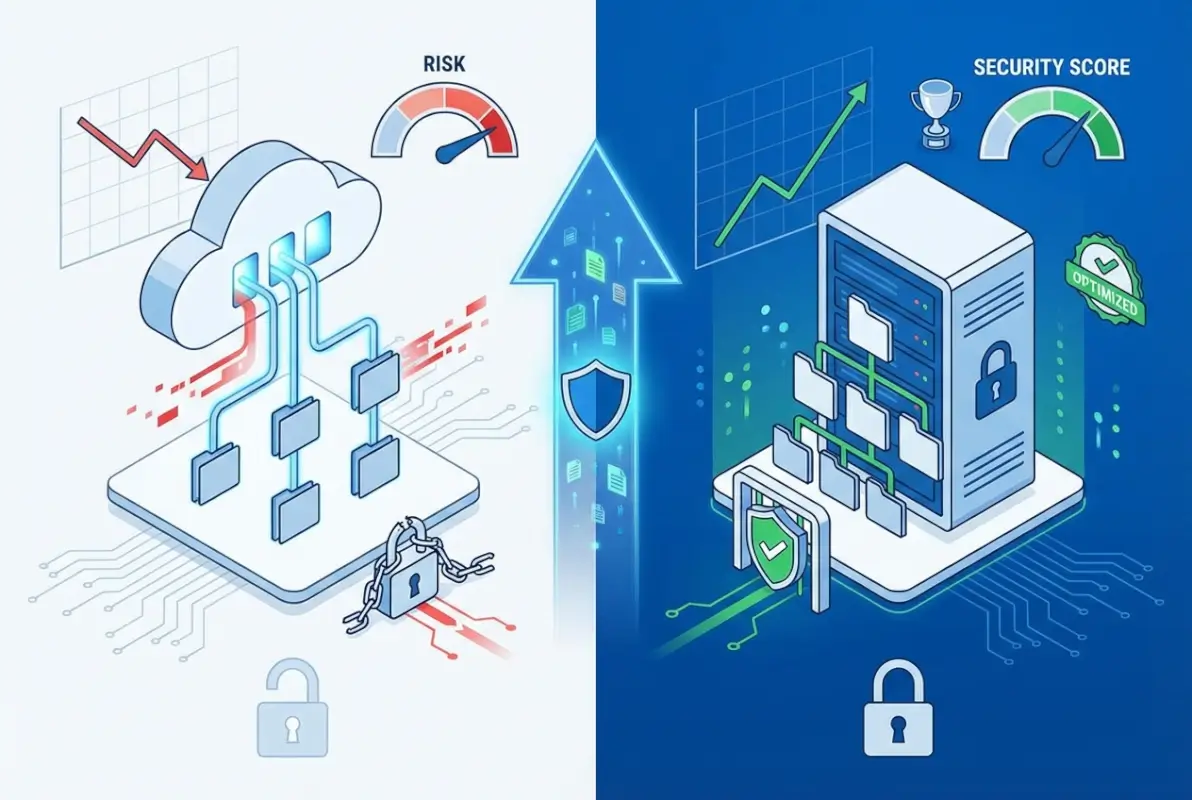
The most important WordPress-native protection is disabling the file editor. By default, WordPress allows administrators to edit theme and plugin files directly through the dashboard—convenient for quick fixes, but also a massive security hole. If an attacker gains admin access (through password compromise, for example), they can immediately inject malicious code into your theme files. Adding define('DISALLOW_FILE_EDIT', true); to your wp-config.php file removes this capability entirely.
Going further, you can also disable file modifications altogether with define('DISALLOW_FILE_MODS', true);. This prevents plugins and themes from being installed, updated, or deleted through the dashboard. It’s a more aggressive approach that some find too restrictive for day-to-day management, but for high-security environments or sites that don’t change frequently, it’s invaluable. The tradeoff is that all updates and modifications must be done through FTP/SSH or your hosting control panel.
Protecting your wp-config.php file deserves special attention. This file contains your database credentials, security keys, and various configuration constants—essentially the keys to your kingdom. The official WordPress security documentation recommends moving wp-config.php one directory above your WordPress installation if your hosting setup allows it. WordPress will still find and use it, but it’s no longer in the web-accessible directory tree.
Another often-overlooked measure is setting up proper security keys and salts in wp-config.php. These random strings are used to encrypt information stored in cookies, and if they’re still set to the defaults (or worse, missing), your sessions are much easier to hijack. WordPress provides a generator for these keys—use it to create unique values and replace the defaults in your configuration file.
Consider also implementing forced SSL for admin access by adding define('FORCE_SSL_ADMIN', true); to wp-config.php. While this doesn’t directly limit directory access, it ensures that all communication with wp-admin happens over encrypted connections, preventing credentials and session cookies from being intercepted. This is particularly important if you’re accessing your site from public WiFi or untrusted networks.
Directory-Specific Access Controls
Not all directories require the same level of protection. While your wp-config.php file should be locked down completely, your uploads directory needs a more nuanced approach—visitors should be able to view images on your posts, but they shouldn’t be able to execute PHP files that might have been uploaded maliciously. This is where directory-specific rules come into play.

For the wp-admin directory, you can implement IP-based restrictions that allow only specific addresses to access the admin panel. This is particularly useful if you manage your site from a fixed location or use a VPN with a static IP. In your .htaccess file within wp-admin, you can add rules that whitelist your IP and block everyone else. However, this approach requires maintenance—if your IP changes, you’ll lock yourself out until you can access the server through another method.
The wp-includes directory poses an interesting challenge. It contains core WordPress files that should never be modified by regular users, yet they need to be accessible to WordPress itself. A common protection strategy is to block direct access to PHP files in wp-includes except for specific ones that WordPress needs to function (like ms-files.php for multisite installations). Your .htaccess can include rules that return 403 errors for attempts to directly access these files through HTTP requests.
The uploads directory requires special handling because it’s inherently user-facing—your images, PDFs, and other media live here and need to be accessible to visitors. The key security measure is preventing PHP execution within uploads. Even if an attacker manages to upload a PHP file disguised as an image, it won’t execute. This is accomplished through .htaccess rules that disable PHP processing for the uploads directory and all its subdirectories.
| Directory | Primary Risk | Recommended Protection |
|---|---|---|
| wp-admin | Unauthorized dashboard access | IP restrictions, two-factor authentication, rename login URL |
| wp-includes | Direct execution of core files | Block direct PHP access via .htaccess |
| wp-content/uploads | Malicious file execution | Disable PHP execution, validate uploads |
| wp-content/plugins | Version detection, vulnerability scanning | Disable directory listing, hide version info |
For sites handling sensitive documents through uploads, consider implementing a protected file delivery system. Instead of storing files in the publicly accessible uploads directory, you can store them outside the web root and serve them through a PHP script that checks user permissions before delivering the file. This is more complex to implement but provides granular control over who can access what files—similar to how business directories control access to member information.
Practical Implementation with .htaccess and Rewrite Rules
Theory is great, but implementation is where security actually happens. The .htaccess file is your most practical tool for enforcing directory access controls on Apache servers, allowing you to implement protections without needing server-level access. Here’s how to build a comprehensive .htaccess security configuration that actually works.
Start with the basics—disabling directory listing and protecting sensitive files. Your root .htaccess should include rules that prevent browsing, block access to wp-config.php and other critical files, and set appropriate security headers. These rules work together to create multiple layers of protection rather than relying on any single mechanism.
# Disable directory browsing
Options All -Indexes

# Protect wp-config.php
<files wp-config.php>
order allow,deny
deny from all
</files>

# Block access to readme files that reveal versions
<FilesMatch "^(readme|license|changelog)\.(html|txt)$">
order allow,deny
deny from all
</FilesMatch>

# Protect .htaccess and .htpasswd files
<FilesMatch "^\.ht">
order allow,deny
deny from all
</FilesMatch>
For the uploads directory, create a separate .htaccess file at wp-content/uploads/.htaccess with rules that prevent PHP execution while still allowing access to media files. This is crucial because uploads are the most common vector for attackers trying to establish persistence on your site—if they can upload and execute a PHP backdoor, they maintain access even after you’ve patched the original vulnerability.
# Disable PHP execution in uploads directory
<Files *.php>
deny from all
</Files>

# Alternative approach using mod_php
php_flag engine off
If you need to restrict wp-admin access to specific IP addresses, you can implement whitelist-based rules. This is particularly valuable for sites with a small number of administrators working from known locations. However, remember that IP-based restrictions can be problematic if you work remotely or travel—you’ll need to update the whitelist whenever your IP changes.
# Restrict wp-admin access by IP (place this in wp-admin/.htaccess)
order deny,allow
deny from all
allow from 123.456.789.0
allow from 98.765.432.1
# Add your IP addresses here
Modern WordPress installations often use pretty permalinks, which rely on .htaccess rewrite rules to function. Your security rules need to coexist with these permalink rules without interfering with normal site operation. The key is placing your security directives before the WordPress rewrite rules (which are typically wrapped in # BEGIN WordPress and # END WordPress comments). WordPress may regenerate its section when you change permalink settings, but your custom rules above it will remain intact.
For protecting wp-includes, you can add rules that block direct access to PHP files except for specific ones that WordPress legitimately needs. This prevents attackers from directly calling vulnerable core files even if they know the file structure:
# Block direct access to wp-includes PHP files
<IfModule mod_rewrite.c>
RewriteEngine On
RewriteBase /
RewriteRule ^wp-admin/includes/ - [F,L]
RewriteRule !^wp-includes/ - [S=3]
RewriteRule ^wp-includes/[^/]+\.php$ - [F,L]
RewriteRule ^wp-includes/js/tinymce/langs/.+\.php - [F,L]
RewriteRule ^wp-includes/theme-compat/ - [F,L]
</IfModule>
Testing is non-negotiable. After implementing these rules, systematically test your site: can you log in? Do images display? Can you update plugins? Do your forms work? Test both as a logged-in admin and as a regular visitor. The goal is security that doesn’t interfere with legitimate functionality—the best protection is one that works transparently for authorized users while blocking unauthorized access attempts.
Balancing Plugins and Server-Level Protections
Security plugins are heavily marketed in the WordPress ecosystem, and many offer directory protection features among their dozens of options. But here’s a perspective you don’t often hear: plugins should augment your server-level protections, not replace them. Relying solely on a plugin for directory security is like locking your front door but leaving the windows open—it provides some protection, but not where you really need it.
The fundamental issue is that plugins operate at the WordPress application layer. They can enforce rules once WordPress has loaded and processed a request, but a truly determined attacker might bypass WordPress entirely. Server-level protections (file permissions, .htaccess rules, web server configuration) work before WordPress ever gets involved, providing defense even against attacks that target the infrastructure rather than the application.
That said, quality security plugins do offer value in specific areas. They can provide easier management interfaces for implementing protections, monitor for unauthorized file changes, log suspicious access attempts, and implement application-layer security measures like rate limiting on login attempts. Popular options include Wordfence, Sucuri Security, and iThemes Security—all capable tools when used properly. Similar to how business directory platforms offer built-in security features, these plugins provide turnkey implementations of common hardening measures.
| Security Approach | Strengths | Limitations |
|---|---|---|
| Server-Level (permissions, .htaccess) | Works before WordPress loads, can’t be bypassed by plugin vulnerabilities | Requires technical knowledge, harder to manage |
| Security Plugins | Easy to configure, provide monitoring and alerting | Only protect at application layer, add overhead |
| Hosting Provider Security | Professional management, enterprise-grade tools | Less control, dependent on provider capabilities |
| CDN/WAF Services | Edge protection, blocks attacks before reaching server | Additional cost, potential performance overhead |
Enterprise and managed WordPress hosting providers often include security features as part of their service. Hosts like WP Engine, Kinsta, and Flywheel implement server-level hardening, automatic malware scanning, and Web Application Firewall (WAF) protection that blocks malicious requests before they reach your site. If you’re on one of these platforms, you’re already benefiting from professional security management—though you should still implement WordPress-native hardening measures for defense in depth.
One major consideration with plugins is performance impact. Security plugins that scan files, monitor traffic, and enforce rules consume server resources. On shared hosting or sites with limited resources, an overly aggressive security plugin can slow your site significantly. This is another argument for implementing what you can at the server level—those protections have minimal performance overhead compared to application-layer scanning.
When evaluating whether to use a plugin for directory security, ask yourself: does this plugin provide functionality I can’t implement through .htaccess and file permissions? If the answer is yes—for example, it offers real-time monitoring, automatic response to threats, or complex rule management that would be tedious to maintain manually—then it may be worth the overhead. If it’s just duplicating what you could do with a few .htaccess rules, you’re better off with the server-level approach.
I’ve worked with sites that ran multiple security plugins simultaneously, each trying to do similar things. This not only caused performance issues but sometimes created conflicts where the plugins interfered with each other’s rules. The lesson: choose one comprehensive security plugin if you’re going that route, configure it properly, and supplement it with server-level hardening. Don’t fall into the trap of thinking more security plugins equals more security—often it just equals more complexity.
Verification, Monitoring, and Ongoing Maintenance
Implementing directory access controls is not a set-it-and-forget-it task. Your security posture requires regular verification because things change: plugins update and sometimes create new directories, themes add functionality that requires different permissions, and server configurations can be modified during hosting migrations or upgrades. What worked perfectly six months ago might have gaps today.
Start with regular permission audits. At least quarterly, SSH into your server or use your hosting control panel to check file and directory permissions. Look for any directories that have somehow become world-writable (777) or files with overly permissive settings. This can happen when plugins create new directories, when you’ve done a WordPress core update, or when someone on your team made manual changes and forgot to set proper permissions afterward.
Access log monitoring is equally critical. Your web server maintains logs of every request made to your site—including failed attempts to access restricted directories. Regular review of these logs can reveal attack patterns: repeated attempts to access wp-admin from unfamiliar IPs, requests for common plugin vulnerability paths, or systematic directory scanning attempts. Many security plugins provide log analysis features, but you can also review raw access logs through your hosting control panel or command line tools if you have server access.
File integrity monitoring detects unauthorized changes to your WordPress files. This is particularly important for directory security because attackers who gain access often modify .htaccess files or create new directories to establish persistence. Tools like Wordfence or the free WP Integrity WordPress plugin compare your current files against known-good copies, alerting you to any changes. This catches modifications that might reopen security holes you thought you’d closed.
Updates are the most critical maintenance task. When WordPress releases a security update, it’s often patching vulnerabilities that attackers already know about. The window between update release and exploitation is sometimes measured in hours. The same applies to plugins and themes—outdated versions with known vulnerabilities are prime targets. Enable automatic updates for WordPress core minor releases at minimum, and establish a process for testing and applying plugin updates within a week of release.
Your .htaccess rules themselves need periodic review. As you add plugins, some may need to create their own .htaccess files or modify your existing ones. After major plugin installations or updates, verify that your security rules are still in place and haven’t been overwritten. It’s worth keeping a master copy of your security .htaccess configuration in your documentation so you can quickly restore it if needed—similar to maintaining documentation for business directory configurations.
Document your security configuration. This sounds tedious but proves invaluable when something breaks or when you need to replicate your setup on a new server. Note which .htaccess rules you’ve implemented and why, document your file permission standards, list any server-level configurations, and keep track of which security plugin settings you’ve enabled. When an update or migration occurs, this documentation becomes your checklist for re-verifying your security posture.
Testing after updates is where many sites fail. You apply a WordPress core update, plugins update automatically, and everything seems fine—until later you discover that an update modified your .htaccess or reset permissions on a critical directory. After any significant change (core updates, plugin updates, server migrations), run through your security verification checklist: test that directory listing is still disabled, verify that sensitive files are still protected, check that uploads still can’t execute PHP, and confirm that your monitoring tools are still functioning.
Advanced Hardening Resources and Next Steps
For organizations that need documented security practices beyond basic hardening, several authoritative resources provide deeper guidance. Government cybersecurity agencies and academic institutions publish WordPress hardening guidelines that meet compliance requirements for sensitive environments. These resources are particularly valuable if you’re managing WordPress sites that handle personal data, financial information, or need to meet regulatory standards like GDPR, HIPAA, or PCI DSS.
The Slovak Government CSIRT (Computer Security Incident Response Team) publishes comprehensive WordPress hardening guidelines that cover directory access controls, server configuration, and application-level security. These government-backed documents are regularly updated to reflect current threat landscapes and provide step-by-step implementation instructions suitable for enterprise environments.
Universities managing large WordPress installations have also developed hardening documentation. The University of British Columbia’s WordPress security guidelines provide another perspective, focusing on institutional-scale implementations with multiple administrators and diverse user bases. Academic institutions face unique challenges—public accessibility requirements combined with sensitive research data—making their hardening approaches particularly thorough.
For deeper technical implementation, consider studying resources like the OWASP (Open Web Application Security Project) WordPress security guide, which provides context about web application vulnerabilities and how they manifest in WordPress specifically. Understanding the underlying attack vectors—SQL injection, cross-site scripting, remote file inclusion—helps you appreciate why directory access controls matter and how they fit into a broader security framework.
If you’re building custom WordPress solutions—developing plugins or themes, implementing directory-style platforms, or creating membership sites—security considerations need to be baked into your development process from the start. This means following WordPress coding standards, properly escaping output, validating and sanitizing input, and using WordPress’s built-in functions rather than rolling your own security implementations. The official WordPress developer documentation provides guidance on secure coding practices.
Penetration testing represents the next level of security verification. While beyond the scope of most individual site owners, organizations managing critical WordPress installations should consider periodic security audits by professionals who specialize in WordPress penetration testing. These experts attempt to exploit vulnerabilities in your configuration—including directory access controls—under controlled conditions, providing a realistic assessment of your security posture and specific remediation recommendations.
Frequently Asked Questions
How do I stop directory listing in WordPress?
Disable directory listing by adding Options -Indexes to your .htaccess file in the WordPress root directory. For Nginx servers, ensure autoindex off is set in your server configuration. This prevents browsers from displaying directory contents while still allowing direct file access through URLs. Test by attempting to access /wp-content/plugins/ after implementation—you should receive a 403 Forbidden error.
Should I block access to wp-admin and wp-includes?
Yes, but with nuance. Block direct access to PHP files in wp-includes except those WordPress legitimately needs. For wp-admin, implement authentication requirements and consider IP restrictions if you work from fixed locations. Never completely block these directories—WordPress needs access to function—but restrict who can access them and prevent direct execution of files that should only be called by WordPress core.
Do I need a plugin to limit directory access?
No, fundamental directory access controls should be implemented at the server level through file permissions and .htaccess rules. Security plugins can provide convenient interfaces and additional monitoring, but they’re supplements not replacements. Server-level protections work before WordPress loads and can’t be bypassed through plugin vulnerabilities. Use plugins for defense-in-depth, monitoring, and features difficult to implement manually.
How can I protect the wp-config.php file?
Implement multiple protection layers: set file permissions to 600 or 440, add .htaccess rules that deny direct access, and consider moving wp-config.php one directory above your WordPress root if hosting allows. Ensure it contains unique security keys and salts rather than defaults. Never commit wp-config.php to public version control repositories. These measures protect your database credentials from exposure.
What are best practices for uploads directory security?
Disable PHP execution in the uploads directory through .htaccess rules or server configuration. Set directory permissions to 755 and file permissions to 644. Implement file type validation during upload to prevent malicious files from being stored. For sensitive documents, consider storing files outside the web root and delivering them through permission-checking PHP scripts rather than direct URLs.
Are .htaccess rules sufficient to secure WordPress?
.htaccess rules are powerful but work best as part of a multi-layer strategy. They provide strong protection when combined with proper file permissions, WordPress-native hardening (disabling file edits, securing wp-config.php), security plugins for monitoring, and regular updates. No single security measure is sufficient—effective protection comes from layering complementary approaches that cover different attack vectors.
How often should I review directory access protections?
Conduct comprehensive security audits quarterly at minimum, with quick verification checks after any major changes. Review file permissions, access logs, and .htaccess configurations quarterly. Verify security settings immediately after WordPress core updates, plugin updates, theme changes, or server migrations. Monitor continuously through automated tools rather than relying solely on manual periodic checks—set up alerts for suspicious access attempts or file modifications.
What file permissions should I use for WordPress directories?
Use 755 for directories (owner read/write/execute, group and public read/execute) and 644 for files (owner read/write, group and public read only). More restrictive permissions like 750 for directories and 640 for files can work in some hosting environments. Never use 777 for any directory or 666 for any file—these world-writable permissions allow anyone including malicious scripts to modify your site.
Can directory access controls prevent all WordPress hacks?
No single security measure prevents all attacks—directory access controls are one essential layer in defense-in-depth. They significantly reduce your attack surface by preventing reconnaissance, limiting what attackers can access if they breach one layer, and blocking certain exploitation methods. However, they must be combined with other protections: strong passwords, two-factor authentication, regular updates, security monitoring, and secure coding practices for custom development.
What’s the difference between server-level and application-level security?
Server-level security (file permissions, .htaccess, web server config) works before WordPress processes requests, providing protection that can’t be bypassed through WordPress vulnerabilities. Application-level security (WordPress settings, plugin features) operates after WordPress loads and can enforce business logic but depends on WordPress functioning properly. Effective security requires both: server-level for fundamental access control, application-level for WordPress-specific features and monitoring.
Final Thoughts: Building Sustainable Security
Directory access control in WordPress isn’t about implementing every possible security measure—it’s about building appropriate, sustainable protection that matches your site’s risk profile and your maintenance capabilities. A small business blog doesn’t need government-agency-level hardening, but it does need the fundamentals: directory listing disabled, proper file permissions, sensitive files protected, and regular maintenance to keep protections effective.
The most common failure I see isn’t implementing weak security—it’s implementing strong security once and then never maintaining it. Updates modify configurations, new plugins add directories with default permissions, and slowly your carefully hardened site develops gaps. This is why documentation and regular audits matter as much as initial implementation. Security is a process, not a one-time project.
- Start with server-level basics: disable directory listing, set proper file permissions, protect wp-config.php
- Implement WordPress-native hardening: disable file editors, set security constants, ensure unique keys
- Add directory-specific protections: block PHP execution in uploads, restrict wp-includes access
- Establish maintenance routines: quarterly audits, post-update verification, continuous monitoring
- Document your configuration so you can maintain and replicate it
Remember that perfect security doesn’t exist—you’re managing risk, not eliminating it. The goal is making your site hard enough to attack that automated scanners move on to easier targets and determined attackers find insufficient value to justify the effort required. Directory access controls are foundational to this because they limit what attackers can learn about your site and what they can do even if they breach other defenses.
Start with the basics outlined here, test thoroughly, document what you’ve implemented, and build from there. Don’t let the pursuit of perfect security paralyze you into implementing no security at all. A site with basic hardening consistently maintained is far more secure than one with advanced configurations that were set up once and forgotten. Take action today, starting with whatever you can implement confidently, and build your security posture incrementally over time.