5 Ways to Copy All Links in an Online Directory for Easy Access

Generating summary...
You know that moment when you discover a gold mine of resources—a directory page listing hundreds of tools, articles, or sites—and your first instinct is to bookmark it? I’ve been there countless times, only to realize weeks later that the page has changed, links have vanished, or I simply can’t remember which link was which. The truth is, bookmarking alone doesn’t cut it when you need to actually work with those links: audit them, share them with your team, or archive them for future reference.
Here’s the thing most people miss: you don’t need to manually right-click and copy each URL one by one. There are smarter, faster ways to grab every link from a directory page in seconds, whether you’re a content curator building resource lists, an SEO professional auditing backlink opportunities, or a researcher compiling references. And yet, I rarely see anyone talking about the best method for each scenario—because the right tool depends entirely on your context, your technical comfort, and what you plan to do with those links afterward.
In this guide, we’re going beyond the obvious “just use an extension” advice. We’ll explore six practical approaches to copy all links from online directories, HTML sitemaps, open directories, and multi-link pages—from one-click browser extensions to enterprise-grade platform features. You’ll learn when to use each method, how to avoid common pitfalls like duplicate or broken links, and how to export your results in formats that actually make sense for your workflow (CSV, Markdown, plain text, you name it). Let’s dig in.
TL;DR – Quick Takeaways
- Browser extensions like Copy All Links or Copy All URLs offer the fastest one-click extraction, ideal for most directory pages
- Bookmarklets provide a lightweight alternative when you can’t install extensions, running JavaScript snippets directly from your bookmarks
- Online extractors work when you need to pull links from a URL you’re not currently viewing, though privacy is a concern
- Platform-specific features (SharePoint, OneDrive) have built-in link-copying for enterprise directories, often with permission controls
- Programmatic scripts shine for large-scale or dynamic directories, especially when paired with deduplication and validation logic
- Always deduplicate, normalize URLs, and filter out non-HTTP protocols (mailto:, javascript:) before finalizing your list
Understanding the Landscape: Why Bulk Link Copying Is Useful
Before we jump into the “how,” let’s talk about the “why.” If you’ve ever needed to extract links from a directory, you already know it’s tedious. But the motivation goes deeper than just saving time.
Common Use Cases
In my experience, bulk link extraction comes up in three main scenarios. First, research and curation: academics, journalists, and content creators often encounter reference pages, resource hubs, or open directories that list dozens (or hundreds) of sources. Manually copying each link is a recipe for errors and wasted hours. Second, SEO audits and competitive analysis: if you’re analyzing a competitor’s sitemap or a directory of backlink opportunities, you need the full list to import into your SEO tool or spreadsheet. Third, archival and compliance: legal teams, IT administrators, and compliance officers sometimes need to snapshot a directory’s contents at a point in time, especially when dealing with public records or regulatory filings.
According to recent Pew Research Center studies on internet usage, the average user encounters hundreds of hyperlinks daily across directories, social feeds, and reference pages. That volume makes manual link management impractical—and that’s exactly where local business directories and similar resource hubs become both valuable and overwhelming.
Potential Pitfalls
Not all link extraction is created equal. Here are the traps I see people fall into: duplicate links (the same URL appears multiple times with different anchor text or query parameters), broken or invalid links (404s, typos, or URLs that were never valid), and non-standard URL formats (relative paths that only make sense in context, or mailto: and javascript: pseudo-protocols that aren’t actual web addresses). If you don’t filter and validate your extracted list, you’ll end up with noise that undermines the whole exercise.
Quick Intro to the Main Approaches
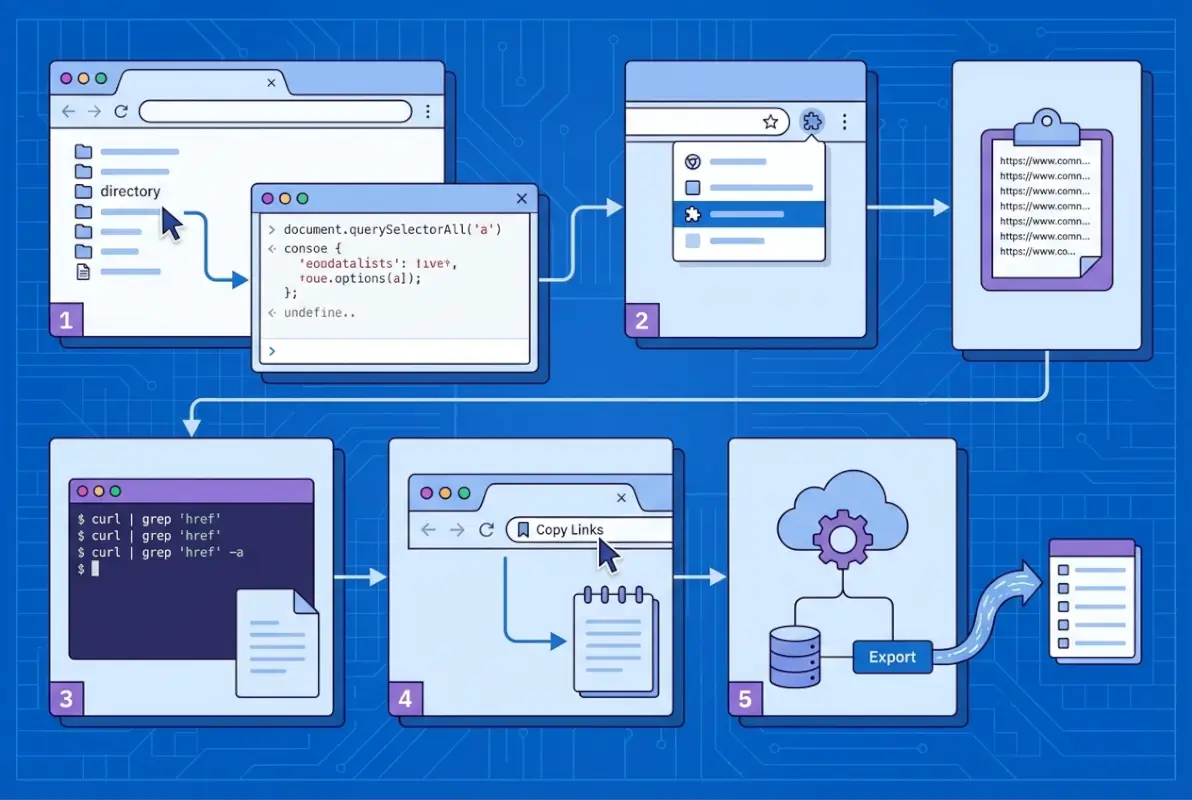
We’ll cover six methods in this guide, but they fall into three broad categories. In-page extraction (browser extensions and bookmarklets) runs client-side, meaning the tool reads the HTML of the page you’re currently viewing. Online extractors take a URL as input and scrape the page server-side, then return a list of links. Programmatic scrapers (JavaScript in the console, or full scripts like Puppeteer) give you maximum control and customization, perfect for dynamic pages or large-scale jobs. Choosing the right approach depends on your technical skills, privacy requirements, and the scale of the directory you’re tackling.
Method 1: One-Click Browser Extensions to Copy All Links From a Page
For most users, browser extensions are the sweet spot: fast, user-friendly, and reliable. They integrate directly into Chrome (or Edge, Brave, etc.) and work on any page you’re viewing, including online directories and HTML sitemaps.
Overview of Prominent Extensions
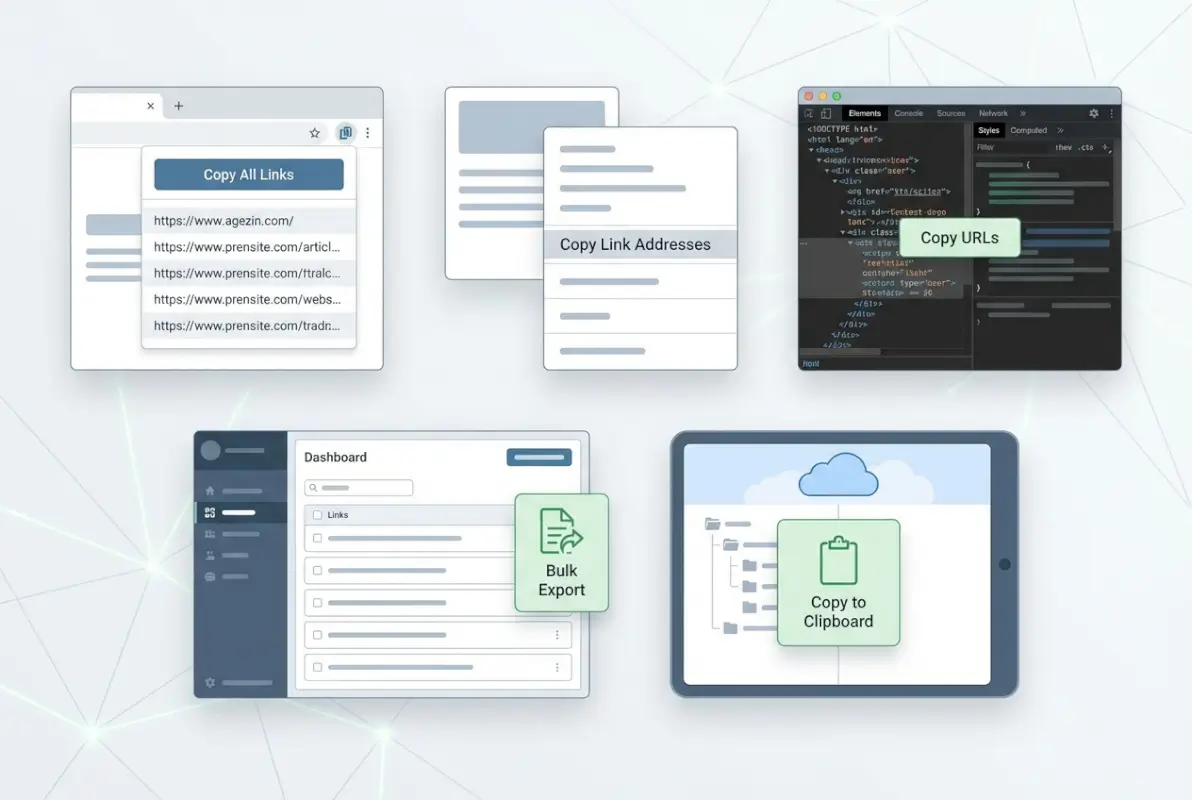
Copy All Links is one of the most popular options in the Chrome Web Store. It does exactly what the name suggests: with one click, it extracts every hyperlink on the current page and copies them to your clipboard. The extension filters out invalid or malformed links automatically, and it respects your privacy (no tracking, no data uploads). You can configure the output format—plain text (one URL per line), CSV (with anchor text and URL columns), Markdown (for easy pasting into documentation), or HTML (for embedding in reports). Installation takes seconds, and the interface is minimal: a small icon in your toolbar that you click when you’re ready to extract.
Copy All URLs is a slightly different flavor. Instead of focusing on links within a single page, it’s designed to copy the URLs of all your open tabs. That said, it can also extract on-page links if configured correctly, and it offers more granular format options (URL + title, URL + text, etc.). This extension is especially handy if you’ve opened a bunch of directory entries in separate tabs and want to export that tab collection as a list. Think of it as a bulk tab manager meets link extractor.
Both extensions are free, well-reviewed, and actively maintained. If you’re choosing between them, ask yourself: am I extracting links from a single directory page (Copy All Links), or am I managing dozens of open tabs that I want to export (Copy All URLs)?
Practical Steps to Use Extensions Safely
Here’s my workflow. First, install the extension from the Chrome Web Store—always verify the publisher and read recent reviews to ensure it’s legitimate. Second, navigate to a test page (maybe a small HTML sitemap or a simple directory with a dozen links) and click the extension icon. Check the output: are relative URLs being converted to absolute? Are mailto: and javascript: links excluded? If the output looks clean, you’re good to go. Third, choose your export format. For SEO work, I usually go with CSV so I can import into Excel or Airtable; for documentation, Markdown is cleaner.
Pros, Cons, and Best-Fit Scenarios
Extensions are fast, easy, and privacy-respecting (no server uploads). They work offline and integrate seamlessly into your browser. The downside? They only extract from the current page, so if your directory spans multiple pages (like a paginated sitemap), you’ll need to repeat the process or use a different method. Extensions are best for: single-page directories, HTML sitemaps under 500 links, resource hubs, and any scenario where you’re already browsing the page manually.
| Feature | Copy All Links | Copy All URLs |
|---|---|---|
| Primary Use | On-page link extraction | Multi-tab URL export |
| Output Formats | Text, CSV, Markdown, HTML | Text, CSV, URL+title |
| Deduplication | Automatic | Manual (requires config) |
| Best For | Single-page directories | Tab collections |
Alternatives if Extensions Are Unavailable
If you’re on a locked-down corporate machine or can’t install extensions, don’t worry—bookmarklets (covered next) offer a similar experience without requiring installation permissions.
Method 2: JavaScript Bookmarklets to Extract and Copy Links
Bookmarklets are like mini-apps that live in your bookmarks bar. They’re snippets of JavaScript that run when you click them, and they’re perfect for environments where browser extensions are blocked or when you only need the functionality occasionally.
What Bookmarklets Do
A bookmarklet executes JavaScript in the context of the current page. For link extraction, a typical bookmarklet script loops through all <a> elements, grabs the href attribute, deduplicates the list, and either copies it to your clipboard or displays it in a pop-up window. The beauty is that bookmarklets work across any modern browser (Chrome, Firefox, Safari, Edge) and require zero installation—you just drag a link to your bookmarks bar, and you’re done.
Example Workflow
Here’s how it works in practice. You visit a directory page listing resources—maybe a curated list of design tools or a public index of government datasets. You click the bookmarklet in your toolbar. A small JavaScript function runs, collecting all hyperlinks. Within a second or two, you see a text box with all the URLs (one per line), or the links are automatically copied to your clipboard. You paste them into your spreadsheet, Markdown doc, or whatever system you’re using. Done.
Tools like Bookmarklet.io’s Copy All Links provide ready-made bookmarklets that handle deduplication and formatting. You don’t need to write any code yourself—just drag the bookmarklet to your toolbar and start using it.
Considerations: Cross-Site Restrictions, Clipboard Permissions, and Clean Output
Modern browsers impose security restrictions on clipboard access and cross-origin scripts. Some bookmarklets will prompt you to grant clipboard permissions the first time you run them. Others might display the link list in a pop-up or alert box instead of copying directly, in which case you’ll need to manually select and copy the text (still faster than clicking each link individually). Also, bookmarklets can struggle with dynamic content loaded via JavaScript (like infinite-scroll directories), because they only see the HTML that’s rendered when you click. For static HTML directories, though, they’re rock-solid.
Recommended Starter Bookmarklet Sources for Quick Setup
Start with trusted generators like Bookmarklet.io, which offers a curated collection of utility bookmarklets including link extractors, text selectors, and page analyzers. Another option is to search GitHub for “link extraction bookmarklet” and review the code yourself (always a good practice, since bookmarklets can theoretically execute any JavaScript). Once you’ve found a trustworthy source, installation is as simple as dragging a link to your bookmarks bar.
Method 3: Page-Level Bulk Link Extractors and Online Tools
Sometimes you need to extract links from a page you’re not currently viewing—maybe you found a directory URL in a report, or you’re automating a research workflow. That’s where online link extractors come in.

Web-Based Link Extractors
These tools work like this: you paste a URL into a form, click “Extract,” and the service fetches that page, parses the HTML, and returns a list of all hyperlinks. Some popular examples include Extract.Pics (which also pulls images), SmallSEOTools’ Link Extractor, and custom-built solutions from SEO SaaS platforms. The advantage is that you don’t need to visit the page yourself—handy if you’re processing dozens of URLs in batch, or if the page is slow to load.
When to Use Online Extractors vs. Extensions
Use online extractors when you have a list of directory URLs and want to automate extraction without opening each in a browser tab. They’re also useful if you’re on a mobile device or a system where you can’t install software. However, they come with trade-offs: you’re sending the URL (and potentially the page content) to a third-party server, which is a privacy and security consideration. If the directory contains sensitive or proprietary information, stick to client-side methods like extensions or bookmarklets. Also, online extractors can’t handle authenticated pages (like logged-in SharePoint directories) unless you use browser automation (see Method 6).
Example Output Formats
Most online extractors offer multiple export formats: plain URLs (one per line), URL + anchor text (two-column CSV), full HTML (preserving link structure), or even JSON (useful for developers). For optimizing local directory listings at scale, CSV is my go-to because it’s easy to deduplicate and merge with other datasets in Excel or Google Sheets.
Cautions: Privacy and Data Handling When Using Online Services
When you submit a URL to an online extractor, you’re trusting that service not to log, share, or misuse the data. For public directories (open resource lists, government sitemaps, etc.), this is usually fine. For internal company directories or pages behind authentication, it’s a red flag. Always read the privacy policy, and if in doubt, use a local tool instead. Also, be mindful of rate limits: some free extractors cap you at 10-20 pages per day, which can be a bottleneck for large projects.
Method 4: Bulk Link Management Extensions (Clustered Features)
Beyond simple extraction, some extensions offer advanced link management: opening multiple links in tabs, downloading files from selected links, or grouping links by domain. These are especially powerful for power users who work with directories daily.

Link Management Utilities (e.g., Linkclump-Like Tools)
Linkclump (and similar tools like Snap Links) let you draw a box around a group of links on a page and perform bulk actions: open all in new tabs, copy all URLs, or bookmark them. It’s like a drag-and-select for hyperlinks. According to Sugggest’s overview of Linkclump, the tool is particularly popular among researchers and SEO pros who need to open dozens of search results or directory entries at once.
How to Group, Open, Copy, or Download Multiple Links From a Page
Here’s a typical workflow: you land on a directory page listing 50 blog posts. You want to open the top 10 in separate tabs to skim them. With Linkclump, you hold down a modifier key (like Z), draw a box around those 10 links, and release. Boom—10 new tabs. Alternatively, you can configure Linkclump to copy the URLs instead of opening them, giving you the same extraction power as Copy All Links but with spatial control (you choose which links to grab, not just “all links on the page”).
Workflow Tips to Minimize Duplicates and Maximize Accuracy
First, use the preview mode if available—some extensions show you a list of selected links before you commit to the action. Second, configure filters: exclude certain domains (like internal site navigation), skip mailto: links, or only include URLs matching a pattern. Third, deduplicate after extraction using a spreadsheet formula or a command-line tool like sort | uniq. This two-stage approach (rough extraction + cleanup) is faster and more reliable than trying to get perfect results in one pass.
Method 5: Platform-Specific or Enterprise-Assisted Approaches
If your directory lives inside an enterprise platform like SharePoint, OneDrive, or an intranet CMS, there are often built-in features for bulk link copying that respect permissions and security policies.
SharePoint/OneDrive and Enterprise Document Libraries
SharePoint Online’s document libraries include a “Copy link” feature for individual files and folders, but for bulk operations, you’ll want to use the “Export to Excel” or “Open with Explorer” features (when available). According to Microsoft’s official guidance, you can also use keyboard shortcuts and screen readers to navigate and copy links programmatically, though the process is more manual than using a browser extension.
For larger directories, SharePoint’s “Export to Excel” exports metadata (including the file URL) to a spreadsheet, which you can then manipulate to extract just the links column. This approach works well for best local business directory software solutions and internal resource hubs where permissions matter.
When to Rely on Built-In Platform Features for Directory-Like Listings
Use platform-native tools when: 1) the directory is behind authentication and third-party extractors can’t access it, 2) you need to preserve metadata (file size, last modified, owner) alongside URLs, 3) organizational policies prohibit browser extensions or external services. The trade-off is that these methods are slower and require more manual steps compared to one-click extensions.
Security Considerations for Bulk-Link Sharing in Organizational Contexts
When you extract and share links from an internal directory, you’re potentially exposing access to sensitive documents. Always review the sharing settings before distributing your link list—are the links set to “Anyone with the link,” or do they require specific permissions? If you’re unsure, consult your IT or compliance team. Some organizations have policies around link sharing that require audit trails or expiration dates, so factor those into your workflow.
Method 6: Programmatic Approaches for Power Users
For large-scale directories, dynamic pages, or highly customized workflows, writing a small script often beats any off-the-shelf tool. If you’re comfortable with basic coding, this method unlocks maximum flexibility.
Basic Scripting Ideas (JavaScript in Console, Puppeteer, etc.)
The simplest programmatic approach is to open your browser’s DevTools console (F12) and paste a few lines of JavaScript. Here’s a classic snippet:
Array.from(document.querySelectorAll('a')).map(a => a.href).join('\n')
This collects all <a> elements, extracts their href attributes, and joins them into a newline-separated string. Copy the output from the console and paste it into your text editor. You can extend this to filter out duplicates, exclude certain protocols, or format as CSV—just add a bit more JavaScript logic.
For more advanced scenarios (pages that load links via AJAX, infinite-scroll directories, or multi-page sitemaps), tools like Puppeteer or Playwright let you automate a headless browser. You write a Node.js script that navigates to the directory, scrolls to load all content, extracts links, and writes them to a file. This is overkill for a single-page directory, but if you’re processing hundreds of directories or need to re-run the extraction on a schedule, it’s the gold standard.
When Scripting Is Warranted (Large Directories, Dynamic Pages)
Consider scripting when: you have 10+ directory pages to process, the directory uses infinite scroll or pagination, you need to merge link lists from multiple sources, or you want to automate validation (check for 404s, normalize URLs, etc.). For example, if you’re working with best local business directory listing services at scale, a script can save you hours compared to manual extraction.
Simple Example Patterns (Collect All a[href] Values, Deduplicate, Export as CSV)
Here’s a conceptual workflow in pseudocode:
links = select_all('a').map(href)
links = filter(links, exclude_protocols=['mailto:', 'javascript:'])
links = make_absolute(links, base_url)
links = deduplicate(links)
export_csv(links, columns=['URL', 'Anchor Text'])
Each step can be a few lines of JavaScript, Python, or your language of choice. The payoff is a perfectly clean, validated link list with exactly the columns you need.
Best Practices for Accuracy and Security
Regardless of which method you choose, following a few universal best practices will ensure your link list is accurate, secure, and useful.
Deduplication and URL Normalization
Duplicate URLs are the silent productivity killer. A single page might link to https://example.com/page, https://example.com/page/ (trailing slash), and https://example.com/page?utm_source=ref (query parameter). Technically, these could be the same resource or different ones, depending on the server configuration. To deduplicate safely, normalize URLs first: remove trailing slashes, strip query parameters (unless they’re meaningful), and convert to lowercase if the server is case-insensitive. Then use a set or dictionary data structure to eliminate true duplicates.
Handling Relative URLs vs. Absolute URLs
Many directories use relative links (e.g., /resources/doc.pdf) instead of absolute URLs (https://example.com/resources/doc.pdf). If you export relative links without context, they’re useless. Always convert relative URLs to absolute by combining them with the page’s base URL. Most extraction tools handle this automatically, but if you’re scripting, make sure to resolve each href against document.baseURI or the canonical URL.
Validating and Filtering Results (Exclude mailto:, javascript:, etc.)
Not every <a> element points to a web page. Common non-HTTP protocols include mailto: (email links), tel: (phone numbers), javascript: (inline scripts), and data: (embedded content). Filter these out unless you specifically need them. A simple regex or string-prefix check (href.startsWith('http')) will catch 99% of edge cases.
Respectful Scraping Etiquette and Legal Considerations When Pulling Links From Public Directories
Just because a directory is publicly accessible doesn’t mean scraping it is always legal or ethical. Check the site’s robots.txt (most extraction tools respect it automatically), review the Terms of Service, and avoid hammering the server with rapid requests. For large-scale extraction, add delays between requests or use the site’s official API if available. Remember, extracting links for personal research is usually fine, but republishing or selling that data may violate copyright or database rights.
Practical Workflows for Common Directory Types
Different directory formats require slightly different approaches. Here’s how to tackle the most common scenarios.
HTML Directory Pages Listing Links
Classic HTML directories (like curated lists of tools, blogs, or government resources) are the easiest case. They’re static, SEO-friendly, and work perfectly with extensions or bookmarklets. Open the page, run your extraction tool, and you’re done. If the directory spans multiple pages, you’ll need to repeat the process for each page (or use a script to automate pagination).
HTML Sitemaps (XML or HTML) and How to Export From Them
HTML sitemaps are purpose-built for indexing, so they’re link-dense and usually well-structured. XML sitemaps (the kind submitted to Google) require a different approach: download the XML file, parse it with a tool or script, and extract the <loc> tags. Many SEO tools (like Screaming Frog or Sitebulb) can import XML sitemaps and export the URL list as CSV, saving you the manual work.
Open Directories (Where Indexing Is Visible) and How to Harvest Safely
Open directories are misconfigured web servers that list files and folders like a file explorer. They’re a goldmine for archivists and researchers, but they’re also a legal gray area (the admin may not have intended public access). If you’re harvesting from an open directory, be extra cautious: scrape slowly, respect bandwidth limits, and consider whether you have a legitimate reason to access the content. Tools like wget or httrack can mirror open directories, but use them responsibly.
Screenshots or Notes: What to Capture in Addition to the URL List
Don’t just save the URLs—capture context. Take a screenshot of the directory page (to remember the layout and date), note the anchor text or descriptions, and record the source URL (the page you extracted from). This metadata is invaluable when you revisit the list weeks later and can’t remember why a particular link was included. A simple CSV with columns for URL, Anchor Text, Source Page, and Date Extracted covers all the bases.
Frequently Asked Questions
How can I copy all links from a webpage quickly?
The fastest method is to use a browser extension like Copy All Links (Chrome Web Store). Install it, navigate to the page, click the extension icon, and all hyperlinks are copied to your clipboard in seconds. For a no-install option, use a bookmarklet from Bookmarklet.io that runs a JavaScript snippet to extract and display links.
Which tool is best to copy links from multiple tabs at once?
Copy All URLs (Chrome extension) is purpose-built for this. It exports the URLs (and optionally titles) of all open tabs in one click, supporting text, CSV, and other formats. It’s ideal if you’ve opened a bunch of directory entries across tabs and want a consolidated list.
Can I export copied links to CSV or Markdown?
Yes, most modern extensions support multiple export formats. Copy All Links offers plain text, CSV, Markdown, and HTML. CSV is best for data analysis and deduplication in spreadsheets; Markdown is great for documentation or GitHub READMEs. Choose the format that matches your downstream workflow.
How do I remove duplicate URLs after extraction?
In Excel or Google Sheets, paste the URLs into a column, then use “Remove duplicates” or a formula like =UNIQUE(A:A). For command-line users, sort urls.txt | uniq > unique_urls.txt does the trick. Always normalize URLs first (lowercase, remove trailing slashes, strip query params) to catch semantic duplicates.
How do I copy links from a SharePoint directory or document library?
SharePoint’s “Export to Excel” feature exports file metadata including URLs. Open the library, click “Export to Excel” in the toolbar, and you’ll get a spreadsheet with a column for each file’s link. For bulk link sharing, use “Copy link” on individual items or leverage PowerShell scripts for large-scale automation.
Are there privacy or security concerns when using browser extensions to copy links?
Reputable extensions like Copy All Links run locally and don’t upload data, so privacy risk is low. Always check the extension’s permissions and reviews before installing. Avoid extensions that request broad permissions (like “read and change all data on all sites”) unless they’re from a trusted publisher with good reviews.
What formats are available for output (text, Markdown, JSON, CSV, HTML)?
Most tools support at least plain text (one URL per line) and CSV (URL + metadata columns). Advanced extensions and scripts can output Markdown (for docs), JSON (for APIs), or HTML (for embedding). Choose based on your use case: CSV for analysis, Markdown for readability, JSON for automation.
Can bookmarklets handle dynamic or JavaScript-heavy pages?
Bookmarklets only see the HTML rendered at the moment you click them. If a directory loads links via AJAX or infinite scroll, a bookmarklet might miss some links. For dynamic pages, use a browser extension or a programmatic tool like Puppeteer that can interact with the page and wait for content to load.
What’s the difference between extracting links from a page and from all open tabs?
Extracting from a page (Copy All Links) grabs every hyperlink within that page’s HTML. Extracting from tabs (Copy All URLs) exports the URLs of the browser tabs themselves, not the links inside them. Use the former for directory pages; use the latter when you’ve manually opened multiple entries and want to catalog what you’ve browsed.
How can I validate extracted links to find broken or invalid URLs?
Use a link checker tool or script. Online services like Dead Link Checker or W3C Link Checker take a list of URLs and report HTTP status codes. For scripts, a simple HTTP HEAD request in Python or Node.js will identify 404s and redirects. Validating links before importing them into another system saves headaches later.
Conclusion: Choose the Right Tool for the Job, Then Make It a Habit
We’ve covered six practical methods to copy all links from online directories—from one-click extensions to enterprise SharePoint exports to full-blown Puppeteer scripts. The right choice depends on your technical comfort, the scale of your directory, and your privacy requirements. For most users, a browser extension like Copy All Links hits the sweet spot: fast, reliable, and privacy-respecting. If you can’t install extensions, bookmarklets offer a lightweight fallback. For large-scale or dynamic directories, invest a little time in scripting and you’ll save hours down the road.
Here’s your quick-start checklist: 1) Pick a method based on your scenario (single page? multiple tabs? dynamic content?). 2) Test it on a small sample directory to verify the output format and accuracy. 3) Export your links in the format that matches your workflow (CSV for analysis, Markdown for docs, plain text for quick sharing). 4) Archive the list with context: source URL, extraction date, and any relevant metadata. 5) Periodically re-run your extraction to catch new or updated links, especially for living directories that change frequently.
I remember the first time I tried to manually copy 200+ links from a government resource directory for a research project. After about 20 links, I thought, “There has to be a better way.” That’s when I discovered browser extensions, and it changed my workflow overnight. Don’t make the same mistake I did—automate early, and spend your time analyzing the links instead of collecting them.
Finally, a word on etiquette and responsibility. Just because you can extract thousands of links in seconds doesn’t mean you always should. Respect site terms of service, avoid overloading servers, and think carefully about how you’ll use and share the data. The web is built on links, and treating them with care keeps the ecosystem healthy for everyone.
Now go forth and extract those links—smartly, efficiently, and respectfully. Your future self (and your team) will thank you.
Was this article helpful?