How to Check Files in an Online Directory: 5 Simple Methods

Generating summary...
You’re managing a web server, and one day you notice unusual traffic patterns. You investigate, only to discover that a forgotten directory has been openly listing files for months—including backup databases, configuration files, and API keys. Sound like a nightmare? It happens more often than you’d think.
Directory exposure isn’t just a technical mishap; it’s a direct security vulnerability that can compromise your entire infrastructure. The challenge is that checking directory contents requires different approaches depending on your access level, server configuration, and the tools at your disposal. Most administrators know something about directory listing, but few understand the full spectrum of methods available to audit and secure their online directories effectively.
Here’s what makes this topic more nuanced than it appears: directory checking isn’t just about running a single command or tool. It’s about understanding the relationship between server configuration, file system permissions, application-level controls, and security scanning—each method revealing different aspects of potential exposure.
TL;DR – Quick Takeaways
- Directory listing exposure – Web servers may automatically display file lists when index files are missing, creating security vulnerabilities
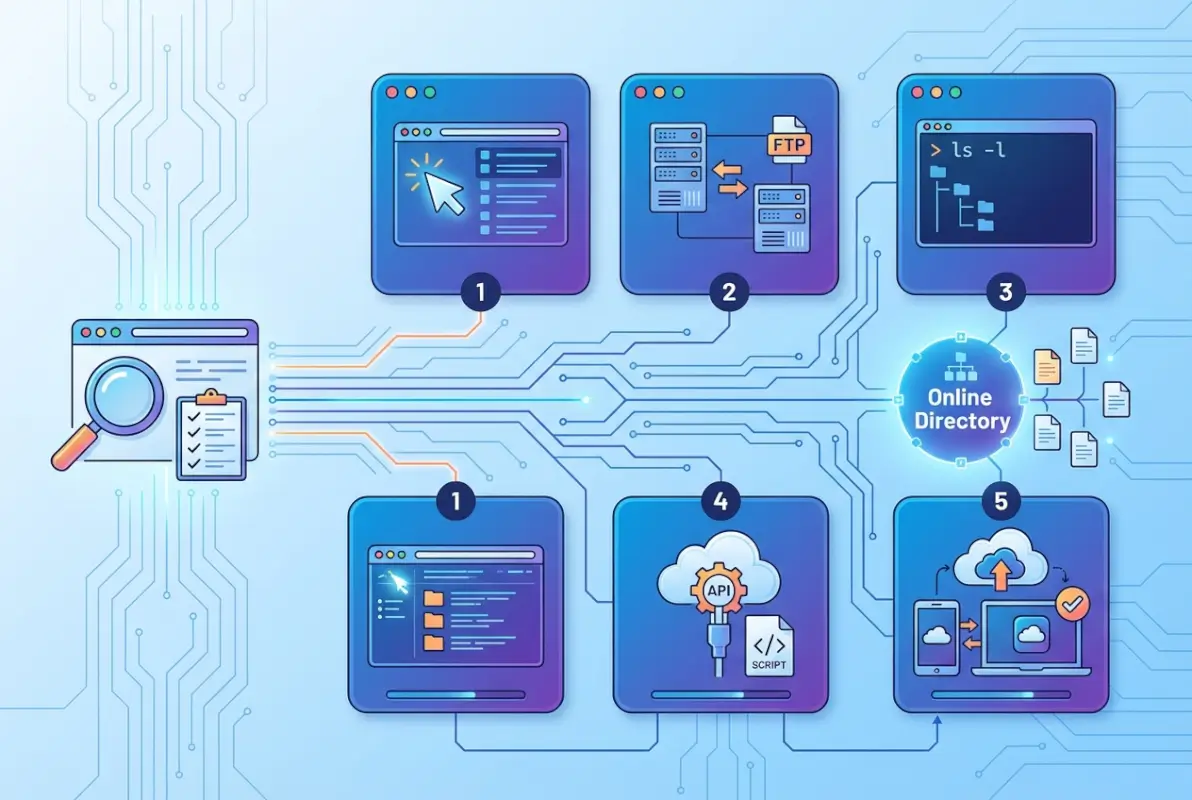
- Five distinct methods – From direct browser checks to programmatic enumeration, each approach serves different auditing needs
- Configuration matters most – Server settings like Apache’s Indexes directive or IIS directory browsing controls determine what gets exposed
- Scanning requires authorization – Directory scanning tools can identify vulnerabilities but must only be used on systems you own or have permission to test
- Prevention is straightforward – Disable listing, add index files, enforce proper permissions, and audit regularly
Method 1: Check Directory Contents Directly on the Web Server (Directory Listing)
The most straightforward way to check if a directory is exposing files is simply trying to access it through a web browser. When you navigate to a URL that points to a directory rather than a specific file, the web server makes a decision: either serve a default index file (like index.html) or—if configured to do so—display a list of all files and subdirectories.
This behavior isn’t inherently malicious; it’s actually a feature that was quite useful in the early days of the web for creating simple file repositories. However, in modern applications, an exposed directory listing can reveal your application’s internal structure, backup files, configuration scripts, and other sensitive resources that should never be public.
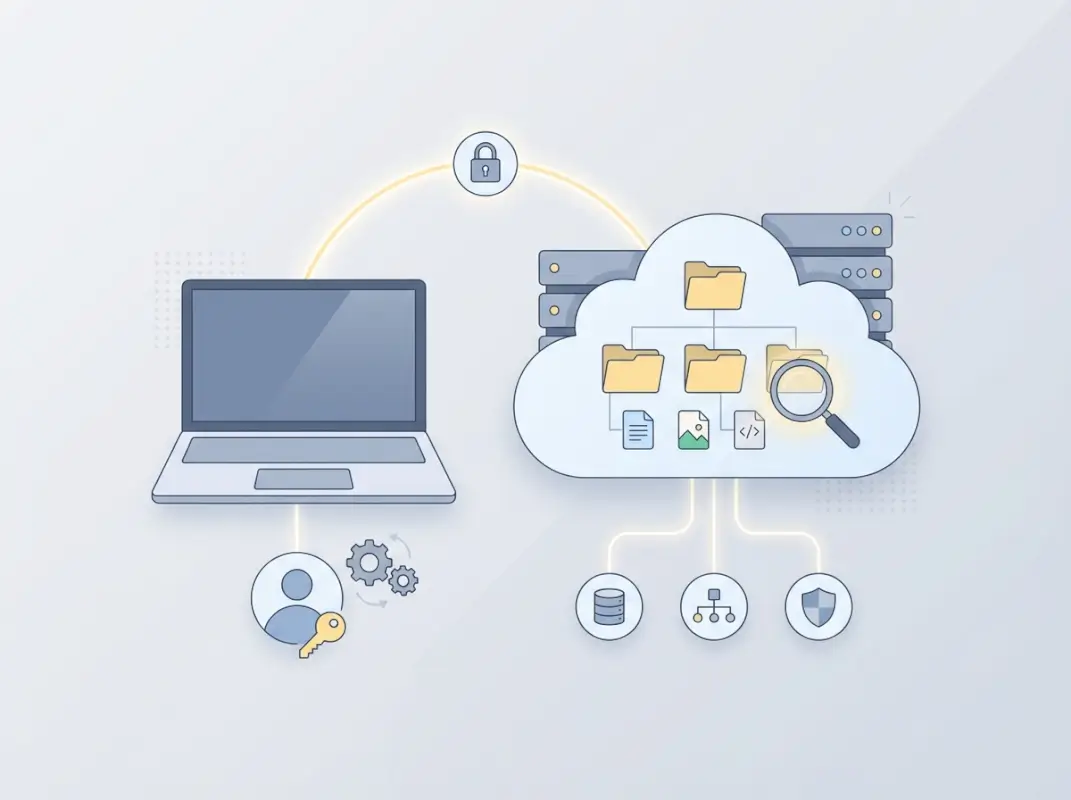
How a Browser Displays Directory Contents When No Index File is Present
When you request a directory URL (say, https://example.com/uploads/) and the server can’t find an index file, it checks its configuration. If directory indexing is enabled, you’ll see a formatted page listing all files—their names, sizes, modification dates, and sometimes even MIME types. The page typically includes clickable links to each file, making it trivially easy for anyone to download whatever they want.
Different web servers display this information differently. Apache servers typically show a simple HTML table with icons indicating file types. Nginx might show a more minimalist list. IIS servers have their own formatted view. But regardless of styling, the end result is the same: anyone can see and access files that might have been meant for internal use only.
I remember working with a client who discovered their entire archive of customer invoices was accessible because someone had created an “invoices” subdirectory without placing an index.html file inside. The directory had been exposed for three months before they caught it during a routine security audit.
Common Server Configurations That Enable or Disable Listing
Apache servers use the Options Indexes directive in their configuration files or .htaccess files. When this option is present, directory listing is enabled. To disable it, you use Options -Indexes. The directive can be set globally, per virtual host, or even per directory, which sometimes leads to inconsistent behavior across different parts of a site.
Nginx takes a different approach with the autoindex on; directive. By default, it’s off, which is one reason why Nginx servers tend to have fewer accidental directory exposures than Apache installations (where distributions sometimes enable it by default).
For those working with IIS on Windows servers, directory browsing is controlled through the IIS Manager interface or web.config files. The setting is typically disabled by default, but can be accidentally enabled when administrators are troubleshooting and forget to turn it back off.
Practical Steps to Assess Directory Listing Safely
Start by identifying directories that might be accessible without authentication. Common targets include /uploads/, /images/, /downloads/, /backup/, /temp/, and /files/. Try accessing each one directly through your browser.
If you see a file listing, you’ve found a potential exposure point. Document which directories display listings and what types of files are visible. Pay special attention to any configuration files (.conf, .xml, .json), backup files (.bak, .old, .zip), or files containing credentials or API keys.
Next, verify the presence of index files. Even if listing is disabled server-wide, having an index.html or index.php in each directory provides an additional layer of protection. These files don’t need to contain much—even a blank index file or a simple redirect will prevent the server from attempting to list directory contents.
Risk and Remediation
The primary risk of directory listing extends beyond simple information disclosure. Attackers use directory listings to map out your application’s structure, identify version numbers from filenames, locate backup files that might contain old vulnerabilities, and find configuration files that reveal database credentials or internal network information.
Directory traversal attacks become easier when attackers can see the actual file structure. They can craft more targeted requests when they know exactly which files exist and where they’re located. This turns what might have been a needle-in-a-haystack search into a straightforward exploitation process.
Remediation involves three parallel approaches. First, disable directory listing at the server level using the appropriate directive for your web server platform. Second, place index files in all directories that don’t already have them—even if those files are nearly empty. Third, implement proper access controls so that sensitive directories require authentication, regardless of whether listing is enabled.
Method 2: Use Built-in Operating System Commands or Tools to Inspect Directory Contents
While browser-based checking tells you what the public can see, sometimes you need to inspect directories from the file system level—especially when you have server access or are working in development environments. Operating systems provide powerful built-in commands that offer a more complete view of directory contents than what might be visible through a web interface.
These commands are essential for administrators who need to audit entire directory structures, verify file permissions, identify hidden files, or generate reports of what’s stored where. Understanding how to build online directories with proper security from the ground up can prevent many of these issues.
Local File Systems: ls, dir, and Their Variants
On Linux and macOS systems, the ls command is the standard tool for listing directory contents. In its basic form (ls /path/to/directory), it shows filenames. But its power comes from its options: ls -la shows hidden files (those starting with a dot), file permissions, ownership, size, and modification dates—all critical information for security audits.
The -R flag makes ls recursive, displaying not just the current directory but all subdirectories beneath it. When you’re trying to understand the full scope of what’s stored in a particular location, ls -laR gives you a comprehensive view. You can pipe this output to a file for later analysis: ls -laR /var/www/ > directory-audit.txt.
Windows systems use the dir command in Command Prompt or PowerShell. The equivalent of ls -la would be dir /a (showing all files including hidden) combined with dir /s (recursive). PowerShell offers even more powerful options through the Get-ChildItem cmdlet, which can filter files by extension, size, date, or attributes.
Remote or Embedded File Views
When you need to inspect directories on remote servers, SSH provides access to the same command-line tools. You can run ssh user@server 'ls -la /path/to/directory' to execute the listing remotely and receive results locally. For Windows servers, PowerShell remoting or Remote Desktop provides similar capabilities.
Programming languages offer built-in methods for directory listing that are useful when you need to automate audits or integrate directory checks into larger scripts. Java’s File.listFiles() method returns an array of files in a directory. Python’s os.listdir() and os.walk() provide simple and recursive listing respectively.
These programmatic approaches become particularly valuable when you need to check thousands of directories across multiple servers, filter results based on complex criteria, or generate automated reports. However, they require proper error handling—attempting to list a directory you don’t have permission to read will throw exceptions that need to be caught and logged appropriately.
Practical Checks and Logging
When logging directory contents for auditing purposes, be mindful of what information ends up in logs. Full file paths might reveal your server’s directory structure in ways that could help an attacker if logs are compromised. Consider using relative paths or redacting sensitive portions of full paths in production logging.
Create regular automated scans that check for unexpected files in sensitive directories. A simple cron job that runs ls and compares results against a baseline can alert you when new files appear in locations where they shouldn’t. This is particularly useful for detecting web shells or other malicious uploads in publicly writable directories.
Documentation matters here. Keep records of what you found, when you found it, and what actions you took. When dealing with security incidents or compliance audits, having a clear audit trail of directory inspections and the decisions made based on those inspections proves invaluable.
Method 3: Inspect Server and Application Configuration for Directory Access
Rather than checking individual directories one by one, a more systematic approach involves examining your server’s configuration files to understand how directory access is controlled globally. This method gives you the big picture: which settings apply where, what the defaults are, and where exceptions might exist.
Server configuration is where directory exposure is ultimately controlled. Even if files exist and are technically readable, proper configuration can prevent them from being listed or served. Understanding understanding business category in active directory structures helps contextualize these security considerations in enterprise environments.

Web Server Configuration Basics
Apache servers store their configuration in httpd.conf or apache2.conf files, along with site-specific virtual host configurations and per-directory .htaccess files. The Options directive controls directory behavior. You’ll want to search these files for any instance of Options +Indexes or simply Options Indexes—both enable directory listing.
The DirectoryIndex directive specifies which files the server should look for when a directory is requested. A typical configuration might read: DirectoryIndex index.html index.htm index.php. The server tries each filename in order, serving the first one it finds. If none exist and indexing is enabled, that’s when you get a directory listing.
Nginx configuration files (usually in /etc/nginx/) use the autoindex directive. Unlike Apache, Nginx doesn’t have per-directory configuration files like .htaccess, so all settings must be in the main nginx.conf or included site configuration files. This actually makes auditing easier, there are fewer places to check.
Platform-Specific Guidance: IIS and Windows Server
IIS administrators need to check the Directory Browsing feature in IIS Manager. You can view this at the server level, site level, or directory level. If you see “Enabled” next to Directory Browsing for any location that shouldn’t expose files, you’ve found a misconfiguration.
The web.config file can also control directory browsing through the directoryBrowse element. A safe configuration looks like: <directoryBrowse enabled="false" />. Sometimes developers enable browsing temporarily during testing and forget to disable it before deployment—this is one of the most common ways directories become accidentally exposed in Windows environments.
For those managing active directory services office 365 business environments, similar principles apply to file shares and cloud storage configurations, where directory enumeration can expose organizational structure.
| Server Platform | Configuration Location | Directive to Check | Safe Setting |
|---|---|---|---|
| Apache | httpd.conf, .htaccess | Options Indexes | Options -Indexes |
| Nginx | nginx.conf, site configs | autoindex | autoindex off; |
| IIS | IIS Manager, web.config | directoryBrowse | enabled=”false” |
Common Misconfigurations to Audit
Missing index files remain the most common issue. Even with listing disabled, it’s best practice to place index files in every directory. They act as a secondary defense layer and can provide friendly error messages or redirects rather than server defaults when someone tries to access a directory directly.
Overly broad directory permissions represent another frequent problem. A directory might not allow listing, but if files within it have world-readable permissions (chmod 644 or 755), anyone who guesses or discovers a filename can still access it. Proper file permissions should restrict access to only the web server user and administrators.
Backup files and configuration files left in web-accessible directories are particularly dangerous. Files named like “config.php.bak” or “database.sql.old” might not be served by the application itself, but they’re often readable as static files. Search your web root for common backup extensions: .bak, .old, .backup, .save, .temp, .orig.
Method 4: Use Web Scanning or Directory-Index Tools
Automated security scanning tools can discover directory exposures and misconfigurations that manual checks might miss. These tools work by systematically requesting common directory names and analyzing server responses to identify which directories exist, which allow listing, and which might contain sensitive files.
However, here’s where ethics and legality become critical: never run directory scanning tools against systems you don’t own or don’t have explicit written permission to test. These tools generate significant traffic and can be detected as attack attempts, potentially violating computer fraud laws and resulting in serious legal consequences.

What Directory Scanning Tools Look For
Directory scanners typically maintain dictionaries of common directory names—things like /admin/, /backup/, /upload/, /temp/, /test/, /old/, etc. They request each one and analyze the HTTP response code. A 200 response indicates the directory exists and is accessible. A 403 might mean it exists but access is forbidden. A 404 suggests it doesn’t exist (though clever configurations might return 404 for security reasons even when directories do exist).
Advanced tools also look for specific files that indicate directory listing is enabled or that backup/configuration files are present. They might check for robots.txt files that accidentally reveal hidden directories, examine HTTP headers for version information, and analyze response timing to infer whether certain paths exist even when access is denied.
Some scanners specifically look for OWASP Top 10 vulnerabilities, including security misconfigurations that encompass directory listing issues. These tools often provide risk ratings and remediation guidance for each finding.
How to Run a Safe, Authorized Check
Before running any scan, document your authorization clearly. If you’re testing your own infrastructure, note the date, systems to be tested, and scope. If you’re a security professional working for a client, get written permission that specifically authorizes security scanning and defines the scope (which systems, which tests, what time windows are acceptable).
Configure your scanning tools to avoid causing disruption. Limit request rates so you don’t inadvertently create a denial-of-service condition. Use realistic user-agent strings rather than obviously scanner-like ones (though hiding what you’re doing on your own systems isn’t necessary). Set appropriate timeouts and connection limits.
Consider the timing of your scans. Running aggressive directory enumeration during peak business hours might affect site performance. Schedule scans during maintenance windows or low-traffic periods when possible. Alert your operations team before starting so they’re not surprised by unusual traffic patterns in their monitoring dashboards.
Interpreting Results
Not every finding represents a critical vulnerability. A directory that returns a 403 (Forbidden) status is actually behaving correctly—it exists but isn’t publicly accessible. Your concern should be directories that return 200 (OK) status and display file listings, or those that allow access to sensitive files.
Prioritize remediation based on what’s actually exposed. A /temp/ directory that lists empty folders is low-risk compared to a /backup/ directory containing database dumps. Similarly, a /images/ directory that shows thumbnails might be intended behavior, while an /admin/ directory with listing enabled is almost certainly a misconfiguration.
False positives occur frequently in automated scanning. A tool might report that “/admin” is exposed, but when you check manually, you find it requires authentication. Always validate findings before raising alarms or dedicating resources to fixing non-existent problems.
Method 5: Programmatic Directory Enumeration via Code
For developers and automation engineers, programmatic directory checking offers the most flexible and repeatable approach. By writing code to enumerate directory contents, you can integrate security checks into deployment pipelines, create custom audit reports, or build monitoring systems that alert when unexpected files appear in sensitive locations.
This method is particularly valuable when managing multiple servers or complex directory structures where manual checking would be impractical. The techniques here relate closely to how to build online directory key elements success through proper planning and automation.

Language-Specific Examples: Java and Beyond
Java provides several approaches for listing directory contents. The traditional method uses File.listFiles(), which returns an array of File objects representing each item in the directory. For recursive traversal, Files.walkFileTree() offers more control and better performance with large directory structures.
Here’s a practical consideration: always check for null returns and handle exceptions. If you call listFiles() on a directory you don’t have permission to read, it returns null—not an empty array. Code that doesn’t check for this will crash with a NullPointerException at the worst possible time (usually in production, during an important audit).
Python developers typically use os.listdir() for simple listing or os.walk() for recursive traversal. The newer pathlib module offers a more object-oriented approach through Path.iterdir() and Path.glob(). These methods handle encoding issues better than older approaches and work consistently across Windows and Unix-like systems.
JavaScript/Node.js environments use fs.readdir() or its synchronous variant fs.readdirSync(). The asynchronous version is preferable in production applications to avoid blocking the event loop. Modern Node.js also supports the fs.promises API for cleaner async/await code.
Cross-Language Best Practices
Regardless of language, proper error handling is non-negotiable. Directory operations can fail for numerous reasons: insufficient permissions, network timeouts (for remote filesystems), paths that no longer exist, or symbolic links that create circular references. Your code must anticipate and handle these gracefully.
Permission checking should happen before attempting to list directories. In Java, use Files.isReadable(). In Python, os.access(path, os.R_OK) checks readability. These preemptive checks prevent ugly errors and help you generate more informative logging about why certain directories couldn’t be audited.
When building automated audits, consider creating baseline files that capture “normal” directory states. Your monitoring code can then compare current states against baselines to detect anomalies—new files where there shouldn’t be any, missing files that should always be present, or permission changes on sensitive directories.
Practical Considerations for Production Environments
Performance matters when scanning large directory structures. Reading thousands of files synchronously will lock up your application. Use asynchronous I/O when available, implement batching for large result sets, and consider running intensive scans in separate threads or processes to avoid impacting application performance.
Be cautious about what information your code logs or exposes. Full file paths might reveal your application’s internal structure. File contents (if your audit includes reading files) might contain secrets or personal data. Implement appropriate redaction and ensure audit logs themselves are properly secured.
Integration with existing tools amplifies the value of programmatic checking. Export results to JSON or CSV for import into security information and event management (SIEM) systems. Send alerts to Slack or email when anomalies are detected. Generate regular reports that track changes over time, helping you identify gradual configuration drift before it becomes a security incident.
Those working on how to build online directory essential steps success will find these programmatic approaches invaluable for maintaining security at scale as directories grow.
Security Best Practices and Common Pitfalls
Having covered the five methods for checking directory contents, let’s consolidate the security principles that should guide all these approaches. These aren’t just theoretical concerns—they’re lessons learned from real-world incidents where directory misconfigurations led to data breaches, compliance violations, and significant business impact.
Never Trust Directory Listing Denial as Security
The single biggest misconception is believing that if directory listing is disabled, your files are secure. Directory listing controls only determine whether someone can browse files; they don’t prevent direct access to files whose names are known or guessed. A file named “backup-2024-01-15.sql” in a non-listed directory is still vulnerable if someone can construct that URL.
Real security requires multiple layers: disable listing, implement file-level access controls, use authentication where appropriate, restrict file permissions at the operating system level, and regularly audit what’s actually stored in web-accessible directories. No single control provides complete protection, but together they create defense in depth.
The Index File Strategy
Every directory accessible via your web server should contain an index file—even if it’s nearly empty. This serves multiple purposes: it prevents accidental directory listing if server configuration changes, it provides a controlled response when someone accesses the directory, and it gives you a place to put user-friendly messaging or redirects.
Your index files can be minimal. A blank index.html works purely as a listing preventer. A file containing a redirect (either HTML meta-refresh or JavaScript) can send users to an appropriate page. Or you might include a simple HTML page explaining that direct directory access isn’t supported and providing links to proper entry points.
Regular Auditing Prevents Configuration Drift
Server configurations change over time. Software updates might reset settings to defaults. New administrators might not know about security policies. Developers might temporarily enable listing during troubleshooting and forget to disable it. Regular automated auditing catches these issues before they’re exploited.
Schedule quarterly manual audits where someone with security knowledge reviews server configurations, tests directory access from an unauthenticated perspective, and verifies that security controls are functioning as intended. Complement this with automated daily or weekly scans that check for the most critical issues and alert when changes occur.
| Common Pitfall | Why It Happens | How to Prevent |
|---|---|---|
| Backup files in web root | Quick fixes, forgotten cleanup | Store backups outside web root; automate cleanup |
| Development configs in production | Improper deployment process | Use environment-specific configs; implement proper CI/CD |
| Test directories left accessible | Temporary testing, forgotten removal | Automated scans for test/dev paths in production |
| World-writable upload directories | Overly permissive quick fixes | Principle of least privilege; regular permission audits |
Document Your Findings and Actions
Every audit should produce documentation. Record what you checked, what you found, what risks you identified, and what actions you took or recommended. This documentation serves multiple purposes: it demonstrates due diligence for compliance audits, it helps new team members understand the security posture, and it provides a history of issues and remediations that can inform future security decisions.
When you find issues, document not just the problem but the business risk. “Directory listing enabled on /uploads/” is a technical finding. “Directory listing on /uploads/ exposes 1,247 customer invoice PDFs containing personal and payment information” communicates business impact and helps prioritize remediation resources.
Frequently Asked Questions
What is directory listing and why should I check it?
Directory listing is a web server feature that displays a list of files when someone requests a directory URL without a default index file present. You should check it because enabled listing can expose sensitive files, reveal your application’s structure, and provide attackers with valuable reconnaissance information. Most security best practices recommend disabling listing except where explicitly needed for legitimate purposes like public file repositories.
How do I disable directory listing on my web server?
The method depends on your server platform. For Apache, add Options -Indexes to your httpd.conf or .htaccess file. For Nginx, ensure autoindex off; is set in your configuration. For IIS, disable “Directory Browsing” in IIS Manager or set <directoryBrowse enabled="false" /> in web.config. Additionally, place index files in all directories as a secondary protection layer regardless of server settings.
What tools can scan for exposed directories safely?
Directory scanning tools like Nikto, DirBuster, and various OWASP utilities can identify exposed directories, but they must only be used on systems you own or have explicit written authorization to test. Commercial security scanners often include directory enumeration as part of broader vulnerability assessments. Always configure tools to limit request rates, run scans during low-traffic periods, and validate findings manually to avoid false positives.
Can directory contents be enumerated programmatically?
Yes, most programming languages provide APIs for directory enumeration. Java offers File.listFiles() and Files.walkFileTree(), Python has os.listdir() and os.walk(), and Node.js provides fs.readdir(). These methods require proper error handling for permissions issues and should implement security controls to prevent information leakage. Programmatic enumeration is valuable for automated audits and monitoring systems that detect unauthorized changes to directory contents.
What are common signs of exposed directories that I should fix immediately?
Critical signs include: directory listings showing backup files (.bak, .sql, .zip), configuration files in web-accessible locations, test or development directories in production, missing index files in sensitive directories, world-readable or world-writable permissions on upload folders, and directories containing credentials or API keys. Any directory exposing customer data, financial information, or internal system details requires immediate remediation regardless of how it was discovered.
Is directory listing a vulnerability by itself?
Directory listing alone is considered a security misconfiguration rather than a direct vulnerability, but it significantly increases risk by providing reconnaissance information to attackers. The severity depends on what files are exposed—a listing of public images is low-risk, while exposure of database backups or configuration files is critical. Modern security frameworks like OWASP classify improper directory listing under security misconfigurations, typically recommending it be disabled unless specifically required for legitimate business purposes.
Are there legitimate scenarios to allow directory listing?
Yes, some scenarios justify directory listing: public file repositories intended for downloading, internal development or staging environments (with appropriate network restrictions), documentation servers where browsing is part of the intended user experience, and archive systems for large datasets. Even in these cases, implement authentication where possible, exclude sensitive files, monitor access logs for suspicious activity, and regularly audit what’s being exposed to ensure it matches your intent.
How often should I audit directory permissions and listing settings?
Implement a layered audit schedule: automated daily scans checking for critical exposures like backup files in web-accessible locations, weekly automated reviews of permission changes on sensitive directories, monthly manual reviews of server configurations, and quarterly comprehensive security audits including directory access controls. After any significant infrastructure change, deployment, or security incident, perform an immediate focused audit to verify controls remain properly configured and no new exposures were introduced.
What’s the relationship between directory listing and file permissions?
Directory listing and file permissions are separate but complementary security controls. Directory listing controls whether the server will show a list of files in a directory. File permissions control who can read, write, or execute individual files. Disabling listing doesn’t prevent direct file access if someone knows the filename, and restrictive file permissions don’t prevent listing if the server is configured to show directory contents. Effective security requires both controls properly configured for defense in depth.
Can hackers exploit directory listing to gain system access?
Directory listing itself doesn’t grant system access, but it enables reconnaissance that facilitates other attacks. Exposed listings help attackers map application structure, identify version numbers from filenames, locate backup files potentially containing vulnerabilities or credentials, find configuration files revealing database connection strings, and discover upload directories where they might place malicious files. Combined with other vulnerabilities, the information from directory listings significantly increases attack success rates by eliminating the guesswork attackers would otherwise face.
Taking Action on Directory Security
Directory checking isn’t a one-time task—it’s an ongoing security practice that should be integrated into your regular maintenance routines. Whether you’re using direct browser checks, command-line tools, configuration audits, automated scanners, or programmatic approaches, the key is consistency and thoroughness.
Start with the low-hanging fruit: disable directory listing on all web servers unless you have a specific, documented business reason for it. Add index files to every directory within your web root. Check file permissions to ensure sensitive files aren’t world-readable even if someone guesses their names. These three steps alone will eliminate the majority of directory-related security risks.
Then build out your auditing infrastructure. Create a checklist based on the methods covered in this article and schedule regular reviews. Automate what you can—scripts that check for backup files, monitor configuration drift, and alert on permission changes. But don’t rely solely on automation; quarterly manual reviews by knowledgeable security personnel catch issues that automated systems might miss.
The methods we’ve covered give you a complete toolkit for understanding and securing directory access across your infrastructure. The question isn’t whether to implement these practices, but how quickly you can integrate them into your existing security workflows. Your servers are either properly configured right now, or they’re waiting to be discovered by someone who knows exactly what to look for.
Was this article helpful?