Business Category Active Directory: Complete Implementation Guide

Generating summary...
Most Active Directory administrators focus obsessively on organizational units and group policies, completely overlooking one of the directory’s most powerful yet underutilized features—the businessCategory attribute. Here’s what nobody tells you: while OUs lock you into rigid hierarchical structures, businessCategory gives you the flexibility to create cross-domain classifications that actually reflect how your business operates, not just how your IT department thinks it should be organized.
After spending years implementing directory services across Fortune 500 enterprises and mid-sized organizations, I’ve watched countless IT teams struggle with the same fundamental problem. They build elaborate OU structures that become obsolete the moment the company reorganizes, forcing painful migrations and policy rewrites. Meanwhile, the businessCategory attribute sits there, unused, capable of solving most of their organizational headaches without moving a single object.
The real power of businessCategory isn’t in replacing your existing structure—it’s in augmenting it with a flexible tagging layer that survives organizational changes, works across domain boundaries, and enables reporting capabilities that would otherwise require expensive third-party tools or custom scripts that break every time Microsoft releases an update.
TL;DR – Quick Takeaways
- businessCategory is an AD attribute – not a container, allowing flexible classification without structural changes
- Works across domains – unlike OUs which are domain-specific containers
- Enables advanced filtering – query and report on objects by business function regardless of physical location
- Survives reorganizations – update tags without moving objects or rewriting policies
- Supports multiple values – objects can belong to several business categories simultaneously
- Requires governance – only effective with consistent naming conventions and ownership
Understanding the Business Category Attribute in Active Directory
The businessCategory attribute in Active Directory is a string-based property that exists on user objects, groups, computers, and other directory entities. Unlike organizational units which are physical containers, businessCategory is pure metadata—a tag that classifies objects without constraining where they live in your directory structure. According to Microsoft’s AD schema documentation, this attribute was designed specifically for classifying directory objects based on business function rather than technical hierarchy.

Think of it this way: your OU structure is like the physical filing cabinets in an office—items can only be in one drawer at a time, and moving them is disruptive. The businessCategory attribute is like color-coded labels you can stick on those files, allowing you to categorize the same document multiple ways without physically moving it. You wouldn’t reorganize your entire filing system every time someone changes departments, and you shouldn’t have to reorganize your directory structure either.
What makes businessCategory particularly valuable is its flexibility in hybrid environments. While OUs don’t synchronize to Azure AD, attributes do. This means your businessCategory tags can follow users into cloud services, enabling consistent classification across on-premises and cloud resources—a crucial capability as organizations adopt hybrid identity models.
How businessCategory Differs from Other AD Classification Mechanisms
The distinction between businessCategory and other organizational mechanisms is fundamental to using it effectively. Organizational Units serve primarily as containers for applying Group Policy and delegating administrative control. When you place a user in an OU, you’re making a statement about how they should be managed and who can manage them, not necessarily what their business function is.
| Mechanism | Purpose | Flexibility | Scope |
|---|---|---|---|
| Organizational Units | Policy application, delegation | Low – requires object moves | Domain-specific |
| Security Groups | Access control, permissions | Medium – membership changes | Cross-domain capable |
| Department Attribute | Single department assignment | High – simple updates | Single value only |
| businessCategory | Flexible business classification | Very high – attribute changes | Multi-value, cross-domain |
Security groups, by contrast, are about access control. When you add someone to a group, you’re granting them permissions or enabling them to receive resources. Groups can span domains and work across forests, making them more flexible than OUs but still fundamentally about “who can access what” rather than “what business function does this represent.”
The department and title attributes are closer to businessCategory in purpose, but they’re single-valued and typically represent HR-centric information. The businessCategory attribute, as documented by N-able’s Active Directory field mapping guide, can contain multiple values and represent any aspect of business classification you need—functional role, project assignment, compliance category, or cost center.
Practical Use Cases for businessCategory
Real-world applications of businessCategory extend far beyond simple organization. In one healthcare organization I worked with, we used businessCategory values like “HIPAA-Covered”, “PCI-Scope”, and “PHI-Access” to tag users and systems handling sensitive data. This enabled instant compliance reporting—auditors could see exactly which accounts and systems fell under specific regulatory requirements without navigating through complex OU structures spread across multiple domains.
Another powerful use case involves matrix organizations where employees report to multiple managers or work across functional boundaries. Traditional OU structures force you to choose one primary assignment, but businessCategory allows simultaneous classification. An enterprise architect might be tagged with “DEPT-Engineering”, “FUNC-Architecture”, and “PROJ-CloudMigration” simultaneously, enabling accurate reporting across all three dimensions without complex group nesting or custom attributes.
For organizations managing mergers and acquisitions, businessCategory provides a non-disruptive way to track legacy company affiliation. Rather than maintaining separate OU structures for acquired companies (which complicates policy management), you can integrate users into your standard OU design while preserving their origin through businessCategory tags like “LEGACY-CompanyA” or “ACQUIRED-2023-CompanyB”.
Directory Design Considerations: When to Tag vs When to Structure
The question isn’t whether to use OUs or businessCategory—it’s understanding what each does best and using them together strategically. Organizational units excel at three specific functions: applying Group Policy Objects, delegating administrative control, and hiding objects from standard searches. If your classification need doesn’t align with one of these three purposes, you’re probably better served by businessCategory or another attribute.
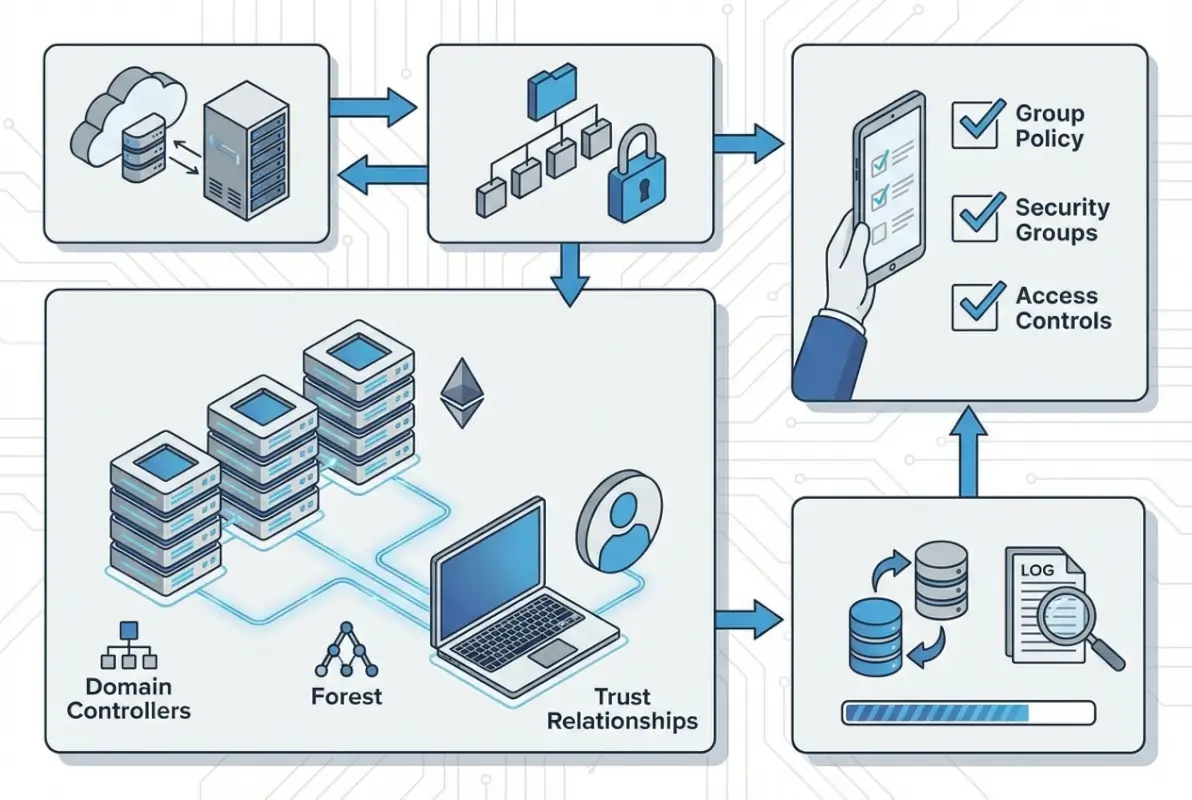
According to Tech-FAQ’s guidance on Active Directory organizational units, effective OU design prioritizes administrative boundaries over business structure. Your OU hierarchy should reflect how you need to manage objects, not how your business organizes work. This is where most implementations go wrong—they try to mirror the org chart in OUs, creating a brittle structure that breaks with every reorganization.
OU Design Fundamentals
A well-designed OU structure is typically shallow and focused on administrative needs. Most organizations need no more than three to four levels: a top level for broad categories (Users, Computers, Servers, Groups), a second level for geographic locations or major administrative divisions, and perhaps a third level for specific policy requirements. Anything deeper usually indicates you’re trying to represent business structure in OUs—a job better suited for attributes.
I remember consulting for a manufacturing company with a seven-level OU structure that perfectly mirrored their organizational chart. It looked impressive in Active Directory Users and Computers, but it was a nightmare to maintain. Every time someone changed roles (which happened weekly), their user account had to be moved, triggering group policy reapplication and sometimes breaking access to resources. We flattened it to three levels and moved all the business classification into businessCategory attributes. Administrative overhead dropped by half, and the directory became stable enough that junior admins could manage it without constant escalation.
Tagging Strategy: businessCategory vs OU Alignment
The decision framework is straightforward: if changing a classification requires updating Group Policy or administrative delegation, use OUs. If it’s purely informational or used for filtering and reporting, use businessCategory. Consider these scenarios:
| Scenario | Recommended Approach | Rationale |
|---|---|---|
| Desktop security policies differ by location | Use OU structure | Requires GPO application |
| Track which users work in marketing | Use businessCategory | No policy implications |
| Different admins manage servers vs desktops | Use OU structure | Delegation boundaries |
| Compliance reporting by data classification | Use businessCategory | Cross-OU filtering needed |
| Users belong to multiple business units | Use businessCategory | Multi-value classification |
This decision tree approach keeps your directory structure aligned with technical requirements while giving you the flexibility to represent complex business relationships through attributes. It’s worth noting that many successful implementations use both—OUs for management boundaries and multiple businessCategory values for business classification, project assignment, and compliance tagging.
Integrating Business Category with Modern AD Ecosystems
The landscape of identity management has shifted dramatically toward hybrid and cloud-first architectures, and businessCategory attributes adapt remarkably well to these new paradigms. When you synchronize Active Directory with Azure AD using Azure AD Connect, attribute flows become critical, and businessCategory offers distinct advantages over container-based organization.
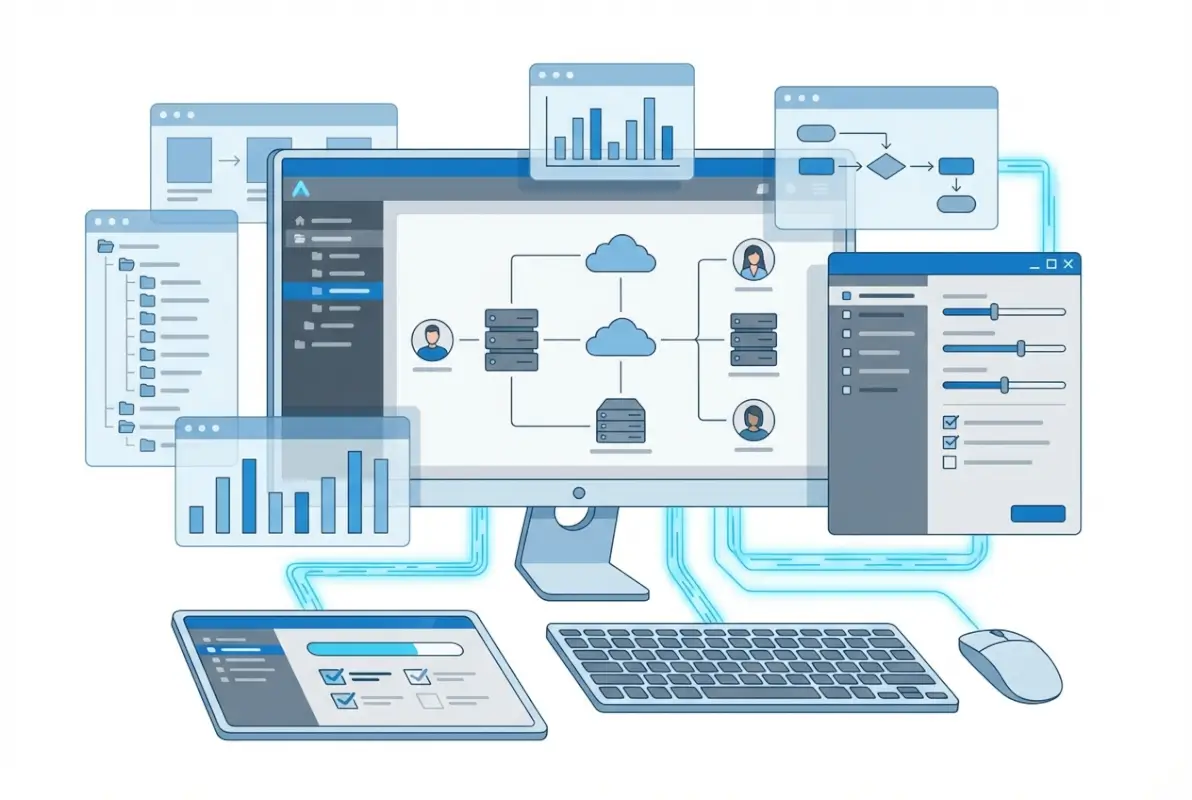
Unlike organizational units which remain purely on-premises concepts, attributes synchronize to the cloud, making businessCategory values available in Azure AD, Microsoft 365, and connected SaaS applications. This means classifications you establish on-premises can drive access decisions, conditional access policies, and dynamic group memberships in cloud services—something you simply can’t accomplish with OU structures.
On-Premises AD vs Hybrid and Azure AD Considerations
In hybrid environments, businessCategory synchronization follows the same rules as other directory attributes. By default, Azure AD Connect syncs a predefined set of attributes, and businessCategory isn’t always included in that default set depending on your schema version. According to Okta’s documentation on Active Directory base attributes, extending your sync configuration to include businessCategory requires modifying your connector configuration, but it’s a straightforward process that pays significant dividends.
Once synchronized to Azure AD, businessCategory values become available as extension attributes that can populate dynamic groups, drive conditional access policies, and even flow through to connected applications via SAML or OIDC claims. This creates a unified taxonomy spanning your entire identity infrastructure—on-premises, cloud, and SaaS—all maintained from a single source in Active Directory.
Pure Azure AD environments (without on-premises AD) can leverage similar concepts through extension attributes and custom security attributes in Azure AD itself. While these don’t carry the “businessCategory” name, they serve identical purposes and demonstrate that Microsoft continues to recognize the value of flexible, attribute-based classification beyond rigid container structures.
Directory Analytics and Tooling
Modern identity governance platforms and analytics tools leverage businessCategory extensively. When integrated with solutions for identity lifecycle management, access reviews, or privileged access governance, businessCategory provides the business context that pure technical attributes lack. Instead of reviewing “all users in OU=Marketing”, governance workflows can target “all users with businessCategory=HIPAA-Covered AND department=Billing”—dramatically more precise and meaningful for business stakeholders.
PowerShell remains the primary tool for querying and manipulating businessCategory at scale. A simple query to find all users in a specific business category looks like this: Get-ADUser -Filter {businessCategory -eq "DEPT-Engineering"} -Properties businessCategory. For more complex operations involving multiple categories or pattern matching, LDAP filters provide additional flexibility.
Security and Compliance Implications
From a security perspective, businessCategory enables more sophisticated access governance than traditional approaches. By tagging accounts and resources with compliance-relevant categories, you create the foundation for automated access reviews, certification campaigns, and anomaly detection. A user with businessCategory=”TEMP-Contractor” accessing systems tagged “SENSITIVE-FinancialData” triggers alerts that would be invisible in pure group-based access models.
Compliance frameworks increasingly require demonstration of data governance and classification. Having systems and accounts properly categorized by business function, data sensitivity, and regulatory scope isn’t just good practice—it’s often a compliance requirement. Organizations subject to SOX, HIPAA, PCI-DSS, or GDPR find that businessCategory provides an efficient mechanism for demonstrating control over identity and access management scope.
Practical Guidance: Implementing and Managing businessCategory
Successful businessCategory implementation requires more than technical knowledge—it demands governance, planning, and organizational buy-in. The attribute itself is simple, but using it effectively across an enterprise requires treating it as a data governance initiative rather than just another AD configuration change.

Defining a Governance Model
Start by establishing clear ownership. Who decides what business categories exist? Who approves new categories? Who maintains the taxonomy as the business evolves? Without answers to these questions, you’ll end up with category proliferation—dozens of overlapping, inconsistent values that make the attribute useless for filtering or reporting.
A typical governance model assigns taxonomy ownership to a cross-functional team including representatives from IT, HR, compliance, and key business units. This team maintains a category registry—a documented list of approved values with definitions and examples—and reviews it quarterly to add new categories, retire obsolete ones, and merge duplicates.
The most successful implementations I’ve seen use a prefix-based naming convention that groups related categories: DEPT- for departments, FUNC- for functional roles, PROJ- for project assignments, COMP- for compliance classifications. This creates visual organization in the attribute values and makes it immediately clear what aspect of the business each category represents. For instance, a user might have businessCategory values of “DEPT-Finance”, “FUNC-Analyst”, “PROJ-ERP-Migration”, and “COMP-SOX-Scope”.
Operational Steps to Implement
Implementation typically follows a phased approach. Start with a pilot—select one department or business unit, define their categories, populate the attributes, and build a few useful reports or queries that demonstrate value. This proof of concept generates organizational support and reveals any gaps in your taxonomy before you commit to enterprise-wide rollout.
For bulk population, PowerShell provides the most efficient approach. If you’re mapping existing data from HR systems or other sources, prepare a CSV file with user identifiers and their corresponding categories, then use Import-Csv and ForEach-Object to apply them:
Import-Csv “C:\categories.csv” | ForEach-Object {
Set-ADUser -Identity $_.SamAccountName -Replace @{businessCategory=$_.Category}
}
For ongoing maintenance, consider automation based on other attributes or group memberships. If your HR system updates the department attribute reliably, a scheduled script can propagate those changes into businessCategory values with appropriate prefixes, ensuring synchronization between HR data and directory classification.
| Implementation Phase | Activities | Success Criteria |
|---|---|---|
| Planning | Define taxonomy, establish governance | Documented category registry |
| Pilot | Single department rollout | Useful reports demonstrating value |
| Rollout | Bulk population via PowerShell | 90%+ user coverage |
| Integration | Connect to provisioning, governance tools | Automated workflows using categories |
| Maintenance | Quarterly audits, taxonomy updates | Data quality above 95% |
Change Management and Auditing
Track changes to businessCategory attributes just as you would any other critical directory data. Enable Active Directory auditing for attribute modifications if you need a detailed change log, or export category assignments to CSV files before major updates to provide rollback capability. Simple export commands like Get-ADUser -Filter * -Properties businessCategory | Select SamAccountName,businessCategory | Export-Csv backup.csv take seconds to run but can save hours of recovery work if something goes wrong.
Regular data quality audits identify inconsistencies before they become problems. Query for users without any businessCategory values, check for typos or case variations in category names, and validate that categories align with your approved taxonomy. Automated scripts can flag anomalies—like users with contractor categories who’ve been in the system for years, or permanent employees tagged with temporary project assignments long since completed.
Reporting, Analytics, and Automation Scenarios
The true return on investment from businessCategory implementation comes from the reporting and automation capabilities it enables. Rather than complex scripts parsing OU paths or nested group memberships, you can generate meaningful business reports with simple attribute queries that non-technical stakeholders actually understand.

Common Reports and Dashboards Leveraging businessCategory
Headcount reports by business unit become trivial when users are properly categorized. Instead of trying to derive department information from OU structure or group memberships, a simple query returns accurate counts: Get-ADUser -Filter {businessCategory -like "DEPT-*"} | Group-Object businessCategory | Sort Count -Descending. This same approach works for compliance scope reporting, project team rosters, or any other business dimension you’ve encoded in your categories.
Access review campaigns become more targeted and meaningful. Instead of reviewing all members of broad security groups, you can scope reviews to specific combinations of business categories—for example, reviewing all contractors (businessCategory=”TYPE-Contractor”) who have access to sensitive financial systems, or all employees with PCI scope (businessCategory=”COMP-PCI”) to ensure they’ve completed required training.
Automated Workflows and Policy Enforcement
Modern identity governance platforms can trigger automated actions based on businessCategory values. New hires tagged with “DEPT-Sales” automatically get added to relevant distribution lists, granted access to CRM systems, and assigned appropriate security awareness training—all based on that single attribute rather than complex rule sets evaluating multiple conditions.
Conditional access policies in Azure AD can leverage synchronized businessCategory values to apply different security requirements based on business function. Users with “COMP-HighSecurity” categories might require multi-factor authentication and compliant device access, while those with “TYPE-Intern” categories might face additional location restrictions or time-based access controls.
For organizations managing resources beyond Active Directory, how to organize active directory for business environment integration with business directory platforms creates a unified approach to organizational data management.
Data Quality Checks and Dashboards
Establish ongoing monitoring of businessCategory data quality through automated dashboards that track key metrics: percentage of users with at least one category assigned, distribution of category usage, identification of deprecated categories still in use, and detection of typos or case inconsistencies. These dashboards typically refresh daily and alert governance owners when quality metrics fall below thresholds.
A simple but effective quality check script runs weekly and emails results to taxonomy owners: identify users created in the past 30 days without businessCategory values (suggesting onboarding process gaps), flag categories used fewer than five times (potential typos), and list any categories not in the approved registry (unauthorized additions requiring review).
Frequently Asked Questions
What is the businessCategory attribute in Active Directory and how is it used?
The businessCategory attribute is a string-based property in Active Directory schema that stores business classification information on user, group, computer, and other objects. It enables flexible tagging based on business function, department, project assignment, or compliance scope without requiring structural changes to your directory hierarchy. Organizations use it for improved filtering, reporting, and automated provisioning workflows.
How is businessCategory different from organizational units in Active Directory?
Organizational Units are physical container objects that organize directory entries hierarchically and primarily serve to apply Group Policy and delegate administrative control. businessCategory is an attribute—essentially a tag—that classifies objects logically without constraining their physical location. Objects can only exist in one OU but can have multiple businessCategory values, and categories work across domain boundaries where OUs don’t.
Can I apply businessCategory to groups and computers or only user accounts?
The businessCategory attribute can be applied to users, groups, computers, organizational units, and most other Active Directory object classes. This flexibility allows consistent classification across your entire directory. For example, you might tag both users and the computers they use with compliance-related categories to ensure proper pairing of classified users with appropriately secured devices.
How should I govern and audit businessCategory values to maintain data quality?
Establish a governance team that maintains an approved category registry with definitions and naming conventions. Implement quarterly audits to identify unused categories, typos, and coverage gaps. Use PowerShell scripts to validate categories against your approved list, flag objects without required categories, and alert on suspicious patterns. Export category assignments before major changes to enable rollback if needed.
How does businessCategory work with Azure AD and hybrid identity scenarios?
When properly configured in Azure AD Connect, businessCategory synchronizes from on-premises Active Directory to Azure AD as an extension attribute. This makes your business classifications available for conditional access policies, dynamic group membership rules, and claims in federated applications. Unlike OUs which remain on-premises concepts, businessCategory values flow to cloud services, providing consistent classification across hybrid environments.
What are practical examples of using businessCategory for access control or policy targeting?
Common scenarios include targeting access reviews to users with specific categories (e.g., all contractors in finance department), scoping conditional access policies by business function (requiring MFA for users with compliance-sensitive categories), populating dynamic groups for automated provisioning (all users with “DEPT-Sales” get CRM access), and generating compliance reports (all systems tagged “PCI-Scope” for audit preparation).
What mistakes should I avoid when implementing businessCategory tagging?
Avoid creating too many granular categories which become unmanageable—aim for 30-50 well-defined values rather than hundreds of specific ones. Don’t implement businessCategory without governance—undefined ownership leads to category proliferation and inconsistent use. Never use businessCategory as a replacement for proper OU design or security groups; each serves distinct purposes. Ensure synchronization to cloud services if running hybrid environments, or your categories won’t be available where needed.
How can I validate data quality for businessCategory across my directory?
Run regular PowerShell queries to identify coverage gaps (users without categories), detect typos (categories used fewer than a threshold number of times), validate against approved taxonomy (categories not in your registry), and check for obsolete assignments (users with project categories for completed projects). Export results to dashboards that track quality metrics over time and alert governance owners when thresholds are breached.
Can businessCategory replace the department attribute in Active Directory?
businessCategory complements rather than replaces the department attribute. Department typically contains a single value synchronized from HR systems and used by applications expecting that specific attribute. businessCategory provides multi-value capability and flexible classification beyond simple department assignment. Best practice is maintaining both—department for application compatibility and HR integration, businessCategory for sophisticated filtering and governance workflows.
What tools and methods work best for bulk updating businessCategory values?
PowerShell provides the most efficient bulk update capability through Get-ADUser with filters and Set-ADUser with Replace or Add parameters. For large-scale changes, prepare CSV files mapping user identifiers to categories, then use Import-Csv with ForEach-Object to process them. Consider implementing automated synchronization from HR systems or other authoritative sources to maintain accuracy without manual intervention.
Take Control of Your Directory Classification Today
Implementing businessCategory transforms Active Directory from a basic authentication service into a powerful business intelligence platform that adapts to organizational changes without painful restructuring. The organizations seeing the greatest return start small—pilot a single department, demonstrate tangible value through improved reporting or automated provisioning, then expand based on that success.
Begin by auditing your current directory structure and identifying where rigid OU hierarchies force compromises between technical requirements and business representation. Document three to five use cases where flexible classification would solve real problems—compliance reporting taking too long, cross-functional team identification being manual and error-prone, or reorganizations requiring massive object migrations.
Develop your initial taxonomy using a prefix-based naming convention that groups related concepts, establish governance ownership before you populate a single attribute, and build at least one compelling report that demonstrates business value to stakeholders. Then automate the population process using PowerShell and data from existing reliable sources like your HR system.
Your directory structure should serve your business, not constrain it. businessCategory gives you that flexibility—start with a focused pilot today, prove the value through tangible results, and then scale across your organization. Future reorganizations will thank you for the foresight.
Was this article helpful?