What Active Directory Services Come with Office 365 Business? Complete 2025 Guide

Generating summary...
Microsoft’s identity landscape has evolved dramatically, and if you’re running Office 365 Business or considering Microsoft 365 Business Premium, understanding exactly what Active Directory capabilities you’re getting matters more than ever. The confusion isn’t your fault—Microsoft’s rebranding from Azure Active Directory to Microsoft Entra ID, combined with constantly shifting licensing bundles, has left even experienced IT professionals scratching their heads.
Here’s what most articles won’t tell you upfront: Microsoft 365 Business Premium now includes Azure AD Premium P1 features by default, fundamentally changing the value equation for small and medium businesses. This means capabilities that once required separate licensing—like conditional access policies and advanced group management—are now sitting in your subscription, probably unused. I’ve worked with dozens of organizations that were paying for third-party identity solutions while these premium features collected dust in their existing Microsoft subscription.
Whether you’re migrating from on-premises Active Directory, starting fresh in the cloud, or trying to figure out if your current setup is secure enough, this guide cuts through the marketing jargon to show you exactly what identity services you have, how to use them, and when you might actually need to upgrade.
TL;DR – Quick Takeaways
- Microsoft 365 Business Premium includes Azure AD Premium P1 – You get conditional access, advanced MFA, and hybrid identity features without additional costs
- Basic Office 365 plans include Azure AD Free – Sufficient for authentication and basic user management, but lacking advanced security controls
- Entra ID is the new name – Azure Active Directory is now Microsoft Entra ID, but functionally it’s the same service
- Hybrid scenarios are fully supported – You can sync on-premises Active Directory with Entra ID using Azure AD Connect (now Entra Connect)
- Premium P2 still costs extra – Features like Identity Protection and Privileged Identity Management require additional licensing
- Most SMBs underutilize included features – The identity capabilities you already have are probably more powerful than you realize
Understanding Microsoft Entra ID and Its Role in Microsoft 365
Microsoft Entra ID (formerly Azure Active Directory) serves as the identity backbone for all Microsoft 365 services, but it’s fundamentally different from the Active Directory Domain Services you might be familiar with from on-premises environments. Think of Entra ID as a cloud-native identity platform built specifically for modern authentication protocols like OAuth 2.0, OpenID Connect, and SAML—not a cloud version of traditional AD.
When you subscribe to any Microsoft 365 plan, you’re automatically using Entra ID whether you realize it or not. Every time a user signs into Outlook, Teams, SharePoint, or any Microsoft app, Entra ID handles that authentication in the background. The service manages user identities, authenticates credentials, controls access to applications, and provides the foundation for security features like multi-factor authentication and conditional access policies.
The key distinction that trips people up: traditional on-premises Active Directory was designed for Windows-centric environments with domain-joined computers using Kerberos and NTLM protocols. Entra ID was architected from the ground up for cloud and mobile scenarios where users access SaaS applications from any device, anywhere. It doesn’t use concepts like Organizational Units (OUs), Group Policy Objects (GPOs), or domain controllers. Instead, it offers cloud-optimized alternatives like administrative units, device management through Intune, and policy enforcement through conditional access.
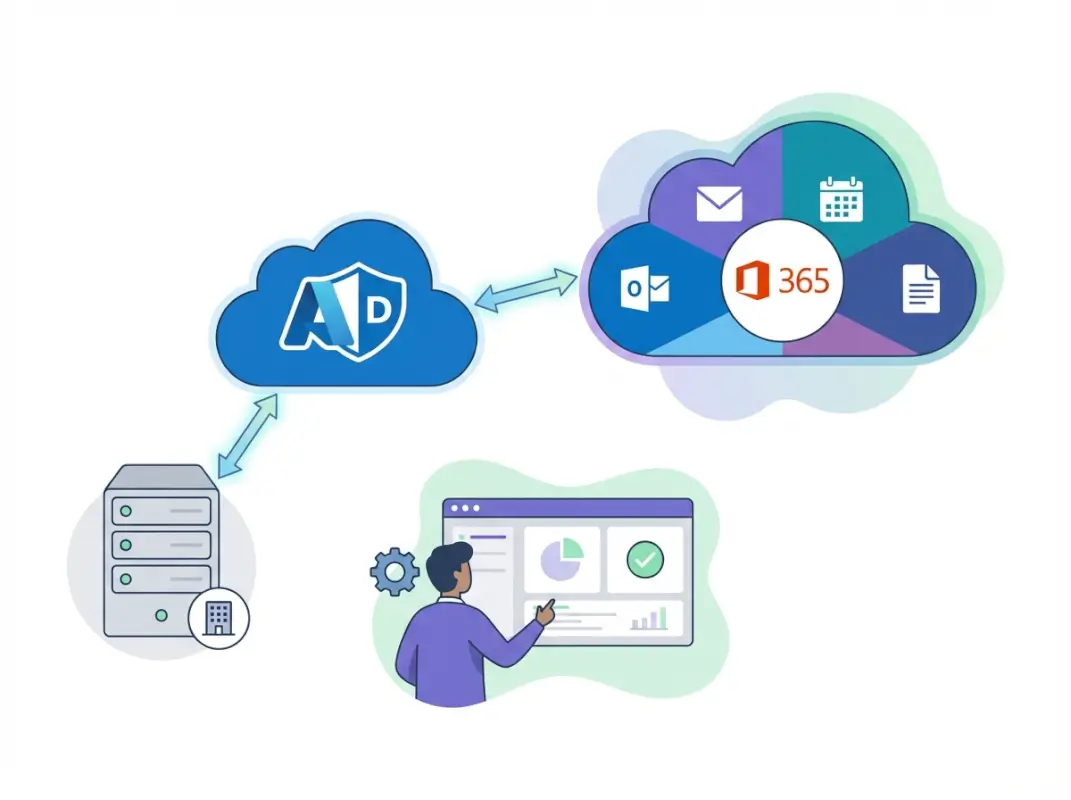
For businesses evaluating their identity strategy, this matters because you can’t simply “lift and shift” your on-premises AD into the cloud and expect everything to work the same way. Applications that rely on LDAP queries, Kerberos authentication, or Group Policy won’t work with Entra ID alone—they need either an on-premises Active Directory or Azure AD Domain Services (a managed service that provides traditional AD functionality in the cloud).
What Identity Features Come with Different Microsoft 365 Plans
The identity features included with your Microsoft 365 subscription vary significantly based on which plan you’re using, and this is where much of the confusion originates. Let’s break down exactly what you get at each tier.
Microsoft 365 Business Basic and Standard: Azure AD Free Tier
The entry-level Business Basic and Business Standard plans include the Azure AD Free tier, which provides essential identity services for up to 500,000 directory objects. This includes basic user and group management, single sign-on for up to 10 applications per user, self-service password change (not reset), basic security reports, and user provisioning for popular SaaS applications.
The Free tier handles authentication and basic identity management adequately for small teams primarily using Microsoft applications. However, it lacks critical security features like conditional access policies, which means you can’t enforce location-based restrictions or require MFA only for specific scenarios. You get basic MFA through security defaults, but you can’t customize when or how it’s applied.
Microsoft 365 Business Premium: Azure AD Premium P1 Included
This is where things get significantly better, and it’s a change many organizations don’t realize happened. As of 2020, Microsoft began including Azure AD Premium P1 features with Business Premium subscriptions—a substantial value addition that fundamentally changes the security posture available to SMBs.
With Business Premium, you get everything in the Free tier plus these critical P1 capabilities:
- Conditional Access policies – Create rules that require MFA based on location, device state, application, or risk level
- Advanced group management – Dynamic groups with automatic membership based on user attributes
- Self-service password reset – Users can reset their own passwords, reducing help desk burden by up to 60%
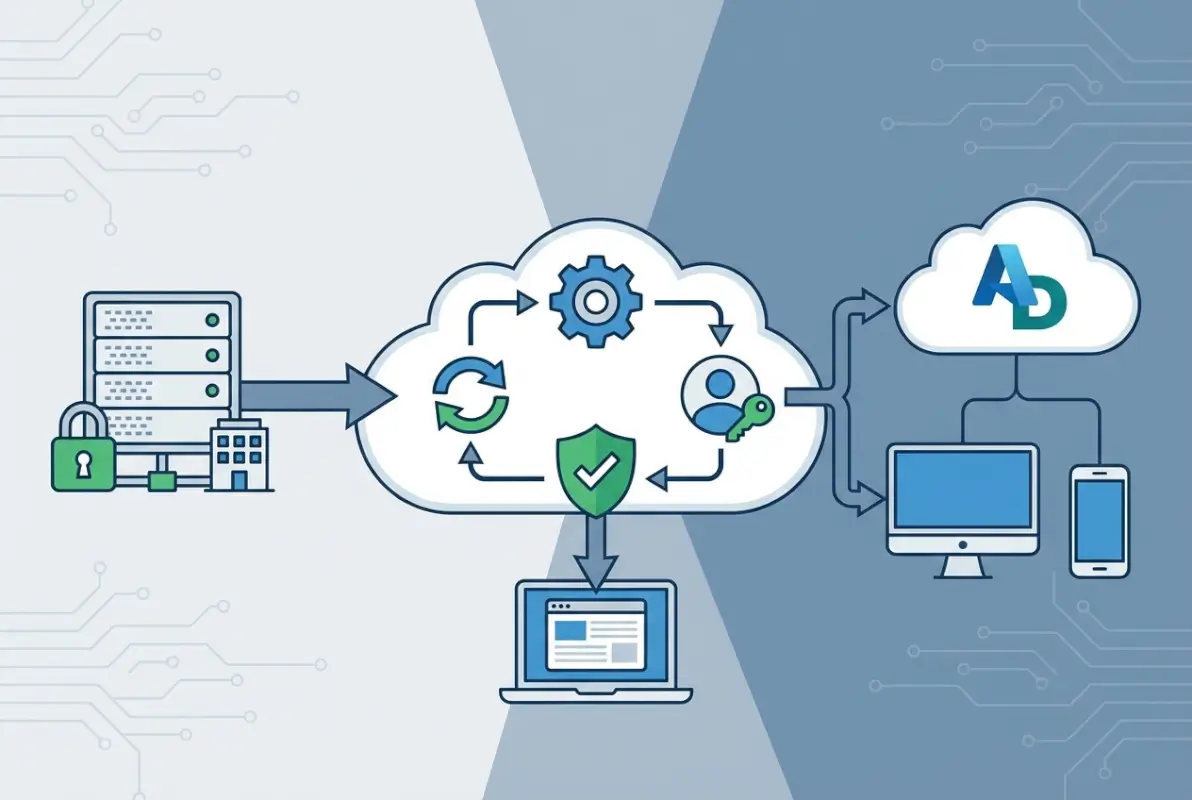
- Hybrid identity capabilities – Full support for Azure AD Connect to synchronize on-premises Active Directory
- Application Proxy – Publish on-premises web applications to external users securely
- Access reviews – Periodic attestation of group memberships and application access
- Identity protection basics – Detection of leaked credentials and anomalous sign-in attempts
I recently helped a 75-person professional services firm discover they’d been paying $450/month for a third-party MFA solution while sitting on unused conditional access capabilities in their Business Premium subscription. After implementing the included features, they not only saved money but actually improved their security posture with more granular policies than their previous vendor provided.
What Still Requires Premium P2 or Additional Licensing
Even with Business Premium’s inclusion of P1 features, some advanced capabilities require Premium P2 licensing ($9/user/month) or come as part of higher-tier enterprise plans like Microsoft 365 E5:
- Azure AD Identity Protection – Advanced risk-based conditional access with continuous risk scoring
- Privileged Identity Management (PIM) – Just-in-time administrative access with approval workflows
- Entitlement management – Automated access package assignments based on policies
- Access reviews at scale – Advanced governance and compliance workflows
For most small to medium businesses, these P2 features represent nice-to-have capabilities rather than must-haves. Organizations in regulated industries (healthcare, finance, legal) or those with specific compliance requirements might need P2, but the P1 features included with Business Premium address the core security needs of most SMBs.
| Feature | Azure AD Free | Premium P1 (Business Premium) | Premium P2 |
|---|---|---|---|
| User/Group Management | Basic | Advanced + Dynamic | Advanced + Dynamic |
| Conditional Access | ✗ | ✓ Full | ✓ Full + Risk-based |
| Self-Service Password Reset | Change only | ✓ Full reset | ✓ Full reset |
| Hybrid Identity (AD Connect) | Basic sync | ✓ + Connect Health | ✓ + Connect Health |
| Identity Protection | ✗ | Basic detection | ✓ Advanced + Automation |
| Privileged Identity Management | ✗ | ✗ | ✓ |
Hybrid Identity: Connecting On-Premises AD with Entra ID
Many organizations can’t simply abandon their on-premises Active Directory infrastructure, and they don’t have to. Microsoft provides robust hybrid identity solutions that bridge traditional AD with cloud-based Entra ID, giving you the best of both worlds.
When You Need Hybrid Identity vs. Cloud-Only
Choosing between cloud-only Entra ID and a hybrid approach depends on your specific infrastructure and application requirements. Go cloud-only if you’re a newer organization with no on-premises servers, your applications all support modern authentication (OAuth/SAML), you don’t need Group Policy for desktop management, and you’re comfortable with cloud-based device management through Intune.

Consider hybrid identity if you have on-premises file servers or line-of-business applications, legacy applications requiring Kerberos or NTLM authentication, extensive Group Policy configurations you can’t easily replicate, regulatory requirements for on-premises data storage, or more than 100 domain-joined Windows computers you’re not ready to migrate.
The hybrid approach isn’t a compromise—it’s often the most practical path for established organizations. You maintain your existing infrastructure while extending identity to the cloud, giving users seamless single sign-on to both on-premises and cloud applications.
Azure AD Connect (Entra Connect) for Identity Synchronization
Azure AD Connect (recently rebranded as Microsoft Entra Connect) is the free tool that synchronizes identities between your on-premises Active Directory and Entra ID. It runs on a Windows Server in your environment and performs regular sync cycles—typically every 30 minutes—to keep user accounts, groups, and attributes consistent across both directories.
You have three main authentication options when implementing hybrid identity:
- Password Hash Synchronization (PHS) – Most common and recommended; syncs a hash of users’ password hashes to Entra ID, allowing cloud authentication
- Pass-Through Authentication (PTA) – Authentication requests are passed through to on-premises AD; requires agents running on-premises
- Federation (AD FS) – Full federation using Active Directory Federation Services; most complex but offers most control
In my experience, Password Hash Synchronization provides the best balance of security, reliability, and simplicity for most organizations. It enables cloud authentication even if your on-premises infrastructure is temporarily offline (critical for disaster recovery), supports all Entra ID features including leaked credential detection, and has the lowest infrastructure requirements.
Common Hybrid Deployment Challenges and Solutions
Implementing hybrid identity isn’t without challenges. Here are the pitfalls I see most frequently and how to avoid them:
Challenge 1: UPN Mismatch Issues – Your on-premises User Principal Names (UPNs) must match your Microsoft 365 domain. If users have @contoso.local internally but @contoso.com externally, you’ll face sync errors. Solution: Update UPNs in on-premises AD before implementing sync, or configure alternative login IDs (more complex).
Challenge 2: Attribute Synchronization Conflicts – Duplicate attributes like proxyAddresses can prevent synchronization. Solution: Use IdFix tool (free from Microsoft) to identify and correct directory issues before starting sync.
Challenge 3: Password Writeback Configuration – Self-service password reset won’t update on-premises passwords without proper writeback configuration. Solution: Ensure Azure AD Connect is configured with an account that has adequate permissions and writeback is explicitly enabled.
Challenge 4: Single Point of Failure – One Azure AD Connect server creates a single point of failure. Solution: Implement a staging mode server as a warm standby that can be quickly activated if your primary sync server fails.
Practical Security Configurations You Should Implement Today
Having premium identity features available doesn’t help if you’re not using them. Let’s look at the essential security configurations you should implement immediately, regardless of which plan you have.
Enable Multi-Factor Authentication for Everyone (Not Just Admins)
The single most impactful security control you can implement is requiring MFA for all users, not just administrators. With Business Premium’s conditional access, you can implement this intelligently—for example, requiring MFA for external access but not when users are on your corporate network.
Here’s a sensible MFA rollout approach: Start by enabling MFA for administrators using security defaults as a quick win. Then create conditional access policies requiring MFA for all external access while exempting trusted locations. Finally, extend MFA requirements to all users and all locations, with a grace period for adoption.
Implement Conditional Access Policies (Business Premium)
If you have Business Premium, conditional access policies let you enforce security requirements based on context. Here are three policies every organization should implement:
Policy 1: Require MFA for administrators – Always require MFA when accessing the admin portal or performing administrative actions, regardless of location or device. This protects your most privileged accounts from compromise.
Policy 2: Block legacy authentication – Older protocols like IMAP, POP3, and basic authentication don’t support MFA and should be blocked. Create a conditional access policy that blocks legacy authentication for all users, with exceptions only for specific service accounts if absolutely necessary.
Policy 3: Require compliant devices for access – For organizations using Intune, require that devices accessing corporate resources meet compliance standards (encryption enabled, up-to-date OS, etc.). This prevents access from unmanaged or compromised devices.
Configure Self-Service Password Reset
Self-service password reset (SSPR) reduces help desk burden while improving security by discouraging password reuse and reducing password-related tickets. With Business Premium, you get full SSPR including writeback to on-premises Active Directory.
To configure SSPR effectively: require at least two verification methods (mobile app + email, or phone + security questions), enable writeback to on-premises AD if you’re in a hybrid scenario, and communicate the process clearly to users before enabling. The upfront user education prevents confusion and ensures adoption.
Advanced Identity Features for Growing Organizations
As your organization matures and your security requirements become more sophisticated, understanding which advanced capabilities might benefit you becomes important.
Dynamic Groups and Automated Access Management
Dynamic groups automatically update membership based on user or device attributes, eliminating manual group management overhead. For example, create a dynamic group that automatically includes all users with Department=”Sales” and JobTitle contains “Manager”—as people change roles or join/leave the organization, group membership updates automatically.

This capability (included with Business Premium’s P1 features) becomes increasingly valuable as you scale. I worked with a 200-person organization spending roughly 5 hours per week managing group memberships manually. After implementing dynamic groups based on department and role attributes, that dropped to near-zero maintenance while actually improving accuracy.
Application Proxy for Secure Remote Access
Application Proxy allows you to publish on-premises web applications to external users without a VPN, using Entra ID for authentication and authorization. This is particularly valuable for legacy line-of-business applications that can’t easily move to the cloud but need to be accessible to remote workers.
The Application Proxy connector installs in your on-premises environment and establishes an outbound connection to Azure, avoiding the need for inbound firewall rules or DMZ configuration. Users access applications through a modern portal with Entra ID authentication, including MFA and conditional access protections.
When to Consider Upgrading to Premium P2
Premium P2 features like Identity Protection and Privileged Identity Management provide substantial value for specific scenarios, but they’re overkill for many SMBs. Consider P2 if you’re in a regulated industry requiring advanced audit trails and just-in-time access, you have privileged users requiring temporary elevation workflows, your security posture demands automated risk-based responses, or you’re managing multiple administrators who need time-limited role activations.
A practical approach: implement P2 for just your administrative accounts rather than all users. Most organizations have 3-10 administrators who would benefit from PIM’s just-in-time access, while the hundreds of regular users don’t need these features. This selective licensing approach can reduce costs by 90% compared to organization-wide P2.
Integration with Security and Compliance Ecosystems
Entra ID doesn’t operate in isolation—it integrates deeply with Microsoft’s broader security and compliance offerings included in Business Premium or available as add-ons.
Microsoft Defender Integration
Microsoft Defender for Office 365 (Plan 1 included with Business Premium) works with Entra ID to protect against identity-based threats. Sign-in risk signals from Entra ID inform Defender’s threat intelligence, allowing automated responses to compromised accounts. For example, if Entra ID detects a risky sign-in, Defender can automatically quarantine suspicious emails sent from that account.
This integration provides defense-in-depth that’s difficult to replicate with point solutions from different vendors. When your identity platform, email security, endpoint protection, and cloud app security all come from Microsoft and share threat intelligence, the security value multiplies beyond what individual components provide.
Information Protection and Data Loss Prevention
Entra ID’s identity and access controls integrate with Microsoft Purview (formerly Azure Information Protection) to enable policy-based data protection. You can create policies that, for example, automatically encrypt documents labeled “Confidential” and restrict access to specific Entra ID groups, or prevent external sharing of files containing credit card numbers except to users in the Finance department.
Mobile Device Management Through Intune
Business Premium includes Microsoft Intune for mobile device and application management. Intune relies on Entra ID for identity and uses conditional access policies to enforce device compliance requirements. This creates a cohesive experience where identity policy (who can access what) and device policy (from which devices) work together seamlessly.
Frequently Asked Questions
What is the difference between Azure AD and Microsoft Entra ID?
They’re the same service—Microsoft rebranded Azure Active Directory to Microsoft Entra ID in 2023. The functionality, features, and licensing remain unchanged. Any documentation or configuration referring to Azure AD applies equally to Entra ID. Microsoft made the change to create a more unified identity product family under the Entra brand.
Does Microsoft 365 Business Premium include Azure AD Premium features?
Yes, Microsoft 365 Business Premium includes Azure AD Premium P1 features as of 2020. This includes conditional access policies, advanced group management, self-service password reset with writeback, hybrid identity capabilities, and application proxy. You do not need to purchase Azure AD Premium P1 separately if you have Business Premium. Premium P2 features still require additional licensing.
How does hybrid identity work with on-premises Active Directory?
Hybrid identity uses Azure AD Connect (Entra Connect) to synchronize user accounts, groups, and attributes between your on-premises Active Directory and Entra ID in the cloud. Users maintain a single identity that works for both on-premises resources and cloud applications. You can choose password hash synchronization, pass-through authentication, or federation for authentication methods depending on your security and infrastructure requirements.
Can I use conditional access policies with Office 365 Business Basic or Standard?
No, conditional access requires Azure AD Premium P1 licensing, which is not included with Business Basic or Standard plans. If you have these plans and need conditional access, you’ll need to upgrade to Business Premium or purchase Azure AD Premium P1 licenses separately. Business Basic and Standard only include security defaults for basic MFA enforcement.
What authentication protocols does Entra ID support?
Entra ID supports modern authentication protocols including OAuth 2.0, OpenID Connect, SAML 2.0, and WS-Federation for cloud applications. It does not natively support legacy protocols like Kerberos, NTLM, or LDAP—these require on-premises Active Directory or Azure AD Domain Services. Most modern SaaS applications and Microsoft 365 services use OAuth 2.0 and OpenID Connect for authentication.
How do I enable self-service password reset for my organization?
Navigate to the Azure portal (portal.azure.com), select Azure Active Directory, then Password Reset under Manage. Enable self-service password reset for “All” users or selected groups. Configure authentication methods requiring at least two verification options (such as mobile app and email). For hybrid environments, enable password writeback in Azure AD Connect to sync password changes back to on-premises AD. Ensure users register their verification methods before you fully enable the feature.
Should I use password hash synchronization or pass-through authentication?
Password hash synchronization is recommended for most organizations because it provides better reliability and disaster recovery—authentication works even if your on-premises infrastructure is offline. It also enables advanced security features like leaked credential detection. Pass-through authentication keeps all authentication on-premises, which some organizations prefer for regulatory reasons, but it requires highly available infrastructure and doesn’t work during on-premises outages. Unless you have specific compliance requirements mandating on-premises authentication, use password hash synchronization.
What is the difference between Azure AD Premium P1 and P2?
Premium P1 includes conditional access, advanced group management, self-service password reset with writeback, and hybrid identity capabilities. Premium P2 adds Identity Protection with risk-based conditional access and automated remediation, Privileged Identity Management for just-in-time administrative access, and access reviews for compliance workflows. Most small to medium businesses find P1 sufficient; P2 is typically needed only for regulated industries or organizations with sophisticated governance requirements.
Can I mix licensing levels for different users in my organization?
Yes, Microsoft allows mixed licensing where different users have different license levels. For example, you could have most users on Microsoft 365 Business Premium (includes P1 features) while assigning Premium P2 licenses only to administrators who need Privileged Identity Management. This targeted approach controls costs while providing advanced features where they’re most valuable. License enforcement happens at the user level, not organization-wide.
How do I migrate from on-premises Active Directory to cloud-only Entra ID?
Start by implementing Azure AD Connect to establish hybrid identity, ensuring all users can authenticate to cloud services. Migrate workloads to cloud alternatives—move file servers to SharePoint/OneDrive, line-of-business apps to SaaS alternatives, and implement Intune for device management instead of Group Policy. Once no resources depend on on-premises AD, you can decommission domain controllers and switch to cloud-only management. This migration typically takes 6-18 months for established organizations with significant on-premises infrastructure. Consider professional services assistance for complex environments.
Take Action on Your Identity Infrastructure Today
Don’t let powerful identity features sit unused in your Microsoft 365 subscription. Start by auditing what you currently have—log into the Azure portal and check your Azure AD/Entra ID plan details. If you have Business Premium, you’re sitting on Premium P1 features that many organizations pay extra to access.
Your immediate action plan: Enable MFA for all administrative accounts this week using security defaults as a quick start. Review your current user and group structure to identify opportunities for dynamic groups and conditional access policies. If you’re in a hybrid environment, ensure Azure AD Connect is properly configured with password writeback enabled. Schedule time next month to implement at least one conditional access policy—start with blocking legacy authentication protocols, as this single policy prevents an entire class of attacks.
The identity capabilities included with your Microsoft 365 subscription are more powerful than most organizations realize. You’ve already paid for them—now it’s time to use them effectively to improve both security and user experience. For organizations needing assistance with implementation, Microsoft offers detailed deployment guides and the FastTrack program provides free implementation support for eligible subscriptions.
Was this article helpful?