Skype for Business Active Directory Integration: Complete Setup Guide

Generating summary...
The relationship between Skype for Business and Active Directory isn’t just a simple integration—it’s a fundamental architectural dependency that affects everything from user authentication to policy enforcement. If you’re managing enterprise communication infrastructure, understanding this connection is absolutely critical for maintaining secure, efficient operations.
I’ve spent years implementing and troubleshooting these systems across multiple enterprise environments, and I can tell you the Skype for Business Active Directory integration is both more powerful and more demanding than most administrators initially realize. When configured properly, it creates seamless single sign-on experiences and centralized management. When misconfigured? Well, let’s just say I’ve seen three-day authentication outages that could have been prevented with proper planning.
Whether you’re deploying a new on-premises Skype for Business Server, managing a hybrid environment with Teams coexistence, or troubleshooting mysterious sign-in failures, this guide will walk you through everything you need to know about how these two systems work together.
TL;DR – Quick Takeaways
- Full Integration Required – Skype for Business Server cannot function without Active Directory; it’s an architectural requirement, not an optional feature
- Hybrid Scenarios – Modern deployments often use both traditional AD and Azure AD (Entra ID) via Azure AD Connect for Teams coexistence
- Schema Extensions – AD preparation adds msRTCSIP attributes that control user provisioning, authentication, and feature access
- Authentication Flow – Kerberos and NTLM protocols handle authentication between SfB servers and domain controllers
- Migration Reality – While Teams is the future, many organizations maintain SfB Server for compliance or feature requirements during transition
Understanding Skype for Business Server and Active Directory Architecture
Let’s start with the fundamental reality: Skype for Business Server is designed from the ground up to depend on Active Directory Domain Services. Unlike some applications that can optionally integrate with directory services, SfB Server literally cannot authenticate users or manage permissions without AD.
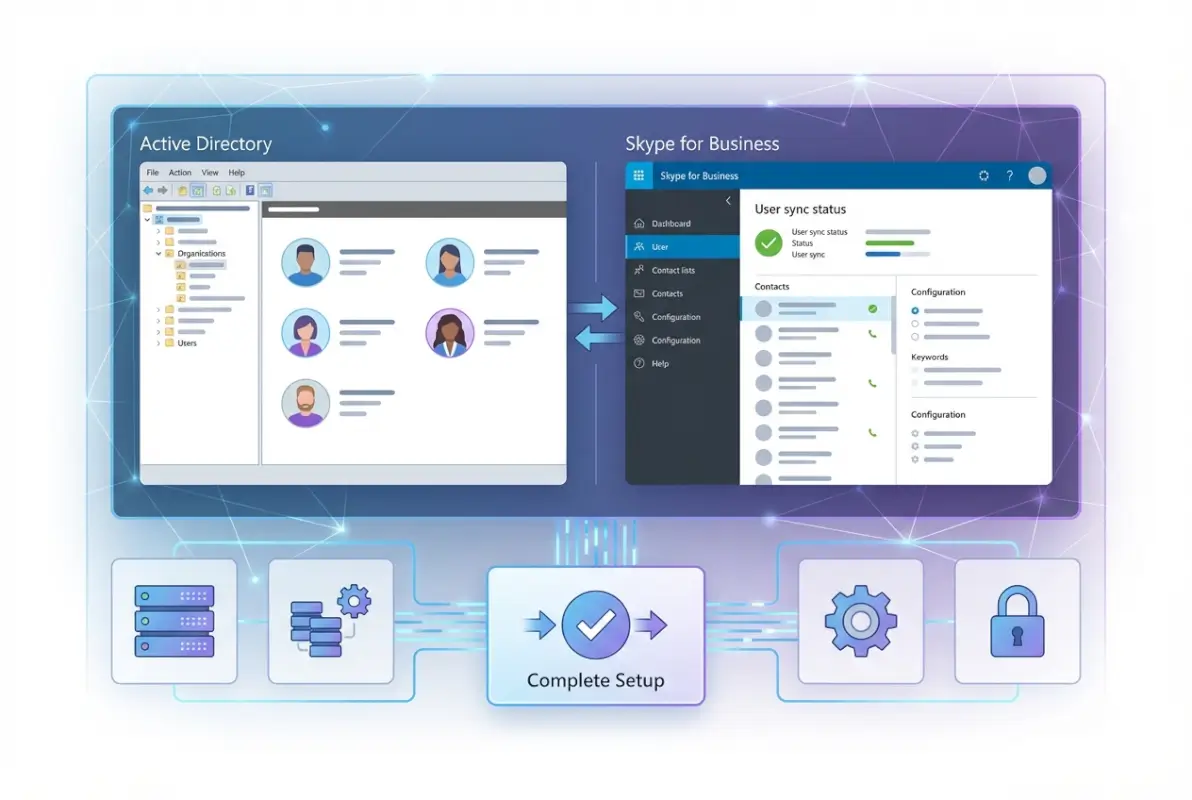
Active Directory serves multiple critical functions in the SfB ecosystem. It acts as the authoritative source for user identities, stores organizational hierarchy information that SfB leverages for contact lists and searches, and provides the authentication infrastructure through Kerberos and NTLM protocols. The SfB servers themselves store minimal user information—they constantly query AD for authentication decisions, user attributes, and policy enforcement.

This tight coupling means your AD health directly impacts communication services. If domain controllers become slow or unresponsive, users will experience delayed sign-ins or presence updates. If AD replication fails between sites, you might see inconsistent user information across geographic locations. According to Microsoft Entra Connect for Skype for Business hybrid configurations, proper directory synchronization is particularly crucial in hybrid deployments where identity must flow seamlessly between on-premises and cloud environments.
Key Active Directory Attributes for Skype for Business
When you prepare your Active Directory for Skype for Business, the schema extension adds several msRTCSIP-prefixed attributes. These aren’t just metadata—they control fundamental aspects of how users interact with the system.
The msRTCSIP-PrimaryUserAddress attribute defines the user’s SIP address (similar to an email address but for SIP communications). The msRTCSIP-UserEnabled attribute acts as a boolean flag indicating whether the user account is enabled for SfB services. Additional attributes control line URIs for telephony integration, deployment location (which SfB pool the user is homed to), and various policy settings.
One mistake I’ve seen repeatedly: administrators enable users for SfB without properly validating these attributes first, then spend hours troubleshooting why features don’t work as expected.
Deployment Models and Active Directory Integration Patterns
The way Skype for Business integrates with Active Directory varies significantly based on your deployment model. Understanding these patterns helps you architect the right solution for your organization’s needs.
For pure on-premises deployments running Skype for Business Server (2015 or 2019), you’re working with traditional Active Directory Domain Services. The SfB servers join your domain, authenticate against domain controllers, and query global catalog servers for cross-domain user lookups. This is the straightforward scenario—everything stays within your network boundary.

Hybrid deployments introduce significant complexity. You’re running SfB Server on-premises while also using Microsoft 365 services including Teams. In this configuration, Azure AD Connect (now called Microsoft Entra Connect) synchronizes your on-premises Active Directory to Azure Active Directory. Users might be homed on-premises SfB Server or in Teams Online, but their identity originates from your on-premises AD.
| Deployment Model | AD Type | Authentication | Complexity |
|---|---|---|---|
| On-Premises Only | AD DS | Kerberos/NTLM | Low |
| Hybrid (SfB + Teams) | AD DS + Azure AD | Federated/Pass-through | High |
| Cloud-Only (Teams) | Azure AD | OAuth/Modern Auth | Medium |
Directory Topology Considerations
Your Active Directory forest structure has real implications for SfB deployment. In single-forest environments, deployment is relatively straightforward—all users exist in one forest, and SfB servers can easily query any domain controller for authentication and user information.
Multi-forest scenarios require careful planning. You’ll need to establish forest trusts and ensure proper name suffix routing. Global catalog servers become critical because SfB needs to search across domains for user information. I remember one deployment where inconsistent GC replication caused presence information to appear differently depending on which front-end server handled the request—not a good user experience!
Active Directory sites and services also matter more than you might think. SfB servers use site topology to locate the nearest domain controllers, which impacts authentication latency. If your SfB servers can’t efficiently locate domain controllers in their site, you’ll see slow sign-ins even with plenty of server capacity.
Prerequisites and Planning for Active Directory Integration
Before you even think about installing Skype for Business Server, your Active Directory environment needs to meet specific prerequisites. Skipping or rushing through these checks is probably the most common cause of deployment delays I’ve witnessed.
Your forest functional level must be at minimum Windows Server 2012. While SfB can technically work with older versions, you lose important security features and integration capabilities. Domain controllers should ideally run Windows Server 2016 or newer—not just for SfB requirements, but for overall security posture.
DNS configuration deserves special attention. SfB relies heavily on DNS SRV records for service location, and incorrect DNS configurations cause mysterious failures that are frustrating to troubleshoot. Your DNS zones must support dynamic updates, and DNS servers need to be reachable from all SfB server roles.
Schema Preparation and Forest Readiness
The schema extension process is permanent and irreversible, so it’s worth understanding what’s happening. When you run Setup /PrepareSchema, you’re adding new object classes and attributes that SfB will use to store user and service information.
You need Enterprise Admin credentials to extend the schema—Domain Admin rights aren’t sufficient. The account running the preparation must also be a member of the Schema Admins group. After schema extension, you need to wait for replication to complete across all domain controllers before proceeding to the next step.
Forest preparation creates universal security groups and sets permissions that SfB services need to operate. According to Skype for Business Server 2015 hybrid with Office 365 (21Vianet), this step is particularly important in hybrid deployments where permissions flow between on-premises and cloud environments.
Implementing Hybrid Identity for Skype for Business
If you’re running or planning a hybrid deployment with Teams coexistence, Azure AD Connect becomes the critical bridge between your on-premises Active Directory and Microsoft’s cloud services. This tool synchronizes user accounts, groups, and contacts from AD to Azure AD on a regular schedule (typically every 30 minutes).
The synchronization isn’t just copying user objects—it’s maintaining a consistent identity across environments. When you modify a user’s phone number in on-premises AD, that change flows to Azure AD and affects their Teams profile. When you disable an account in AD, the user loses access to both on-premises SfB and cloud Teams services.

There are several authentication options for hybrid identity. Password Hash Synchronization copies a hash of the user’s password to Azure AD, enabling cloud authentication even if on-premises AD is temporarily unavailable. Pass-through Authentication validates credentials against on-premises AD in real-time. Federated authentication using AD FS provides the most control but adds infrastructure complexity.
Coexistence Scenarios and Identity Management
When you’re running SfB on-premises alongside Teams, proper identity management becomes crucial. Users might start homed on SfB Server, then migrate to Teams Online while maintaining the same identity. During this transition, their SIP address, phone numbers, and policies need to remain consistent.
The coexistence mode you choose affects how identity attributes are interpreted. In Islands mode, users can use both SfB and Teams independently. In SfB Only mode, Teams functionality is limited even if the user has a Teams license. These modes are controlled through tenant-level and user-level policies that interact with AD-synchronized attributes.
One challenge I’ve encountered multiple times: users with special characters in their UPN or SIP addresses. These can cause sync failures or authentication problems in hybrid scenarios, particularly if the on-premises AD was configured years ago with loose validation rules.
Security and Authentication in Depth
The authentication flow between a Skype for Business client and Active Directory involves multiple steps and protocols working in concert. Understanding this flow helps when troubleshooting and when planning security controls.
When a user signs into Skype for Business, the client first locates the SfB server through DNS SRV records. The server then redirects the client to authenticate. For domain-joined machines on the corporate network, this typically uses Kerberos authentication—the client obtains a Kerberos ticket from the domain controller, then presents it to the SfB server.

For remote users or non-domain-joined devices, the authentication path is more complex. The Edge Server or reverse proxy accepts the connection, then validates credentials against the internal AD through the Front End server. This might use NTLM authentication or certificate-based authentication depending on your configuration.
Multi-Factor Authentication and Conditional Access
Modern security requirements often mandate multi-factor authentication, and implementing MFA with Skype for Business requires careful planning. For on-premises SfB Server, MFA typically requires AD FS integration. For hybrid deployments, you can leverage Azure AD’s Conditional Access policies to enforce MFA for cloud services while maintaining traditional authentication for on-premises.
Conditional Access policies interact with AD-synchronized attributes like user group membership, device compliance status, and sign-in risk. These policies can require MFA for external access while allowing seamless authentication for internal corporate network connections.
Common Integration Challenges and Solutions
Even with careful planning, certain issues appear repeatedly in Skype for Business Active Directory integration. I’ll share the most common problems I’ve encountered and how to resolve them efficiently.
Attribute Synchronization Issues
Incorrect or missing AD attributes cause a surprising number of SfB problems. A user might be enabled for SfB but unable to sign in because their msRTCSIP-PrimaryUserAddress doesn’t match their actual SIP address. Or Enterprise Voice features fail because the msRTCSIP-Line attribute is formatted incorrectly.
The PowerShell cmdlet Get-CsAdUser is invaluable for diagnosing these issues. It queries both AD and SfB databases to show you exactly what attributes are set and how SfB interprets them. I use this command in almost every troubleshooting session.
| Symptom | Likely Cause | Solution |
|---|---|---|
| Sign-in failures | SIP address mismatch | Verify msRTCSIP-PrimaryUserAddress |
| Missing presence info | GC replication delay | Check AD replication status |
| Dial-out not working | Line URI incorrect format | Validate msRTCSIP-Line format |
Hybrid Synchronization Failures
Azure AD Connect sync failures are frustratingly common during initial hybrid setup. The sync engine is particular about AD object formats and will skip objects that don’t meet validation rules. Objects with duplicate proxyAddresses, users without proper UPNs, or contacts with malformed email addresses all cause sync errors.
The Azure AD Connect synchronization errors report shows exactly which objects failed and why. Don’t ignore these errors—they often indicate deeper AD hygiene issues that will cause problems beyond just SfB and Teams.
Migration Strategy and Lifecycle Management
Let’s address the elephant in the room: Microsoft is transitioning customers from Skype for Business to Teams. However, this doesn’t mean your Active Directory integration knowledge becomes irrelevant—quite the opposite, actually.
Many organizations maintain on-premises SfB Server during migration for specific compliance requirements, telephony integration that Teams doesn’t yet support, or simply because migrating thousands of users takes time. During this transition period, proper AD integration is more important than ever because identity must flow consistently across both platforms. Resources like Explore Skype for Business overview and features provide official guidance on feature parity and migration considerations.
The migration process typically involves moving users from on-premises SfB to Teams Online using the Move-CsUser cmdlet. This operation updates AD attributes to reflect the new hosting location while maintaining the same SIP address and phone numbers. Your Azure AD Connect configuration ensures these changes synchronize properly to the cloud.
Planning for Decommissioning
Eventually, you’ll reach the point where you can decommission Skype for Business Server entirely. Even then, the AD schema extensions remain—they cannot be removed. This isn’t typically a problem, but it’s worth knowing that those msRTCSIP attributes stay in your schema forever.
Before decommissioning, ensure all users are successfully migrated and all meetings are updated to Teams meetings. Verify that any third-party integrations (like contact center systems or recording solutions) have been updated or replaced. The guidance from Integrating SfB with Pexip Infinity for hybrid/standalone deployments illustrates how complex these integration dependencies can be.
Performance Optimization and Monitoring
The performance of your Skype for Business Active Directory integration depends heavily on infrastructure factors beyond just server specifications. Network latency between SfB servers and domain controllers directly impacts authentication times and directory lookups.
Global deployments face particular challenges. If your SfB Front End server in Singapore needs to query a domain controller in New York for authentication, users will experience noticeable delays. Proper AD site configuration helps by ensuring SfB servers query local domain controllers, but this requires thoughtful planning of AD replication topology.
Monitoring Critical Integration Points
Effective monitoring requires watching both Active Directory and Skype for Business health metrics. On the AD side, monitor domain controller CPU and memory, LDAP query response times, and replication lag between sites. For SfB, track authentication failures, directory search latency, and user sign-in durations.
Synthetic transactions are particularly valuable for proactive monitoring. The SfB Test-CsAddressBookService and Test-CsRegistration cmdlets can run on schedules to verify AD integration is functioning correctly, alerting you to problems before users experience them.
Frequently Asked Questions
Do I need Active Directory to run Skype for Business Server?
Yes, Active Directory is absolutely required for Skype for Business Server. It’s not an optional integration—the server architecture depends on AD for user authentication, authorization, and directory information. On-premises SfB Server cannot function without connectivity to domain controllers. Cloud-based Teams uses Azure AD instead, but hybrid deployments require both traditional AD and Azure AD synchronized together.
How does Microsoft Entra Connect affect Skype for Business hybrid deployments?
Microsoft Entra Connect (formerly Azure AD Connect) synchronizes your on-premises Active Directory to Azure Active Directory, creating a unified identity across on-premises SfB Server and cloud Teams services. It copies user attributes, groups, and passwords on a regular cycle. This synchronization enables users to maintain consistent SIP addresses, phone numbers, and policies whether they’re homed on-premises or in the cloud during migration.
What Active Directory attributes are required for SfB user provisioning?
The critical attributes are msRTCSIP-PrimaryUserAddress (defines the SIP address), msRTCSIP-UserEnabled (boolean flag for SfB enablement), msRTCSIP-DeploymentLocator (identifies which pool hosts the user), and optionally msRTCSIP-Line (phone number for Enterprise Voice). These attributes are added during schema preparation and must be properly configured for each enabled user. Incorrect or missing values cause authentication failures and feature limitations.
Can Skype for Business coexist with Microsoft Teams, and how does AD play a role?
Yes, SfB and Teams can coexist in multiple modes (Islands, SfB Only, Teams Only). Active Directory integration is crucial during coexistence because user identity must remain consistent across both platforms. Azure AD Connect synchronizes on-premises AD to the cloud, ensuring SIP addresses and policies apply correctly regardless of where the user is homed. Coexistence mode settings interact with AD-synchronized attributes to control feature availability.
What are the best practices for securing SfB authentication against AD threats?
Implement strong password policies and account lockout settings in AD that automatically protect SfB access. Use Kerberos authentication wherever possible instead of NTLM. Deploy multi-factor authentication through AD FS or Azure AD Conditional Access. Segment SfB service accounts with minimum necessary permissions rather than using highly privileged accounts. Monitor authentication logs for unusual patterns. Keep domain controllers and SfB servers patched against known vulnerabilities.
What are common Active Directory-related issues that disrupt SfB presence and sign-in?
The most frequent issues include domain controller unavailability causing authentication timeouts, slow AD replication causing inconsistent user information across geographic locations, time synchronization problems breaking Kerberos authentication, incorrect SIP address attributes preventing successful sign-in, and DNS misconfiguration preventing service location. Global Catalog server performance issues also commonly affect presence updates and contact searches across domains.
How should I plan for migration from SfB to Teams while preserving AD integrity?
Start with thorough AD hygiene—fix duplicate attributes, validate UPN formats, and resolve Azure AD Connect sync errors. Plan user migration in phases rather than all at once. Use the Move-CsUser cmdlet to migrate users, which updates AD attributes correctly. Maintain Azure AD Connect synchronization throughout the migration. Test authentication and feature access after each migration wave. Keep detailed documentation of which users are on which platform, and plan for several months of hybrid operation.
What Active Directory functional level is required for Skype for Business?
The minimum forest functional level is Windows Server 2012, but Windows Server 2016 or later is strongly recommended for better security and performance features. Domain controllers should run Windows Server 2012 R2 at minimum, ideally newer. Lower functional levels may technically work but lack important capabilities like advanced Kerberos encryption and fine-grained password policies that benefit SfB security.
Can Skype for Business work without Active Directory?
No, on-premises Skype for Business Server absolutely requires Active Directory—there is no standalone mode. The architecture depends on AD for authentication, user information, and policy enforcement at a fundamental level. Cloud-based Skype for Business Online and Teams use Azure Active Directory instead, but some directory service is always required. Organizations without existing AD infrastructure should consider cloud-only Teams rather than deploying SfB Server.
How do I troubleshoot Skype for Business Active Directory integration issues?
Start with basic connectivity tests using Test-CsComputer PowerShell cmdlet to verify domain communication. Check DNS SRV records and name resolution. Verify AD replication status between sites using repadmin tools. Examine user attributes with Get-CsAdUser to confirm proper configuration. Review SfB server logs focusing on authentication errors. Validate Kerberos functionality with network traces if needed. Check time synchronization across all servers—even small clock skew breaks Kerberos authentication.
Taking Action on Your Integration Strategy
Understanding Skype for Business Active Directory integration isn’t just about checking boxes during deployment—it’s about building a foundation for reliable, secure enterprise communications. The tight coupling between these systems means that your directory health directly translates to communication system stability.
If you’re currently running SfB Server, take time to audit your AD integration points. Are your domain controllers properly sized for the authentication load? Is AD replication performing well across all sites? Are your msRTCSIP attributes correctly populated for all enabled users? These questions might seem basic, but I’ve seen million-dollar communication systems stumble because of simple attribute misconfigurations.
For organizations planning migrations to Teams, don’t underestimate the importance of maintaining solid AD integration throughout the transition period. Your hybrid deployment will only be as reliable as the identity synchronization underpinning it. Invest time in cleaning up AD hygiene issues now rather than discovering them mid-migration when users are affected.
The convergence of identity services and communication platforms will only deepen as we move forward, whether that’s Teams, future Microsoft offerings, or other enterprise communication tools. The skills you build understanding this integration—proper directory design, identity synchronization, authentication flows—will serve you well regardless of which specific platforms you’re managing.
Was this article helpful?