
Best Firefox Extensions 2026: Ultimate Guide to Top Add-ons and Plugins
Opens a Google-translated copy of this article in a new tab.
If you’re still browsing with vanilla Firefox, you’re missing out on transformative productivity gains and essential security protections. The best Firefox extensions can automate tedious tasks, shield your data from trackers, and customize your browser into a precision tool tailored to your exact workflow. Unlike more restrictive browsers, Firefox’s robust ecosystem of add-ons gives you unprecedented control—if you know where to look.
The Firefox add-ons landscape has matured dramatically. What started as an experimental playground has evolved into a curated, security-focused marketplace with thousands of vetted extensions. Mozilla now runs a Recommended Extensions program that manually reviews add-ons for security, privacy, and quality—a safeguard most browsers don’t offer. This means you can enhance Firefox’s capabilities without sacrificing the privacy-first principles that set it apart.
TL;DR – Quick Takeaways
- Quality over quantity: Limit yourself to 8-10 carefully chosen extensions to maintain browser speed
- Trust Mozilla’s curation: Recommended extensions undergo manual security review
- Check permissions first: Extensions requesting excessive access are red flags
- Prioritize three categories: Security/privacy, productivity automation, and workflow customization
- Audit quarterly: Remove unused extensions and verify active ones still receive updates
- Install only from AMO: The official addons.mozilla.org is your safest source
What Makes a Great Firefox Extension in 2026
Not all Firefox add-ons deliver equal value. The extensions worth installing share specific characteristics that separate productivity powerhouses from resource-draining clutter. Understanding these quality markers helps you build a lean, effective extension collection instead of a bloated mess.
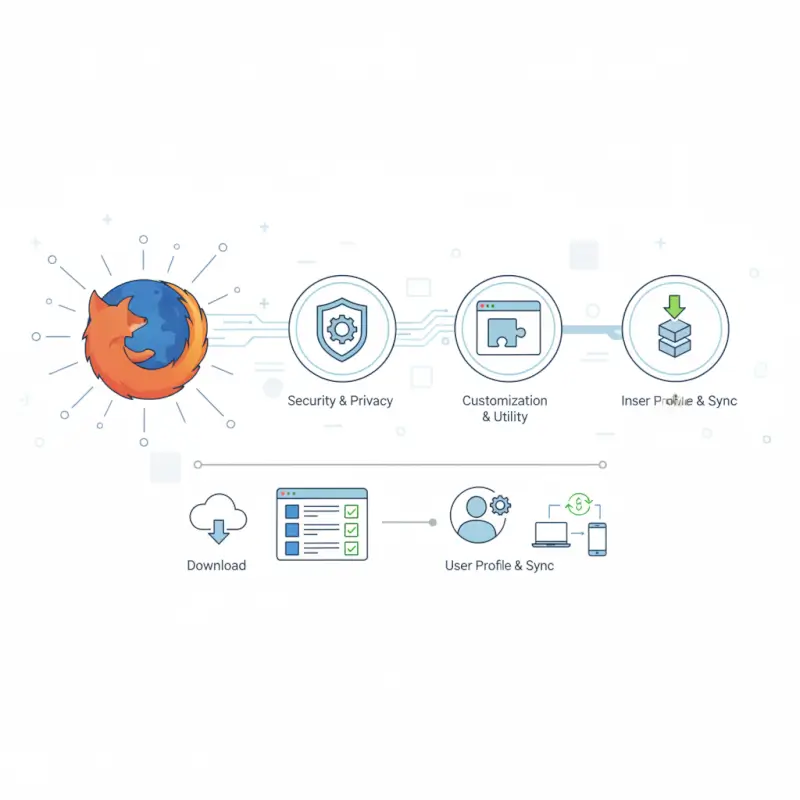
Great extensions solve real problems without creating new ones. They automate repetitive tasks, eliminate friction from common workflows, or provide functionality Firefox doesn’t offer natively. The best productivity extensions save measurable time—think one-click actions replacing five-step processes, or automated form filling that eliminates constant retyping.
Core Criteria for Productivity Extensions
Productivity-focused Firefox extensions should deliver tangible workflow improvements you can quantify. Look for tools that eliminate repetitive actions, reduce context switching between applications, or centralize scattered information into accessible formats. Extensions that capture web content for later processing (like research tools or read-later services) prove valuable when they integrate seamlessly into your existing habits.
Performance matters as much as features. According to research on browser extension behavior, poorly optimized add-ons can consume excessive memory and slow page loads by 30-50%. Check user reviews for mentions of lag, crashes, or conflicts with other extensions. The best Firefox add-ons run invisibly in the background, activating only when needed.
User experience separates professional-grade extensions from amateur projects. Well-designed add-ons offer intuitive interfaces that require minimal configuration. They expose keyboard shortcuts for power users while maintaining accessible menus for beginners. When an extension demands extensive setup or constant tweaking, it’s probably not worth the cognitive overhead.
Core Criteria for Security and Privacy
Security-conscious Firefox extensions handle data transparently and request only essential permissions. Before installing any add-on, review its permission requests carefully. A simple screenshot tool shouldn’t need access to your browsing history or data on all websites—that’s a warning sign of potential overreach or poor development practices.
Trustworthy extensions maintain clear privacy policies explaining data collection, storage, and sharing practices. Mozilla’s Recommended Extensions program requires developers to document their data handling explicitly. Extensions that are open-source provide additional assurance, since security researchers can audit the actual code rather than trusting marketing claims.
Publisher reputation carries significant weight. Established developers with multiple well-maintained extensions typically deliver more reliable, secure products than one-off projects from unknown sources. Check the developer’s track record: How many users trust their other extensions? Do they respond to bug reports and user questions? Regular updates signal ongoing maintenance and security patch responsiveness.
Top Categories to Boost Productivity and Security in Firefox
Firefox extensions span dozens of categories, but four types consistently deliver disproportionate value for most users. Focusing on these high-impact categories helps you prioritize which add-ons deserve limited browser resources and your attention.

Productivity Categories Worth Prioritizing
Tab and session management extensions tackle the universal problem of browser tab overload. Tools that organize tabs into collapsible trees, save session states, or convert tab groups into searchable lists can reduce memory consumption by 60% while making hundreds of open tabs actually navigable. This category shines for researchers, developers, and anyone who juggles multiple projects simultaneously.
Note-taking and web clipping tools capture information from the web into organized knowledge bases. The best Firefox add-ons in this category preserve formatting, extract clean text from cluttered pages, and integrate with popular note-taking platforms. They eliminate the copy-paste workflow that wastes minutes daily and fragments information across multiple locations.
Form autofill and text expansion extensions automate repetitive typing that consumes more time than you realize. Beyond basic contact information, advanced tools can populate complex multi-field forms, insert frequently used text snippets with shortcuts, and maintain separate profiles for different contexts (personal, work, testing). For anyone who fills out online forms regularly, these Firefox plugins can save hours monthly.
Distraction reduction extensions block time-wasting sites, hide social media feeds, or remove distracting elements from websites. The most effective tools use scheduled blocking rather than permanent restrictions, letting you designate focus periods while maintaining access when appropriate. Some track time spent on different sites, providing accountability data that changes browsing behavior.
Security and Privacy Categories to Consider
Cookie control and tracker blocking represents the foundation of privacy-focused browsing. Extensions in this category prevent advertisers from building behavioral profiles across websites and reduce page load times by blocking unnecessary third-party requests. According to the TechRadar analysis of Firefox security extensions, effective tracker blockers reduce tracking attempts by 80-90% on typical websites.
Password management extensions generate, store, and autofill unique passwords for every account—addressing the single most common security vulnerability for average users. Modern password managers sync across devices, audit existing passwords for weakness or reuse, and alert you to data breaches affecting your accounts. Using a password manager isn’t optional anymore, it’s basic digital hygiene.
Secure browsing overlays enforce encrypted connections, warn about suspicious sites, and provide additional security context for the pages you visit. These Firefox extensions work passively in the background, intervening only when potential threats arise. They complement Firefox’s built-in protections rather than replacing them.
Connection hardening through VPNs encrypts your traffic and masks your IP address, essential when using public Wi-Fi or accessing region-restricted content. Quality VPN extensions for Firefox route all browser traffic through encrypted tunnels without requiring separate applications. They’re particularly valuable for frequent travelers or anyone working from coffee shops and airports.
| Category | Primary Benefit | Performance Impact | Essential For |
|---|---|---|---|
| Tab Management | Memory reduction, organization | Low | Power users, researchers |
| Tracker Blocking | Privacy protection, speed | Very Low | Everyone (essential) |
| Password Management | Security, convenience | Low | Everyone (essential) |
| Form Autofill | Time savings | Very Low | Frequent form users |
How to Evaluate, Install, and Manage Firefox Extensions Safely
Installing Firefox add-ons safely requires more than clicking “Add to Firefox” on the first result. A systematic evaluation process protects you from malicious extensions, performance drains, and privacy violations while ensuring you only install tools that genuinely improve your browsing experience.

Pre-Install Evaluation Checklist
Before installing any extension, verify the publisher’s credibility through multiple signals. Check their profile on addons.mozilla.org to see how many extensions they maintain and the total user count across all their projects. Developers with established track records and millions of combined users represent lower risk than brand-new publishers with single extensions.
Review the extension’s update history to confirm active maintenance. Add-ons that haven’t been updated in over a year likely won’t work properly with current Firefox versions and may contain unpatched security vulnerabilities. The best Firefox extensions receive updates at least quarterly, demonstrating ongoing developer commitment and responsiveness to bug reports.
Examine user reviews with a critical eye, focusing on recent feedback rather than outdated comments. Look for patterns in complaints: Do multiple users report the same bugs or privacy concerns? How does the developer respond to criticism—defensively or constructively? A few negative reviews among thousands of positive ones is normal, but widespread complaints about specific issues should raise red flags.
Check the extension’s open-source status when available. Extensions with public GitHub repositories allow independent security researchers to audit the code, identify vulnerabilities, and verify the extension actually does what it claims. Open-source status doesn’t guarantee safety, but it provides transparency that closed-source alternatives lack.
Scrutinize permission requests before confirming installation. Firefox displays exactly what data and capabilities each extension requests. A screenshot tool legitimately needs permission to capture visible tab content, but shouldn’t require access to your browsing history or data on all websites. When permissions seem excessive for the stated functionality, find an alternative extension.
Installation and Ongoing Maintenance
Install extensions exclusively from addons.mozilla.org (AMO), Firefox’s official add-ons repository. Mozilla reviews every submission for malicious code and policy violations before publication. Third-party sites may host outdated, modified, or outright malicious versions of legitimate extensions that bypass Mozilla’s security screening.
Enable automatic updates for all extensions to receive security patches and compatibility fixes promptly. Access this setting through the Add-ons Manager (menu → Add-ons and themes) by clicking the gear icon and ensuring “Update Add-ons Automatically” is checked. Automatic updates minimize the window of vulnerability when security issues are discovered and patched.
Conduct quarterly extension audits to remove unused add-ons and verify active ones still receive updates. Open about:addons in your address bar and review each installed extension, asking: Have I used this in the past month? Does it still solve a real problem? Is there a better alternative available now? Ruthlessly remove extensions that no longer earn their place—each one consumes resources and potentially introduces security risks.
Monitor extension performance using Firefox’s built-in Task Manager. Type about:performance in the address bar to see which extensions consume the most memory and CPU resources. Extensions consistently appearing at the top of this list may have performance issues or conflicts with other add-ons worth investigating.
When Mozilla’s Recommended Extensions program adds new curated picks, explore them for potential upgrades to your current setup. The community curation process continuously surfaces high-quality extensions that meet strict security and privacy standards, often highlighting tools you might have missed.
Mozilla’s Curated and Recommended Extensions
Mozilla’s Recommended Extensions program represents the gold standard for Firefox add-ons vetted specifically for security, privacy, and quality. Understanding how this curation works helps you identify trustworthy extensions quickly without conducting extensive research on every candidate.

What “Recommended Extensions” Means Today
The Recommended Extensions badge indicates Mozilla has manually reviewed an add-on against strict criteria beyond their standard approval process. According to Mozilla’s official documentation, recommended extensions must demonstrate exceptional functionality, outstanding user experience, strong privacy practices, and active developer engagement with their user community.
Mozilla evaluates extensions across multiple dimensions: Does the extension use secure coding practices and request minimal necessary permissions? Does it collect or share user data, and if so, is this clearly disclosed? Has the developer established a track record of maintaining the extension and responding to reported issues? Extensions displaying the Recommended badge have passed all these checks.
The curation process involves both Mozilla staff and trusted community reviewers who assess candidates based on objective criteria. This distributed evaluation model catches issues that automated scanning might miss, like deceptive permission requests or unclear privacy policies. It’s not perfect, but it represents significantly more scrutiny than most browser extension marketplaces provide.
Recommended status isn’t permanent—Mozilla continuously monitors these extensions and can revoke the badge if developers change data collection practices, abandon maintenance, or violate program requirements. This ongoing oversight means you can generally trust that currently recommended Firefox extensions meet high standards at the time you install them.
How to Use Curated Lists to Shortcut Decision Fatigue
Start your extension search by filtering for recommended add-ons on addons.mozilla.org. When viewing search results or browsing categories, enable the “Recommended” filter to display only vetted extensions. This immediately narrows your options to pre-screened choices, eliminating the need to research every alternative yourself.
Mozilla features recommended extensions prominently on the AMO homepage and in category collections. Browse these curated lists when exploring new categories—if you need a password manager, check the recommended options first before expanding your search to unvetted alternatives. Often the recommended extensions in a category include the best available Firefox add-ons anyway.
Pay attention to Mozilla’s themed collections highlighting extensions for specific use cases (privacy tools, productivity enhancers, developer utilities). These hand-picked groupings save hours of research by assembling compatible, high-quality extensions that work well together without conflicts.
For extension developers, participating in the Recommended Extensions program requires meeting detailed technical and operational requirements. If you’re building Firefox add-ons, consulting Mozilla’s add-on development resources provides background on the ecosystem’s security architecture and expectations.
Real-World Picks and Considerations for 2026
The Firefox extension landscape continues evolving with new security priorities, updated APIs, and emerging use cases. Understanding current trends helps you build an extension collection that remains effective and secure as the browser ecosystem changes.

Highlights from Recent Community and Industry Coverage
Privacy-focused extensions have gained prominence as third-party cookie deprecation and tracking restrictions reshape web advertising. Extensions that block trackers, manage cookie consent, and isolate site data now deliver tangible privacy benefits beyond feel-good security theater. The best Firefox plugins in this category reduce tracking by 80-90% while maintaining website functionality.
Password managers have evolved from simple credential storage to comprehensive security platforms. Modern extensions audit existing passwords, alert you to breached accounts, and generate temporary email addresses for avoiding spam. Integration with two-factor authentication and biometric unlocking makes secure practices convenient enough for consistent daily use.
Productivity extensions increasingly focus on reducing distractions and context-switching rather than adding more features. Tools that capture web content into existing workflows (sending articles to read-later services, clipping to note-taking apps, saving to reference managers) prove more valuable than standalone productivity platforms that require learning new interfaces.
Security researchers continue identifying malicious extensions that slip through review processes. Recent analysis published on arXiv documented how seemingly legitimate extensions can hide malicious functionality in code updates, emphasizing the importance of installing only from trusted publishers and keeping automatic updates enabled to receive security patches promptly.
How to Tailor Picks to Your Workflow
Map your extension needs to actual workflow friction points rather than installing tools speculatively. Spend a week noting when you repeatedly perform the same actions manually, when you switch between browser and other applications to accomplish simple tasks, or when website limitations frustrate you. These observations identify where extensions deliver genuine value versus adding unnecessary complexity.
For researchers and students, prioritize extensions that capture and organize web content: web clippers that send articles to note-taking systems, citation managers that extract bibliography data, and screenshot tools that capture full pages for reference. Combine these with tab managers to handle the hundreds of sources typical research projects accumulate.
For developers and designers, focus on extensions that enhance testing and debugging: DevTools enhancers, CSS editors, accessibility checkers, and API testing utilities. These Firefox add-ons integrate into existing development workflows rather than requiring separate tools. Pair them with time-tracking extensions to understand where your development hours actually go.
For privacy-conscious users, build a layered defense combining tracker blockers, cookie managers, and connection encryption. Add container extensions that isolate different browsing contexts (work, personal, shopping) to prevent cross-site tracking while maintaining separate login sessions. This multi-tool approach provides stronger protection than any single extension can deliver.
For content creators and marketers managing directory sites or membership platforms, consider exploring TurnKey Directories as a WordPress solution that integrates smoothly with Firefox’s extension ecosystem, particularly tools for screenshot capture, form testing, and site auditing.
What are the best Firefox extensions for productivity in 2026?
The top productivity extensions include tab managers like OneTab for reducing memory usage, note-taking tools like Notion Web Clipper for capturing research, and form autofill utilities that eliminate repetitive typing. Password managers such as Bitwarden combine security with convenience, while distraction blockers help maintain focus during work sessions.
How can I check if a Firefox extension is safe to install?
Verify extension safety by checking for Mozilla’s Recommended badge, reviewing recent user feedback, examining permission requests for excessive access, and confirming the developer maintains multiple well-rated extensions. Install only from addons.mozilla.org and avoid extensions that haven’t been updated within the past year or lack clear privacy policies.
How do I manage and update Firefox extensions without slowing down the browser?
Keep your browser fast by limiting active extensions to 8-10 essential tools, enabling automatic updates through the Add-ons Manager, and conducting quarterly audits to remove unused extensions. Monitor performance using about:performance in the address bar to identify resource-heavy add-ons and disable or replace them with lighter alternatives.
What is Mozilla’s Recommended Extensions program and how can I use it?
Mozilla’s Recommended Extensions program manually reviews add-ons for exceptional quality, strong privacy practices, and active maintenance. You can identify these vetted extensions by the Recommended badge on their listing pages and filter search results to show only recommended options, significantly reducing research time while ensuring higher security standards.
Which Firefox extensions have been highlighted as trusted by major publications in 2025-2026?
Recent coverage from TechRadar and Mozilla’s own blog highlights uBlock Origin for tracker blocking, Bitwarden for password management, Privacy Badger for learning-based tracking protection, and Dark Reader for reducing eye strain. These extensions consistently appear in curated lists due to their strong security practices, active development, and measurable benefits to users.
How do Firefox add-ons compare to Chrome extensions for security?
Firefox add-ons undergo manual human review for all submissions, while Chrome relies more heavily on automated scanning with selective spot checks. Mozilla’s Recommended Extensions program provides additional manual curation for security and privacy, offering stronger safeguards than Chrome’s more permissive marketplace approach that prioritizes quantity over careful vetting.
What Firefox plugins should I install for better privacy protection?
Essential privacy extensions include uBlock Origin for comprehensive tracker blocking, Cookie AutoDelete for automatic cookie removal, Facebook Container to isolate social media tracking, and HTTPS Everywhere to enforce encrypted connections. Combine these with a password manager like Bitwarden for a layered privacy defense that reduces tracking by 80-90% while maintaining website functionality.
Can I use Firefox extensions to improve my directory website management?
Yes, extensions for full-page screenshots, form testing, accessibility auditing, and CSS editing streamline directory site management. For WordPress directory platforms specifically, TurnKey Directories integrates well with Firefox’s developer tools and testing extensions, making it easier to build, customize, and maintain professional directory sites with comprehensive features.
Transform Your Firefox Setup Today
The difference between vanilla Firefox and a properly configured browser with carefully selected extensions is night and day. Start by addressing your biggest workflow friction points—whether that’s managing tab chaos, protecting your privacy from aggressive trackers, or automating repetitive tasks that waste minutes daily.
Your first action: Visit addons.mozilla.org right now, filter for Recommended extensions in the categories that match your documented workflow problems, and install just one extension. Use it exclusively for a week before adding another. This disciplined approach builds a lean, effective toolkit instead of a bloated collection that slows your browser and complicates your digital life.
The Firefox extensions ecosystem gives you unprecedented control over your browsing experience, but only if you approach it strategically. Quality beats quantity every time—eight carefully chosen extensions maintained actively deliver more value than thirty abandoned tools cluttering your browser and draining resources.
Remember that the extension landscape evolves constantly. Mozilla updates its Recommended Extensions regularly, developers release new tools addressing emerging needs, and security researchers identify vulnerabilities in previously trusted add-ons. Quarterly audits keep your extension collection current, secure, and aligned with your actual needs rather than accumulated digital clutter.
Start small, build deliberately, and maintain ruthlessly. Your ideal Firefox configuration is waiting—it just requires a bit of thoughtful curation to discover which combination of extensions transforms your browser from a generic tool into a personalized productivity powerhouse.
Was this article helpful?