How to Install a Directory in WordPress: A Step-by-Step Guide

Generating summary...
TL;DR – Quick Takeaways
- Choose Your Directory Type First – Decide between listing directories (businesses, services), glossary-style directories, or multi-directory setups before installing anything
- Plugin-Based Installation is Easiest – Directory plugins like aDirectory and WP Directory Kit offer complete solutions with forms, maps, and payment integration out of the box
- Plan Your Data Structure – Define fields, categories, and taxonomies before launch to avoid painful restructuring later
- Frontend Submissions Need Moderation – User-generated listings require spam prevention, approval workflows, and regular content quality checks
- Monetization Requires Planning – Featured listings, pricing tiers, and payment processing should be architected from day one, not bolted on later
Creating a directory in WordPress isn’t just about installing a plugin and hitting go. I learned this the hard way when I built my first local business directory back in 2019, the site structure was a mess because I hadn’t thought through how users would actually search for listings. After rebuilding from scratch with a proper plan, the site started generating revenue within three months through featured placements and premium listings.
The beauty of WordPress for directory sites lies in its flexibility—you can build everything from a simple local restaurant guide to a complex multi-location marketplace with thousands of listings. Whether you’re installing a directory plugin for the first time or migrating an existing directory to WordPress, understanding the full picture of data architecture, user experience, and monetization will save you countless hours of rework.
This guide walks through every decision point and technical step you’ll encounter when installing a directory in WordPress, from choosing between plugin-based and custom-built solutions to configuring frontend submission forms and implementing proper indexing for your listings. We’ll cover the planning phase most tutorials skip, practical installation workflows, and advanced features like geolocation search and payment integration.
Planning Your WordPress Directory
Before you touch your WordPress dashboard, spend time defining exactly what type of directory you’re building. This planning phase determines which plugins will work, what hosting resources you’ll need, and how complex your setup will become. Most directory projects fail not because of technical issues but because the initial concept wasn’t clearly defined.
Determine the Directory Type You Need
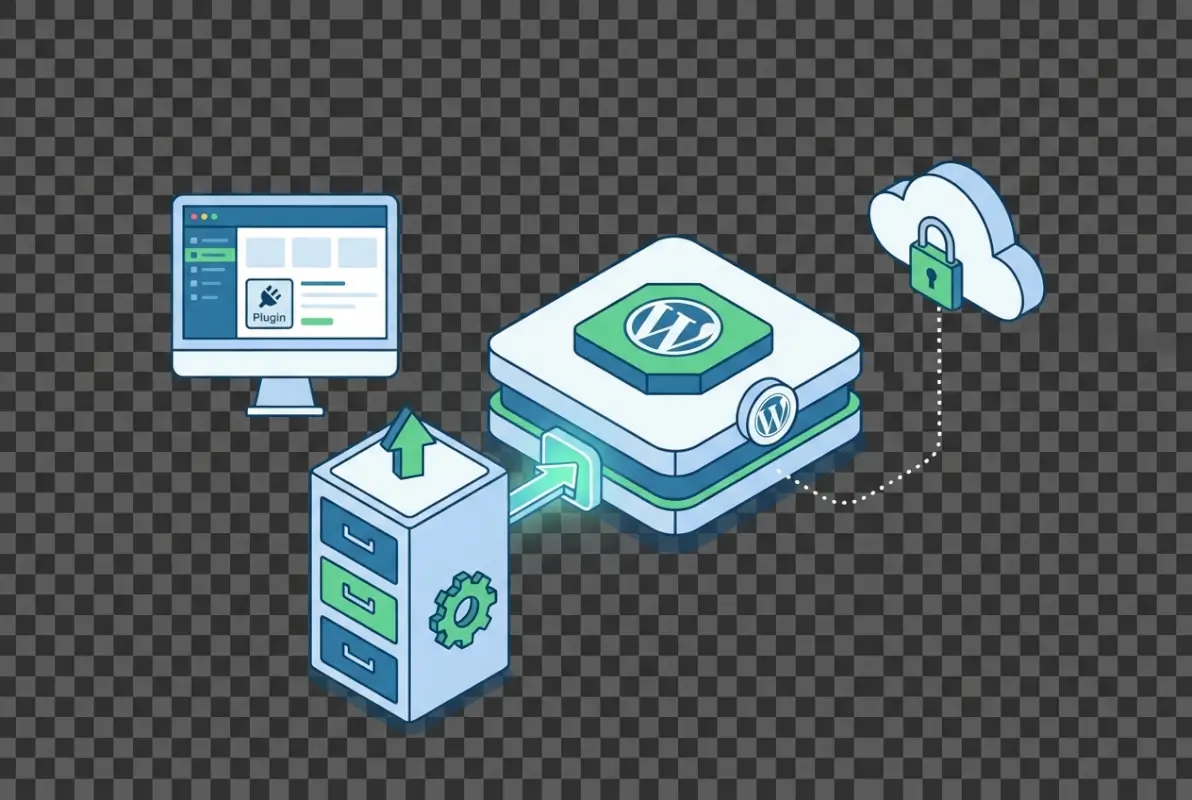
WordPress directories generally fall into three main categories, each with different technical requirements and user expectations. Listing-style directories showcase businesses, services, or professionals with rich data like addresses, contact information, hours, and reviews. These are the most common directory types and include local business directories, service provider marketplaces, and event listings.
Glossary or name directories take a different approach, organizing information by terms, definitions, or alphabetical entries rather than geographic location. Think of membership directories, medical terminology databases, or product catalogs. These typically use WordPress taxonomies more heavily and don’t require map integrations.
Multi-directory architectures run several distinct directories under one WordPress installation—for example, separate directories for restaurants, hotels, and attractions in a tourism site. This approach requires careful planning of shared taxonomies versus directory-specific categories.
Decide on Data Structure and Fields
Your data structure determines everything from which plugin will work to how users will search and filter listings. Core fields for most directories include title, description, category assignment, contact details, and some form of location or organizational taxonomy. Every additional field you add increases complexity but also improves filtering and search functionality.
Custom fields and metadata separate basic directories from professional ones. Consider what makes listings in your niche valuable—for restaurants, you’d want cuisine type, price range, and dietary options; for service providers, certifications, service areas, and availability; for products, specifications, compatibility, and SKU numbers. The goal is capturing searchable, filterable data without overwhelming users with form fields.
Think through relationships between data points too. If you’re building a service directory with geographic coverage, will service providers select specific cities or draw service radius circles on a map? If you’re running a product directory, will categories be hierarchical (Electronics > Computers > Laptops) or flat with multi-select tagging?
Consider UX and Monetization
Frontend submission changes everything about how you’ll configure and moderate your directory. When users can add listings directly from the front-end without accessing wp-admin, you need robust spam prevention, clear submission guidelines, approval workflows, and potentially payment processing before listings go live. Admin-only submissions give you complete control but don’t scale well for large directories.
Monetization models shape your technical requirements from day one. Featured listings that appear at the top of search results need a payment system, a way to mark listings as featured, and visual indicators on listing pages. Pricing tiers (free basic listings, paid premium listings with extra fields and images) require membership or payment integration. Recurring listing fees need subscription functionality that many directory plugins don’t include by default.
| Monetization Model | Technical Requirements | Best For |
|---|---|---|
| Featured Listings | Payment gateway, featured flag, sort priority | Local directories, business listings |
| Paid Submissions | Payment before approval, refund handling | Niche B2B directories, professional listings |
| Subscription Tiers | Membership plugin, recurring payments, tier management | Professional directories, SaaS listings |
| Advertising/Sponsors | Ad management, banner rotation, analytics | High-traffic directories, review sites |
Prerequisites and Hosting Readiness
Directory sites have different hosting requirements than typical WordPress blogs. Most directory plugins require at least WordPress 5.8+, PHP 7.4 or higher (8.0+ recommended), and increased memory limits—256MB minimum, 512MB preferred for sites with thousands of listings. Your hosting plan should handle database queries efficiently since directory searches can be resource-intensive.
SSL certificates aren’t optional for directories, especially if you’re collecting user submissions or processing payments. Search engines penalize non-HTTPS sites, and payment processors require SSL for PCI compliance. Make sure your host provides free SSL certificates through Let’s Encrypt or includes them in your plan.
Backups become critical before installing directory plugins, particularly if you’re adding them to an existing site. Many directory plugins create custom database tables that standard WordPress backup plugins might miss. Verify your backup solution captures the entire database structure, not just wp_posts and wp_postmeta tables.
Choose Your Approach: Plugin-First vs. Custom Build
For 95% of directory projects, a specialized directory plugin is the right choice. Plugins like aDirectory (also known as WP Business Directory) and WP Directory Kit provide complete directory functionality—listing post types, submission forms, search filters, map integrations, and payment processing—in a single package. They’re actively maintained, regularly updated for WordPress core changes, and include support communities.
The custom post type + taxonomies approach works for developers building unique directory functionality or integrating directory features into larger applications. You’ll create a custom post type for listings, register taxonomies for categories and locations, build custom search queries, and develop your own submission forms. This gives complete control but requires ongoing maintenance as WordPress evolves.
I’ve built directories both ways, and honestly, unless you have very specific requirements that no plugin can meet or you’re building a directory as part of a larger custom application, starting with a plugin saves months of development time. You can always extend plugin functionality with custom code later if needed.
Installing and Activating a Directory Plugin
Once you’ve planned your directory structure and confirmed your hosting meets the requirements, installing the actual plugin follows standard WordPress plugin installation workflows with a few directory-specific considerations. The process differs slightly depending on whether you’re installing a free plugin from the WordPress.org repository or uploading a premium plugin purchased from a marketplace.
Install from the WordPress Plugin Directory
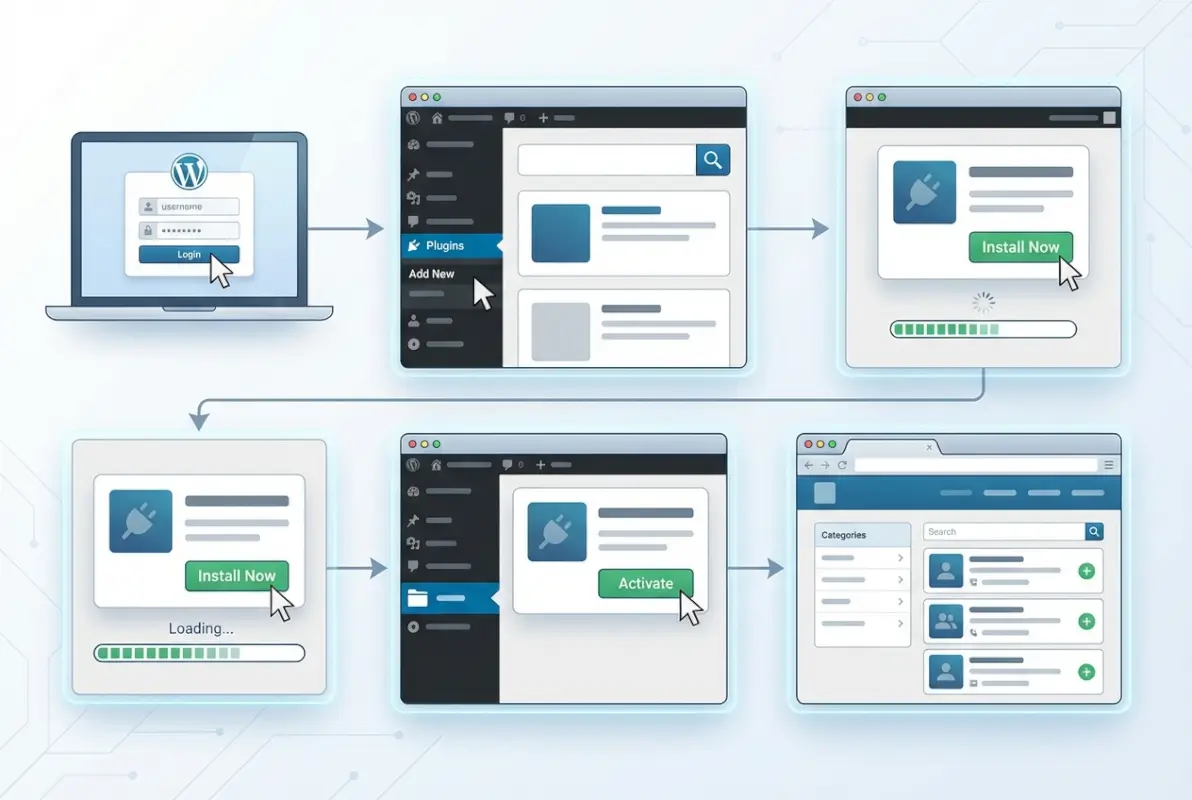
For plugins available in the official WordPress.org repository like aDirectory or WP Directory Kit, log into your WordPress admin dashboard and navigate to Plugins > Add New. Use the search box in the upper right to search for your chosen directory plugin by name. WordPress will display matching results with plugin ratings, active installations, and last update dates.
Click “Install Now” on your selected plugin—WordPress downloads and installs it automatically. Once installation completes (usually 5-15 seconds depending on plugin size), the button changes to “Activate.” Click Activate to enable the plugin on your site. After activation, most directory plugins add a new menu item in your WordPress admin sidebar where you’ll access all directory settings and listings.
The official WordPress plugin installation guide provides detailed screenshots of this process if you’re new to WordPress plugin management.
Installing a Directory Plugin via ZIP
Premium directory plugins purchased from marketplaces like CodeCanyon or directly from developers come as ZIP files that you upload manually to WordPress. In your admin dashboard, go to Plugins > Add New and click the “Upload Plugin” button at the top of the page. This reveals a file upload interface where you can select your plugin ZIP file.
Choose your downloaded ZIP file and click “Install Now.” WordPress uploads the file, extracts it to your plugins directory, and displays an installation success message. Click “Activate Plugin” to enable it. Some premium plugins require license key activation before full functionality unlocks—you’ll typically enter this license key in a settings page that appears after activation.
Verifying Compatibility and Updates
Before activating any directory plugin, check its compatibility with your WordPress version on the plugin’s information page. Look for “Tested up to” which indicates the highest WordPress version the developer has verified works correctly. A plugin tested up to WordPress 6.4 when you’re running 6.5 usually works fine, but gaps of more than two major versions suggest the plugin might be abandoned.
Check the “Last Updated” date as well. Plugins actively maintained show updates within the last few months. Directory plugins that haven’t been updated in over a year might work fine but could have unpatched security vulnerabilities or compatibility issues with newer PHP versions. The “Active Installations” count provides social proof—tens of thousands of active installations suggest a stable, reliable plugin.
After installation, verify the plugin hasn’t caused conflicts by visiting your site’s front-end and checking for PHP errors, broken layouts, or non-functional features. Clear your caching plugin if you use one (WP Super Cache, W3 Total Cache, etc.) since cached pages can mask new plugin functionality or conflicts.
Essential First Configuration Steps
Immediately after activating your directory plugin, you’ll want to configure core settings before adding any listings. Most directory plugins have a Settings or Options page where you define fundamental directory behavior—single directory versus multiple directories, default listing status (published immediately or pending review), required fields for submissions, and map provider selection.
Create your initial category taxonomy structure next. Even if you plan to expand categories later, having a basic organizational structure helps you understand how listings will be organized. For a local business directory, you might create categories like Restaurants, Services, Retail, Healthcare. For a professional directory, categories might be by specialty, certification level, or service type.
Set up your listing submission form and moderation workflow early. Configure whether anonymous users can submit listings, what fields are required versus optional, whether email verification is mandatory, and whether submissions go directly to published status or into a moderation queue. Most directory operators find that requiring email verification and manual approval for first-time submitters dramatically reduces spam while allowing trusted contributors to publish immediately once approved.
Recommended Directory Plugins Overview
aDirectory (also known as WP Business Directory) is one of the most comprehensive free directory solutions in the WordPress repository. After installation, aDirectory creates a “Listings” custom post type and adds menu items for managing listings, locations, categories, and settings. The initial setup wizard walks you through creating your first listing directory, choosing map providers (OpenStreetMap by default, Google Maps with API key), and configuring basic display options. aDirectory supports unlimited categories, custom fields through its field builder, and frontend submission forms with spam protection.
WP Directory Kit takes a slightly different approach, focusing on flexible directory types—you can create multiple directory types within one installation, each with its own fields, categories, and display templates. After activation, WP Directory Kit prompts you to create your first directory type (analogous to creating a custom post type). You’ll define what fields each listing in that directory type should have, which map integration to use, and whether to enable frontend submissions. WP Directory Kit’s strength lies in its visual form builder for creating custom listing submission forms without writing code.
Both plugins integrate well with popular page builders like Elementor and include shortcodes for displaying directory grids, search forms, and maps anywhere on your site. For enhanced directory listing visibility, both support structured data markup that helps search engines understand your listings.
Configuring Directory Data and Frontend Display
With your directory plugin installed and core settings configured, the next phase involves defining the specific data structure your listings will use and how that data displays on the frontend. This configuration phase determines user experience quality and how easily visitors can find relevant listings through search and filtering.

Define Listing Fields and Forms
Standard listing fields form the foundation of every directory entry. Name or title, business description, category assignment, contact information (email, phone), and location fields (address, city, state, zip code) appear in virtually every directory type. These fields should be required during submission to ensure listing quality and completeness.
Custom fields differentiate your directory from generic business listings. For restaurant directories, custom fields might include cuisine type, price range ($ to $$$$), dietary options (vegetarian, vegan, gluten-free), seating capacity, reservation system, and delivery options. Service provider directories benefit from fields like service area radius, years in business, certifications held, insurance coverage, and service specialties.
Product directories need entirely different custom fields: SKU, manufacturer, model number, specifications (dimensions, weight, materials), compatibility information, warranty details, and documentation links. The key is identifying which data points users will actually filter and search by, then making those fields structured rather than free-text when possible. Dropdown menus and checkboxes enable filtering; paragraph text fields don’t.
Create Categories, Locations, and Tags
Category taxonomy provides the primary organizational structure for most directories. Plan hierarchical categories carefully—you can always add subcategories later, but restructuring a mature taxonomy after hundreds of listings exist becomes painful. For a local business directory, top-level categories might be broad (Food & Drink, Professional Services, Health & Wellness, Shopping) with subcategories providing specificity (Food & Drink > Restaurants > Italian, Professional Services > Legal > Family Law).
Location taxonomy deserves as much planning as categories. Geographic directories typically use a hierarchical structure: Country > State/Province > City > Neighborhood, or Regional Area > County > City. This hierarchy enables filtering at different geographic scales—users can browse all businesses in a state or drill down to a specific neighborhood. Some directory plugins support custom location hierarchies, letting you organize by school district, postal code zones, or custom service areas.
Tags provide flexible, non-hierarchical classification that complements structured categories. While a restaurant fits in one primary category (Restaurants > Italian), tags can capture additional characteristics: “outdoor seating,” “live music,” “family-friendly,” “romantic atmosphere,” “business lunch.” Tags work best when you create a standardized list rather than allowing free tagging, which leads to duplicates (bakery vs. bakeries) and misspellings.
One approach that’s worked well in my experience: create categories administratively before launch with clear submission guidelines about where listings belong, then monitor user-submitted tags for patterns that suggest new categories. If you see dozens of listings tagged “pet-friendly,” that’s telling you users want a structured filter for that attribute.
Frontend Listing Grids and Search Forms
Directory listings typically display in grid layouts on archive pages—rows of cards showing thumbnail images, listing names, brief descriptions, category badges, and location information. Most directory plugins provide shortcodes or page builder widgets that generate these grids with various layout options (2-column, 3-column, 4-column, masonry style). Consider mobile responsiveness when choosing grid layouts, a 4-column desktop grid should collapse to single column on mobile devices.
Search forms transform passive directory browsing into active discovery. Basic search forms include a text search field (searches listing names and descriptions), category dropdown, and location field. Advanced search forms add custom field filters—price range sliders, distance radius selectors, amenity checkboxes, rating filters, and availability calendars depending on your directory type.
Map integrations elevate directory user experience from lists to visual geographic browsing. Modern directory plugins integrate with OpenStreetMap (free, no API key required) and Google Maps (requires API key and billing account). Map interfaces typically show listing markers clustered by proximity at wider zoom levels, expanding to individual pins as users zoom in. Clicking a pin displays a listing popup with basic information and a link to the full listing page.
| Map Provider | Pros | Cons |
|---|---|---|
| OpenStreetMap | Free, no API key, good global coverage, privacy-friendly | Less detailed in some regions, fewer features than Google |
| Google Maps | Excellent global data, Street View, familiar interface, robust geocoding | Requires API key, paid after free tier ($200/month credit), tracking concerns |
| Mapbox | Customizable styling, good performance, generous free tier | Requires API key, less familiar to users, setup complexity |
User Submissions and Moderation
Frontend submission flows typically follow a multi-step process: user fills out the submission form, receives confirmation email with verification link, clicks verification link, submission enters moderation queue (or publishes automatically if auto-approval is enabled), admin reviews and approves or rejects, user receives approval notification with link to published listing. This workflow balances user convenience with spam prevention.
Spam prevention should operate at multiple levels. Email verification catches bot submissions that can’t access mailboxes. CAPTCHA or reCAPTCHA challenges block automated form submissions (though they frustrate some legitimate users). Content pattern detection flags submissions with suspicious patterns like multiple URLs, promotional language, or repeated text. Link counting automatically rejects or flags submissions with excessive external links, a classic spam indicator.
The moderation queue interface should make review efficient—display all pending submissions in a list view with quick approve/reject buttons, show submission timestamp and user information, preview the listing as it will appear if published, and provide a notes field for documming rejection reasons. I’ve found that sending brief, polite rejection reasons when declining submissions (e.g., “This listing appears to be outside our service area” or “Please resubmit with a valid business address”) reduces angry emails and improves resubmission quality.
Styling and Theming
Theme compatibility varies significantly between directory plugins. Some plugins include their own templates that override your theme’s default post templates for listing pages, archive pages, and search results. Others integrate with your existing theme templates, using hooks and filters to inject directory-specific functionality. Before committing to a directory plugin, verify it works with your theme by installing both on a test site and viewing sample listings.
Custom templates give precise control over listing presentation. Most directory plugins store their templates in a plugin folder like /wp-content/plugins/plugin-name/templates/. You can copy these templates to your theme’s directory (often in a /directory-templates/ folder) and modify them without losing changes when the plugin updates. This lets you adjust listing layouts, add custom fields to display templates, modify search form designs, and integrate directory pages with your overall site design.
Responsive layouts are non-negotiable for modern directories, the majority of local directory searches happen on mobile devices. Test your directory pages on actual mobile devices, not just browser responsive modes. Verify that search forms remain usable on small screens, listing grids reflow appropriately, maps remain interactive on touch screens, and contact buttons (call, email, directions) work properly on mobile operating systems.
Advanced Features and Integrations
After establishing core directory functionality, advanced features transform a basic listing site into a powerful platform that drives engagement and revenue. These integrations require more configuration but significantly enhance user experience and monetization potential.

Maps, Geolocation, and Location-Based Search
Geolocation search lets users find listings within a specified radius of their current location or a searched address. This requires geocoding—converting addresses to latitude/longitude coordinates—and distance calculation queries. Most directory plugins handle geocoding automatically when listings are submitted, either through the selected map provider’s API or WordPress geolocation services.
Google Maps integration requires creating a project in Google Cloud Console, enabling the Maps JavaScript API, Places API, and Geocoding API, then generating an API key and adding billing information (Google provides $200/month free credit). Set usage quotas to prevent unexpected charges if your directory traffic spikes. Map customization options include marker colors and icons for different categories, custom map styling to match your brand, info window templates, and clustering behavior for dense listing areas.
OpenStreetMap integration through Leaflet.js provides a privacy-respecting, free alternative. OpenStreetMap data quality varies by region—major cities have excellent coverage while rural areas might lack detail. The OpenStreetMap project relies on volunteer contributors, and you can improve coverage in your area by contributing data yourself.
Payments and Monetization
Featured placement monetization requires flagging certain listings as featured (usually via a custom field or taxonomy), modifying search/archive queries to prioritize featured listings, adding visual indicators on listing cards and pages (badges, highlighted backgrounds, larger images), and processing payments before applying featured status. Most directory sites charge for featured placement monthly or as one-time upgrades, implementing this with strategies that increase overall visibility.
Stripe integration for payments offers the cleanest user experience—users never leave your site, checkout completes in embedded forms, and you receive payouts directly to your bank account (minus Stripe’s 2.9% + $0.30 per transaction). WooCommerce integration provides more complex payment options including multiple gateways, subscription handling, coupon codes, and detailed transaction records, but adds significant overhead and complexity to your directory setup.
Subscription tiers work well for professional directories where listings have ongoing value. Free tier listings might include basic contact information and one photo with limited category placement. Premium tier adds unlimited photos, rich media (video), priority placement in category results, featured home page rotation, and detailed analytics about listing views and inquiries. Enterprise tier could add dedicated account management, API access for multi-location businesses, or white-label listing pages.
SEO Considerations for Directory Content
Structured data markup tells search engines exactly what your directory listings represent. Schema.org provides vocabulary for local businesses, organizations, events, products, and services. Most directory plugins include basic schema support, but you might need to extend it. A local business listing should include schema properties for name, address, telephone, geo coordinates, business hours, accepted payment methods, and price range.
Canonical URLs prevent duplicate content issues when listings appear in multiple categories or location pages. Each listing should have one canonical URL (typically its permalink), and category archive pages or filtered results should reference appropriate canonical URLs. Pagination on category archives requires proper rel=”prev” and rel=”next” tags to help search engines understand page relationships.
URL structure impacts both SEO and user experience. Clean, readable URLs like /listings/plumbers/boston/mikes-plumbing/ perform better than cryptic ones like /listing/?id=12345. Most directory plugins let you customize URL slugs—incorporate location and category when possible, keep URLs short (under 100 characters), use hyphens not underscores for word separation, and avoid stopping words (a, the, and) that add length without value.
You can learn more about comprehensive directory listing indexing methods that ensure search engines properly crawl and rank your listings.
Security, Backups, and Performance
Regular backups before major changes are non-negotiable for directory sites. Before updating your directory plugin, adding new custom fields that modify database structure, or implementing payment processing, create a complete site backup including database, uploaded files, and plugin/theme files. Automated daily backups with off-site storage provide insurance against catastrophic failures or security breaches.
Caching directory sites requires careful configuration. Full-page caching breaks user-specific features like saved listings, submission dashboards, and search with location detection. Most caching solutions let you exclude specific pages or URLs from caching—exclude logged-in user pages, submission forms, and AJAX endpoints. Object caching (Redis, Memcached) helps tremendously with directory sites since database queries for filtered searches can be expensive.
CDN implementation for directories focuses on static assets (images, CSS, JavaScript) rather than dynamic listing content. Upload user-submitted photos to your CDN or a dedicated image service, serve map tiles through a CDN if using self-hosted maps, cache API responses when appropriate (geocoding results, category lists), and use lazy loading for images in listing grids to improve initial page load times.
Multisite and Multi-Directory Scenarios
WordPress multisite enables separate directories under one WordPress installation, each with its own subdomain or subdirectory. This works well for franchise directories (separate sites for each location), regional directories managed by different administrators, or platform plays where you provide directory infrastructure to multiple clients. Multisite adds management complexity but enables centralized updates and shared user databases across sites.
Single-site multiple directories use one WordPress installation with multiple directory types or instances. WP Directory Kit excels at this—you can create separate directories for restaurants, hotels, and attractions, each with unique fields and categories, but all managed from one admin interface. This approach works better than multisite for most directory operators unless you need true administrative separation between directories.
Content Management and Maintenance
Launching your directory is just the beginning—ongoing content quality, regular updates, and systematic maintenance determine long-term success. Directories require more active management than typical content sites because user-generated content introduces quality variability and the listings themselves become outdated as businesses change.

Ongoing Data Quality and User-Generated Content
Moderation workflows should balance quality control with submission volume. For new directories actively seeking content, approve most legitimate-looking submissions quickly to build inventory, even if listings aren’t perfect. Once you’ve achieved critical mass (a few hundred listings in key categories), tighten standards—require complete addresses, reject listings with obvious spam indicators, and verify businesses exist before approving.
Duplicate detection becomes crucial as directories grow. Users submit the same business multiple times, especially if their first submission sits in moderation for days. Implement automated duplicate checking based on business name and address similarity, flag potential duplicates for manual review rather than auto-rejecting, and merge duplicates when found to preserve any reviews or ratings accumulated. I’ve found that 5-10% of submissions in mature directories are duplicates, that percentage drops significantly with clear submission guidelines and fast moderation turnaround.
Data hygiene requires regular attention—review listings haven’t been updated in 12+ months and flag for verification, check for broken external links in listing descriptions, validate email addresses and phone numbers periodically, remove listings for businesses that have permanently closed, and update category assignments when adding new taxonomy terms.
Regular Updates and Plugin Health
Plugin and theme updates should follow a systematic testing protocol: create a staging site that mirrors production, update the directory plugin on staging first, test all critical functionality (submissions, search, maps, payments), verify no PHP warnings or errors appear, check mobile responsiveness hasn’t broken, then update production only after staging validation. This process prevents the panic of broken sites in production.
Plugin health monitoring means watching for warning signs that a plugin might be abandoned or developing problems. Monitor the plugin’s WordPress.org repository page for support thread response times—developers who ignore support threads for weeks might not be maintaining their code actively. Check GitHub or the developer’s site for development activity and roadmap updates. Subscribe to plugin update notifications so you know immediately when new versions release.
Analytics and Performance Monitoring
Directory-specific analytics go beyond standard Google Analytics pageviews. Track listing views by category and location to identify popular niches, monitor search queries (what users search for) to discover gaps in your category structure, measure submission conversion rate (submission form views vs. completed submissions), analyze featured listing click-through rates to optimize placement strategy, and track user journeys from search to listing view to contact or website visit.
Performance optimization for listing queries focuses on database efficiency. Directory search with multiple filters can generate complex SQL queries that take seconds to execute on large databases. Add database indexes on frequently filtered columns (category, location, custom field values), use transient caching for complex queries that don’t change often, implement AJAX-based infinite scroll rather than traditional pagination for better perceived performance, and monitor slow query logs to identify problematic searches.
Troubleshooting and Common Pitfalls
Even carefully planned directory installations encounter issues. Understanding common problems and their solutions helps you resolve issues quickly and avoid pitfalls that plague many directory sites.
Common Issues During Installation
Plugin conflicts typically manifest as white screens (PHP fatal errors), JavaScript functionality breaking (maps not loading, search forms not working), or admin pages displaying incorrectly. The systematic approach to identifying conflicts: deactivate all plugins except your directory plugin, verify the issue disappears, reactivate other plugins one by one until the issue returns, then you’ve identified the conflicting plugin.
PHP version errors appear as warnings about deprecated functions or fatal errors about undefined functions. These indicate your hosting PHP version is either too old (missing functions the plugin requires) or too new (using functions the plugin relied on that were removed). Check your directory plugin’s requirements and adjust your hosting PHP version to match—most hosts let you select PHP versions through cPanel or hosting control panels.
Memory limit exhausted errors occur when directory operations (like geocoding hundreds of addresses during import) exceed PHP memory allocation. Increase PHP memory limit by adding `define(‘WP_MEMORY_LIMIT’, ‘256M’);` to wp-config.php, or contact your host to increase the limit server-wide. Directory sites with thousands of listings often need 256MB-512MB memory limits.
Data Migration and Backups
Restoring from backups should be a tested procedure, not something you figure out during an emergency. Practice restoring your directory to a test environment before you need to do it in production. Document the exact steps: download backup files from your backup service, create a fresh WordPress installation on staging, import the database backup, restore uploaded files, update wp-config.php with staging database credentials, run search-replace on URLs if domain differs, and verify all directory functionality works.
Rollback procedures let you revert plugin updates that break functionality. Keep the previous version’s ZIP file before updating, know how to deactivate and delete the problem version from wp-admin or via FTP/SSH, and understand how to reinstall the old version and restore any database changes the new version made.
Accessibility and UX Pitfalls
Missing alt text on user-submitted images creates accessibility barriers and SEO issues. Implement required alt text fields in submission forms, provide guidance on writing descriptive alt text, automatically generate basic alt text from listing title if users leave it blank, and audit existing listings periodically to add missing alt text.
Keyboard navigation support ensures users can browse your directory without a mouse. All interactive elements (search filters, map controls, listing cards) should be keyboard-accessible, focus indicators should be visible on interactive elements, skip navigation links let keyboard users bypass repetitive navigation, and modal dialogs (like listing image galleries) should trap focus and close with Escape key.
Responsive issues often hide in complex directory layouts—search forms with many filters, map/list split views, and multi-column grids. Test thoroughly on actual devices at common breakpoints (320px, 768px, 1024px, 1440px), verify touch targets are at least 44px square for easy mobile tapping, and ensure text remains readable without zooming on small screens.
Best Practices and Security
Directory sites handle user submissions, contact information, and potentially payment data, requiring careful attention to security and data handling practices beyond typical WordPress sites.
Security Considerations
Input validation on submission forms prevents malicious data from entering your database. Sanitize all text inputs to remove HTML/JavaScript unless explicitly allowed in specific fields, validate email addresses and phone numbers match expected formats, check file uploads for valid image types and appropriate sizes, and implement rate limiting to prevent automated submission spam.
Data privacy and consent requirements vary by jurisdiction but generally require clear privacy policies explaining how you use submitted data, consent checkboxes for marketing communications, user ability to edit or delete their submitted listings, and compliance with GDPR, CCPA, or other regional regulations if you operate internationally.
Payment security demands strict adherence to PCI compliance standards if you handle credit card data. Using Stripe or PayPal’s hosted payment pages keeps credit card data completely off your servers, eliminating most PCI compliance requirements. Never store complete credit card numbers in your WordPress database, implement SSL across your entire site (not just payment pages), and use tokenization for recurring payments.
Maintenance Schedule
Weekly tasks for directory maintenance include reviewing the moderation queue and approving or rejecting pending submissions, checking for and responding to user support inquiries, monitoring for spam listings that bypassed initial filters, and verifying backup systems completed successfully.
Monthly maintenance covers updating directory plugin and WordPress core (on staging first), reviewing analytics to identify trends and opportunities, checking for broken links in listings, auditing high-traffic listings for accuracy, and testing payment processing end-to-end.
Quarterly reviews should address overall directory strategy—analyzing category performance to identify gaps or consolidation opportunities, reviewing monetization effectiveness and pricing, conducting accessibility and SEO audits, planning feature additions based on user feedback, and benchmarking against competitor directories.
Scaling Your Directory
As your directory grows beyond initial launch, scaling considerations become important for maintaining performance and user experience.
Database Optimization
Large directories (5,000+ listings) require database optimization beyond standard WordPress tuning. Add custom indexes on directory-specific tables, especially fields used in filtering and sorting, use table partitioning for massive datasets (100,000+ listings), implement database caching layers (Redis, Memcached), and consider read replicas if you’re running complex analytics queries that impact site performance.
Content Delivery Networks
CDN implementation for directories should prioritize user-uploaded images since these represent the bulk of bandwidth usage. Services like Cloudflare or AWS CloudFront cache and serve images from edge locations near your users. Configure your CDN to cache listing images, category icons, map tiles, CSS and JavaScript assets, and set appropriate cache expiration headers (long expiration for images, shorter for frequently updated assets).
Advanced Search Implementations
Elasticsearch or Algolia integration provides dramatically better search performance for large directories. These specialized search engines handle full-text search, faceted filtering, and relevance ranking much more efficiently than WordPress database queries. Implementation requires indexing your listings to the search service, using the service’s API for search queries instead of WordPress queries, and keeping the search index synchronized when listings are added or updated.
Frequently Asked Questions
What is the easiest way to create a directory in WordPress?
The easiest approach is installing a dedicated directory plugin like aDirectory or WP Directory Kit from the WordPress plugin repository. These plugins provide complete directory functionality including listing forms, categories, search filters, maps, and frontend submission in one package, typically requiring 30-60 minutes to configure basic functionality without writing any code.
Do I need a separate directory plugin or can I use custom post types?
For most directory projects, a specialized plugin is the better choice. Directory plugins include submission forms, geolocation, search filtering, and moderation workflows that would take weeks to build with custom post types. Custom post type approaches work best when you’re integrating directory features into a larger custom application or need functionality no plugin provides.
How do I monetize a WordPress directory?
Common monetization models include featured listing placement (businesses pay monthly or one-time fees to appear at the top of results), tiered listing packages (free basic listings, paid premium listings with extra features), submission fees for any listing, directory-wide advertising, and lead generation fees where you charge per inquiry or referral sent to listed businesses.
How do I add listings submitted by users?
Enable frontend submission forms in your directory plugin settings, configure which fields are required versus optional, set up email verification to prevent spam, implement moderation workflows (auto-publish or manual approval), and create clear submission guidelines so users understand what information to provide and what qualifies for inclusion in your directory.
What maps and location services work with directory plugins?
Most directory plugins support OpenStreetMap (free, no API key required), Google Maps (requires API key and billing account after free tier), and sometimes Mapbox (customizable, API key required). OpenStreetMap works well for most directories while Google Maps offers superior data quality and features like Street View at the cost of setup complexity and potential usage fees.
How do I handle SEO for directory listings?
Implement schema.org structured data markup for business listings, use clean URL structures that include location and category, create unique meta descriptions for listing pages, optimize listing images with descriptive alt text, build internal linking between related listings and category pages, and ensure mobile-friendly responsive design for improved search rankings, similar to techniques used to increase views for listings.
Can I run multiple directories on one WordPress site?
Yes, either through WordPress multisite (separate installations sharing core files) or single-site multiple directory types. Plugins like WP Directory Kit specifically support creating multiple directory types within one installation, each with unique fields, categories, and display templates. This works well for sites running separate directories for different verticals under one brand.
How do I ensure security and backups for a directory site?
Implement automated daily backups with off-site storage, use SSL certificates across the entire site, sanitize and validate all user-submitted data, keep WordPress core and plugins updated, implement rate limiting on submission forms, use security plugins for firewall protection and malware scanning, and follow PCI compliance if processing payments directly.
Which directory plugins are most reliable for established directories?
aDirectory (WP Business Directory) and WP Directory Kit both have strong track records with thousands of active installations and regular updates. Both have been actively maintained for multiple years and support modern WordPress versions. Check the plugin’s WordPress.org page for recent update dates, support responsiveness, and compatibility with your WordPress version before committing.
How do I migrate an existing directory to WordPress?
Export data from your current platform in CSV or XML format, create a WordPress installation with your chosen directory plugin, use the plugin’s import functionality or WordPress importers to bring in listings, manually map your old category structure to new WordPress taxonomies, verify listing data imported correctly, set up URL redirects from old listing URLs to new WordPress permalinks, and test thoroughly before redirecting your domain.
Taking Your Directory Live
You’ve planned your directory structure, installed and configured your plugin, set up categories and custom fields, and tested submission workflows—now it’s time to launch and grow your directory into a valuable community resource.
Start with seed content before promoting your directory publicly. An empty directory doesn’t inspire confidence or submissions, manually add 20-50 quality listings in key categories to demonstrate your directory’s value and give early visitors something to browse. Focus on popular categories and your target geographic area or niche. Once you have baseline content, promote submission opportunities to businesses, service providers, or individuals who would benefit from inclusion.
Marketing your directory requires different tactics than typical content sites. Direct outreach to businesses already in your target categories, local business association partnerships, social media promotion in location or niche-specific groups, and content marketing that highlights featured businesses all drive awareness and submissions. The goal initially is building listing volume in your core categories—once you achieve critical mass, organic growth through search traffic and word-of-mouth accelerates.
Monitor performance metrics religiously during your first few months—track submission volume by category and source, measure listing view patterns to identify popular categories, analyze search queries to spot category gaps, monitor conversion from listing view to contact action, and watch for spam patterns that indicate you need stronger validation. These insights drive your optimization priorities and feature development roadmap.
Iterate based on data rather than assumptions. If certain categories receive heavy search traffic but few listings, prioritize outreach to businesses in those categories. If users frequently search for features you haven’t structured as filterable fields, add those custom fields and update existing listings. If mobile traffic dominates but mobile conversion lags, focus on mobile UX improvements. The best directories evolve continuously based on real user behavior.
Consider launching with an MVP (minimum viable product) approach—basic listings with core fields, simple category structure, OpenStreetMap integration, and manual moderation. This gets you live quickly so you can validate demand and gather feedback. Add advanced features like payment processing, detailed custom fields, review systems, and premium listings once you’ve proven basic directory viability. I’ve seen too many directory projects delayed for months while building elaborate features nobody ends up using.
Your directory’s long-term success depends less on perfect initial setup than on consistent execution—regular content additions, responsive moderation, strategic feature development, and community engagement. The technical foundation you’ve built through this guide provides the platform, now it’s about showing up consistently to build value for your users.
Start today by installing your chosen directory plugin, creating your initial category structure, and adding your first ten listings. The directory that launches imperfectly today will always outperform the perfect directory that stays in planning forever.
Was this article helpful?