Active Directory for Small Business: 6 Essential Setup Steps in 2024
Opens a Google-translated copy of this article in a new tab.
Picture this: your office manager just spent three hours resetting passwords for half your team because someone forgot their login again. Meanwhile, your newest hire is sitting idle because IT hasn’t configured their computer access yet. Sound familiar? This is exactly the chaos that Active Directory eliminates—and it’s not just for enterprise giants anymore.
Active Directory (AD) transforms how small businesses manage their digital infrastructure. It’s the central nervous system that connects users, computers, and resources into one cohesive network. For businesses with 5 to 50 employees, implementing active directory for small business operations means moving from reactive firefighting to proactive management. You’re not just solving today’s password problem—you’re building a foundation that scales with your growth.
What makes AD particularly compelling for smaller operations is the immediate return on investment. A 20-person consulting firm I worked with calculated they were losing 8 hours weekly to access issues and manual computer configuration. After implementing Active Directory, those hours dropped to less than one per week. That’s roughly $15,000 in annual productivity gains, and their IT spending actually decreased because fewer things broke.
- Active Directory centralizes authentication – One login grants access to all business resources, eliminating password chaos
- Setup requires minimal investment – Basic implementation needs just a modest server and 1-2 days of configuration
- Security improves dramatically – Centralized control means consistent policies, instant access revocation, and comprehensive auditing
- Scalability is built-in – Start with 5 users or 50; the system grows seamlessly with your business
- Group policies automate management – Configure once, apply everywhere—no more touching individual machines
Understanding Active Directory Infrastructure Requirements
Before you install anything, let’s address the elephant in the room: “Do I really need dedicated hardware for this?” The answer depends on your business size and budget, but the requirements are more modest than most people assume.
For active directory small business deployments, you’re looking at a server with 4GB RAM minimum (8GB recommended), 80GB storage, and any modern processor running at 1.4GHz or faster. Windows Server 2019 or 2022 provides the best balance of features and support lifecycle. Many small operations successfully run AD on repurposed workstations, though dedicated server hardware offers better reliability and room for growth.
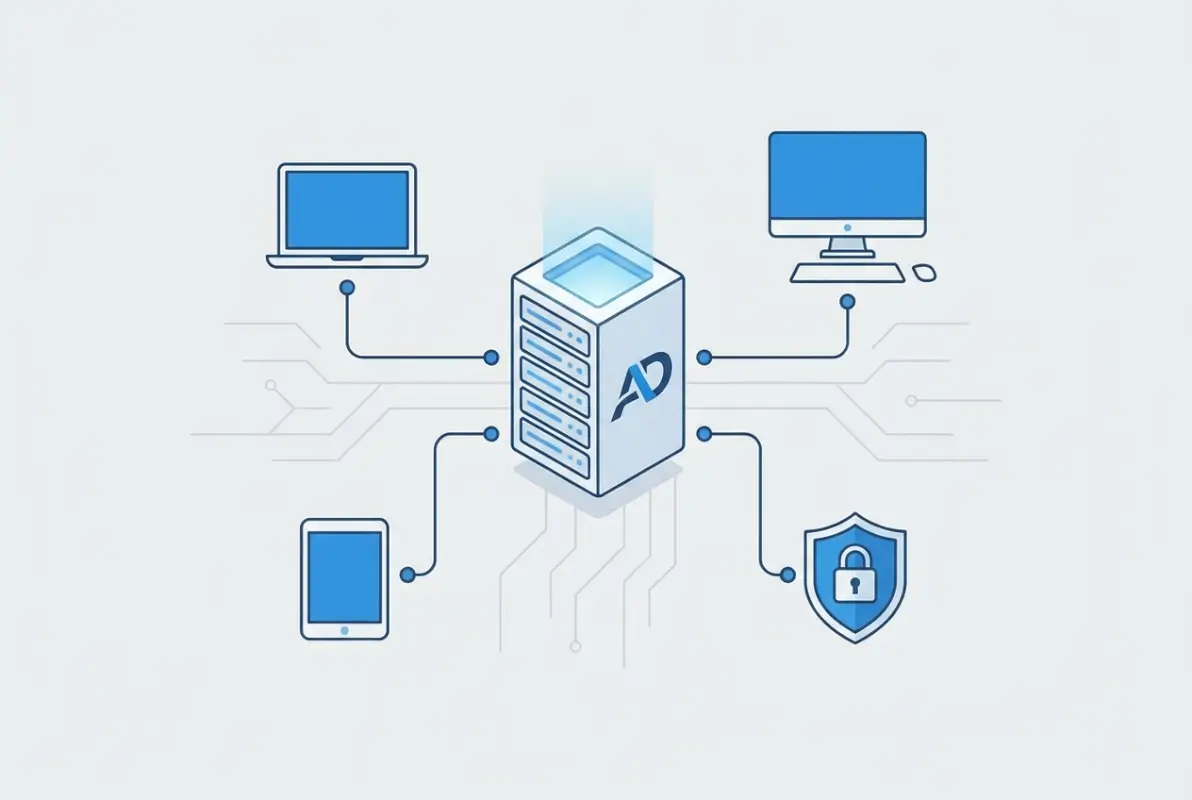
The real question isn’t whether your hardware is powerful enough—it’s whether your network infrastructure is ready. Active Directory depends heavily on DNS (Domain Name System) functioning correctly. I’ve seen businesses struggle for weeks with AD issues that traced back to misconfigured routers or DNS settings. Before installation day, verify your network has static IP addresses configured for servers and proper DNS resolution working throughout your environment.
Choosing Your Domain Name Strategy
Domain naming seems trivial until you realize you’ll type this name hundreds of times. For internal networks, most small businesses use .local, .internal, or .lan suffixes. If your business is “Acme Consulting,” you might use “acme.local” as your domain name.
One approach that’s saved clients headaches: use a completely separate internal domain from your public website. Your public site might be “acmeconsulting.com” while your internal network uses “acmenet.local.” This separation prevents confusion and potential conflicts between internal and external resources.
Installing Active Directory Domain Services
The installation process is more straightforward than most technical documentation suggests. Microsoft has refined this process over decades, and modern Windows Server makes it surprisingly approachable—even if you’re not a systems administrator by trade.
Start by logging into your Windows Server with administrator credentials. Open Server Manager (it typically launches automatically), then click “Add roles and features” from the dashboard. The wizard guides you through selecting “Role-based or feature-based installation,” choosing your server, and adding the “Active Directory Domain Services” role.
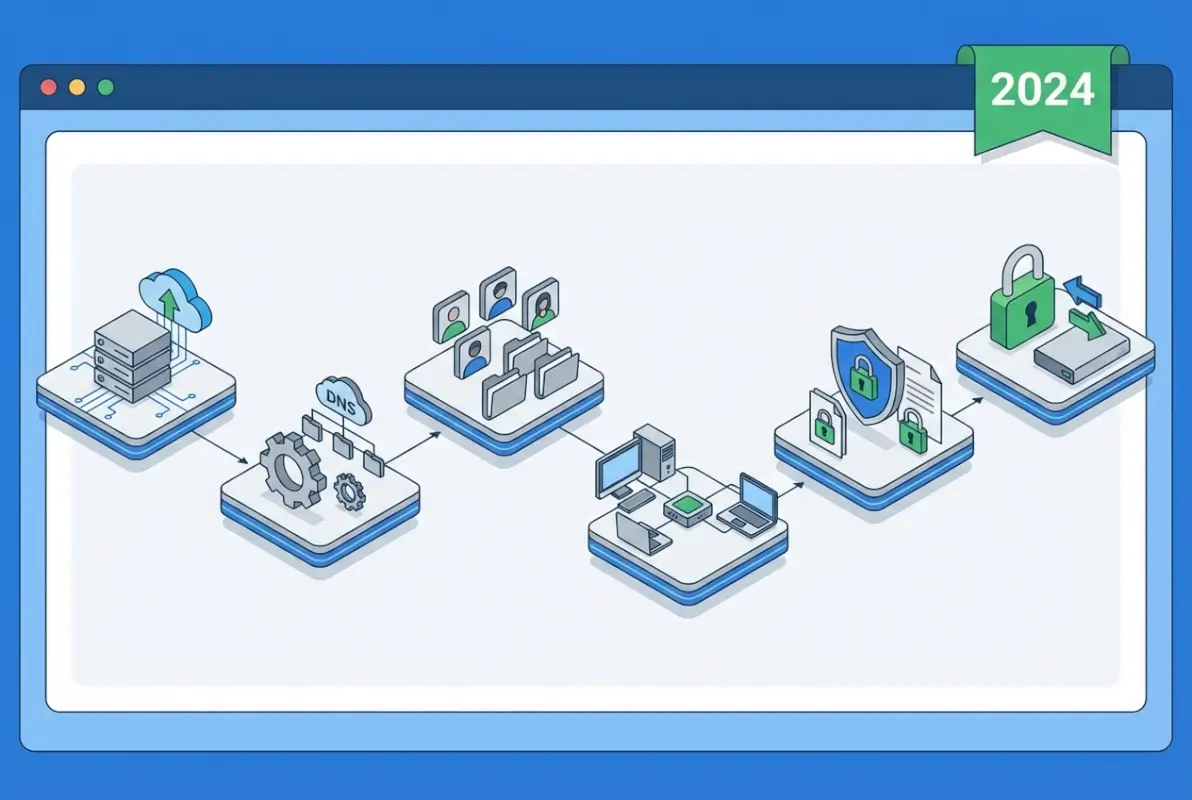
When you check the AD DS box, you’ll see a popup asking to add required features—accept these additions. Continue through the wizard accepting defaults until installation completes. This takes about 5-10 minutes depending on your server’s speed.
Here’s where it gets interesting: after installation finishes, you’ll see a notification flag in Server Manager. Click it and select “Promote this server to a domain controller.” This is where your planning pays off—you’ll need that domain name you chose earlier.
| Installation Step | Time Required | Critical Actions |
|---|---|---|
| Add AD DS Role | 5-10 minutes | Accept required features |
| Promote to DC | 15-20 minutes | Set DSRM password, configure DNS |
| Server Restart | 3-5 minutes | Automatic, no action needed |
| Initial Configuration | 30-45 minutes | DNS zones, DHCP settings |
The Directory Services Restore Mode Password
During promotion, you’ll be asked to create a Directory Services Restore Mode (DSRM) password. This is your emergency access if something goes catastrophically wrong with Active Directory. Make it strong, write it down, and store it somewhere secure—like a safe or password manager. You hopefully won’t need it, but if disaster strikes, this password is your lifeline.
According to Microsoft’s security best practices documentation, DSRM password management is one of the most overlooked aspects of Active Directory security. Don’t become a statistic.
Configuring DNS and Network Services
Once your server restarts as a domain controller, you’re operating in a completely new environment. DNS was automatically installed during AD promotion, but it needs verification and refinement for optimal performance.
Open DNS Manager from Server Manager’s Tools menu. You should see your domain listed in the Forward Lookup Zones. Expand it and verify that several records exist, including your domain controller’s host record and various service (SRV) records that Active Directory uses for locating services on the network.

The configuration that trips up most small business implementations is creating reverse lookup zones. These zones allow IP-to-name resolution (the opposite of normal DNS lookups) and many network applications expect them to function properly. Right-click “Reverse Lookup Zones” in DNS Manager, select “New Zone,” and follow the wizard to create a zone matching your network’s IP address range.
Setting Up DHCP for Seamless Integration
DHCP (Dynamic Host Configuration Protocol) automatically assigns IP addresses to computers on your network. While not technically required for Active Directory, integrating DHCP with your domain controller creates a seamless experience where new devices automatically receive correct DNS settings.
Install the DHCP Server role through Server Manager, then configure a scope matching your network range. Most small businesses use private IP ranges like 192.168.1.0/24 or 10.0.0.0/24. The critical configuration is setting DHCP Option 006 (DNS Servers) to point to your domain controller’s IP address.
A manufacturing client learned this lesson the hard way when they configured DHCP on their router instead of integrating it with AD. Computers received IP addresses fine but couldn’t find the domain because the router was handing out external DNS servers. Moving DHCP to the domain controller resolved weeks of mysterious connection issues within minutes.
Creating Your Organizational Structure
With the technical foundation in place, it’s time to build the logical structure that reflects how your business actually operates. This is where Active Directory transforms from technology into a business tool.
Organizational Units (OUs) are containers that hold users, computers, and groups. Think of them as folders that organize your Active Directory objects and provide boundaries for applying policies. For small business domain controller setups, a simple structure works best.

A typical small business might create OUs for:
- Departments (Sales, Marketing, Operations, Finance)
- Locations (if you have multiple offices)
- Device types (Workstations, Laptops, Servers)
- Administrative accounts (separate from regular user accounts)
Open Active Directory Users and Computers (ADUC) from Server Manager’s Tools menu. Right-click your domain name, select New > Organizational Unit, and create your structure. Don’t overthink this—you can always reorganize later. For businesses under 25 people, a flat structure with just a few OUs often works perfectly.
Understanding How to Create Active Directory User Accounts
Creating user accounts is where Active Directory’s value becomes tangible. Navigate to your desired OU in ADUC, right-click, and select New > User. Fill in the user’s first name, last name, and create a user logon name following a consistent format.
For the login name, pick a convention and stick with it religiously. Common patterns include:
- firstnamelastname (johnsmith)
- firstname.lastname (john.smith)
- firstinitiallastname (jsmith)
Set an initial password and check “User must change password at next logon.” This forces users to create their own password immediately, which they’re more likely to remember than something you assigned.
After creating the account, right-click it and select Properties to configure additional details. The General tab holds contact information, the Account tab controls login restrictions and password policies, and the Member Of tab shows group memberships. Fill these out thoroughly—future you will appreciate having email addresses and phone numbers readily available when troubleshooting account issues.
Implementing Group Policies and Security Settings
Group Policy is where Active Directory transitions from a directory service into a powerful management platform. Group Policy Objects (GPOs) let you configure settings once and apply them automatically to dozens or hundreds of computers without touching each device individually.
Open Group Policy Management from Server Manager’s Tools menu. You’ll see your domain with a Default Domain Policy already created. This policy applies to everything in your domain, so modifications here affect everyone. For targeted policies, right-click your domain or an OU and select “Create a GPO in this domain, and Link it here.”

For windows active directory best practices small business implementations, these policies deliver immediate value:
| Policy Type | Business Impact | Implementation Priority |
|---|---|---|
| Password Requirements | Prevents weak passwords, reduces breaches | Critical – Day 1 |
| Account Lockout | Blocks brute force attacks automatically | Critical – Day 1 |
| Screen Lock Timeout | Secures unattended workstations | High – Week 1 |
| Software Restrictions | Prevents unauthorized app installation | Medium – Month 1 |
| Folder Redirection | Centralizes documents, enables backup | Medium – Month 1 |
Configuring Essential Security Policies
Right-click your Default Domain Policy and select Edit. Navigate to Computer Configuration > Policies > Windows Settings > Security Settings > Account Policies. Here you’ll configure two critical security areas: Password Policy and Account Lockout Policy.
For password policy, these settings provide good security without excessive user frustration:
- Minimum password length: 12 characters
- Password must meet complexity requirements: Enabled
- Maximum password age: 90 days
- Enforce password history: 12 passwords remembered
For account lockout policy:
- Account lockout threshold: 5 invalid attempts
- Account lockout duration: 30 minutes
- Reset lockout counter after: 30 minutes
These settings block automated password guessing attacks while giving legitimate users some margin for typos. According to research from NIST’s Digital Identity Guidelines, longer passwords provide better security than frequent changes, which is why 90 days strikes a good balance.
Practical Group Policy Applications
Beyond security, Group Policy handles dozens of practical management tasks. One policy I implement for nearly every small business client redirects the Desktop and Documents folders to a network location. This automatically backs up user files and makes replacing computers trivial—users log into a new machine and see their familiar desktop instantly.
To configure folder redirection, create a new GPO linked to your Users OU. Navigate to User Configuration > Policies > Windows Settings > Folder Redirection. Right-click Documents and select Properties, choose “Basic – Redirect everyone’s folder to the same location,” and specify a path like \\servername\redirected\%username%\Documents.
A real estate office implemented this after losing three days of work when an agent’s laptop failed. After folder redirection, laptop failures became minor inconveniences rather than disasters. The agent logged into a loaner computer and immediately accessed all files without IT intervention.
Joining Computers and Testing Access
With Active Directory configured and policies in place, it’s time to connect actual computers to your domain. This process—called domain joining—registers each computer with AD and subjects it to your configured policies.
On each Windows workstation, open System Properties (right-click This PC > Properties), click “Change settings” next to the computer name, then click “Change.” Select “Domain” and enter your domain name (e.g., acme.local). You’ll be prompted for credentials—use a domain administrator account.
The computer will verify it can contact your domain controller, create a computer account in AD, and prompt you to restart. After restarting, users can log in with their domain accounts instead of local accounts. The login screen will show the domain name, confirming successful joining.
Verifying Group Policy Application
After joining a computer to the domain, verify that policies are applying correctly. From an elevated command prompt on the client computer, run: gpupdate /force
This command forces an immediate Group Policy refresh rather than waiting for the automatic interval. Then run: gpresult /r
This displays which policies are currently applied to the computer and user. Look for your custom policies in the list. If they’re missing, check that the computer object in Active Directory is in the correct OU where your policies are linked.
For businesses exploring complementary solutions for managing business directories online, resources about organize active directory for business environment workflows can provide additional organizational insights.
Ongoing Maintenance and Optimization
Active Directory isn’t a “configure and forget” system. Regular maintenance keeps it running smoothly and prevents small issues from becoming major problems. The good news is that maintenance tasks become routine quickly and take minimal time once you establish procedures.
Establish a weekly review routine: check event logs on your domain controller for errors or warnings, verify backup completion, and review recent account lockouts to identify users who might need password assistance or training. These checks take about 15 minutes and catch most issues before users experience problems.
Monthly Cleanup Tasks
Once monthly, audit your Active Directory for stale accounts and outdated information. Open Active Directory Users and Computers, navigate to your Users OU, and look for accounts belonging to departed employees. Disable these accounts immediately (don’t delete them yet—you might need access to their files or email for transition purposes).
Computer accounts also require attention. Computers that haven’t authenticated to the domain in 90+ days are likely decommissioned or stolen. Disable these accounts and investigate their status. Old computer accounts create security risks and clutter your directory.
Backup and Disaster Recovery
Active Directory backup deserves special attention because it’s the single point of failure for your entire network. If your domain controller fails catastrophically and you lack backups, you’re looking at rebuilding from scratch—which means reconfiguring every computer and user account manually.
Windows Server Backup (included with Windows Server) handles AD backups through System State backups. These capture the AD database, SYSVOL folder (which stores Group Policy information), and other critical components. Schedule automated daily backups to an external drive or network location.
According to guidelines from Microsoft’s Active Directory Forest Recovery documentation, test your backup restoration process at least quarterly in an isolated environment. A backup you’ve never tested might as well not exist—I’ve seen businesses discover their backup process was misconfigured only when they desperately needed to restore.
For organizations managing both internal Active Directory and external-facing business directories, learning from tips encourage businesses sign up directory platforms can inform strategies for seamless integration between internal and external systems.
Frequently Asked Questions
What is Active Directory for small business and why do I need it?
Active Directory centralizes authentication and resource management for your entire network. Small businesses need it because managing individual computer access becomes unmanageable beyond 5-10 employees. AD provides single sign-on access to all resources, centralized security policy enforcement, automated computer configuration, and dramatically simplified user management. Without it, you’re manually configuring each computer and managing passwords individually—which doesn’t scale and creates security gaps.
How do I create an active directory for my small business?
Install Windows Server on a dedicated machine or virtual server, add the Active Directory Domain Services role through Server Manager, promote the server to a domain controller, configure your domain name and DNS settings, create organizational units matching your business structure, add user accounts and groups, then implement security policies through Group Policy. The entire process typically takes 1-2 days for initial setup plus ongoing refinement as you learn what policies benefit your specific environment.
Can a very small business with 5-10 employees benefit from Active Directory?
Absolutely. Even micro businesses gain significant advantages from centralized authentication and management. The primary benefits at this scale include eliminating password management chaos, ensuring consistent security across all computers, simplifying new employee onboarding to minutes instead of hours, and providing room to grow without architectural changes. Many small businesses report ROI within the first month through reduced IT support time alone.
What’s the difference between Active Directory and what is on premise active directory?
Active Directory traditionally refers to on-premise AD—the version running on your own servers within your office network. This contrasts with Azure Active Directory, Microsoft’s cloud-based identity service. On-premise Active Directory provides complete control, works without internet connectivity, integrates deeply with file servers and printers, and supports traditional Group Policy. Most small businesses use hybrid approaches, synchronizing on-premise AD with Azure AD for accessing cloud services like Microsoft 365.
How much does implementing a small business domain controller cost?
Hardware costs range from $800-2500 for a basic server suitable for 5-25 users, though many businesses start with repurposed computers. Windows Server Standard licensing costs approximately $1000-1200 (one-time purchase) or $20-30 monthly through hosting providers. Client Access Licenses (CALs) run about $40 per user. Total first-year costs typically range $1500-4000 including hardware, software, and initial configuration. Ongoing costs are minimal—primarily backup storage and hardware maintenance.
What are windows active directory best practices for small business security?
Implement strong password policies requiring 12+ character complex passwords changed every 90 days, enable account lockout after 5 failed attempts, separate administrator accounts from daily-use accounts, restrict Domain Admin membership to 2-3 trusted individuals, enable security auditing for sensitive events, configure automatic workstation locking after 10 minutes of inactivity, maintain current backups tested quarterly, and apply Windows updates monthly to domain controllers. These practices prevent the majority of security incidents in small business environments.
How do I open Active Directory to manage users and computers?
On your domain controller, open Server Manager from the Start menu, click Tools in the top-right corner, then select “Active Directory Users and Computers” from the dropdown menu. This opens the management console showing your domain structure. Alternatively, press Windows+R, type “dsa.msc” and press Enter for direct access. From here you can create users, manage groups, organize computers, and configure account properties throughout your domain.
Can I implement Active Directory without hiring an IT consultant?
Yes, though having some technical aptitude helps significantly. Microsoft’s documentation is comprehensive, and the wizards guide you through most critical steps. The key is methodical planning before installation—understand your network layout, decide on naming conventions, and plan your organizational structure. Many small businesses successfully implement basic AD themselves, then bring in consultants for advanced features like certificate services or complex Group Policies. Start simple and expand as you gain confidence.
How long does it take to set up Active Directory for a small business?
Initial installation and domain controller promotion takes 1-2 hours. Configuring DNS, creating organizational units, and establishing basic security policies adds another 2-3 hours. Creating user accounts and joining computers to the domain varies by business size—budget 15-20 minutes per computer for domain joining and initial testing. Total time for a 10-person business typically runs 8-12 hours spread across 2-3 days, including testing and refinement. Larger deployments or complex requirements may take longer.
What happens if my domain controller fails?
Domain controller failure prevents new user logins and access to network resources, effectively halting business operations. This is why backup procedures and tested restoration processes are critical. With proper System State backups, you can restore AD to new hardware within 2-4 hours. Many small businesses implement two domain controllers for redundancy—if one fails, the second continues servicing authentication requests without interruption. Virtual machine snapshots provide additional recovery options for rapid restoration.
Building Your Active Directory Foundation
Implementing Active Directory transforms small business IT from reactive chaos to proactive management. The initial investment of time and resources pays dividends immediately through reduced password management overhead, consistent security enforcement, and dramatically simplified computer administration. More importantly, you’re building infrastructure that scales seamlessly as your business grows from 10 to 50 to 100 employees without architectural overhauls.
The businesses that succeed with Active Directory share common characteristics: they plan thoroughly before installation, they start with simple configurations and add complexity only when needed, they establish maintenance routines and stick to them consistently, and they view AD as business infrastructure rather than just IT infrastructure. When you recognize that centralized authentication and management directly impact productivity and security—not just technical operations—you’ll make better decisions about configuration and policy implementation.
Don’t let perfect become the enemy of good. Your first Active Directory implementation doesn’t need to be flawless. Start with basic functionality—centralized authentication, password policies, and computer management. As you gain experience and confidence, gradually add advanced features like folder redirection, software deployment, and sophisticated Group Policies. The learning curve is real, but it’s manageable when you take incremental steps rather than trying to implement everything simultaneously.
Ready to Eliminate IT Chaos?
Active Directory implementation isn’t just a technical project—it’s a strategic business decision that impacts productivity, security, and scalability for years to come. Start by auditing your current IT environment and identifying pain points that centralized management would solve. Document your network layout, plan your domain structure, and schedule time for methodical implementation.
The sooner you establish proper directory services infrastructure, the sooner your business benefits from professional-grade IT management regardless of your size.
Whether you’re a 5-person startup or a 50-employee operation, Active Directory provides the foundation for professional IT operations. The key isn’t having perfect technical knowledge—it’s recognizing the value of centralized management and committing to thoughtful implementation. Your future self will thank you when onboarding new employees takes minutes instead of hours, when security incidents drop dramatically, and when your business scales smoothly because the infrastructure was built right from the start.
Was this article helpful?