How to Install Plugins Using FileZilla: A Step-by-Step Tutorial
Let’s be honest—uploading WordPress plugins via FTP isn’t exactly the first thing that comes to mind when you think about managing your website. Most people click a few buttons in the WordPress dashboard and call it a day. But here’s what nobody talks about: there are situations where FTP-based installation isn’t just useful, it’s necessary. Maybe you’re dealing with a massive premium plugin that times out during dashboard upload. Perhaps your hosting provider has strict file size limits that make traditional installation impossible. Or you might be working with a custom-built plugin that doesn’t exist in the WordPress repository at all.

I remember the first time I encountered this scenario myself—a client’s website dashboard completely locked up during a plugin update, and the only way forward was through FileZilla. What seemed intimidating at first turned out to be surprisingly straightforward, and it opened up a whole new level of control over WordPress installations. The truth is, understanding FTP-based plugin installation gives you a backup plan when things go wrong, and trust me, things will go wrong eventually.
TL;DR – Quick Takeaways
- FTP installation is essential when dashboard uploads fail, file size limits prevent traditional installation, or you’re working with premium/custom plugins
- FileZilla connects your computer to your server using FTP credentials provided by your hosting company
- Always upload to wp-content/plugins as an extracted folder, then activate through WordPress admin
- Security matters—only download plugins from trusted sources and use SFTP when available
- Dashboard upload is simpler for most scenarios, but FTP knowledge is your safety net
Understanding the Landscape: Why Use FileZilla to Install Plugins?
The WordPress ecosystem has evolved beautifully over the years, making plugin installation almost ridiculously easy for most users. Click “Add New,” search for what you need, hit install, and you’re done. So why would anyone voluntarily choose the more technical route of FTP installation? The answer lies in understanding the limitations that even the best-designed systems face.
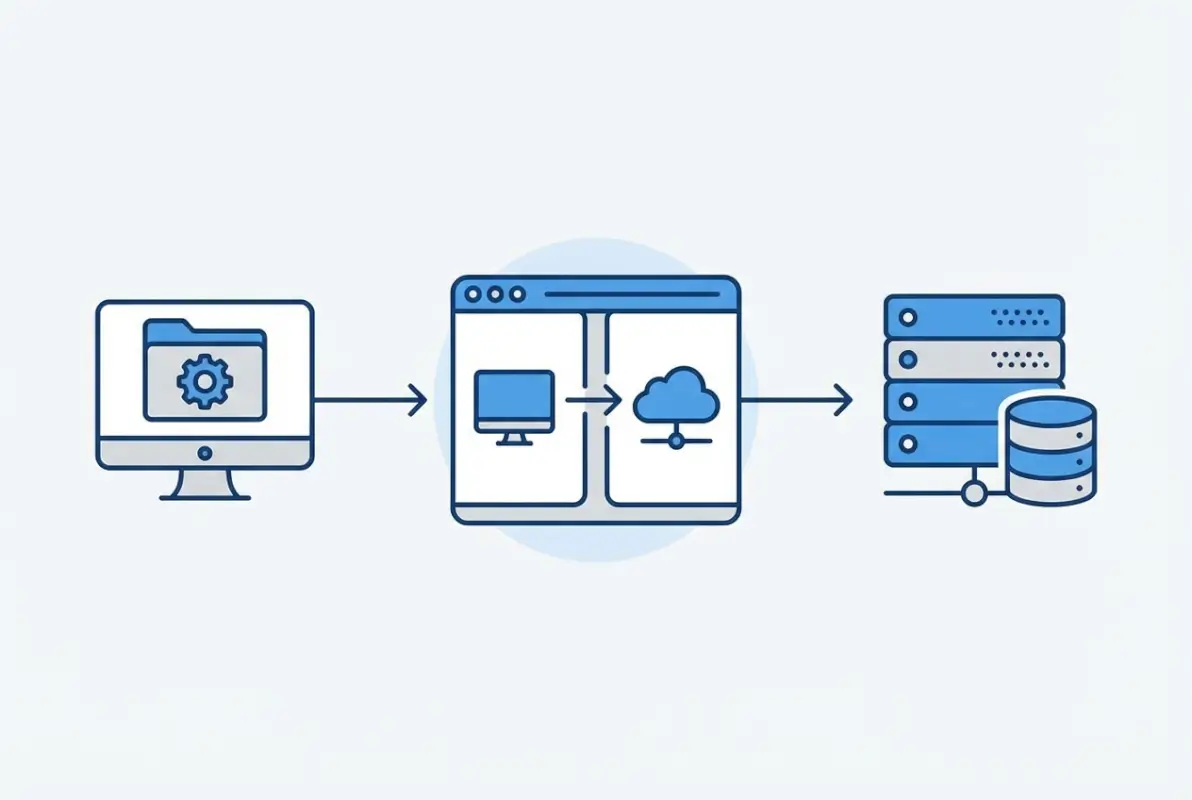
Large plugins—especially those bundled with themes or premium features—can easily exceed 50MB or even 100MB. Many shared hosting environments impose strict upload limits through PHP configuration, typically capping uploads at 8MB, 32MB, or 64MB. When you hit these walls, the WordPress dashboard simply refuses to process your plugin file. FTP bypasses these restrictions entirely because you’re transferring files directly to the server without going through PHP’s upload handlers.
There’s also the scenario where admin access becomes problematic. I’ve worked with clients whose WordPress dashboards became inaccessible due to conflicting plugins or memory exhaustion. In these situations, the only way to install a fix or remove the problematic code is through direct file access. Building a successful business directory often involves working with specialized plugins that require this level of control.
| Installation Method | Best For | Limitations |
|---|---|---|
| WordPress Dashboard | Small to medium plugins, repository plugins | File size limits, requires working dashboard |
| FTP Upload | Large plugins, custom code, troubleshooting | Requires technical knowledge, FTP credentials |
| Manual ZIP Upload | Premium plugins, non-repository plugins | Same file size restrictions as dashboard |
Security and source integrity deserve attention here too. When you install plugins through the WordPress repository, there’s an inherent layer of verification—the plugin has been reviewed and scanned. With FTP installation, particularly for premium or custom plugins, you’re responsible for ensuring the source is legitimate. This isn’t a weakness of FTP itself, it’s just a reminder that with greater control comes greater responsibility. Always download from the official vendor website or trusted marketplaces like ThemeForest or CodeCanyon.
Prerequisites and Getting Ready
Jumping straight into FTP installation without proper preparation is like trying to build furniture without checking if you have all the parts first—frustrating and ultimately unsuccessful. The good news is that the prerequisites are straightforward, and once you have them organized, the actual installation process flows naturally.
Prerequisites
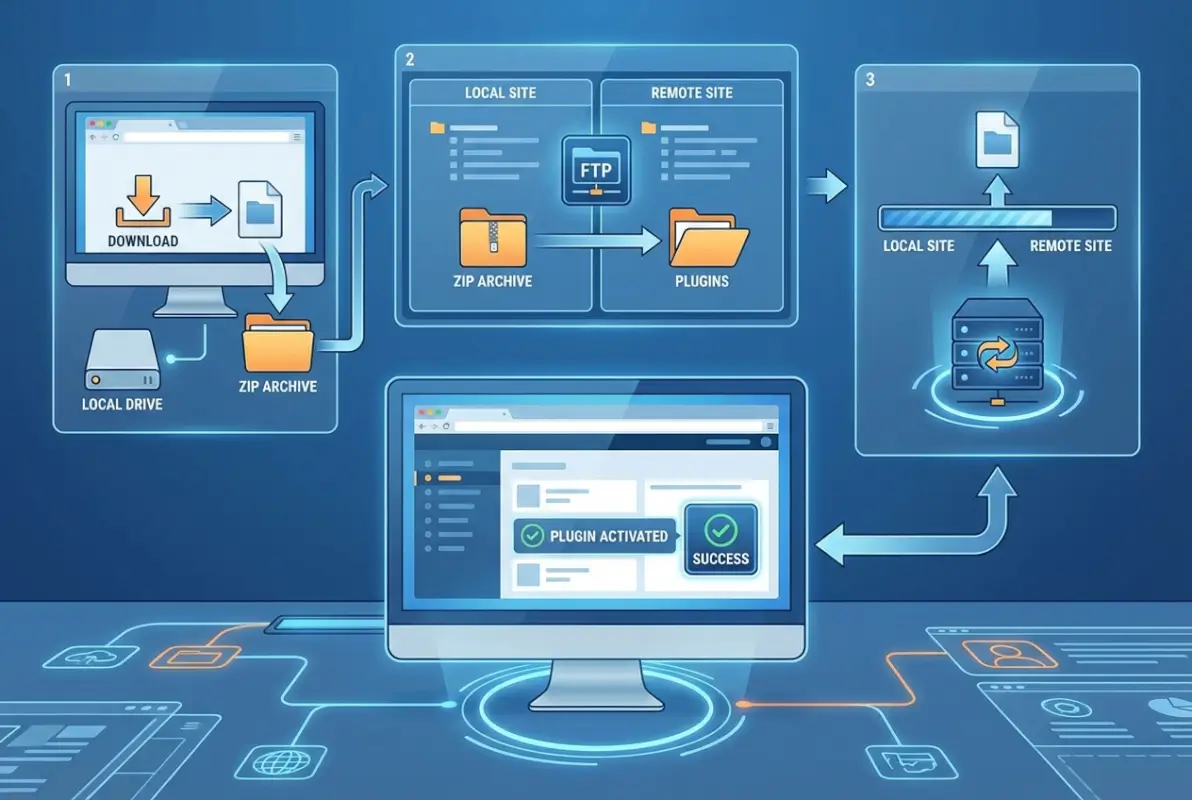
First and foremost, you need administrative access to your hosting server. This means having valid FTP or SFTP credentials, which typically include a hostname (often your domain name or server IP address), a username, a password, and a port number. Most hosting providers include these details in your welcome email, or you can find them in your hosting control panel under sections labeled “FTP Accounts” or “File Manager.”
The plugin itself should be downloaded and ready on your local computer as a ZIP file from a reputable source. This is critical—never download plugins from random websites or file-sharing services. Stick with official plugin developers, the WordPress repository (if you’re downloading the ZIP manually), or established marketplaces. The ZIP file should remain zipped at this stage; you’ll extract it during the upload process (though methods vary slightly depending on your approach).
Tools and Accounts You’ll Need
FileZilla is the free, open-source FTP client that most people use for this task, and for good reason—it’s reliable, actively maintained, and works across Windows, Mac, and Linux. You can download it from the official FileZilla website. There are alternatives like Cyberduck or WinSCP, but FileZilla’s interface is particularly beginner-friendly while still offering advanced features for power users.
You also need to know exactly where WordPress is installed on your server. For most standard installations, this is the public_html or www directory, and within that you’ll find the wp-content/plugins folder. However, if WordPress is installed in a subdirectory (like public_html/blog or public_html/wp), you’ll need to navigate accordingly. Creating a business directory website often involves understanding these file structures intimately.
Quick Checklists
Before you start the upload process, verify a few things to avoid common headaches. Check that the plugin folder name matches what you expect—sometimes developers use unconventional naming that can cause confusion later. Confirm WordPress version compatibility by checking the plugin’s documentation or readme file; installing a plugin designed for WordPress 5.x on a WordPress 4.x site (or vice versa) can cause serious conflicts.
Also verify your server’s PHP version meets the plugin’s requirements. Many modern plugins require PHP 7.4 or higher, but some shared hosting environments still run older versions. You can usually check this in your hosting control panel or by using a simple PHP info plugin. If there’s a mismatch, you might need to upgrade your PHP version before proceeding—most hosts make this a one-click operation now.
Step-by-Step: Installing a Plugin via FileZilla (FTP)
Now we get to the actual installation process, and I promise it’s less intimidating than it looks at first glance. The key is following the steps methodically without skipping ahead. Each step builds on the previous one, and rushing through usually means backtracking to fix overlooked details.
Step 1 — Prepare the Plugin
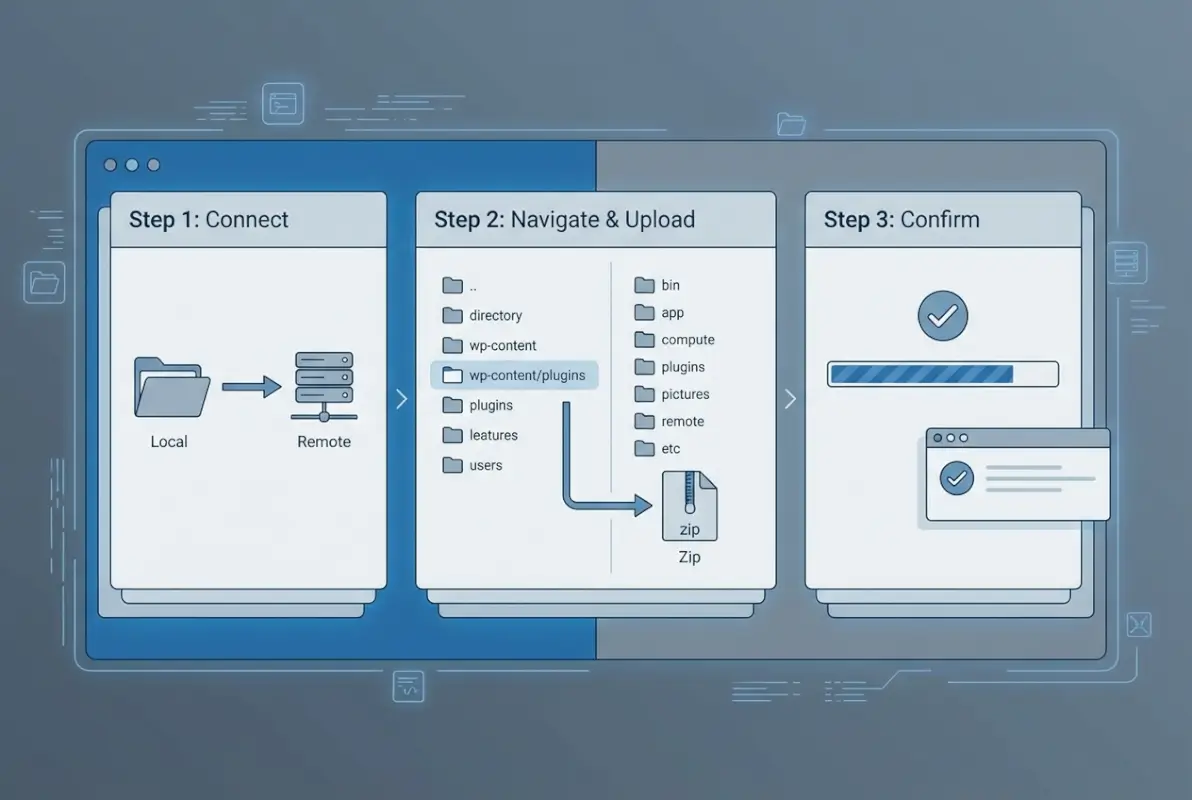
Download the plugin ZIP file from your trusted source and save it somewhere easily accessible on your computer—your Desktop or Downloads folder works perfectly. Now here’s where it gets slightly nuanced: some hosting environments and workflows want you to upload the ZIP file directly and extract it on the server, while others prefer you extract it locally first then upload the folder. The most common approach, and the one I recommend for beginners, is to extract the ZIP file on your local computer first.
When you extract the ZIP, you should get a single folder with the plugin’s name containing all the plugin files (PHP files, CSS, JavaScript, images, etc.). If you see multiple folders or loose files, something’s wrong with the ZIP structure, and you should re-download it. A properly packaged WordPress plugin always has one main folder containing everything else.
Step 2 — Connect with FileZilla
Open FileZilla, and you’ll see a clean interface divided into sections—local site on the left, remote site on the right, with connection fields at the top. Enter your FTP credentials in the Quickconnect bar: Host (your server address), Username, Password, and Port. For standard FTP, the port is typically 21; for SFTP (more secure), it’s usually 22. If your hosting provider supports SFTP, always choose that option—it encrypts your connection and credentials.
Click “Quickconnect” and FileZilla will attempt to establish the connection. You might see a certificate warning on first connection, especially with SFTP—this is normal. Review the certificate details (make sure the hostname matches your server) and click “OK” to trust it for future sessions. Once connected, the right pane will populate with your server’s directory structure.
Step 3 — Navigate to the Target Directory
In the Remote site pane (right side), you need to navigate to your WordPress installation’s plugins directory. Start by looking for public_html, www, or httpdocs—these are common root directories for web content. Double-click folders to open them, and look for the telltale WordPress folders: wp-admin, wp-content, and wp-includes.
Once you’ve found the WordPress root, open wp-content, then open the plugins folder inside it. You should see folders for any plugins already installed on your site. This is your destination. The full path typically looks like: /public_html/wp-content/plugins/ or /www/wp-content/plugins/. If you’re managing a business directory website, you’ll likely recognize some familiar directory-related plugins here.
Step 4 — Upload the Plugin
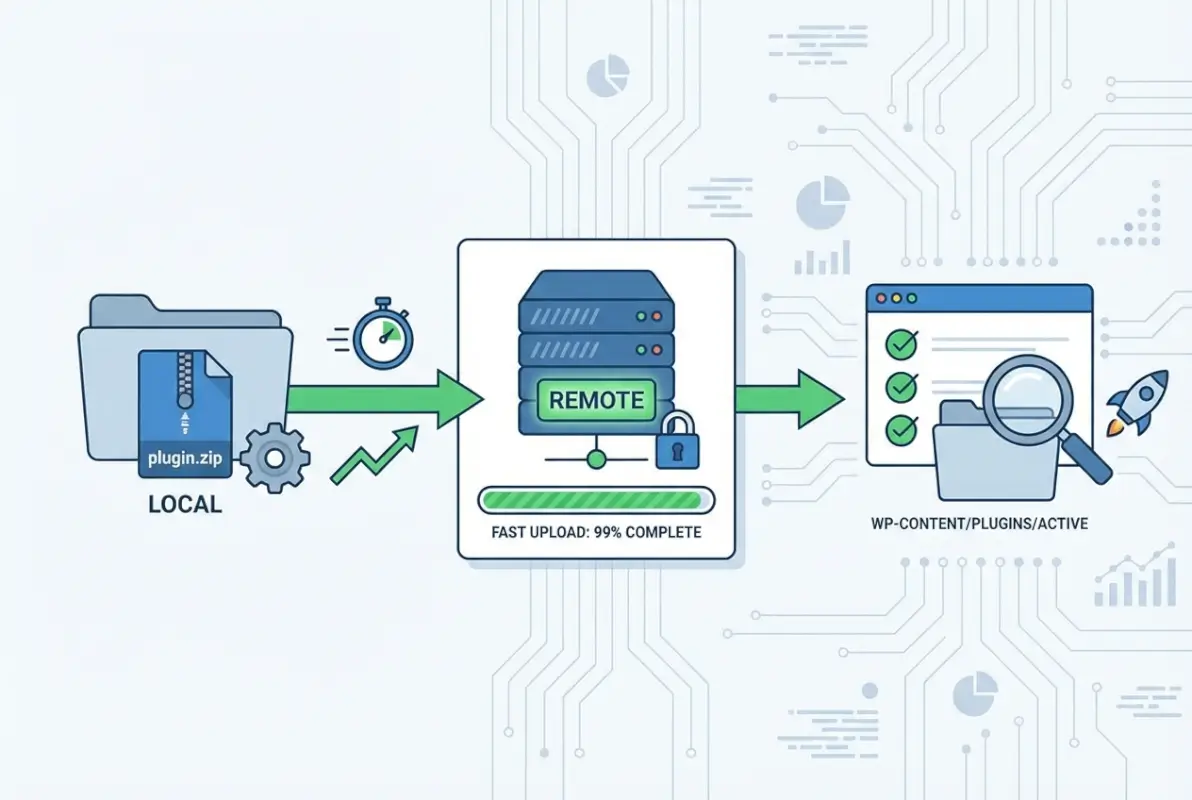
Now the moment you’ve been preparing for—the actual upload. In the Local site pane (left side), navigate to where you extracted the plugin folder on your computer. You should see the plugin folder itself (not the contents of the folder, but the folder as a single item). Right-click on this folder and select “Upload,” or simply drag it from the left pane to the right pane where you have the plugins directory open.
FileZilla will display transfer progress at the bottom of the window, showing each file as it uploads. For large plugins with thousands of files, this can take several minutes—be patient and don’t interrupt the transfer. If your connection drops mid-transfer, FileZilla will usually resume automatically, but it’s worth verifying that all files transferred completely when it finishes.
Step 5 — Verify and Activate
Once the upload completes, open your WordPress admin dashboard in a web browser and navigate to Plugins > Installed Plugins. You should see your newly uploaded plugin in the list, likely marked as “Inactive.” If you don’t see it, don’t panic—refresh the page first. Still not there? Check the plugin folder name in FileZilla; sometimes WordPress doesn’t recognize plugins if the folder name contains unexpected characters or doesn’t match the plugin’s header information.
Assuming the plugin appears correctly, click the “Activate” link below its name. WordPress will load the plugin and run any initialization code. Some plugins will redirect you to a welcome screen or settings page after activation—this is normal behavior. Others will simply activate silently and add new menu items or functionality without fanfare.
Step 6 — Post-Install Checks
After activation, verify that the plugin actually works as expected. Check for any error messages at the top of your WordPress admin pages—red banners or warnings often indicate compatibility issues or missing dependencies. Test the plugin’s core functionality; if it’s a contact form plugin, try submitting a test form. If it’s a caching plugin, check that pages are being cached properly.
Look at your website’s front end too, not just the admin area. Some plugin conflicts only manifest on the public-facing side, causing layout issues, JavaScript errors, or broken functionality. Open your browser’s developer console (F12 in most browsers) and check for JavaScript errors—these can indicate conflicts with your theme or other plugins.
Alternative Methods: When FTP Isn’t Necessary
While we’ve focused heavily on FTP installation because that’s the topic at hand, it’s worth acknowledging that FTP often isn’t the most efficient path for everyday plugin management. Understanding when to use FTP versus simpler methods will save you time and reduce unnecessary complexity in your workflow.
Via WordPress Admin (Upload ZIP)
For most scenarios—especially plugins under your server’s upload limit—the WordPress dashboard provides a much smoother experience. Navigate to Plugins > Add New, click the “Upload Plugin” button at the top, choose your ZIP file, and click “Install Now.” WordPress handles extraction, placement, and initial setup automatically. If the plugin file is small enough and your dashboard is accessible, this method is objectively superior to FTP installation.
The beauty of this approach is that WordPress validates the plugin structure during upload, catching many common packaging errors before they cause problems. You also don’t need to worry about FTP credentials, directory navigation, or file permissions—WordPress manages all of that behind the scenes. I use this method for probably 90% of my plugin installations; FTP is reserved for the edge cases where it fails.
Using a Hosting Provider’s Guidance
Many hosting providers have developed their own plugin installation workflows that blend FTP access with user-friendly interfaces. cPanel’s File Manager, for instance, provides a web-based interface for uploading and extracting files without requiring a separate FTP client. Some managed WordPress hosts like WP Engine or Kinsta provide specialized tools for plugin management that work around traditional limitations.
If you’re uncertain about the best approach for your specific hosting environment, check your provider’s knowledge base or contact their support team. They can often guide you to host-specific shortcuts or recommend the most reliable installation method for their infrastructure. Designing an attractive directory website becomes much easier when you know your hosting provider’s tools inside and out.
When the Plugin Comes as a Non-Repository ZIP
Premium and custom plugins—those not available in the WordPress repository—present unique installation considerations. Many premium plugin vendors provide detailed installation instructions specific to their product, and it’s worth following those precisely. Some include license activation steps that need to happen during or immediately after installation, while others might require additional configuration files or API keys.
These plugins often come with automatic update mechanisms that rely on proper initial installation. If you skip steps or improvise the installation process, you might find that updates don’t work correctly later, forcing you to manually reinstall every time a new version releases—a maintenance nightmare you definitely want to avoid.
Common Pitfalls and How to Troubleshoot
Even when you follow every step perfectly, things can still go sideways. WordPress environments are complex ecosystems where server configuration, PHP version, existing plugins, theme code, and hosting quirks all interact in sometimes unpredictable ways. Understanding common failure modes helps you diagnose issues quickly instead of spending hours chasing ghosts.

FTP Transfer Issues
Incomplete uploads are surprisingly common, especially on slower or unstable connections. FileZilla might report a successful transfer even when files are corrupted or truncated during transit. If a plugin fails to appear after upload, or activating it produces fatal errors, the first troubleshooting step is re-uploading the entire plugin folder. Delete the existing folder via FTP first, then upload a fresh copy.
Permissions errors manifest as mysterious “unable to write file” messages or activation failures. WordPress needs specific permissions on plugin files: typically 644 for files and 755 for directories. Most FTP clients let you change permissions by right-clicking a file or folder—if you see files with 600 or 400 permissions, that’s likely your problem. Some hosting environments automatically set permissions correctly, others require manual adjustment.
Incorrect path uploads happen when you accidentally upload the plugin to the wrong directory, or upload the contents instead of the folder. Double-check that your final path looks like /wp-content/plugins/plugin-name/ with all the plugin files inside that folder. If you see loose PHP files directly inside /plugins/ or scattered in subdirectories, you’ve uploaded incorrectly and need to reorganize.
Activation Hiccups
Some plugins require PHP memory limits or execution times higher than your server’s defaults. The telltale sign is a white screen or timeout error immediately after clicking “Activate.” Check your PHP error logs (usually accessible through your hosting control panel) for memory exhaustion messages. If that’s the culprit, you’ll need to increase PHP memory limits through php.ini, .htaccess, or wp-config.php—the specific method depends on your hosting configuration.
Plugin conflicts are another common activation problem, where the new plugin incompatibly clashes with something already installed. The systematic way to diagnose this: deactivate all other plugins, try activating the new one, then reactivate others one by one to identify the conflict. Time-consuming? Yes. Effective? Absolutely. If you’re working on installing specialized plugins, this debugging skill becomes essential.
Security Considerations
Bundled malware in pirated or nulled plugins is a genuine threat. Some unscrupulous sites offer “free” versions of premium plugins that include hidden backdoors, spam injectors, or cryptocurrency miners. The performance impact might be subtle at first, but the security implications are severe. If a plugin seems too good to be true—especially if you’re getting a premium plugin for free from a sketchy source—it probably is.
Always verify the MD5 or SHA checksum of downloaded plugins when provided by the vendor. Many premium plugin developers include checksums in their download pages or documentation. A mismatch between the published checksum and your downloaded file indicates tampering or corruption. It takes thirty seconds to verify and could save you from a catastrophic security breach.
Best Practices and Tips
Moving beyond just “getting it to work” and into “doing it right” territory requires adopting some fundamental best practices that separate hobbyist site maintenance from professional-grade operations. These aren’t overly burdensome rules, they’re practical guidelines that prevent future headaches.
Backups and Rollback
Before installing any plugin—whether via FTP or dashboard—create a complete backup of your WordPress files and database. Full stop, no exceptions. Plugins can conflict with themes, modify database structures, or introduce bugs that break your site. Without a backup, recovering from these situations ranges from difficult to impossible. Services like UpdraftPlus or BlogVault automate this process beautifully.
Test rollback procedures before you actually need them. Download a backup, restore it to a test environment, and verify everything works. Knowing you can rollback and actually having practiced the rollback process are two very different confidence levels when facing a crisis at 2 AM.
Version Control and Compatibility
Maintain a compatibility matrix if you manage multiple sites or complex configurations. Document which plugins work with which themes, note any known conflicts, and record successful version combinations. This sounds tedious until you’re troubleshooting the same issue across three different client sites and can’t remember which configuration worked on which site.
Staging environments are your friend here—test plugin installations and updates on a staging copy of your site before touching production. Most quality managed hosting providers include staging environments as a standard feature. If yours doesn’t, consider whether the time and stress saved justifies upgrading to a host that does provide this.
Documentation and Sources
Maintain installation records for premium or custom plugins with more detail than free repository plugins. Note where you downloaded it, what license key you used, renewal dates, and any special installation requirements. I’ve seen scenarios where developers couldn’t remember which marketplace they purchased a plugin from, making it impossible to download updates or get support.
Save original ZIP files in an organized archive, especially for plugins that update frequently. Sometimes an update introduces breaking changes, and having immediate access to the previous version means the difference between quick rollback and extended downtime while you hunt for an older version online.
Security and Compliance Considerations
Security isn’t a one-time checkbox you tick during installation—it’s an ongoing practice that starts with choosing the right sources and continues through maintaining proper access controls and update hygiene. FTP-based installation adds specific security dimensions that dashboard installation partially abstracts away.
Only Download Plugins from Trusted Sources
The official WordPress plugin repository undergoes automated and manual security reviews, providing a baseline level of trust. Premium marketplaces like CodeCanyon conduct their own reviews, though standards vary. Direct downloads from plugin developers’ websites are generally safe if the developer is reputable and has an established track record.
Red flags to watch for: websites offering “nulled” or “cracked” premium plugins, downloads that require completing surveys or offers, sites with excessive advertising or suspicious redirect chains, and sources that bundle multiple unrelated plugins together. If your instinct says something feels wrong, trust it and find an alternative source.
Use Secure Transfer When Possible
SFTP encrypts both your credentials and the file transfer itself, preventing interception by anyone monitoring network traffic. Plain FTP sends everything in cleartext—passwords included. The configuration difference in FileZilla is minimal (just changing the protocol and port), but the security improvement is substantial. Every hosting provider worth using supports SFTP, so there’s rarely a legitimate reason to use plain FTP anymore.
Some hosting providers also support FTPS (FTP over SSL/TLS), which provides similar security to SFTP through a different protocol. Either option is vastly superior to unencrypted FTP, especially if you’re managing websites that handle sensitive user data or fall under compliance requirements like GDPR or HIPAA.
Frequently Asked Questions
What is FileZilla and why would I use it to install WordPress plugins?
FileZilla is a free, open-source FTP client that transfers files between your computer and web server. You’d use it for plugin installation when dashboard uploads fail due to file size limits, when your WordPress admin is inaccessible, or when working with large premium plugins that exceed PHP upload restrictions. It provides direct server access that bypasses WordPress’s upload handlers.
Can I install a WordPress plugin via FTP if I don’t have admin access to the dashboard?
You need FTP/SFTP credentials from your hosting provider to transfer files, but you still typically need WordPress admin access to activate the plugin after upload. If you completely lack dashboard access, FTP can help you troubleshoot by removing problematic plugins, but full installation requires at least activation capability. Coordinate with your hosting support if you’re locked out of both.
Do I unzip the plugin before uploading via FTP?
Yes, in most cases you extract the ZIP file on your local computer first, then upload the extracted folder to wp-content/plugins via FTP. The folder should contain all plugin files and maintain its original structure. Some hosting file managers let you upload the ZIP and extract server-side, but FTP clients typically require pre-extraction for proper directory structure.
What directory should I upload the plugin to?
Upload to the wp-content/plugins directory within your WordPress installation. The full path typically looks like /public_html/wp-content/plugins/ or /www/wp-content/plugins/ depending on your hosting setup. Each plugin should be its own folder within the plugins directory, maintaining its original folder name and internal structure.
What if the plugin doesn’t appear after FTP upload?
First, refresh your WordPress plugins page. If it still doesn’t appear, check that you uploaded to the correct directory path, verify the folder structure is intact (not loose files), and confirm file permissions are set correctly (typically 644 for files, 755 for directories). Also check that the plugin’s main PHP file contains proper WordPress plugin headers.
Is installing plugins via FTP safe?
FTP installation is safe when you use trusted plugin sources and secure transfer protocols (SFTP rather than plain FTP). The risk comes from downloading compromised or malicious plugins, not from the FTP transfer method itself. Always verify plugin sources, use SFTP when available, and maintain backups before installing anything via any method.
How do I know if my hosting supports SFTP instead of regular FTP?
Check your hosting control panel under FTP or SSH access settings, or contact your hosting support. Most modern hosts support SFTP (typically on port 22), which provides encrypted transfers. In FileZilla, select SFTP protocol when connecting. If your credentials work with SFTP, that’s confirmation of support—always prefer it over plain FTP for security.
Can I delete a plugin via FTP if it’s causing errors?
Yes, if a plugin breaks your site and prevents dashboard access, FTP provides a critical troubleshooting path. Navigate to wp-content/plugins, locate the problematic plugin’s folder, and delete it. This immediately deactivates the plugin and removes its code. This technique is invaluable when dealing with fatal errors that lock you out of WordPress admin.
What’s the difference between uploading via FTP and using WordPress dashboard upload?
Dashboard upload uses WordPress’s built-in PHP upload handlers, which are subject to server upload limits and require a functioning admin interface. FTP bypasses these limitations by writing files directly to the server, allowing larger transfers and working even when the dashboard is inaccessible. FTP requires more technical knowledge but provides greater control and troubleshooting capability.
Should I keep the original plugin ZIP file after installation?
Yes, especially for premium or custom plugins. Maintaining an archive of plugin ZIPs gives you immediate rollback capability if updates cause problems, and serves as documentation of exactly which version you installed. Store them in an organized folder structure with dates and version numbers for easy reference during future troubleshooting.
Taking Control of Your WordPress Installation
Understanding FTP-based plugin installation fundamentally changes your relationship with WordPress maintenance. What once seemed like mysterious backend magic becomes a comprehensible, controllable process. You’re no longer at the mercy of upload limits, dashboard glitches, or hosting provider constraints—you have the knowledge and tools to work around these limitations and maintain your site even when conventional methods fail.
The process itself becomes almost routine once you’ve done it a few times: download and extract your plugin, connect to your server via FileZilla using SFTP, navigate to wp-content/plugins, upload the folder, and activate through WordPress admin. Each step is straightforward, and the potential complications we’ve discussed become recognizable patterns you can diagnose and fix efficiently.
Your Next Steps
Don’t wait for an emergency to learn FTP installation. Set up FileZilla today, connect to a test site or staging environment, and practice the upload process with a simple free plugin. Build that muscle memory now, while the stakes are low. When you eventually face a situation where FTP is your only option—and you will—you’ll be calm and confident instead of stressed and searching for tutorials at 3 AM.
Remember that FTP installation is a tool in your WordPress toolkit, not the default approach for every situation. Use dashboard uploads for routine plugin installations, reserve FTP for scenarios where it provides clear advantages, and always maintain backups regardless of installation method. The goal isn’t to make everything more complicated—it’s to ensure you’re never stuck without options when something goes wrong.