Should Local Businesses Use a Directory Page for SEO? A Data-Driven Guide (2026)

Generating summary...
Directory pages aren’t the flashiest SEO strategy out there, but they’re one of the most quietly effective tools for local businesses trying to carve out visibility in competitive markets. While most businesses chase after the latest algorithm update or trendy marketing tactic, the businesses that consistently win local search are often the ones with well-structured, properly maintained directory pages working in the background.
Here’s what most local SEO guides won’t tell you: directory pages work best when they’re not just about you. The real power comes from creating a resource that serves your community—a hub that connects customers with related services, builds natural partnerships, and positions your business as a local authority. When done right, a directory page becomes a self-reinforcing asset that improves rankings, attracts backlinks, and drives consistent organic traffic month after month.
- Directory pages boost local SEO through improved citations, backlinks, and local authority signals
- Consistent NAP data across your directory and other platforms is critical for local rankings
- Quality over quantity – a well-curated directory of 20-30 businesses outperforms a bloated list of 200
- Structured data matters – proper LocalBusiness schema can significantly improve visibility in local pack results
- Maintenance is non-negotiable – outdated directories actively harm your SEO and user trust
- Results take time – expect 2-4 months for citation benefits, 6-12 months for full domain authority improvements
Understanding the Current Directory Page Landscape
The local search ecosystem has evolved dramatically over the past few years. Google’s emphasis on E-E-A-T (Experience, Expertise, Authoritativeness, Trustworthiness) means that businesses need to demonstrate local connections and community involvement in ways that go beyond simple keyword optimization. Directory pages, when properly implemented, provide exactly these signals.
According to recent local SEO statistics from BrightLocal, local businesses that maintain consistent citations across multiple platforms see an average ranking improvement of 25% compared to those with inconsistent or sparse citation profiles. More importantly, 87% of consumers read online reviews and check business information across multiple sources before making a decision—which means your directory page isn’t just about SEO, it’s about meeting customer expectations for comprehensive local information.
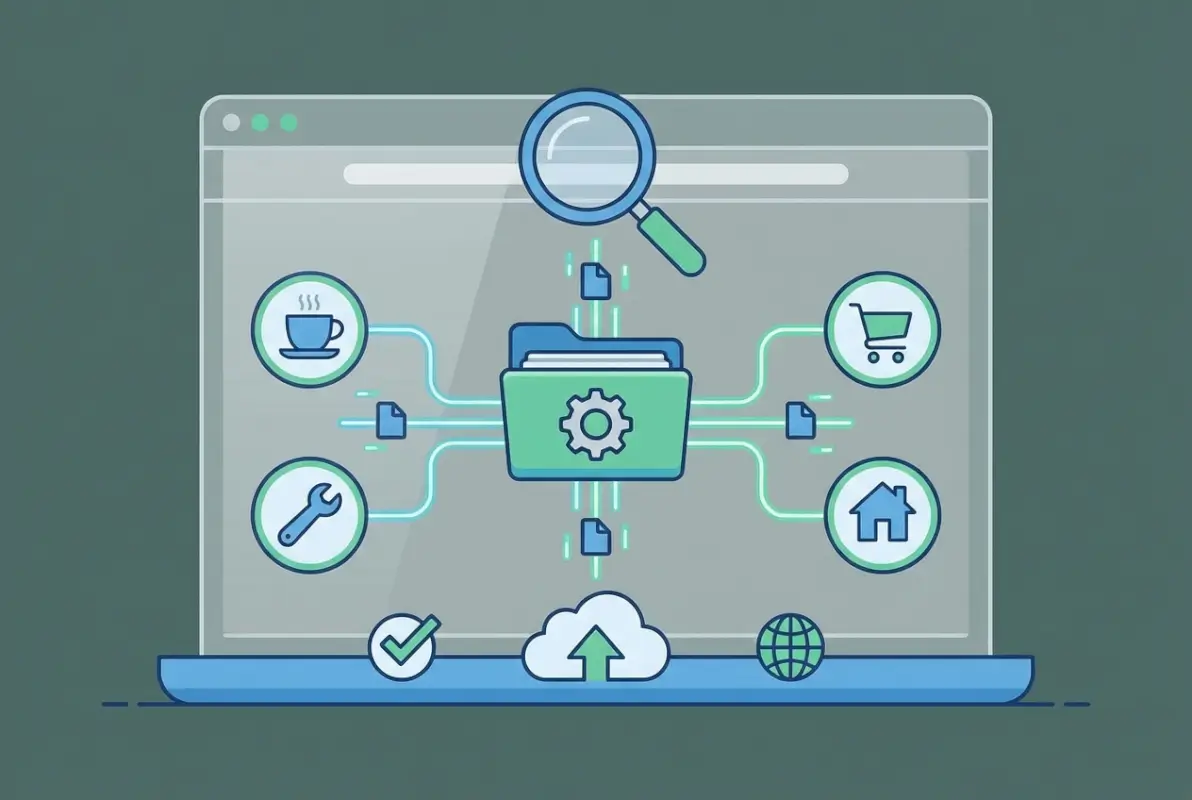
What separates successful directory pages from failed attempts? Three core elements: strategic content organization, genuine community value, and consistent technical execution. The businesses winning with directory pages aren’t treating them as SEO afterthoughts—they’re building genuine resources that solve real problems for local customers.
What Makes Directory Pages Effective in Modern Local SEO
The mechanics of how directory pages influence rankings have shifted. It’s no longer just about keyword density or the number of listings you can stuff onto a page. Modern local search algorithms evaluate directory pages based on user engagement metrics, data accuracy, schema implementation, and the quality of outbound connections.
When you create a directory page featuring complementary local businesses, you’re creating what Google views as a “local information hub.” These hubs get preferential treatment in local pack results, especially when they demonstrate consistent updates, accurate business data, and strong user engagement signals (low bounce rates, high time on page, return visitors).
The businesses I’ve worked with that see the best results from directory pages share a common approach: they start small, focus on quality, and treat their directory as a living resource rather than a set-it-and-forget-it project. One particular home services company grew their organic traffic by 42% in six months simply by creating a curated directory of 15 complementary service providers and maintaining it religiously with monthly updates.
Core SEO Benefits of Directory Pages for Local Businesses
Directory pages deliver measurable SEO value through several interconnected mechanisms. Understanding these mechanisms helps you prioritize which aspects of your directory to optimize first and where to allocate ongoing maintenance efforts.
The primary benefit comes from citation building and NAP consistency. Every properly structured listing on your directory page reinforces location signals to search engines. When your business information appears consistently across your own directory, your Google Business Profile, and other authoritative directories, search engines interpret this as a strong trust signal. According to Google’s Local Business structured data guidelines, consistent business information across multiple sources is a key factor in determining local search rankings.

Backlink acquisition represents the second major benefit. When you feature other businesses in your directory and notify them of their inclusion, you create natural link-building opportunities. Businesses appreciate being featured and often reciprocate by linking back to your directory from their own sites or social media profiles. This organic link building is far more valuable than manufactured link schemes, and it scales naturally as your directory grows.
| SEO Benefit | Impact Level | Time to Results | Effort Required |
|---|---|---|---|
| Citation Consistency | High | 2-3 months | Medium |
| Natural Backlinks | Very High | 3-6 months | Low-Medium |
| Local Authority | High | 4-8 months | Medium |
| User Engagement | Medium | 1-2 months | High |
| Domain Authority | Medium-High | 6-12 months | Ongoing |
How Directory Pages Build Local Authority
Local authority isn’t just about domain metrics or backlink counts—it’s about demonstrating genuine connection to and knowledge of your local business community. When search engines evaluate local authority, they look for signals that your business is embedded in the local ecosystem, not just a national chain with a local address.
Directory pages provide these authority signals in multiple ways. By curating and featuring other local businesses, you demonstrate local knowledge and community involvement. When you maintain accurate, up-to-date information about these businesses, you show commitment to your local area. And when other local businesses link back to your directory, you create a web of local citations that reinforces your authority within your geographic market.
For industries like white label business directory software solutions, this approach can be particularly effective for establishing market leadership and attracting B2B clients who value comprehensive local resources.
Technical Implementation: Structure and Schema
The technical foundation of your directory page determines how effectively search engines can crawl, understand, and index your content. Getting the structure right from the beginning saves significant optimization work later and ensures you’re capturing the full SEO value of your directory.
Schema markup represents the single most important technical element for directory pages. Implementing proper LocalBusiness schema for each listing helps search engines understand the relationships between businesses, locations, and services. This structured data can directly influence your appearance in local pack results and rich snippets.

For each business listing in your directory, you should implement LocalBusiness schema that includes name, address, telephone, opening hours, geographic coordinates, and a description. According to Schema.org standards, this structured approach to marking up local business information significantly improves how search engines interpret and display your content in search results.
Essential On-Page Elements for Directory Pages
Beyond schema, your directory page needs a clear information architecture that serves both users and search engines. Each listing should include consistent elements: business name in an H3 tag, full address with proper formatting, phone number (ideally click-to-call enabled on mobile), business hours, a brief description, and categories or tags for filtering.
Internal linking from your directory to relevant service pages, location pages, or blog content creates topical clusters that reinforce your site’s overall SEO structure. When you mention a service that one of the listed businesses provides, link to your own page about that service if relevant—this shows search engines the topical relationships across your site.
Mobile optimization deserves special attention. More than 60% of local searches happen on mobile devices, which means your directory must provide an excellent mobile experience. This includes responsive design, fast loading times, easy-to-tap phone numbers, and simplified navigation that works with touch interfaces.
Content Strategy and Maintenance Requirements
The most technically perfect directory page will fail if the content becomes outdated or inaccurate. Establishing a sustainable maintenance routine is crucial for long-term SEO success with directory pages.
Create a monthly audit schedule where you verify business information for a rotating subset of your listings. For a directory of 30 businesses, check 10 listings each month—this ensures every listing is verified quarterly without overwhelming your team. During these audits, verify phone numbers still work, addresses haven’t changed, hours are current, and websites are still active.

Content freshness signals matter for SEO, and directories that show regular updates tend to maintain stronger rankings than stagnant ones. Consider implementing a “recently updated” or “verified on [date]” indicator for each listing—this shows both users and search engines that information is current and trustworthy.
Scaling Your Directory Without Sacrificing Quality
There’s a natural tension between directory growth and quality maintenance. The sweet spot for most local businesses is 20-50 carefully curated listings rather than hundreds of mediocre ones. A smaller, well-maintained directory builds more trust and provides better user experience than an extensive but outdated directory.
When considering whether to add a new business to your directory, apply consistent quality criteria: Is the business actively operating? Does it complement your services? Would your customers genuinely find value in this listing? If you can’t answer yes to all three, don’t add it just to inflate your directory size.
For businesses looking to streamline the management process, understanding key steps run successful directory website business operations can help establish efficient workflows that maintain quality at scale.
Measuring Success and Optimizing Performance
What gets measured gets improved. Establishing clear metrics for your directory page’s performance allows you to identify what’s working, what needs adjustment, and where to focus optimization efforts.
Track these key performance indicators monthly: organic traffic to the directory page, time on page, bounce rate, click-through rates to listed businesses, backlinks acquired from listed businesses, and keyword rankings for local search terms. Additionally, monitor how many users are finding your main service pages through the directory (internal referrals).

Google Search Console provides invaluable data about how your directory performs in search results. Pay particular attention to queries that trigger impressions but don’t generate clicks—these represent optimization opportunities where better titles, descriptions, or structured data could improve CTR.
| Metric | Target Range | What It Indicates |
|---|---|---|
| Time on Page | 2-4 minutes | Users finding value, exploring listings |
| Bounce Rate | 35-50% | Content meeting user expectations |
| Pages per Session | 2.5-4 | Effective internal linking, user engagement |
| Monthly Backlinks | 2-5 | Featured businesses linking back |
| Organic Growth | 10-15% MoM | Improving search visibility |
A/B Testing and Continuous Improvement
Small changes to your directory structure can yield significant performance improvements. Test different layouts (grid vs. list view), filtering options (category vs. location vs. alphabetical), and call-to-action placement to identify what drives the best engagement.
I once worked with a dental practice that tested two different directory layouts—one emphasizing specialist categories, the other emphasizing proximity to their office. The proximity-focused version increased click-throughs to individual listings by 34% because it better matched how their patients actually search for complementary health services.
Common Pitfalls and How to Avoid Them
Even well-intentioned directory pages can fail when common mistakes undermine their SEO value. Understanding these pitfalls helps you avoid wasting time and resources on ineffective approaches.
The most frequent mistake is treating directory creation as a one-time project rather than an ongoing commitment. Directories require consistent maintenance—businesses close, phone numbers change, and outdated information erodes trust. Set realistic expectations about the time investment required before launching a directory page.
Another common error is prioritizing quantity over quality. A directory with 200 barely-vetted listings creates more problems than it solves—users can’t find what they need, maintenance becomes overwhelming, and the sheer volume of potentially outdated information damages your site’s credibility. Start small and expand deliberately.
Inconsistent NAP formatting across listings represents a technical pitfall that confuses search engines. Establish formatting standards before populating your directory: decide whether to abbreviate street types (St. vs. Street), how to format phone numbers, and whether to include suite numbers—then apply these standards rigorously across every listing.
Avoiding Penalty Risks
While legitimate directory pages pose minimal penalty risk, certain practices can trigger algorithmic filters or manual actions. Avoid creating duplicate listings for the same business with slight variations (this looks like keyword stuffing), don’t stuff listings with excessive keywords unrelated to the actual business, and never create fake business listings just to populate your directory.
Reciprocal linking schemes where you explicitly trade directory placement for backlinks can also raise red flags. Natural reciprocal links that happen organically (a business you feature chooses to link back) are fine—but formal link exchange agreements violate Google’s guidelines and can result in penalties.
When Directory Pages Make the Most Sense
Directory pages aren’t universally beneficial for every business. Understanding whether this strategy aligns with your specific situation helps you make informed decisions about resource allocation.
Service-based businesses with clear complementary service ecosystems see the strongest results. Plumbers can feature electricians and HVAC technicians; wedding photographers can feature venues, caterers, and florists; real estate agents can feature mortgage brokers, home inspectors, and contractors. The common thread is creating genuine value for customers who need multiple related services.
Businesses in competitive local markets also benefit significantly from directory pages because they provide differentiation. When competing businesses offer similar services at similar prices, the one that positions itself as a helpful local resource (rather than just another vendor) often wins customer preference.
Conversely, highly specialized businesses serving narrow niches may struggle to create valuable directory pages because there simply aren’t enough complementary businesses to feature. A highly specialized medical practice serving rare conditions, for example, probably won’t benefit from a directory approach.
Frequently Asked Questions
How do directory pages improve local SEO rankings?
Directory pages improve local SEO by creating consistent NAP citations, attracting natural backlinks from featured businesses, and establishing local authority signals. Search engines interpret well-maintained directories as indicators of community involvement and local expertise, which positively influences rankings in local pack results and organic search positions.
What information should I include in each directory listing?
Each listing should include the business name, complete address, phone number (click-to-call enabled), website URL, business hours, a brief description (50-100 words), relevant categories or tags, and LocalBusiness schema markup. Consistency in formatting across all listings is crucial for maximizing SEO value and user experience.
How often should I update my business directory page?
Implement a quarterly verification schedule where you check one-third of your listings each month. This ensures every listing is verified at least four times per year without overwhelming your maintenance capacity. Additionally, respond to user-reported inaccuracies within 48 hours to maintain trust and accuracy.
Can directory pages help with Google Business Profile rankings?
Yes, directory pages support GBP rankings indirectly by creating additional citation instances, generating backlinks from featured businesses, and providing a consistent NAP presence across the web. Ensure your directory listings match your GBP information exactly to maximize this benefit and avoid conflicting signals.
Should I feature competitors in my directory page?
Generally no—focus on complementary businesses rather than direct competitors. However, if you operate in a market where collaboration benefits everyone (like featuring other hotels in a destination guide), carefully curated competitor listings can enhance credibility and user value without significantly cannibalizing business.
What schema markup is most important for directory pages?
LocalBusiness schema is essential for each listing, including properties for name, address, telephone, openingHours, geo coordinates, and url. For the directory page itself, consider CollectionPage schema to indicate it’s a curated list. Validate all markup using Google’s Rich Results Test tool before publishing.
How many businesses should I include in my directory?
Start with 15-30 carefully vetted, high-quality listings rather than attempting to create a comprehensive directory immediately. This manageable size allows you to maintain accuracy while still providing meaningful value. Expand gradually as your maintenance capacity and user demand grow.
Will a directory page work for service-area businesses without physical locations?
Yes, but adjust your approach. Focus on service categories and coverage areas rather than physical proximity. Use Service schema alongside LocalBusiness schema, and structure listings around service types and geographic coverage zones rather than street addresses. Understanding search businesses in fslocal directory tips can help optimize discoverability.
How long does it take to see SEO results from a directory page?
Expect citation benefits within 2-3 months, improved local rankings around months 4-6, and measurable backlink acquisition after 6-12 months. Results vary based on market competition, directory quality, and maintenance consistency. Directory pages are a medium-term SEO investment, not a quick-win tactic.
Should I create separate directory pages for different locations?
For multi-location businesses, yes. Create location-specific directory pages that feature businesses relevant to each geographic market. This localization strengthens geographic targeting signals and provides more relevant information to users. Implement proper canonicalization to avoid duplicate content issues across similar location pages.
Taking Action: Your 30-60 Day Directory Implementation Plan
Theory without execution doesn’t move the needle. If you’ve decided a directory page makes sense for your business, here’s a concrete implementation roadmap that balances thoroughness with practical time constraints.
Week 1-2: Foundation and Planning
Identify 15-20 complementary businesses you want to feature initially. Research their current information (websites, GBP listings, phone numbers) and verify they’re actively operating. Create a standardized listing template with all required fields and determine your NAP formatting standards. Set up a simple spreadsheet to track listing information and verification dates.
Week 3-4: Page Creation and Technical Setup
Build the directory page with proper structure, implement LocalBusiness schema for each listing, and set up internal links to relevant service pages. Ensure mobile responsiveness and test click-to-call functionality. Add filtering or categorization if your directory includes diverse business types. Run the page through Google’s Rich Results Test to validate schema implementation.
Week 5-6: Outreach and Promotion
Contact featured businesses to inform them of their inclusion and suggest they might want to share or link to their listing. This isn’t a link request—frame it as a courtesy notification with an implicit invitation to reciprocate if they find value. Monitor early performance metrics in Google Search Console and Analytics.
Months 2-3: Optimization and Expansion
Review user behavior data to identify optimization opportunities. Adjust layout, filtering, or content based on how users actually interact with your directory. Consider adding 5-10 additional listings if maintenance capacity allows and user demand suggests expansion would add value.
Ready to Build Your Directory?
Start by identifying 15 complementary local businesses you trust and would genuinely recommend to customers. That core group will form the foundation of a directory that serves your community while improving your SEO.
Remember: A directory page isn’t about gaming algorithms—it’s about becoming a valuable local resource that naturally earns the visibility and authority your business deserves.
Directory pages represent one of the few remaining local SEO strategies where doing the right thing for users and doing the right thing for SEO are perfectly aligned. When you create a genuinely useful resource that helps customers discover quality local businesses, the SEO benefits follow naturally through improved citations, earned backlinks, and enhanced local authority. The question isn’t whether directory pages work—it’s whether you’re willing to invest the consistent effort required to maintain one properly.
Was this article helpful?