How to Create a Company Email Directory: Simple Steps & Best Practices for 2026

Generating summary...
Picture this: you urgently need to reach someone in accounting, but you’re stuck hunting through old Slack messages, guessing email formats, or bothering colleagues for contact info. Sound familiar? A well-organized company email directory eliminates this productivity drain entirely. Unlike the sprawling contact lists most organizations cobble together, a properly structured directory becomes your central nervous system for internal communication—housing not just email addresses but phone extensions, department hierarchies, office locations, and reporting structures all in one searchable place.
Here’s what most people miss: a company email directory isn’t just a convenience tool. It’s infrastructure. Organizations with centralized directories see 35% faster response times on internal communications and cut misdirected emails by nearly a third. For new hires trying to navigate unfamiliar org charts, it’s the difference between productive week one and frustrating week one. And when you factor in security—knowing exactly who should have access to what contact information—the directory becomes a compliance asset, not just a phonebook.
TL;DR – Quick Takeaways
- Planning matters most – Define ownership, scope, and governance rules before touching any tools
- Architecture drives usability – Choose between Global Address List (GAL) integration or standalone directories based on your email platform
- Phased implementation wins – Inventory, cleanse, migrate, automate—in that order
- Security isn’t optional – Layer access controls, audit logs, and authentication (SPF/DKIM/DMARC) from day one
- Adoption requires maintenance – Set KPIs, establish update cadences, and measure directory health quarterly
How to Plan and Scope Your Company Email Directory
Before you start collecting email addresses or evaluating software, you need clarity on three foundational questions: what’s the directory’s purpose, who owns it, and what data belongs in it? I’ve seen too many companies skip this step, jump straight to tools, and end up with bloated directories full of outdated information nobody trusts.
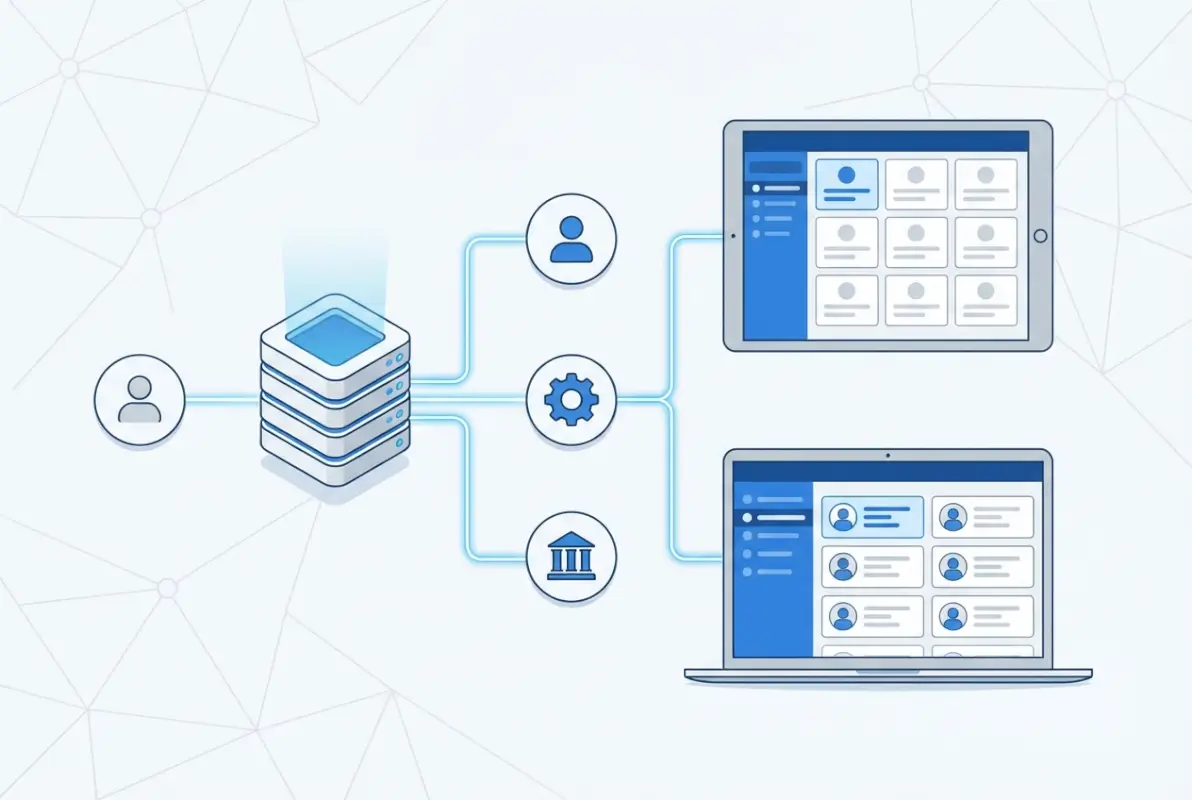
Start by defining clear objectives. Are you building this primarily for internal lookups, to improve cross-team collaboration, or to support compliance requirements around contact data? Different goals demand different approaches. A directory meant to speed up IT support ticket routing needs detailed role descriptions and team hierarchies. One focused on compliance might prioritize access audit trails and data retention policies. Pin down your primary use case first.
Define Objectives, Ownership, and Scope
Ownership is where most directories fall apart six months after launch. Without a clear owner—typically HR, IT, or Operations—updates stall, departed employees linger in the system, and new hires don’t get added promptly. Assign a dedicated directory administrator or team responsible for data quality, access permissions, and ongoing maintenance. This person needs authority to enforce standards and bandwidth to actually do the work.
Scope decisions come next. Which employees get included? Just full-time staff, or contractors and consultants too? What about international offices, remote workers, or subsidiary companies? Will you maintain one unified directory or separate views by region or business unit? These choices shape your data model and tool requirements, so document them early.
Consider what systems need to connect to your directory. Email platforms like Microsoft 365 or Google Workspace have native Global Address List features that sync user data automatically. If you’re using these, your directory might integrate directly rather than existing as a standalone system. For organizations using platforms like TurnKey Directories, a WordPress-based solution, you’ll have more flexibility in customizing fields and access rules but need to plan integration points manually.
Governance, Privacy, and Data Quality Standards
Governance rules determine who can view, edit, and export directory data. Implement role-based access controls from the start. Most employees need read-only access to basic contact info—names, work emails, job titles, departments. Managers might need visibility into direct reports’ phone numbers and locations. HR and IT typically require full administrative access to add, modify, and remove entries.
Privacy regulations like GDPR and CCPA affect what you can collect and how you must protect it. Document what information is mandatory versus optional, and let employees control visibility of personal details like mobile numbers or home addresses. According to the Federal Trade Commission’s privacy guidelines, transparency about data use builds trust and ensures compliance.
Data quality standards prevent the “garbage in, garbage out” problem. Establish formatting rules: last name first or first name first? Required fields versus optional? Will you include profile photos, start dates, or skill tags? Standardize department names (is it “Human Resources” or “HR”?), location formats, and phone number conventions. Consistency here makes searching and filtering actually work.
Set clear retention policies. When an employee leaves, do you archive their record, delete it immediately, or maintain it for a transition period? Many organizations keep departed employees visible for 30-60 days with a status flag, then move them to an archive accessible only to HR. This supports knowledge transfer without cluttering active directories.
Directory Architecture and Data Model
The architecture question boils down to this: do you extend your existing email platform’s directory capabilities, or build a separate system? Each approach has trade-offs worth understanding before you commit.
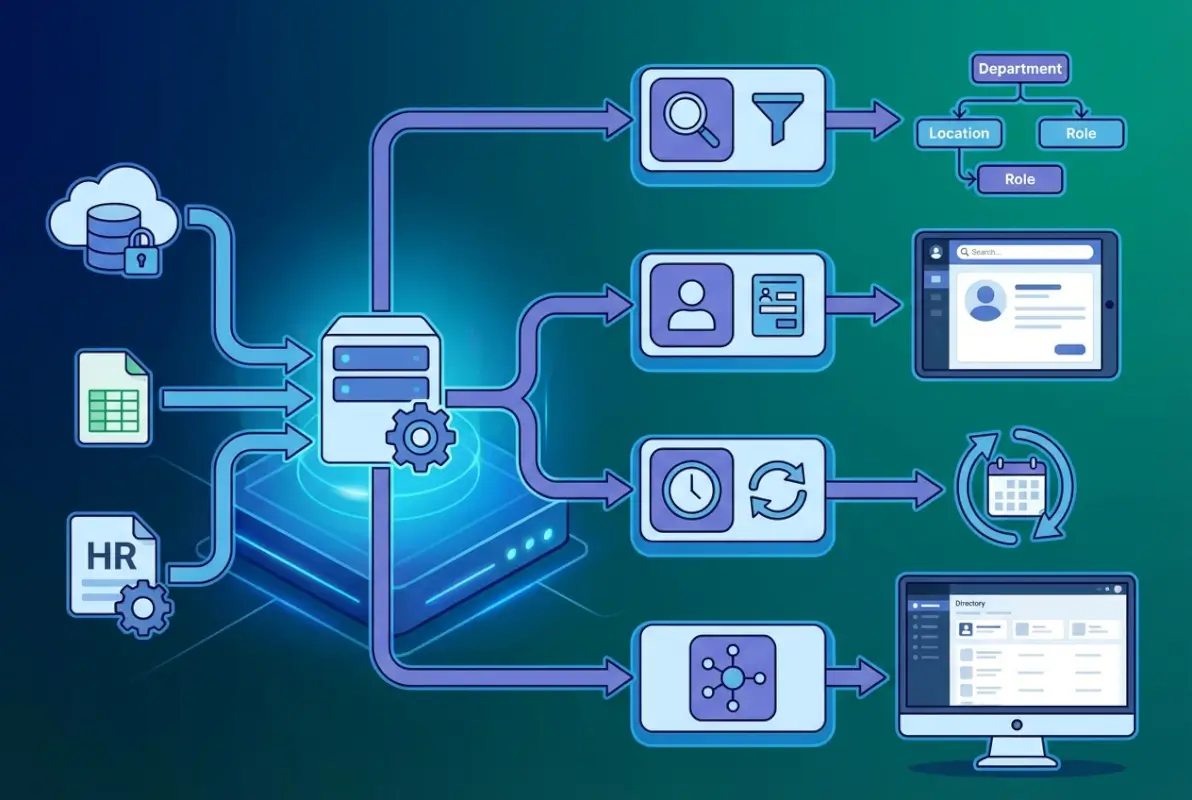
Global Address Lists (GAL) in Microsoft 365, Exchange, or Google Workspace automatically populate from user accounts created in those systems. They’re convenient, require minimal setup, and sync in real-time as admins add or modify users. The downside? Limited customization. You’re stuck with whatever fields the platform provides, and you can’t easily add custom attributes like certifications, languages spoken, or project assignments without workarounds.
Choose a Directory Approach (GAL vs. Standalone)
Standalone directories give you control. Tools like TurnKey Directories for WordPress, BambooHR, or dedicated employee directory software let you define exactly what data you collect and how it displays. You can create rich employee profiles with photos, bios, org charts, and custom fields. The catch: you’re responsible for keeping data synchronized between your HR system, email platform, and directory. Without automation, this becomes a maintenance headache.
A hybrid approach works well for many organizations: use your email platform’s GAL for basic address book functionality, then layer a more detailed standalone directory for organizational context, team structures, and extended profiles. This keeps email lookups fast and simple while providing a richer resource for things like onboarding, cross-functional collaboration, and project staffing.
Integration capabilities matter regardless of which route you choose. Look for directories that can pull data from your HR information system (HRIS), sync with Active Directory or LDAP services, and push updates to communication tools like Slack or Microsoft Teams. Manual data entry doesn’t scale past about 50 employees.
| Approach | Best For | Pros | Cons |
|---|---|---|---|
| GAL-only | Small teams (under 50) | Auto-sync, zero maintenance, built into email | Limited fields, no customization |
| Standalone | Custom needs, rich profiles | Full control, custom fields, org charts | Requires sync setup, ongoing maintenance |
| Hybrid | Growing companies (50-500) | Best of both, flexibility with convenience | More complex setup, two systems to manage |
Core Data Fields and Formatting
Your data model should balance completeness with usability. Too few fields and the directory isn’t helpful; too many and it becomes a chore to maintain. Here’s a practical baseline that works for most organizations:
- Essential: Full name, work email, job title, department, office location
- Highly recommended: Direct phone line, manager name, start date, profile photo
- Optional but valuable: Mobile number (employee choice), pronouns, time zone, languages, expertise tags, LinkedIn profile
- Advanced: Team assignments, certifications, office hours, booking calendar link
Formatting standards prevent chaos. Decide whether job titles get capitalized uniformly (“Director of Marketing” not “director of marketing”). Phone numbers should follow one format: (555) 123-4567 or 555-123-4567, not a mix. Department names need exact consistency—”Information Technology” and “IT” shouldn’t both exist as separate categories.
Profile photos dramatically improve usability, especially in remote-first organizations where people rarely meet face-to-face. Set simple guidelines: professional headshots, neutral backgrounds, minimum resolution. Let employees upload their own but give HR override rights to maintain consistency.
Think about search and filter requirements when defining fields. If employees frequently need to find “everyone in the Seattle office” or “all product managers,” make location and job title standardized dropdown fields rather than free-text entries. This makes filtering actually work.
Implementation Steps with Practical Activities
Implementation succeeds when you resist the urge to rush. The temptation is to pick a tool, dump all your data in, and call it done. That approach guarantees you’ll spend months cleaning up the mess. Instead, work in deliberate phases: inventory what you have, clean it up, migrate carefully, then automate ongoing updates.
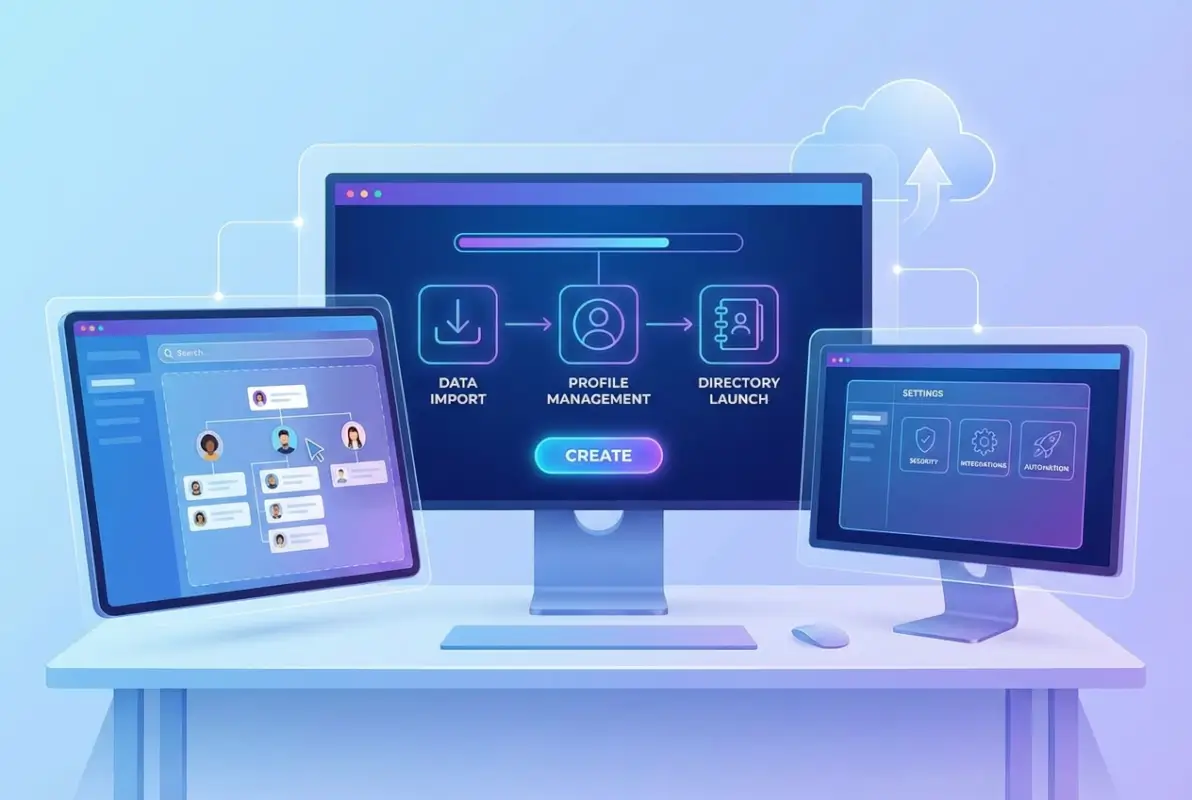
I learned this the hard way helping a 200-person company launch their directory. We skipped the cleansing phase, imported everything directly from their HRIS, and discovered 40+ employees with missing departments, a dozen duplicate entries for people who’d changed names, and formatting chaos in phone numbers. Took us three weeks to unravel what proper preparation could have prevented.
Step 1-2: Inventory, Cleansing, and Standardization
Start by gathering existing employee data from wherever it lives—your HRIS, payroll system, email server, spreadsheets department managers maintain. Export everything to a master spreadsheet for analysis. You’ll likely find inconsistencies immediately: some records complete, others missing basic info like job titles or departments.
Create a data validation checklist:
- Does every employee have a work email address listed?
- Are job titles consistent (not “Sr. Engineer” in one record and “Senior Engineer” in another)?
- Do department names match exactly across all entries?
- Are phone numbers in uniform format?
- Is manager information accurate and up-to-date?
- Are there duplicate entries for the same person?
Fix these issues before migration. Standardize department names using a master list. Choose one job title format and apply it everywhere. Strip special characters from phone numbers and reformat consistently. Merge duplicates and mark departed employees for exclusion.
This is also when you establish your mandatory fields. Decide that no one gets added to the directory without, at minimum, full name, work email, department, and job title. Make these required in whatever data entry forms you create.
For missing information, send standardized requests to department managers asking them to complete gaps for their teams. Give a clear deadline and make the business case—”we’re launching a company directory to improve communication; we need these details by [date] to include your team.”
Step 3-5: Migration, Access Controls, and Automation
With clean data ready, select your directory platform. For WordPress users, TurnKey Directories offers customizable templates and straightforward import tools. Microsoft 365 and Google Workspace users should evaluate whether native GAL features meet their needs or if they need additional tools for extended profiles and org charts.
Test your migration with a small batch—maybe 20-30 employees across different departments. Import them, verify all fields display correctly, check that search and filtering work as expected, and confirm photos upload properly. This catches import mapping errors before they affect your entire dataset.
Access control setup happens before full migration. Configure who can view what information based on roles. A typical structure:
- All employees: View name, work email, job title, department, office location
- Managers: View direct reports’ phone numbers and start dates
- HR/IT admins: Full access to all fields plus edit rights
- Executives: View-only access to all fields without edit capability
Automation reduces future maintenance burden significantly. Set up integrations so your directory syncs with source systems:
- New employee added in HRIS → automatically creates directory entry
- Job title changed in payroll system → updates directory within 24 hours
- Employee marked as terminated → removes from active directory immediately
- Manager reassignment in org chart → updates reporting relationships
For standalone directories that don’t integrate natively with your HR system, consider middleware tools like Zapier or Microsoft Power Automate to bridge systems. Even partial automation—like automatically flagging when HRIS records change so admins know to update the directory—beats fully manual processes.
Document your migration process thoroughly. Future administrators will need to understand how data flows from source systems to the directory, what automation runs on what schedule, and where manual intervention is still required.
Security, Deliverability, and Compliance for Directory-Linked Communications
Here’s something most directory guides overlook: your directory isn’t just a static database. It’s the foundation for how your organization communicates. That means security, email deliverability, and compliance aren’t optional add-ons—they’re core requirements that need attention from day one.

Think about what your directory enables: mass emails to departments, automated onboarding messages to new hires, emergency notifications to office locations. If your authentication isn’t properly configured, these messages land in spam folders or get blocked entirely. If access controls are weak, sensitive employee information leaks. And if you’re not compliant with privacy regulations, you’re creating legal liability.
Authentication and Mail Deliverability Context
When you use directory data to send company-wide emails or automated notifications, email authentication becomes critical. SPF (Sender Policy Framework), DKIM (DomainKeys Identified Mail), and DMARC (Domain-based Message Authentication) are the three standards that verify your emails are legitimate and not spoofed.
SPF tells receiving servers which IP addresses are authorized to send email from your domain. DKIM adds a digital signature that proves the message wasn’t altered in transit. DMARC combines both and tells recipients what to do with emails that fail authentication checks. According to Validity’s 2025 Email Deliverability Benchmark Report, organizations with properly configured DMARC policies see 28% better inbox placement rates.
If your directory powers automated emails—welcome messages for new employees, birthday notifications, company announcements—work with your IT team to ensure proper authentication is in place. Test these emails across different providers (Gmail, Outlook, Yahoo) to confirm they reach inboxes rather than spam folders.
For guidance on email authentication best practices, SalesHive’s guide to avoiding spam filters provides actionable implementation steps that apply to internal communications just as much as external campaigns.
Directory-based email lists need regular hygiene too. Remove departed employees immediately—bounce rates from defunct addresses damage your sender reputation. Validate that group email addresses (like team@company.com) actually forward to current employees, not people who left months ago.
Privacy/Compliance Considerations
Privacy regulations vary by region and industry, but core principles apply broadly. Collect only what you genuinely need, protect what you collect, and give individuals control over their information. For employee directories, this translates to specific practices:
- Make personal information (mobile numbers, home addresses) optional and employee-controlled
- Maintain audit logs showing who accessed what employee data and when
- Implement data retention policies that archive or delete departed employees within defined timeframes
- Provide employees a way to review and correct their own directory information
- Restrict directory data exports to authorized roles only
GDPR (in the EU) and CCPA (in California) both grant employees rights around their personal data, including the right to know what’s collected, the right to correction, and in some cases the right to deletion. Your directory policies should accommodate these requests through documented procedures.
Access auditing serves both security and compliance purposes. Track not just who can access the directory, but who actually does. Unusual access patterns—like someone downloading the entire directory at 2 AM or repeatedly viewing profiles outside their department—can flag potential data theft or policy violations.
Consider separate directories or visibility tiers for different contexts. Some organizations maintain an internal directory with detailed information for employees, a separate external-facing leadership directory for customers and partners, and a limited emergency contact directory for crisis situations. This compartmentalization reduces exposure risk.
Adoption, Maintenance, and Measuring Success
You can build the most technically perfect directory in the world, but if employees don’t use it—or if it becomes outdated within six months—it’s worthless. Adoption and maintenance aren’t afterthoughts; they’re where most directory projects actually succeed or fail.

The pattern I’ve seen repeatedly: companies launch with fanfare, everyone uses the directory for a few weeks, then adoption gradually fades as information gets stale and people revert to asking colleagues directly or maintaining personal contact lists. Preventing this requires intentional rollout planning and sustainable maintenance systems.
Rollout Plan, Training, and Change Management
Launch with a pilot group first—maybe your leadership team, a single department, or a cross-functional group of 30-50 people. Give them early access, collect feedback on usability and missing features, and iterate before opening to the full organization. This approach catches problems when they’re easy to fix and creates internal champions who can advocate during broader rollout.
Training doesn’t need to be complicated, but it needs to be clear. Create a 2-minute video showing how to search the directory, update your own profile, and find colleagues by department or location. Include screenshots in your company wiki or intranet. For more complex features like org chart visualization or advanced filtering, offer optional live training sessions or office hours.
Change management for a directory launch should answer these questions for employees:
- Why are we doing this? (The business case: faster communication, better onboarding, easier collaboration)
- What’s changing from how we do things now? (Replacing scattered contact lists with one source of truth)
- How do I use it? (Clear instructions with visuals)
- What if I find wrong information? (Reporting process or self-service updates)
- Who can see my information? (Transparency about access controls)
Integration into daily workflows drives adoption more effectively than training. If your directory links directly from Slack profiles, email headers, or your company intranet homepage, people encounter it naturally rather than having to remember to use a separate tool. Make the directory the path of least resistance for finding contact information.
According to research from UseWorkshop on internal communications best practices, directories embedded in communication tools see 3x higher sustained usage than standalone applications employees need to navigate to separately.
KPIs and Ongoing Health Checks
You can’t improve what you don’t measure. Establish metrics that track both directory health and actual business impact:
Data quality metrics:
- Percentage of profiles with complete required fields (target: 98%+)
- Average time from employee start date to directory entry (target: within 24 hours)
- Percentage of departed employees removed same day (target: 100%)
- Number of duplicate or inconsistent entries (target: zero)
Usage metrics:
- Monthly active users as percentage of total employees (target: 60%+)
- Average searches per user per month
- Most common search terms (reveals what people actually need to find)
- Mobile vs. desktop access patterns
Business impact indicators:
- Time to locate correct contact for cross-department requests
- Reduction in misdirected emails or messages
- New employee time-to-productivity improvements
- Employee satisfaction scores related to internal communication
Schedule quarterly directory audits where you systematically review data quality, access permissions, and integration health. During these reviews:
- Run reports identifying incomplete profiles and assign owners to fix them
- Verify that automated syncs from HR systems are working correctly
- Review access logs for any unusual patterns
- Survey a sample of users about directory usefulness and missing features
- Update documentation to reflect any process changes
Maintenance calendars help distribute work and prevent things from falling through cracks. Create recurring tasks:
- Daily: Process new hire additions and departures
- Weekly: Review and approve employee-submitted updates
- Monthly: Validate that department managers have updated their teams
- Quarterly: Full directory audit and data quality review
- Annually: Comprehensive access permission review
Consider self-service capabilities to reduce administrative burden. Let employees update their own phone numbers, office locations, profile photos, and bio information (subject to manager approval for certain fields). This keeps information current without creating bottlenecks with HR.
Frequently Asked Questions
How do I start a company email directory?
Start by defining scope, ownership, and governance rules before selecting tools. Inventory existing employee data, standardize formatting, and choose between extending your email platform’s native directory (GAL) or implementing a standalone solution like TurnKey Directories for WordPress. Pilot with a small group, automate updates from HR systems where possible, and establish clear maintenance responsibilities from day one.
What data fields should I include in a company directory?
Essential fields include full name, work email, job title, department, and office location. Add direct phone line, manager name, start date, and profile photo for better usability. Optional but valuable fields include mobile number (employee choice), time zone, languages, expertise tags, and pronouns. Avoid overloading with fields you won’t maintain—start minimal and expand based on actual user requests.
How can I keep an internal email directory up to date?
Automate synchronization with your HR information system so new hires, departures, and role changes update the directory automatically. Implement self-service portals where employees can update their own basic information. Schedule quarterly audits to catch errors, remove departed employees within 24 hours, and assign a dedicated administrator responsible for data quality. Make directory updates a standard part of onboarding and offboarding checklists.
What are best practices for securing and auditing an internal directory?
Implement role-based access controls following the principle of least privilege—employees see only what they need. Use multi-factor authentication for administrative access, maintain detailed audit logs of all data access and changes, and restrict directory exports to authorized roles only. Make sensitive information like personal phone numbers optional and employee-controlled, conduct quarterly access permission reviews, and ensure compliance with privacy regulations like GDPR or CCPA.
How does an email directory affect deliverability and inbox placement?
Directories used for mass communications require proper email authentication (SPF, DKIM, DMARC) to avoid spam filters. Remove departed employees immediately since bounces from defunct addresses damage sender reputation. Regularly validate group email addresses and distribution lists. According to Validity’s benchmarks, organizations with properly configured authentication see 28% better inbox placement rates for internal announcements and automated notifications sent via directory-based lists.
What is the difference between a GAL and a department-specific directory?
A Global Address List (GAL) is the native directory built into email platforms like Microsoft 365 or Google Workspace, automatically populated from user accounts with limited customization. Department-specific or standalone directories are separate systems that allow custom fields, rich profiles, org charts, and granular access controls. Many organizations use both: GAL for basic email lookups and a standalone directory for detailed organizational information and collaboration features.
What tools integrate with my email platform to maintain a directory?
Microsoft 365 users can extend Active Directory with tools like Azure AD or Microsoft Teams integration. Google Workspace integrates with Cloud Identity and third-party solutions. For custom WordPress-based directories, TurnKey Directories offers flexible integration options. HR platforms like BambooHR, Workday, and ADP typically sync with directory systems via APIs. Middleware tools like Zapier or Microsoft Power Automate can bridge systems that don’t integrate natively.
Should I include personal contact information in a company email directory?
Work phone numbers and office locations are standard, but make personal mobile numbers and home addresses optional and employee-controlled. Allow individuals to choose visibility settings for personal information. Always comply with privacy regulations and clearly communicate how personal data will be protected. Many organizations maintain work contact information in the main directory and personal emergency contacts in a separate, access-restricted system available only to HR and security teams.
Take Action: Build Your Directory the Right Way
Most organizations stumble into directory creation reactively—someone important can’t find a contact, frustration boils over, and suddenly there’s pressure to “fix the contact problem.” That approach leads to rushed implementations, incomplete data, and systems nobody maintains. You now have something better: a methodical framework that actually works.
Start this week by answering the foundational questions: who owns this, what’s our scope, and what governance rules do we need? Don’t skip to tool selection until you’ve documented clear answers. Then inventory your existing data, standardize it ruthlessly, and pilot with a small group before rolling out organization-wide. Build automation from day one so maintenance doesn’t become an endless manual burden six months from now.
Your 30-Day Directory Launch Plan
Week 1: Define scope, assign ownership, inventory existing data sources
Week 2: Clean and standardize data, select platform (GAL extension or standalone like TurnKey Directories)
Week 3: Configure access controls, pilot with 30-50 users, gather feedback
Week 4: Set up automation from HR systems, launch organization-wide, schedule first quarterly audit
The difference between directories that become indispensable and those that languish unused comes down to three things: proper planning upfront, sustainable automation for maintenance, and relentless focus on data quality. Get those right and you’ll build infrastructure that improves communication across your entire organization. Get them wrong and you’ll have yet another neglected system people work around instead of with.
Your employees are already wasting time hunting for contact information. The question isn’t whether you need a directory—it’s whether you’ll build one that actually solves the problem or just creates a different set of frustrations. Follow this framework, resist shortcuts, and you’ll have your answer within 30 days.
Was this article helpful?