How to Add Your Business to Google in 6 Simple Steps (2024 Guide)

Generating summary...
Getting your business to show up on Google isn’t rocket science, but surprisingly many business owners still don’t know where to start. The truth is, if you’re not visible on Google Search and Maps, you’re essentially invisible to the majority of potential customers searching for what you offer. I’ve watched countless small businesses transform their customer acquisition just by properly setting up their Google presence—and it takes less time than you’d think.
Here’s what most business owners miss: your Google Business Profile (formerly Google My Business) is often the first thing people see when they search for your company or services in your area. It shows up before your website, before your social media, before everything. That makes it arguably the most important piece of digital real estate you own—and it’s completely free.
TL;DR – Quick Takeaways
- Claim your spot first – Check if your business already exists on Google Maps before creating a new listing
- Verification is mandatory – Usually takes 5-7 days via postcard, but it’s required to manage your listing
- Complete equals credible – Businesses with full profiles (photos, hours, description) get significantly more engagement
- Reviews matter immensely – Respond to all reviews within 48 hours to boost visibility and trust
- Maintenance is ongoing – Set monthly reminders to update info, add photos, and post updates
Why Your Google Business Profile Deserves Immediate Attention
Let’s talk numbers for a second. When someone searches for a business like yours on their phone, what do they actually see? They see a map with pins, business names, star ratings, and quick info—all before they ever scroll to regular search results. If you’re not in that map pack, you might as well not exist for that search.
According to Pew Research Center, 85% of Americans own smartphones, and the vast majority use them daily to find local businesses. But here’s the kicker: they’re not just browsing—they’re ready to buy, visit, or call.

Think about your own behavior. When you need a plumber at 10 PM because a pipe burst, what do you do? You grab your phone and search “emergency plumber near me.” You’re not going to page three of Google results—you’re calling one of the first three businesses that show up with good reviews and a phone number you can tap immediately.
That’s the power of a properly optimized Google Business Profile. It puts you in front of people at the exact moment they need what you’re selling. For businesses exploring successful directory website business strategies, your Google listing serves as the foundation that supports all other online marketing efforts.
Step 1: Set Up Your Google Business Profile Account Correctly
The foundation of everything starts with creating your Google Business Profile account. This is your command center for managing how your business appears across Google Search, Maps, and other Google properties. Getting this right from the start saves you headaches later.
Head to business.google.com and sign in with a Google account. Now here’s where people make their first mistake—they use their personal Gmail account. Don’t do that. Create a dedicated business email or use one that multiple team members can access. Why? Because I’ve seen businesses get locked out when the employee who set everything up leaves the company and takes their personal Gmail with them.
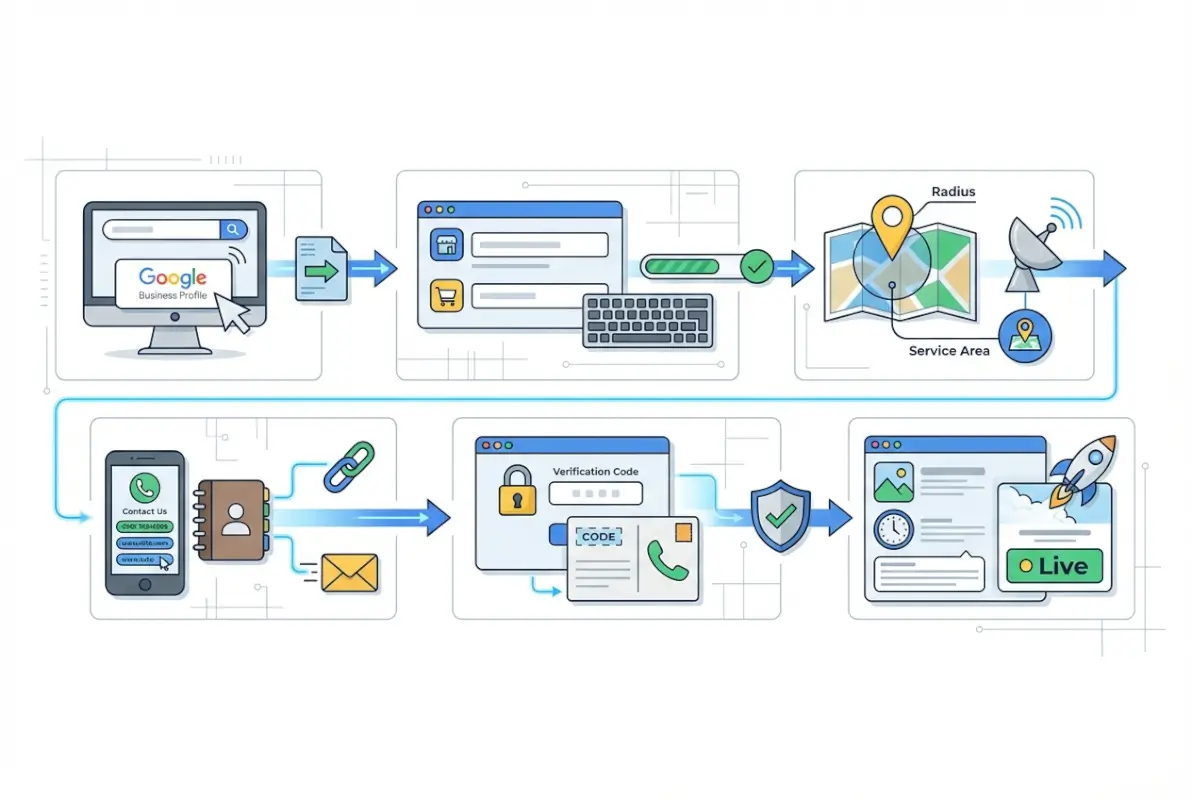
Once you’re signed in, click “Manage now” to begin the setup process. Google will guide you through the basics, but here’s what they won’t tell you: the email you use becomes the primary owner account. You can add managers later, but this initial account has ultimate control. Treat those login credentials like you’d treat your bank account information—store them securely where your team can access them if needed.
| Account Element | Best Practice | Why It Matters |
|---|---|---|
| Email Address | Business domain email | Professionalism and continuity |
| Password | Unique, complex, stored securely | Prevents unauthorized access |
| Two-Factor Auth | Always enable | Additional security layer |
| Backup Managers | Add 2-3 trusted people | Never depend on one person |
Enable two-factor authentication immediately. I know it’s an extra step every time you log in, but it’s worth it. Business listings are targeted by competitors and scammers who want to change your information, post fake reviews, or even delete your listing entirely. Two-factor authentication makes their job exponentially harder.
Step 2: Check If Your Business Already Exists on Google
Before you start creating a brand new listing, you need to search for your business on Google Maps. This step is critical because there’s a decent chance your business already exists in Google’s system—even if you never set it up yourself. Google automatically creates listings based on data they find around the web, or sometimes customers create them when they leave reviews.
Simply type your business name and city into Google Maps. Look carefully at the results. If you see your business, congratulations—you’re halfway there. You just need to claim it rather than create it from scratch. If nothing appears, you’re clear to add a new business listing.
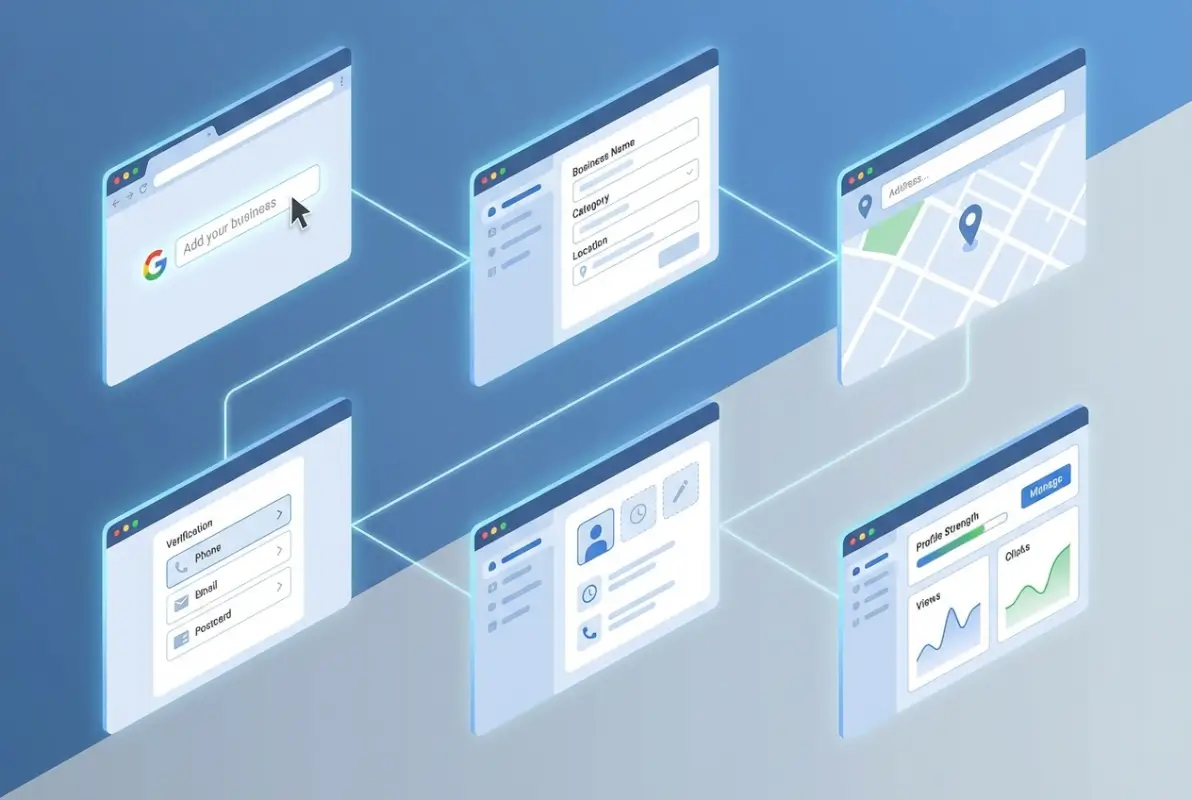
I worked with a restaurant owner last year who spent an hour creating what he thought was his first Google listing, only to discover later that his business already had a listing with 47 reviews. He’d just created a duplicate, which split his reviews and confused customers who saw two different listings with slightly different information. It took weeks to get Google to merge them properly and consolidate the reviews. Learn from his mistake—always check first.
When searching, try variations of your business name. Search with and without “LLC” or “Inc.” Try abbreviations if your business name is commonly shortened. The goal is to be absolutely certain there isn’t an existing listing before you create a new one.
Step 3: Add Your Business Details with Precision
If your search came up empty, it’s time to add your business to Google. This is where details matter more than you might think. Every piece of information you enter should be exactly as it appears on your actual storefront, business license, and official documents.
Start with your business name. This seems simple, but many people try to game the system by stuffing keywords into their business name. Don’t do this. If your business is called “Mike’s Pizza,” don’t list it as “Mike’s Pizza Best NYC Pizza Downtown Manhattan.” Google will likely suspend your listing for violating their guidelines, and even if they don’t catch it initially, competitors can report you.

Your business category is surprisingly important for active directory for business environment visibility. Google uses this to determine which searches should show your business. You can select one primary category and add several secondary categories. Choose the most specific option available—not the broadest one.
For your address, use the exact format that matches your physical location. If you’re a service-area business without a public storefront (like a plumber or cleaning service), you can hide your address and instead specify the areas you serve. This is perfectly acceptable and actually recommended for businesses that visit customers rather than having customers visit them.
Phone number choice matters more than you’d expect. Use a local number if possible—it builds trust with local customers. Avoid using tracking numbers that rotate or change, as this confuses Google’s verification systems and can impact your ranking signals. A stable, consistent phone number that appears on your website and other directories is ideal.
Step 4: Navigate the Verification Process
Verification is Google’s way of ensuring that only legitimate business owners can manage listings. It’s a necessary step that can’t be skipped, so plan for it taking 5-7 business days in most cases.
The most common verification method is by postcard. Google mails a physical postcard to your business address with a unique verification code. When it arrives, you log into your Google Business Profile and enter the code to verify ownership. Simple enough, but here’s what trips people up: don’t make any changes to your core business information during this waiting period. If you do, Google might restart the verification process from scratch.

Some businesses qualify for instant verification or verification by phone/email. This typically happens if Google has high confidence in your business based on existing data from your website and other sources. If you’re offered these options, take them—they’re much faster than waiting for the postcard.
According to Google’s verification guidelines, businesses must have a physical location where customers can visit during stated hours, or clear service areas if operating as a service-area business. Virtual offices and PO boxes typically don’t qualify for verification, so plan accordingly.
Step 5: Optimize Your Profile to Stand Out
Here’s where most businesses drop the ball. They get verified, breathe a sigh of relief, and never touch their profile again. That’s a massive missed opportunity. A complete, optimized profile can dramatically increase your visibility and the number of customers who contact you.
Start with your business description. You have 750 characters to tell potential customers what makes your business special. Use this space wisely. Include relevant keywords naturally (don’t stuff them), mention your specialties, and give people a reason to choose you over competitors. This description appears in your Google Business Profile and can influence both search rankings and whether people click through to learn more.
Photos are absolutely crucial. Businesses with photos receive 42% more requests for directions and 35% more clicks to their websites. Upload high-quality images of your storefront, interior, products, team members, and work in progress. Aim for at least 10 photos to start, and add new ones regularly. Authentic photos perform better than stock images—customers want to see the real you.
Your business hours should be meticulously accurate. Nothing frustrates customers more than showing up to a business that’s supposed to be open according to Google, only to find the doors locked. Set your regular hours, but also update them for holidays, special events, and temporary closures. Google makes this easy with special hours features.
For businesses investigating business directory software solutions, your Google Business Profile optimization should align with how you present your business across all directory platforms. Consistency builds trust and helps search engines understand your business better.
Step 6: Claim and Manage Existing Listings Properly
If you found your business already listed on Google during step two, claiming it is slightly different than creating a new listing. The process starts by finding your business on Google Maps, then clicking “Own this business?” or “Claim this business” button.
Sometimes this gets complicated. If someone else has already claimed your business—maybe a former employee or a marketing agency you hired years ago—you’ll need to request access. This typically involves contacting that person to add you as a manager or owner, or going through Google’s support process to prove you’re the legitimate owner.
I remember helping a client who discovered their ex-employee had claimed their business listing and, after a messy termination, changed all the business hours to “permanently closed” out of spite. It took three weeks and multiple support tickets to get control back. This is why adding backup managers to your verified listing is so important—it prevents one disgruntled person from holding your business hostage.
| Scenario | Action Required | Timeline |
|---|---|---|
| Unclaimed listing exists | Claim and verify ownership | 5-7 days |
| Already claimed by you | Log in and optimize | Immediate |
| Claimed by someone else | Request access or contact Google | 1-3 weeks |
| Multiple duplicate listings | Report duplicates, merge data | 2-4 weeks |
After claiming, do a thorough audit of all information. Check every field—address, phone number, website URL, business hours, and categories. Even if the listing existed before, it might contain outdated or incorrect information that needs updating. Make these corrections before you start actively promoting your Google listing.
Advanced Strategies That Make a Real Difference
Once your listing is verified and optimized, there are several advanced features that can give you an edge over competitors who stick with the basics.
Mastering the Review Game
Reviews are the lifeblood of local search rankings. Businesses with more positive reviews rank higher and convert better. But here’s what most people don’t realize: it’s not just about getting reviews—it’s about responding to them.
Google’s algorithm looks at review recency, quantity, rating, and your response rate. When you respond to reviews (both positive and negative), you signal to Google that your business is active and engaged. This can boost your visibility in local search results.
For negative reviews, respond within 12-24 hours. Keep your response professional, acknowledge their concern, and offer to resolve the issue offline. Never argue or get defensive publicly—it looks terrible to potential customers reading the exchange. For positive reviews, a simple thank you mentioning something specific they praised shows you actually read and care about feedback.
Using Google Posts Effectively
Google Posts are like mini social media updates that appear directly in your Business Profile. You can share special offers, events, new products, or general updates. These posts appear in your knowledge panel when people search for your business, providing fresh content and another way to engage potential customers.
Posts expire after seven days (or on the date you specify for events and offers), so plan to create new posts weekly. Think of them as free advertising space in your listing—use them to highlight what makes your business special right now.
Q&A Section Management
Google’s Q&A feature allows anyone to ask questions about your business publicly. Here’s the catch: anyone can also answer those questions—including your competitors or misinformed customers. You need to monitor this section regularly and provide official answers to common questions.
Better yet, seed your Q&A section with questions you want to answer. Ask friends or employees to post common questions that give you an opportunity to showcase your expertise and provide helpful information. This both helps potential customers and prevents unhelpful or incorrect answers from others.
For those exploring businesses in fslocal directory tips, the Q&A strategy works across multiple platforms. Anticipate questions and answer them proactively across all your directory listings.
Ongoing Maintenance Nobody Talks About
The biggest mistake I see businesses make is treating their Google Business Profile as a “set it and forget it” task. Your listing needs regular attention to maintain its effectiveness and ranking power.
Set a recurring calendar reminder for the first Monday of each month. During this 15-minute maintenance window, you should:
- Review and respond to any new reviews
- Upload 2-3 new photos (recent ones showing current products, team, or seasonal updates)
- Create at least one new Google Post
- Check that all business information is still accurate
- Answer any new Q&A questions
- Update special hours for upcoming holidays or events
- Review insights to see how people are finding and interacting with your listing
Google Insights provides valuable data about how customers find your listing, what actions they take, and how you compare to similar businesses. Pay attention to these metrics. If you notice a drop in calls or direction requests, it might indicate a problem with your listing or increased competition requiring you to step up your optimization game.
According to W3C accessibility standards, keeping business information current across all platforms isn’t just good practice—it’s essential for providing equal access to all users, including those using assistive technologies.
Frequently Asked Questions
How long does it take for my business to appear on Google after I add it?
After completing verification, your business typically appears within 24-48 hours. However, achieving optimal placement in local search results can take 2-4 weeks as Google’s algorithm assesses your listing’s completeness, reviews, and engagement signals. Full optimization happens gradually as you add content and gather reviews.
Can I manage multiple business locations under one Google account?
Yes, Google Business Profile supports unlimited locations under a single account. After adding your first location, click “Add location” to include additional addresses. For businesses with 10+ locations, Google recommends using bulk upload features for efficiency. Each location needs separate verification but shares centralized management.
What should I do if my competitor posts fake negative reviews?
Flag suspicious reviews by clicking the three dots next to the review and selecting “Flag as inappropriate.” Provide evidence if possible when reporting. Google reviews these flags but approval isn’t guaranteed. Focus on generating authentic positive reviews to dilute negative ones, and always respond professionally to maintain your reputation.
How do I improve my ranking in local search results?
Local ranking depends on three factors: relevance (how well your profile matches searches), distance (proximity to searcher), and prominence (reviews, links, citations). Optimize by completing every profile section, maintaining consistent NAP data across the web, actively gathering reviews, adding regular posts, and building local backlinks to your website.
Is there a cost to use Google Business Profile?
No, Google Business Profile is completely free with no subscription fees or hidden charges. Google provides this service because quality business listings improve their search results and user experience. All features including posts, messaging, and insights are included at no cost to business owners.
What’s the difference between a Google Business Profile and having a website?
Your Google Business Profile is a listing on Google’s platform showing your business in Search and Maps. A website is your owned digital property with complete control over design and content. Both are essential—your Google listing captures local search traffic and often serves as the first touchpoint directing people to your website for deeper engagement.
Can service businesses without physical storefronts create Google Business Profiles?
Yes, service-area businesses like plumbers, cleaners, or consultants can create profiles by selecting “I deliver goods and services to my customers” during setup. You’ll hide your street address and instead define service areas by city, region, or radius. This allows local search visibility without displaying a public address.
How do I handle duplicate listings for my business?
Never create additional listings when duplicates exist. First, claim all legitimate listings showing your business. Then use Google’s “Mark as duplicate” feature to flag extras. Google will review and merge them, consolidating reviews and data. This process takes 2-4 weeks but is essential for maintaining accurate information and avoiding penalties.
What happens if I need to temporarily close my business?
Google Business Profile includes a “Mark as temporarily closed” option in your business information settings. This preserves your listing, reviews, and photos while informing customers about your status. The designation appears prominently in search results. Update it immediately when reopening to resume normal operations and visibility.
Should I create separate profiles for different services at the same location?
No, create only one profile per physical location regardless of services offered. Use the services section to detail all offerings comprehensively. Multiple listings for the same address violate Google’s guidelines and risk suspension. The exception is genuinely separate businesses with different names and operations sharing a location—but this is rare.
Your Next Steps to Local Search Dominance
Here’s the reality: your Google Business Profile is probably the highest-ROI marketing activity available to your business. It costs nothing, reaches customers at the exact moment they’re searching for what you offer, and directly drives calls, visits, and sales. Yet most businesses either haven’t set one up or are running on incomplete, unoptimized listings that barely scratch the surface of what’s possible.
The six steps we’ve covered—creating your account, checking for existing listings, adding accurate information, completing verification, optimizing your profile, and maintaining it regularly—aren’t complicated. They just require focus and attention to detail. The businesses that dominate local search aren’t doing anything magical; they’re simply being thorough and consistent with the basics.
Take Action Today
Block out 30 minutes right now to start this process. Don’t wait until next week or next month—your competitors are actively optimizing their listings while you’re reading this.
Create your account, claim or add your business, and begin the verification process today. Then schedule monthly 15-minute maintenance sessions to keep everything current. This small investment pays dividends for years in the form of new customers who found you because you showed up when they searched.
For businesses looking to expand beyond just Google, platforms like TurnKey Directories offer comprehensive directory solutions that complement your Google presence with additional visibility and features. But Google should always be your foundation—it’s where the majority of local searches happen and where your potential customers are looking right now.
The businesses thriving in local markets aren’t necessarily the ones with the biggest advertising budgets or fanciest websites. They’re the ones that made sure they’re visible when customers search. That starts with a properly set up and maintained Google Business Profile. You’ve got the roadmap—now go claim your spot at the top of local search results.
Was this article helpful?