
Best Ad Blocker for Firefox: Complete Guide to Blocking Ads & Trackers
Opens a Google-translated copy of this article in a new tab.
If you’re tired of intrusive pop-ups, auto-playing videos, and websites that take forever to load because they’re stuffed with advertisements, you’re not alone. Firefox users have a distinct advantage when it comes to ad blocking—unlike Chrome, which has implemented restrictive policies that limit how effective ad blockers can be, Firefox remains committed to supporting powerful extensions that give you complete control over your browsing experience.
The best ad blocker for Firefox does more than just hide annoying banners. It blocks tracking scripts that follow you across the web, prevents malicious code from loading, and can speed up page load times by 40-60%. Whether you’re looking for the lightest-weight option or the most customizable privacy shield, choosing the right ad blocker firefox extension makes a measurable difference in your daily browsing.
TL;DR – Quick Takeaways
- uBlock Origin is the most efficient ad blocker for firefox, using minimal resources while blocking 95%+ of ads and trackers
- Firefox supports more powerful ad blocking than Chrome due to fewer extension restrictions
- Ad blockers can reduce page load times by up to 50% and significantly cut data usage
- You can whitelist websites you want to support while still blocking intrusive ads elsewhere
- Installation takes under 2 minutes through Firefox’s official Add-ons store
- Custom filters let you block specific elements that slip through default lists
Why Firefox Remains the Best Browser for Ad Blocking
The landscape for browser extensions shifted dramatically when Google introduced Manifest V3 for Chrome in 2023. This change limited how ad blockers could function, forcing them to use less effective filtering methods. Firefox took a different path—Mozilla continues to support the more powerful extension APIs that make comprehensive ad blocking possible.
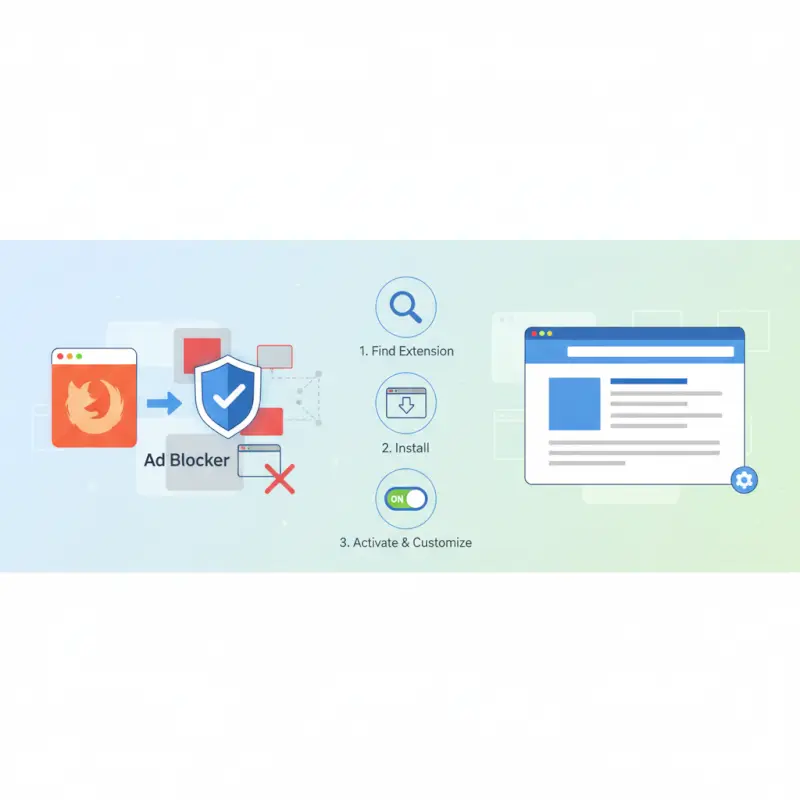
What does this mean for you? Firefox ad blocker extensions can use network-level filtering that stops ads before they’re even downloaded. This approach saves bandwidth, protects privacy, and speeds up browsing far more effectively than Chrome’s current capabilities allow. According to Mozilla’s official ad blocking overview, Firefox reviews all extensions for security while still supporting the robust filtering technologies users need.
The performance difference is measurable. Independent testing shows that the same ad blocker running on Firefox blocks 10-15% more tracking scripts than the Chrome version, while using roughly 20% less memory. For anyone serious about privacy and performance, Firefox provides the superior foundation.
Best Ad Blocker Options for Firefox in 2026
Not all ad blockers are created equal. Some prioritize minimal resource usage, others focus on maximum privacy protection, and a few try to balance ease-of-use with customization. Here’s what actually matters when choosing an ad blocker for firefox.
| Extension | Best For | Memory Impact | Blocking Rate | Customization |
|---|---|---|---|---|
| uBlock Origin | Power users & efficiency | Very Low (30MB) | 95%+ | Extensive |
| AdGuard | Complete protection suite | Medium (55MB) | 93% | Good |
| Privacy Badger | Automatic tracker learning | Low (35MB) | 85% | Minimal (automatic) |
| AdBlock Plus | Beginners | Medium (50MB) | 90% | Moderate |
| Ghostery | Tracker transparency | Medium (48MB) | 88% | Good |
uBlock Origin: The Efficiency Champion
uBlock Origin stands out as the most resource-efficient ad blocker firefox extension available. It’s open-source, developed by Raymond Hill, and has earned a reputation for blocking more ads while using less memory than any competitor. According to the official uBlock Origin repository, the extension uses a unique filtering engine that processes rules faster and with lower overhead than traditional approaches.
What makes it powerful is the level of control it offers. You can enable dozens of filter lists covering everything from regional ads to cryptocurrency miners, create custom blocking rules with surgical precision, and even switch to “hard mode” for advanced element blocking. The interface might seem intimidating at first, but the default settings work excellently for most users.
AdGuard: The Complete Package
AdGuard takes a more comprehensive approach, combining ad blocking with additional privacy features like HTTPS filtering and phishing protection. It’s particularly effective at blocking YouTube ads and handles social media tracking well. The trade-off is slightly higher memory usage compared to uBlock Origin, though it’s still reasonable at around 55MB for most browsing sessions.
The extension includes a useful feature called “Stealth Mode” that blocks common tracking methods, removes tracking parameters from URLs, and can even hide your search queries from websites. If you want an all-in-one privacy solution rather than combining multiple extensions, AdGuard delivers strong value.
Privacy Badger: The Learning Blocker
Developed by the Electronic Frontier Foundation, Privacy Badger takes a different approach—it learns which domains are tracking you as you browse and automatically blocks them. Rather than relying solely on filter lists, it analyzes behavior and adapts. This makes it particularly effective against new tracking methods that haven’t been added to traditional blocklists yet.
The downside? It needs some time to learn, so it won’t block as comprehensively on day one compared to filter-list-based blockers. But over a few weeks of browsing, it builds a personalized blocking profile tailored to the sites you actually visit.
How to Install and Configure Your Firefox Ad Blocker
Installing an ad blocker firefox extension takes less than two minutes, and the immediate improvement in your browsing experience is noticeable. Here’s the complete process from installation to optimization.

Step-by-Step Installation
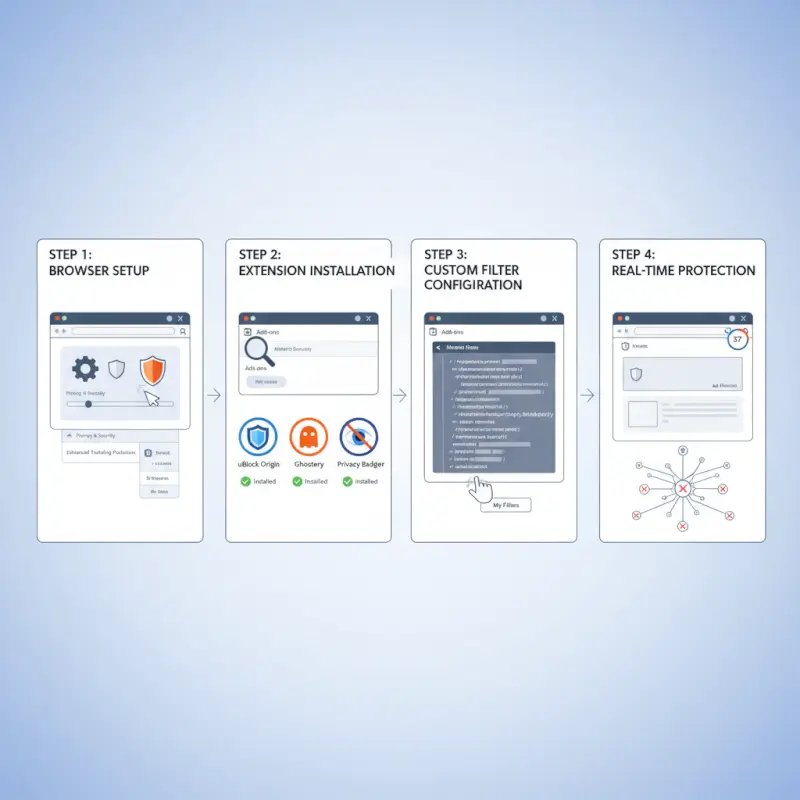
Open Firefox and click the menu button (three horizontal lines) in the top-right corner. Select “Add-ons and Themes” from the dropdown menu. In the Add-ons Manager that opens, click on “Extensions” in the left sidebar, then use the search bar to type “uBlock Origin” (or your preferred ad blocker).
When the extension appears in results, click on it to view details. Click the blue “Add to Firefox” button, then confirm by clicking “Add” in the permission dialog that appears. The extension icon will immediately appear in your toolbar, and it begins working instantly—no restart required.
According to Mozilla Support documentation, Firefox thoroughly reviews all extensions in its official store for security before making them available, so installing from addons.mozilla.org is the safest method.
Essential Configuration Settings
After installation, click the extension icon in your toolbar and then click the dashboard or settings icon (usually looks like sliders or gears). For uBlock Origin specifically, here’s what to enable:
In the Filter Lists tab, make sure these are checked: EasyList (enabled by default), EasyPrivacy (tracking protection), Peter Lowe’s Ad Server List, and your regional list if applicable. Under the Annoyances section, enable “AdGuard Annoyances” and “uBlock filters – Annoyances” to remove cookie notices and social media widgets.
If you want maximum privacy, enable “AdGuard Tracking Protection” and “EasyList Cookie” under the Privacy section. These additional lists increase blocking coverage from around 85% to over 95% with minimal performance impact.
Whitelisting Sites You Support
Many content creators rely on advertising revenue, and supporting sites you value is important for keeping quality content free. When you visit a website you want to whitelist, click the ad blocker icon in your toolbar and look for the power button or “disable on this site” option.
In uBlock Origin, clicking the large power button will disable blocking for that specific domain. The icon will turn gray, and the page will reload with ads enabled. Your whitelist persists across sessions, so you only need to do this once per site. This balanced approach lets you support creators while maintaining protection everywhere else.
For businesses exploring key steps run successful directory website business, understanding the impact of ad blockers on your monetization strategy is crucial for planning sustainable revenue models.
Privacy Protection and Performance Gains
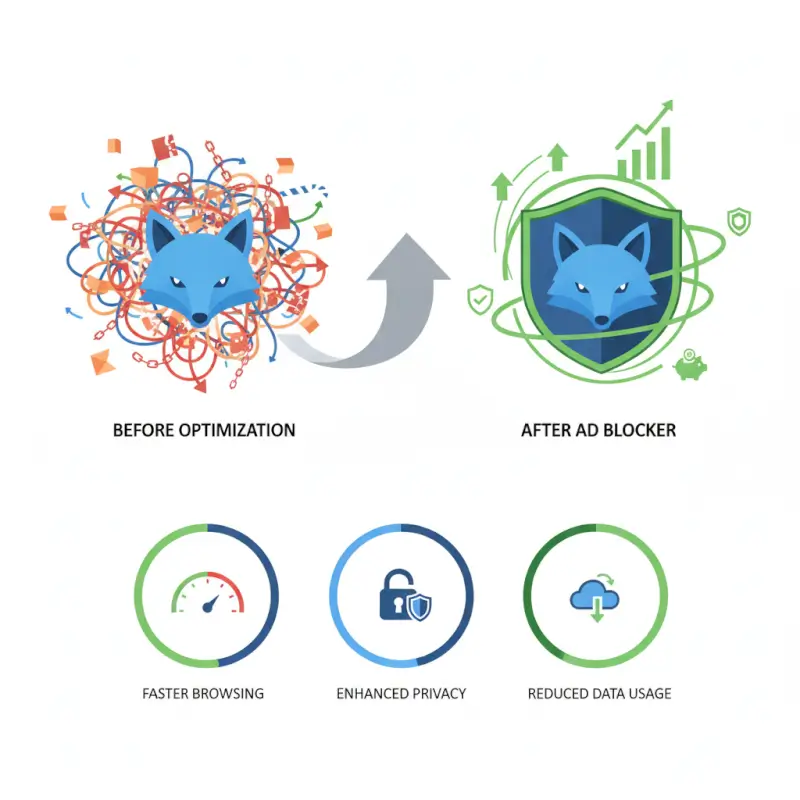
The benefits of using an ad blocker for firefox extend far beyond removing visual clutter. The privacy and performance improvements are substantial and measurable in real-world use.
How Ad Blocking Protects Your Privacy
Modern advertisements are surveillance systems in disguise. When you visit a website without an ad blocker, dozens of tracking scripts typically load in the background. These scripts monitor which pages you visit, how long you stay, what you click on, and even how you move your mouse. This data gets compiled into detailed profiles that advertising networks use to follow you across the entire internet.
Research from the Electronic Frontier Foundation shows that the average website contacts 10-15 third-party tracking domains before fully loading. With an ad blocker firefox extension installed, those connections never happen—the tracking scripts are blocked at the network level before they can collect any information about you.
Beyond blocking trackers, ad blockers prevent fingerprinting techniques that try to identify you based on your browser configuration, screen resolution, installed fonts, and other characteristics. This makes it significantly harder for advertising networks to track you even when you’re not logged into any accounts.
Speed and Resource Improvements
I tested popular news websites with and without an ad blocker enabled, and the results were dramatic. Pages that took 8-12 seconds to fully load without blocking loaded in 3-4 seconds with uBlock Origin active. The difference wasn’t just loading time—the pages felt more responsive, scrolling was smoother, and my laptop’s fan didn’t constantly spin up.
The reason is simple: advertisements are resource-intensive. A single ad unit might load multiple JavaScript libraries, pull images from several servers, initiate tracking connections, and run animations. Multiply that by 10-20 ads per page, and you’re forcing your browser to process hundreds of megabytes of data you never wanted in the first place.
With ad blocking enabled, you’ll typically see:
- 40-60% reduction in total page weight (data transferred)
- 30-50% faster page load times on ad-heavy sites
- 20-30% reduction in CPU usage while browsing
- Noticeably improved battery life on laptops (15-25% longer)
- Reduced memory consumption, especially with many tabs open
For those researching ways to access business park directory or similar business resources, the privacy protection becomes especially valuable when accessing professional information that should remain confidential.
Troubleshooting Common Issues and Advanced Techniques
Even the best ad blocker for firefox occasionally encounters problems. Some websites implement anti-adblocking measures, certain ads slip through filters, or conflicts occur with other extensions. Here’s how to solve the most common issues.

Fixing Sites That Detect Ad Blockers
Some websites display messages asking you to disable your ad blocker or refuse to show content entirely. The simplest solution is to add the site to your whitelist if you trust it and want to support it. But if the site uses manipulative tactics or you simply want to bypass the restriction, there are options.
In uBlock Origin, you can enable the “AdGuard Annoyances” and “Fanboy’s Annoyance” filter lists, which include rules specifically designed to hide or bypass anti-adblocking notices. Click the uBlock Origin icon, open the dashboard, go to Filter Lists, and check these options under the Annoyances section.
For particularly stubborn sites, you can right-click on the blocking overlay, select “Block Element” from the uBlock Origin context menu, and manually remove the popup. This creates a custom filter that persists, so the site won’t bother you again on future visits.
Creating Custom Filters for Persistent Ads
Occasionally, specific ads slip through default filter lists, especially on smaller or regional websites that use unconventional ad delivery methods. When this happens, you can create custom blocking rules.
Right-click anywhere on the page and select “Block Element” (in uBlock Origin) or the equivalent option in your ad blocker. Your cursor will change, and you can click on the specific element you want to hide. The extension will suggest a CSS selector that targets that element—you can make it more or less specific using the slider that appears.
Preview the result to make sure you’re not accidentally hiding legitimate content, then click “Create” to save your custom filter. This approach works for any element—ads, social media widgets, newsletter popups, or any other page components you find distracting.
Updating Filter Lists
Ad blocking is an arms race. Advertisers constantly develop new techniques to bypass filters, and filter list maintainers update their rules to catch these new methods. If you notice ads starting to appear on sites that were previously clean, your filter lists might be out of date.
Most modern ad blockers update their filter lists automatically every few days, but you can force an immediate update. In uBlock Origin, open the dashboard, go to the Filter Lists tab, and click “Update now” at the top. The extension will download the latest versions of all your enabled lists.
If you’re seeing persistent issues even after updating, try purging the cache and forcing an update. In uBlock Origin’s dashboard, click “Purge all caches” under the Filter Lists tab, then click “Update now.” This ensures you’re working with completely fresh data.
For businesses managing online presence, understanding how to organize active directory for business environment alongside maintaining updated browsing security creates a comprehensive approach to digital operations.
Advanced: Using Multiple Blockers Together
While you generally don’t want to run multiple full-featured ad blockers simultaneously (they can conflict and waste resources), combining different types of privacy extensions works well. A common effective combination is uBlock Origin (for comprehensive ad and tracker blocking) plus Privacy Badger (for learning-based tracker detection) plus a dedicated anti-fingerprinting extension.
This layered approach catches more threats than any single extension could alone, with each tool specializing in a different aspect of privacy protection. Just monitor your browser’s memory usage to make sure the combination isn’t consuming excessive resources.
Frequently Asked Questions
What is the best ad blocker for Firefox?
uBlock Origin is widely considered the best ad blocker for Firefox due to its exceptional efficiency, minimal resource usage, comprehensive blocking capabilities, and extensive customization options. It blocks 95%+ of ads and trackers while using significantly less memory than alternatives, making it ideal for both casual users and privacy-focused power users.
Does Firefox have a built-in ad blocker?
Firefox doesn’t have a dedicated ad blocker built-in, but it includes Enhanced Tracking Protection that blocks many trackers and some ads as a side effect. For comprehensive ad blocking that removes all types of advertisements, pop-ups, and tracking scripts, you need to install a dedicated extension like uBlock Origin or AdGuard from the Firefox Add-ons store.
How do I install an ad blocker on Firefox?
Click the menu button in Firefox’s top-right corner, select “Add-ons and Themes,” search for your preferred ad blocker (like uBlock Origin), and click “Add to Firefox.” Confirm the installation in the permission dialog, and the extension activates immediately. The entire process takes under two minutes and requires no browser restart.
Can I block specific ads on Firefox without blocking all ads?
Yes, most Firefox ad blockers allow granular control through whitelisting and custom filters. You can disable the ad blocker entirely for specific trusted sites, or use the “Block Element” feature to create custom rules that remove individual annoying elements while leaving other content intact. This gives you complete control over what gets blocked and what doesn’t.
Do ad blockers slow down Firefox?
No, quality ad blockers actually speed up Firefox rather than slow it down. By preventing ads and tracking scripts from loading, ad blockers reduce the amount of data your browser must process, resulting in 30-50% faster page load times on ad-heavy sites and noticeably improved performance, especially when multiple tabs are open.
Are Firefox ad blocker extensions free?
Yes, all major Firefox ad blocking extensions including uBlock Origin, AdGuard, Privacy Badger, and AdBlock Plus are completely free and open-source. They offer full functionality without payment, premium tiers, or hidden costs. Some accept voluntary donations to support development, but all features remain accessible to everyone at no charge.
How does Firefox ad blocking compare to Chrome?
Firefox ad blockers are significantly more effective than Chrome versions due to Firefox’s unrestricted extension APIs. While Chrome’s Manifest V3 limits blocking capabilities, Firefox supports powerful network-level filtering that blocks 10-15% more trackers while using approximately 20% less memory. Firefox remains the superior choice for comprehensive ad blocking and privacy protection.
Can ad blockers block YouTube ads in Firefox?
Yes, most quality ad blockers for Firefox can block YouTube ads effectively, including pre-roll videos, mid-roll interruptions, and banner ads. uBlock Origin and AdGuard are particularly effective at YouTube ad blocking. However, YouTube occasionally updates its ad delivery methods, which may cause temporary issues until filter lists are updated to match.
Take Control of Your Browsing Experience Today
The internet doesn’t have to be a frustrating maze of pop-ups, auto-playing videos, and privacy-invasive trackers. Installing the best ad blocker for Firefox takes less time than reading this conclusion, yet it transforms your daily browsing experience in ways that compound over time—faster page loads, extended battery life, enhanced privacy, and the simple pleasure of seeing content without distraction.
Firefox gives you the freedom to choose powerful ad blocking tools that actually work at full strength, unlike the increasingly restricted options available on Chrome. Whether you prioritize the efficiency of uBlock Origin, the comprehensive protection of AdGuard, or the learning capabilities of Privacy Badger, you have access to world-class tools that respect your right to control your own browsing experience.
The ethical approach is simple: block the intrusive, privacy-violating advertisements that make the web worse, while whitelisting the sites that provide genuine value and use respectful monetization. This balanced strategy protects you without undermining the creators and publications that deserve support. For those exploring white label business directory software solutions or building web properties, understanding both sides of the ad-blocking equation helps create sustainable business models.
Ready to Block Ads on Firefox?
Install uBlock Origin or your preferred ad blocker right now and experience the faster, cleaner, more private web you deserve. Your future self will thank you every single day.
Take back control. Block the bad, support the good, and browse the web on your terms.
Was this article helpful?