How to Learn WordPress Plugin Development: 7 Resources for Beginners
If you’ve ever wondered how millions of websites extend WordPress beyond its core features, the answer lies in plugins. But here’s what most beginners miss: learning WordPress plugin development isn’t just about adding features to your own site—it’s about understanding a scalable, structured approach to building software that can reach over 43% of all websites on the internet. While everyone talks about themes and page builders, plugin development remains the hidden superpower that separates casual WordPress users from true developers who can monetize their skills, contribute to open-source projects, or launch SaaS products built entirely on WordPress infrastructure.

Most learning resources throw you into the deep end with complex PHP concepts or assume you already know your way around hooks and filters. That’s backwards. The real breakthrough comes when you understand the WordPress architecture as a system of interconnected extension points, each one waiting for your code to tap into it. In this guide, you’ll discover seven carefully curated resources that take you from absolute beginner to publishing your first plugin on the WordPress.org repository—without the overwhelm or outdated tutorials that plague this space.
TL;DR – Quick Takeaways
- WordPress plugin development opens doors to building features for 43% of all websites, not just your own projects
- You need PHP basics but don’t need to be an expert—understanding hooks, actions, and filters matters more than advanced programming
- Seven key resources provide a structured path from zero to published plugin, including official WordPress courses and university-level materials
- Security and standards aren’t optional extras—they’re foundational skills you should learn from day one
- Local development environments and version control are non-negotiable tools for professional plugin development
- The WordPress.org repository has specific requirements and review processes that shape how you should build from the start
Getting Ready: Prerequisites and Mindset
Before you write a single line of plugin code, let’s talk about what a WordPress plugin actually is (and what it isn’t). At its core, a plugin is a collection of PHP files that extends WordPress functionality by hooking into specific points in the WordPress execution cycle. Unlike themes which control presentation, plugins add or modify features—everything from simple contact forms to complete e-commerce systems.
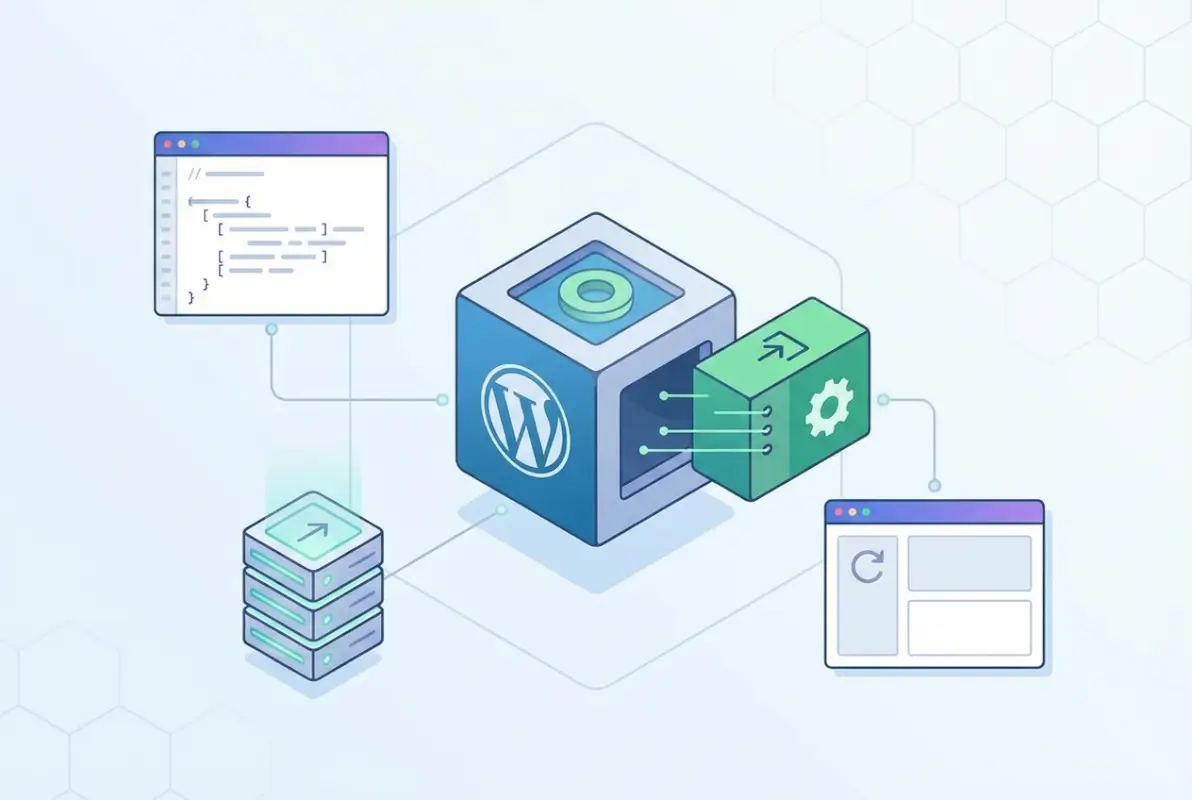
The beauty of WordPress plugins lies in their non-invasive nature. You’re not editing core files or hacking the system, you’re using a well-documented API that WordPress provides specifically for extensions. This is where hooks come in—predetermined points in WordPress execution where your code can insert itself. Think of WordPress core as a highway and hooks as clearly marked exits where you can route traffic through your custom code before merging back onto the main road.
What You Should Know Before Starting
Here’s where most tutorials get it wrong: they either assume you’re a PHP expert or tell you that you don’t need any prerequisites at all. The truth sits somewhere in between. You should have a basic grasp of PHP syntax (variables, functions, arrays, and conditional statements) but you don’t need to understand advanced object-oriented programming or design patterns. What matters more is understanding WordPress-specific concepts like the hook system, which is actually simpler than most PHP frameworks once you grasp the underlying logic.
WordPress coding standards exist for a reason beyond just making code look pretty. They ensure that your plugin can coexist with thousands of other plugins and themes without conflicts. The standards cover everything from naming conventions (snake_case for functions, kebab-case for file names) to proper escaping and sanitization. Many successful directory websites rely on custom plugins that follow these standards religiously, which is why they can scale without breaking.
Official Starter Pathways and Courses
The Learn WordPress platform offers structured courses that follow a logical progression from WordPress basics to plugin development. Unlike random YouTube tutorials, these courses are maintained by the WordPress community and updated to reflect current best practices. The Beginner WordPress Developer course covers PHP fundamentals, the hook system, and security basics—all within the context of WordPress rather than teaching generic programming first.
What sets official resources apart is their focus on the “WordPress way” of doing things. You could learn PHP from any source, but you’d still need to unlearn certain habits and relearn how to think in terms of hooks, filters, and the WordPress execution lifecycle. Starting with WordPress-specific materials means you build the right mental models from day one.
Recommended First Steps
Your development environment matters more than you think. A clean local WordPress installation using tools like Local by Flywheel, XAMPP, or Docker gives you a safe playground where you can break things without consequences. Enable WP_DEBUG in your wp-config.php file immediately—it surfaces errors and warnings that production sites hide, teaching you to write better code through immediate feedback.
Install a fresh WordPress instance without any plugins or themes beyond the defaults. This gives you a baseline to understand what comes from WordPress core versus what your plugin adds. Create a simple plugin that does nothing but display “Hello World” in the admin area. This isn’t pointless busywork; it teaches you the minimum viable structure every plugin needs: proper file headers, activation hooks, and the admin menu system.
Core Architecture: Plugin Anatomy and the WordPress Hook System
Every WordPress plugin starts with a single PHP file that contains a standardized header comment block. This header tells WordPress essential metadata: plugin name, version, author, and compatibility requirements. Without this header, WordPress won’t recognize your code as a plugin—it’ll just sit silently in the plugins folder doing nothing. The main plugin file typically shares its name with the plugin folder, making it easy for WordPress to locate.
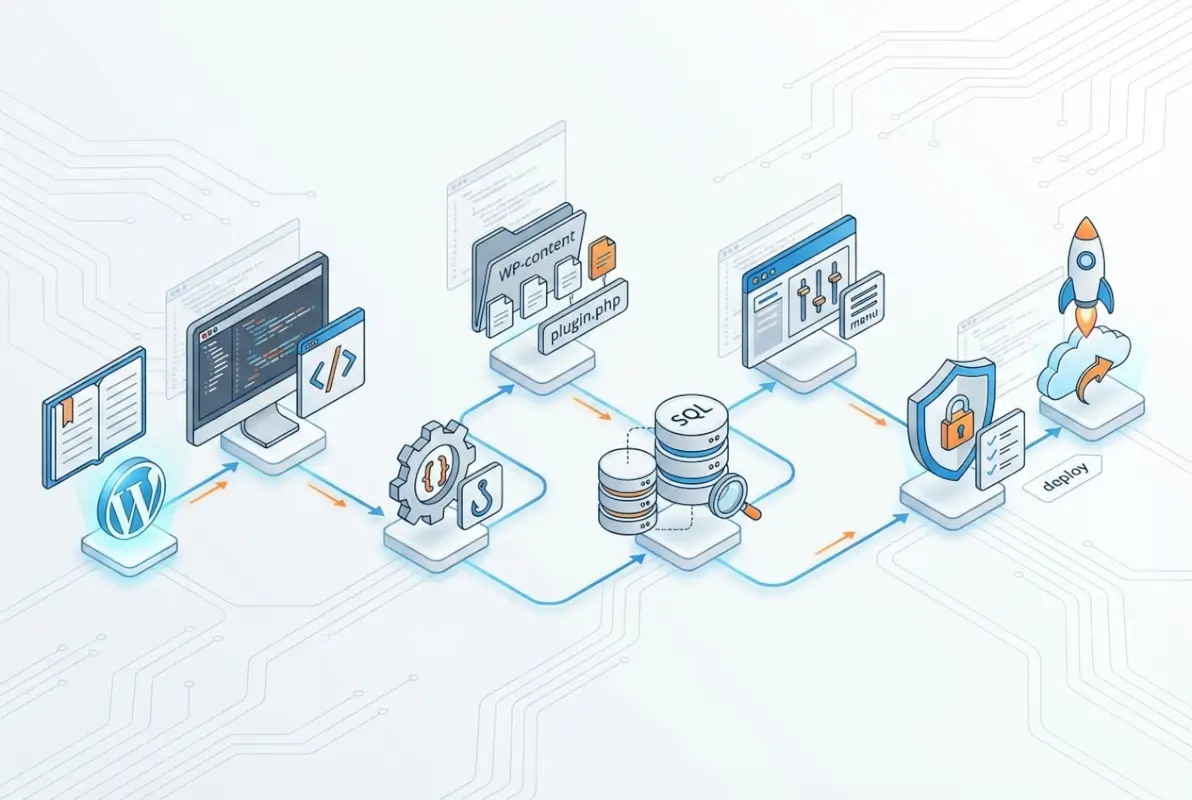
Inside this main file, you’ll encounter activation and deactivation hooks—special functions that run exactly once when users activate or deactivate your plugin. These hooks handle setup tasks like creating database tables or setting default options, and cleanup tasks like removing scheduled events. Many beginners skip these hooks or use them incorrectly, leading to plugins that leave database clutter when uninstalled or fail to initialize properly on multisite installations.
The WordPress Plugin API: Actions, Filters, and Hooks
Here’s where WordPress plugin development either clicks or remains mysterious: the hook system. WordPress core executes in a specific order, and at dozens of predetermined points during that execution, it checks whether any plugins have registered functions to run. These registration points are hooks, and they come in two flavors: actions (which let you do something at a specific point) and filters (which let you modify data before WordPress uses it).
Think of actions as notifications. WordPress says “I’m about to display the footer” and your plugin can respond “Cool, let me add some tracking code.” Filters work like assembly lines—WordPress passes data through registered functions, each one potentially modifying the data before passing it to the next filter. The wp_title filter, for example, lets plugins modify page titles before they’re displayed, which is how SEO plugins inject optimized titles.
| Hook Type | Purpose | Common Examples | Returns Value? |
|---|---|---|---|
| Actions | Execute code at specific points | wp_footer, admin_init, save_post | No |
| Filters | Modify data before use | the_content, wp_title, excerpt_length | Yes |
The priority system adds another layer of control. When multiple plugins hook into the same action or filter, WordPress runs them in order of priority (default is 10). Lower numbers run first, so a plugin registering at priority 5 executes before one at priority 15. This becomes crucial when your plugin depends on another plugin’s modifications or needs to override default behavior.
Enqueuing Scripts and Styles Safely
One of the fastest ways to spot an amateur plugin is hardcoded script tags in the HTML output. WordPress provides wp_enqueue_script() and wp_enqueue_style() functions specifically to handle JavaScript and CSS dependencies. These functions prevent duplicate loading, manage dependencies between scripts, and allow themes and other plugins to dequeue or reposition your assets if needed.
The enqueue system uses hooks—typically wp_enqueue_scripts for frontend assets and admin_enqueue_scripts for admin area assets. Your plugin registers a callback function on these hooks, and inside that function, you call wp_enqueue_script() or wp_enqueue_style() with parameters specifying the file location, dependencies (like jQuery), and version number. Version numbers matter more than you’d think; they bust browser caches when you update your plugin, ensuring users get the latest code.
Data Handling: Options, Transients, and Custom Post Types
WordPress offers several ways to store plugin data, each suited to different use cases. The Options API (get_option, update_option) works well for plugin settings and configuration—small pieces of data that persist indefinitely. Transients (set_transient, get_transient) add automatic expiration, perfect for caching API responses or computationally expensive results that should refresh periodically.
Custom post types elevate plugins from simple utilities to full-featured applications. When launching a business directory website, custom post types let you treat directory listings as first-class content objects with their own admin interface, revision history, and permalink structure. The register_post_type() function creates these custom types, and they integrate seamlessly with WordPress’s existing content management features.
Security Basics: Nonces, Capability Checks, Escaping, and Sanitization
Security isn’t an advanced topic you tackle later—it’s fundamental to every line of plugin code you write. WordPress provides four essential security mechanisms that work together to protect users. Nonces (numbers used once) prevent CSRF attacks by verifying that form submissions and AJAX requests originated from your site. wp_create_nonce() generates them, and wp_verify_nonce() validates them before processing user input.
Capability checks ensure that only authorized users can perform sensitive actions. Before deleting data or modifying settings, check current_user_can(‘manage_options’) or whatever capability is appropriate. This prevents privilege escalation where regular users manipulate URLs to access admin-only features.
Escaping and sanitization protect against XSS and SQL injection attacks. When outputting data to HTML, use esc_html(), esc_attr(), or esc_url() depending on context. When saving user input, sanitize with sanitize_text_field(), sanitize_email(), or other context-specific functions. When building database queries, use $wpdb->prepare() to safely insert variables. Security vulnerabilities in WordPress plugins affect millions of sites, making this knowledge non-negotiable.
Hands-On Starter: Build Your First Simple Plugin
Theory only takes you so far—now let’s build something real. Your first plugin will add a simple admin page that displays custom data, teaching you the essential patterns you’ll use in every plugin you ever create. This exercise might seem basic, but it establishes muscle memory for the workflow: create files, register hooks, add functionality, test, and iterate.
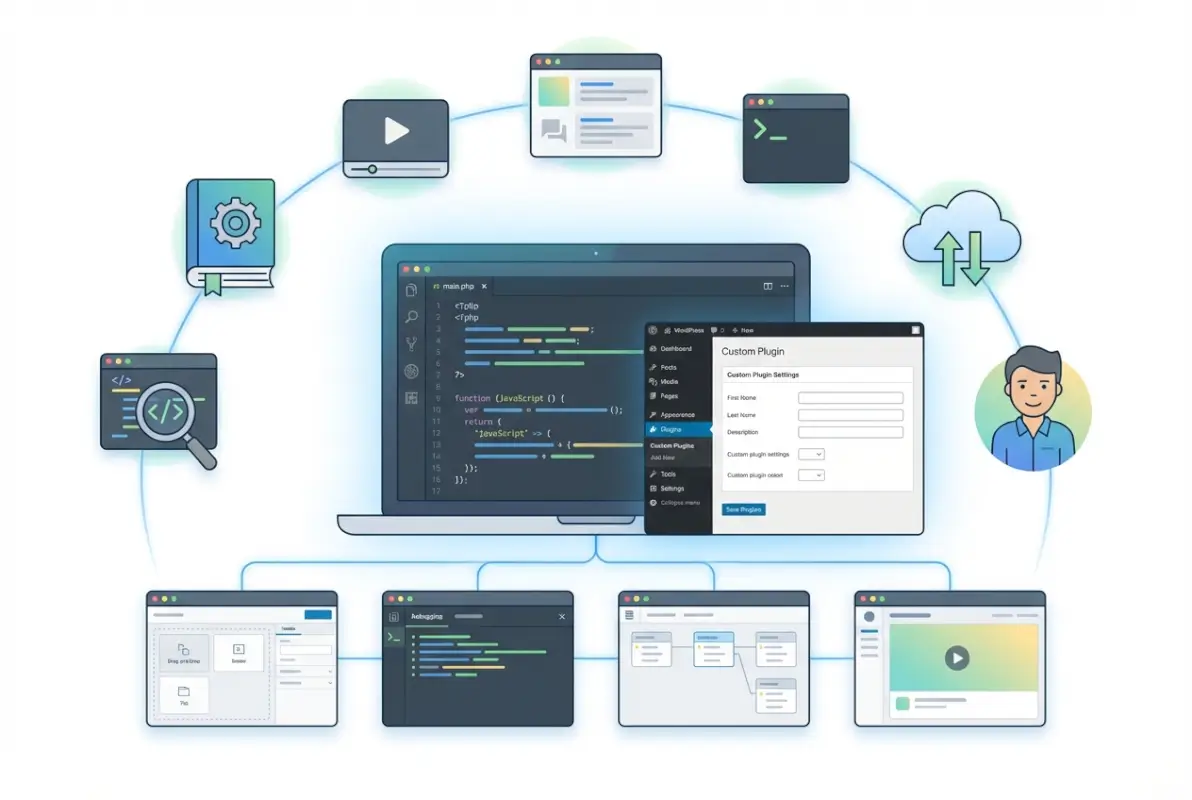
Create a new folder in wp-content/plugins/ called my-first-plugin. Inside, create a file named my-first-plugin.php. At the top, add the plugin header comment with your plugin name, description, version (start with 1.0.0), and author name. This header is what makes WordPress recognize your folder as an installable plugin. Save the file, visit your WordPress admin, and you should see your plugin listed on the Plugins page (though it won’t do anything yet).
Create a Minimal Plugin Skeleton
Activation and deactivation hooks let you run setup and cleanup code. After your header comment, add register_activation_hook(__FILE__, ‘my_plugin_activate’) and register_deactivation_hook(__FILE__, ‘my_plugin_deactivate’). Then define these two functions. For now, they can be empty or add a simple option to the database. This structure ensures your plugin properly initializes when activated and cleans up when deactivated.
The main functionality goes in a function that hooks into WordPress. Add a function called my_plugin_init() that will hold your core logic. Then use add_action(‘init’, ‘my_plugin_init’) to tell WordPress to run your function during initialization. This pattern—define a function, then hook it in—repeats throughout plugin development and becomes second nature quickly.
Add a Simple Admin Page or Meta-Box
Admin pages give your plugin a user interface where site administrators can configure settings or view data. Use add_action(‘admin_menu’, ‘my_plugin_menu’) to hook into the admin menu system, then inside my_plugin_menu(), call add_menu_page() with parameters for page title, menu label, required capability, menu slug, and callback function. The callback function outputs the HTML for your admin page.
Inside your admin page callback, wrap everything in checks for user capabilities and nonces. Display a simple form that saves an option, or just output some static content. When researching listing agents or directory data, custom admin pages provide the perfect interface for managing and displaying that information in an organized way.
Use a Simple Action or Filter to Modify Output
Let’s add a filter that modifies post content. Create a function my_plugin_content_filter($content) that takes the content as a parameter, adds some text to it, and returns the modified version. Then use add_filter(‘the_content’, ‘my_plugin_content_filter’) to hook your function into the content pipeline. Now every post and page on your site will include your added text.
This demonstrates the power of filters: you’re modifying data as it flows through WordPress without directly editing templates or core files. Try adding different text based on conditions (if is_single() add one thing, if is_page() add another). Experiment with priority by adding a third parameter to add_filter()—change the order your filter runs relative to others.
Basic Local Testing and Debugging Practices
With WP_DEBUG enabled in wp-config.php, PHP errors and warnings display immediately. Add intentional errors to see how WordPress reports them. Use error_log() to write debug messages to your PHP error log file, or use plugins like Query Monitor to see exactly which hooks fire and when. Testing means more than “it seems to work”—activate and deactivate your plugin multiple times, test with different themes, check behavior with other popular plugins installed.
Automated testing comes later, but manual testing habits matter now. Create a checklist: does activation work without errors? Does deactivation clean up properly? Do admin pages display correctly? Does your filter modify content as expected? Do security checks prevent unauthorized access? This systematic approach prevents the common beginner mistake of testing only the “happy path” where everything goes right.
How to Iteratively Improve Your Plugin
Don’t try to build a perfect plugin on your first attempt. Start with minimal functionality, test it thoroughly, then add one feature at a time. Each addition is a new learning opportunity—maybe next you add a settings page, then a custom post type, then REST API endpoints. This iterative approach builds confidence and teaches you to debug incrementally rather than facing a mountain of broken code.
Version control with Git tracks your iterations, letting you experiment freely knowing you can always roll back. Commit after each working feature. Write commit messages that explain what you changed and why. This discipline pays off when you revisit old code or need to identify which change introduced a bug. Business directory plugins evolve through exactly this iterative process, starting simple and growing more sophisticated with each release.
Tools, Environments, and Best Practices
Professional WordPress plugin development requires more than just knowing PHP and hooks—you need a development workflow that scales from hobby projects to commercial releases. The right tools catch errors before users see them, automate repetitive tasks, and establish standards that make collaboration possible. Let’s talk about the essential tools that separate quick hacks from maintainable software.
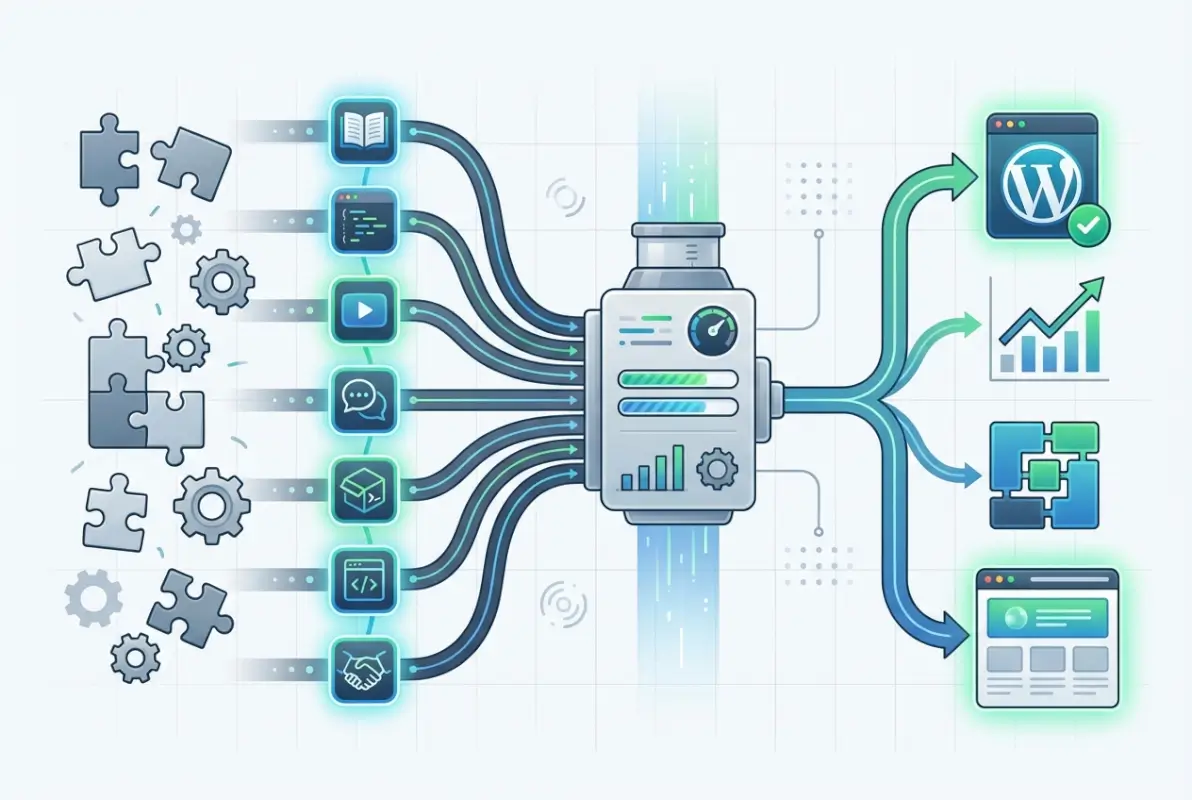
Local development stacks create isolated WordPress environments on your computer where you can break things without consequence. Local by Flywheel offers the easiest setup with one-click site creation and built-in SSL. XAMPP and MAMP provide more control but require manual WordPress installation. Docker-based solutions like wp-env give you consistency across different machines and team members. The stack you choose matters less than using one consistently—never develop directly on production servers.
Local Development Stacks and Recommended Tooling
Your code editor significantly impacts productivity. Visual Studio Code with WordPress-specific extensions (like WordPress Hooks IntelliSense and PHP Intelephense) provides autocomplete for WordPress functions and hooks. PHPStorm offers even deeper WordPress integration but costs money. Whichever you choose, install PHP CodeSniffer with WordPress Coding Standards—it highlights violations in real-time, teaching you proper formatting through repetition.
Browser developer tools become your debugging companion. Firefox and Chrome both offer excellent JavaScript console, network monitoring, and DOM inspection tools. Install the WordPress Debug Bar plugin to see queries, hooks, and performance metrics without leaving your browser. Query Monitor goes even further, showing you exactly which plugin or theme is slowing down your site or triggering errors.
| Tool | Purpose | Skill Level | Cost |
|---|---|---|---|
| Local by Flywheel | Local WordPress environment | Beginner | Free |
| VS Code + Extensions | Code editor with WP support | Beginner | Free |
| Query Monitor | Debug hooks, queries, performance | Intermediate | Free |
| PHPUnit | Automated testing framework | Advanced | Free |
Version Control Basics and Deployment Considerations
Git isn’t optional for serious plugin development. Initialize a repository in your plugin folder with git init, then commit your initial structure. Create a .gitignore file that excludes temporary files and vendor dependencies. Learn the basic workflow: make changes, stage them with git add, commit with a descriptive message, and push to a remote repository on GitHub or GitLab.
Branches let you experiment without disrupting your main codebase. Create a develop branch for new features, merging back to main only after testing. Tag releases with semantic versioning (1.0.0, 1.1.0, 2.0.0) so you can track which code version is deployed where. Many beginners skip version control early on, then waste hours trying to recover from a mistake they can’t undo—don’t make that mistake.
Coding Standards, Documentation, and Inline Comments
WordPress Coding Standards prescribe specific formatting: spaces not tabs (or tabs configured to display as four spaces), braces on the same line as function declarations, and snake_case for function names. While these might seem arbitrary, they enable thousands of developers to read and maintain each other’s code. Automated tools enforce these standards, so you don’t need to memorize every rule—just fix violations when your linter highlights them.
Inline comments should explain why code exists, not what it does (good code is self-documenting for the “what”). Use DocBlocks—structured comments above functions that describe parameters, return values, and usage. This documentation becomes essential when you return to old code six months later or when other developers try to extend your plugin. Professional directory plugins demonstrate this level of documentation, making their codebases approachable for customization.
Basic Testing Approaches
Manual testing only catches obvious bugs. Unit tests verify that individual functions work correctly in isolation, while integration tests ensure that different parts of your plugin work together. WordPress ships with a test suite based on PHPUnit, letting you write automated tests that run against actual WordPress functions. Initial test setup takes effort, but once configured, you can test your entire plugin in seconds after each change.
Start simple: test that your activation hook creates the expected database tables, that your sanitization functions properly clean user input, and that your filters return modified data. As your plugin grows, these automated tests prevent regressions—changes that accidentally break previously working features. Testing might feel like overhead when you’re eager to ship features, but catching bugs before users do saves your reputation and support time.
Security and Reliability Basics for Beginners
Security starts with input validation and output escaping, but extends to proper file permissions, secure data transmission, and regular dependency updates. Never trust user input, even from administrators—sanitize on the way in, escape on the way out. Use WordPress’s built-in functions rather than rolling your own security measures, since WordPress’s functions are battle-tested across millions of installations.
Reliability means your plugin degrades gracefully when things go wrong. Handle errors explicitly rather than letting PHP warnings clutter user screens. Check that required dependencies exist before using them (what if another plugin isn’t active?). Test on multiple PHP versions and WordPress releases. The difference between amateur and professional plugins often comes down to these unglamorous reliability considerations.
Distribution, Maintenance, and Ecosystem
Building a plugin is only half the journey—publishing and maintaining it properly separates abandoned hobby projects from sustainable software. The WordPress Plugin Directory offers free hosting and automatic updates to millions of users, but acceptance requires meeting specific standards and committing to ongoing maintenance. Understanding this ecosystem before you start coding shapes better architectural decisions and realistic expectations.

The WordPress.org plugin repository isn’t just file storage; it’s a complete distribution platform with version control, automatic updates, user reviews, support forums, and download statistics. Submitting your plugin initiates a human review process where WordPress volunteers examine your code for security issues, compliance with guidelines, and proper functionality. Approval typically takes a few days to a few weeks depending on submission volume and code complexity.
Submitting to the WordPress Plugin Directory
Before submitting, audit your plugin against the official guidelines. Your code must be original (no copies of other plugins), properly licensed (GPL-compatible), and free of security vulnerabilities. Avoid trademark violations in your plugin name or slug. Include a complete readme.txt file following the WordPress readme standard—this file generates your plugin’s directory listing page and contains critical metadata like tested WordPress version, required PHP version, and changelog.
The submission process starts with creating a WordPress.org account and using the plugin submission form. You’ll provide your plugin URL, description, and confirm that you’ve read the guidelines. Once approved, you receive SVN repository credentials—WordPress.org uses Subversion, not Git. Learn basic SVN commands: svn checkout to get your repository, svn add to stage new files, and svn commit to publish updates. Your trunk directory contains active development, while tags hold specific release versions that users download.
Updating, Versioning, and Compatibility
WordPress releases three to four major versions annually, plus numerous minor security releases. Your plugin must handle these updates gracefully without breaking. Follow semantic versioning: increment the major version (2.0.0) for breaking changes, minor version (1.1.0) for new features, and patch version (1.0.1) for bug fixes. Update your plugin’s “Tested up to” header with each WordPress release after verifying compatibility.
The changelog in your readme.txt file documents every change for users and reviewers. Detailed changelogs build trust by showing active maintenance and transparency about bug fixes. When you commit a new version to SVN, tag it (svn copy trunk tags/1.2.0) so users can access historical versions if needed. The WordPress.org system automatically detects new tags and offers them as updates to installed users within hours.
Supporting Users, Handling Issues, and Gathering Feedback
Free plugins on WordPress.org include support forums where users post questions and issues. While you’re not legally obligated to provide support, responsive developers build better reputations and gather valuable feedback. Set notifications for new forum posts and aim to respond within a few days. Many user reports reveal edge cases or compatibility issues you’d never discover in your own testing.
GitHub issues provide another support channel if you host your code publicly. Some developers use GitHub as their primary development platform and sync releases to WordPress.org—this approach gives you better version control tools while maintaining directory distribution. User reviews often highlight both strengths and weaknesses in your plugin; read them carefully for improvement ideas rather than taking criticism personally.
Long-Term Maintenance Mindset
Successful plugins aren’t one-time projects—they’re ongoing commitments. Plan for security patches when vulnerabilities are discovered, either in your code or in libraries you depend on. Monitor WordPress development to anticipate deprecated functions before they break your plugin. Establish a regular testing schedule around WordPress beta releases so you can address compatibility issues before major updates go live.
If you lose interest or capacity to maintain your plugin, be honest with users. Mark it as closed in the directory, or recruit co-maintainers to take over development. Abandoned plugins with security holes damage not just their users but the broader WordPress reputation. Building maintainable code from the start—clear documentation, automated tests, modular architecture—makes long-term support realistic rather than overwhelming.
Learning Roadmap: 7 Resources for Beginners
Now let’s get specific about where you should invest your learning time. These seven resources provide structured, authoritative guidance that takes you from beginner confusion to publishing your first plugin. I’ve organized them by learning style and depth, so you can choose the path that matches how you learn best.
Resource 1: Official WordPress Developer Resources and Learn WordPress
Start here, period. The Beginner WordPress Developer course on Learn WordPress provides free, structured lessons maintained by the WordPress community. Unlike third-party tutorials that fall out of date, these resources update with each WordPress release. The course covers PHP fundamentals, the plugin file structure, hooks and filters, security basics, and deploying to the WordPress.org repository—everything outlined in this guide.
The Plugin Handbook at developer.wordpress.org dives deeper into specific topics like internationalization, custom database tables, and the Settings API. Use it as a reference when you need detailed documentation on a particular function or concept. The handbook includes code examples for common patterns, saving you from reinventing solutions to solved problems.
Resource 2: Hands-On Tutorials and Curated Courses from Reputable Providers
Coursera hosts multiple WordPress development courses, including Create Your First WordPress Plugin, which walks you through building a complete plugin from scratch. These guided projects complement official docs by providing step-by-step instruction and working example code. Udemy’s Complete WordPress Plugin Development course offers video instruction if you prefer visual learning over reading documentation.
The advantage of paid courses is structure and completion incentives—when you’ve invested money, you’re more likely to finish. They also bundle prerequisites, so you’re not hunting for separate PHP tutorials before starting WordPress-specific content. Look for courses updated recently that cover current WordPress versions and modern development practices.
Resource 3: University and College Offerings with Plugin Development Modules
The University of Denver’s Custom WordPress Plugins course provides an academic approach to plugin development, covering design patterns, distribution strategies, and professional development workflows. University courses often emphasize best practices and software engineering principles that self-taught developers sometimes miss. They also provide structured deadlines and peer feedback if you take them live rather than as self-paced material.
Community colleges and adult education programs increasingly offer WordPress development classes, often at affordable prices or even free. Check your local university’s continuing education catalog. While these courses move slower than online tutorials, the accountability and networking opportunities make them valuable for some learning styles.
Resource 4: Community and Discussion Spaces
The WordPress.org support forums aren’t just for users—the Advanced WordPress and Plugin Development sections host detailed technical discussions where experienced developers help each other solve complex problems. Reading these threads exposes you to real-world issues and solutions you won’t find in polished tutorials. Participating teaches you to ask good questions and interpret documentation, skills that matter as much as coding ability.
Developer blogs from companies like WP Engine, Automattic, and experienced WordPress agencies publish advanced tutorials and best practices. Subscribe to a few and read regularly—even if topics are initially over your head, repeated exposure builds familiarity. Twitter and Mastodon communities around hashtags like #WordPress and #WPDev share quick tips, plugin releases, and news about core development.
Resource 5: Broader Web Development Fundamentals
Sometimes the best way to improve your WordPress plugin skills is learning adjacent technologies. Modern WordPress increasingly relies on JavaScript and REST APIs, particularly for block editor integration. Courses on vanilla JavaScript (not just jQuery) prepare you for building interactive admin interfaces and Gutenberg blocks. Understanding REST API concepts helps you build plugins that integrate with external services or provide data to mobile apps.
PHP-specific resources fill gaps in WordPress tutorials. Learning about namespaces, autoloading, and Composer (PHP’s package manager) enables you to structure larger plugins professionally and integrate third-party libraries. While WordPress doesn’t require these advanced PHP features, knowing they exist opens architectural possibilities as your plugins grow more sophisticated.
Resource 6: Security-Focused Resources and Vulnerability Awareness
Plugin security vulnerabilities make news regularly because they affect millions of websites. Wordfence’s blog analyzes recent vulnerabilities, explaining how they work and how to prevent them. Reading these breakdowns teaches you to think like an attacker, anticipating security holes before you create them. The OWASP Top 10 identifies the most critical web application security risks, many of which apply directly to WordPress plugins.
WPScan maintains a vulnerability database of WordPress plugins, themes, and core. Review historical vulnerabilities in popular plugins to see what mistakes even experienced developers make. This awareness prevents you from repeating common patterns like SQL injection through unescaped queries or XSS through unescaped output.
Resource 7: Structured, Beginner-Friendly Paths and Roadmap Summaries
Sometimes you just need someone to tell you exactly what to learn in what order. The Toptal Ultimate Guide to Building WordPress Plugins provides a comprehensive roadmap from setup through deployment. Use resources like this as a checklist to ensure you haven’t missed fundamental concepts as you progress from beginner to intermediate developer.
Create your own learning roadmap by combining these resources: start with Learn WordPress for fundamentals, supplement with a structured course for hands-on practice, dive into the Plugin Handbook when you need detailed reference material, and engage with the community when you’re stuck. Learning isn’t linear—you’ll loop back to earlier concepts as new topics make them finally click.
Advanced Yet Accessible Concepts for Future Learning
Once you’ve mastered plugin basics, a whole world of advanced possibilities opens up. These aren’t requirements for your first plugin, but knowing they exist helps you plan where your skills might grow. Think of this section as a preview of coming attractions—motivation to keep learning after you’ve published your first successful plugin.
Modern JavaScript Integration in Plugins
The WordPress block editor (Gutenberg) represents the platform’s future, and building blocks requires React knowledge. Custom blocks let your plugin add rich editing experiences beyond simple text fields and meta boxes. The @wordpress/scripts package provides a complete build toolchain for modern JavaScript, handling module bundling, transpilation, and optimization automatically. You can create sophisticated interfaces without mastering webpack configuration.
REST API endpoints turn your plugin into a headless CMS that powers mobile apps, single-page applications, or integrations with other platforms. Custom REST routes use the register_rest_route() function to define endpoints that respond to GET, POST, PUT, and DELETE requests. This architecture separates your plugin’s data from its presentation, enabling flexibility you can’t achieve with traditional WordPress rendering.
Internationalization and Accessibility Basics for Plugins
WordPress powers sites in dozens of languages, and proper internationalization (i18n) makes your plugin accessible to non-English users. Wrap all user-facing strings in translation functions like __() and _e(), then generate a .pot file that translators use to create language-specific versions. The work upfront is minimal, but the reach expands exponentially when your plugin works in Spanish, German, Japanese, and beyond.
Accessibility isn’t just ethical—it’s required for WordPress.org approval. Use semantic HTML, provide alt text for images, ensure keyboard navigation works, and test with screen readers. The WordPress Accessibility Team maintains detailed guidelines. Building accessible plugins from the start is easier than retrofitting accessibility later, and you’ll write better HTML in the process.
Testing Strategies Beyond the Basics
Continuous Integration (CI) automatically runs your test suite every time you push code to your repository. GitHub Actions and GitLab CI provide free CI services that can test your plugin against multiple PHP and WordPress versions simultaneously. This catches compatibility issues immediately rather than discovering them in user bug reports weeks after release.
End-to-end testing with tools like Playwright or Cypress simulates actual user interactions—clicking buttons, filling forms, navigating pages—and verifies that everything works together. While unit tests catch logic errors, E2E tests catch integration failures and user experience issues. Setting up comprehensive testing takes significant upfront time, but mature plugins benefit enormously from the confidence tests provide.
Publishing Patterns and Plugin Monetization Considerations
Not all plugins belong in the free WordPress.org directory. Commercial plugins sold through your own site or marketplaces like CodeCanyon provide income that funds ongoing development. The freemium model—free base plugin with paid add-ons or premium features—works well in the WordPress ecosystem. EDD, WooCommerce, and Freemius provide licensing and update infrastructure so you don’t have to build payment and license checking systems yourself.
SaaS models use a WordPress plugin as the client interface, but the heavy processing happens on your servers. This approach protects proprietary code, enables usage-based pricing, and prevents piracy. Whatever monetization path you choose, start with a free plugin to build reputation and understand user needs before investing in commercial development.
Frequently Asked Questions
What is a WordPress plugin, and how does it differ from a theme?
A WordPress plugin extends functionality by adding features like contact forms, SEO tools, or e-commerce capabilities, while themes control the visual presentation and design. Plugins use hooks to tap into WordPress execution, whereas themes primarily output HTML, CSS, and JavaScript. You can change themes without losing plugin functionality, but replacing a plugin often means losing its specific features.
Do I need to know PHP to build WordPress plugins?
Yes, PHP is essential since WordPress itself is written in PHP and the plugin API is PHP-based. You need basic PHP knowledge—variables, functions, arrays, and conditionals—but don’t need advanced concepts like design patterns or complex object-oriented programming to start. Many successful plugin developers learned PHP specifically for WordPress rather than studying it in isolation first.
How long does it take to learn WordPress plugin development as a beginner?
With consistent effort, you can build a simple functional plugin within two to four weeks of starting from scratch. Reaching intermediate proficiency where you can build custom solutions independently typically takes three to six months of regular practice. Mastery that includes security hardening, performance optimization, and complex architecture comes after a year or more of active development and learning.
Can I publish a plugin on WordPress.org, and what are the basic requirements?
Anyone can submit a plugin to WordPress.org for free. Basic requirements include original GPL-licensed code, proper security practices, no trademark violations, and a complete readme.txt file. The plugin must be functional and follow WordPress coding standards. After submission, volunteers review your code manually, which takes several days to weeks, then provide approval or request changes.
Are WordPress plugins secure out of the box, and what common pitfalls should I avoid?
Plugins aren’t automatically secure—security requires deliberate implementation of nonces, capability checks, input sanitization, and output escaping. Common pitfalls include trusting user input without validation, building database queries with string concatenation instead of prepared statements, failing to check user permissions before sensitive operations, and outputting data without proper escaping. These vulnerabilities cause most plugin security issues.
What tools should I start with for local development?
Start with Local by Flywheel for easy WordPress environment management, Visual Studio Code with WordPress-specific extensions for code editing, and Git for version control. Add the WordPress Coding Standards for PHP CodeSniffer to catch style violations, and install Query Monitor or Debug Bar plugins to monitor hooks and queries. These free tools provide everything you need for professional plugin development.
Where can I find beginner-friendly tutorials from official sources?
The Learn WordPress platform at learn.wordpress.org offers free structured courses including the Beginner WordPress Developer course. The Plugin Handbook at developer.wordpress.org provides comprehensive documentation on all plugin development topics. Both resources are maintained by the WordPress community and stay current with WordPress releases, making them more reliable than random tutorials that may contain outdated information.
What programming languages besides PHP are useful for WordPress plugin development?
JavaScript becomes increasingly important, especially vanilla JavaScript and React for building Gutenberg blocks and interactive admin interfaces. SQL knowledge helps when working with custom database tables. HTML and CSS are essential for creating admin pages and frontend output. JSON understanding assists with REST API work. However, PHP remains the primary language for core plugin functionality and WordPress integration.
How do I handle plugin updates without breaking existing user installations?
Use semantic versioning to communicate change severity, maintain backward compatibility whenever possible, and document breaking changes clearly in your changelog. Test updates against fresh installations and sites with existing data. Implement database migration scripts for schema changes rather than assuming empty tables. Provide deprecation warnings before removing features, giving users time to adapt their implementations.
Can I monetize a WordPress plugin, and what are my options?
You can sell plugins directly from your site, through marketplaces like CodeCanyon, or use freemium models with free base versions and paid extensions. The GPL license requires you to share source code with customers, but doesn’t prohibit charging for software, support, or updates. Many developers earn full-time income from commercial WordPress plugins while still maintaining free versions in the directory.
Ready to Build Your First WordPress Plugin?
You now have a complete roadmap from beginner to published plugin developer, backed by authoritative resources and practical guidance. The journey ahead involves challenges and frustrations, but also the satisfaction of building software that potentially reaches millions of users. Start with the smallest possible project—that admin page displaying “Hello World” is more valuable than an ambitious feature list you never finish.
Set up your local environment today. Install WordPress, enable debugging, and create that first plugin file with a proper header. Hook one simple function and watch it execute. Each small success builds momentum and confidence. The WordPress community welcomes new developers, and your unique perspective brings value even as a beginner. Your first plugin won’t be perfect, and that’s exactly how it should be—perfection comes through iteration, not inspiration.
Pick one resource from the seven above and commit to working through it this week. Join the WordPress.org forums and introduce yourself in the Plugin Development section. Read other developers’ code on GitHub to see how they solve problems. Most importantly, write code every day, even if only for twenty minutes. Consistency beats intensity when building skills that compound over time. The WordPress ecosystem needs more skilled plugin developers—why not become one?