How to Link to a Specific Directory in WordPress: 5 Simple Methods
TL;DR – Quick Takeaways
- Five proven methods – From absolute URLs to theme functions, each approach solves specific linking challenges in WordPress
- Security matters – Exposing directory paths without proper access controls can create vulnerabilities
- Choose based on context – Media directories need different treatment than theme assets or external folders
- Performance impact – How you link affects caching, CDN delivery, and page load times
- Future-proof approach – Use WordPress functions and relative paths to survive domain changes and migrations
Let’s be honest: most WordPress tutorials gloss over directory linking because it seems too basic. But here’s what they won’t tell you—how you link to directories fundamentally affects your site’s security posture, migration resilience, and even SEO performance. I’ve seen production sites break during simple domain changes because someone hardcoded absolute paths everywhere, and I’ve watched servers get hammered because a poorly configured directory listing exposed thousands of files to crawlers.

Understanding how to link to a specific directory in WordPress isn’t just about getting from point A to point B. It’s about choosing the right tool for the job, whether you’re pointing visitors to your uploads folder, creating a custom resource library, or integrating theme-specific assets. The difference between methods can mean the difference between a site that survives updates and one that requires constant firefighting.
Understanding What “Linking to a Directory” Means in WordPress
Before we jump into methods, let’s clear up a common misconception. When people talk about linking to directories in WordPress, they’re actually describing three distinct scenarios: linking to a file system directory that’s publicly accessible, creating navigational links to organized content areas, or pointing to server directories outside WordPress entirely. Each scenario requires a different approach, and mixing them up causes most of the confusion I see in support forums.
Direct vs. Indirect Directory Linking
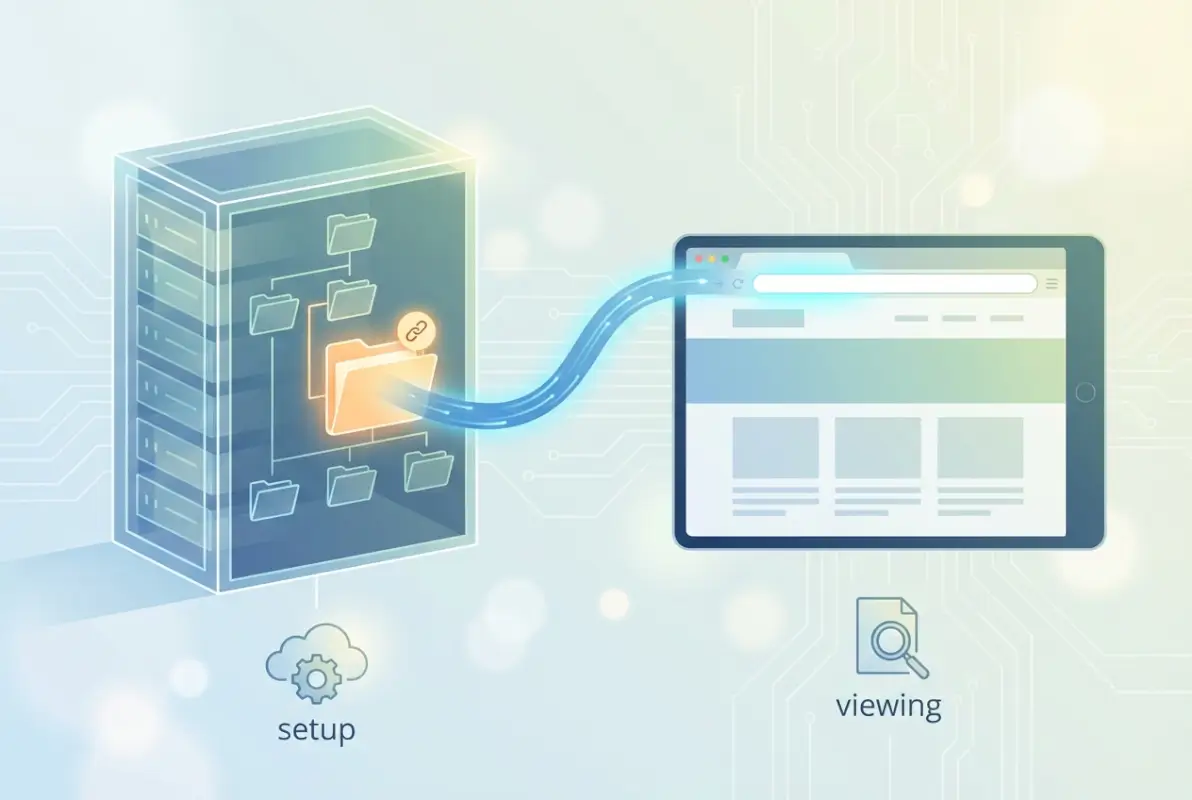
Direct linking means you’re pointing straight to a folder on your server—something like https://yoursite.com/wp-content/uploads/2024/. The browser tries to display whatever’s at that path, which might be a directory listing (if your server allows it) or a 403 Forbidden error (if it doesn’t). Indirect linking uses WordPress to interpret the request, routing it through a page template or plugin that presents the directory contents in a controlled way.
Absolute URLs specify the complete path including protocol and domain (https://example.com/directory/), while relative URLs depend on context (/directory/ or ../directory/). Here’s the thing nobody mentions: relative URLs are more resilient during migrations, but absolute URLs prevent ambiguity when you’re linking across subdomains or from external sources. According to GreenGeeks’ absolute path documentation, understanding this distinction becomes critical when you’re managing complex site structures.
Typical Directory Types You Might Point To
The wp-content/uploads/ directory is the most common target, it’s where WordPress stores all your media uploads by default. But you might also link to custom plugin directories, theme asset folders, or completely custom directories you’ve created for specific purposes (like a downloads library or documentation repository). Each type has different exposure risks and management needs.
I remember setting up a client site where they wanted a “Resources” section with hundreds of PDFs. They assumed just dumping everything in uploads/ and linking to the folder would work. It did—until search engines started indexing every single file individually, creating thousands of duplicate content issues and crushing their crawl budget. That’s when we learned the hard way that controlling directory access isn’t optional, it’s fundamental.
Security and Permissions Considerations
When you expose a directory to the web, you’re potentially showing visitors your file structure, naming conventions, and even sensitive configuration details if you’re not careful. Most production servers disable directory browsing by default (Options -Indexes in .htaccess), but custom directories or poorly configured hosting can override this. Always verify what visitors actually see when they follow your directory links.
Method 1: Use Absolute URLs to a Directory Within WordPress
The simplest approach for linking to directories within your WordPress installation is using absolute URLs. This works particularly well for the wp-content/uploads/ structure because WordPress already manages these paths and expects them to be publicly accessible. It’s the go-to method when you need quick, reliable access to media directories without additional infrastructure.
Step-by-Step: Locate, Copy, and Link
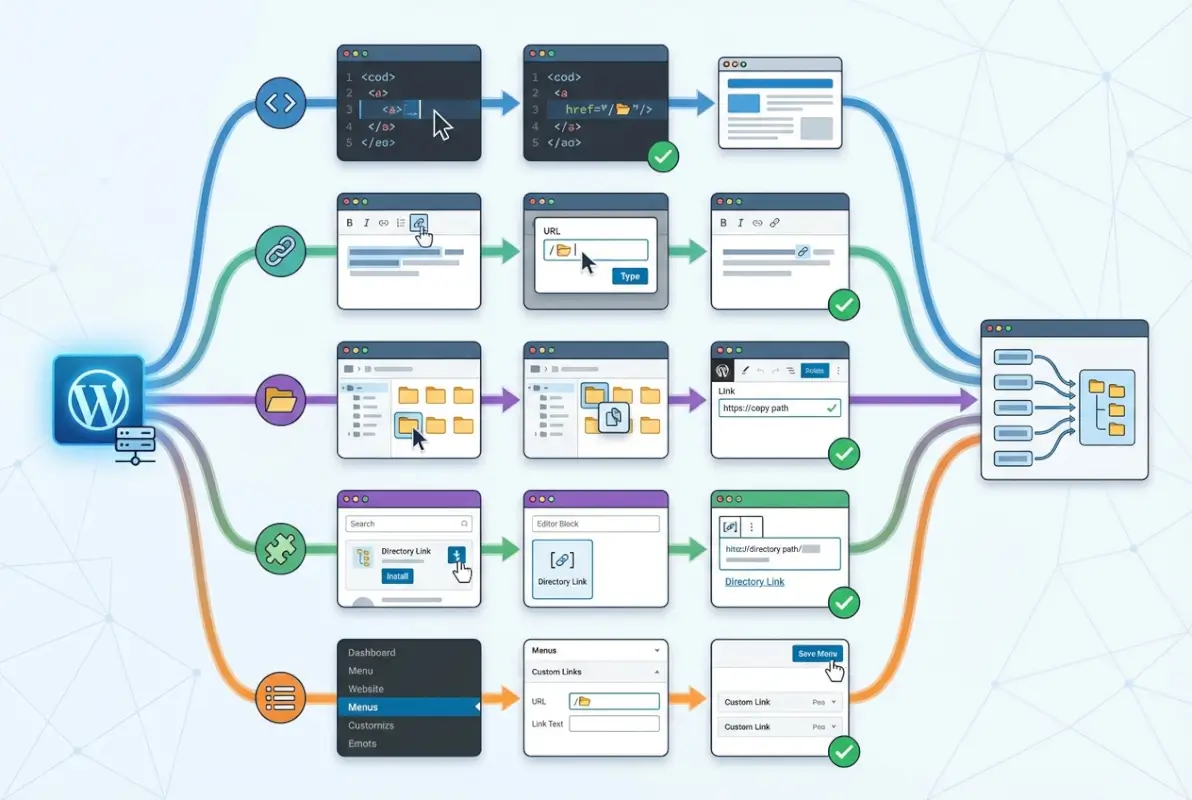
First, identify the exact directory path you want to link to. For uploads, this typically follows the pattern https://yoursite.com/wp-content/uploads/YYYY/MM/ where WordPress organizes media by year and month (unless you’ve disabled this in Settings → Media). You can find the precise URL by uploading a test file, viewing it in the Media Library, and copying its URL minus the filename.
Once you have the directory URL, you can paste it anywhere WordPress accepts links—in posts, pages, custom menus, or widgets. Just use standard HTML anchor tags: <a href=”https://yoursite.com/wp-content/uploads/resources/”>View Resources</a>. The WordPress editor handles this automatically if you’re using the visual editor, but knowing the underlying HTML helps when you need more control.
For navigation menus, go to Appearance → Menus, create a Custom Link item, paste your absolute directory URL, and add appropriate link text. This creates a permanent menu item pointing directly to your chosen directory. Just remember that if you reorganize your directory structure later, you’ll need to update these links manually.
When This Approach Is Ideal
Absolute URLs excel in scenarios where directory structure remains stable: permanent resource libraries, long-term media archives, or publicly accessible download folders. They’re also perfect when you’re linking from external sources (email campaigns, social media, or external sites) because they carry complete context—no ambiguity about where the link points.
| Scenario | Best For | Watch Out For |
|---|---|---|
| Permanent media folders | Absolute URLs | Domain changes |
| External campaign links | Absolute URLs | URL structure changes |
| Theme asset references | Relative/functions | Theme updates |
| Development/staging sync | Relative URLs | Subdirectory installs |
Caveats: Cache and CDN Implications
When you use absolute URLs, you’re committing to that exact path. If you later implement a CDN that rewrites your media URLs (common with services like Cloudflare or CloudFront), those hardcoded absolute links won’t automatically benefit from the CDN. You’ll need to either update them manually or use a plugin that rewrites URLs dynamically. According to WordPress.com’s media URL guidance, this becomes especially relevant for high-traffic sites where CDN offloading is essential.
Similarly, if you migrate domains or switch from HTTP to HTTPS (which you absolutely should), every absolute URL needs updating. Search and replace tools in plugins like Better Search Replace can help, but prevention beats cure—consider whether you really need absolute paths or if relative would serve you better.
Method 2: Use Relative URLs Within the Site Structure
Relative URLs offer elegance in their simplicity: they adapt to context automatically. When you link to /directory/ instead of https://example.com/directory/, the browser interprets it relative to the current domain. This makes your links inherently portable across development, staging, and production environments without modification.
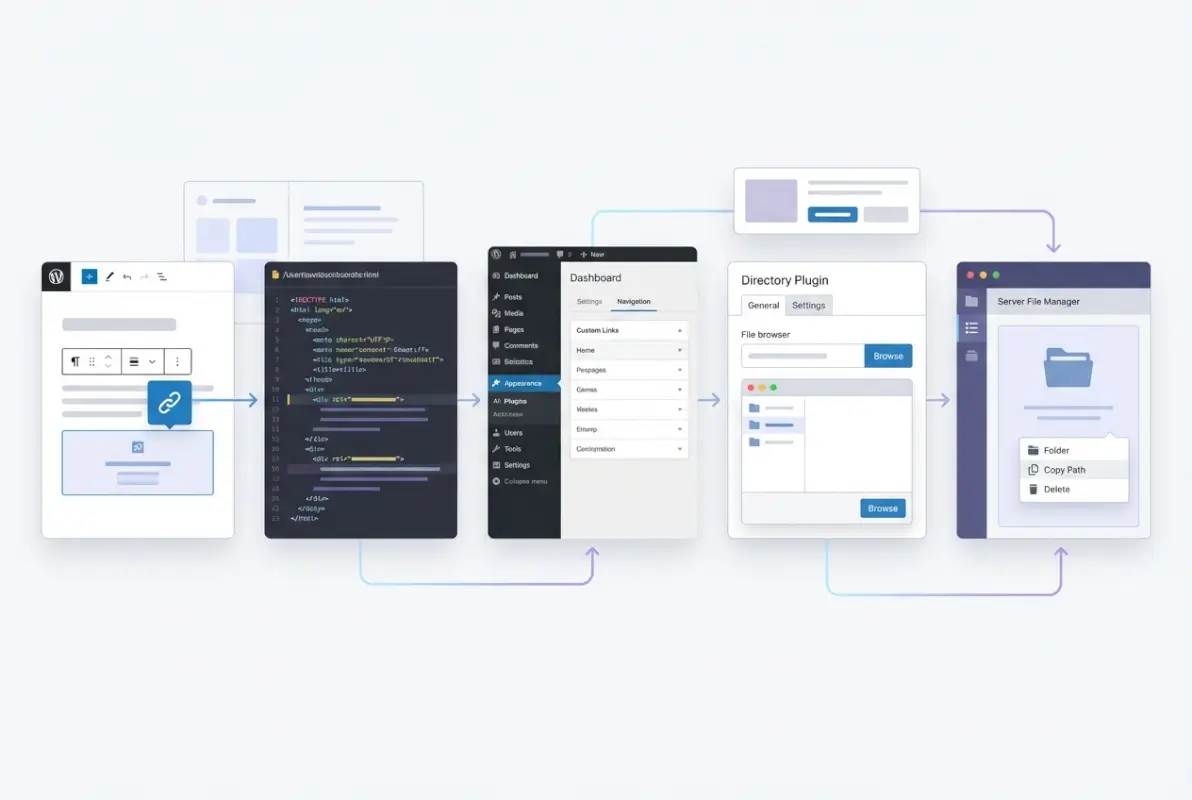
Constructing Site-Relative Links
A site-relative URL starts with a forward slash, indicating it’s relative to your site root: /wp-content/themes/yourtheme/assets/. This works regardless of what domain you’re on, making it perfect for sites that exist across multiple environments. In WordPress templates, you might write something like <a href=”/downloads/”>Downloads</a>, and it’ll resolve correctly whether you’re at localhost, staging.site.com, or your production domain.
The trick is understanding your WordPress installation structure. If WordPress lives in a subdirectory (like example.com/blog/), you need to account for that: /blog/wp-content/uploads/ instead of just /wp-content/uploads/. This catches people off guard when they migrate from root to subdirectory installations or vice versa.
Best Practices for Maintainability
Consistency is everything with relative URLs. Choose a pattern (site-relative with leading slash) and stick with it across your entire site. Mixing relative approaches (some with leading slashes, some without, some with ../ parent references) creates maintenance nightmares and increases the chance of broken links after structural changes.
Document your linking conventions in your site’s style guide or developer documentation. Future you (or the next developer) will thank you when updates are needed. I’ve inherited sites where every page used a different linking approach, making simple URL structure changes require hours of link hunting. Don’t be that developer.
Pitfalls: Rewrites and Migrations
WordPress’s permalink structure can complicate relative URLs because it uses URL rewriting to create clean URLs. If your relative link appears on a page with a deep permalink structure (/category/subcategory/post/), and you use a relative path without the leading slash (downloads/ instead of /downloads/), the browser interprets it relative to the current path, creating /category/subcategory/post/downloads/ instead of /downloads/. Always use root-relative paths (with leading slash) to avoid this trap.
Server-level redirects and .htaccess rules can also interfere with relative URLs in unexpected ways. If you’re redirecting old URLs to new structures, make sure your relative paths account for the final destination after all rewrites are applied, not the original request path.
Method 3: Link to a Directory Listing via Plugin or Custom Template
Sometimes you don’t just want to link TO a directory, you want to SHOW its contents in a user-friendly way. This is where plugins and custom templates come in, rendering file listings, download buttons, or organized resource libraries instead of raw directory indexes. This approach gives you complete control over presentation and user experience.
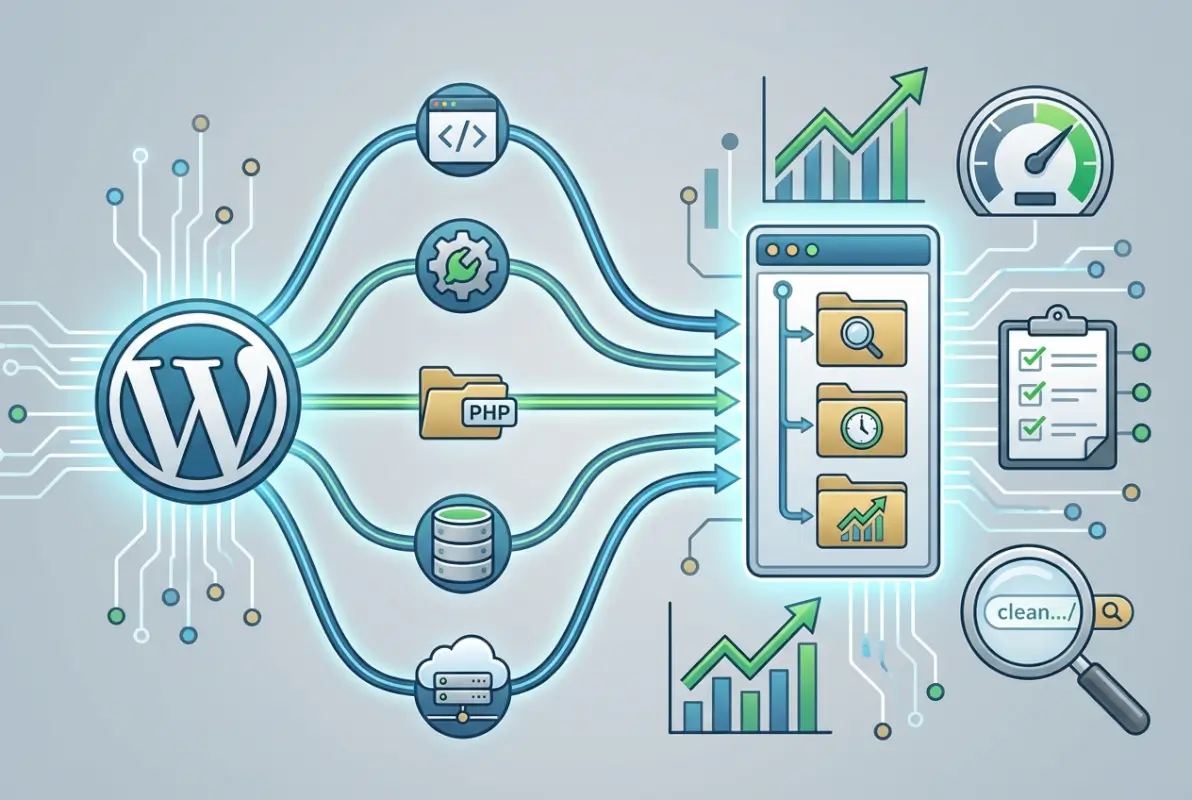
Plugins and Directory Listing Approaches
Several WordPress plugins specialize in displaying directory contents as formatted lists. These typically scan a specified folder and generate tables or card layouts showing filenames, sizes, and download links. According to WePlugins’ directory listing overview, options range from simple file listers to full-featured document management systems.
The advantage here is presentation control—you can filter which files appear, add descriptions or thumbnails, implement search functionality, and track downloads. Instead of exposing raw server directory listings, you’re creating a curated experience. This is particularly valuable when you’re building something like a profitable business directory that requires polished presentation.
For development-comfortable users, creating a custom page template that uses PHP’s directory scanning functions (like scandir() or glob()) offers complete flexibility. You can query a specific directory, filter results, apply sorting, and output exactly the HTML structure you need. Just remember to sanitize outputs and validate paths to prevent security issues.
Creating a Dedicated Directory Page
Another approach involves creating a custom post type or archive specifically for directory-style content. For example, you might create a “Resources” post type where each entry represents a downloadable file, then use the archive template to display them all in a directory-like layout. This integrates beautifully with WordPress’s native taxonomy and search capabilities.
The Harvard WordPress implementation referenced in their directory content type documentation shows how educational institutions handle this challenge—they create custom content types for faculty directories, resource libraries, and departmental file systems, all while maintaining WordPress’s editing experience.
Pros, Cons, and Performance Considerations
The plugin/template approach offers the best user experience and most flexibility, but it comes with overhead. Every page load requires scanning the directory (unless you implement caching), which can slow down performance on directories with thousands of files. Good plugins implement object caching or transients to minimize this impact, but you should still test performance under realistic load.
Maintenance is another factor. Plugins need updates, and custom templates need to survive theme changes. If you’re building something you need to maintain long-term, weigh the improved UX against the ongoing maintenance burden. Sometimes a simple absolute URL to a well-organized directory is the more sustainable choice, even if it’s less polished.
Method 4: Use Theme Template Functions for Theme Directories
WordPress provides purpose-built functions for linking to theme-related directories, and ignoring them is leaving performance and security benefits on the table. These functions automatically handle child themes, multi-site installations, and various server configurations that would break manually constructed paths.

Core Directory Functions Explained
The two most important functions are get_template_directory_uri() (which returns the parent theme’s URL) and get_stylesheet_directory_uri() (which returns the active theme’s URL, accounting for child themes). If you’re not using a child theme, they return the same value. But if you are, using the right function ensures your links point to the correct location.
For example, if you want to link to a PDF in your theme’s assets folder: <a href=”<?php echo get_template_directory_uri(); ?>/assets/guide.pdf”>Download Guide</a>. This works whether your theme is active, whether you’re using a child theme, and regardless of your WordPress installation path. According to WordPress developer documentation, these functions are the only reliable way to reference theme resources.
There are also get_template_directory() and get_stylesheet_directory() (without _uri) that return filesystem paths instead of URLs. Use these when you need to read files server-side, not when creating links.
When to Use These in Menus, Widgets, or Templates
These functions shine in any context where you’re programmatically generating links to theme assets. In navigation menus, you typically can’t use PHP directly, so you’d need to use absolute or relative URLs instead. But in widgets, templates, or shortcodes, these functions ensure your links survive theme updates and installation moves.
Consider a scenario where you’ve built a resource library into your theme’s functionality. Instead of hardcoding paths to those resources, use get_stylesheet_directory_uri() to construct links dynamically. When you later create a child theme to customize design elements, those links automatically adjust to pull from the child theme if the files are present there, falling back to the parent theme if not.
Version Control and Theme Update Considerations
Here’s a scenario that bit me once: I stored important PDF resources in a theme directory, linked to them using absolute URLs, then updated the theme and lost all those files because the theme directory got completely replaced. Using theme functions wouldn’t have prevented the file loss, but it would have made the broken links immediately obvious rather than silently failing.
The better approach: store permanent resources in wp-content/uploads/ or a custom directory outside your theme, and only use theme directories for assets that are truly part of the theme itself (stylesheets, scripts, template images). If you must store content in theme directories, use a child theme and document clearly what’s in there so it doesn’t get lost during updates.
Method 5: Serve External Directories via Web Server
Sometimes you need to link to directories that exist completely outside WordPress—network shares, separate file servers, or directories WordPress doesn’t control. This scenario is more common in enterprise environments where WordPress is one component of a larger infrastructure. It requires coordinating WordPress, web server configuration, and often authentication systems.
Linking Outside WordPress Boundaries
If you have a directory at the server level outside your WordPress installation (perhaps /var/files/ that’s mapped to https://yoursite.com/files/ through server configuration), you can link to it using absolute or relative URLs just like any WordPress directory. The difference is WordPress has no knowledge of or control over these files—it’s purely a web server serving static content.
This approach works well for large media libraries, archival content, or resources managed by separate systems. For example, you might have a document management system that stores files outside WordPress but you want to link to specific folders from your WordPress content. As discussed in WordPress.org support threads, this requires careful configuration but is entirely feasible.
For internal networks, you might even link to UNC paths (\\server\share\folder) for Windows network drives, though this only works for authenticated users on the same network. Public internet users can’t access these paths, making them suitable only for intranet scenarios.
Server Configuration and Access Control
Setting up external directory access typically involves configuring Apache Alias directives or Nginx location blocks to map a URL path to a filesystem path outside your WordPress root. This requires server access and understanding of your web server’s configuration syntax—definitely not beginner territory.
For Apache, something like: Alias /external-docs “/var/external/documents” combined with appropriate Directory directives to set permissions. For Nginx, a location block with alias or root directives. Both require careful attention to trailing slashes and security implications.
Security Implications and Authentication
External directories bypass WordPress’s access control entirely unless you implement additional protection. If you’re serving the directory directly through your web server, anyone with the URL can access it. For public resources, this is fine. For anything else, you need authentication.
One approach: use WordPress to control access but serve files from external directories. Create a WordPress page or endpoint that checks user permissions, then uses PHP’s readfile() or X-Sendfile headers to deliver the actual file from the external directory. This combines WordPress’s familiar user management with the scalability of serving large files outside the WordPress directory structure. It’s more complex to set up but offers the best of both worlds for secure, large-scale file serving. This principle extends to limiting directory access across your entire WordPress infrastructure.
Directory Indexing and SEO Considerations
How you handle directory listing pages from an SEO perspective dramatically affects your site’s search performance. Directory pages can either be valuable resource hubs that attract traffic or SEO dead weight that fragments your crawl budget and creates thin content issues.
Index vs. Noindex for Directory Listings
The fundamental question: should search engines index your directory listing pages? If the directory provides genuine value—say, an organized catalog of resources with descriptions and metadata—indexing makes sense. But if it’s just a bare-bones list of files with cryptic names, you’re creating low-quality pages that dilute your site’s overall quality in search engine eyes.
For valuable directory pages, ensure they have proper titles, meta descriptions, and introductory content explaining what users will find. For technical directories or internal file structures, add a noindex meta tag to keep them out of search results while still allowing authenticated users to access them.
You can control indexing at the page level (if you’re using a custom template for directory display) or via robots.txt if you want to block entire directory structures. Just remember that robots.txt is a request, not a command—determined crawlers can ignore it. For true security, use server-level authentication, not just robots.txt.
Metadata and Schema for Directory Pages
If you’re creating directory pages worth indexing, treat them like any other important content page. Write descriptive, keyword-rich titles (not just “Directory” or “Files”). Craft compelling meta descriptions that explain what resources users will find. Add heading structure (H1, H2) to organize content logically.
For structured data, CollectionPage or ItemList schema can help search engines understand that your page is an organized collection of resources. This won’t directly boost rankings, but it provides context that can enhance how your pages appear in search results. According to Google’s structured data guidelines, proper markup helps search engines interpret your content’s purpose and relationships.
UX Considerations: Making Directories Useful
Nobody enjoys landing on a raw directory index with cryptic filenames and no context. If you’re exposing directories to users, invest in UX: add search and filter functionality, provide file type icons and size information, include descriptions or previews, and implement logical sorting (alphabetical, date, size, relevance).
Pagination matters for large directories. Loading 5,000 files on a single page murders performance and usability. Implement reasonable pagination (50-100 items per page) and provide navigation controls. Make sure your pagination doesn’t create duplicate content issues (use canonical tags properly).
Accessibility is often overlooked in directory interfaces. Ensure keyboard navigation works, screen readers can understand the structure, and color isn’t the only way to convey information (like file types or status). These considerations align with broader strategies for optimizing directory listings for all users.
Performance and Security Best Practices
Regardless of which linking method you choose, certain performance and security principles apply universally. Ignoring these creates sites that work but don’t work well—they’re slow, vulnerable, or frustrating to maintain.
Canonical URLs and Consistent Linking
Pick one canonical way to reference each directory and stick to it. If you sometimes link to /resources/ and sometimes to /resources (without trailing slash), search engines might treat these as separate pages. WordPress typically handles trailing slashes automatically, but consistency prevents edge cases where they don’t.
Similarly, don’t mix protocols (HTTP and HTTPS) in your links. If your site uses HTTPS (it should), all internal links should use HTTPS too. Mixed content warnings damage user trust and can cause browsers to block resources entirely.
Use WordPress’s built-in home_url() and site_url() functions when programmatically constructing links—they automatically use the correct protocol and domain configured in your WordPress settings, preventing hardcoded URLs that break when configurations change.
| Security Practice | Implementation | Risk Mitigated |
|---|---|---|
| Disable directory browsing | Options -Indexes in .htaccess | Information disclosure |
| Use authentication | WordPress roles + PHP file serving | Unauthorized access |
| Sanitize paths | Validate + sanitize user inputs | Path traversal attacks |
| Regular permission audits | Check file permissions quarterly | Privilege escalation |
Protect Sensitive Directories
Never expose directories containing WordPress configuration files, backup files, logs, or user data without robust authentication. Even seemingly innocuous directories can reveal information attackers use to map your site’s structure and identify vulnerabilities.
The classic .htaccess protection (using AuthType Basic) provides simple password protection but isn’t ideal for user-facing content because it creates a browser authentication dialog outside your site’s design. For better UX, use WordPress’s own authentication and serve files through PHP scripts that check capabilities before serving, this integrates seamlessly with your existing user system.
For truly sensitive content, consider storing it outside the web root entirely and serving it only through authenticated PHP scripts. This makes direct URL access impossible, forcing all access through your application logic where you control authentication and authorization.
Cache Strategies for Directory Content
Directory listings can be expensive to generate, especially if they’re scanning filesystem directories or querying large databases. Implement caching aggressively: use WordPress transients for directory listings, set appropriate HTTP caching headers for static directory pages, and leverage object caching if available.
For directories that change rarely, you can cache listings for hours or days. For frequently updated directories, shorter cache durations (minutes) balance freshness with performance. Consider implementing cache invalidation that triggers when files are added or removed, giving you the best of both worlds.
CDN caching works beautifully for directory pages with static content. Just make sure cached versions don’t serve authenticated content to unauthenticated users—set appropriate Vary headers or exclude authenticated pages from CDN caching entirely.
Troubleshooting Common Issues
Even with careful implementation, directory linking can produce mysterious failures. Here’s how to diagnose and fix the most common problems quickly.
Broken Links After Directory Reorganization
You moved a directory, and now hundreds of links return 404s. First, implement a redirect: in Apache, use mod_rewrite or Redirect directives to point old paths to new ones. In WordPress, a redirection plugin (like Redirection) lets you create these rules without touching server files.
For widespread changes, database search-and-replace is more efficient than manual updates. Use a plugin like Better Search Replace or WP-CLI’s search-replace command. Always backup your database first, and test on staging before running search-replace on production—it’s powerful and irreversible.
Prevention beats cures here too. Minimize hardcoded absolute URLs, use WordPress functions for theme resources, and document your directory structure so future changes can be planned rather than discovered through broken links.
Mixed Content Warnings with HTTPS
Your site uses HTTPS but some directory links point to HTTP URLs, triggering browser warnings or blocked content. This typically happens with hardcoded absolute URLs that specify http:// explicitly. The fix: use protocol-relative URLs (//example.com/path/) or, better, always specify https:// for sites that use SSL.
WordPress’s Really Simple SSL plugin can automatically rewrite internal links from HTTP to HTTPS, though fixing the underlying links is cleaner. Search your database for http://yoursite.com and replace with https://yoursite.com using the search-replace approach mentioned above.
Permission Denied or 403 Forbidden Errors
Users (or you) get 403 errors when accessing directory links. This typically indicates server-level permission issues or security plugins blocking access. Check file and directory permissions first: directories should typically be 755, files 644 (though shared hosting might vary).
If permissions are correct, check .htaccess files in the directory or parent directories—they might contain deny rules. Also check your security plugins: many block directory browsing as a security measure, which is good for sensitive directories but problematic for intentionally public ones. You’ll need to whitelist the specific directory in your security plugin’s settings.
Testing Across Environments
A link works locally but fails in staging or production—classic environment mismatch. Different environments might have different directory structures, server configurations, or WordPress installation paths. This is why relative URLs and WordPress functions (which adapt to environment) are more robust than hardcoded absolute paths.
Always test links after deployment. Create a checklist of critical directory links and verify them in each environment. Better yet, automate link checking with tools that crawl your site and report broken links (like Screaming Frog or online broken link checkers). Catching a broken directory link before users do saves reputation damage.
Implementation Checklist
Let’s consolidate everything into an actionable implementation process you can follow for any directory linking project.
Document the full path, URL, purpose, and expected access level (public/authenticated/restricted). Identify whether this is a WordPress-managed directory, theme directory, or external directory. This determines which method you’ll use.
• Permanent media directories → Method 1 (absolute URLs)
• Cross-environment consistency → Method 2 (relative URLs)
• User-facing listings → Method 3 (plugin/template)
• Theme assets → Method 4 (WordPress functions)
• External/large file stores → Method 5 (web server config)
Create the links using your chosen method. Implement appropriate security (authentication, directory browsing disabled, permissions). Add SEO elements if applicable (titles, descriptions, schema). Test accessibility and mobile responsiveness.
Test links while logged in and logged out. Test from different devices and browsers. Verify performance under load (if expecting significant traffic). Check that caching works correctly without breaking authenticated access.
Document the linking method, directory structure, and any special configurations in your site’s technical documentation. Set up monitoring for broken links or access errors. Schedule periodic reviews to ensure links remain functional as your site evolves.
This checklist applies whether you’re linking to a single directory or implementing a comprehensive directory structure. Adapt it to your specific needs, but don’t skip steps—each one prevents a category of future problems. For those implementing comprehensive directory solutions, this approach complements broader strategies for monetizing directory sites.
Frequently Asked Questions
What is the difference between absolute and relative URLs when linking to directories in WordPress?
Absolute URLs include the full domain and protocol (https://example.com/directory/), making them portable across contexts but vulnerable to domain changes. Relative URLs start with a slash (/directory/) and adapt to the current domain automatically, making them more resilient during migrations and across development environments. Choose absolute for external references or when you need explicit paths, relative for internal site navigation.
Can I link directly to the wp-content/uploads directory and is it safe?
Yes, you can link directly to wp-content/uploads since WordPress designs this directory for public media access. However, consider whether exposing the raw directory structure is appropriate. If you just need to link to specific files, that’s perfectly safe. If you want to expose the entire directory listing, evaluate whether directory browsing is enabled and whether that reveals more information than intended. For controlled access, consider using plugins that display uploads through curated listings instead.
Which WordPress functions should I use for linking to theme directories?
Use get_template_directory_uri() for parent theme resources and get_stylesheet_directory_uri() for active theme resources (accounting for child themes). These functions automatically handle multi-site installations, different WordPress installation paths, and theme changes. For file system paths (reading files server-side), use get_template_directory() and get_stylesheet_directory() without the _uri suffix. Never hardcode theme paths—these functions ensure your links survive theme updates and migrations.
What plugins can help display a directory listing in WordPress?
Several plugins create formatted directory listings from filesystem folders or WordPress media libraries. Options include WP File Manager for full filesystem access, Simple File List for curated download directories, and various document management plugins that organize files with metadata and search. Choose based on your specific needs: simple file lists, full document management, or media library organization. Always verify plugin compatibility with your WordPress version and test performance with your expected file counts.
How do I make directory links work across development, staging, and production?
Use relative URLs (starting with /) or WordPress functions (like home_url() or theme directory functions) that adapt to each environment automatically. Avoid hardcoding full URLs with domains in your content or code. Configure your deployment process to handle environment-specific settings in wp-config.php rather than in the database. Test links after each deployment to catch environment-specific issues before users encounter them.
Should I allow search engines to index my directory listing pages?
Index directory pages if they provide genuine value with context, descriptions, and organization that helps users. Add noindex meta tags to technical directories, raw file dumps, or internal resource folders that don’t offer meaningful content to search visitors. For valuable directories, enhance them with proper titles, descriptions, and structured data. For administrative directories, use authentication instead of relying on noindex to protect sensitive content.
What security measures should I implement for publicly accessible directories?
Disable directory browsing (Options -Indexes in .htaccess) unless you specifically need it. Never expose directories containing configuration files, backups, or sensitive data. Use authentication for restricted content—either WordPress’s user roles or server-level authentication. Regularly audit file permissions, implement rate limiting for download endpoints, and monitor for suspicious access patterns. Consider serving sensitive files through PHP scripts that verify permissions rather than direct file URLs.
How can I troubleshoot broken directory links after a site migration?
First, verify the directory actually exists at the expected location in your new environment. Check that file permissions allow web server access. Search your database for hardcoded URLs from the old domain using search-replace tools. Review .htaccess files for redirects or deny rules that might conflict. Clear all caches (WordPress object cache, page cache, CDN cache, browser cache) to ensure you’re seeing current behavior. Test links in an incognito browser window to eliminate cookie/session factors.
What’s the best way to link to a directory that contains hundreds of files?
Use a plugin or custom template that implements pagination, search, and filtering rather than exposing the raw directory. Loading hundreds of files at once crushes performance and overwhelms users. Implement lazy loading or infinite scroll for better UX. Add sorting options (name, date, size, type) and search functionality. Consider organizing files into logical subdirectories rather than one flat structure. Cache the directory listing aggressively to minimize filesystem scanning overhead.
Can I link to directories on local network drives from my WordPress site?
For intranet sites, you can link to UNC paths (\\server\share\folder) but these only work for users on the same network with appropriate permissions. Public internet sites cannot access local network paths. For sharing network resources, consider mounting the network directory on your web server and serving it through a mapped web path, or use a file synchronization service to copy needed files to your WordPress server. Always implement authentication for network resources to prevent unauthorized access.
The world of directory linking in WordPress is more nuanced than it first appears, but that’s exactly what makes it powerful. You’re not just creating hyperlinks—you’re building navigation structures that need to survive migrations, scale with your content, protect sensitive resources, and provide genuine user value. The five methods we’ve explored give you the tools to handle every directory linking scenario you’ll encounter, from simple media folders to complex external file systems.
What matters most isn’t which single method you choose, it’s understanding when to use each approach and why. A mature WordPress site typically uses all five methods in different contexts: absolute URLs for stable media references, relative paths for flexible internal navigation, plugins for curated listings, theme functions for design assets, and server configuration for enterprise-scale file serving.
Start by auditing your current directory links. How many are hardcoded absolute URLs that’ll break during your next migration? How many expose more directory structure than necessary? Where could you improve UX by replacing raw file links with formatted listings? These questions reveal opportunities to strengthen your site’s architecture before problems force your hand.
Take Action Today
Choose one directory link on your site that could be improved—maybe it’s a hardcoded absolute URL that should be relative, or a raw uploads link that deserves a proper listing page. Apply the appropriate method from this guide and document your approach. Building better directory linking habits one link at a time compounds into a more maintainable, resilient site.