How to Use Wget to Download an Online Directory: A Step-by-Step Guide

When you need to mirror an entire directory from a web server—maybe a collection of research datasets, an archive of public documents, or a repository of software packages—wget is your power tool of choice. Unlike clicking through dozens of folder listings and downloading files one by one, wget can recursively walk through directory structures, preserve timestamps, and resume interrupted transfers automatically. I’ve watched countless users waste hours manually downloading files when a single command could have pulled thousands of documents in minutes while they grabbed coffee.

The real value isn’t just automation. It’s that wget mirrors preserve the exact folder hierarchy, making your local copy navigable and useful. You can work offline, perform batch analysis, or simply keep a reliable backup of data that might disappear from its source tomorrow (I’ve learned this lesson the hard way when a university took down an entire dataset archive with 48 hours’ notice).
TL;DR – Quick Takeaways
- Recursive downloads save hours – wget -r can mirror entire directory trees automatically instead of manual clicking
- Safety flags matter – always use -np (no parent) to prevent accidentally downloading an entire website
- Test small first – run a shallow mirror with -l 1 before attempting multi-gigabyte downloads
- Timestamps preserve context – the -N flag skips files that haven’t changed, making updates efficient
- Respect the server – check robots.txt and terms of service before mirroring large directories
Prerequisites and Planning for a Directory Download
Before launching a multi-gigabyte mirror operation, you need to understand what you’re actually downloading and whether the server will cooperate. The difference between a successful archive and a banned IP address often comes down to five minutes of planning. According to GNU’s official wget documentation, respecting server constraints isn’t just polite—it’s essential for reliable downloads.
Most importantly, verify that the directory you’re targeting actually allows public access. If you see directory listings when you visit the URL in a browser, wget can usually grab them. If you hit a login form or see “403 Forbidden,” you’ll need credentials or special permissions (wget supports HTTP authentication, but that’s a separate workflow).
Assess Target Site Structure and Permissions
Start by checking the site’s robots.txt file—just append /robots.txt to the domain root. This file tells automated crawlers which paths are off-limits. While wget doesn’t enforce these rules by default, ignoring them can get your IP blocked faster than you can say “recursive download.” Look for Disallow directives that mention the directory path you want to mirror.
Dynamic content poses another challenge. If the directory uses PHP scripts or server-side generation for listings (URLs with ?page=, session IDs, or .php extensions), wget may struggle to reconstruct the structure correctly. You’ll see this on platforms that generate directory views programmatically rather than serving static Apache-style indexes, which is common when using a business listing service or similar directory platform.
Rate limits vary wildly by server. Academic institutions and government data portals typically tolerate moderate automated downloads, but commercial CDNs may throttle aggressive requests. Test with a single file first: wget https://example.com/data/sample.pdf. If that works without errors, you’re probably in the clear for a controlled mirror.
Install and Verify Wget Environment
Most Linux distributions and macOS ship with wget pre-installed. Open a terminal and type wget --version to check. If you see version info (1.20 or newer is ideal), you’re ready. Windows users should install it via Windows Subsystem for Linux (WSL) or download a Windows binary from the Eternal Bored project, which maintains reliable builds.
For Mac users running into “command not found,” install via Homebrew: brew install wget. It takes about 30 seconds and gives you the full GNU toolset. Ubuntu and Debian users can run sudo apt-get install wget if it’s somehow missing.
Test your installation with a one-file download before attempting a directory mirror. Pick any small public file and run: wget -P ~/test_download https://example.com/sample.txt. The -P flag specifies a download directory (creating it if needed). If the file lands in ~/test_download without errors, your environment is solid. This simple test catches proxy issues, SSL certificate problems, and network restrictions that would otherwise derail a multi-hour mirror job.
wget --version and note whether SSL/TLS support is enabled. Modern HTTPS directories require it. If you see “HTTPS support not compiled in,” you’ll need to reinstall or upgrade wget.Core Wget Commands for Downloading an Online Directory
The magic starts when you combine wget’s recursive flag with smart boundary controls. A basic recursive command looks deceptively simple—wget -r https://example.com/data/—but without additional flags, it’ll follow every hyperlink on the page, potentially downloading the entire website plus any external sites linked from it. That’s how users accidentally mirror Wikipedia when they meant to grab a dataset directory.
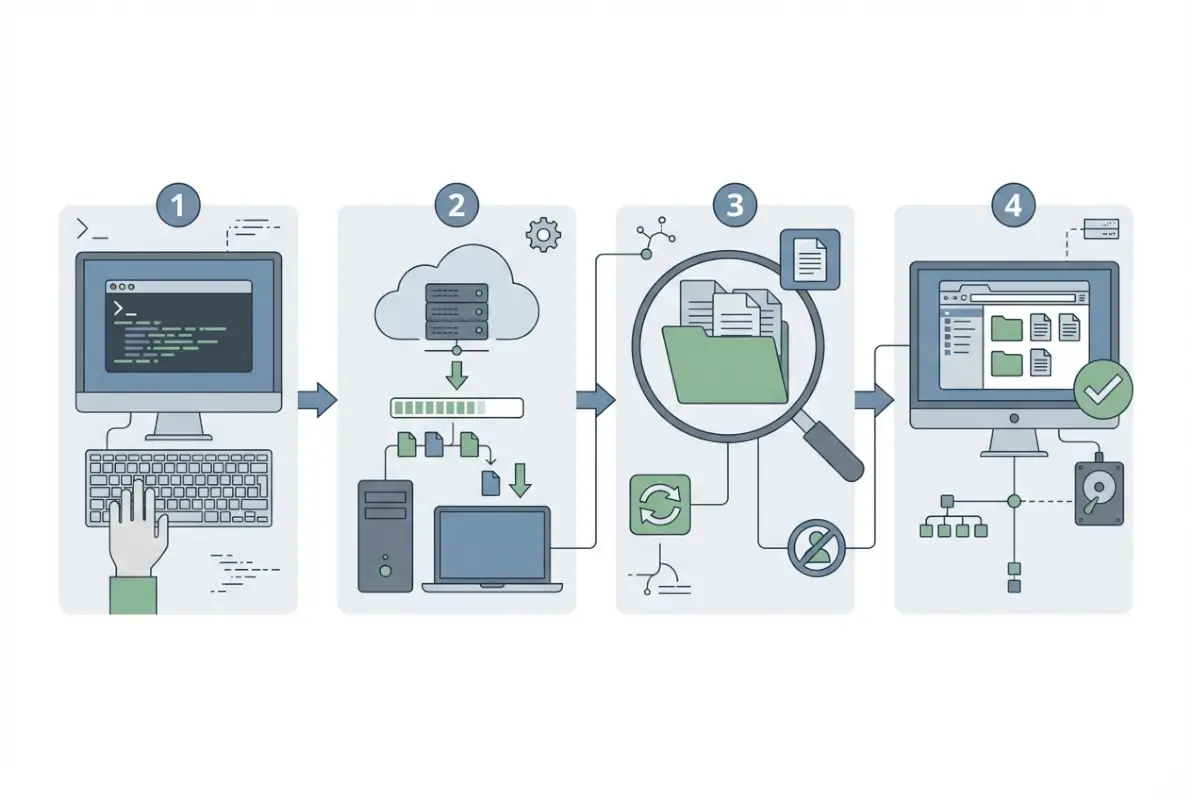
Understanding the flag combinations separates functional mirrors from runaway disasters. Each parameter controls a specific behavior, and learning the core set gives you precise control over what lands on your disk. The official GNU wget manual documents dozens of options, but six flags handle 95% of directory mirroring scenarios.
Recursive Download Basics and Safe Mirroring
Start with the foundational command pattern: wget -r -np -nH --cut-dirs=N -P local_folder URL. Breaking that down: -r enables recursive downloading, -np (no parent) prevents ascending above the specified directory, -nH removes the hostname from the local folder structure, and –cut-dirs=N strips N levels of directory hierarchy. Together, they create a clean local mirror that matches the remote structure.
The -N flag adds timestamping, which transforms wget from a one-time downloader into a sync tool. When you re-run the command later, wget checks modification dates and only downloads files that changed on the server. I use this weekly to maintain local copies of public datasets—it turns a 50GB initial download into a 200MB weekly update. This approach works similarly to how platforms like the best business listing platforms sync data across systems.
For a complete site mirror (not just a directory), use wget --mirror -p --convert-links -P local_folder URL. The –mirror flag combines -r, -N, -l inf (infinite depth), and –no-remove-listing. The -p downloads page requisites like images and CSS, while –convert-links rewrites URLs so the local copy works offline. This is overkill for most directory downloads but essential when mirroring documentation sites or web applications.
wget -r -np -nH --cut-dirs=2 -N -P ./mirror https://example.com/path/to/data/Controlling Depth, Domains, and File Selection
Depth control prevents wget from following links indefinitely. The -l (or –level) flag sets maximum recursion depth: wget -r -l 2 -np URL stops after two directory levels below the starting point. For a directory at https://example.com/data/archive/, level 1 grabs /data/archive/*, level 2 grabs /data/archive/subdir/*, and so on. Set -l 0 to match –mirror’s infinite depth.
To exclude specific subdirectories, use -X (or –exclude-directories) with a comma-separated list: wget -r -np -X "temp,backup,old" URL. This skips any directory path containing those strings. For file-type filtering, combine -A (accept) and -R (reject) with extension lists: wget -r -np -A "*.pdf,*.zip" URL downloads only PDFs and ZIPs, while -R "*.tmp,*.log" excludes those types. When working with structured data like a business listing USA directory, file filtering helps you grab CSVs while ignoring HTML wrappers.
Domain control via –domains and –exclude-domains keeps downloads on-target. If the directory contains links to external sites, wget -r -np --domains=example.com URL restricts downloads to that domain only. This pairs well with –span-hosts when mirroring across related subdomains, but for single-directory mirrors, stick with the default behavior (which already restricts to the starting host).
| Flag | Purpose | Example |
|---|---|---|
| -l N | Limit recursion depth | -l 3 (three levels deep) |
| -A list | Accept only these file types | -A “*.pdf,*.csv” |
| -R list | Reject these file types | -R “*.html,*.tmp” |
| -X list | Exclude these directories | -X “backup,temp” |
Combining filters gives surgical precision. To grab only CSVs and PDFs from the top two directory levels while skipping anything in “archive” or “deprecated” folders: wget -r -np -l 2 -A "*.csv,*.pdf" -X "archive,deprecated" -P ./data URL. This kind of targeted mirroring saves disk space and download time, especially when dealing with large repositories that mix useful data with obsolete backups.
wget -r -np -l 2 -A "*.pdf" -X "old" URL is far more efficient than downloading everything then deleting unwanted files.Handling Practical Challenges and Best Practices
Even with a well-formed recursive command, mirroring large directories brings practical challenges: dropped connections, slow servers, partial downloads, and directories that change frequently. Wget’s built-in retry and resume features help manage these issues, but you need to know which flags to combine for robust, reliable downloads. Understanding how wget handles interrupted transfers will save you from re-downloading gigabytes of data when network hiccups occur.
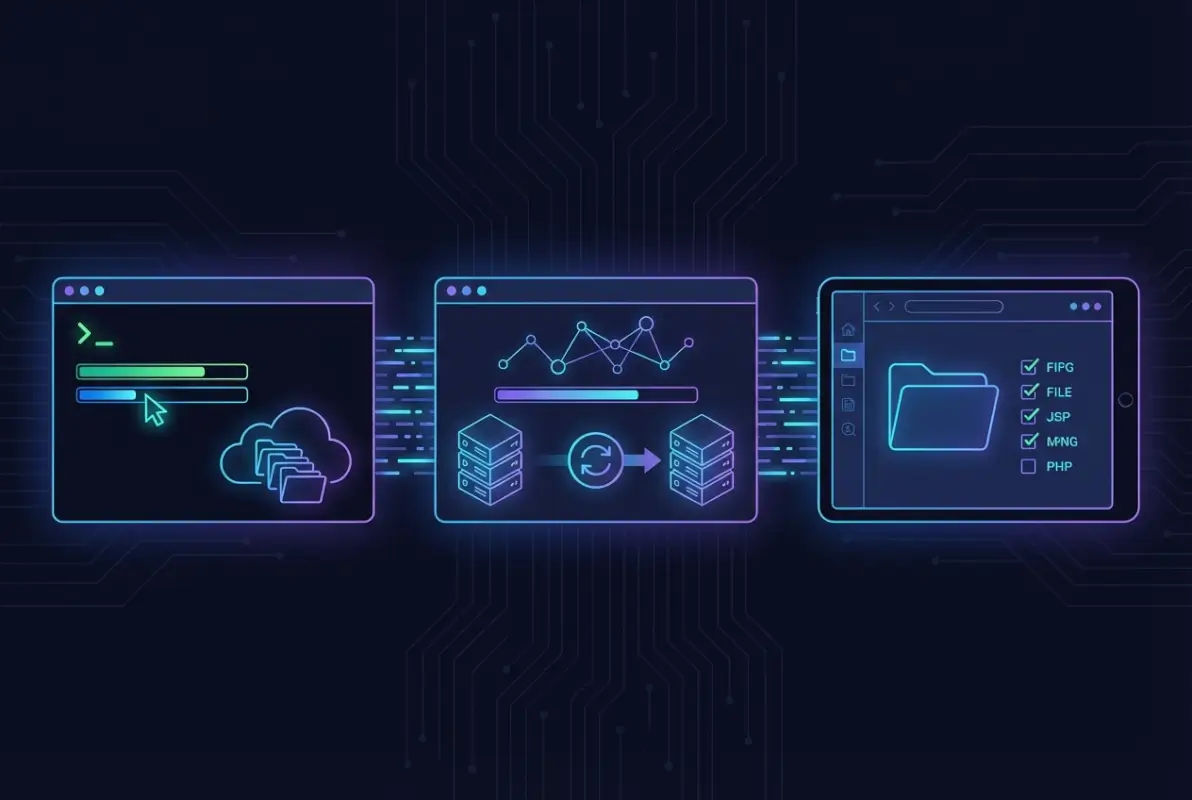
Logging is your first line of defense when diagnosing incomplete or failed mirrors. By default, wget prints progress to the terminal, but for long-running jobs you should redirect output to a log file using wget -o download.log (lowercase -o writes to the file; uppercase -O sets the output filename). Review the log afterward to catch HTTP errors, timeouts, or directories that returned 403/404 responses. For extremely large mirrors, combine --no-clobber with -N to avoid re-downloading files that already exist locally and haven’t changed on the server.
Dealing with Large Sites, Rate Limits, and Reliability
When mirroring directories that contain thousands of files or exceed several gigabytes, network interruptions become almost inevitable. Wget’s -c flag (continue) allows you to resume partial downloads if a single file transfer was interrupted, but it works best for individual large files rather than recursive directory crawls. For recursive mirrors, -N (timestamping) is more useful: it compares remote and local modification times and only downloads files that are newer on the server, effectively resuming your mirror from where you left off.
Many public servers enforce rate limits or throttle heavy crawlers to protect bandwidth and availability. If wget hammers the server too quickly, you may trigger temporary IP bans or receive 503 “Service Unavailable” errors. Use --wait=2 to insert a two-second pause between requests, or --random-wait to vary the delay and mimic human browsing patterns. For servers that drop connections frequently, add --tries=5 and --timeout=30 to retry failed requests up to five times with a thirty-second socket timeout.
Always monitor server response headers and respect Retry-After hints if you receive 429 “Too Many Requests” responses. If a mirror takes hours or days, consider running wget in a terminal multiplexer like screen or tmux so your session persists even if you disconnect from SSH. For extremely large or critical mirrors, schedule periodic checkpoints by re-running the same command with -N; wget will skip unchanged files and download only updates, maintaining an incremental backup workflow.
Post-Download Sanity Checks and Maintenance
Once wget finishes, don’t assume your local mirror is complete or correct—always verify the directory structure and spot-check files. Use tree or ls -R to compare the local hierarchy against the remote directory listing, and inspect the wget log for 404 errors or skipped files. If critical subdirectories are missing, check whether robots.txt blocked them or if you accidentally used -X to exclude them. Corrupted or zero-byte files often indicate interrupted transfers; re-run wget with -N to re-fetch only those files.
Maintaining a mirror over time requires a clear update strategy. If the source directory changes weekly, schedule a cron job that runs wget -r -N -np against the same URL; wget will download new files, update modified ones, and leave unchanged files alone. Be aware that -N relies on HTTP Last-Modified headers, which some servers omit or report inaccurately; if timestamps aren’t reliable, you may need to fall back to --no-clobber and periodically delete the local directory to force a full re-sync.
For mirrors that must match the remote state exactly (including deletions), wget alone isn’t sufficient—it never deletes local files that have been removed upstream. Consider scripting a comparison of remote and local file lists (using wget --spider -r to enumerate URLs without downloading), or switch to tools like rsync if the server supports it. Finally, document your exact wget command and any exclusions in a README or shell script so you or your team can reproduce the mirror setup months later without reverse-engineering the flags.
tree or ls -R to confirm the local structure matches your expectations before relying on the downloaded data.Alternatives and Complementary Tools (When Wget Isn’t Ideal)
Wget excels at recursive HTTP/HTTPS directory downloads and respects standard web protocols, but it’s not the best fit for every scenario. Some servers deliver content via APIs, cloud storage protocols, or dynamic JavaScript-rendered listings that wget cannot parse. Understanding when to reach for alternative tools—or when to supplement wget with other utilities—will save you hours of troubleshooting and result in more reliable, efficient downloads.
When to Prefer Other Tools or Approaches
If the target directory is hosted on cloud storage (Amazon S3, Google Cloud Storage, Azure Blob), dedicated command-line clients like aws s3 sync, gsutil, or az storage will be faster and more robust than wget because they understand bucket semantics and can parallelize transfers. For FTP or SFTP directories, lftp with mirror mode (lftp -e 'mirror /remote/path /local/path') handles resumption and pipelining better than wget’s limited FTP support. When you need to download hundreds of files in parallel, aria2c can open multiple connections per file and manage a queue of URLs more efficiently than wget’s single-threaded approach.
rclone is particularly valuable for syncing directory trees across a wide variety of backends—HTTP directory indexes, WebDAV, cloud providers, and even Google Drive or Dropbox. It behaves like rsync for the cloud, detecting changes and transferring only deltas, which is ideal for maintaining long-lived mirrors of large datasets. If the source directory requires authentication beyond basic HTTP auth (OAuth, API tokens, session cookies), you may need to capture cookies in a browser session and feed them to wget with --load-cookies, or write a custom script using curl or Python’s requests library.
For sites that rely on JavaScript to render directory listings (single-page apps, dynamic file browsers), wget will see only the initial HTML shell and miss all file links. In these cases, browser automation tools like Puppeteer or Selenium can render the page, extract download URLs, and pass them to wget or aria2c via a URL list. Always test a small subset first to confirm your tool chain works before scaling up to a full mirror.
| Scenario | Recommended Tool | Why |
|---|---|---|
| Static HTTP directory index | wget -r -np | Standard recursive crawl; well-documented and reliable |
| Cloud storage bucket (S3, GCS) | aws s3 sync, gsutil, or rclone | Native protocol support, parallel transfers, checksums |
| FTP/SFTP directory | lftp mirror | Better FTP handling, resume support, parallel connections |
| JavaScript-rendered file list | Puppeteer/Selenium → URL list → wget -i | Wget cannot execute JavaScript; need headless browser |
| Massive file count, need speed | aria2c -j 16 | Multi-connection, multi-file parallel downloads |
Ethical, Legal, and Policy Considerations
Just because a directory is publicly accessible doesn’t mean you have the right—or the ethical clearance—to mirror it wholesale. Always check the site’s robots.txt, terms of service, and any posted acceptable-use policies before initiating a recursive download. Many research institutions, government data portals, and open archives explicitly permit mirroring for academic or preservation purposes, but commercial sites or password-protected repositories may prohibit automated scraping entirely. When in doubt, contact the site administrator or consult your institution’s data-management office for guidance.
Respect server load and bandwidth constraints by using --wait, limiting depth with -l, and scheduling large mirrors during off-peak hours. Slamming a server with thousands of rapid requests can degrade performance for other users and may result in your IP being blacklisted. If the data you’re downloading is subject to copyright, licensing restrictions, or privacy regulations (GDPR, HIPAA), ensure your use case complies with applicable laws. Downloading publicly funded research data or government publications is generally lawful under fair use or open-data mandates, but redistributing copyrighted material without permission is not.
For long-term archival or collaborative research projects, document the provenance of your mirror: record the source URL, download date, wget command used, and any known limitations (missing files, excluded directories). This metadata is essential for reproducibility and helps downstream users understand the context and completeness of the dataset. University-level data-management guides—such as those from USC’s Center for Advanced Research Computing—emphasize these practices as core to responsible data stewardship.
Minimal Example Workflows (Concise, End-to-End Commands)
The best way to internalize wget’s directory-download capabilities is to run real commands against real directories. Below are two concrete workflows that cover the most common mirroring scenarios: a simple public directory and a controlled mirror with depth limits and exclusions. Each example includes the full command, a brief explanation of every flag, and tips for adapting the pattern to your own use case.

Example A — Simple Mirror of a Public Directory
Suppose you want to download all files from https://example.org/datasets/2024/, preserving the directory structure but stripping the leading path components so files land directly in your local downloaded_data folder. The following command accomplishes this:
wget -r -np -nH --cut-dirs=2 -P downloaded_data https://example.org/datasets/2024/Flag breakdown: -r enables recursive download; -np (no parent) prevents wget from ascending to /datasets/ or higher; -nH (no host directories) skips creating an example.org/ folder; --cut-dirs=2 strips the first two path components (datasets/2024) so files appear directly under downloaded_data; and -P downloaded_data sets the local download directory. If the server is slow or flaky, add --wait=1 and -N to insert one-second pauses and enable timestamping, allowing you to resume the mirror later without re-downloading unchanged files.
This pattern works for any static directory index served over HTTP or HTTPS. If you encounter 403 errors, check that the URL ends with a trailing slash and that directory indexing is enabled on the server. For directories containing only specific file types—say, CSV files—append -A csv to accept only .csv extensions, dramatically reducing download time and disk usage.
Example B — Restricted Mirror with Depth Control and Exclusions
Imagine you want to mirror https://data.example.edu/archive/, but you only need the top two levels of subdirectories, and you want to skip a large logs/ folder that isn’t relevant to your analysis. Use this command:
wget -r -l 2 -np -X "logs/*" -nH --cut-dirs=1 -P archive_mirror https://data.example.edu/archive/Flag breakdown: -l 2 limits recursion depth to two levels below the start URL; -X "logs/*" excludes any path matching logs/; the other flags mirror Example A. If you need to exclude multiple directories, provide a comma-separated list: -X "logs/*,temp/*,backup/*". Depth control is critical for large institutional repositories where you only need a subset of the hierarchy—without -l, wget would crawl the entire tree, potentially downloading terabytes of unneeded data.
After running this command, inspect the local archive_mirror directory with tree -L 3 to confirm the structure matches your expectations and that logs/ is absent. If you later decide you need deeper recursion, increment -l and re-run; wget will skip already-downloaded files (especially if you added -N) and fetch only the new deeper levels. Always test exclusion patterns on a small directory first—wildcards and path matching can behave unexpectedly depending on server-side URL rewriting or symlink handling.
| Use Case | Key Flags | Notes |
|---|---|---|
| Full mirror, strip host/path | -r -np -nH --cut-dirs=N | Adjust N to match URL depth; add -N for updates |
| Limit depth to 2 levels | -r -l 2 -np | Prevents runaway recursion on large sites |
| Exclude specific dirs | -X "logs/*,temp/*" | Comma-separated list; quote to protect from shell expansion |
| Download only PDFs | -A pdf | Accept only files ending in .pdf |
| Resume/update existing mirror | -N (timestamping) | Only downloads newer files; relies on Last-Modified headers |
Frequently Asked Questions
How do I download only specific file types from a directory with wget?
Use the -A flag followed by comma-separated extensions. For example, wget -r -np -A pdf,zip https://example.com/files/ downloads only PDF and ZIP files. The -R flag rejects file types, allowing you to exclude unwanted formats while mirroring the directory recursively.
Can wget download an entire website or directory without following links to other hosts?
Yes. Use -np to prevent ascending to parent directories and -H or --span-hosts controls for cross-domain links. By default, wget stays on the same domain. Combine -r -np to recursively download a directory while avoiding external links and parent paths.
How do I resume a wget download if the connection drops?
Use the -c flag for partial file continuation or -N for timestamping-based resumption. Running the same command again with -c picks up interrupted files. For directory mirrors, -N skips already-downloaded files unless the remote version is newer, making it ideal for updating local copies.
What is the difference between wget -r and wget –mirror?
The -r flag enables recursive downloading with default depth of five levels. The --mirror option is shorthand for -r -N -l inf --no-remove-listing, creating an infinite-depth mirror with timestamping. Use --mirror for complete site copies and -r with -l for controlled-depth downloads.
How can I verify that my local copy matches the remote directory?
Run wget again with -N or --spider to check without downloading. The -N flag compares timestamps and downloads only newer files, reporting differences in the log. For file integrity, generate checksums locally and compare with remote manifests if available from the source.
Are there risks of downloading large or dynamic directories with wget?
Large mirrors can strain server resources and trigger rate limits or IP blocks. Dynamic content generated by scripts may create infinite loops or fetch duplicate pages. Mitigate by setting --wait and --limit-rate, respecting robots.txt, and testing with --spider or shallow depth before full downloads.
What are common pitfalls when mirroring directories with PHP-generated listings or directory indexes?
PHP-generated pages often include query strings that create duplicate URLs, leading wget to download the same content repeatedly. Use --no-parent, --reject "index.html?*", and --adjust-extension cautiously. Test with limited depth first to identify unexpected URL patterns before running a full mirror.
How do I exclude certain subdirectories when mirroring with wget?
Use the -X or --exclude-directories flag followed by a comma-separated list of paths. For example, wget -r -np -X "temp,logs" https://example.com/data/ skips the temp and logs subdirectories. This keeps your local mirror lean and focused on relevant content only.
Conclusion
Downloading an online directory with wget is a powerful skill that transforms scattered remote files into organized local archives. You’ve learned to plan your mirror by assessing site structure and permissions, execute recursive downloads with precision using flags like -r, -np, and -N, and troubleshoot common challenges from rate limits to dynamic content. By controlling depth, excluding unwanted paths, and verifying your local copy, you ensure efficient, respectful, and reliable directory mirroring.
The difference between a messy, incomplete download and a clean, maintainable mirror lies in preparation. Always start with a small test run—try a shallow depth or single subdirectory first. Check the resulting file structure, confirm that wget respects boundaries like robots.txt, and verify that file types and naming conventions meet your needs. Once you’ve validated the approach on a limited scale, expand confidently to larger directories while monitoring server load and respecting bandwidth constraints.
Remember that wget is one tool in a broader ecosystem. For particularly large datasets, consider alternatives like rclone or aria2c that offer parallel downloads or cloud-native integration. For sites with aggressive anti-scraping measures or complex authentication, manual downloads or API access may be more appropriate. Always respect terms of service, avoid overloading servers, and recognize when a directory is meant for browser access rather than bulk mirroring.
Ready to Master Directory Downloads?
Pick a public directory you need to archive—an open data repository, a documentation site, or an image gallery. Build your wget command step by step, starting with a simple wget -r -np -l 1 -P test_dir [URL]. Review the downloaded structure, adjust your flags, and scale up. Each successful mirror sharpens your command-line skills and builds your toolkit for efficient data management.
Start small, iterate, and download with confidence.
Whether you’re archiving research datasets, preserving historical web content, or maintaining offline backups of critical resources, wget gives you the control and flexibility to download directories exactly as you need them. Apply the workflows and best practices from this guide, consult the official GNU Wget manual for advanced scenarios, and join the community of users who rely on wget for robust, scriptable data retrieval. Your next directory download is just one carefully crafted command away.