How to Install a WordPress Plugin from GitHub: A Developer’s Guide
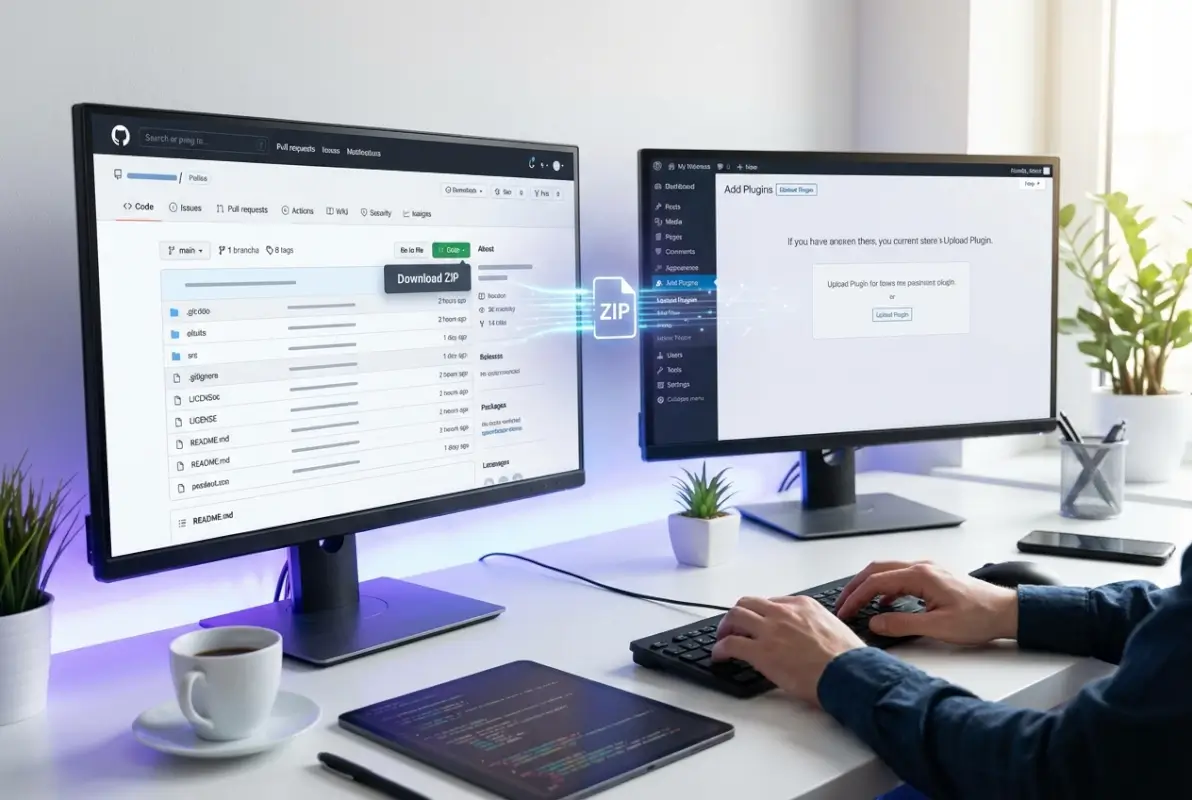
GitHub has become the de facto home for cutting-edge WordPress development, hosting thousands of plugins that never make it to the official WordPress.org repository. While the official directory offers security and reliability, some of the most innovative WordPress solutions live exclusively on GitHub—either because they’re too specialized, still in beta, or maintained by developers who prefer the speed and flexibility of Git-based workflows. The challenge? Installing these plugins isn’t as straightforward as clicking “Install Now” in your WordPress dashboard, and making the wrong move can expose your site to security risks or break critical functionality.

Here’s the reality most developers won’t tell you: how to install wordpress plugin beginners guide approaches work great for official repositories, but GitHub plugins require a fundamentally different mindset. You’re not just installing software—you’re integrating potentially untested code into your site’s core infrastructure. This guide cuts through the noise to show you exactly how to evaluate, install, and maintain GitHub-hosted WordPress plugins like a professional, whether you’re working solo or managing deployments for an entire team.
TL;DR – Quick Takeaways
- Three main installation methods – Manual ZIP upload, Git clone for development, or automated GitHub Updater tools
- Security first – Always test on staging, verify licenses, and check recent commit activity before deploying
- Update management matters – GitHub plugins won’t auto-update like official ones unless you configure specific tools
- Staging is non-negotiable – Never install untested GitHub code directly on production sites
- Legal compliance – Ensure GPL-compatible licensing and proper attribution for all GitHub sources
Why Install WordPress Plugins from GitHub
The WordPress.org plugin directory contains over 60,000 plugins, but developers consistently turn to GitHub for specific use cases that the official repository simply can’t address. Understanding when GitHub makes sense (and when it doesn’t) will save you countless headaches down the road.
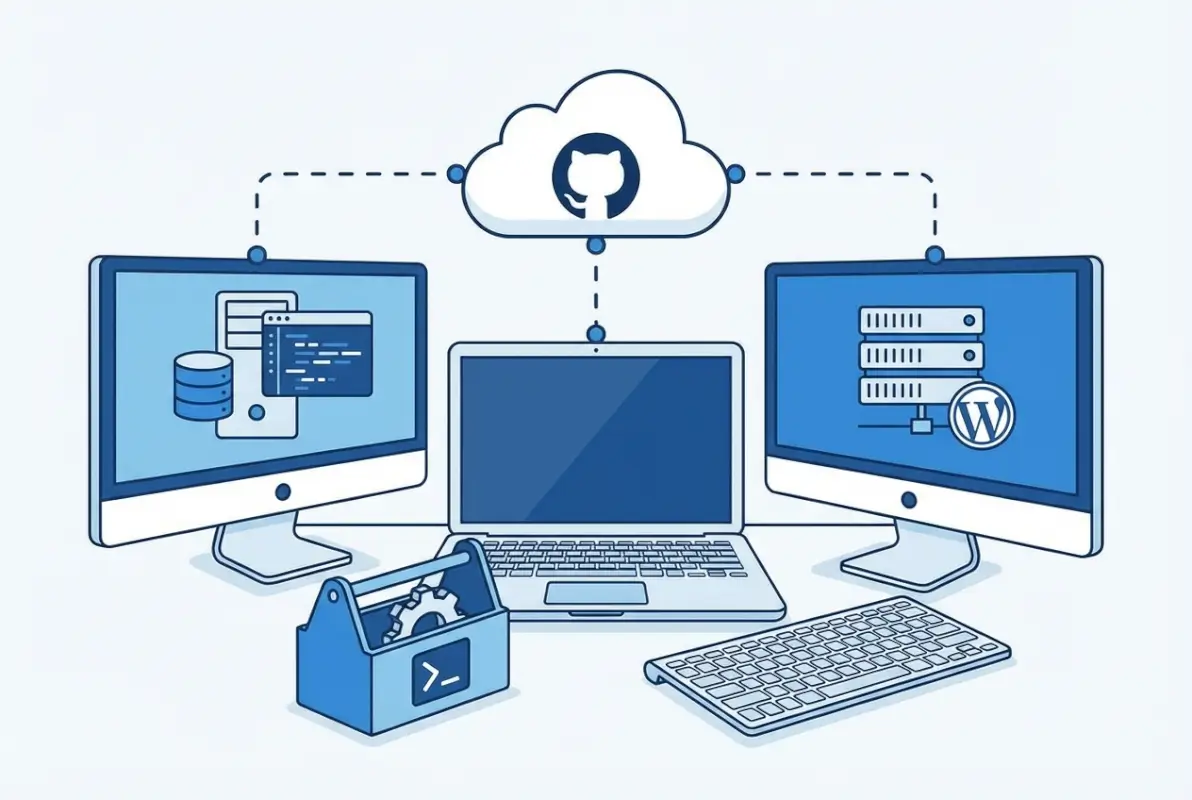
Pros: Access to Innovation and Control
GitHub gives you immediate access to bleeding-edge features before they hit official releases. When a plugin author pushes a critical bug fix at 2 AM, you can deploy it within minutes rather than waiting days or weeks for WordPress.org approval. This speed becomes essential when you’re running client sites with urgent needs or developing custom solutions that require rapid iteration.
The fork-and-modify workflow represents GitHub’s biggest advantage. Need to tweak a plugin’s functionality? Fork the repository, make your changes, and maintain your custom version without losing the ability to merge upstream updates. This level of control simply doesn’t exist with traditional plugin installations, especially when dealing with what is business directory essential facts for specialized directory implementations.
Pull requests and community collaboration happen in real-time on GitHub. When you spot a bug or want to contribute an enhancement, you can submit changes directly to the maintainer. This collaborative model accelerates development cycles and often results in better-maintained code than isolated plugin authors working alone.
Cons: Stability and Security Trade-offs
Here’s what nobody tells you upfront: GitHub plugins lack the review process that WordPress.org enforces. Every plugin submitted to the official directory undergoes manual security review, but GitHub code can contain anything from experimental features to outright malicious code. You’re essentially assuming full responsibility for code quality and security auditing.
Version stability becomes your problem to manage. While WordPress.org plugins follow semantic versioning and clear release channels, GitHub repositories might have multiple branches, unclear tagging conventions, or breaking changes committed directly to main branches. I’ve seen production sites break because a developer accidentally pulled an unstable branch instead of the latest release tag.
The maintenance burden shifts entirely to you. When a GitHub plugin breaks after a WordPress core update, there’s no guarantee the author will fix it quickly (or at all). Abandoned repositories are common, and unlike WordPress.org where plugins get marked as inactive, GitHub projects can sit dormant for years with no clear indication of their status.
Typical GitHub-Based Workflows for WordPress Plugins
Most developers follow one of three patterns when working with GitHub plugins. The direct ZIP download approach works for one-off installations where you’re essentially treating GitHub as an alternative download source. You grab the latest release, upload it through WordPress admin, and manage updates manually.
Git cloning suits development environments where you want full version control integration. This method shines when you’re actively developing or customizing plugins, as you can track changes, switch branches, and sync updates using standard Git commands. It’s how professional development shops maintain consistency across local, staging, and production environments.
The GitHub-hosted updates workflow uses plugins like GitHub Updater to bridge the gap between GitHub repositories and WordPress’s native update system. This approach gives you the convenience of dashboard updates while maintaining GitHub as your source repository, though it introduces additional dependencies and potential points of failure.
Legal and Policy Notes
WordPress operates under GPL licensing, which creates specific expectations around plugin distribution and derivative works. When you install a plugin from GitHub, you’re accepting responsibility for verifying that the code complies with GPL terms and doesn’t violate any licensing restrictions. Some repository owners incorrectly apply restrictive licenses that conflict with WordPress’s GPL requirements.
The WordPress.org plugin guidelines don’t technically apply to GitHub-hosted plugins, but they represent industry best practices for security, accessibility, and code quality. Using them as a benchmark helps identify potential issues before they impact your sites.
Install Methods: From GitHub to WordPress, Step by Step
Let’s get practical. Each installation method suits different scenarios, and choosing the right approach depends on your environment, technical comfort level, and long-term maintenance plans. I’ll walk through each method with the exact steps you need, including the gotchas that trip up even experienced developers.
Method A: Manual ZIP Install from GitHub
Start by evaluating the repository’s trustworthiness before downloading anything. Check for these signals: active commits within the last three months, a detailed README file, proper licensing information in the repository root, and issue responses from maintainers. Red flags include repositories with no recent activity, missing documentation, or vague licensing terms.
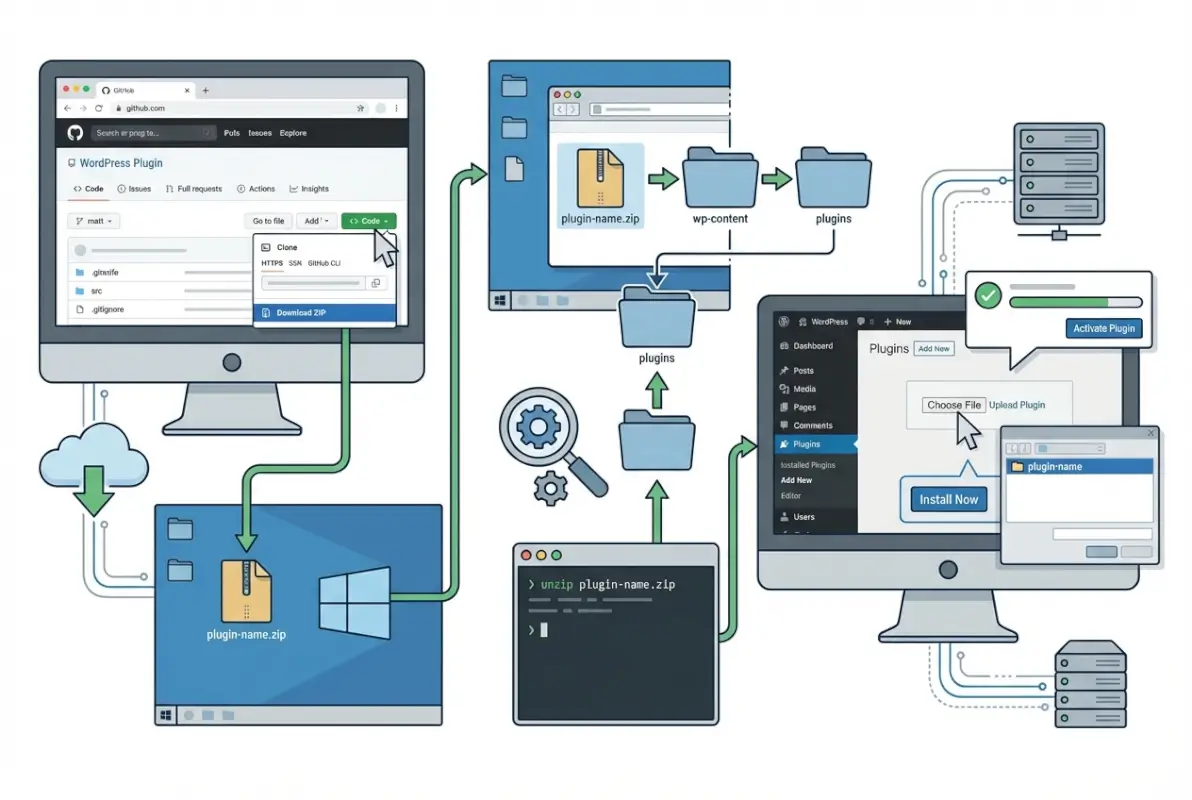
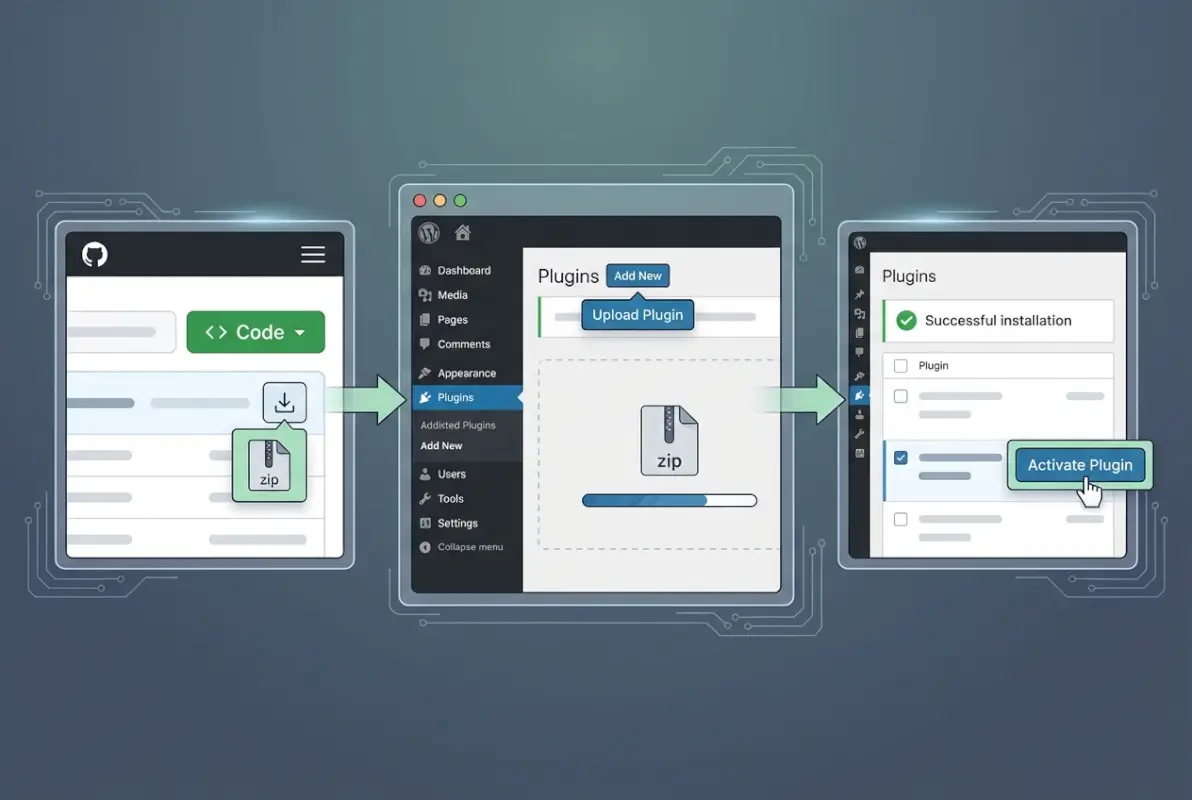
Navigate to the repository’s main page and locate the green “Code” button. Click it and select “Download ZIP.” This downloads the entire repository as a compressed archive. Here’s where most people hit their first snag: GitHub includes the repository name and branch in the ZIP structure, which can confuse WordPress’s plugin detection system.
Before uploading, extract the ZIP and verify the structure. WordPress expects a single folder containing the plugin files, with the main plugin file (the one with the plugin header) at the first level. If you see nested folders like “plugin-name-main/plugin-name/”, you’ll need to reorganize before uploading. This packaging issue causes the infamous “The uploaded file is not a valid ZIP file” error that drives developers crazy.
Once you’ve got a properly structured ZIP, log into your WordPress admin panel and navigate to Plugins > Add New > Upload Plugin. Select your file and click “Install Now.” WordPress will extract the files into wp-content/plugins/, then present an activation link. Before activating, check your site’s error logs and ensure you have a recent backup—activating an incompatible plugin can white-screen your entire site.
After activation, immediately test core functionality. Load your homepage, check the admin dashboard for PHP warnings, and verify that the plugin’s features work as documented. This initial testing phase catches obvious incompatibilities before they cause problems for real users.
Method B: Install by Git (Local and Development Workflows)
Git-based installation gives you version control superpowers but requires command-line access to your WordPress installation. This method works brilliantly for local development environments using tools like Local WP, MAMP, or Docker containers, and it’s essential for team workflows where multiple developers need consistent plugin versions.
First, ensure Git is installed on your system and you have terminal access to your WordPress directory. Navigate to wp-content/plugins/ using your terminal. The installation command looks like this:
git clone https://github.com/username/plugin-name.git plugin-name
The final “plugin-name” parameter specifies the folder name inside wp-content/plugins/. This must match the directory name WordPress expects, or the plugin won’t appear in your plugins list. Some developers skip this parameter and end up with repository names that don’t match WordPress’s expectations.
After cloning, you can activate the plugin either through the WordPress admin interface or using WP-CLI: wp plugin activate plugin-name. WP-CLI becomes invaluable when managing multiple environments or automating deployment scripts, similar to how you might handle how to install plugin joomla simple steps in parallel content management systems.
Updates with Git-based installations are straightforward: navigate into the plugin directory and run git pull origin main (or whatever the primary branch is named). This pulls the latest changes from the remote repository. The catch? This updates to the latest commit on that branch, which might be unstable. For production use, you should check out specific release tags instead: git checkout tags/v1.2.3.
Method C: ZIP with GitHub Updater for Automated Updates
The GitHub Updater plugin bridges GitHub repositories with WordPress’s native update system, letting you receive update notifications and one-click updates directly from your dashboard. This method combines the convenience of traditional plugin management with GitHub’s flexibility, though it adds another dependency to your site.
Install GitHub Updater itself first (ironically, you’ll probably install it from GitHub using Method A or B). Once activated, you can install plugins by providing their GitHub repository URL through Settings > GitHub Updater > Install Plugin. The plugin reads repository information and integrates it into WordPress’s update checker.
For plugins you’ve already installed manually, GitHub Updater can take over update management by detecting the repository information from the plugin’s headers. Add these headers to your plugin’s main file:
* GitHub Plugin URI: https://github.com/username/plugin-name
* GitHub Branch: main
The security implications here deserve serious consideration. GitHub Updater makes API calls to GitHub, which means your WordPress installation is reaching out to external servers. Configure it to require administrator approval for updates rather than enabling automatic updates, especially on production sites. Auto-updates from GitHub can introduce breaking changes without warning, which is exactly what you’re trying to avoid.
| Update Method | Control Level | Convenience | Best For |
|---|---|---|---|
| Manual ZIP | Full | Low | One-off installs |
| Git Clone | Full | Medium | Development workflows |
| GitHub Updater | Medium | High | Multiple GitHub plugins |
| CI/CD Pipeline | Automated | High | Team/enterprise |
Method D: GitHub Deployments and Hosted Workflows
Enterprise-level WordPress deployments increasingly rely on automated deployment pipelines that treat GitHub as the source of truth for all code. WordPress.com’s Business and Commerce plans offer native GitHub deployment integration, which automatically syncs changes from specified repositories to your live site.
This approach requires careful planning around branch strategy and deployment triggers. Most teams use a protected main or production branch that only accepts changes through pull requests, while development happens in feature branches. GitHub Actions or similar CI/CD tools run tests before merging, ensuring that broken code never reaches production.
The configuration typically involves creating deploy keys (SSH keys with read-only repository access) and configuring webhooks that notify WordPress when repository changes occur. Each deployment should trigger automated backups, and you’ll want rollback procedures clearly documented. When something breaks at scale, manual fixes aren’t practical.
Validation and Quality Assurance
Installing a plugin is the easy part, validating that it won’t destroy your site requires systematic evaluation. The WordPress ecosystem contains countless abandoned projects, poorly coded plugins, and outright security vulnerabilities disguised as useful tools. Your quality assurance process determines whether you’re adding value or risk to your WordPress installation.
Verifying Plugin Legitimacy and Quality
Repository activity tells you everything about a plugin’s health. Check the commit history for regular activity—I personally avoid any repository that hasn’t had commits in six months unless it’s genuinely feature-complete. Look at the commit messages: professional developers write clear, descriptive messages (“Fix XSS vulnerability in admin interface”) while abandoned projects show vague commits (“various fixes”, “stuff”).
Release patterns matter as much as raw activity. A well-maintained plugin publishes tagged releases with semantic versioning (v1.2.3) and includes release notes explaining changes. The absence of releases suggests the author commits directly to the main branch without testing, which virtually guarantees you’ll encounter bugs in production.
License verification should happen before you download anything. The license file should clearly state GPL v2 or later, GPL v3, or another GPL-compatible license. Proprietary licenses, “all rights reserved” notices, or missing license information mean you can’t legally use the plugin with WordPress or redistribute it to clients.
Code quality assessment separates professional plugins from amateur projects. Open a few PHP files and look for obvious red flags: no input sanitization, direct database queries without prepared statements, or eval() calls processing user input. You don’t need to audit every line, but egregious security issues usually reveal themselves quickly. The WordPress security hardening guidelines provide benchmarks for evaluating code quality.
Dependency management reveals another quality dimension. Check if the plugin requires external libraries or services. Some GitHub plugins pull in dozens of npm packages or composer dependencies, any of which could contain vulnerabilities. The more dependencies, the larger your attack surface and the more maintenance burden you’re accepting.
Local vs Staging vs Production Testing
Never install untested GitHub plugins directly on production sites—this isn’t paranoia, it’s professional responsibility. Your testing workflow should involve at least three environments: local development for initial evaluation, staging for integration testing, and finally production deployment only after confirming everything works correctly.
Local testing catches obvious incompatibilities with your WordPress version, PHP version, and other installed plugins. Spin up a local environment that mirrors your production configuration as closely as possible. Install the plugin, activate it, and systematically test its features. Check error logs for warnings or notices that might indicate deeper problems.
Staging environments simulate real-world conditions with production data (sanitized if necessary) and actual server configurations. This is where you discover that the plugin conflicts with your caching layer, breaks your custom theme, or causes database performance issues under load. Testing on staging for at least 24-48 hours reveals timing-related bugs that don’t show up in quick local tests.
Common Pitfalls and How to Avoid Them
The nested ZIP packaging issue deserves special attention because it catches almost everyone once. GitHub’s ZIP downloads include the repository name and branch, creating structures like plugin-main/plugin-files instead of plugin/plugin-files. WordPress won’t recognize this structure. Always extract and verify the directory layout before uploading.
Breaking changes between Git tags cause unexpected site breakdowns. A plugin might work perfectly on version 2.1.0, but version 2.2.0 introduces breaking API changes that your custom code depends on. Always read release notes before updating, and pin production sites to specific release tags rather than tracking branches.
PHP and WordPress version incompatibilities become your problem when using GitHub plugins. The official repository enforces minimum and maximum version requirements, but GitHub plugins might claim support for versions they’ve never been tested against. Cross-reference the plugin’s stated compatibility with your environment before installing.
Data loss risks emerge during code-driven deployments when database migrations go wrong. Some plugins modify database schemas during activation or updates. If a GitHub plugin doesn’t handle migrations properly, you could lose data or corrupt your database. Always backup before installing or updating, and test database-modifying plugins extensively on staging with production data structures.
Security, Compliance, and Best Practices
Security considerations multiply when you step outside WordPress.org’s review process. Every GitHub plugin becomes a potential entry point for attackers unless you implement rigorous security practices around evaluation, installation, and maintenance. The convenience of GitHub access comes with the responsibility of being your own security team.
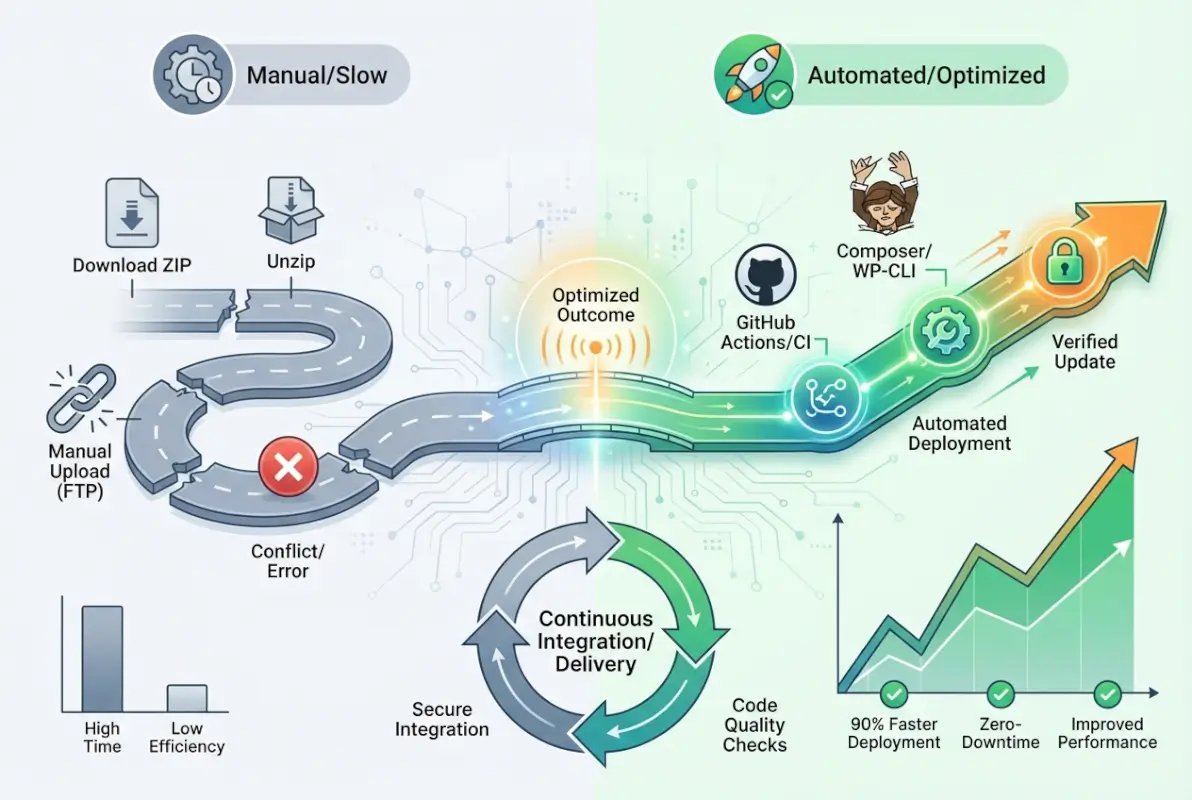
Security Foundations When Using GitHub Plugins
Reputable sources matter more than ever when you’re bypassing official review channels. Prioritize plugins from recognized organizations, established open-source projects, or developers with verifiable track records. Search the developer’s name or organization—do they have a professional web presence, other well-maintained projects, or contributions to WordPress core? Unknown developers with single-plugin repositories deserve extreme scrutiny.
Code auditing becomes your responsibility, similar to working with free classified listing sites top platforms where you need to verify the legitimacy of third-party integrations. Even if you’re not a security expert, you can spot obvious issues: obfuscated code (base64 encoding, deliberate variable name confusion), external file inclusions from suspicious domains, or backdoor-style functionality that calls home to unknown servers.
Regular vulnerability scanning should cover all plugins, especially those from GitHub. Tools like WPScan, Sucuri SiteCheck, or Wordfence scan for known vulnerabilities in plugins and themes. GitHub plugins won’t appear in vulnerability databases as quickly as official repository plugins, so supplement automated scanning with manual security reviews of code changes between versions.
Update discipline prevents the majority of security breaches. GitHub plugins won’t notify you of security updates automatically, so you need monitoring systems in place. Subscribe to repository watches on GitHub, set up RSS feeds for release announcements, or use dependency monitoring tools that alert you when new versions become available.
Access Control and Credentials
Deploy keys provide repository access without exposing your personal GitHub credentials or giving broader access than necessary. Generate SSH keys specifically for each deployment context, and configure them as read-only deploy keys in the repository settings. This limits damage if a key gets compromised—attackers can’t push malicious code back to your repository.
Credential rotation follows security best practices that apply universally but become critical when automating deployments. Change deploy keys quarterly, especially if team members leave or your deployment infrastructure changes. Store credentials in environment variables or dedicated secret management systems rather than committing them to repositories or writing them in deployment scripts.
Principle of least privilege means limiting who can deploy GitHub plugins to production. Developer accounts shouldn’t have direct production access. Instead, deployment happens through controlled pipelines that require review and approval. This prevents accidental deployments and ensures that security-conscious team members review changes before they go live.
Compliance and Licensing
GPL compatibility isn’t just a legal formality—it determines whether you can legally distribute your WordPress site to clients or run it commercially. WordPress itself is GPL, which creates licensing requirements for all plugins and themes. If you’re building sites for clients and include GitHub plugins with incompatible licenses, you’re exposing yourself and your clients to legal risk.
Attribution requirements vary by license even within GPL-compatible options. Some licenses require maintaining copyright notices and author attribution in code comments. Others require including license text files in distributions. Review each plugin’s license file and ensure you’re meeting these requirements, especially if you’re redistributing or including the plugin in commercial products.
| License Type | WordPress Compatible | Commercial Use | Redistribution |
|---|---|---|---|
| GPL v2+ | Yes | Allowed | Required |
| MIT | Yes | Allowed | Optional |
| Apache 2.0 | Yes | Allowed | Optional |
| Proprietary | No | Restricted | Prohibited |
License monitoring should happen whenever you update GitHub plugins, as maintainers can change licensing terms at any time. A plugin that starts as GPL might switch to a proprietary license in later versions. While you can continue using the GPL version, you can’t legally update to proprietary versions without purchasing licenses.
Maintaining and Updating GitHub-Based Plugins
Installation is just the beginning—ongoing maintenance determines whether your GitHub plugins remain assets or become liabilities. Unlike WordPress.org plugins with automated update notifications and one-click updates, GitHub plugins require active management and monitoring. This section covers the systematic approaches that prevent maintenance from becoming overwhelming.

Keeping Installed GitHub Plugins Up to Date
Manual update workflows require documentation and discipline. Create a spreadsheet or use a project management tool to track every GitHub plugin across all your sites: repository URL, current installed version, last update check date, and any custom modifications you’ve made. Schedule monthly reviews where you check each repository for new releases and security advisories.
Automated update mechanisms like GitHub Updater reduce manual work but introduce new dependencies. If you’re managing multiple sites with GitHub plugins, the time savings justify the additional complexity. Configure update checks to run daily but require manual approval before applying updates—automatic updates from GitHub can break production sites without warning.
Testing updates in staging before production applies to every single update, no exceptions. Download or pull the new version, deploy it to staging, and run your standard test suite. Check error logs, test critical functionality, and monitor performance for at least 24 hours. Only after confirming everything works correctly should you deploy to production.
Version pinning prevents unexpected breaking changes when you’re not actively monitoring updates. Instead of tracking the main branch (which receives every commit), check out specific release tags: git checkout tags/v2.1.0. This ensures updates only happen when you explicitly pull a new tag rather than every time someone commits to the repository.
Rollback Strategies
Backup before every GitHub plugin update, period. WordPress backup plugins work fine, but I prefer database and file system backups at the server level because they’re faster to restore when you’re dealing with site-breaking issues. Your backup should capture the entire wp-content/plugins/ directory plus your database, and you should verify that you can actually restore from backups—untested backups are wishful thinking.
Git-based rollbacks are straightforward when you’ve been managing plugins through Git. Navigate to the plugin directory and check out the previous version: git checkout tags/v2.0.9. This immediately reverts the code to the working version. The catch is database migrations—if the new version modified your database schema, rolling back the code doesn’t automatically rollback database changes.
WP-CLI provides command-line rollback capabilities even for manually installed plugins. The command wp plugin deactivate plugin-name && wp plugin activate plugin-name can sometimes clear up issues caused by corrupted activation states. For more serious problems, you can delete the plugin directory entirely and reinstall from your backup.
Document your rollback procedures before you need them. When a plugin breaks at 3 AM and your site is down, you don’t want to be figuring out the correct Git commands or hunting for backup files. Maintain runbooks that detail exact steps for rolling back each GitHub plugin, including any database restoration procedures that might be necessary.
Monitoring and Observability
Error logs reveal plugin problems before they impact users. Configure WordPress to log errors to a file rather than displaying them on screen: set WP_DEBUG to true and WP_DEBUG_LOG to true in wp-config.php. After installing or updating GitHub plugins, check debug.log for PHP warnings, notices, or errors that indicate compatibility problems.
Site health checks should run automatically after plugin changes. WordPress’s built-in Site Health tool (Tools > Site Health) detects many common issues including PHP version incompatibilities, missing extensions, and performance problems. Third-party monitoring services like UptimeRobot, Pingdom, or StatusCake alert you if plugin updates cause downtime or slow response times.
Repository activity monitoring helps you stay ahead of potential issues. GitHub lets you “watch” repositories with customized notification settings. Enable notifications for new releases but disable notifications for every commit or issue—you want signal without overwhelming noise. When a repository you depend on shows declining activity or maintainer changes, that’s your signal to find alternatives.
Community and Support Channels
GitHub issues serve as the primary support channel for most GitHub-hosted plugins. Before filing a new issue, search existing issues (including closed ones) for similar problems. Many questions have already been answered, and maintainers appreciate users who do their research before asking for help. When you do file an issue, include WordPress version, PHP version, error logs, and steps to reproduce—vague bug reports rarely get responses.
Forking becomes necessary when maintainers stop responding or a repository gets abandoned. If you depend on a plugin that’s no longer maintained, fork the repository and take over maintenance yourself. This is more work than relying on someone else’s maintenance, but it’s better than being stranded with an unmaintained plugin on production sites. Consider whether similar functionality exists in actively maintained alternatives before committing to fork maintenance.
Security concerns require responsible disclosure practices. If you discover security vulnerabilities in a GitHub plugin, contact the maintainer privately first (check the repository for security policy information). Give them reasonable time to fix the issue before disclosing publicly. If the maintainer doesn’t respond within 90 days, consider whether you should continue using the plugin at all.
Frequently Asked Questions
Can I install any GitHub plugin directly in WordPress?
Not every GitHub repository containing WordPress code qualifies as an installable plugin. The repository must follow WordPress plugin structure with a main plugin file containing proper headers. Some repositories are libraries, themes, or code snippets rather than complete plugins. Always verify the repository contains a functional WordPress plugin before attempting installation.
Is it safe to run plugins from GitHub on a production site?
GitHub plugins carry higher risk than WordPress.org plugins because they bypass official security reviews. Only install GitHub plugins on production sites after thorough testing on staging environments, code review for obvious vulnerabilities, and verification that the repository shows active maintenance and professional development practices. Treat GitHub plugins as development-grade code until proven otherwise.
How do I update a GitHub-installed plugin?
Update methods depend on installation approach. Manual ZIP installations require downloading new versions and reinstalling. Git-cloned plugins update via git pull commands. GitHub Updater or similar tools enable dashboard updates similar to official plugins. Always test updates on staging before production deployment and maintain backups for quick rollback if issues arise.
What should I do if a GitHub plugin stops working after an update?
Immediately rollback to the previous working version using backups or Git version control. Check error logs to identify the specific issue—it might be a conflict with other plugins, PHP version incompatibility, or bugs in the new release. File a detailed issue report on the repository if the problem affects others. Consider alternatives if the maintainer doesn’t respond quickly.
How do I verify the license and ownership of a GitHub plugin?
Check for LICENSE or LICENSE.txt files in the repository root directory. The license should clearly state terms—GPL v2 or later for full WordPress compatibility. Review repository ownership and contributor history to verify legitimate authorship. Be suspicious of repositories that are recent forks of established projects with changed licenses or unclear provenance.
What are the best practices for deploying GitHub plugins in a team environment?
Establish standardized workflows using Git for version control, staging environments for testing, and documented deployment procedures. Use deploy keys rather than personal credentials for automation. Implement code review processes where team members examine GitHub plugin updates before deployment. Maintain centralized documentation tracking which plugins are installed, their versions, and any custom modifications.
What are the recommended precautions for securing deployment keys?
Generate unique SSH keys for each deployment context and configure them as read-only deploy keys. Store keys in secure secret management systems rather than committing them to repositories or storing in plain text. Rotate keys quarterly and immediately when team members with key access leave. Implement IP restrictions where possible to limit where deployments can originate from.
How do I rollback a faulty GitHub plugin update?
With Git-based installations, checkout the previous version tag or commit hash. For manual installations, delete the current plugin directory and restore from your pre-update backup. Use WP-CLI commands to deactivate and reactivate plugins if database state gets corrupted. Always backup before updating specifically so rollback becomes straightforward rather than an emergency recovery situation.
Moving Forward with Confidence
GitHub plugins occupy a unique space in the WordPress ecosystem—they offer cutting-edge features and development flexibility that official repositories can’t match, but they demand technical sophistication and security awareness that casual WordPress users rarely possess. The three core installation methods (manual ZIP uploads, Git-based workflows, and automated update tools) each serve specific use cases, and choosing the right approach depends on your environment, technical skills, and long-term maintenance commitment.
Security and testing separate professional implementations from amateur mistakes. Every GitHub plugin you install should pass through staging environments, license verification, and code quality assessment before touching production sites. The convenience of skipping these steps never outweighs the risk of downtime, data loss, or security breaches that result from untested code.
The maintenance burden extends beyond initial installation. GitHub plugins require active monitoring for updates, security advisories, and repository health signals that indicate whether a project remains viable long-term. Your deployment workflow should include backup strategies, rollback procedures, and documentation that lets any team member handle emergency situations without scrambling for information.
The approach you take should match your context. Solo developers working on personal projects can get away with simpler workflows—manual ZIP installations and periodic update checks might suffice. Agencies managing client sites need more sophisticated approaches with centralized tracking, automated monitoring, and clear client communication about the trade-offs of using GitHub sources. Enterprise teams require full CI/CD pipelines with automated testing, security scanning, and deployment approval processes.
Start small if you’re new to GitHub plugins. Choose a well-maintained, actively developed plugin from a reputable source for a non-critical feature on a development site. Work through the installation process, test thoroughly, and document what you learn. Build your skills and confidence before deploying GitHub plugins to production sites or critical functionality. Understanding how tools similar to wix business directory simple steps integrate third-party sources helps frame the broader ecosystem context.
The WordPress community increasingly embraces Git-based workflows and GitHub as a distribution channel, particularly as the platform evolves toward modern development practices. Understanding how to safely leverage GitHub plugins positions you at the forefront of WordPress development rather than being limited to officially reviewed plugins that may lag months behind the latest innovations.
Your next step: identify one GitHub-hosted plugin that could benefit your current project, evaluate it using the criteria in this guide, and test it on a staging environment. The practical experience of working through the process once teaches more than reading any guide. Document your experience, note what worked and what didn’t, and refine your workflow based on real-world results. The goal isn’t perfection on your first attempt—it’s building systematic habits that make GitHub plugins a reliable tool in your WordPress development arsenal rather than a source of constant headaches.