How to View Directory Photos as Thumbnails in an Online Directory

Generating summary...
If you’ve ever landed on an online directory only to be met with an endless wall of text links, you know the frustration. Your eyes glaze over, you lose track of what you’re looking for, and you probably hit the back button faster than you can say “user experience disaster.” Now picture the alternative: a clean grid of thumbnail images, each one instantly communicating what the listing is about before you even read a word. That’s the power of thumbnail view in online directories—and it’s not just about aesthetics. Properly implemented thumbnails can slash bounce rates, boost engagement, and even lift conversions by double digits. Yet most directory owners either skip thumbnails entirely or bungle the implementation so badly they end up with slow-loading pages that tank their Core Web Vitals. This guide walks you through the entire process—from choosing the right image formats and lazy-loading strategies to structuring your directory for accessibility and SEO—so your thumbnails work as hard as your listings do.
TL;DR – Quick Takeaways
- Thumbnails dramatically improve scanning speed – users can evaluate 10 directory listings in the time it takes to read 2 text entries
- WebP and AVIF cut payload by up to 50% – modern image formats are essential for fast mobile loading and good Core Web Vitals
- Lazy loading is non-negotiable – load images only as they enter the viewport to improve Largest Contentful Paint (LCP) by 30–60%
- Alt text and keyboard navigation are legal requirements – and they also boost SEO by giving search engines context for every thumbnail
- CDN caching reduces server load by 80%+ – offload thumbnail delivery to edge servers for faster global performance
Understanding the Thumbnail View in Online Directories
A thumbnail in an online directory is a small preview image—typically between 150 and 400 pixels on the longest edge—that represents a listing, product, or profile. Unlike full-resolution photos, thumbnails are optimized for speed and visual scanning rather than detail. They serve as visual anchors that help users quickly differentiate between listings, much like book covers in a library. The best thumbnails maintain a consistent aspect ratio (square 1:1 or landscape 16:9 are most common) so your grid layout stays clean and predictable across devices.
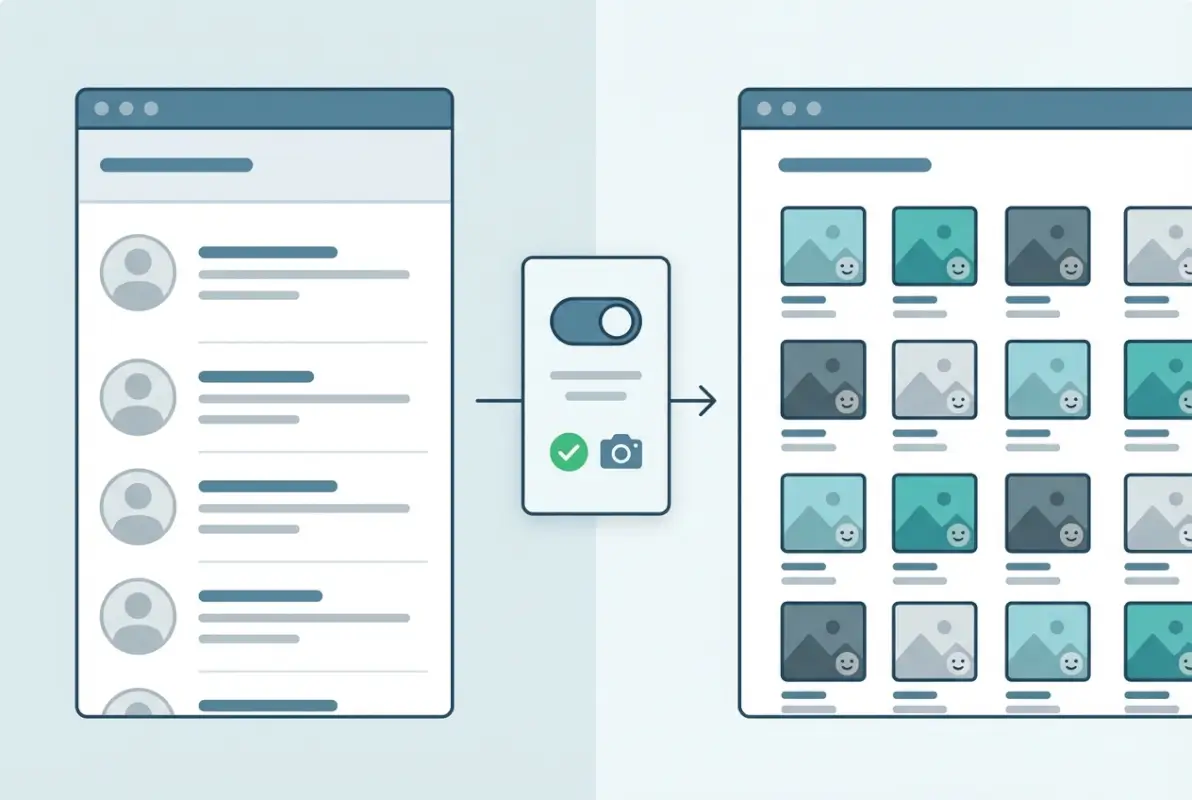
Why does this matter? Because cognitive load is real, and text-heavy directories force users to read and parse information serially. Thumbnails let people process multiple listings in parallel, cutting decision time and reducing friction. A business listing site with thumbnails will almost always outperform a text-only competitor in engagement metrics—users spend more time on the page, click through to more listings, and convert at higher rates. According to HTTP Archive performance data, sites with optimized image grids see measurably better Largest Contentful Paint scores, which directly correlates with lower bounce rates.
What Qualifies as a “Thumbnail” in an Online Directory
Not every small image is a thumbnail. A true directory thumbnail is purpose-built: it’s cropped or resized to fit a specific container, compressed to minimize file size, and served in a format optimized for the web. Common dimensions range from 200×200 pixels for profile photos to 400×300 pixels for product or business listings. The key is consistency—mixing portrait and landscape orientations or varying sizes creates a chaotic, unprofessional grid that hurts usability.
Most modern directories generate thumbnails automatically on upload using server-side libraries (like ImageMagick or Sharp) or cloud services (like Cloudinary or Imgix). These tools can crop, resize, and convert images on the fly, ensuring every thumbnail meets your size and format specs. If you’re running a WordPress directory, plugins like TurnKey Directories handle thumbnail generation out of the box, complete with responsive sizing and lazy loading. You also want to set explicit width and height attributes in your HTML to reserve layout space and prevent Cumulative Layout Shift (CLS) when images load.
Benefits and Trade-Offs of Thumbnail Grids for Directories
The upside of thumbnail grids is straightforward: faster scanning, stronger visual hierarchy, and better mobile responsiveness. Users can evaluate a dozen listings in seconds, and responsive grid layouts (using CSS Grid or Flexbox) adapt beautifully to any screen size. Thumbnails also provide a natural place for branding—logos, badges, or category icons—that reinforce your directory’s identity. On the SEO side, properly tagged thumbnails with descriptive filenames and alt text give search engines more context, which can improve rankings for image search and overall page relevance.
The trade-offs? Thumbnails increase initial page weight if you load all images upfront, which can hurt your LCP and Time to Interactive (TTI). A directory with 50 unoptimized JPEGs can easily balloon to 5+ MB, turning mobile users away before the page even renders. That’s why lazy loading and modern formats like WebP are non-negotiable. Accessibility is another consideration—screen readers can’t “see” images, so every thumbnail needs meaningful alt text, and keyboard users need focus indicators and skip links to navigate your grid efficiently. When implemented correctly, these trade-offs are manageable; when ignored, they tank your user experience and search rankings.
Designing and Implementing Thumbnails (Frontend)
Getting thumbnails onto the page is easy, but getting them to load fast, look sharp, and stay accessible requires deliberate frontend strategy. The three pillars are format selection, responsive sizing, and lazy loading—each one directly impacts your Core Web Vitals and user satisfaction. Skip any of these and you’ll end up with either slow pages, blurry images on high-DPI displays, or poor mobile performance. The good news is that modern HTML and CSS give you all the tools you need to nail this without heavy JavaScript frameworks.

Start with image formats. JPEG is the legacy standard and still works fine for photos with lots of color variation, but WebP delivers the same visual quality at roughly 30% smaller file sizes. AVIF goes even further—up to 50% smaller—but browser support is still catching up (it’s fully supported in Chrome, Edge, and Firefox, but Safari only added support recently). The smart play is to serve WebP as your primary format with a JPEG fallback using the <picture> element or the srcset attribute. According to HTTP Archive media research, sites that adopt WebP see measurable improvements in LCP, especially on mobile networks. You can also leverage business listing services that automatically generate multiple formats server-side, saving you the manual conversion work.
Image Formats, Sizing, and Lazy Loading
Responsive sizing means serving appropriately scaled images for each viewport. A 1200-pixel thumbnail on a 400-pixel mobile screen is wasted bandwidth. Use the srcset attribute to define multiple resolutions (1x, 2x for Retina displays) and let the browser pick the best one. Here’s a minimal example:
<img src="thumbnail-400.webp" srcset="thumbnail-400.webp 400w, thumbnail-800.webp 800w" sizes="(max-width: 600px) 100vw, 400px" alt="Local bakery storefront" width="400" height="300" loading="lazy">That loading="lazy" attribute tells the browser to defer loading until the image is about to enter the viewport, which is critical for directories with dozens or hundreds of listings. Lazy loading can improve your initial LCP by 30–60% because the browser doesn’t waste time downloading off-screen images. Just make sure the first few thumbnails above the fold load eagerly (omit loading="lazy" or set loading="eager") so users see content immediately. For deeper implementation details, check out resources on how to use wget to download online directory data—it’s useful for auditing your own image payloads and understanding what users actually fetch.
Compression matters too. Run your thumbnails through a lossless or near-lossless compressor (like cwebp for WebP or jpegoptim for JPEG) before upload. You can often shave another 20–30% off file size without visible quality loss. If you’re using a CDN like Cloudflare or Fastly, enable automatic image optimization—they’ll compress and convert formats on the fly based on the requesting browser’s capabilities. This combination of modern formats, responsive sizing, and lazy loading is the baseline for any WCAG-compliant directory that cares about performance.
width and height attributes on every <img> tag to reserve layout space and eliminate Cumulative Layout Shift (CLS) as images load. This alone can boost your CLS score by 50% or more.UI Patterns and Accessibility
Grid layouts are the default for thumbnail directories, but you have two main flavors: uniform grid (all tiles same size) or masonry (Pinterest-style, tiles flow to fill space). Uniform grids are simpler and faster to render, masonry grids look more dynamic but require JavaScript (or careful CSS) to avoid janky layouts. For most business directories, a simple CSS Grid with grid-template-columns: repeat(auto-fill, minmax(200px, 1fr)) works beautifully and adapts to any screen width without media queries.
Accessibility means every thumbnail needs descriptive alt text that conveys the listing’s identity—not just “thumbnail” or “image.” Screen readers announce this text, and search engines index it. Good alt text is specific: “Mike’s Auto Repair storefront on Main Street” beats “auto repair” every time. You also need keyboard navigation—users should be able to tab through thumbnails and hit Enter to open a listing. Add visible focus outlines (outline: 2px solid #295CFF) so sighted keyboard users know where they are. Skip links at the top of the page (“Skip to content”) let users bypass the navigation and jump straight to the thumbnail grid, which is a huge win for assistive tech users. If you’re serious about accessibility, read up on the latest WCAG 2.1 guidelines and test your grid with a screen reader like NVDA or VoiceOver.
Captions are optional but powerful. A short text overlay or caption below each thumbnail (business name, category, rating) gives users context without forcing them to click. Use CSS to overlay captions on hover for desktop users and display them permanently on mobile where hover doesn’t exist. Keep font sizes readable (minimum 14px on mobile) and ensure sufficient color contrast (at least 4.5:1 for normal text). These small touches make your directory feel polished and professional, which directly impacts trust and conversion rates. Many business listing services offer built-in caption and badge systems that handle this for you.
Performance and Reliability Considerations
Impact of Image Optimization on Speed Metrics
Thumbnail images, though small, can accumulate quickly in a directory grid and become a major contributor to page weight and load time. According to the 2025 Web Almanac Performance chapter, images remain the largest content type by payload on most pages, and unoptimized thumbnails directly increase Largest Contentful Paint (LCP) and Cumulative Layout Shift (CLS). Choosing modern formats like WebP or AVIF can reduce file sizes by 30–50% compared to JPEG or PNG without perceptible quality loss. Serving compressed, correctly sized thumbnails ensures your directory’s visual grid loads quickly, improving both user experience and Core Web Vitals scores.
Effective compression and format selection directly correlate with faster rendering. When thumbnails are too large or served in legacy formats, browsers must spend extra cycles decoding and painting the images, delaying the LCP element and causing users to wait longer before they can interact with the directory. Lazy loading defers off-screen images, but the thumbnails above the fold should be fully optimized to minimize initial render time. Data from the 2024 performance analysis shows that sites using responsive images with srcset and serving next-gen formats see measurably better LCP distributions.
Beyond format and size, image dimensions must match the display size to avoid wasting bandwidth and CPU cycles on resizing. If your CSS renders thumbnails at 200×200 pixels, serving 800×800 originals forces the browser to scale down each image, consuming memory and processing time. Use server-side or CDN-based resizing to generate exact-fit thumbnails at build time or on-the-fly. This practice reduces the number of bytes transferred and cuts down on layout shifts caused by dimension mismatches.
Finally, consider the interplay between image optimization and the broader page context. Thumbnails often share the viewport with other assets—fonts, scripts, and stylesheets—that compete for network bandwidth and rendering resources. Prioritizing critical CSS and deferring non-essential JavaScript ensures the browser can decode and display thumbnail grids without blocking. Monitoring your real-user metrics (RUM) alongside synthetic tests will reveal whether thumbnail optimization is moving the needle on LCP and CLS in production traffic.
Caching, CDNs, and Delivery
Once you’ve optimized thumbnail images at the source, the next lever is delivery: how quickly browsers can fetch those assets from the network. Content Delivery Networks (CDNs) cache thumbnails at edge locations around the world, reducing latency by serving files from a server geographically close to each visitor. According to the Web Almanac’s 2024 Media chapter, sites using CDNs for images report median time-to-first-byte (TTFB) reductions of hundreds of milliseconds compared to origin-only delivery. For directories with hundreds of thumbnails, that latency saving compounds across every asset, substantially improving perceived performance.
Effective caching headers are just as critical as the CDN itself. Set long-lived Cache-Control max-age directives (e.g., one year) for immutable thumbnails, and use content-based hashes in filenames to ensure that any update to an image results in a new URL. This pattern, known as cache busting, allows browsers and CDNs to cache aggressively without serving stale content. When a user revisits your directory or navigates between pages, previously fetched thumbnails load instantly from the local cache, eliminating network round-trips and reducing server load.
Some CDNs offer on-the-fly image transformation, letting you request specific sizes, formats, or quality levels via URL parameters. This flexibility means you can serve the optimal thumbnail variant for each device and viewport without maintaining dozens of static files. However, be mindful of cache fragmentation: too many unique URLs for the same logical image can dilute cache hit rates. Standardize a small set of thumbnail sizes and formats (e.g., 200w WebP, 400w WebP, 200w JPEG fallback) to maximize reuse and hit ratios across your user base.
| Delivery Strategy | Typical TTFB Reduction | Best Use Case |
|---|---|---|
| Origin-only serving | Baseline (0 ms) | Low-traffic directories, single geographic region |
| CDN with static assets | 150–300 ms | Global audience, immutable thumbnails |
| CDN + on-the-fly transforms | 150–300 ms + flexible sizing | Responsive designs, frequent updates |
| HTTP/2 server push | Variable (can reduce or worsen) | Experimental; use with caution for above-fold thumbnails |
Finally, consider using HTTP/2 or HTTP/3 to multiplex thumbnail requests over a single connection, reducing head-of-line blocking and connection overhead. Modern CDNs and hosting platforms enable these protocols by default, but verify that your origin server and client browsers support them. Combined with smart caching and edge delivery, protocol-level optimizations ensure that even directories with large grids of thumbnails remain snappy and reliable under load.
Directory Management, Organization, and UX
Structuring Thumbnails Within a Directory
A well-organized thumbnail grid balances visual density with scannability, ensuring users can quickly locate items without feeling overwhelmed. Consistent tile sizes create a predictable rhythm: uniform widths and aspect ratios let the eye move smoothly across rows and columns. For directories with mixed content—profiles, products, documents—consider grouping items by category and using subtle visual separators or section headers. This structure reduces cognitive load and helps users form mental models of where different types of content live.

Filters and sorting controls are essential when a directory grows beyond a few dozen items. Implement faceted filters (by date, category, tag, or author) that update the thumbnail grid in real time without requiring a full page reload. Client-side filtering with JavaScript is fast for smaller datasets (under a few hundred items), while server-side pagination and filtering become necessary for larger catalogs to avoid sending excessive DOM nodes and image payloads. Ensure that any lazy-loading logic accounts for filtered views, so hidden thumbnails don’t load prematurely.
Grid layout algorithms—fixed, flexbox, or CSS Grid—each offer trade-offs. A fixed-width grid with uniform tiles is simplest and most performant, but it can leave whitespace on large screens or squeeze tiles uncomfortably on small devices. Flexbox wrapping adapts to viewport width but can create uneven row lengths if items have variable content. CSS Grid with auto-fit and minmax provides a responsive middle ground, filling available space while maintaining minimum tile sizes. Choose the layout that best matches your content’s aspect ratios and the level of responsiveness you need.
Finally, consider progressive disclosure: start by rendering a smaller number of thumbnails (e.g., 20–40) and load more as the user scrolls or clicks a “Load More” button. This approach keeps initial page weight low and improves LCP, especially on mobile connections. Combined with lazy loading, progressive disclosure ensures that users see content quickly and can explore deeper without waiting for hundreds of thumbnails to render upfront.
Metadata and Searchability
Rich metadata transforms a static thumbnail grid into a searchable, filterable directory that surfaces relevant items quickly. Each thumbnail should carry descriptive text—titles, captions, tags, or categories—that users and search engines can parse. Alt text on images provides a textual representation for screen readers and serves as a fallback when images fail to load. Well-crafted alt text should be concise (one sentence) and describe the content or function of the image, not just repeat the filename or say “thumbnail.”
Structured data (JSON-LD or microdata) can expose directory metadata to search engines, enabling rich snippets and enhanced discovery in search results. For example, marking up a directory of team members with Person schema or a product catalog with Product schema helps Google and other engines understand the content and display it more prominently. Include properties like name, image URL, description, and relevant identifiers. This semantic layer doesn’t bloat the page payload but significantly boosts discoverability and click-through rates from search.
On-page search functionality benefits from indexing metadata fields in a client-side search library (like Fuse.js or Lunr.js) or a server-side search engine (Elasticsearch, Algolia). Users can type keywords, and the directory filters thumbnails in real time, highlighting matches. Ensure that search indexing includes alt text, captions, and tags, not just titles, to capture a broader range of queries. Performance remains critical: avoid re-rendering the entire grid on every keystroke; instead, update only the visible subset of thumbnails.
| Metadata Field | Purpose | Example |
|---|---|---|
| Title | Primary label, shown in UI and indexed by search | “Product Launch Deck” |
| Alt Text | Accessibility and fallback description | “Slide thumbnail showing Q3 revenue chart” |
| Caption | Supplemental context, displayed below thumbnail | “Prepared by Marketing, updated Nov 2024” |
| Tags/Keywords | Filtering and search indexing | “revenue, quarterly, marketing” |
| Upload Date | Sorting and recency filters | “2024-11-15” |
Don’t overlook file metadata embedded in the images themselves, such as EXIF data for photos. While EXIF can reveal camera settings, geolocation, or timestamps, it can also expose unwanted information or inflate file size. Strip unnecessary EXIF tags during thumbnail generation to protect privacy and reduce payload. Retain only essential fields (e.g., copyright or creation date) if your directory requires them for attribution or sorting.
Security, SEO, and Accessibility Implications
Security and Privacy Considerations
Thumbnails can inadvertently leak sensitive information if they’re generated from private documents or images without proper access controls. Ensure that thumbnail URLs are not guessable or enumerable; use cryptographic hashes or signed tokens to prevent unauthorized access. If your directory supports user uploads, validate and sanitize image files server-side to block malicious payloads disguised as images. Libraries like ImageMagick have historically had security vulnerabilities, so keep dependencies up to date and consider using safer alternatives like libvips or cloud-based image processing services that isolate untrusted input.

Privacy extends to embedded metadata: EXIF data in uploaded photos may contain GPS coordinates, timestamps, or device identifiers that users didn’t intend to share. Automatically strip this metadata during thumbnail generation to protect user privacy and comply with data protection regulations like GDPR. Similarly, ensure that thumbnails of user-generated content respect copyright and usage rights; implement a clear terms-of-service and DMCA takedown process if your directory hosts third-party images.
Cross-origin resource sharing (CORS) policies affect how thumbnails are fetched and displayed, especially if you serve images from a separate CDN domain. Configure CORS headers on your image server to allow your main domain to load images in <img> tags and <canvas> elements. Without correct CORS headers, certain browser features—like canvas-based image manipulation or Web Workers—may fail, breaking advanced thumbnail interactions. Test your CORS configuration across browsers to avoid subtle loading issues that only appear in specific contexts.
SEO and Discoverability
Search engines index images alongside text, and well-optimized thumbnails can drive traffic through image search results. Use descriptive, keyword-rich filenames (e.g., team-photo-2024.jpg instead of IMG_1234.jpg) and ensure each thumbnail has meaningful alt text. Submit an image sitemap to Google Search Console and other search engines, listing all thumbnail URLs along with captions and titles. This structured inventory helps crawlers discover and index your images more completely, increasing the chances they’ll appear in relevant image searches.
Structured data markup (JSON-LD) can further enhance how search engines interpret your directory. For example, a directory of team members might use Person schema with image properties pointing to each thumbnail. Product directories benefit from Product schema with image arrays. This semantic layer signals to search engines that your thumbnails are part of a richer content type, potentially earning rich snippets, knowledge panels, or carousels in search results. Validate your structured data with Google’s Rich Results Test to catch errors before they hurt your rankings.
Page speed and Core Web Vitals are direct ranking factors, so the performance optimizations covered earlier—lazy loading, modern formats, CDN delivery—also improve SEO. Google’s algorithms favor pages that load quickly and provide a smooth user experience, especially on mobile. Monitor your site’s performance in Google Search Console and PageSpeed Insights, paying close attention to LCP and CLS scores. If thumbnails are the LCP element (often the case in grid-heavy directories), optimizing them can yield measurable gains in search visibility and click-through rates.
| SEO Element | Impact on Discovery | Implementation Tip |
|---|---|---|
| Descriptive filenames | Moderate: helps image search indexing | Use hyphens and keywords: product-name-thumbnail.webp |
| Alt text | High: indexed by search engines and critical for accessibility | One descriptive sentence per image |
| Image sitemap | High: ensures all thumbnails are crawled | Submit XML sitemap with <image:image> entries |
| Structured data (JSON-LD) | High: enables rich snippets and enhanced SERP features | Use Person, Product, or ImageObject schemas |
| Page speed (LCP, CLS) | High: direct ranking factor | Optimize thumbnails to improve Core Web Vitals |
Finally, ensure that your directory’s pagination or infinite-scroll implementation doesn’t hide content from crawlers. If you use client-side rendering to load thumbnails dynamically, verify that Googlebot can execute JavaScript and discover all items. Alternatively, provide a static HTML fallback or server-side rendered pages with rel="next" and rel="prev" links to help crawlers navigate the full directory. This hybrid approach balances modern UX patterns with search engine compatibility.
Frequently Asked Questions
How do I enable thumbnail view in my online directory?
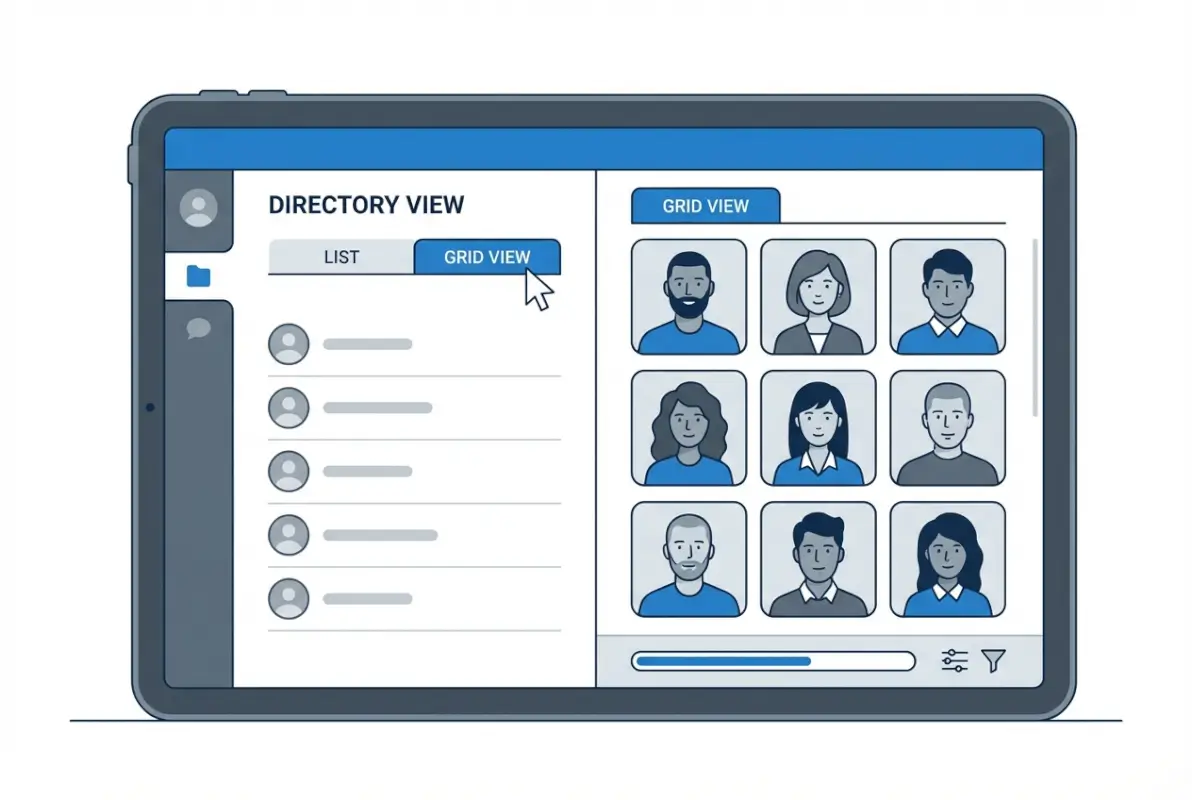
Most directory platforms offer a display settings panel or view switcher. Look for options labeled “grid view,” “thumbnail mode,” or “gallery layout” in your admin dashboard. If building custom, implement a CSS grid with image thumbnails and lazy loading attributes on each image element.
What image formats are best for thumbnails in terms of quality and performance?
WebP and AVIF deliver superior compression and quality compared to JPEG or PNG. Serve WebP with a JPEG fallback for maximum browser support. AVIF offers even better compression but has slightly lower adoption. Always use responsive sizing and appropriate compression levels to balance quality and file size.
Why aren’t my directory thumbnails loading fast on mobile?
Large unoptimized images, missing lazy loading, and lack of responsive sizing are common culprits. Ensure you serve appropriately sized thumbnails using srcset, enable native lazy loading, and compress images. Mobile networks are slower, so smaller file sizes and CDN delivery make a significant difference in perceived speed.
How can I improve accessibility for thumbnail grids?
Provide descriptive alt text for every thumbnail, use semantic HTML with proper heading hierarchy, and ensure keyboard navigation works across the grid. Include visible focus indicators, maintain sufficient color contrast for text overlays, and test with screen readers to confirm logical reading order and meaningful image descriptions.
What is lazy loading, and should I use it for thumbnails?
Lazy loading defers image loading until they are near the viewport, reducing initial page weight and improving load times. For directories with many thumbnails, it is essential. Use the native loading=”lazy” attribute on img tags or a JavaScript library for advanced control and placeholder handling.
How do I ensure thumbnails stay in sync with the full-size images?
Automate thumbnail generation on upload using server-side scripts or cloud functions. Store metadata linking each thumbnail to its source image. When a full-size image is updated or deleted, trigger a workflow to regenerate or remove the corresponding thumbnail, ensuring consistency across your directory.
Can I use thumbnail grids for directories with hundreds of items?
Yes, with pagination or infinite scroll combined with lazy loading. Rendering hundreds of thumbnails at once will harm performance and user experience. Break large directories into pages of 20–50 items or implement virtual scrolling to load only visible rows, keeping memory and network usage efficient.
Should I include captions or metadata overlays on thumbnails?
Short captions or labels help users quickly identify items without clicking through. Keep overlays minimal to avoid visual clutter and ensure text remains readable on varied backgrounds. Use semi-transparent overlays or consistent positioning, and always provide the same information in alt text for accessibility.
Conclusion
Viewing directory photos as thumbnails transforms how visitors interact with your online directory. By choosing modern image formats like WebP and AVIF, implementing responsive sizing with srcset, and enabling lazy loading, you deliver a fast, visually rich experience that scales across devices and network conditions. Thoughtful accessibility—through meaningful alt text, keyboard navigation, and semantic markup—ensures every user can browse your directory efficiently. Pairing these frontend strategies with performance optimizations like CDN delivery, edge caching, and automated thumbnail generation creates a sustainable system that maintains quality and speed as your directory grows.
The techniques covered in this guide are not theoretical. They are grounded in real-world data from The Web Almanac and validated by large-scale performance studies. Your implementation choices directly affect Core Web Vitals, user engagement, and search visibility. Start with the quick wins: compress and convert your images, add loading=”lazy” to img tags, and audit your thumbnail sizes. Then refine your approach with structured metadata, responsive grids, and automated workflows to keep your directory fresh and performant.
Ready to Optimize Your Directory Thumbnails?
Take action today: audit your current image formats, enable lazy loading, and measure your LCP and CLS scores. Small changes in thumbnail optimization can yield dramatic improvements in load times and user satisfaction. Your visitors—and your search rankings—will thank you.
Review your directory’s performance metrics and image delivery pipeline, then apply the strategies from this guide to create a faster, more accessible browsing experience.
Was this article helpful?