
Does Windows Small Business Server Include Active Directory? Complete 2025 Migration Guide

Visual overview of Does Windows Small Business Server Include Active Directory? Complete 2025 Migration Guide

Translated to

If you’re running Windows Small Business Server or considering whether it’s the right solution for your organization, you’re probably asking: does it actually include Active Directory? The short answer is yes—Windows Small Business Server (SBS) absolutely includes Active Directory Domain Services as a core, integrated component. But here’s what most guides won’t tell you: understanding the nuances of how AD works in SBS environments, its limitations compared to modern Windows Server implementations, and when you should consider migrating can save you thousands of dollars and countless headaches down the road.

I’ve spent years helping businesses navigate the confusing landscape of small business server infrastructure, and one thing consistently surprises people: SBS wasn’t just a simplified Windows Server—it was a fundamentally different architecture with built-in constraints that can bite you when you least expect it. Whether you’re maintaining a legacy SBS 2011 installation or evaluating alternatives, this guide cuts through the marketing speak to give you actionable insights you won’t find in official documentation.

TL;DR – Quick Takeaways

  • Yes, SBS includes Active Directory – All versions from SBS 2003 through SBS 2011 include full AD Domain Services functionality
  • Hard user limits apply – SBS 2011 caps at 75 users; Server Essentials versions limit you to just 25 users
  • Single domain restriction – You cannot create child domains or complex forest structures in SBS environments
  • Migration is inevitable – With SBS 2011 support ended and no new versions released, planning your exit strategy is critical
  • Modern alternatives exist – Windows Server 2022/2025 with Essentials role, hybrid Azure AD, or full cloud solutions offer better long-term viability

What Exactly Is Windows Small Business Server and How Does AD Fit In?

Windows Small Business Server was Microsoft’s answer to a genuine market need: small organizations wanted enterprise-grade directory services without enterprise-level complexity or cost. The product line ran from 2000 through 2011, with each version bundling Active Directory alongside Exchange Server, SharePoint, and various connectivity tools into a single, wizard-driven installation package.

Here’s what made SBS unique—it wasn’t just Windows Server with some add-ons thrown in. Microsoft engineered SBS as a tightly integrated platform where Active Directory formed the foundational authentication layer for all other services. When you installed SBS, the setup wizard automatically configured your domain controller, DNS infrastructure, and basic organizational units without requiring you to understand the intricacies of AD architecture. For a 20-person law firm or medical practice without dedicated IT staff, this was genuinely revolutionary.

Core concepts behind Does Windows Small Business Server Include Active Directory? Complete 2025 Migration Guide

The Active Directory implementation in SBS provided all the core functionality you’d find in standard Windows Server: user authentication, group policy management, domain-based security, and centralized resource control. Users logged in once with their domain credentials and gained access to email, file shares, and line-of-business applications without repeated password prompts. From the end-user perspective, SBS AD worked identically to enterprise Active Directory deployments.

According to Microsoft’s official lifecycle documentation, Windows Small Business Server 2011 reached end of extended support in October 2020, making it the last version of the traditional SBS product line. Microsoft transitioned small business customers toward Windows Server Essentials—a role-based approach that maintains simplified AD functionality while integrating with modern cloud services.

The SBS Family Tree and Active Directory Evolution

Understanding where your current environment fits in the SBS lineage helps clarify upgrade paths and compatibility considerations:

VersionAD Functional LevelUser LimitSupport Status
SBS 2003Windows 200375 usersEnded 2015
SBS 2008Windows 200875 usersEnded 2018
SBS 2011 StandardWindows 2008 R275 usersEnded 2020
SBS 2011 EssentialsWindows 2008 R225 usersEnded 2020
Server 2012 EssentialsWindows 201225 usersEnded 2023
Server 2016 EssentialsWindows 201625 usersMainstream ended 2022
Server 2019 EssentialsWindows 201625 usersExtended through 2029

Notice how the “SBS” branding disappeared after 2011, replaced by the “Essentials” role in standard Windows Server editions. This wasn’t just a naming change—it represented a fundamental shift in Microsoft’s small business strategy toward cloud integration and away from all-in-one appliance servers. For more context on the evolution, Wikipedia’s SBS overview provides helpful historical perspective.

Pro Tip: If you’re still running SBS 2011 or earlier, you’re operating without security updates—a significant compliance and security risk. Prioritize migration planning over feature additions or other IT projects. The question isn’t whether to migrate, but how quickly you can execute the move.

How SBS Active Directory Compares to Modern Windows Server AD DS

The Active Directory implementation in Small Business Server wasn’t a stripped-down version—it was the real deal with architectural constraints designed to simplify management. Understanding these differences helps you evaluate whether your current SBS environment still meets your needs or if migration to Windows Server 2022/2025 makes strategic sense.

At the protocol and authentication level, SBS Active Directory uses the same Kerberos infrastructure, LDAP queries, and domain trust mechanisms as enterprise Windows Server deployments. A domain-joined Windows 10 or 11 workstation can’t tell whether it’s authenticating against SBS 2011 or Windows Server 2022—the underlying protocols are identical. This compatibility means line-of-business applications, email clients, and network resources work consistently regardless of whether your domain controller runs SBS or standard Windows Server.

Step-by-step process for Does Windows Small Business Server Include Active Directory? Complete 2025 Migration Guide

The critical differences emerge in architecture, scalability, and administrative flexibility rather than core functionality. SBS imposes a single-domain forest structure—you can’t create child domains, establish forest trusts with other organizations, or implement complex organizational hierarchies. For a 30-person accounting firm operating from one location, this limitation rarely matters. But if you acquire another company or open a second office with its own IT infrastructure, you’ll quickly hit architectural walls that require complete infrastructure redesign.

Domain Controller Roles and FSMO Placement in SBS

In SBS environments, all five Flexible Single Master Operation (FSMO) roles must reside on the SBS server itself—you can’t distribute these roles across multiple domain controllers for redundancy. This creates a single point of failure that enterprise environments would never tolerate. I’ve seen businesses lose an entire day of productivity because their SBS server suffered hardware failure and they had no secondary domain controller to maintain authentication services.

Standard Windows Server deployments let you distribute FSMO roles strategically, place domain controllers at multiple sites for performance and redundancy, and implement read-only domain controllers in branch offices with limited physical security. These architectural options simply don’t exist in SBS, and attempting to add a second domain controller while keeping the SBS server operational creates unsupported configurations that Microsoft explicitly warns against.

Important: Adding a second domain controller to an SBS environment requires careful planning. While technically possible, you must ensure the SBS server retains all FSMO roles and remains the primary DC. Most SBS-to-standard-server migrations involve building a new DC, transferring roles, then demoting the SBS server—not running both long-term.

Active Directory Schema and Functional Levels

SBS 2011 Standard operates at the Windows Server 2008 R2 forest and domain functional level—that’s more than a decade old at this point. While this functional level provides adequate security and features for basic directory services, you miss out on significant improvements Microsoft introduced in later versions:

  • Advanced authentication policies in Windows Server 2012 R2 and later that enable dynamic access control and claims-based authorization
  • Protected Users security group providing additional protections against credential theft attacks introduced in Server 2012 R2
  • Privileged access management features in Server 2016 that time-limit administrative access and reduce standing privilege risks
  • Azure AD integration capabilities in Server 2016/2019 enabling hybrid identity scenarios and conditional access policies
  • Improved Kerberos implementations addressing specific attack vectors discovered in recent years

These aren’t just theoretical improvements—they represent meaningful security hardening that addresses real-world attack patterns. According to TechTarget’s analysis of AD features in Windows Server 2025, newer functional levels provide significantly improved credential protection and attack surface reduction compared to 2008 R2-era implementations.

73%
of Active Directory security incidents involve credential theft or misuse—modern functional levels provide better protection

Implementing and Maintaining Active Directory in SBS Environments

If you’re currently running SBS or inheriting an SBS environment, understanding the practical realities of AD management in these systems helps you maintain stability while planning eventual migration. The good news: SBS makes basic AD administration surprisingly straightforward through its dashboard interface. The bad news: this simplification sometimes obscures what’s actually happening under the hood, making troubleshooting more difficult when things go wrong.

The SBS dashboard provides consolidated management for the most common administrative tasks—creating user accounts, managing group memberships, configuring email addresses, and setting basic security policies. For someone without deep Active Directory expertise, this interface significantly reduces the learning curve compared to standard Windows Server tools like Active Directory Users and Computers or Group Policy Management Console.

Tools and interfaces for Does Windows Small Business Server Include Active Directory? Complete 2025 Migration Guide

However, the dashboard is essentially a simplified wrapper around the same underlying AD management tools available in standard Windows Server. When you create a user through the SBS dashboard, it’s ultimately creating the same AD object with the same attributes as if you’d used ADUC directly. Understanding this relationship helps when you need to troubleshoot issues or perform advanced configurations that the dashboard doesn’t expose.

DNS Configuration and Its Critical Role in SBS AD

Active Directory depends absolutely on properly functioning DNS infrastructure—without it, authentication fails, group policy doesn’t apply, and domain-joined computers can’t locate domain controllers. SBS automatically configures DNS during initial setup, creating the necessary service location (SRV) records and zone structures that AD requires.

The most common DNS-related problem I encounter in SBS environments is incorrect DNS server configuration on client computers. Every domain-joined machine should point to the SBS server as its primary DNS server. If workstations use your ISP’s DNS servers or public DNS services like Google’s 8.8.8.8, they won’t properly resolve internal AD resources even though internet connectivity works fine. This manifests as intermittent login failures, group policy application problems, or inability to access shared resources.

Pro Tip: Configure your DHCP server to automatically assign the SBS server’s IP address as the primary DNS server for all clients. This eliminates the most common source of AD connectivity problems and ensures consistent behavior across your network. As a secondary DNS, you can point to a public DNS service for internet resolution if the SBS server is unavailable.

Organizational Unit Structure and Group Policy Basics

SBS creates a default OU structure during installation: MyBusiness (or your company name), with sub-OUs for Users, Computers, Security Groups, and Distribution Groups. This structure works adequately for most small businesses, but you may want to create additional OUs based on department, location, or security requirements to enable more granular group policy application.

Group Policy in SBS environments works identically to standard Active Directory—you can create GPOs that configure security settings, deploy software, map network drives, or enforce organizational standards. The SBS dashboard includes basic group policy management, but for advanced configurations you’ll need to use the full Group Policy Management Console that’s available through Administrative Tools.

One mistake I see repeatedly: applying too many group policies at the domain level rather than targeting specific OUs. This creates performance problems during login and makes troubleshooting difficult when you need to identify which policy is causing a particular behavior. A better approach is creating OUs for different computer types (workstations, laptops, servers) or user groups (accounting, sales, management) and applying relevant policies only where needed.

Backup and Disaster Recovery for SBS Active Directory

Since SBS typically operates as a single domain controller, backing up the Active Directory database and system state becomes absolutely critical—there’s no secondary DC to fall back on if something goes wrong. SBS includes Windows Server Backup, which can perform system state backups containing your AD database, but the built-in tool has significant limitations.

For production SBS environments, I strongly recommend third-party backup solutions that specifically support Active Directory restoration and provide bare-metal recovery capabilities. Solutions from Veeam, Acronis, or similar vendors designed for server environments offer substantially better recovery options than the built-in Windows Server Backup. Whatever solution you choose, test your AD restoration procedure at least quarterly—a backup you’ve never successfully restored is just wishful thinking, not a disaster recovery plan.

Backup ComponentFrequencyRetentionTesting Schedule
System State (AD database)Daily14 days minimumQuarterly
Full server imageWeekly30 days minimumSemi-annually
File-level backupDaily90 days recommendedMonthly

The Active Directory tombstone lifetime in SBS is 180 days by default (it varies by forest functional level). This means if you go more than 180 days without successfully backing up your domain controller, you can’t restore from those old backups—they’re considered stale and will introduce replication conflicts if restored. Keep this timeline in mind when planning your backup retention policies.

Migration Paths from SBS to Modern Windows Server AD DS

Eventually, every SBS installation reaches a decision point: continue nursing along aging infrastructure running unsupported software, or bite the bullet and migrate to a supportable platform. With SBS 2011 support ended years ago and no new SBS versions on the horizon, migration isn’t a matter of “if” but “when” and “how.”

The migration challenge isn’t just technical—it’s architectural and strategic. SBS bundled multiple services (AD, Exchange, SharePoint, file sharing, remote access) into a single server with tight integration between components. When you migrate away from SBS, you’re not just upgrading Active Directory; you’re potentially redesigning your entire server infrastructure and deciding which services stay on-premises versus moving to cloud alternatives.
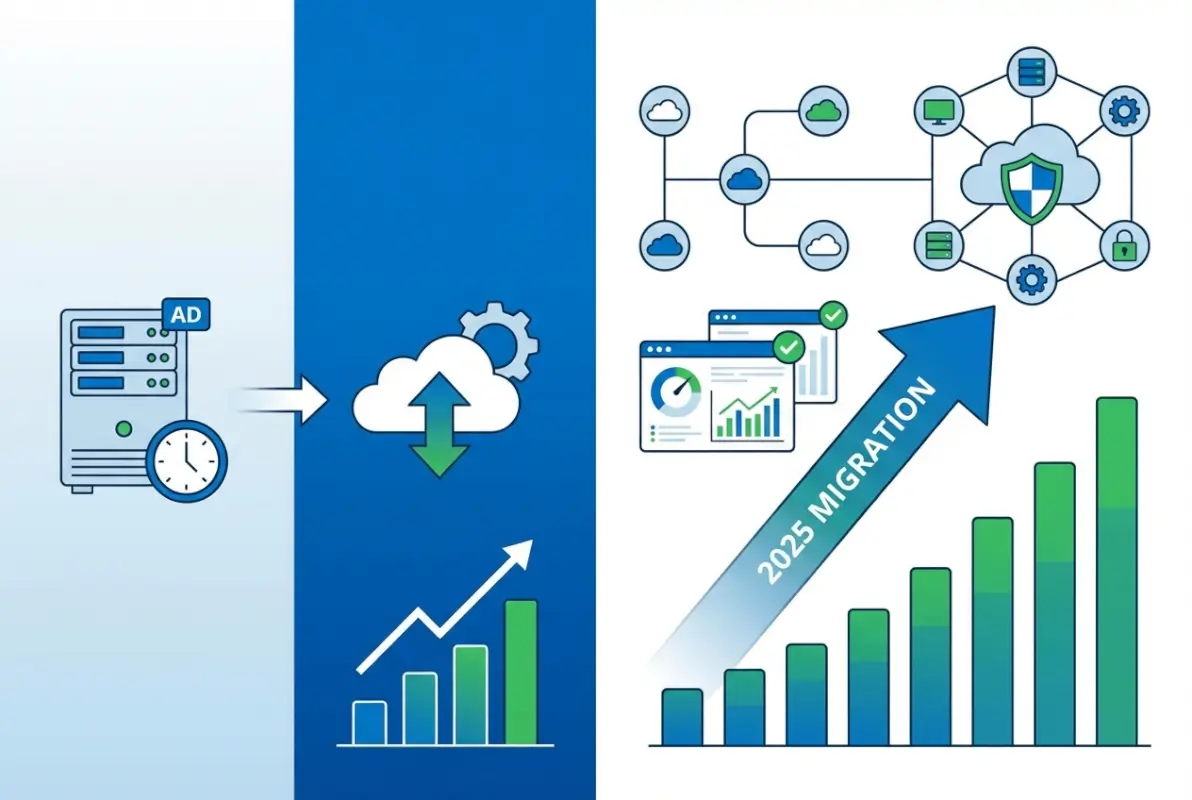
Best practices for Does Windows Small Business Server Include Active Directory? Complete 2025 Migration Guide

I remember working with a manufacturing company running SBS 2008 well past its support end date because “everything worked fine.” Then a cryptographic protocol change in a supplier’s EDI system suddenly prevented them from receiving orders—their ancient Exchange server couldn’t negotiate the required TLS version. What should have been a routine upgrade turned into an emergency migration project with the business hemorrhaging money every day they couldn’t process orders. Don’t let procrastination turn your migration into a crisis.

Migration Strategy Options

You have several viable paths for moving away from SBS Active Directory, each with different cost, complexity, and timeline implications:

Option 1: In-Place Domain Migration to Windows Server Standard/Essentials

This approach maintains your existing AD domain while transitioning to a modern Windows Server platform. You install a new Windows Server 2022 or 2025 system, join it to your existing SBS domain, transfer FSMO roles, migrate file shares and other services, then demote and retire the SBS server. This path preserves all user accounts, group memberships, and security policies without requiring workstations to leave and rejoin the domain.

The main advantage: minimal disruption to end users. The main disadvantage: you’re carrying forward any architectural decisions or legacy configurations from your SBS environment, some of which may not represent current best practices.

Option 2: New Domain Migration with Trust Relationship

Create an entirely new Active Directory domain on modern Windows Server infrastructure, establish a trust relationship with your old SBS domain, then gradually migrate users and resources. This approach gives you a clean slate for OU structure, group policy design, and naming conventions, but requires more complex migration coordination and temporarily maintaining two domains.

Option 3: Hybrid Cloud with Azure AD

Instead of maintaining on-premises domain controllers long-term, transition to a hybrid identity model using Azure Active Directory with Azure AD Connect synchronizing your on-premises AD to the cloud. This positions you for eventual full cloud migration while maintaining compatibility with applications that require traditional AD. According to Microsoft’s Windows Server 2025 documentation, newer server versions include improved hybrid identity capabilities specifically designed for this transition scenario.

Option 4: Full Cloud Migration to Azure AD or Microsoft 365

For businesses ready to eliminate on-premises infrastructure entirely, moving to cloud-only identity with Azure AD (now Microsoft Entra ID) removes the need for domain controllers altogether. This requires the most significant process changes—applications must support modern authentication, file storage moves to SharePoint or OneDrive, and users adapt to cloud-based management tools. But it also eliminates server maintenance, reduces infrastructure costs, and provides identity protection features that on-premises AD can’t match.

Key Insight: The “right” migration path depends more on your business trajectory than technical considerations. If you’re planning to maintain on-premises servers for line-of-business applications, Option 1 makes sense. If you’re cloud-forward and want to minimize infrastructure, Options 3 or 4 align better with that direction. Don’t let the migration project lock you into an architectural direction that doesn’t serve your five-year plan.

Critical Migration Planning Considerations

Regardless of which path you choose, successful SBS migration requires attention to several critical factors:

  • Domain and Forest Functional Level Upgrades: After migrating to newer Windows Server versions, you’ll eventually want to raise your forest and domain functional levels to enable new features. This is a one-way operation, so ensure all domain controllers are at appropriate versions before proceeding.
  • FSMO Role Transfer: Moving these five special domain controller roles requires specific procedures and can cause authentication disruptions if done incorrectly. Never simply turn off the old SBS server—always gracefully transfer roles first.
  • DNS Migration: Your new domain controllers need to host DNS, and DHCP configurations across your network need updating to point clients to the new DNS servers. Poor DNS migration planning causes more problems than any other single factor.
  • Group Policy Review and Cleanup: Migration provides an excellent opportunity to audit your existing group policies, removing obsolete settings and consolidating redundant GPOs. Many SBS environments accumulate policy cruft over years that migration can help clean up.
  • Certificate Services Considerations: If your SBS installation included Certificate Services, these require special migration procedures separate from AD domain services migration.

For detailed technical guidance on upgrade procedures, Microsoft’s Windows Server 2025 announcement outlines improved migration tools and compatibility features designed to smooth the transition from legacy platforms.

Security and Compliance Considerations for Small Business Active Directory

Running Active Directory in a small business environment creates interesting security challenges. You need enterprise-grade protection against credential theft, privilege escalation, and lateral movement attacks, but without the dedicated security team that large organizations employ. SBS environments are particularly vulnerable because the single domain controller represents both the authentication authority and often a file server, application server, and email server—compromising this one system gives attackers complete control over your network.

The reality is that small businesses are absolutely targeted by attackers despite the common misconception that “we’re too small to worry about.” Ransomware operators specifically seek out small businesses running aging infrastructure because these organizations often lack robust backup and recovery capabilities. An Active Directory compromise can lock you out of your entire network, and without proper AD backups, recovery becomes exponentially more difficult.

Advanced strategies for Does Windows Small Business Server Include Active Directory? Complete 2025 Migration Guide

Essential AD Security Hardening for Small Business

Even in resource-constrained environments, several critical security measures dramatically improve your Active Directory security posture:

Privileged Account Management: Never use domain administrator accounts for daily activities, even for IT staff. Create separate standard user accounts for normal work and use “Run As” when administrative access is needed. In SBS environments where the owner often acts as the IT administrator, this discipline proves especially challenging but equally critical.

Password Policy Enforcement: While SBS includes basic password complexity requirements, consider implementing more sophisticated policies using fine-grained password policies (available in 2008 R2 functional level and later). Require long passwords (14+ characters minimum) rather than relying solely on complexity rules that users satisfy with minimal variations like “Password1!”

Account Lockout Configuration: Balance security and usability by implementing account lockout after 5-10 failed login attempts, with automatic unlock after 30-60 minutes. This protects against brute-force password attacks while preventing helpdesk overwhelm from users who mistype passwords.

Audit Policy Configuration: Enable auditing for account logon events, account management, directory service access, and policy changes. While small businesses rarely review logs proactively, this audit trail becomes invaluable during incident investigation or compliance audits. Consider implementing a SIEM solution or at least centralized log collection to preserve these records beyond the limited local event log retention.

81%
of data breaches involve weak or stolen credentials—proper AD security directly addresses the most common attack vector

Kerberos and Authentication Protocol Security

Active Directory primarily uses Kerberos for authentication, with NTLM as a fallback protocol for older systems. Unfortunately, NTLM has well-documented security weaknesses that attackers exploit through pass-the-hash and relay attacks. While you can’t completely disable NTLM in most environments due to application compatibility, you should minimize its use wherever possible.

Modern Windows Server versions include Kerberos improvements that provide better protection against credential theft and replay attacks. For example, Windows Server 2025 licensing and features documentation describes enhanced Kerberos implementations that reduce attack surface compared to SBS 2011-era protocols. This represents another compelling reason to prioritize migration away from legacy platforms.

Addressing Common AD Security Misconfigurations

Small business AD environments frequently contain security gaps that would never pass muster in enterprise deployments:

  • Excessive group memberships: Too many users added to Domain Admins or other highly privileged groups “temporarily” and never removed
  • Service accounts with domain admin rights: Applications running with excessive privileges because it was easier than troubleshooting proper delegated permissions
  • Unrestricted delegation: Servers or service accounts trusted for delegation without carefully limiting scope, enabling credential theft escalation
  • Missing security updates: Domain controllers running without current security patches, especially common in SBS environments past their support lifecycle
  • Weak or shared administrator passwords: The same administrator password used for years or shared among multiple staff members

An AD security audit—either using free Microsoft tools like PingCastle or BloodHound, or engaging a security consultant—can identify these issues before attackers exploit them. The investment in security assessment typically costs far less than recovering from a successful breach. If you’re managing online directories or member databases alongside your AD infrastructure, consider reviewing our business directory website complete guide for complementary security perspectives on managing online authentication systems.


Frequently Asked Questions About Windows Small Business Server and Active Directory

Does Windows Small Business Server 2011 include Active Directory Domain Services?

Yes, Windows Small Business Server 2011 includes full Active Directory Domain Services as a core component. During SBS installation, the setup wizard automatically configures AD DS, creates your domain, and establishes the server as the primary domain controller. All SBS versions from 2003 through 2011 included integrated Active Directory functionality designed specifically for small business environments with simplified management interfaces and wizard-driven configuration.

Can I still run SBS 2011 with Active Directory safely in production?

No, running SBS 2011 in production environments is not recommended and carries significant security risks. Microsoft ended extended support in October 2020, meaning no security updates are released regardless of newly discovered vulnerabilities. Systems past their support lifecycle become increasingly vulnerable as attackers develop exploits for unpatched vulnerabilities. If you’re still running SBS 2011, prioritize migration planning immediately to avoid potential security breaches or compliance violations.

What’s the difference between SBS Active Directory and Windows Server 2022 AD DS?

While both implement the same core Active Directory protocols and authentication mechanisms, Windows Server 2022 AD DS provides significantly newer forest functional levels, advanced security features, improved Kerberos implementations, and flexible architectural options. SBS restricts you to single-domain configurations with all FSMO roles on one server, while Server 2022 supports complex multi-domain forests, distributed FSMO roles, read-only domain controllers, and integration with Azure Active Directory for hybrid identity scenarios.

How do I migrate Active Directory from SBS 2011 to Windows Server 2022?

The standard migration path involves installing a new Windows Server 2022 system, joining it to your existing SBS domain as an additional domain controller, transferring all five FSMO roles to the new server, updating DNS configurations, migrating file shares and other services, then gracefully demoting and retiring the SBS server. This process maintains your existing domain, user accounts, and security configurations. Microsoft provides migration tools and documentation, but complex environments benefit from professional assistance to avoid authentication disruptions.

Can I add a second domain controller to SBS for redundancy?

While technically possible to add an additional domain controller to an SBS domain, this configuration has significant limitations and is typically only done as part of a migration away from SBS. The SBS server must retain all FSMO roles and remain the primary DC. Adding a secondary DC for redundancy makes more sense as a migration step—you promote a new Server 2022 system to DC, transfer roles, then demote SBS—rather than as a long-term dual-DC configuration.

Should I migrate SBS Active Directory to Azure AD instead of on-premises Server?

The decision depends on your infrastructure strategy and application requirements. Azure Active Directory (now Microsoft Entra ID) provides excellent cloud-based identity services and eliminates domain controller maintenance, but doesn’t fully replace on-premises AD for applications requiring traditional Windows authentication, Group Policy, or LDAP integration. Many businesses implement hybrid configurations using Azure AD Connect to synchronize on-premises AD with Azure, providing cloud benefits while maintaining compatibility with legacy applications during gradual cloud migration.

What are the user limits for Active Directory in Small Business Server?

SBS 2011 Standard supports maximum 75 users and 75 devices, while SBS 2011 Essentials limits you to 25 users. Windows Server Essentials editions (2012/2016/2019) maintain the 25-user limit. These restrictions are enforced through licensing and cannot be exceeded. Organizations approaching these thresholds must migrate to standard Windows Server editions, which support unlimited users within Client Access License (CAL) limits. Planning migration before hitting user limits prevents rushed emergency migrations under business pressure.

How do I back up Active Directory on Windows Small Business Server?

SBS includes Windows Server Backup for system state backups containing the AD database, SYSVOL, and related components. Schedule daily system state backups to external storage or network locations, and test restoration procedures quarterly to verify backups work correctly. Since SBS typically operates as a single domain controller, proper backups become absolutely critical—there’s no secondary DC for failover. Consider third-party backup solutions designed for server environments, which often provide better bare-metal recovery and granular AD object restoration capabilities than built-in Windows backup tools.

Can Mac and Linux computers join Active Directory domains on SBS?

Yes, both Mac and Linux systems can join Active Directory domains hosted on SBS and authenticate against domain credentials. macOS includes native AD integration supporting authentication, group policy application, and network home directories with functionality comparable to Windows clients. Linux systems require configuration of Samba, SSSD, or similar integration tools for AD authentication. File sharing via SMB protocol works reliably across all three platforms. The AD domain services functionality works identically regardless of client operating systems.

What security risks exist in legacy SBS Active Directory environments?

Legacy SBS installations face multiple security concerns: no ongoing security patches after support ends, older Kerberos and NTLM protocol implementations with known vulnerabilities, outdated forest functional levels lacking modern credential protections, and single-server architecture creating concentrated attack targets. Additionally, many SBS deployments use the server for multiple roles (DC, file server, email server), so compromising one service grants access to authentication infrastructure. Organizations running unsupported SBS should prioritize migration to eliminate these cascading security risks.

Is Windows Server Essentials the same as Small Business Server?

Windows Server Essentials represents Microsoft’s successor to SBS but with significant differences. While Essentials maintains simplified management interfaces and includes Active Directory functionality similar to SBS, it doesn’t bundle Exchange Server or SharePoint—Microsoft expects customers to use Office 365/Microsoft 365 for these services instead. Essentials operates as a role in standard Windows Server editions rather than a separate product, providing more deployment flexibility. The 25-user limit matches SBS 2011 Essentials, making it suitable for similar-sized organizations but with cloud-integrated architecture assumptions.

Taking Action: Your Next Steps for Small Business Active Directory

Windows Small Business Server absolutely does include Active Directory as a fundamental component, providing small organizations with enterprise-grade authentication and directory services in a simplified package. But if you’re reading this guide, chances are you’re either maintaining a legacy SBS installation or evaluating whether SBS-style solutions still make sense for your business infrastructure strategy. The honest answer: they don’t, at least not long-term.

The SBS product line served its market well for over a decade, but Microsoft’s strategic direction has clearly shifted toward cloud-integrated hybrid identity and away from all-in-one small business server appliances. With SBS 2011 support ended years ago and no new versions planned, every SBS installation represents technical debt that will eventually require resolution. The only question is whether you address it proactively on your timeline or reactively when something breaks at the worst possible moment.

Here’s what you should do based on your current situation:

If you’re running SBS 2011 or earlier: Stop everything and create a migration plan immediately. You’re operating without security updates on infrastructure that handles your entire organization’s authentication—this isn’t sustainable. Budget for either Windows Server 2022/2025 migration or transition to cloud-based alternatives within the next 3-6 months maximum.

If you’re running Server 2012/2016 Essentials: You have more time but should still be planning your next infrastructure phase. Evaluate whether on-premises AD still serves your needs or whether hybrid/cloud identity makes more strategic sense given your workforce distribution and application portfolio.

If you’re planning new infrastructure: Don’t even consider SBS or Essentials-only deployments. Start with either standard Windows Server editions that provide architectural flexibility or go cloud-first with Microsoft 365 and Azure AD/Microsoft Entra ID. The 25-50 user limits in Essentials become constraints faster than you expect as businesses grow.

Active Directory remains the foundation of Windows-based business infrastructure, but the delivery model is evolving from on-premises domain controllers toward hybrid and cloud-managed identity. Understanding where SBS fits in that evolution—and more importantly, where it doesn’t—helps you make infrastructure decisions that support rather than constrain your business growth. For businesses managing member directories or professional listings alongside their corporate AD, solutions like those discussed in our pro tips launch thriving business directory website guide can complement your authentication infrastructure with public-facing directory capabilities.

The migration away from SBS isn’t just a technical project—it’s an opportunity to rethink how identity and authentication fit into your broader IT strategy. Take the time to evaluate not just what replaces your current SBS server, but what authentication and identity management should look like for your organization over the next five years. That long-term perspective ensures your migration investment positions you for future requirements rather than just maintaining the status quo on newer hardware.

Was this article helpful?

Similar Posts

  • Blog

    How to Add Plugin to WordPress: 5 Easy Methods That Actually Work

    WordPress plugins transform ordinary websites into powerful, feature-rich platforms that can compete with million-dollar applications. Yet, most WordPress users barely scratch the surface of what’s possible, installing plugins randomly without understanding the strategic implications. Here’s something most tutorials won’t tell you: the way you add plugins to your WordPress site can dramatically impact your site’s…

  • Blog

    How to Change Plugin Folder in WordPress: A Step-by-Step Guide

    When I first started managing WordPress sites for enterprise clients, I discovered that one of the most overlooked security vulnerabilities wasn’t in plugins themselves—it was in their predictable location. Every bot, script, and malicious actor knows exactly where to find your plugins: /wp-content/plugins/. But what if I told you that changing this single folder could…

  • Blog

    How to Advertise on a Business Directory: 6 Proven Strategies That Drive Qualified Leads

    In the digital marketing landscape, business directories have evolved from simple online phonebooks into powerful advertising platforms that can dramatically transform your customer acquisition strategy. While most businesses treat directory listings as an afterthought (or worse, ignore them completely), savvy marketers understand that strategic business directory advertising can deliver highly qualified leads at a fraction…

  • Blog

    How to Create an Online Membership Directory: 6 Key Features to Include

    substring(replace(

    Here’s the thing most organizations get wrong about membership directories: they treat them like glorified phone books when they should be treating them like living, breathing communities. I’ve watched countless associations pour money into expensive platforms only to end up with digital ghost towns because they forgot one crucial detail—a directory isn’t just a list of names, it’s the nervous system of your entire member ecosystem.

    An online membership directory serves as the central hub where members discover each other, forge connections, and extract tangible value from their affiliation. Whether you’re running a professional association, a nonprofit advocacy group, or a member-based business network, your directory is often the first (and sometimes only) place members go to answer the question: “What am I actually getting for my dues?” When designed thoughtfully with the right features, a membership directory transforms from a static database into a dynamic engine for engagement, networking, and yes—revenue generation.

    The stakes are higher than ever. Recent data shows that member engagement directly correlates with retention rates, and organizations that provide robust discovery and networking tools see measurably better renewal outcomes. In fact, research on nonprofit trends and member behavior confirms that usable member data and effective privacy controls are foundational to sustained participation.

    TL;DR – Quick Takeaways

    • Rich member profiles – Detailed metadata and custom fields enable precise search and personalized networking, directly impacting engagement
    • Advanced search capabilities – Multi-criteria filtering with smart components (auto-suggest, saved searches) is the #1 differentiator for modern directories
    • Flexible display structures – Card views, map integration, and tiered visibility support diverse member types and monetization strategies
    • Built-in engagement tools – Direct messaging, matching features, and community content turn static listings into active networking hubs
    • Privacy-first design – GDPR/CCPA compliance, granular consent controls, and audit logs build the trust that sustains membership programs
    • Strategic monetization – Featured listings, sponsorship opportunities, and tier-based access create revenue without compromising user experience

    We’ll walk through six essential features (plus a bonus seventh) that separate exceptional membership directories from mediocre ones. These aren’t theoretical nice-to-haves, they’re battle-tested components drawn from analyzing top-performing directory platforms, current member behavior data, and real-world implementation case studies. Each feature section includes practical implementation guidance you can apply whether you’re building from scratch or upgrading an existing system.

    Robust Member Profiles with Rich Metadata

    Think of member profiles as the atomic unit of your directory—everything else you build depends on the quality and depth of these individual records. A robust profile system goes far beyond name and email address, it captures the multidimensional nature of each member’s professional identity, expertise, and interests in a structured, searchable format.

    [KBIMAGE_1]

    Start with the foundational profile fields that every directory needs: full name, affiliated organization, job title, geographic location (city/region at minimum), and contact preferences. These core data points enable basic searchability and help members quickly assess relevance when browsing results. But here’s where most directories stop, and that’s a mistake.

    Core Profile Fields and Baseline Data

    Your baseline profile architecture should include both required and optional fields. Required fields might be limited to name, email, and organization (to keep signup friction low), while optional fields can be numerous. The key is designing your data model to accommodate growth—you want room for members to add richness over time without overwhelming them at registration.

    Consider including business contact details separately from personal ones, professional headshots or logos, social media links (LinkedIn especially for professional networks), website URLs, and a biographical summary field. Many successful directories also include year joined, membership number, and current membership status as system-generated fields that add credibility and context.

    Custom Fields and Taxonomies for Discoverability

    This is where metadata becomes a strategic asset. Custom fields and tagging systems allow you to capture the unique dimensions that matter to your specific community. Industry classifications, areas of expertise, languages spoken, certifications held, services offered, products sold—the possibilities are endless and should be tailored to your members’ networking needs.

    💡 Pro Tip: Use controlled vocabularies (dropdown selections) rather than free-text fields wherever possible for custom attributes. This ensures consistency, enables precise filtering, and prevents the chaos of synonyms and spelling variations that plague free-text systems.

    Interest tags are particularly powerful for facilitating peer-to-peer connections. Let members self-select tags like “seeking mentees,” “open to speaking opportunities,” “looking for collaborators,” or “available for consulting.” These availability indicators transform your directory from a passive lookup tool into an active marketplace for expertise and partnership.

    Don’t forget temporal metadata either. Fields like “member since,” “last login,” and “last profile update” help both administrators and fellow members gauge activity and engagement levels. Nothing kills trust faster than reaching out to someone whose profile hasn’t been touched in three years.

    Privacy Controls and Consent Management

    Granular privacy controls aren’t just a legal requirement, they’re a member expectation. Every profile field should have associated visibility settings: public to everyone, visible only to logged-in members, visible only to members at certain tiers, or private to the member and administrators only.

    Contact preferences deserve special attention. Allow members to specify how they want to be contacted (email, phone, platform messaging), what types of inquiries they welcome (networking, sales, media, recruitment), and what they absolutely don’t want (cold outreach, promotional messages). Respecting these preferences builds trust and reduces the spam-like behavior that can poison a directory’s culture.

    Consent tracking is non-negotiable. Document when members opted in to directory inclusion, what data they agreed to share, and provide easy mechanisms to modify or revoke consent. This isn’t just GDPR/CCPA compliance theater, it’s fundamental to maintaining an engaged, trusting member base that actually keeps their profiles current.

    Data Import, Export, and Hygiene Best Practices

    You’ll likely launch your directory with existing member data from a CRM, spreadsheets, or legacy systems. Build robust import capabilities that can map various data formats to your profile schema, handle duplicates intelligently, and flag data quality issues for review before going live.

    Equally important: give members and administrators export capabilities. Members should be able to download their own profile data (data portability rights), while administrators need export functions for reporting, backup, and integration with other systems. CSV export is table stakes, JSON or API access is better.

    ⚠️ Important: Implement regular data hygiene campaigns. Send members annual reminders to review and update their profiles, highlight incomplete profiles in admin dashboards, and consider gating certain benefits (like search visibility) to profiles that meet minimum completeness thresholds.

    The richness of your metadata directly determines the value members extract from your directory. Skimpy profiles yield shallow results, which leads to low engagement, which further discourages profile maintenance—a vicious cycle. Break that cycle by making rich profiles rewarding: showcase complete profiles more prominently, recognize “power users” who maintain detailed information, and use analytics to demonstrate how profile completeness correlates with connection activity.

    Advanced Search and Filtering Capabilities

    Search is the front door to your directory, and if that door is hard to open, your members won’t bother knocking. I learned this the hard way working with an association that had thousands of expert members but a search function that could only handle basic name lookups. Members would come to the directory, fail to find what they needed, and leave assuming the expertise didn’t exist—when it absolutely did, just buried under poor discoverability.

    [KBIMAGE_2]

    Modern directory search goes far beyond a single text box. It’s a sophisticated discovery system that helps members find exactly who or what they need through multiple pathways, accommodates various search behaviors, and gets smarter with use.

    Multi-Criteria Search and Faceted Filtering

    Your search interface should support querying across multiple dimensions simultaneously. Location-based search (by city, state, region, or proximity radius), industry or sector filtering, membership level or tier, specialty areas or expertise tags, availability indicators, and language capabilities all represent common search criteria that members expect to combine.

    Faceted search interfaces work beautifully for directories. Show available filter categories in a sidebar with counts next to each option, allow members to stack multiple filters, and dynamically update the available filter options as selections are made. This “progressive disclosure” pattern helps members navigate large directories without feeling overwhelmed.

    Search ApproachBest ForImplementation Complexity
    Simple text searchSmall directories (<200 members)Low
    Faceted filteringMedium directories with diverse member typesMedium
    Full-text + filters + auto-suggestLarge directories (>500 members)High
    AI/semantic searchComplex professional networks with nuanced matchingVery High

    For organizations considering a more sophisticated active directory setup for small business environments, the investment in advanced search pays dividends in member satisfaction and retention.

    Saved Searches and Smart Alerting

    Allow members to save their commonly-used search queries and filter combinations. A consultant who frequently looks for “certified accountants in the Northeast region available for project work” shouldn’t have to reconstruct that query every time. One-click saved searches dramatically improve the user experience for repeat visitors.

    Take it further with search alerts: let members subscribe to saved searches and receive notifications when new profiles match their criteria. This transforms your directory from a pull system (members must remember to check it) to a push system (the directory proactively surfaces relevant connections). It’s the difference between a tool members use occasionally and one that becomes part of their weekly workflow.

    Search Relevance Tuning and Quality Signals

    Not all search results are created equal. Implement relevance ranking that considers multiple quality signals: profile completeness, recency of last update, member tier or status, engagement metrics (profile views, connection requests), and endorsements or ratings from other members.

    Field weighting matters too. A match in someone’s name or organization should probably rank higher than a match in their bio text. Exact matches should outrank partial matches. Administrators should have controls to adjust these weights based on observed search behavior and member feedback.

    ✅ Key Insight: Track search queries that return zero results—these are gold mines for understanding gaps in your taxonomy, synonym handling, or member coverage. If “UX designer” returns no results but you have members tagged as “user experience consultant,” you have a synonym problem to fix.

    Smart Search Components for Better UX

    Auto-suggest as members type dramatically improves the search experience. Suggest profile names, organizations, locations, and tag values that match the partial query. This helps members discover the controlled vocabulary you’re using and reduces typos and failed searches.

    Error tolerance through fuzzy matching catches misspellings and variations. “Pittsburg” should still find members in Pittsburgh, “busines analyst” should match “business analyst.” Phonetic matching can help too, especially for names.

    Query expansion and synonyms address the vocabulary problem. If someone searches “lawyer,” also match profiles tagged as “attorney” or “legal counsel.” Build a synonym dictionary specific to your domain and continuously expand it based on search log analysis.

    Accessibility Considerations for Search Interfaces

    Search components must be keyboard-navigable without a mouse. Filter checkboxes and dropdowns need proper ARIA labels, auto-suggest results must be announced to screen readers, and focus states must be clearly visible. Test your search interface with actual assistive technology, don’t just assume it works.

    Mobile responsiveness is equally critical. Over half your members will search from phones or tablets, so your filter panels need to work in constrained spaces, touch targets must be appropriately sized, and complex multi-criteria searches should gracefully degrade or adapt to smaller screens.

    According to comprehensive guides on creating directory websites, effective search consistently ranks as the top feature that differentiates successful directories from abandoned ones. It’s worth the investment to get it right.

    Flexible Directory Structure and Display Options

    One-size-fits-all rarely fits anyone well. Your members have different browsing preferences, different use cases, and different contexts for accessing your directory—so why force them all through the same narrow viewing experience? The best directories offer multiple ways to explore the same underlying member data, adapting to how people actually search for connections and information.

    [KBIMAGE_3]

    Directory structure encompasses both how information is organized (taxonomy, categories, hierarchies) and how it’s presented visually (list views, cards, maps, grids). Getting this right requires understanding your members’ mental models and primary use cases.

    Multiple Directory View Options

    Card-based layouts work beautifully for browsing and visual scanning. Each member gets a compact card showing their photo, name, title, organization, location, and perhaps a few key tags. Cards can be arranged in responsive grids that adapt to screen size and make good use of white space. This view is ideal for exploratory browsing—”I’m not sure exactly who I’m looking for, but I’ll know it when I see it.”

    List views maximize information density for members who know what they want and need to scan quickly. Think of a table with sortable columns: name, organization, location, specialty, member since. List views work well for bulk operations (export these 50 members, send a message to this filtered set) and for desktop users who value efficiency over aesthetics.

    Map-based views leverage geographic data to visualize member distribution spatially. For associations with strong regional components or businesses seeking local connections, an interactive map with clickable pins provides intuitive discovery. Cluster nearby members at higher zoom levels, then expand to individual pins as users zoom in.

    Taxonomy-driven category pages organize members into predefined groupings: by industry vertical, by service type, by expertise area, by chapter or region. This “drill-down” navigation style works well for new visitors who need structure to understand what’s available. Think of it like browsing a store by department versus using search.

    💡 Pro Tip: Let members toggle between view types with persistent preferences. If someone always prefers list view, remember that choice across sessions. Small touches like this signal that you respect their time and preferences.

    Hierarchical Listings and Promoted Profiles

    Not all members need equal visibility—and in fact, differential visibility is often a valuable benefit you can tie to membership tiers or sponsorship packages. Featured or promoted listings appear at the top of search results or category pages, visually distinguished with badges, highlighted backgrounds, or priority positioning.

    Administrator-curated sections like “Members of the Month,” “New Members,” or “Expert Spotlights” add editorial flavor and help surface members who might otherwise get lost in large directories. These curated collections also give you content for newsletters and social media, extending the value of your directory data.

    Trending or most-viewed profiles can be surfaced algorithmically based on engagement metrics. This creates a virtuous cycle where active, valuable members gain visibility, which drives more connections, which reinforces their value. Just ensure your algorithms don’t create permanent winners and losers, periodically reset or decay metrics to give everyone chances at visibility.

    Feature 4: Engagement Tools for Networking and Collaboration

    A membership directory is more than a static listing—it’s a gateway to meaningful connections. The most successful directories integrate engagement tools that transform member discovery into ongoing collaboration. By embedding networking, messaging, and community features directly into your directory, you empower members to find each other and work together, which drives retention and satisfaction.

    [KBIMAGE_4]

    According to the Urban Institute’s National Survey of Nonprofit Trends and Impacts, organizations that facilitate peer-to-peer connection see measurably higher member engagement and renewal rates. Modern directories should move beyond passive browsing to active collaboration, giving members reasons to return and interact.

    Direct Messaging and In-App Communication

    Allow members to initiate conversations without leaving your platform. In-directory messaging reduces friction and keeps engagement within your ecosystem, rather than pushing members to external email or social networks.

    • One-to-one messaging: Enable private conversations between members who want to connect, collaborate, or refer business.
    • Opt-in visibility: Respect member preferences by letting them choose whether to accept unsolicited messages or require a connection request first.
    • Notification controls: Provide granular email and in-app alerts so members stay informed without feeling overwhelmed.
    • Spam and abuse prevention: Implement rate limits, moderation flags, and reporting tools to maintain a safe, trusted environment.

    💡 Pro tip: Introduce “icebreaker” prompts or profile badges (e.g., “Open to mentoring,” “Seeking collaborators”) to signal approachability and reduce the awkwardness of first contact.

    Connect and Match Features for Networking

    Manual browsing can be time-consuming. Smart matching algorithms and curated connection suggestions help members find the right people faster, especially in large directories with hundreds or thousands of profiles.

    • Interest-based matching: Use tags, industries, or expertise fields to suggest profiles similar to what a member is seeking.
    • Skill and need pairing: Let members indicate what they’re offering (mentorship, partnerships) and what they’re looking for (advice, referrals), then surface complementary matches.
    • Event or group-based connections: Recommend members who attended the same conference, joined a similar interest group, or are in the same geographic area.
    • Alumni or cohort matching: For associations with graduating classes, certification cohorts, or training programs, automate connections between participants.

    Platforms like Glue Up highlight connection features as central to member value, noting that directories with smart matching see higher login frequency and longer session times.

    Events, Groups, and Circles Tied to Directory Entries

    Deepen directory utility by linking member profiles to events, special interest groups, and communities. When members see who else is attending an event or participating in a group, they’re more likely to engage.

    • Event attendee directories: Display a mini-directory on event pages, so registrants can see who’s coming and initiate pre-event networking.
    • Group and chapter rosters: Automatically populate group pages with member listings from your directory, filtered by membership in that group.
    • Circles and committees: For leadership boards, working groups, or volunteer committees, create invite-only directory views that surface only relevant members.
    • Activity feeds: Show recent member updates, new listings, or profile changes to keep the directory feeling alive and current.

    Community-Driven Content: Endorsements and Recommendations

    Social proof builds trust. Letting members endorse skills, leave testimonials, or recommend peers adds a layer of validation that static bios cannot provide.

    • Skill endorsements: Allow members to publicly affirm each other’s expertise (similar to LinkedIn endorsements).
    • Peer recommendations: Provide space for written testimonials or project references that appear on a member’s profile.
    • Ratings or badges: For service providers or consultants in your directory, consider optional star ratings or “verified expert” badges based on community input.
    • Moderation controls: Ensure all community-generated content is subject to review or flagging to prevent abuse or spam.

    ⚠️ Privacy note: Always make endorsements and recommendations opt-in. Some members may prefer a low-profile presence and should be able to hide community-driven content from their profiles.

    Privacy-Respecting Contact Pathways

    Not all members want to be easily reachable by anyone. Offer flexible contact pathways that respect privacy and consent:

    • Contact forms instead of exposed emails: Route inquiries through an in-platform form that members can review before sharing direct contact details.
    • Connection requests: Require approval before enabling direct messaging, similar to LinkedIn’s connection model.
    • Visibility toggles: Let members choose whether their profile is visible to all members, logged-in users only, or specific membership tiers.
    • Do-not-contact flags: Provide a simple checkbox for members who wish to appear in search but do not want to receive unsolicited messages.

    These features build trust and compliance, especially under GDPR and CCPA, which we’ll explore further in the next section.

    Feature 5: Privacy, Compliance, and Trust Controls

    In an era of heightened data sensitivity and regulatory scrutiny, your membership directory must be built on a foundation of trust. Members are sharing professional and personal information—job titles, contact details, expertise, even photos—and they need confidence that your organization will handle that data responsibly.

    [KBIMAGE_5]

    Privacy and compliance features aren’t just legal checkboxes; they’re strategic assets. The 2024 Trust in Nonprofits and Philanthropy Report found that trust in mission-driven organizations is rising, but transparency around data practices is a major driver of that trust. A directory that respects privacy and makes consent management easy will outperform one that treats member data carelessly.

    GDPR and CCPA-Style Consent Management

    Even if your organization isn’t formally subject to the EU’s General Data Protection Regulation (GDPR) or California’s Consumer Privacy Act (CCPA), adopting their principles demonstrates best practice and prepares you for a patchwork of emerging privacy laws worldwide.

    • Explicit opt-ins: Require members to actively consent to directory inclusion, rather than defaulting everyone to “public.”
    • Granular choices: Let members choose which profile fields are visible (e.g., show name and job title, but hide email and phone).
    • Purpose-based consent: Clearly state how directory data will be used—networking, sponsor access, analytics—and let members opt in or out of each use case.
    • Easy withdrawal: Provide a one-click option to hide or delete a profile, and honor requests promptly (GDPR mandates response within 30 days).
    Consent ElementImplementation Example
    Directory inclusionCheckbox during onboarding: “Include my profile in the member directory”
    Contact visibilityDrop-down per field: Public / Members only / Private
    Messaging opt-inToggle: “Allow other members to send me messages”
    Sponsor/partner accessSeparate opt-in: “Share my profile with event sponsors and partners”

    Role-Based Access and Data Minimization

    Not everyone in your organization needs access to all member data. Role-based permissions ensure that administrators, event coordinators, and sponsors see only what they need—and nothing more.

    • Admin roles: Full access to all profiles, including private fields, for legitimate business purposes (support, compliance, reporting).
    • Member roles: See public and member-only fields, but no access to admin-only notes or consent records.
    • Sponsor or partner roles: Restricted to explicitly consented data (e.g., attendee lists for sponsored events), with clear expiration or scope limits.
    • Guest or public roles: If you offer a public-facing directory, show only fields marked “public” and hide all contact details unless the member explicitly allows it.

    Data minimization—collecting and displaying only what’s necessary—reduces risk and builds trust. Avoid the temptation to collect every possible field “just in case.” Ask yourself: will this field improve member experience or search relevance? If not, leave it out.

    Data Portability and Export Controls

    Members should be able to take their data with them if they leave your organization. GDPR’s “right to data portability” is a model worth following globally.

    • Self-service exports: Provide a “Download my data” button in member account settings, delivering a machine-readable file (JSON or CSV) of all profile data.
    • Deletion requests: Honor “right to be forgotten” requests by permanently removing profile data (or anonymizing it if required for legal or financial records).
    • Audit of third-party access: If your directory integrates with CRMs, marketing platforms, or event tools, log every data export and make those logs available to members on request.

    Audit Logs and Change History

    Transparency breeds accountability. Maintain detailed logs of who accessed or changed member data, and make summaries available to members.

    • Profile change history: Record when a member updated their bio, contact info, or visibility settings, with timestamps and user IDs.
    • Admin access logs: Track when staff viewed or exported member data, including the reason (e.g., “support ticket #1234”).
    • Consent snapshots: Store a versioned history of consent states, so you can prove compliance if a member later disputes what they agreed to.
    • Retention and purging: Define how long logs are kept (typically 1–3 years) and automate secure deletion of expired records.

    🔒 Security tip: Encrypt audit logs and restrict access to senior administrators only. Logs themselves can be sensitive if they contain member identifiers or admin notes.

    Clear Policy Documentation

    Even the best technical controls mean nothing if members don’t understand them. Write plain-language privacy policies and terms of service that explain:

    • What data you collect and why (profile fields, search logs, engagement metrics).
    • Who can see it (other members, sponsors, the public).
    • How long you keep it (active membership plus X years, or until deletion request).
    • How members can control it (visibility settings, opt-outs, deletion).
    • Your security measures (encryption, access controls, regular audits).

    Link to your privacy policy prominently from the directory homepage, profile settings, and any data-collection forms. Use summaries and FAQs for complex topics, and avoid legalese wherever possible.

    For nonprofit and association contexts, the Urban Institute’s Nonprofit Trends survey emphasizes that clear communication around data practices is strongly correlated with member trust and long-term engagement.

    Feature 6: Monetization and Alignment with Mission

    A well-designed directory isn’t just a member benefit—it’s a revenue opportunity. Whether you’re a nonprofit, association, or member-based business, thoughtful monetization can fund directory development, support operations, and even generate surplus for mission-critical programs. The key is balancing revenue goals with member experience and mission alignment.

    According to the NonProfit Times, associations are increasingly looking to non-dues revenue streams—including directory advertising and premium listings—to diversify income and reduce reliance on membership fees alone. Modern directories offer multiple monetization levers, from tiered visibility to integrated cross-sell opportunities.

    Membership Tiers with Directory Access Levels

    One of the simplest and most common monetization strategies is to tie directory features to membership tiers. Higher-paying members receive enhanced visibility, richer profiles, or exclusive search placement.

    • Basic tier: Standard profile with name, title, and organization; appears in general search results.
    • Premium tier: Larger profile photo, extended bio, custom fields (website, social links, services offered), and priority placement in search results.
    • Elite or sponsor tier: Featured profile badges, homepage carousel placement, and inclusion in curated “recommended member” lists.
    • Public vs. member-only access: Offer a free public directory with limited fields, but reserve detailed profiles and contact info for paying members.

    This tiering model aligns incentives: members who derive more value from visibility (consultants, service providers, thought leaders) pay more, while those seeking a basic listing pay less. It’s a win-win that also drives membership upgrades.

    Featured Listings and Promoted Profiles

    Beyond membership tiers, allow members to pay for temporary or recurring promotion within the directory—similar to sponsored search results or boosted social posts.

    • Homepage featured slots: Rotate a handful of “featured members” on the directory landing page, sold on a monthly or quarterly basis.
    • Category sponsorships: Let a member sponsor an entire category (e.g., “Legal Services” or “Technology Consultants”), placing their profile at the top of that category’s listing.
    • Search result boosts: Offer members the option to pay for higher placement in search results for specific keywords or industries.
    • Event or newsletter integration: Bundle directory promotion with event sponsorships or email newsletter placements for a comprehensive visibility package.
    Monetization OptionMember BenefitTypical Pricing Model
    Premium membership tierEnhanced profile, priority search placement$200–$500/year upgrade
    Featured homepage listingFront-page visibility for 30–90 days$100–$300/month
    Category sponsorshipTop placement in a specific category$500–$1,500/quarter
    Directory banner adBrand visibility across all directory pages$1,000–$3,000/quarter

    Directory-Based Paid Features: Advertising and Sponsorships

    If your directory attracts significant traffic—especially from non-members or the public—consider traditional advertising placements.

    • Banner ads: Sell display ad space on directory pages, category views, or search result pages.
    • Native sponsored content: Feature a member’s thought leadership article, case study, or video alongside their profile as a sponsored post.
    • Directory guides or reports: Publish curated lists (e.g., “Top 50 Consultants in Healthcare”) and sell featured inclusion to members.
    • Third-party sponsors: Allow non-member vendors or partners to advertise in the directory, provided it’s clearly disclosed and relevant to your audience.

    Be transparent: label all paid placements as “Featured,” “Sponsored,” or “Promoted” to maintain trust. The 2024 Trust in Nonprofits report underscores that transparency is critical to sustaining donor and member confidence.

    Integration with Events, Courses, and Products for Cross-Sell

    Your directory is a hub of member data and engagement—use it to drive revenue in other areas of your organization.

    • Event promotion: Surface upcoming events on member profiles, especially those aligned with a member’s industry or interests, and encourage registration.
    • Course and certification upsells: If you offer training or professional development, recommend courses based on profile tags or stated career goals.
    • Product and publication cross-sell: Promote books, reports, toolkits, or software products to directory users based on their profile metadata.
    • Referral incentives: Reward members who refer new directory users or paying members with discounts on events, dues, or directory upgrades.

    Platforms like Glue Up and Join It emphasize tight integration between directories and other membership offerings, noting that bundled experiences increase lifetime value and reduce churn.

    Analytics for Renewal Forecasting and Retention Strategies

    Monetization isn’t just about new revenue—it’s about keeping the members you have. Use directory engagement data to predict renewal likelihood and intervene before a member lapses.

    • Login frequency: Members who haven’t logged in or updated their profile in 90+ days are higher churn risks.
    • Search and messaging activity: Active directory users—those searching for peers, sending messages, or attending events—are more likely to renew.
    • Profile completeness: Members with incomplete profiles often feel disconnected; prompt them to finish their profile and see a spike in engagement.
    • Feature adoption: Track which paid features (premium listings, featured placements) correlate with longer membership tenure, and promote those features to at-risk members.

    📊 Data-driven insight: The Urban Institute’s nonprofit trends research shows that organizations using engagement analytics to inform retention strategies see 15–20% higher renewal rates than those relying on intuition alone.

    Build renewal forecasting dashboards that combine directory activity with dues payment history, event attendance, and email engagement. Use these insights to design targeted retention campaigns—personalized outreach, special offers, or invitations to exclusive directory networking events.

    Feature 7 (Optional Expansion): Data Insights, Analytics, and Reporting

    A truly strategic membership directory doesn’t just facilitate connections—it generates actionable intelligence. By tracking how members search, browse, and interact with the directory, you gain insights that inform product development, content strategy, member services, and leadership decisions.

    While analytics may feel like a “nice-to-have,” organizations that treat their directory as a data asset consistently outperform those that don’t. The ability to measure what’s working, identify gaps, and iterate rapidly is the difference between a stagnant member list and a thriving, self-improving community platform.

    Search Analytics: Popular Queries, Top Profiles, and Engagement Metrics

    What are members looking for? Which profiles get the most views? Search analytics reveal member intent and help you prioritize features, categories, and content.

    • Top search terms: Track the most common keywords and filters (location, industry, expertise) to understand what matters most to your audience.
    • Zero-result searches: Identify queries that return no results—these are opportunities to recruit new members, add new categories, or improve tagging.
    • Click-through rates: Measure how often search results lead to profile views, messages, or connection requests. Low CTR may indicate poor result relevance or confusing UI.
    • Time-of-day and seasonality: Understand when directory usage peaks, and schedule new member onboarding, featured placements, or campaigns accordingly.

    Platforms like Glue Up provide built-in search analytics dashboards, surfacing trends that help associations refine taxonomy, improve search ranking algorithms, and identify emerging member interests.

    Member Discovery Metrics: Profile Views, Saves, and Messages

    Beyond aggregate search data, track individual profile performance to understand which members are getting value—and which may need help.

    • Profile view counts: Show members how many times their profile has been viewed (gamification incentive) and give admins insight into who’s visible and who’s invisible.
    • Save and bookmark rates: If your directory allows members to save or favorite profiles, track which profiles are most often bookmarked—a strong signal of interest and fit.
    • Message initiation rates: Measure how often profile views convert to messages or connection requests, and identify high-performing profiles to feature or promote.
    • Referral and share activity: Track when members share profiles externally (social media, email) as a measure of perceived value.

    Use these metrics to identify “power users” (highly visible, frequently contacted) and “underutilized members” (low visibility, incomplete profiles). Reach out to the latter with personalized tips, profile optimization workshops, or one-on-one support.

    Admin Dashboards with Export-Ready Reports

    Your team needs real-time, visual access to directory performance. Build dashboards that consolidate key metrics and allow export for board reports, grant applications, or strategic planning.

    • Overview dashboard: Total members, active profiles, search volume, message activity, and featured listing revenue—all on one screen.
    • Engagement trends: Line charts showing weekly or monthly directory logins, profile updates, and search sessions.
    • Revenue reporting: Track income from premium memberships, featured listings, and directory ads; compare to forecast and prior periods.
    • Member segmentation: Break down activity by membership tier, industry, geography, or tenure to identify high-value cohorts.
    • Export options: One-click CSV or PDF exports for every report, with filters for date range, member segment, or metric type.
    MetricWhat It Tells YouAction Insight
    Active profiles (% of total members)Member adoption and profile completionLow %? Launch profile completion campaign
    Average profile views per memberDirectory stickiness and discoverabilityLow views? Improve search UX or promote directory
    Message-to-view conversion rateQuality of matches and profile appealLow conversion? Improve profile prompts or filters
    Revenue per premium memberMonetization effectivenessLow revenue? Test new tiers or upsell campaigns

    Benchmarking and Trend Visualization for Leadership

    Raw numbers are useful, but context is critical. Compare your directory performance to industry benchmarks and historical trends to inform strategic decisions.

  • Blog

    How Active Directory Benefits Small Businesses: Complete 2025 Guide

    Small businesses face a paradox in today’s IT landscape. The same sophisticated cyber threats that target Fortune 500 companies now menace 10-person startups, yet most small business owners still view enterprise-grade identity management as “too complex” or “not for us.” This mindset leaves companies vulnerable at precisely the moment when centralized access control has become…

  • Blog

    How to Add a Listing to Google My Business: Complete 2025 Guide

    In an age where 97% of consumers search for local businesses online, having a Google My Business listing isn’t just helpful—it’s absolutely essential for survival. Yet, here’s what most guides won’t tell you: simply creating a listing is like opening a store and forgetting to turn on the lights. The real magic happens when you…