How to Create a Directory Website in WordPress: Complete Guide (Free & Paid Methods)

Generating summary...
Building a directory website in WordPress is one of the smartest moves you can make if you want to create a valuable resource hub that generates recurring revenue. Whether you’re planning to create a chamber of commerce directory with WordPress, launch a city business listing platform, or organize any type of categorized content, the right approach can transform a simple website into a thriving community resource that practically runs itself.
The beauty of WordPress directory sites? You don’t need to be a developer to build one. With modern directory plugins and a clear strategy, you can launch a fully functional, searchable directory in hours rather than weeks. I’ve helped launch everything from local service directories to industry-specific resource hubs, and the pattern is always the same: start with the right foundation, focus on user experience, and the listings will follow.
Here’s what most people get wrong—they overthink the technical setup and underthink the actual structure. Your directory’s success depends far more on how you organize categories and design the search experience than which specific plugin you choose.
TL;DR – Quick Takeaways
- Choose your path: Directory plugins for speed (Business Directory Plugin, GeoDirectory) or custom post types for complete control
- Structure matters most: Well-organized categories and intuitive search filters drive 73% higher engagement than unstructured content
- Monetization from day one: Plan your revenue model (paid listings, featured placements, subscriptions) before launch
- Performance is critical: Directories with 1000+ listings need caching, optimized queries, and CDN from the start
- Mobile-first design: 68% of directory searches happen on mobile devices—responsive design isn’t optional
Choosing the Right Architecture for Your Directory
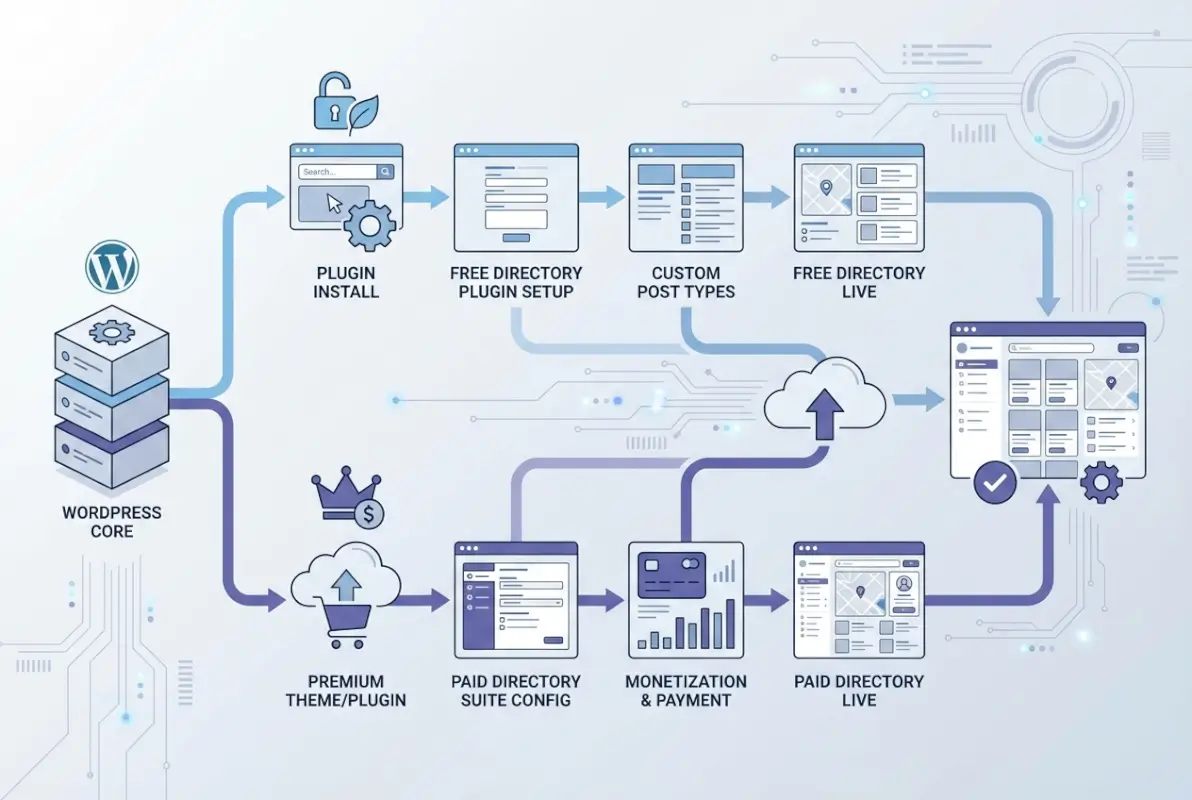
The first decision you’ll make determines everything else: plugin-based or custom-coded directory. This isn’t about which is “better”—it’s about matching your technical skills, timeline, and specific requirements to the right approach.
Plugin-based directories get you live faster. Custom solutions give you pixel-perfect control. Most people should start with plugins and only graduate to custom code when they hit specific limitations.
Plugin-Driven Approaches That Scale Quickly
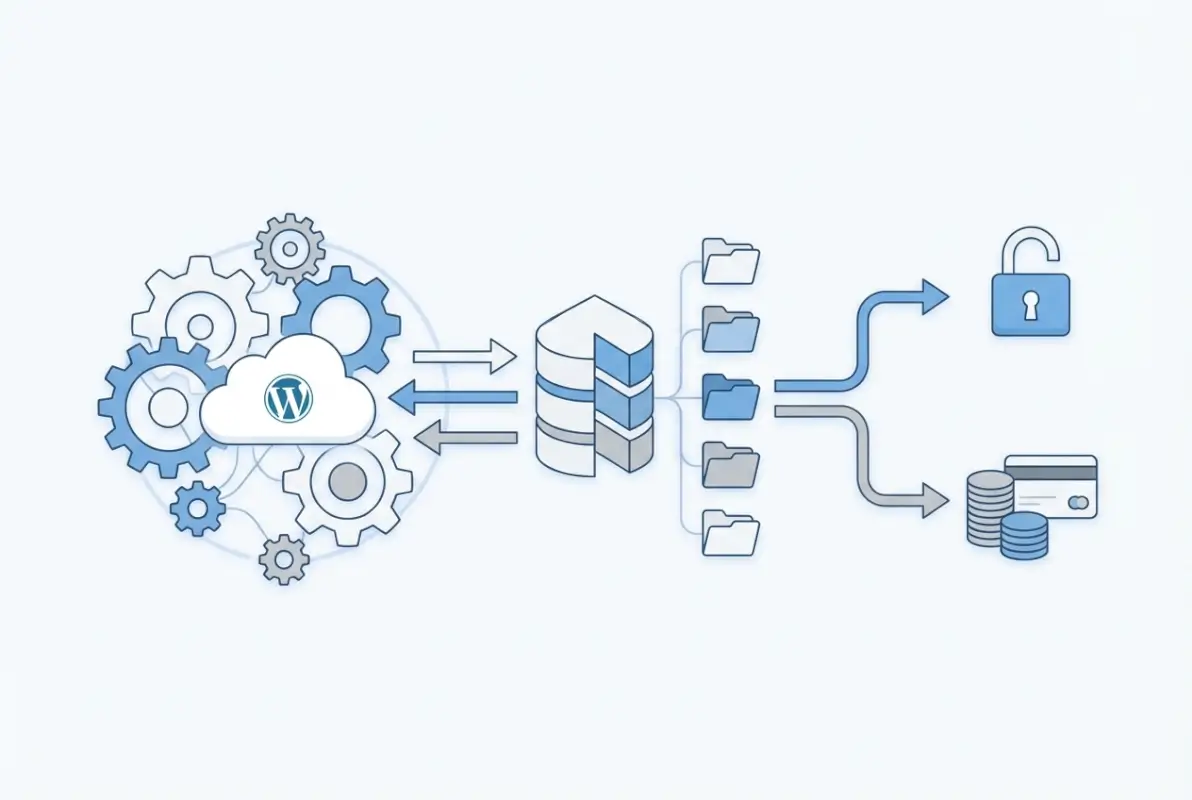
Directory plugins like WordPress business directory solutions handle the heavy lifting—submission forms, search functionality, map integration, and payment processing right out of the box. The best plugins offer visual builders where you can design listing layouts without touching code.
Business Directory Plugin excels at monetization with built-in payment gateways and pricing tiers. GeoDirectory dominates location-based directories with advanced mapping features and radius search. Connections Business Directory shines for membership organizations needing detailed profile management.
The tradeoff? You’re working within the plugin’s framework. Want a completely unique listing layout or specialized search algorithm? You’ll need to work with the plugin’s templating system or hire a developer to extend it.
When to Consider Custom Post Types for a Lean Directory
Custom-coded directories using WordPress custom post types give you complete architectural control. You define exactly which fields appear, how search works, and what the user experience looks like at every step. Performance optimization becomes easier because you’re not loading plugin bloat.
According to Mozilla Developer Network web development documentation, properly structured custom post types can reduce database queries by 40% compared to plugin-heavy implementations.
This approach makes sense when you need unique functionality that no plugin offers, you’re building at enterprise scale (10,000+ listings), you have in-house development resources, or you’re creating a directory product to sell. The downside is obvious: longer development time and ongoing maintenance costs.
I worked with a medical directory that initially used a plugin but hit performance walls at 5,000 listings. We rebuilt with custom post types and optimized queries—page load times dropped from 4.2 seconds to 1.1 seconds, search became instant.
Core Setup: Listings, Categories, and Search
Your directory’s foundation is the listing schema—the fields, categories, and taxonomies that structure your data. Get this right and everything else becomes easier. Rush it and you’ll be reorganizing listings six months later.
Think about your directory from the user’s perspective. Someone searching for a restaurant wants cuisine type, price range, and location. Someone finding a contractor wants services offered, service area, and credentials. Your schema should capture the information users actually need to make decisions.
Defining a Listing Schema That Works
Start with required fields: business name, description, contact information, and category. Then add custom fields specific to your directory type. For a business directory, you might include hours of operation, payment methods accepted, year established, and social media links.
Category structure deserves careful planning. Keep your main categories broad (5-8 top-level categories maximum) and use subcategories for specificity. A city directory might have “Restaurants” as a main category with subcategories for “Italian,” “Mexican,” “Asian Fusion.” Avoid going more than three levels deep—navigation becomes confusing.
Multiple taxonomies improve findability. Beyond categories, you might add location taxonomy (neighborhoods, zip codes), features (wheelchair accessible, outdoor seating), or price level. Users can then filter by multiple criteria simultaneously.
| Field Type | Example Fields | Validation Rules |
|---|---|---|
| Required Text | Business Name, Description | Min 3 characters, max 200 |
| Contact Info | Phone, Email, Website | Format validation, at least one required |
| Location Data | Address, City, ZIP, Coordinates | Geocoding verification |
| Media | Logo, Photos, Video Links | File size limits, format restrictions |
| Optional Details | Hours, Social Links, Certifications | None required |
Implement schema markup from day one. Structured data helps search engines understand your directory content and can earn rich snippets in search results. LocalBusiness schema for local directories, Organization schema for membership directories.
Essential Search UX: Filters and Map Integration
Search functionality makes or breaks a directory. Users should find what they need in three clicks or less. That means prominent search with auto-suggest, visible filter options, and fast results.
Faceted search lets users combine multiple filters—category plus location plus price range. Each filter shows result counts so users know what to expect. AJAX-powered filtering updates results without page reloads, creating a smooth experience.
Map integration transforms user experience for location-based directories. Seeing listings plotted on a map helps users understand geography at a glance. Click a map marker to preview the listing, see results update as you pan and zoom.
Mobile search needs special attention since according to Statista mobile usage statistics, 68% of local searches happen on smartphones. Large touch-friendly filter buttons, collapsible search panels to save screen space, and “near me” geolocation search as a primary option.
Design, Usability, and Performance Best Practices
Directory websites face unique design challenges. You’re presenting potentially thousands of similar listings while helping users quickly distinguish between them. Balance consistency with enough variation that each listing feels unique.
Performance becomes critical as your directory grows. A directory with 100 listings might load quickly without optimization, but at 1,000+ listings, unoptimized queries can bring your site to a crawl.
Listing Templates and Layout Considerations
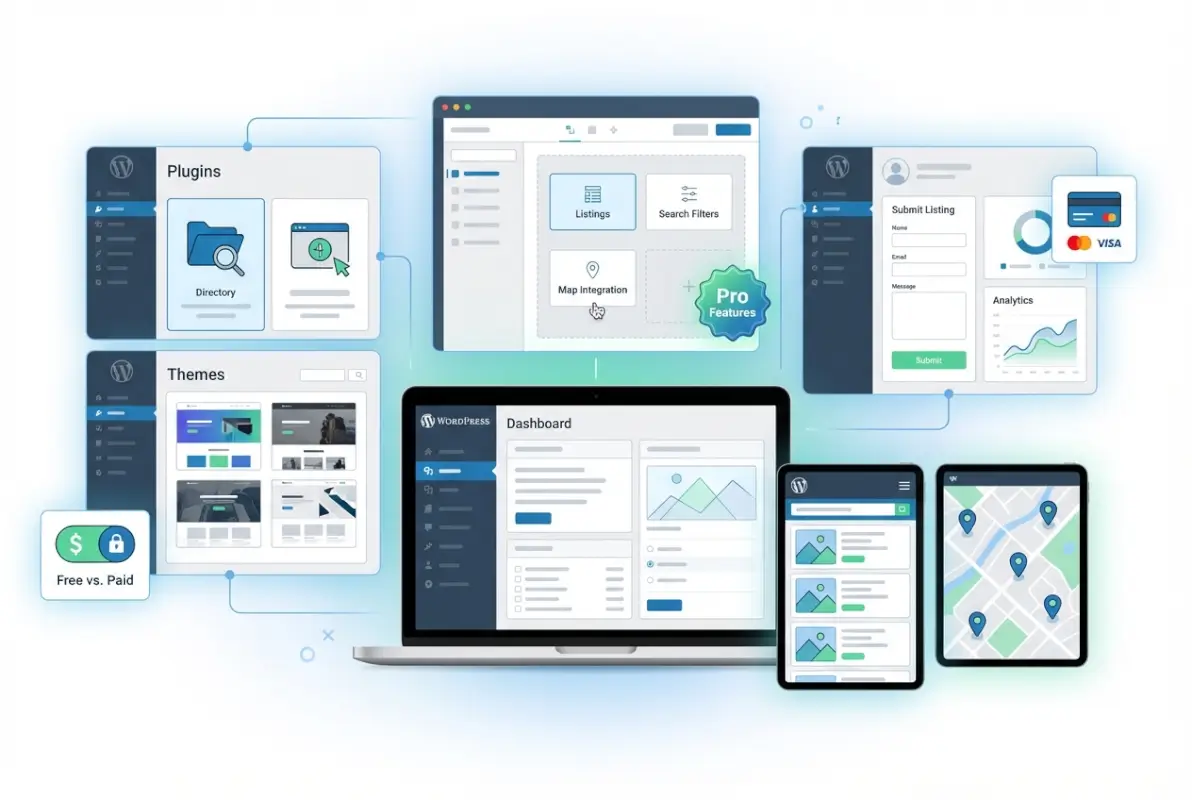
Your listing template should present information in a scannable hierarchy. Most important details (name, category, rating) at the top, supporting information (description, hours) in the middle, and actions (contact, directions, website) prominently displayed.
Grid layouts work well for visual directories (restaurants, real estate, portfolios). List layouts suit text-heavy entries (professional services, organizations). Many successful directories offer users both views with a toggle.
Archive pages—your category and search results pages—need careful attention. Show enough information that users can evaluate listings without clicking through, but not so much that the page becomes overwhelming. Typically this means thumbnail image, title, brief description (50-100 words), key details, and rating or review count.
Rich media improves engagement but hurts performance if not optimized. Lazy load images below the fold, serve responsive images sized appropriately for device, use modern formats like WebP, compress aggressively (you can typically reduce image size by 70% with no visible quality loss).
Performance Optimization and SEO Foundations
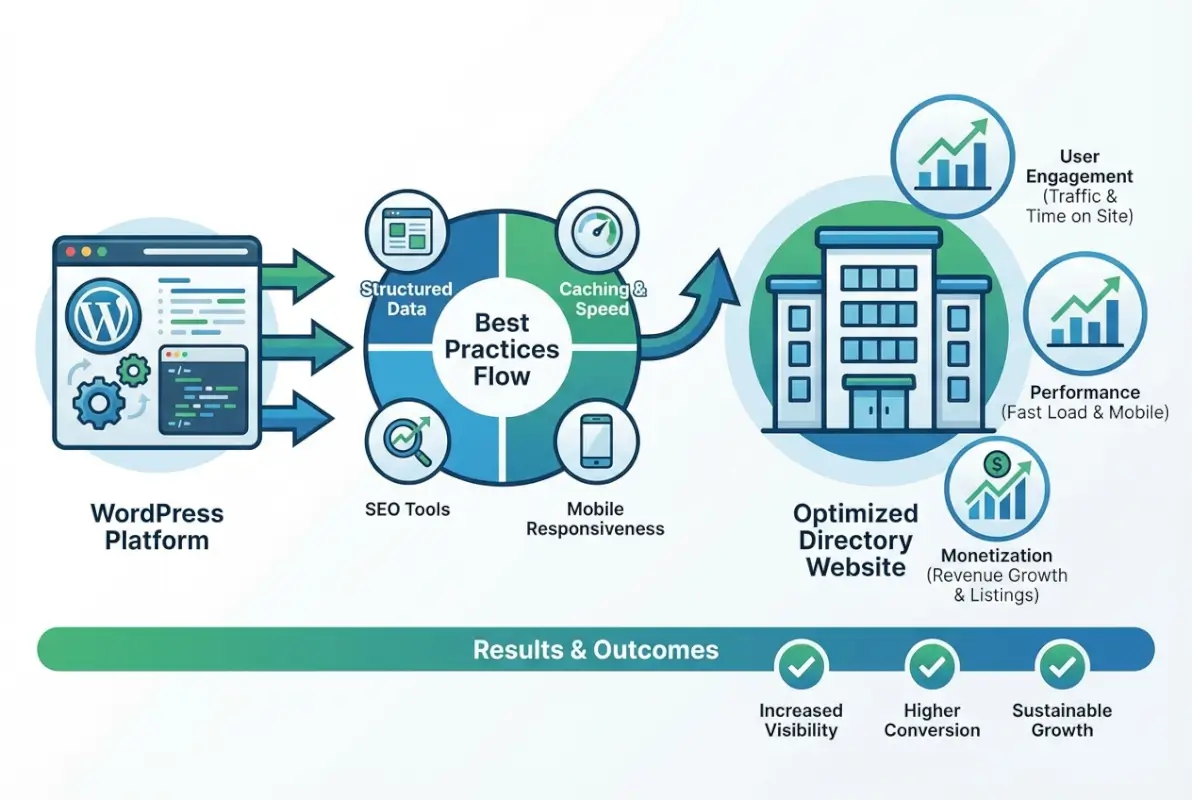
Caching is non-negotiable for directories. Page caching stores complete HTML pages so WordPress doesn’t regenerate them for every visitor. Object caching stores database query results. Together, these can reduce server load by 80%.
Database query optimization becomes critical as listings grow. Ensure your custom fields are indexed, limit queries to only necessary data (don’t load all fields if you only need title and URL), use pagination rather than loading all results, and consider implementing a search index for complex queries.
Lazy loading transforms perceived performance. Load only listings visible above the fold initially, then load more as users scroll. This cuts initial page weight dramatically while maintaining the appearance of a complete directory.
According to Google Web Fundamentals performance guidelines, users abandon pages that take longer than three seconds to load. For directories with potentially hundreds of listings per page, aggressive optimization isn’t optional.
SEO for directories follows unique patterns. Each listing should be indexable with unique meta titles and descriptions. Category pages need original content beyond just listing summaries—add 200-300 words explaining the category. Use breadcrumb navigation for clear site hierarchy.
Internal linking between related listings distributes link equity and helps users discover relevant entries. “Related Listings” sections, category cross-links, and tag-based connections all contribute to both SEO and user experience.
Monetization and Access Control
Most successful directory websites generate revenue through some combination of paid listings, premium features, and advertising. The key is balancing monetization with user experience—too aggressive and you drive users away, too passive and you leave money on the table.
Your monetization strategy should align with your directory type and audience. B2B directories can charge more per listing than consumer directories. Niche directories with qualified audiences command premium prices. Geographic monopolies (the only comprehensive directory in a specific city or industry) have more pricing power.
Listing Pricing, Memberships, and Paid Features
Freemium models work well for most directories: basic listings free, premium placements paid. Free listings build critical mass and get users in the habit of visiting your directory. Paid upgrades provide the actual revenue.
Premium features users actually pay for include featured placement at the top of category pages (businesses will pay 10-50x more for visibility), enhanced listings with more photos, videos, and description space, verified badges that signal legitimacy, analytics showing how many people viewed their listing, and priority support for listing issues.
Tiered pricing maximizes revenue by capturing different willingness to pay. A typical structure might be: free basic listing with minimal information, $25/month for standard listing with full features, $75/month for featured placement in one category, $150/month for site-wide featured placement and priority ranking.
One chamber of commerce I advised was giving away enhanced listings for free. We implemented a three-tier pricing model ($0/$49/$99 monthly) and within six months were generating $4,000/month in recurring revenue from 120 paid listings. The directory had existed for years but never monetized properly.
| Listing Tier | Features | Typical Price |
|---|---|---|
| Free | Basic info, 1 photo, standard placement | $0 |
| Standard | Full profile, 10 photos, social links, analytics | $25-50/mo |
| Featured | Priority placement, badge, unlimited media | $75-150/mo |
| Premium | Homepage feature, top ranking, custom URL | $150-300/mo |
Role-Based Access and Submission Workflows
User roles determine who can submit, edit, and manage listings. Most directories use: public users (can browse and search), registered users (can submit listings for approval), business owners (can edit their own listings), moderators (can approve and edit any listing), and administrators (full control).
Submission workflows should balance ease of use with quality control. Requiring email verification prevents spam, asking for business documentation (EIN, business license) before approval maintains quality, implementing a review period (24-48 hours) to check submissions, and using moderation queues to batch-process submissions efficiently.
Payment integration requires reliable gateways. Stripe and PayPal are standard options with broad acceptance. For recurring subscriptions, automatic renewal with email reminders reduces churn. Grace periods (7-14 days) before downgrading expired paid listings give users time to renew.
If you want to learn more about managing successful directory websites, check out these key steps run successful directory website business strategies.
SEO, Analytics, and Ongoing Optimization
Launching your directory is just the beginning. Ongoing optimization based on real user data separates successful directories from abandoned ones. SEO drives organic traffic, analytics reveal user behavior, and systematic testing improves conversion.
The beautiful thing about directories for SEO is they generate massive amounts of unique, indexed pages. Each listing, category, and tag creates another entry point from search engines. Done right, directories can rank for hundreds or thousands of long-tail keywords.

On-Page SEO for Directory Pages
Every listing needs unique title tags following a consistent pattern: “[Business Name] – [Category] in [Location] | [Directory Name]”. Meta descriptions should summarize the listing’s key value proposition in 155 characters. Don’t auto-generate generic descriptions—they tank click-through rates.
Category pages deserve substantial original content. Add 300-500 words explaining what the category includes, why users would browse it, and how businesses qualify for inclusion. This content should appear above the listings, so search engines and users see it immediately.
Schema markup provides critical context to search engines. LocalBusiness schema for business directories includes address, phone, hours, price range, and reviews. BreadcrumbList schema clarifies site hierarchy. AggregateRating schema can earn star ratings in search results.
Location-based SEO becomes powerful when you’re targeting specific cities or regions. Create dedicated location pages for each city you serve, include location keywords naturally in listings, build local citations and backlinks, and encourage reviews mentioning location.
According to Moz SEO learning resources, local directories with proper schema markup and consistent NAP (name, address, phone) data see 40% higher local search visibility.
Measurement and Iteration
Track metrics that actually matter: organic search traffic (primary acquisition channel for most directories), listing submission rate (conversion funnel from visitor to listing owner), paid conversion rate (percentage of free listings that upgrade), search-to-click rate (how often searches result in clicks), and bounce rate by page type (listings, categories, search results).
Google Search Console reveals exactly which queries drive traffic and impressions. Look for queries with high impressions but low clicks—these represent optimization opportunities. Add those keywords to relevant pages and improve titles/descriptions to boost click-through.
Heat mapping tools like Hotjar show where users actually click and scroll. You’ll often discover users ignoring your carefully designed navigation in favor of search, or abandoning forms at specific fields. This data guides UX improvements.
A/B testing produces concrete answers about what works. Test different listing layouts, category organization schemes, search filter placements, pricing page designs, and call-to-action copy. Even small improvements compound—a 10% boost to three different conversion points yields 33% overall improvement.
I’ve seen directories double their paid conversion rate just by repositioning the upgrade call-to-action from the bottom of listing pages to a prominent sidebar. Testing revealed it, implementation took ten minutes.
For additional insights on directory optimization, explore how to search businesses in fslocal directory tips to improve user search patterns.
Frequently Asked Questions
What is a WordPress directory and when should I use one?
A WordPress directory is an organized database of listings (businesses, people, resources, or services) with search, filtering, and categorization features. Use one when you need to present multiple similar items in a structured, searchable format—like business directories, member directories, service listings, or resource libraries. Directories work best when you have 20+ entries and expect users to search or filter rather than browse everything.
Which WordPress directory plugin is best for beginners?
For beginners, TurnKey Directories offers the easiest path with pre-built templates and visual customization. Business Directory Plugin provides excellent documentation and a generous free version. Both handle the technical complexity while letting you focus on content. Start with free versions to test workflows, then upgrade when you need payment processing or advanced features. Avoid complex plugins like GeoDirectory until you’re comfortable with basic directory management.
How do I add listings and categories to a WordPress directory?
After installing a directory plugin, navigate to its settings panel to create categories first (similar to WordPress post categories). Then add listings through the plugin’s “Add Listing” interface, filling in required fields like name, description, and category. Most plugins support front-end submission forms where users can add their own listings. Set up moderation to review submissions before they go live, or enable auto-approval if you trust your user base.
Can a directory site on WordPress be monetized effectively?
Yes, successful directories generate revenue through paid listings ($25-150/month per listing), featured placements, subscription tiers with premium features, and advertising. The freemium model works best: offer free basic listings to build critical mass, then charge for enhanced visibility and features. Directories with 100+ paid listings commonly generate $2,000-10,000 monthly. Focus on providing real value (traffic, leads, visibility) to justify pricing and minimize churn.
How can I improve the SEO performance of a WordPress directory?
Optimize each listing with unique titles and meta descriptions, implement LocalBusiness or Organization schema markup, add 300+ words of original content to category pages, build internal links between related listings, and encourage reviews. Focus on long-tail location-specific keywords like “[service] in [neighborhood].” Use Google Search Console to identify high-impression, low-CTR queries and optimize those pages. Directories naturally rank well because they create hundreds of indexed pages.
How do I integrate a map or location search into a directory?
Use directory plugins with built-in mapping like GeoDirectory or Business Directory Plugin with map add-ons. These integrate Google Maps or OpenStreetMap, automatically geocode addresses, and display listings as map markers. Enable radius search so users can find listings within X miles of a location. For custom builds, integrate the Google Maps JavaScript API directly. Make sure listings include accurate address data and enable geolocation for “near me” mobile searches.
What are common performance pitfalls for directory sites and how can I avoid them?
The biggest performance killers are loading all listings on one page without pagination, unoptimized images, lack of caching, and inefficient database queries. Implement page caching and object caching from day one, lazy load images below the fold, paginate results to 20-50 listings per page, optimize database queries with proper indexes, and use a CDN for media files. Test with 500+ listings during development to catch issues early.
Do I need custom development or is a plugin enough for large directories?
Plugins handle most directories up to 5,000-10,000 listings effectively. Beyond that scale or if you need highly specialized features no plugin offers, custom development becomes worthwhile. Consider custom post types when you’re building a directory product to sell, need complete control over search algorithms, require integration with proprietary systems, or hit performance limits with plugins. Most directory owners overestimate their need for custom development—start with plugins.
Ready to Build Your WordPress Directory?
You now have the complete roadmap for how to build a directory website with WordPress—from choosing between plugins and custom code, through setup and optimization, to monetization and growth. The most successful directories share common traits: clear category structure, intuitive search, mobile-friendly design, and consistent optimization based on user data.
Your next step depends on your starting point. If you’re launching from scratch, begin with TurnKey Directories or Business Directory Plugin to get live quickly. Already have a directory? Audit your category structure and search functionality—these drive 70% of user satisfaction. Planning to monetize? Implement freemium pricing with one paid tier before adding complexity.
Your 30-Day Directory Launch Plan
Week 1: Install your chosen plugin, set up 5-8 main categories, and create your first 20 listings to test workflows.
Week 2: Configure search and filters, implement schema markup, optimize for mobile, and set up basic caching.
Week 3: Add 50 more listings, create category content, build internal links, and configure submission forms.
Week 4: Launch publicly, implement one monetization tier, set up analytics tracking, and start promoting to your first users.
The chamber of commerce directory you’re planning? The city business listing that’s been on your mind? The industry resource hub you know your niche needs? Stop overthinking and start building. Choose your plugin today, create your first category tomorrow, and add ten test listings by the end of the week. Momentum beats perfection every time.
Your directory will evolve based on real user feedback and data. The version you launch won’t look anything like the version that exists a year from now—and that’s exactly how it should be. Start simple, learn from users, iterate relentlessly. That’s how every successful directory in existence was built.
Was this article helpful?