How to Create a Photo Directory: Complete Guide to Organizing and Showcasing Your Photography

Generating summary...
A photo directory isn’t just about storing images—it’s about making your photography discoverable, professional, and accessible to the people who matter most. Whether you’re a professional photographer building a portfolio to attract clients, a creative professional organizing project assets, or someone managing a large personal collection, how you structure and present your photo directory directly impacts its effectiveness. The difference between a messy folder of images and a strategic photo directory can be the difference between landing a client or losing them to a competitor with better organization.

Most photographers I’ve worked with underestimate the power of proper directory structure. I once spent three hours searching through my own archives for a specific shot a client requested—that embarrassment taught me everything I needed to know about the cost of poor organization. A well-designed photo directory solves multiple problems simultaneously: it improves searchability (both for you and for search engines), enhances user experience, meets accessibility standards, and positions your work as professional from the first impression.
According to Google’s image SEO best practices, properly organized and tagged images can increase discoverability by up to 40% in search results. That’s not just about getting found—it’s about getting found by the right people at the right time.
TL;DR – Quick Takeaways
- Structure matters more than volume – A focused directory of 50 excellent images outperforms 200 mediocre ones
- Accessibility is SEO – Proper alt text, file naming, and metadata boost both human users and search visibility
- Mobile-first is mandatory – Over 65% of portfolio views happen on smartphones; if it doesn’t work on mobile, it doesn’t work
- Maintenance is ongoing – Schedule quarterly reviews to keep your directory current and relevant
- Tools exist for every skill level – From drag-and-drop builders to custom WordPress solutions like TurnKey Directories, there’s a platform that matches your abilities
Plan and Structure Your Photo Directory for Maximum Discoverability
Before uploading a single image, you need a clear architectural plan. The foundation of any successful photo directory starts with defining its purpose and understanding who will use it. Are you showcasing wedding photography to potential brides? Organizing product shots for e-commerce teams? Building a personal archive that family members can navigate? Each purpose demands a different organizational approach.
Start by asking three critical questions: What action do I want viewers to take? (Book a consultation, purchase prints, hire you for a project.) Who is my primary audience? (Corporate clients have different browsing habits than art directors or personal connections.) What makes my work unique enough to warrant attention? The answers to these questions become your organizing principles.
Research from W3C’s accessibility guidelines shows that clear, predictable navigation patterns increase user engagement by up to 35% compared to non-standard structures. This isn’t just theory—it’s measurable impact on how people interact with your work.
Create a Scalable Folder and Naming System
Your folder structure should mirror how users naturally search for images, not how you shot them. Organizing by camera model or shooting date makes sense to you but means nothing to a potential client browsing your portfolio. Instead, structure by client need or project type.
For professional portfolios, consider organizing by service type (portraits, commercial, events) or industry (real estate, fashion, food). For personal archives, organize by event, year, or people featured. The key is consistency—whatever system you choose, apply it uniformly across your entire directory.
| Organization Method | Best For | Search Benefit |
|---|---|---|
| By Service Type | Commercial photographers | Clients find relevant work instantly |
| By Project | Event & wedding photographers | Showcases complete storytelling |
| By Industry | Specialists (food, real estate) | Demonstrates niche expertise |
| Chronological | Personal archives, growth portfolios | Shows progression over time |
File naming conventions matter more than most photographers realize. Instead of “IMG_4521.jpg,” use descriptive names like “modern-kitchen-renovation-downtown-chicago.jpg.” This serves multiple purposes: it makes files searchable on your own computer, improves SEO when images are indexed by search engines, and provides context if the file is downloaded or shared.
Keep names concise but descriptive, use hyphens (not underscores or spaces), include relevant keywords naturally, and maintain consistent formatting across all files. This discipline pays dividends when you’re searching for a specific image three years from now—or when Google is deciding whether your image matches a user’s search query.
On-Page SEO and Accessibility for Photo Directories
Accessibility and search visibility aren’t separate concerns—they’re two sides of the same coin. When you make images accessible to people using screen readers, you simultaneously make them discoverable to search engines. Both rely on the same foundational elements: descriptive alt text, meaningful file names, and proper HTML structure.
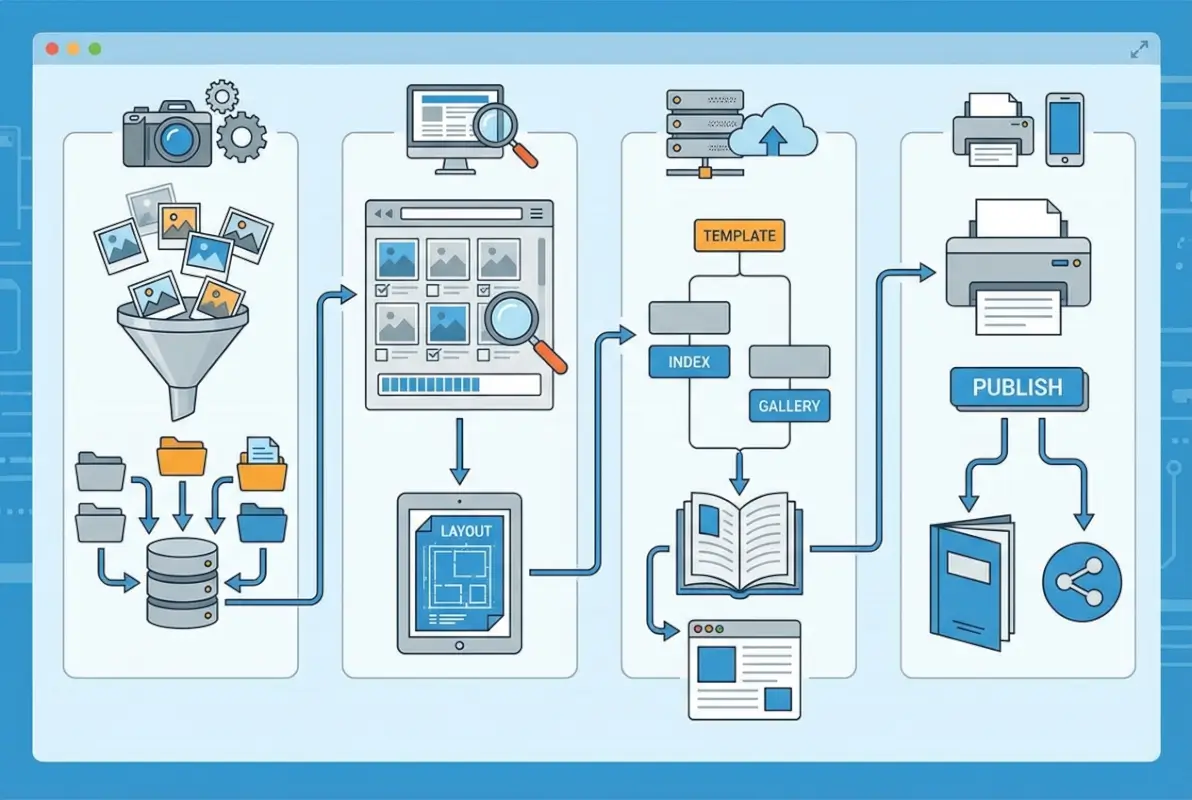
Alt text (alternative text) describes an image’s content and function for people who can’t see it. This includes users with visual impairments using screen readers, but also anyone on a slow connection where images haven’t loaded, or search engines trying to understand your content. Writing effective alt text is a skill that directly impacts both accessibility compliance and SEO performance.
Writing Alt Text That Works for Humans and Search Engines
The W3C’s alt text guidelines provide the definitive standard: describe the content and function of the image concisely, usually in fewer than 125 characters. Avoid phrases like “image of” or “picture of”—screen readers already announce that it’s an image. Focus on what the image shows and why it matters in context.
For a portfolio image, instead of “wedding photo,” write “bride and groom exchanging vows at sunset beach ceremony.” For a product shot, instead of “shoes,” write “black leather oxford dress shoes on wood surface.” The specificity helps everyone—screen reader users get meaningful descriptions, and search engines understand exactly what you’re showing.
Captions serve a different purpose than alt text. While alt text describes the image itself, captions provide additional context, storytelling, or technical details. For a portfolio piece, a caption might include the project name, client (if permitted), or techniques used. This layered approach—alt text for description, captions for context—serves both accessibility and engagement.
Image Performance and Technical SEO
Even the most beautifully organized directory fails if images load slowly. According to research from Google, 53% of mobile users abandon sites that take longer than three seconds to load. Image optimization isn’t optional—it’s essential for keeping visitors on your site.
Modern image formats like WebP offer 25-35% better compression than JPEG without visible quality loss. Use responsive images with the srcset attribute to serve appropriately sized versions to different devices—mobile users don’t need the 4000-pixel-wide version you display on desktop. Implement lazy loading so images below the fold only load when users scroll to them.
Microsoft’s accessibility guidance for images emphasizes that performance is an accessibility issue—users on slower connections or older devices are disproportionately impacted by unoptimized images. When you optimize for speed, you’re making your work accessible to a wider audience.
Gallery UX and Engagement Techniques
A photo directory’s layout determines whether visitors explore your work or bounce after viewing two images. The most successful galleries balance aesthetic presentation with intuitive navigation, creating an experience that feels effortless even when showcasing hundreds of images.

Grid layouts remain popular because they’re scannable—users can quickly survey multiple images and click what interests them. Masonry layouts (like Pinterest) work well when images have varying aspect ratios, creating visual interest while maximizing space. Fullscreen galleries with arrow navigation offer maximum impact but require users to browse sequentially, which works for storytelling but can frustrate people looking for specific content.
Filtering, Search, and Descriptive Captions
As your directory grows beyond 30-40 images, filtering becomes essential. Allow users to browse by category, date, project, or style. If you’re using a platform like TurnKey Directories for WordPress, built-in filtering and search features let visitors narrow down exactly what they’re looking for without endless scrolling.
Captions add context that alt text can’t. While alt text describes what’s in the image, captions can share the story behind it, technical details (camera settings, lighting setup), client testimonials, or awards the image has won. This narrative layer transforms a simple gallery into a portfolio that communicates your expertise and process.
Mobile-First Interaction and Performance
Mobile isn’t an afterthought—it’s where most people will first encounter your work. Touch targets need to be large enough for fingers (minimum 44×44 pixels), swipe gestures should feel natural, and images must scale appropriately to smaller screens without losing impact.
Implement lazy loading, which defers loading below-the-fold images until users scroll to them. This dramatically improves initial page load time, especially on mobile connections. Ensure your gallery works with keyboard navigation for accessibility—arrow keys to move between images, Escape to close fullscreen views, Tab to navigate controls.
Harvard’s image accessibility resource emphasizes that mobile accessibility benefits everyone—what helps a screen reader user also helps someone browsing on a small screen in bright sunlight.
Maintenance, Updates, and Long-Term Directory Management
A photo directory isn’t a one-time project—it’s a living asset that requires regular maintenance to stay relevant and valuable. The most successful photographers I know treat their directories like gardens that need periodic weeding, not monuments to be built once and forgotten.

Schedule quarterly reviews to audit your directory’s content and performance. Which images are still relevant? What new work deserves to be added? Are there outdated projects that should be archived? This regular maintenance keeps your directory fresh and ensures it always represents your current capabilities, not your skills from three years ago.
Content Audits and Quality Control
During each review, evaluate images against your current standards. As your skills improve, older work may no longer meet the quality bar you want to set. This is painful but necessary—your portfolio is only as strong as its weakest image. One mediocre shot can undermine the impact of twenty excellent ones.
Check that all images still have accurate alt text, file names haven’t become outdated (especially for client work or locations), captions remain relevant and error-free, and links (if you include them) still work. Dead links or outdated information signal neglect to visitors and search engines alike.
| Maintenance Task | Frequency | Impact |
|---|---|---|
| Add new work | Monthly | Keeps directory current |
| Remove outdated images | Quarterly | Maintains quality standards |
| Update alt text & metadata | Quarterly | Improves SEO & accessibility |
| Check performance metrics | Monthly | Identifies slow-loading pages |
| Test mobile experience | Quarterly | Ensures accessibility |
Version Control and Backup Strategy
Maintain a clear versioning system for your directory. When removing images, don’t delete them permanently—move them to an archive folder organized by year. You never know when a client might request an older piece, or when you’ll want to reference past work for a retrospective.
Implement a backup strategy that protects against both technical failure and human error. Use the 3-2-1 rule: three copies of your data, on two different media types, with one copy stored offsite. Cloud services like Backblaze, Dropbox, or Google Drive provide automated offsite backup, while local external drives offer quick recovery for accidental deletions.
Practical Implementation Checklist and Quick Wins
Theory is useless without execution. This section provides a concrete, step-by-step checklist to transform your photo directory from concept to reality, plus quick wins you can implement today for immediate improvement.

10-Point Implementation Checklist
Use this checklist as your roadmap, whether you’re building a new directory from scratch or improving an existing one:
- Define purpose and audience – Write down exactly who this directory serves and what action you want them to take
- Choose organizational structure – Select the categorization method that matches how users will search (service type, project, industry, etc.)
- Establish naming conventions – Document your file naming pattern and apply it consistently across all images
- Write descriptive alt text – Every image needs unique, specific alt text under 125 characters
- Add contextual captions – Include storytelling or technical details that enhance understanding
- Optimize image sizes – Compress files and create responsive versions for different screen sizes
- Implement filtering – Add category filters and search functionality for directories with 30+ images
- Test mobile experience – Browse your entire directory on an actual smartphone, ideally on a throttled connection
- Set up analytics – Install tracking to measure which images get viewed and how users navigate
- Schedule maintenance – Create recurring reminders for quarterly content audits
Quick Wins You Can Implement Today
Start with these high-impact, low-effort improvements that deliver immediate results:
Baseline your current performance. Before making changes, document load times, bounce rates, and average session duration using Google Analytics or similar tools. This gives you a before-and-after comparison to prove the value of your improvements.
Fix your top 20 images first. Don’t try to optimize everything at once. Identify your most-viewed images (check analytics) and ensure those have perfect alt text, optimized file sizes, and descriptive captions. This 20% of your directory likely drives 80% of your engagement.
Run a mobile audit. Pull up your directory on your phone right now. Can you easily tap navigation elements? Do images load quickly? Is text readable without zooming? Fix the most obvious mobile issues today, even if you can’t achieve perfection immediately.
Add one filter or category. If your directory currently dumps all images into a single gallery, add just one organizational layer—by year, by project type, or by subject. Even basic categorization dramatically improves usability.
Test A/B variations. If you have decent traffic, try A/B testing different gallery layouts, caption styles, or filtering options. Tools like Google Optimize (free) let you test variations without coding. Even small improvements to engagement rates compound over time when you’re using proven directory website strategies.
What is a photo directory and why should I create one?
A photo directory is an organized, searchable collection of images structured to help specific audiences find and engage with your photography. Unlike random folders or basic galleries, directories use intentional categorization, descriptive metadata, and user-focused navigation to showcase work professionally while improving discoverability through search engines and enhancing accessibility for all users.
How should I name image files and write alt text for SEO?
Name files descriptively using hyphens, like “modern-kitchen-renovation-seattle.jpg” instead of “IMG_4521.jpg.” Write alt text that describes the image content in under 125 characters without “image of” phrases—for example, “bride and groom exchanging vows at sunset beach ceremony.” This dual approach helps search engines index your images while making them accessible to screen reader users.
What are the best practices for creating photo gallery captions?
Effective captions add context beyond the image itself—include project details, client names (if permitted), technical information, or the story behind the shot. Keep captions under 150 characters for mobile readability, include relevant keywords naturally for SEO benefit, and ensure they enhance understanding rather than simply repeating what’s visible in the image.
How can I improve photo gallery loading speed on mobile devices?
Use modern image formats like WebP for 25-35% better compression, implement lazy loading so below-the-fold images only load when scrolled into view, create responsive image versions with srcset to serve appropriately sized files to different devices, and compress images to balance quality with file size—aim for under 200KB per image for web display.
How often should I update my photo directory?
Add new work monthly to keep your directory current and signal active practice to both visitors and search engines. Conduct quarterly audits to remove outdated images that no longer represent your current skill level, update metadata and alt text, check for broken links, and test mobile performance to maintain quality standards over time.
What platform should I use to create a photo directory?
TurnKey Directories offers WordPress-based solutions with built-in filtering, search, and mobile optimization ideal for photographers seeking full control. Alternatives include Adobe Portfolio for Creative Cloud users, Format or Pixpa for all-in-one hosted platforms, and Squarespace for template-based simplicity. Choose based on your technical comfort level, customization needs, and whether you prefer hosted or self-hosted solutions.
How do I organize photos in a directory for easy searching?
Organize by how users search, not how you shoot. For commercial work, structure by service type or industry; for events, organize by project or date; for personal archives, group by people or occasions. Implement category filters for directories over 30 images, use consistent naming conventions, and add descriptive tags to make individual images discoverable through search functionality.
Can I create a searchable photo directory on WordPress?
Yes—WordPress platforms like TurnKey Directories provide specialized directory functionality with built-in search, filtering, categorization, and mobile-responsive galleries. You can also use gallery plugins combined with search plugins, though dedicated directory solutions offer more integrated features like advanced filtering, user submissions, and performance optimization specifically designed for image-heavy sites.
Take Action on Your Photo Directory Today
Creating an effective photo directory isn’t about perfection from day one—it’s about building a foundation you can improve over time. The photographers who succeed are the ones who start with a clear structure, implement accessibility and SEO best practices from the beginning, and commit to regular maintenance rather than one-time setup.
Your directory is more than an organizational tool. It’s your professional calling card, your portfolio’s foundation, and often the first impression potential clients get of your work. How you present that work matters as much as the images themselves. A thoughtfully structured directory with proper metadata, intuitive navigation, and mobile-optimized performance signals professionalism in a way that a messy folder of files never can.
If you’re feeling overwhelmed by the technical requirements—file naming, alt text, responsive images, lazy loading—remember that platforms like TurnKey Directories handle much of this complexity out of the box. You shouldn’t need to become a web developer to showcase your photography professionally. Choose tools that match your technical comfort level and let you focus on what you do best: creating compelling images.
Start Building Your Photo Directory This Week
You don’t need to overhaul everything at once. Pick three quick wins from this guide and implement them this week:
- Select your 20-30 absolute best images and organize them into 3-5 clear categories
- Write descriptive alt text and captions for those top images
- Test your current directory (or gallery) on a smartphone and fix the most obvious mobile issues
That foundation—quality over quantity, accessibility from the start, mobile-first testing—will serve you better than 200 unorganized images ever could.
The difference between photographers who consistently book work and those who struggle often comes down to presentation. Your talent deserves a showcase that does it justice. Start today, iterate quarterly, and watch how a well-maintained photo directory transforms from a simple organizational tool into a powerful business asset that works for you 24/7.
Was this article helpful?