5 Ways to Download All Files in an Online Directory

Generating summary...
Picture this: you’ve just discovered an open directory containing hundreds—maybe thousands—of valuable files. PDFs, images, datasets, archives, all neatly organized in a simple index listing. Your first instinct might be to start clicking links one by one, but after the third or fourth file, reality hits. This is going to take forever.
I’ve been there, staring at endless rows of Apache directory listings at 2 AM, wondering if there’s a smarter way. The good news? There absolutely is. Bulk downloading from online directories isn’t just possible—it’s remarkably straightforward once you know which tools to use and how to wield them responsibly. Whether you’re preserving research data, archiving media collections, or simply need to grab an entire folder from a file server, the right approach can turn hours of tedious clicking into a simple command or two.
This guide walks through five proven methods to download all files from an online directory, from simple command-line utilities to sophisticated mirroring tools. We’ll cover everything from basic wget commands to browser extensions, always keeping in mind the legal and ethical boundaries that responsible users respect.
TL;DR – Quick Takeaways
- Command-line tools like wget and curl – Most powerful for recursive downloads and filtering by file type
- GUI download managers – JDownloader and HTTrack offer user-friendly interfaces for bulk operations
- Browser extensions – Quick solutions for smaller directories without leaving your browser
- Legal considerations matter – Always verify you have permission before bulk downloading
- Rate limiting protects everyone – Respect server resources and implement delays between requests
Understanding Directory Downloads: The Landscape
Before diving into specific methods, it’s worth understanding what we’re actually dealing with when we talk about “downloading all files from a directory.” The term encompasses several scenarios, each with its own quirks and challenges.
Most commonly, you’ll encounter Apache or Nginx directory listings—those bare-bones index pages showing folder contents with file sizes and modification dates. These are what most people call “open directories,” and they’re actually designed to be browsable (though not always meant for mass downloading). Then there are enhanced directory browsers like h5ai, which add search functionality and previews, and FTP/FTPS servers that expose files through different protocols entirely.
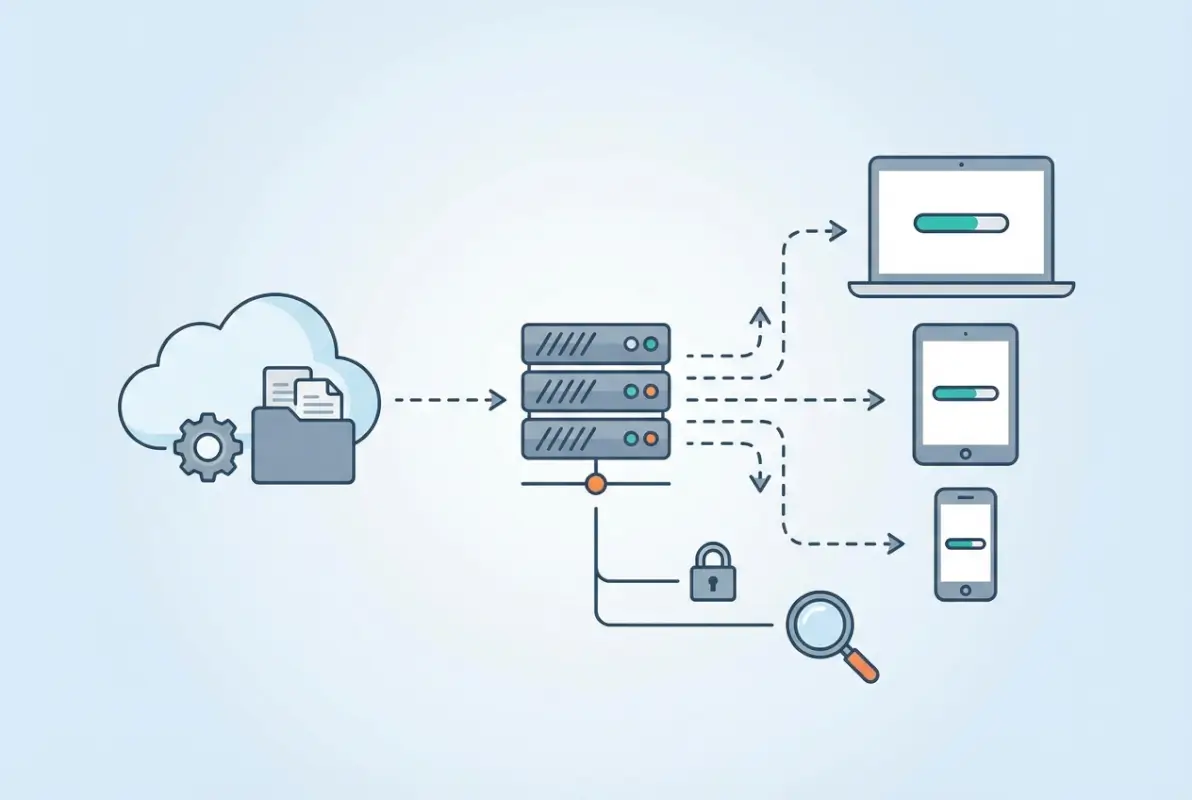
The challenges vary depending on the setup. Nested directory structures can be dozens of levels deep, requiring recursive crawling to capture everything. Some servers implement rate limiting that’ll throttle or block you if you request files too aggressively. Authentication adds another layer of complexity, and occasionally you’ll hit CAPTCHAs or dynamic JavaScript-generated content that simple wget commands can’t handle.
Here’s a quick checklist before you start any bulk download operation:
- Verify you have legal access to the content (check terms of service, licensing)
- Estimate the total size to ensure adequate local storage
- Decide if you need complete directory structure or just the files
- Determine if filtering by file type would save time and space
- Check if the server has a robots.txt file with crawling guidelines
- Confirm your network can handle large transfers without disruption
Method 1: Command-Line Utilities for Power Users
Command-line tools remain the gold standard for bulk downloading because they’re scriptable, resumable, and incredibly flexible. If you’re comfortable with a terminal window, these methods give you the most control and reliability.
Wget stands as the venerable champion of recursive downloading. This GNU utility has been around since 1996, and for good reason—it simply works. The basic syntax for mirroring a directory listing is surprisingly simple:
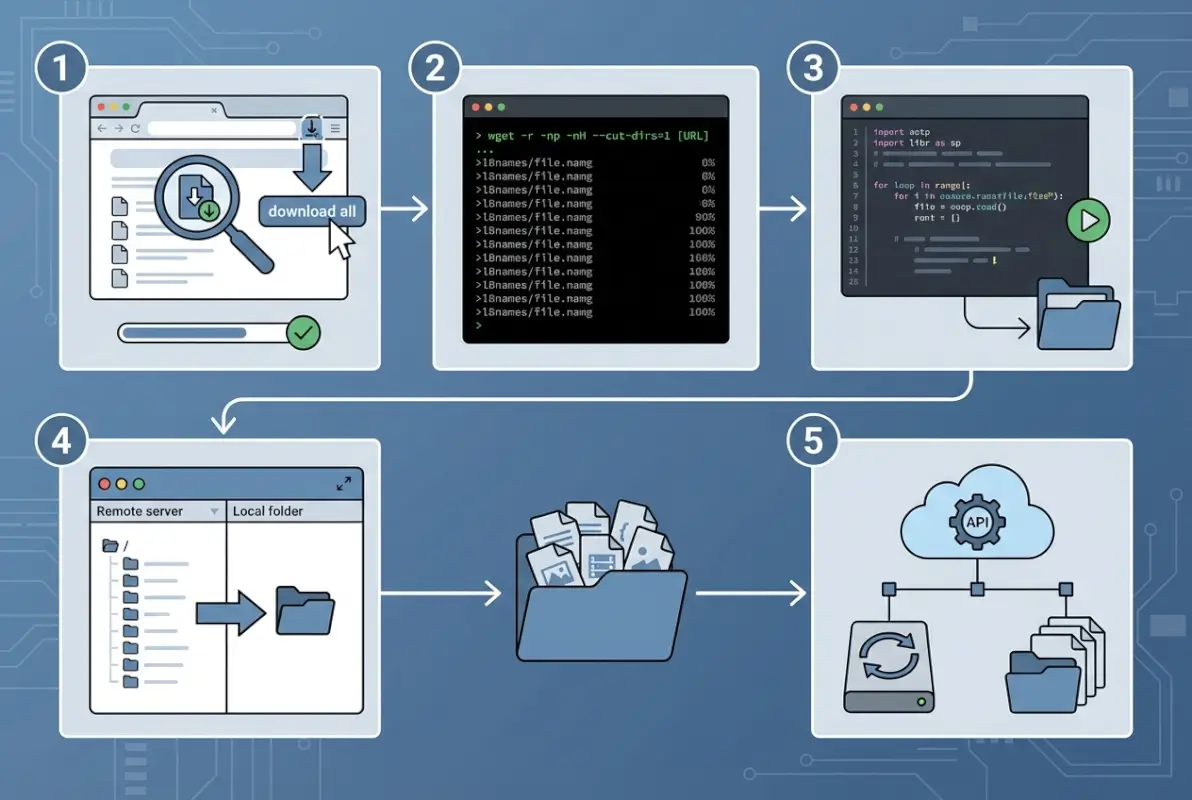
wget -r -np -nH --cut-dirs=1 -R "index.html*" http://example.com/files/
Let me break down what each flag does. The -r enables recursive retrieval, following links to grab everything. The -np (no parent) prevents wget from ascending to parent directories, keeping your download focused. -nH disables hostname directories in your local copy, and --cut-dirs=1 removes one directory level from the saved path (adjust the number based on your needs). Finally, -R "index.html*" rejects index files themselves, since you probably don’t need those cluttering your download.
For filtering by file type, wget makes it dead simple. Want only PDFs? Add -A "*.pdf" to accept only PDF files. Need images? Use -A "*.jpg,*.png,*.gif" with a comma-separated list. This is tremendously useful when working with directories containing mixed content types where you only need specific formats.
One aspect I particularly appreciate about wget is its respect for server constraints. The --wait=2 flag introduces a two-second delay between requests, preventing server overload. For even more politeness, combine it with --random-wait to vary the delay randomly between 0.5 and 1.5 times your specified wait time. This makes your download pattern look more human and less like an aggressive bot.
-e robots=off, doing so may violate the site’s terms of service. Only ignore robots.txt when you have explicit permission.Curl offers a different approach—it’s less about recursive mirroring and more about batch processing a list of known URLs. If you have a text file containing direct links (one per line), curl excels at fetching them:
xargs -n 1 curl -O < urls.txt
This pipes each URL from your file through curl's download function. The -O flag saves files with their original filenames. For resumable downloads, add -C - which continues partially downloaded files if your connection drops.
I remember working on a research project that involved downloading thousands of government PDFs from an FTP directory listing. Wget completed the entire job overnight, preserving the directory structure perfectly and automatically resuming when my flaky campus WiFi dropped out. That experience sold me on command-line tools for serious bulk downloading work.
Specialized Media Download Tools
When dealing specifically with media files—videos, high-resolution images, or large archives—specialized tools can outperform general-purpose downloaders. Youtube-dl (now yt-dlp) handles not just YouTube but hundreds of video hosting sites with built-in format selection and playlist support.
For image galleries, tools like gallery-dl parse common gallery formats and download full-resolution versions. These handle pagination, authentication cookies, and anti-scraping measures that basic wget commands might struggle with.
| Tool | Best For | Learning Curve | Resume Support |
|---|---|---|---|
| wget | Directory mirroring | Moderate | Yes |
| curl | Batch URL lists | Moderate | Yes |
| yt-dlp | Video downloads | Easy | Yes |
| gallery-dl | Image galleries | Easy | Yes |
Method 2: Directory Mirroring and Download Managers
Not everyone lives in the terminal, and that's perfectly fine. GUI-based download managers and site mirroring tools provide powerful bulk downloading capabilities without requiring command-line expertise.
HTTrack pioneered the offline website mirroring concept back in 1998, and it remains incredibly capable today. Unlike simple downloaders, HTTrack actually understands website structure—it parses HTML, follows links, and recreates the entire directory hierarchy locally. When you point it at a directory listing, it methodically downloads every linked file while preserving the folder structure.
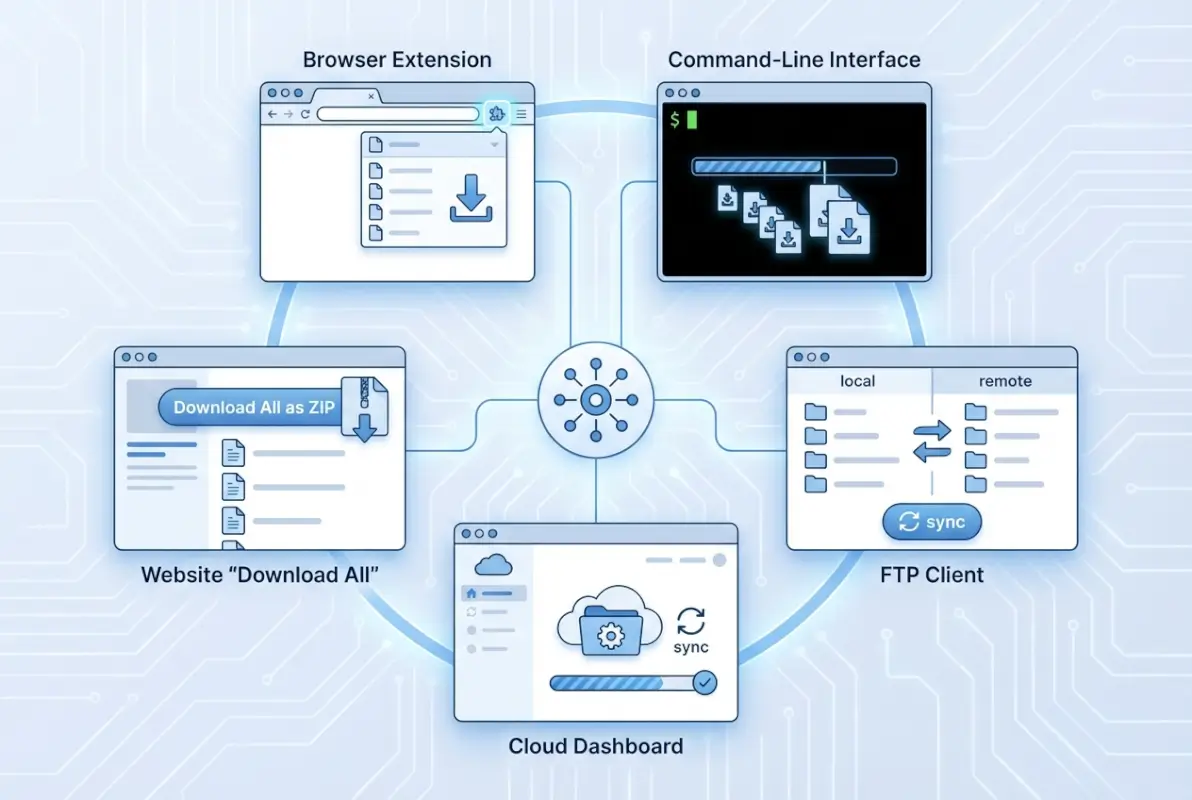
The HTTrack interface walks you through configuration with straightforward options. You set the maximum mirror depth (how many link levels to follow), file type filters, and connection limits. The "scan rules" let you include or exclude paths using wildcards, which is invaluable when directories contain sections you don't need.
One feature I particularly value is HTTrack's update mode. After an initial mirror, you can re-run the project and it'll only download new or modified files, saving enormous bandwidth when maintaining archives of regularly updated directories.
JDownloader: The Multi-Connection Powerhouse
JDownloader takes a different approach, optimizing for speed rather than structural preservation. This Java-based manager excels at parallel downloads, splitting files into multiple connections to saturate your bandwidth. For directories with large files, this can dramatically reduce download times.
The link-grabber feature automatically detects downloadable URLs from any page you visit. Browse to a directory listing, and JDownloader's browser extension (or clipboard monitoring) captures all file links instantly. You can then filter, reorganize, and batch-download with fine-grained control over simultaneous connections and speed limits.
According to market research from download management software analysts, tools like JDownloader have seen increased adoption as datasets grow larger and bandwidth becomes more critical for efficient workflows.
Browser Extensions for Quick Grabs
Sometimes you just need a quick solution without installing separate applications. Browser extensions like DownThemAll! (available for Firefox and as Firefox-based alternatives) integrate directly into your browsing experience.
DownThemAll! adds a context menu option to "download all links" from any page. It scans the current page, extracts all file links, and presents them in a filterable list. You can select by file extension, size, or custom filters before initiating the batch download. For smaller directories (dozens or low hundreds of files), this browser-based approach offers unbeatable convenience.
The downside? Browser extensions face timeout limitations and memory constraints that dedicated applications don't. For massive directories or very large files, they're not ideal. But for moderate-sized collections, especially when accessing directory listings you're already browsing, they're wonderfully efficient.
Programmatic Approaches with Python
Developers and power users often prefer scripting their own solutions for maximum flexibility. Python libraries like directory-downloader, requests, and beautifulsoup4 make it straightforward to build custom bulk downloaders tailored to specific needs.
A basic Python script might parse an Apache directory listing with BeautifulSoup, extract all file links, then iterate through downloading each with the requests library. The beauty of this approach is complete control—you can implement custom authentication, handle pagination, filter with complex logic, and integrate directly into data processing pipelines.
Here's when scripting makes sense: when you need to download from the same directory type repeatedly, when you need custom filtering beyond simple file extensions, or when bulk downloading is part of a larger automated workflow. For one-off downloads, it's probably overkill.
Method 3: Link Extraction and Pipeline Workflows
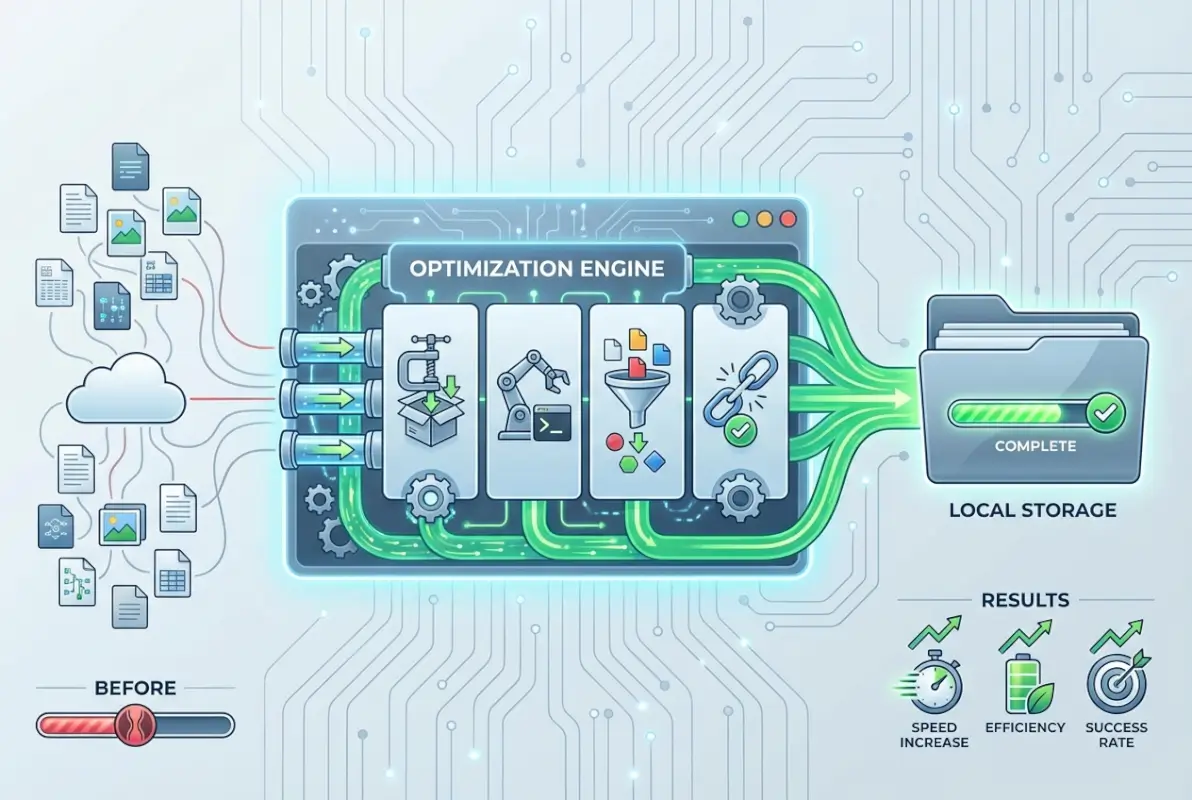
Sometimes the most efficient approach isn't downloading directly from a directory listing, but rather extracting all file URLs first, then processing them as a batch. This separation of concerns provides flexibility and better error handling.
The concept is simple: parse the directory listing to extract every file URL, save them to a text file, then feed that list to your downloader of choice. This two-stage approach lets you review what you're about to download, remove duplicates, filter programmatically, and even split the work across multiple machines.
For basic HTML directory listings, you can extract links with a simple regex or HTML parser. A one-liner using grep might look like:
curl http://example.com/files/ | grep -oP 'href="\K[^"]+\.pdf' > pdf_urls.txt
This grabs the page content, extracts everything matching PDF file hrefs, and saves them to a file. From there, you'd feed pdf_urls.txt into wget, curl, or aria2c for the actual downloads.
More sophisticated parsing might use Python's BeautifulSoup or JavaScript's cheerio library to properly parse HTML structure rather than relying on regex (which can be brittle). This handles edge cases like relative URLs, escaped characters, and complex HTML formatting that simple pattern matching might miss.
Filtering and Processing Extracted Links
Once you have a complete URL list, preprocessing becomes powerful. You might filter by file size (if the directory listing includes sizes), remove duplicate files, exclude already-downloaded items, or sort by directory structure.
Command-line tools like awk, sed, and sort make these transformations trivial. Want only files larger than 1MB? Want to alphabetize? Want to exclude a specific subdirectory? All easily accomplished with standard Unix tools piping the URL list through transformations.
This pipeline approach particularly shines when dealing with authentication-protected directories (where you have legitimate access, of course). Extract links while authenticated in your browser, save them to a file, then download with credentials passed to your download tool. This separates the authentication from the download process, often simplifying complex scenarios.
Method 4: Open Directory Optimization Techniques
Open directories—publicly accessible file servers with directory listings enabled—represent a specific subset of bulk downloading scenarios with unique considerations and opportunities for optimization.
Apache and Nginx directory listings follow predictable HTML structures that make them particularly amenable to automated downloading. Most use anchor tags with relative paths, list files in tables or definition lists, and include file sizes and timestamps. Understanding these patterns lets you craft highly efficient download commands.

For a typical Apache listing, this wget command handles most scenarios elegantly:
wget -r -np -nH -R "index.html*" --random-wait -e robots=off http://example.com/directory/
The key is combining recursive downloading (-r) with no-parent constraints (-np) to avoid accidentally mirroring the entire server. I learned this lesson the hard way when I once started mirroring what I thought was a small directory, only to discover it was nested several layers deep in a site with hundreds of gigabytes of content.
Handling Enhanced Directory Browsers
h5ai and similar enhanced directory browsers add JavaScript functionality, search features, and preview capabilities. While prettier than raw Apache listings, they can complicate bulk downloading since some functionality relies on dynamic JavaScript rather than simple HTML links.
The workaround? Most enhanced browsers still expose traditional directory listing endpoints. Look for a "simple view" or check if appending ?simple or accessing via direct file paths bypasses the JavaScript interface. Alternatively, some provide JSON APIs that you can query for complete file listings—much cleaner than parsing HTML.
Preserving Structure vs. Flat Downloads
A common decision point is whether to preserve the remote directory structure locally or download everything into a flat folder. Structure preservation maintains organization and allows easy re-uploading if needed, but creates nested folders that might not match your local organizational preferences.
wget's --cut-dirs=N option provides middle ground, removing the first N directory levels from saved paths. If files are at example.com/public/files/archive/ but you only want the archive/ structure locally, --cut-dirs=2 strips public/files/ from the path.
For flat downloads where you want all files in a single directory regardless of source structure, combine -nd (no directories) with wget. Just beware of filename conflicts if multiple subdirectories contain identically named files.
find . -type f -exec md5sum {} \; > checksums.txt. This creates verification data you can use later to ensure files weren't corrupted during download or storage.Verifying Download Completeness
How do you know you actually got everything? For directories with hundreds or thousands of files, manual verification isn't practical. Instead, leverage automated approaches.
Many directory listings display item counts (e.g., "347 items in this directory"). Compare that against your local file count with find . -type f | wc -l. If numbers match, you likely got everything. For deeper verification, some servers provide checksum files (SHA256SUMS, MD5SUMS) that you can validate against.
Another approach is comparing total directory sizes. If the listing shows total size and your local download matches (accounting for filesystem overhead), you've probably captured everything. Tools like du -sh show directory sizes quickly.
Method 5: Legal, Ethical, and Performance Considerations
We need to talk about the elephant in the room: just because you can download something doesn't mean you should. Bulk downloading raises legitimate legal and ethical questions that responsible users must consider carefully.
The legal landscape varies by jurisdiction, but some principles hold universally. Terms of service matter—many sites explicitly prohibit automated scraping or bulk downloading. Even if a directory is "open" and technically accessible, that doesn't grant unlimited download rights. Copyright still applies to individual files, and mass downloading could violate licensing terms.
Academic and research contexts often have clearer boundaries. Public datasets, government archives, and educational resources frequently encourage bulk access (that's often why they're formatted as directory listings). But even then, read the README files and respect any stated limitations.
Rate Limiting and Server Respect
From a purely technical standpoint, aggressive downloading can overwhelm servers, particularly smaller operations or shared hosting environments. This isn't theoretical—I've seen well-intentioned bulk downloads unintentionally create denial-of-service conditions that took entire sites offline.
Best practices for polite downloading include:
- Implement delays between requests (at minimum 1-2 seconds, more for slower servers)
- Limit simultaneous connections (single-threaded is safest for small servers)
- Download during off-peak hours when possible
- Respect robots.txt directives even if not legally bound to
- Contact administrators for large downloads from smaller sites
For larger directory services and commercial CDNs, these concerns are less critical—they're built for high-volume access. But for personal servers or academic resources, throttling your downloads isn't just courteous, it's essential.
Protecting Your Own Systems
Bulk downloading isn't just about being a good netizen—you need to protect yourself too. Downloading hundreds of files from unknown sources carries risks. Malware, trojans, and corrupted files can hide in seemingly innocuous archives.
Safety measures include downloading to isolated directories, scanning with antivirus before opening files, verifying checksums when available, and being extremely cautious with executable files. Consider using virtual machines or sandboxed environments when downloading from less-trusted sources.
Bandwidth considerations matter too, particularly if you're on metered connections or sharing network resources. A recursive download that seems reasonable might balloon into gigabytes if directories contain large media files or archives you weren't expecting.
Choosing Your Method: A Decision Framework
With five distinct approaches, how do you pick the right one for your specific situation? The decision comes down to several key factors.
For small to moderate directories (under 100 files, under 1GB total), browser extensions offer the quickest path. No installation required, works on any platform, and completes in minutes. The directory structure doesn't matter much at this scale.
Medium-sized directories (hundreds of files, multiple gigabytes) call for dedicated download managers. JDownloader's parallel connections and resume capabilities shine here, especially if you're working with unreliable connections or need to pause and restart.
Large directories with deep nesting (thousands of files, complex hierarchies) demand command-line tools. wget's recursive capabilities and structure preservation become essential. This is also where verification becomes critical—you need confidence you captured everything correctly.
Recurring downloads from the same source? Scripting makes sense. Write a Python script once, schedule it to run periodically, and automate the entire workflow including post-download processing.
| Scenario | Recommended Method | Why |
|---|---|---|
| Quick one-time download | Browser extension | Fastest setup, no installation |
| Large file collection | JDownloader | Parallel downloads, resume support |
| Deep directory structure | wget/HTTrack | Structure preservation, recursion |
| Regular automated downloads | Custom script | Scheduling, customization, integration |
| Specific file type filtering | wget with -A flag | Powerful pattern matching |
Platform availability sometimes makes the decision for you. wget and curl work everywhere but require command-line comfort. HTTrack offers Windows/Mac/Linux versions with GUIs. JDownloader is cross-platform Java. Browser extensions tie you to specific browsers.
Don't overlook the learning curve consideration. If you're only doing this once and aren't comfortable with terminals, fighting with wget syntax probably isn't worth it—grab a GUI tool instead. But if you foresee regular directory downloads, investing time to learn command-line tools pays dividends through automation and efficiency.
Frequently Asked Questions
How do I download all files from a directory listing?
Use wget with recursive flags: wget -r -np -nH http://example.com/directory/. This downloads all files while preserving structure. For GUI alternatives, HTTrack or JDownloader provide user-friendly interfaces. Browser extensions like DownThemAll work well for smaller directories without needing separate software installation.
Can I download an entire folder as a ZIP file from a web directory?
Most standard directory listings don't offer built-in ZIP creation. You'll need to download files individually then compress locally. Some enhanced directory browsers (like h5ai) include "download as ZIP" functionality. Alternatively, if you have server access, create the archive server-side then download the single ZIP file instead.
What are the best tools to batch-download files from a website?
Command-line: wget and curl for maximum control and automation. GUI applications: JDownloader for speed and resume support, HTTrack for complete site mirroring. Browser-based: DownThemAll extension for quick grabs. Choose based on directory size, technical comfort level, and whether you need structure preservation or just the files.
How can I filter downloads to only certain file types like PDFs or images?
Wget uses the -A flag for acceptance patterns: wget -A "*.pdf,*.jpg" -r http://example.com/ downloads only PDFs and JPGs. JDownloader's interface includes extension filters. Custom scripts with Python can implement arbitrarily complex filtering logic based on file type, size, name patterns, or metadata before downloading.
Is bulk downloading from a website legal or allowed by terms of service?
Legality depends on the site's terms of service, content licensing, and jurisdiction. Public datasets and government archives often permit bulk access. Commercial sites frequently prohibit it. Always check robots.txt, read terms of service, and verify licensing before bulk downloading. When in doubt, contact site administrators for permission.
How do I resume a failed bulk download?
Wget automatically resumes with the -c flag: wget -c. Curl uses -C -. JDownloader and most GUI managers include automatic resume functionality. For custom scripts, track completed downloads in a log file and skip already-downloaded URLs when restarting. This prevents re-downloading thousands of files after a connection failure.
How can I verify that I downloaded all files correctly?
Compare file counts between the directory listing and local download. Check total sizes for discrepancies. If the source provides checksum files (MD5SUMS, SHA256SUMS), validate downloaded files against them with md5sum -c or sha256sum -c. Generate your own manifest after download for future verification using find and checksum utilities.
What are the performance considerations when downloading thousands of files?
Implement rate limiting to avoid overwhelming servers—at least 1-2 second delays between requests. Use parallel connections cautiously; single-threaded is safest for small servers. Consider bandwidth constraints on both ends. Schedule large downloads during off-peak hours. Monitor disk I/O if downloading to slower storage, as thousands of small files can be write-intensive.
How do I handle authentication-protected directories?
Wget supports basic HTTP authentication with --user and --password flags. For cookie-based authentication, export cookies from your browser and feed them to wget with --load-cookies. JDownloader can capture authenticated session cookies. For complex auth, extract URLs while authenticated then download separately, or script with tools like requests in Python.
Are there GUI alternatives for non-technical users?
Yes, HTTrack offers a complete GUI for directory mirroring across Windows, Mac, and Linux. JDownloader provides an intuitive interface for batch downloads with drag-and-drop functionality. Browser extensions like DownThemAll integrate directly into Firefox without separate installation. These tools require minimal technical knowledge while still offering powerful bulk download capabilities.
Taking Action: Your Next Steps
You now have five proven methods for downloading entire online directories, each suited to different scenarios and skill levels. The key is matching the tool to your specific needs—don't overcomplicate simple tasks with complex scripts, but don't hamstring yourself with limited tools when tackling large-scale downloads either.
Start small if you're new to bulk downloading. Grab a browser extension and try downloading a modest directory listing with a few dozen files. Once you're comfortable with the concept, experiment with wget on a test directory to understand recursive downloading and filtering. As your needs grow, you'll naturally gravitate toward the tools that fit your workflow best.
Remember that technical capability comes with responsibility. The fact that you can download something doesn't automatically grant you permission. Always verify licensing, respect terms of service, and implement rate limiting to be a considerate internet citizen. The tools we've covered are powerful—use them wisely.
What directory are you planning to download? Whether it's a collection of academic papers, a media archive, or a dataset for analysis, you now have the tools and knowledge to approach it efficiently and responsibly. Go forth and download wisely.
Was this article helpful?